
01Who this is for
- Coaching businesses benefit by keeping client discussion groups at hand for rapid response.
- Fitness studios use pinned course modules to quickly open workout programs for members.
- Online education providers keep top community groups visible to streamline access for instructors.
02Pinned groups, explained
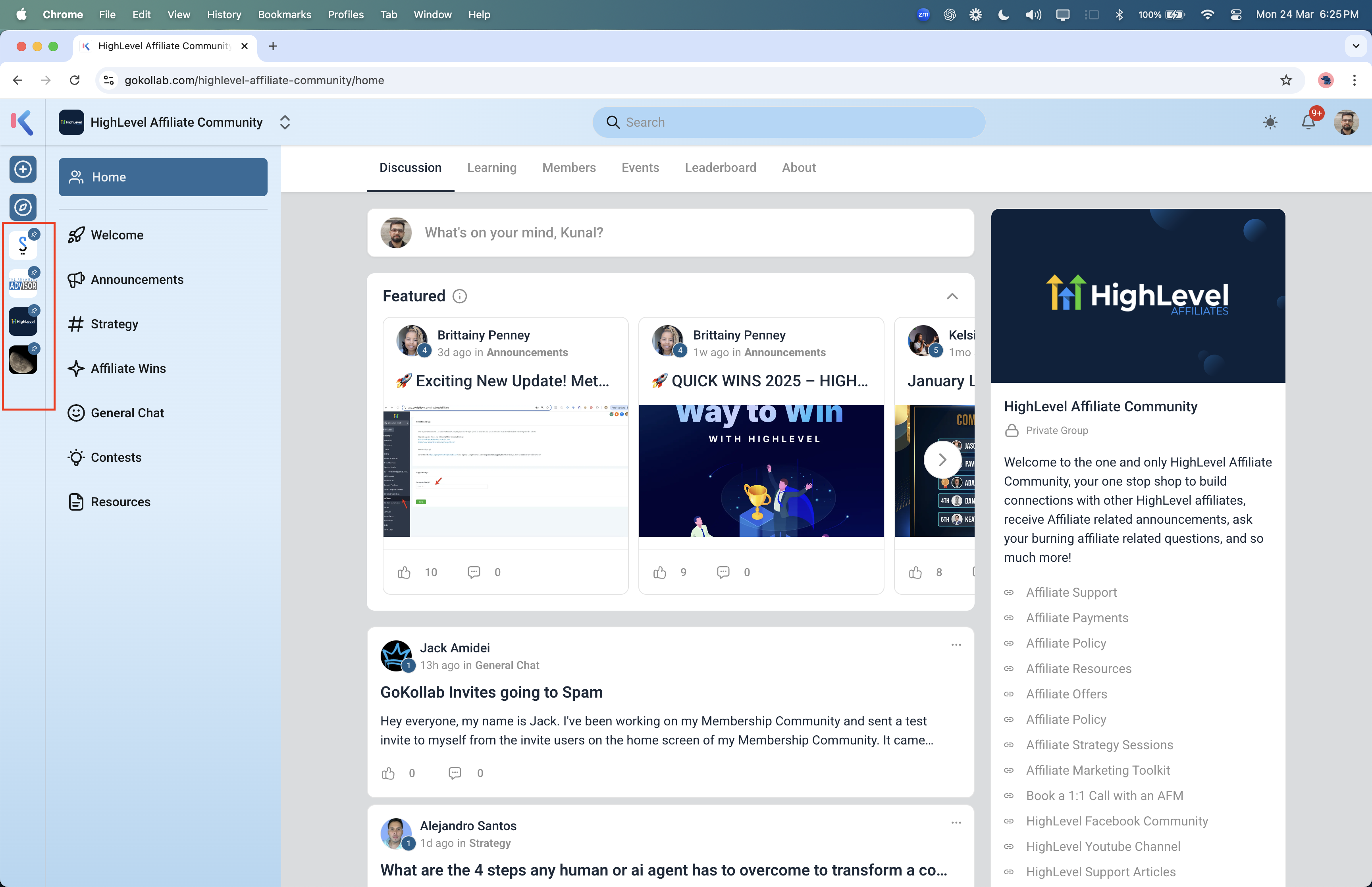
The pin feature adds a shortcut for the groups or courses you use most. When a group is pinned, it moves to the top of the group sidebar and stays at the front of the Group Switcher. In Communities, pinned groups appear first, then the rest of the groups under the subaccount. Courses can also be pinned; they show in the left sidebar under the question mark icon for one click entry. All pins are personal and only affect your navigation view.
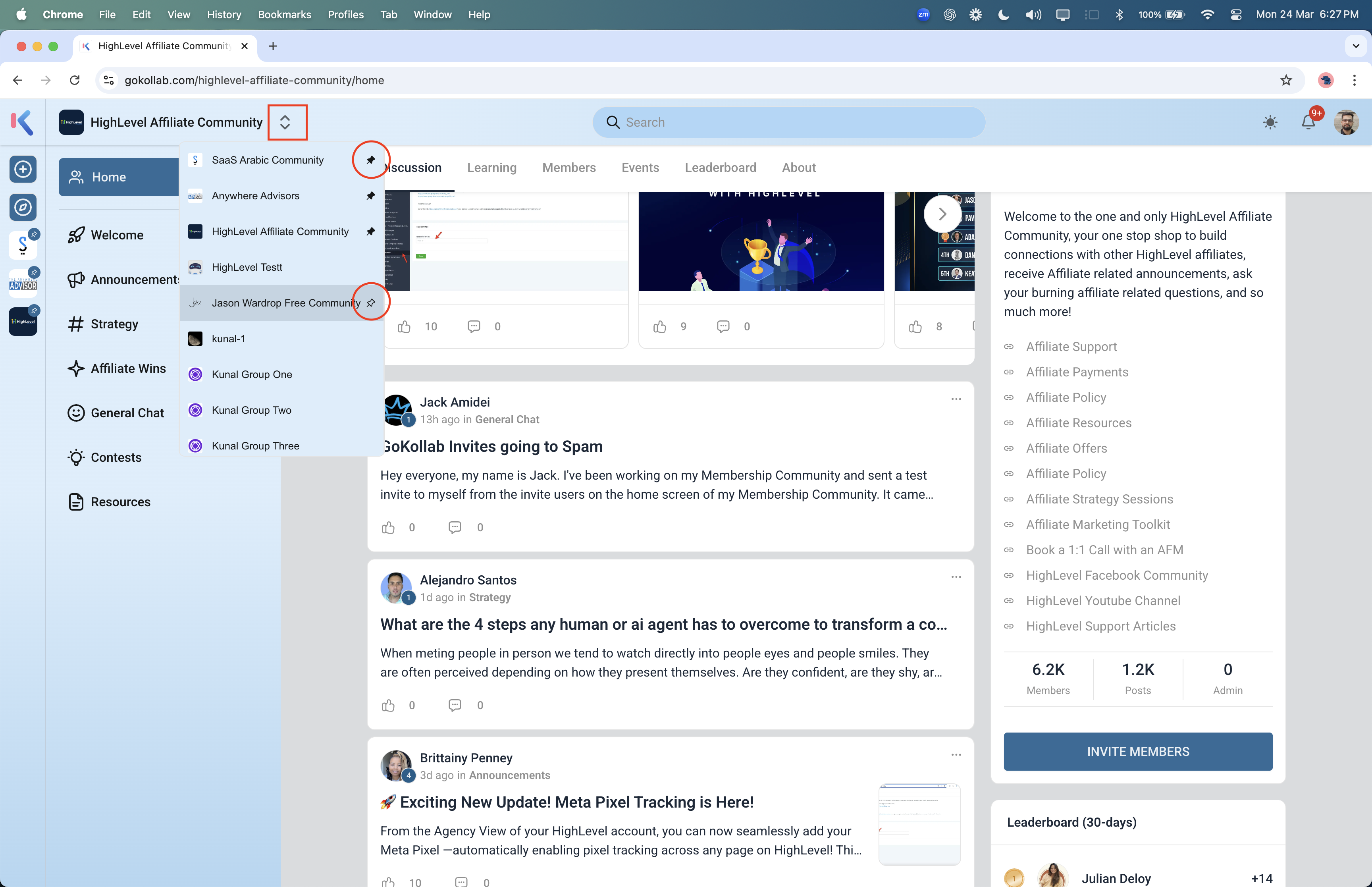
You find the pin option via the Group Switcher in the top navigation bar. Hovering over a group card reveals a pin icon that you can click to add the group to your pinned list. The same concept applies to courses, where a pin adds the course to the sidebar. Unpinning restores the original ordering.
03How businesses use pinned groups
- Coaching business. A coach opens the Group Switcher, finds the client group they consult with most, hovers to reveal the pin icon and clicks it. The group then stays at the top of the sidebar for quick entry during daily sessions.
- Fitness studio. The studio manager locates a popular workout course in GoKollab, selects the pin option, and the course appears under the question mark icon in the left sidebar. Team members can select the pinned course whenever they need to reference the routine.
- Online education platform. An administrator opens the Group Switcher, pins the primary discussion group for a new semester, and the group appears first in the Communities list. When the semester ends, they open the same switcher and unpin the group to return it to its normal spot.
04The numbers and rules that matter
- Users can pin up to 4 groups in both GoKollab and Communities.
05How to set up and use pinned groups in HighLevel
Pin a group
- Open the Group Switcher from the top navigation bar.
- Scroll until you see the group you want to pin.
- Hover over that group card to make the pin icon appear on the right.
- Click the pin icon to attach the group as a favorite.
- Confirm the group now shows at the top of the sidebar and in the Group Switcher.
Pin a course
- Open GoKollab and locate the desired course.
- Click the pin option to add the course to the left sidebar under the question mark icon.
- Select the newly pinned course from the sidebar whenever you need quick access.
Unpin a group
- Open the Group Switcher.
- Find the pinned group displayed at the top of the list.
- Click the unpin icon located on the right side of that group card.
- Observe the group move back to its regular position in the list.
06What it looks like in HighLevel
07Things to know before you rely on it
- You can pin a maximum of four groups in each view, whether you are in GoKollab or Communities.
- Pinning only changes your own navigation; it does not alter group visibility for other members.
08How it connects to the rest of HighLevel
- Manage your Communities and Courses with GoKollab Studio GoKollab Studio
- Integration of Membership Courses with GoKollab Course Integration
- GoKollab mobile app (beta v2) for community and course access in HighLevel Mobile App
Michael's take

Pinning groups or courses makes navigation feel quicker for me.