
01Who this is for
- Community owners who want direct control over referral rewards and payout timing.
- Paid members who wish to earn money by sharing personal invite links.
- Founders of subscription based groups seeking a low cost growth channel.
02Community affiliates, explained
Community Affiliates is an internal referral system built into GoKollab. When the feature is turned on, each paid member gets a personal invite link. If a new visitor uses that link and completes a paid membership, the referrer earns a commission calculated from the percentage set by the community owner. The owner manages all payouts themselves, marking them as Completed or Failed, and can download member bank details via a CSV file.
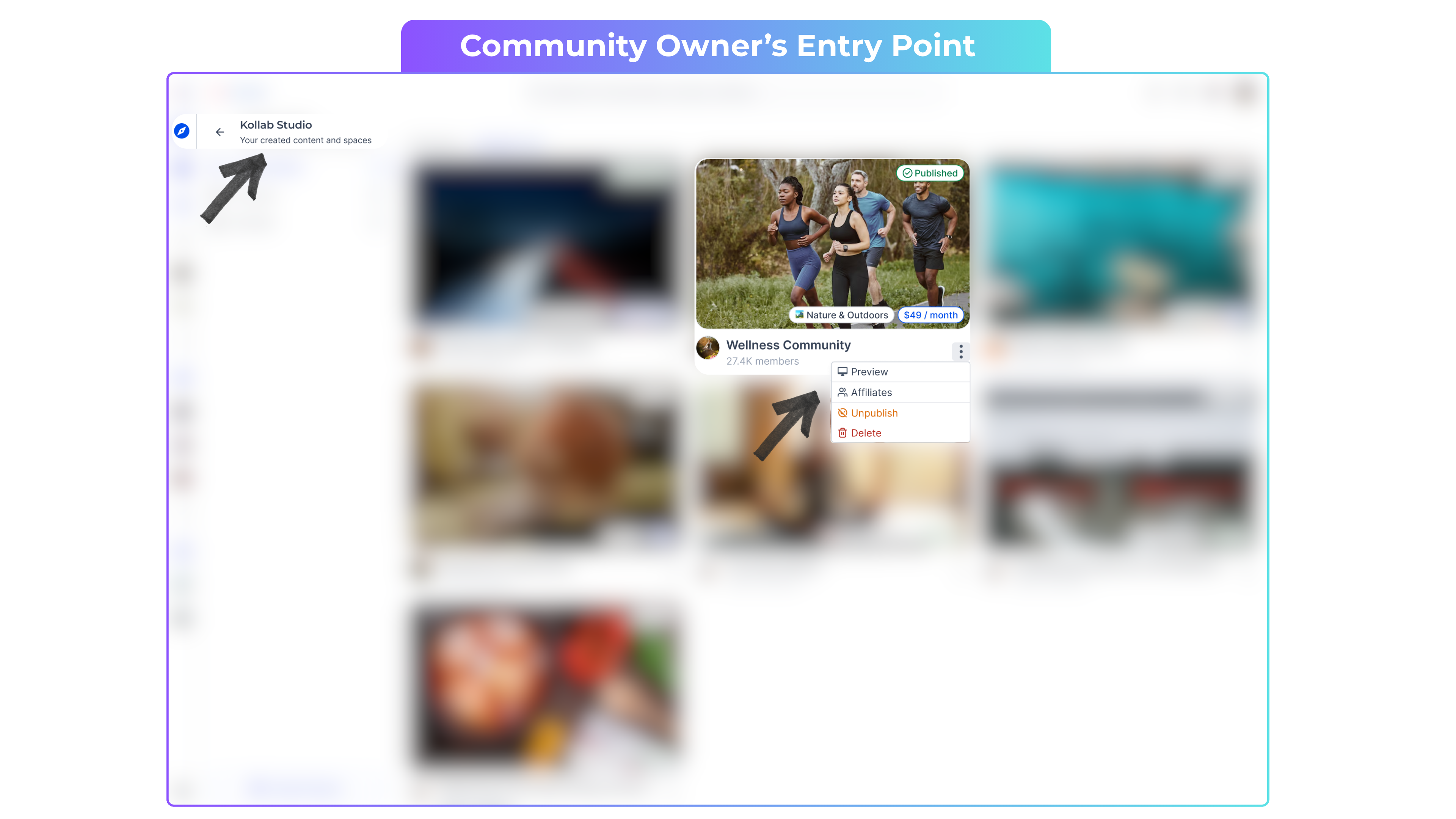
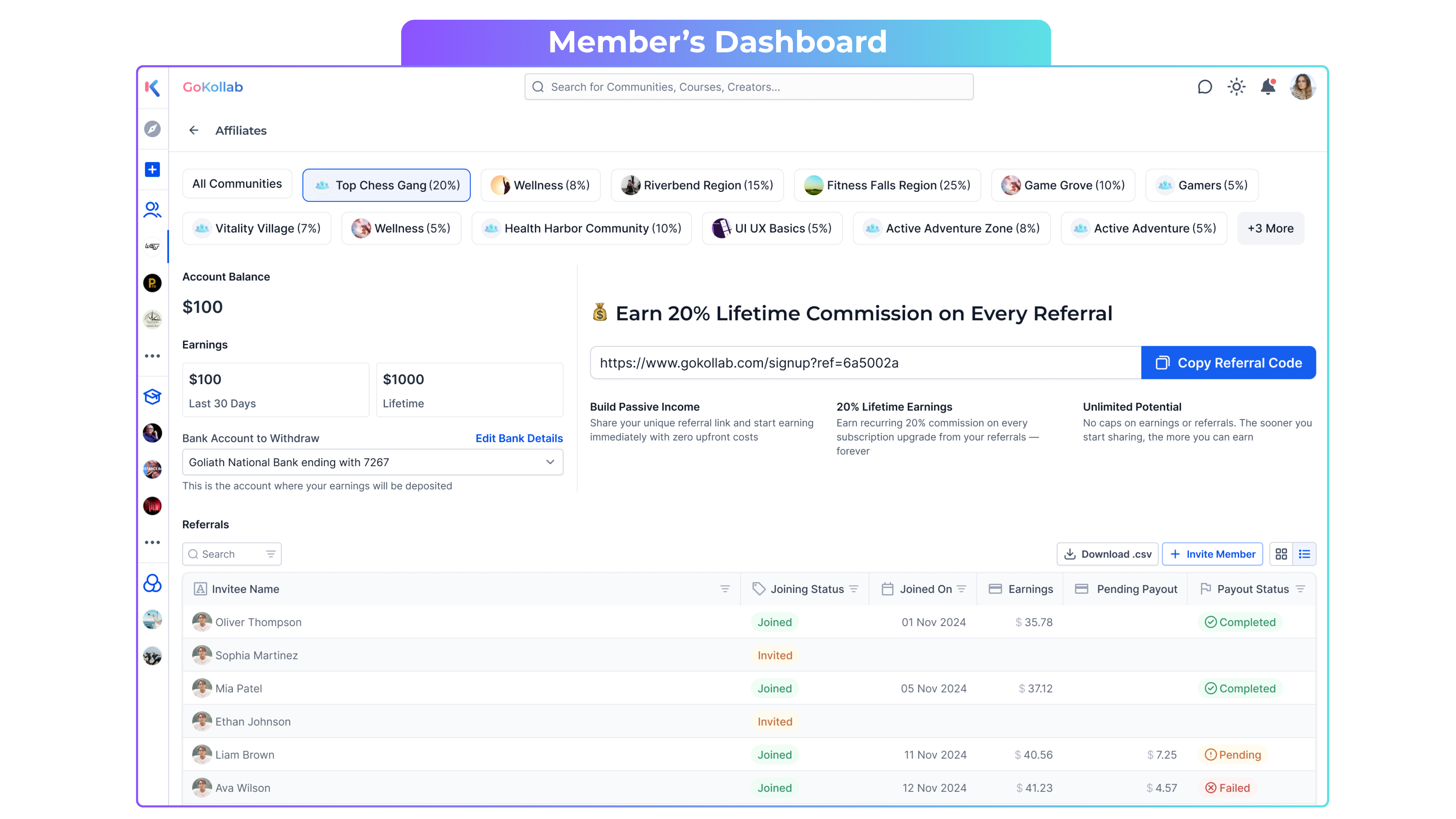
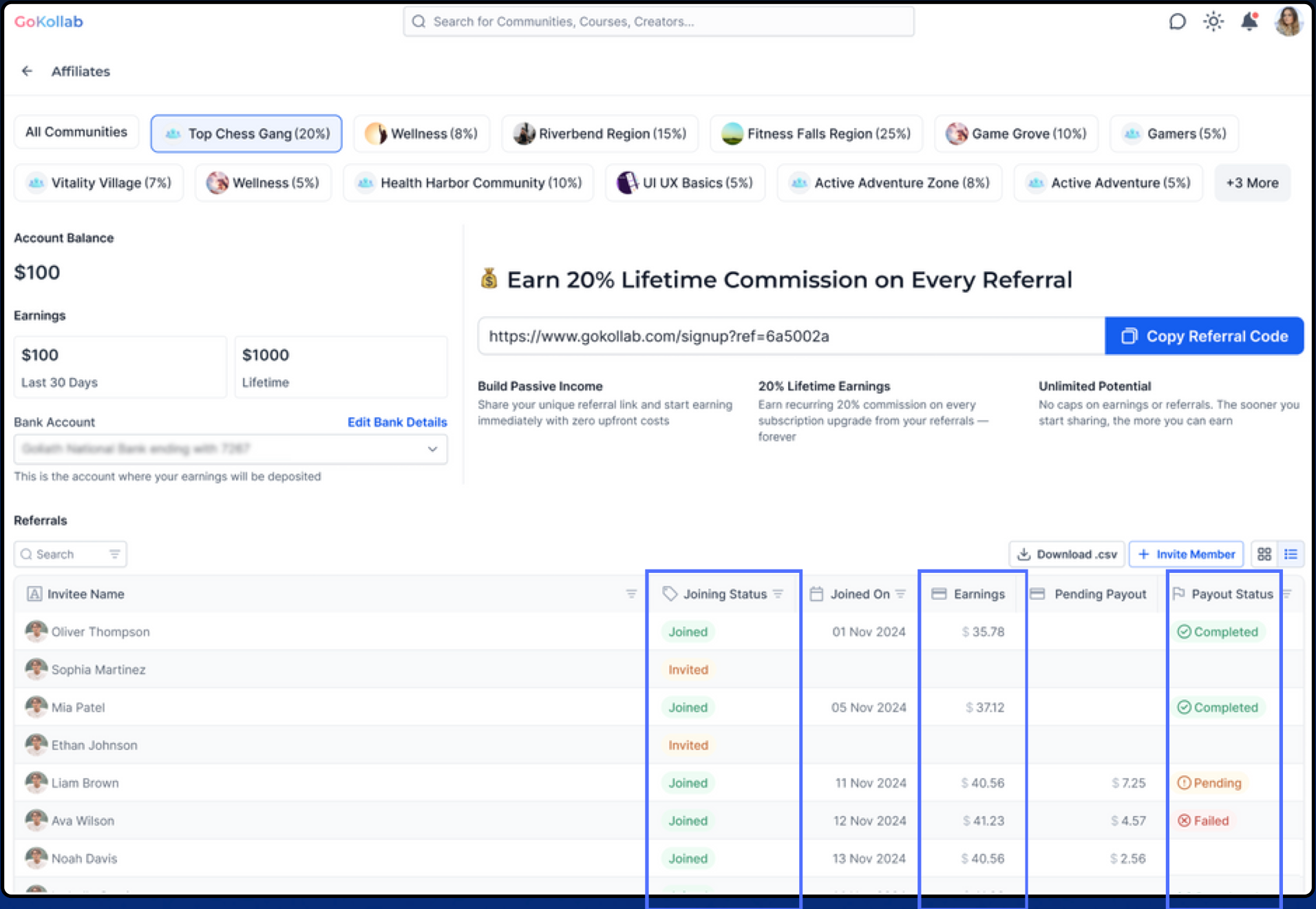
The affiliate tools live inside Kollab Studio. Owners access commission settings and the referral dashboard from the community’s kebab menu. Members view their earnings, pending payouts, and invite links from their own Affiliate dashboard accessed through the profile menu. All data updates in real time as members join and payments are processed.
03How businesses use community affiliates
- Fitness coaching community. The owner opens Kollab Studio, selects Affiliates from the community kebab menu, and sets a 10% commission. Members copy their unique links and share them on social media. When new members join using those links, the owner sees the referral rows in the dashboard and marks payouts after transferring funds.
- Online education platform. The platform’s administrator defines a 15% commission in the Affiliates settings. Instructors receive personal invite links, distribute them to their audiences, and track earnings on their Affiliate dashboard. The admin downloads the CSV of bank details to process monthly payouts.
- Professional networking group. Group leaders enable Community Affiliates and set a 5% commission. Members obtain their invite link from the Affiliate section of their profile, share it with peers, and watch earnings accumulate. Leaders monitor total referral revenue and update payout status directly in the referrals table.
04How to set up and use community affiliates in HighLevel
Set commission %
- Open Kollab Studio.
- Click the kebab menu (three dots) next to the desired community.
- Choose Affiliates from the menu.
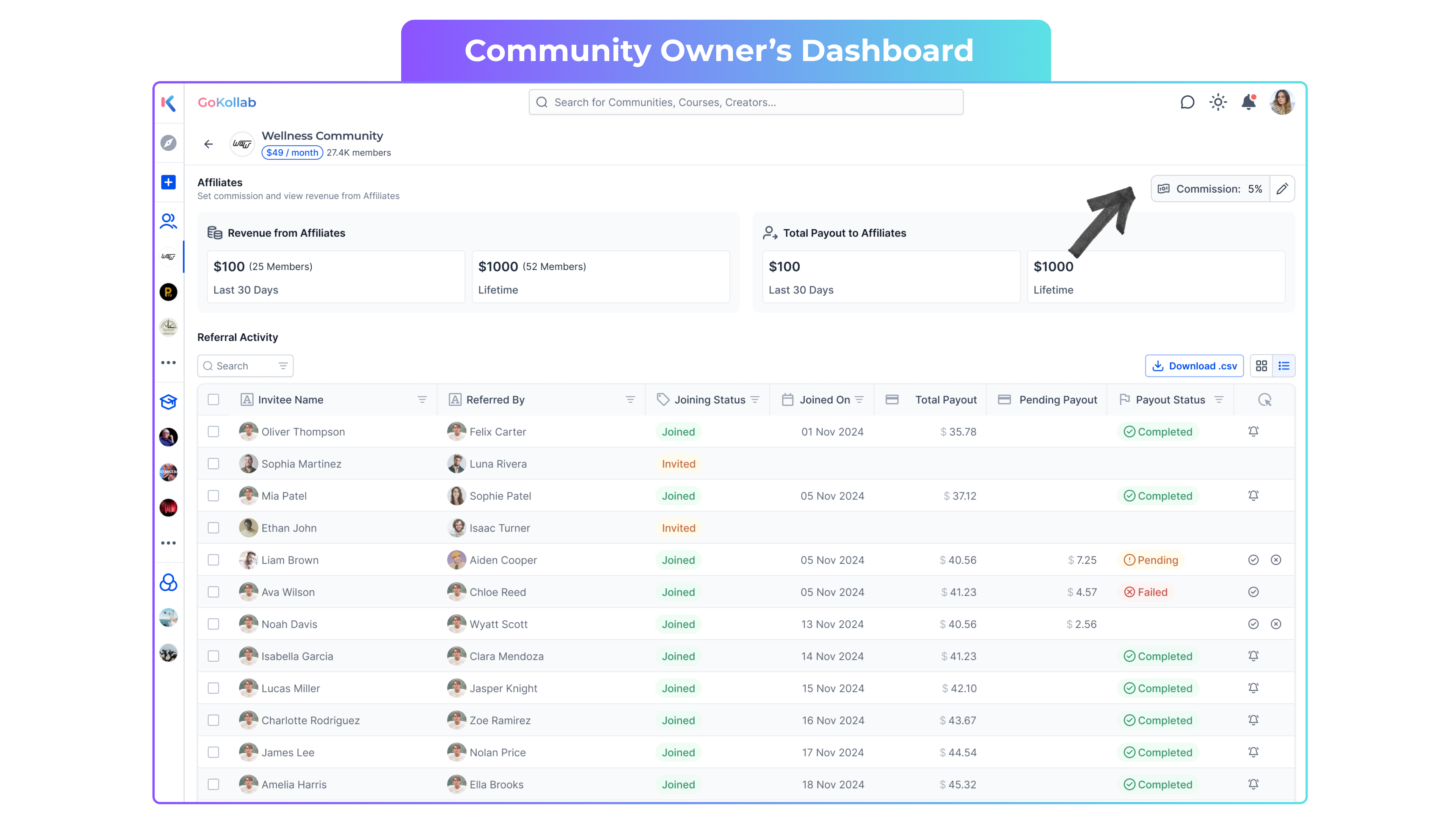
- Enter the desired commission percentage in the top right field and save.
Access owner affiliate dashboard
- Open Kollab Studio.
- Click the kebab menu (three dots) next to your community.
- Select Affiliates to open the dashboard.
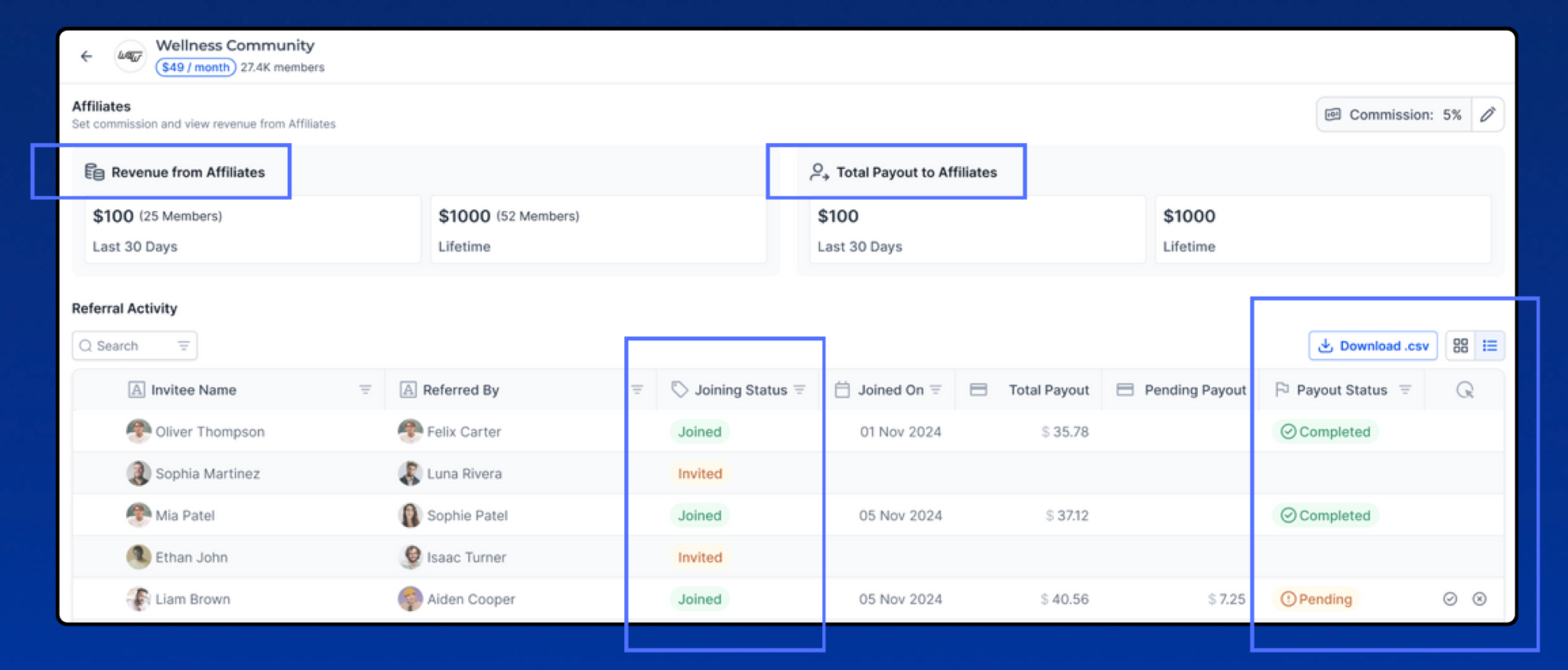
- Review revenue from affiliates and total payouts displayed at the top.
- Manually mark payout statuses by clicking the tick for Completed or the cross for Failed.
- Click Download CSV at the top right of the referrals table to obtain bank details for payouts.
Access member affiliate dashboard
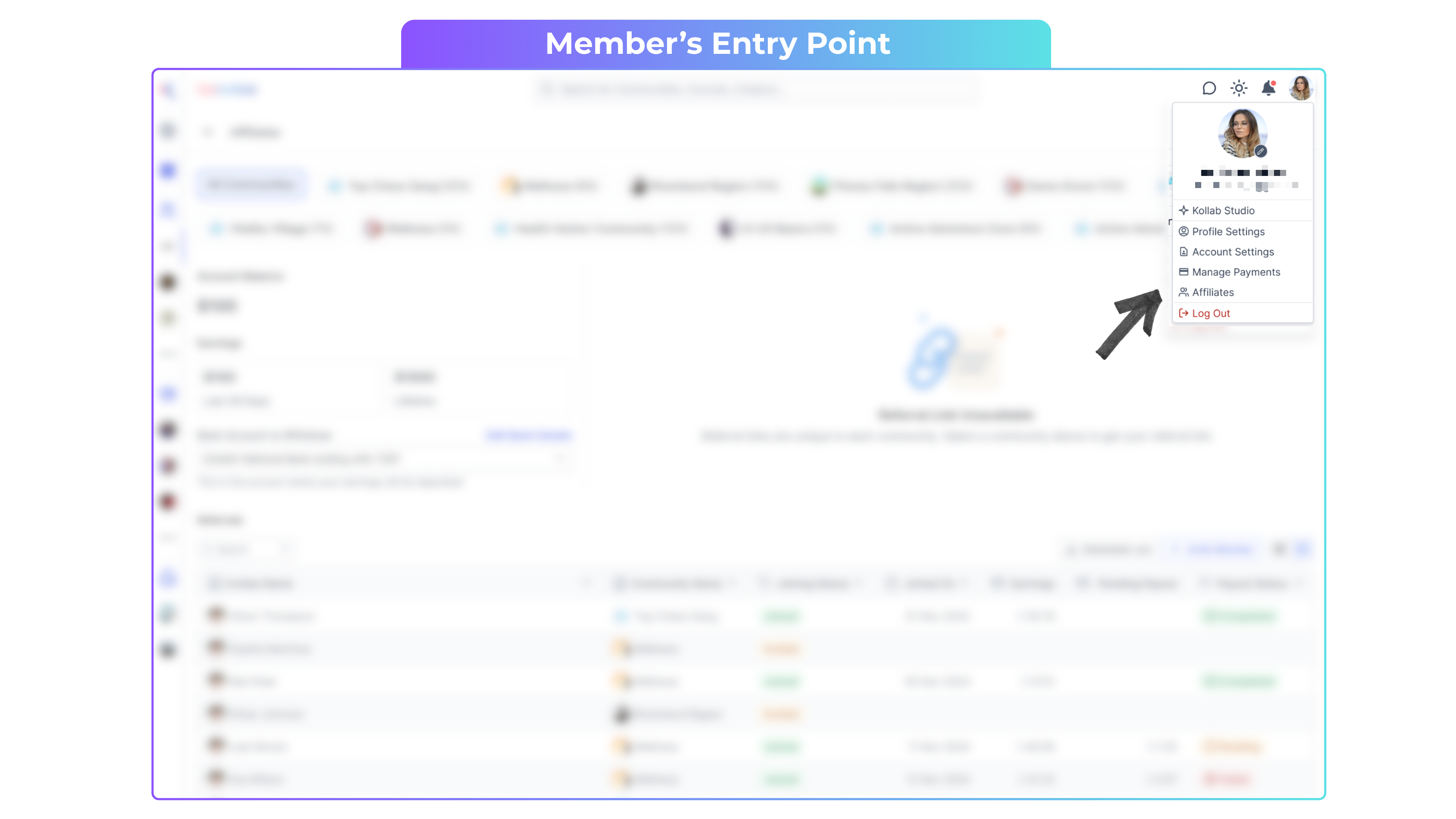
- Click your Profile Icon in the top right corner to open the account menu.
- Select Affiliates.
- View your personal invite link, account balance, earnings, and pending payouts.
- Ensure your bank details are entered before you start referring so you can receive payouts.
05What it looks like in HighLevel
06Settings that matter
- Commission %. Determines the percentage of each referred paid membership that will be awarded to the member who shared the invite link.
07Things to know before you rely on it
- Only paid members receive personal invite links.
- Affiliate dashboards appear only for communities that have the affiliate program enabled.
- Payouts are managed by community owners, not by Kollab.
08How it connects to the rest of HighLevel
- Manage your communities and courses with GoKollab Studio. GoKollab Studio
- View and manage purchases, memberships, and payments in GoKollab. Manage purchases
- Start a 30 day HighLevel trial to explore GoKollab features. 30 day trial
Michael's take

Be careful: The affiliate program puts payout responsibility on you, so you need reliable banking info and a process to mark payments as completed or failed. Mistakes in tracking or payment can erode trust quickly.
When it works, members can become a marketing engine and you keep full control over commissions and cash flow.