
01Who this is for
- Community owners, gain a single place to update media, preview sales pages, and control publishing.
- Course creators, can see a curriculum overview on sales pages and toggle course visibility quickly.
- Founders selling digital products, keep all community and course settings in one view without moving data.
02Kollab Studio, explained
Kollab Studio consolidates every community and course you have created into a single workspace. From the dashboard you can preview enhanced sales pages, edit publish status, and see media synchronizations.
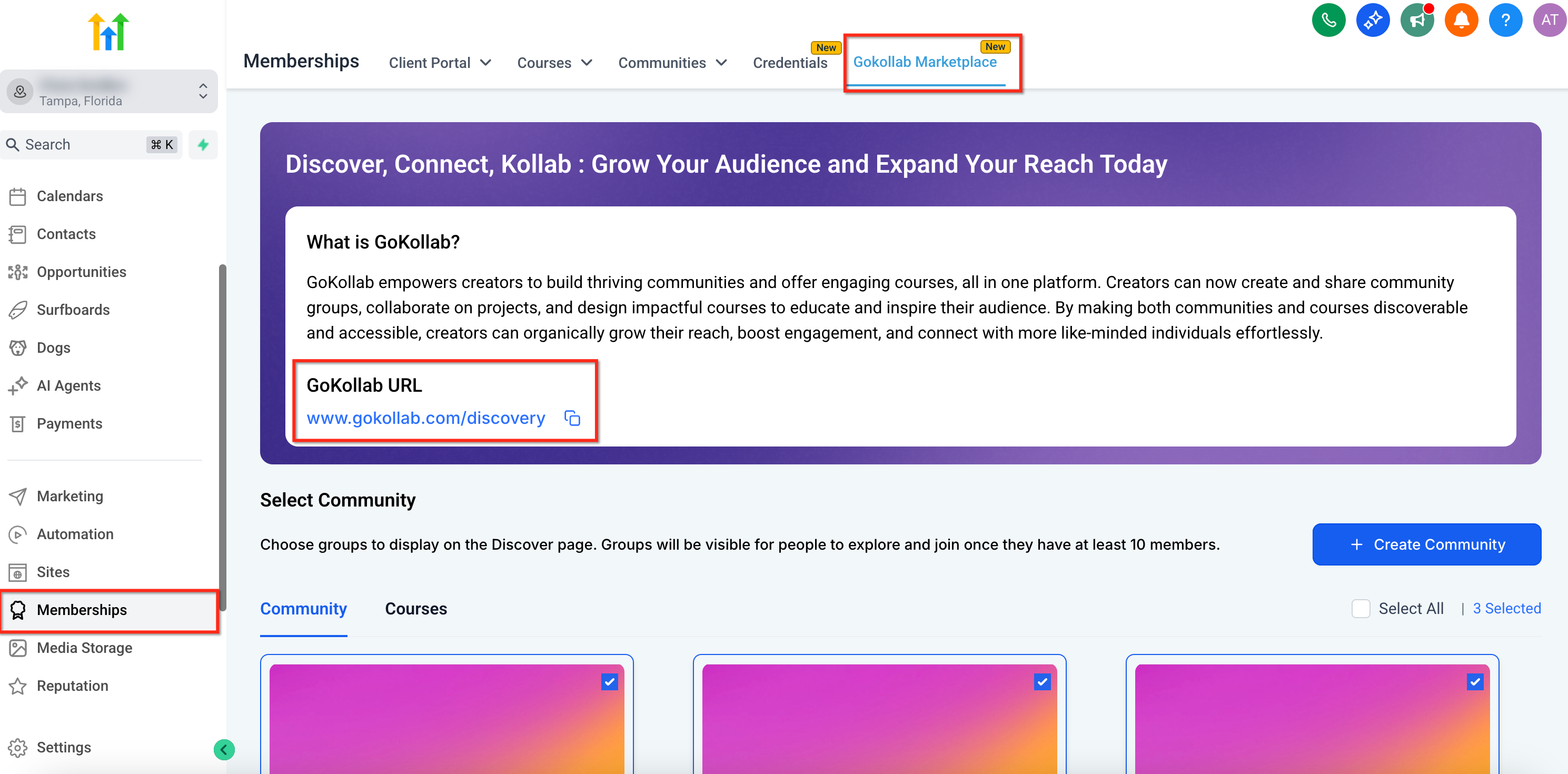
The feature lives under Memberships > Gokollab Marketplace. After opening the Kollab Studio dropdown you will see separate tabs for Communities and Courses, each showing only the items you personally created.
03How businesses use Kollab Studio
- Fitness studio community. Open Kollab Studio, select the Communities tab, and preview the sales page carousel that displays images and videos from the About page. Use the publish toggle to make the community live or hidden.
- Online tutoring service. In Kollab Studio, go to the Courses tab, view the structured curriculum preview that lists modules, lessons and thumbnails, and adjust the course’s publish status with a single click.
- Hobbyist membership site. Access Kollab Studio, verify that the media on the About page appears automatically in the community sales page carousel, then keep the listing current by editing the media or unpublishing inactive groups.
04The numbers and rules that matter
- Supported video sources: YouTube, Loom, Vimeo.
05Before you start
- Use the same email address for both your HighLevel dashboard and GoKollab login.
- You must be the original creator of a community or course for it to appear in Kollab Studio.
06How to set up and use Kollab Studio in HighLevel
Access and manage Kollab Studio
- Navigate to Memberships > Gokollab Marketplace from the HighLevel dashboard.
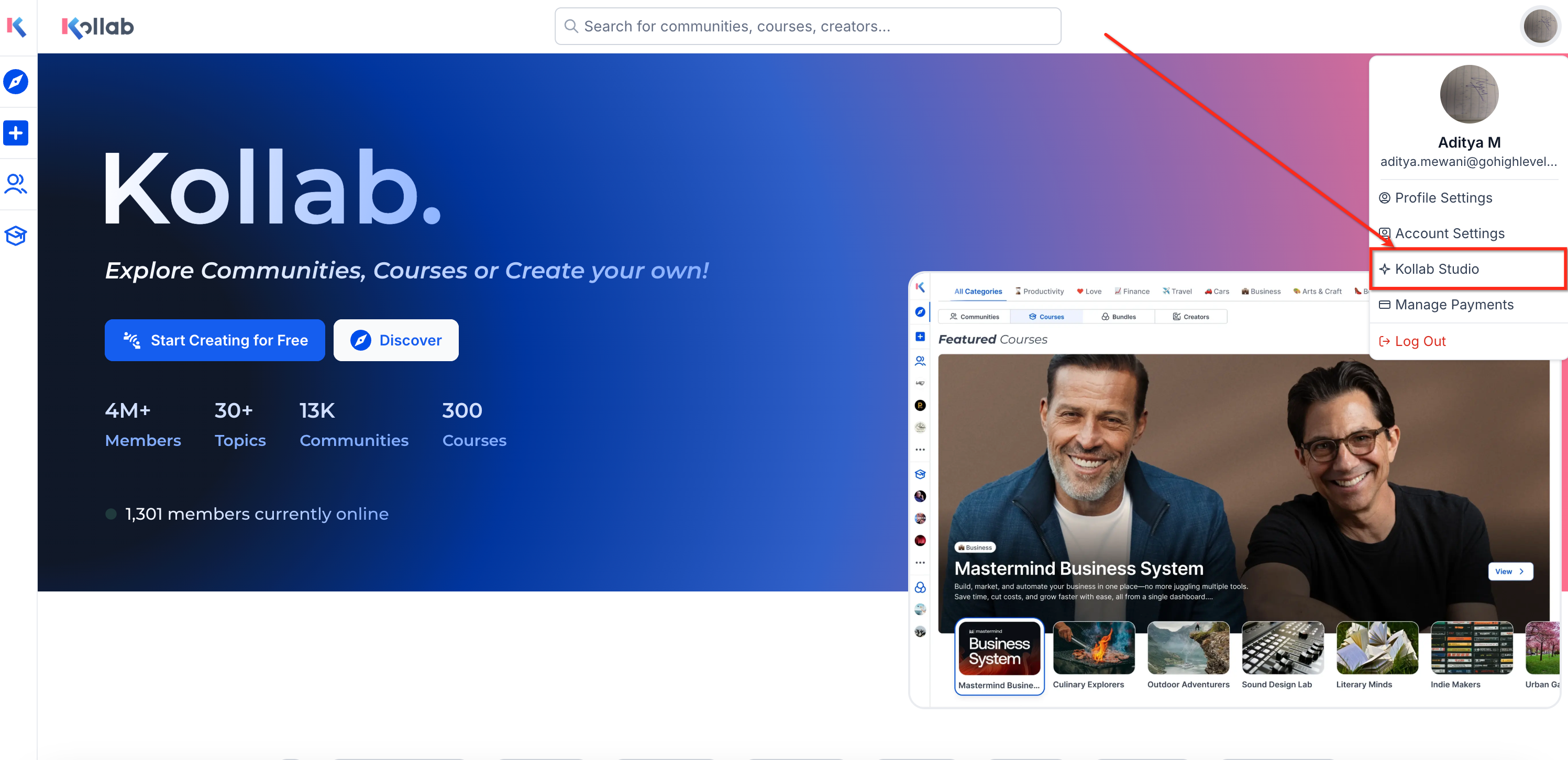
- Click the profile icon in the top right corner and select Kollab Studio from the dropdown menu.
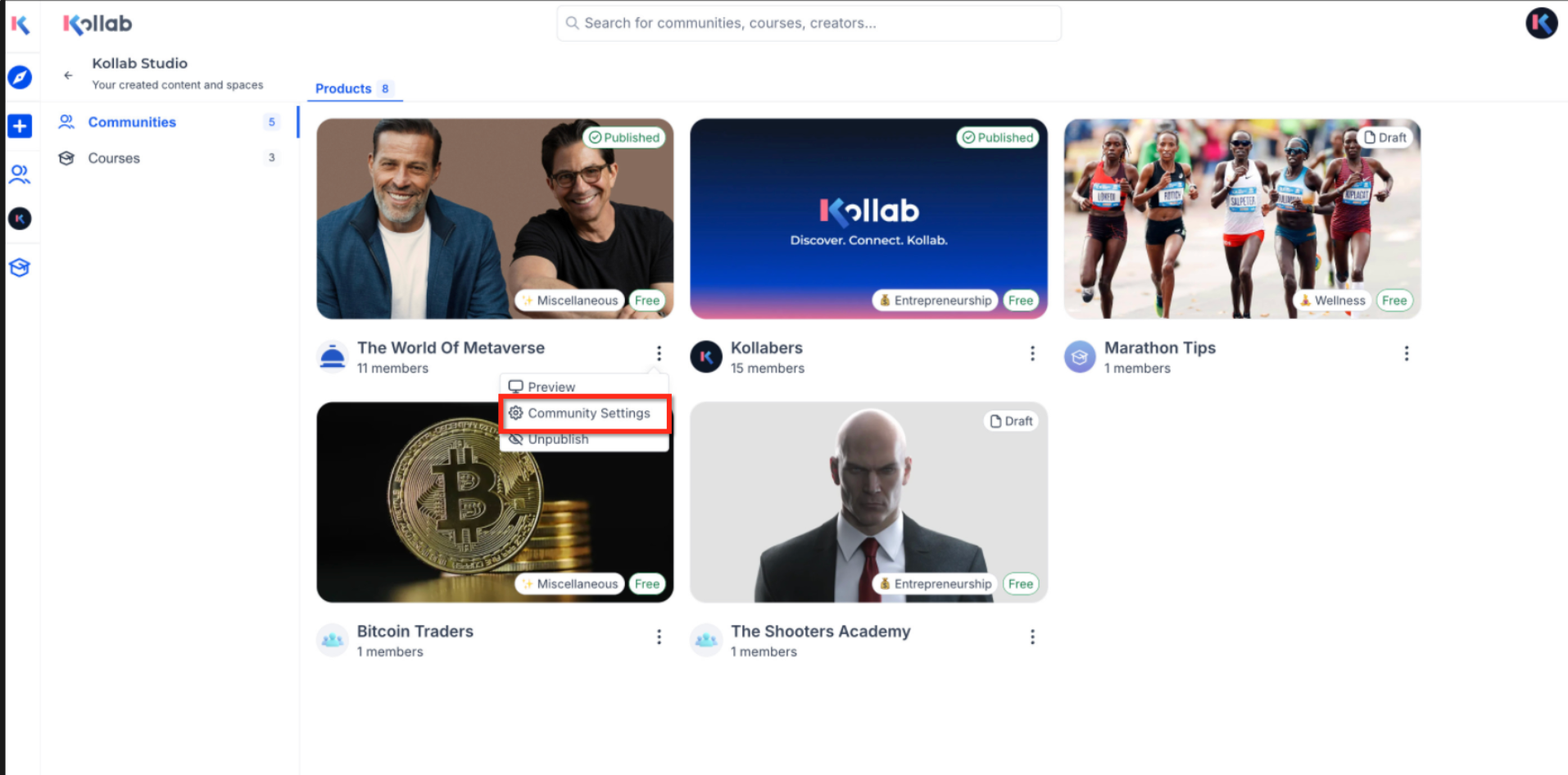
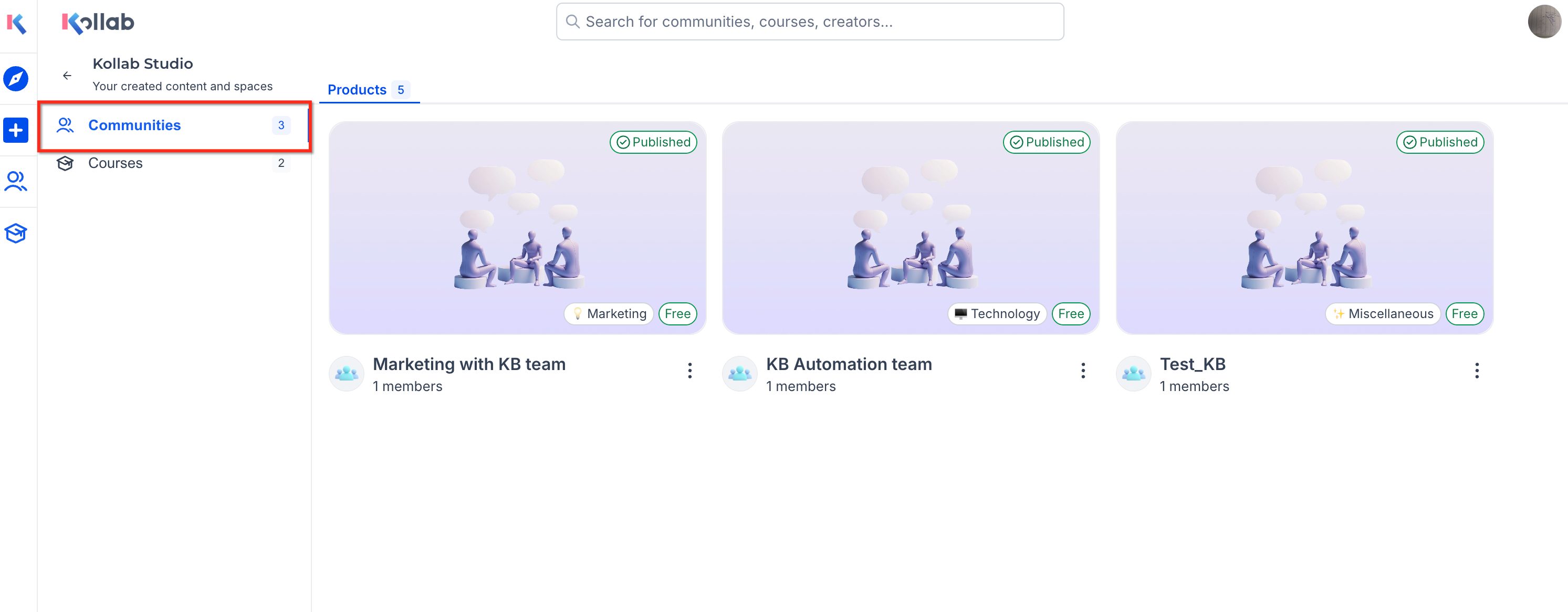
- Open the Communities tab to view the list of communities you created.
- Toggle the publish status of a community after previewing its sales page.
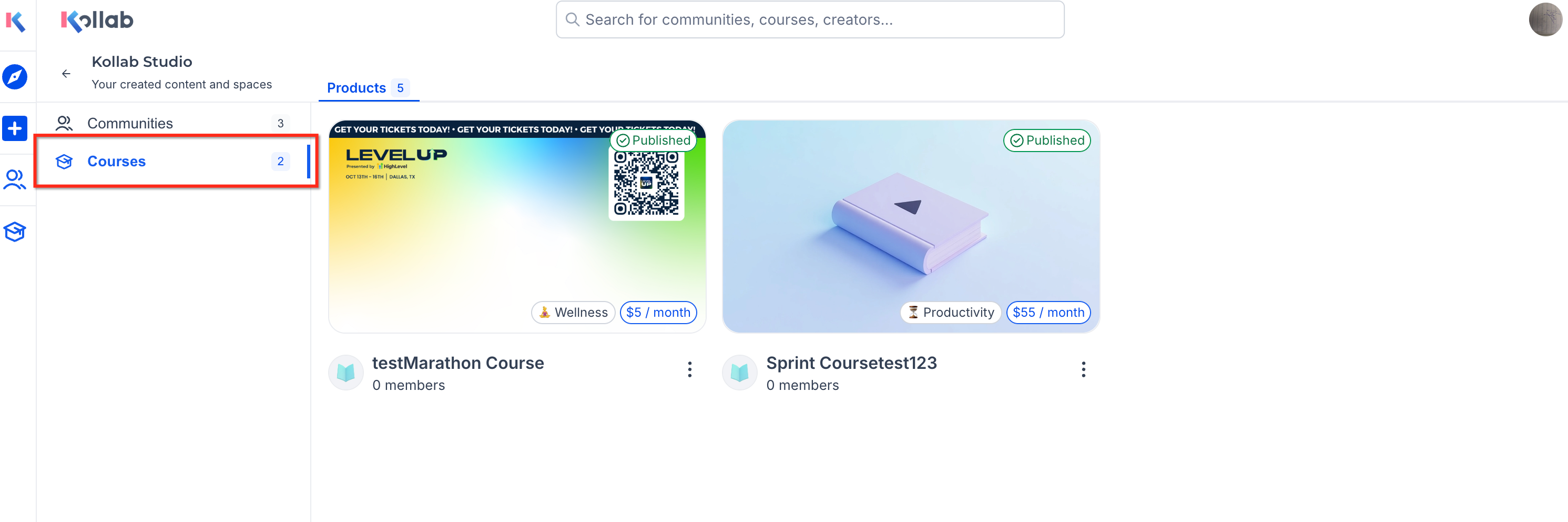
- Open the Courses tab to view and manage the courses you have created.
07What it looks like in HighLevel
08Things to know before you rely on it
- Only communities you have created appear; members or admins of others' communities are not listed.
- Only courses you have personally created in Memberships are shown; added marketplace courses also appear.
- Media added to a community About page syncs automatically to the sales page carousel.
- The carousel cycles through images and videos without manual control.
- Supported video sources are YouTube, Loom, and Vimeo.
- Additional course editing options are planned for future updates.
09If something goes wrong
- My community or course does not appear in Kollab Studio.. Confirm you are the original creator and that the email used for HighLevel matches the GoKollab login.
10How it connects to the rest of HighLevel
- Learn how GoKollab integrates with Membership Courses. GoKollab course integration
- Pin favorite groups for faster navigation inside HighLevel. Pin groups
- Explore the GoKollab mobile app for community and course access. Mobile app
Michael's take

Jumping into Kollab Studio can feel overwhelming if you’re used to juggling separate pages for each product. The biggest trap is assuming every community or course will show up automatically; only the ones you created will appear, and mismatched email addresses can hide them entirely.
When the dashboard is set up correctly, you get instant access to media carousels and curriculum previews that keep your sales pages in sync without extra copy pasting. It’s a straightforward way to stay on top of what your members see.