
01Who this is for
- Community managers: they can foster private connections between members without leaving the platform.
- Small business owners running a membership site: direct messaging helps them support members and answer questions quickly.
- Coaches with group programs: they can follow up individually with participants after group sessions.
02GoKollab chats, explained
GoKollab Chats are a built in direct messaging tool for members who belong to the same HighLevel community. The chats stay inside the GoKollab experience, so users do not need to switch to external messaging apps. Conversations are private, searchable, and generate in app notifications when new messages arrive.
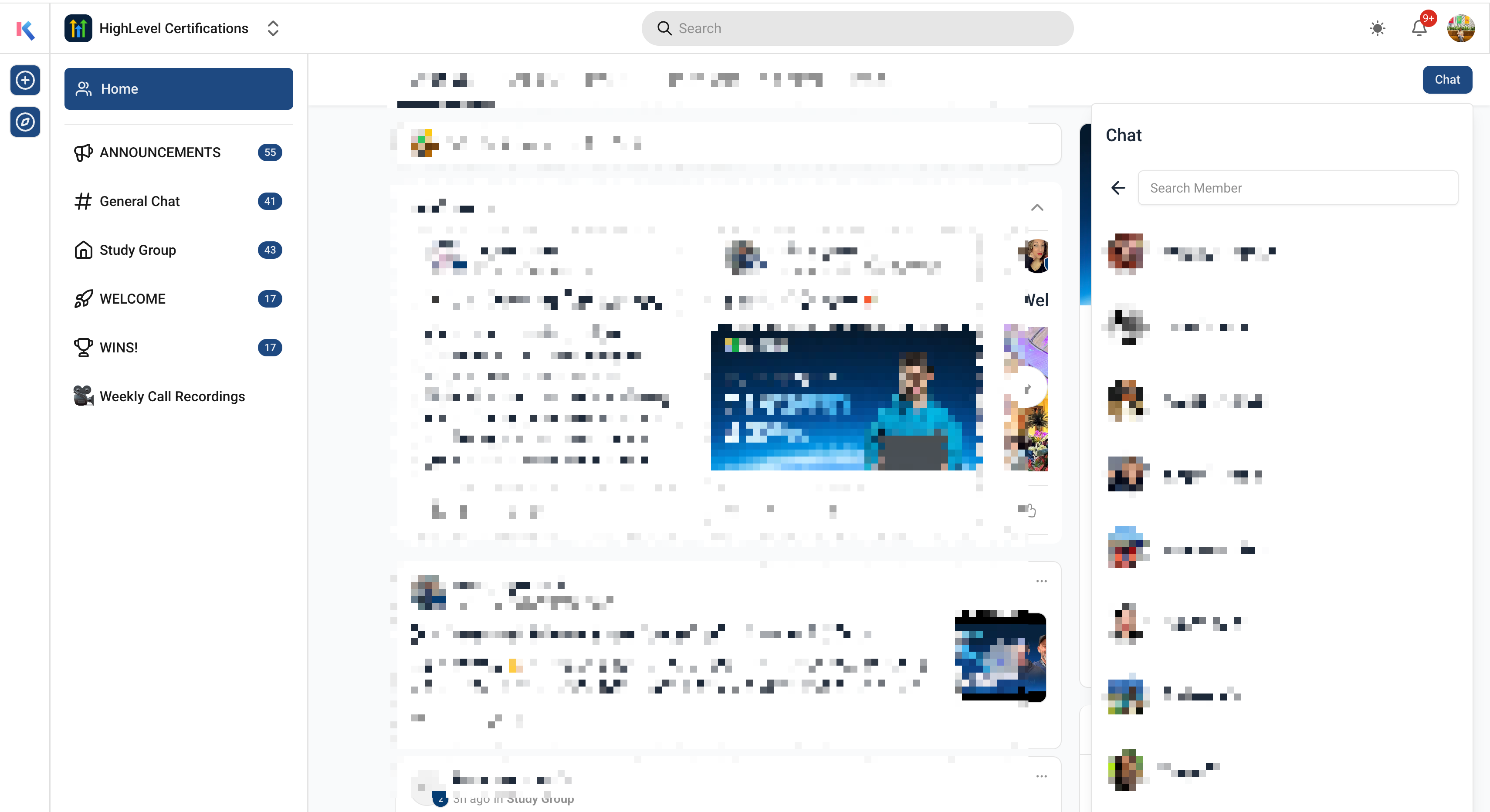
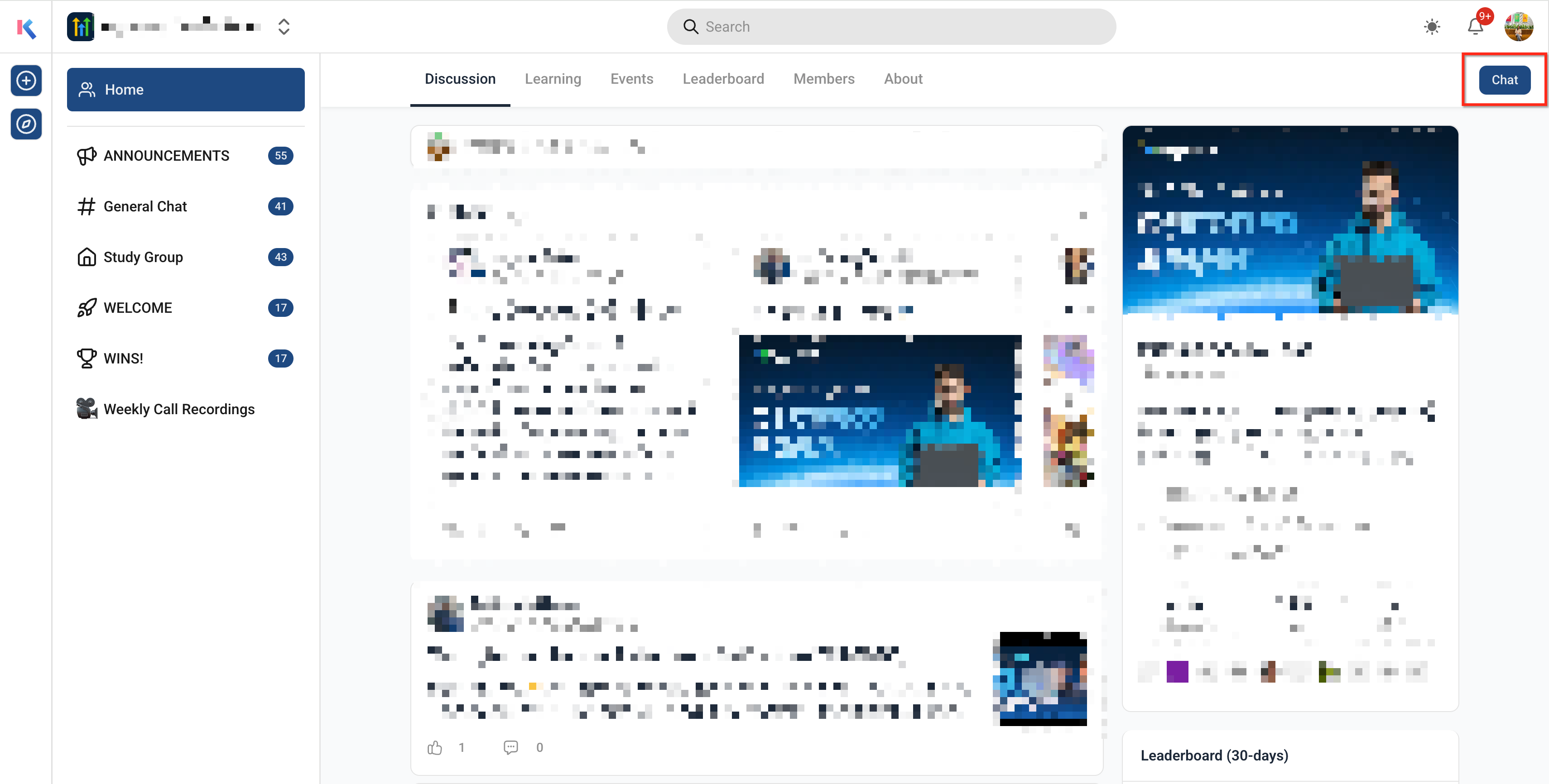
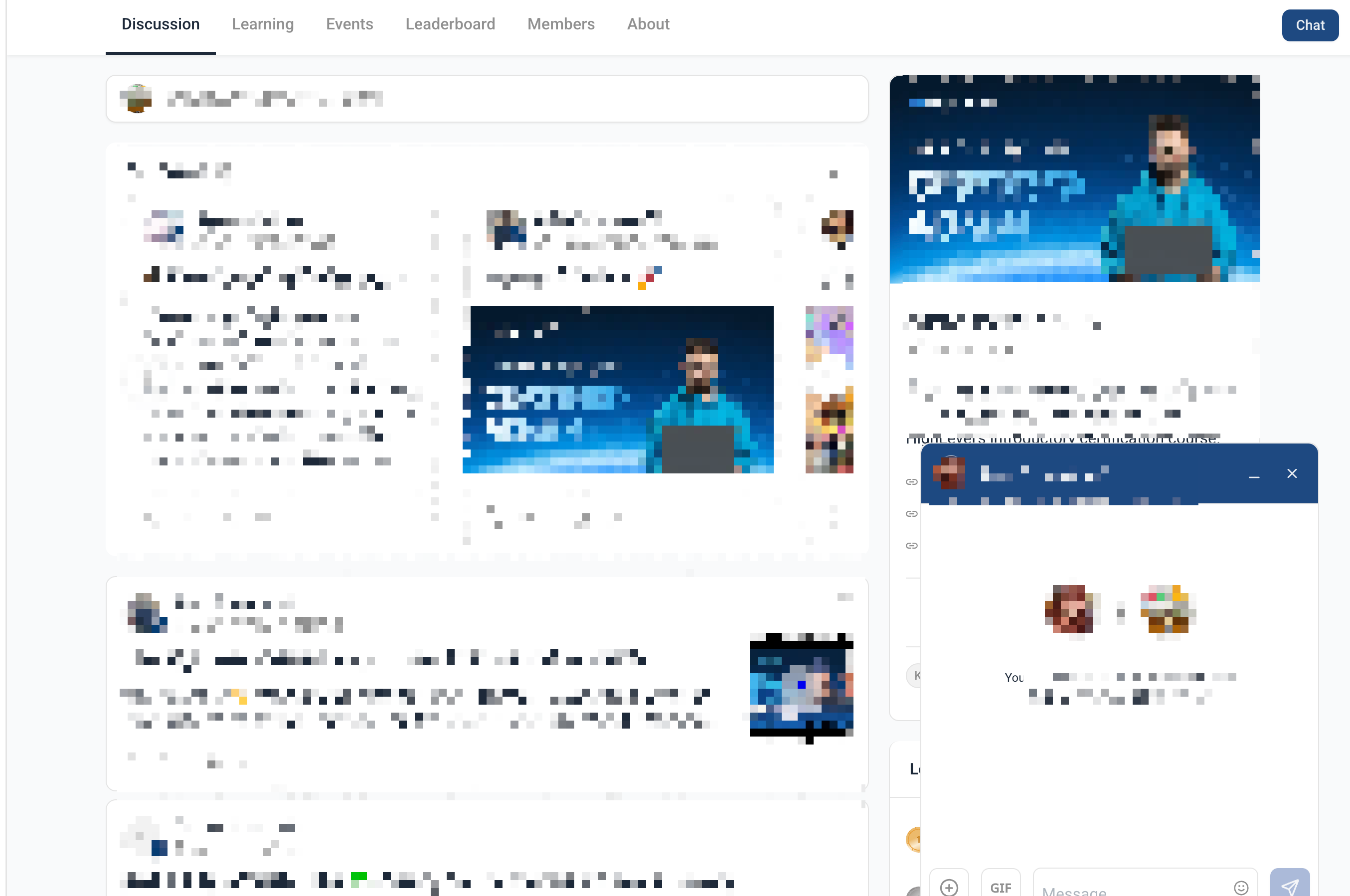
The chat feature appears inside the community area of HighLevel. Users open a community, go to the discussion page, and click the chat icon next to another member to start a private conversation. All ongoing chats are collected in a unified chat inbox that can be opened from the GoKollab interface, where users can also search past messages.
03How businesses use GoKollab chats
- Online coaching business. Coaches can reply privately to client questions from within the community discussion page. They start a chat by clicking the message icon next to a client’s name, type their response, and send it without leaving the platform.
- Digital marketing agency. Agency staff can coordinate one on one with client contacts who share the same community. They locate the client in the discussion view, open a direct chat, and exchange messages while keeping a searchable record.
- Professional association. Members of the association can network privately with peers in the same community. They start chats from the discussion page, use the chat inbox to revisit earlier conversations, and rely on in app alerts for new replies.
04Before you start
- Members must belong to the same HighLevel community.
- Members need to know where the chat option appears on the community discussion page.
05How to set up and use GoKollab chats in HighLevel
Set up a GoKollab direct message
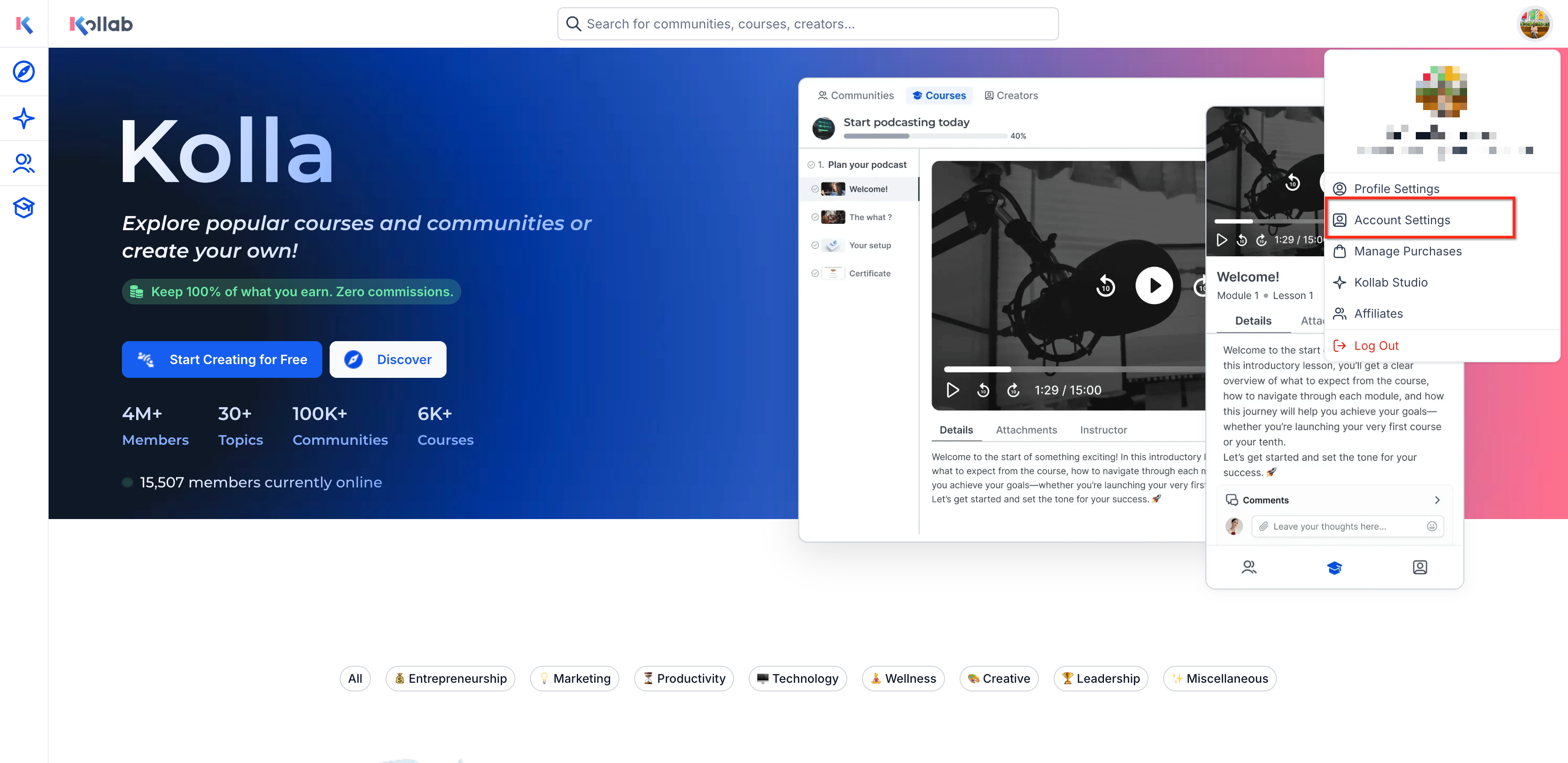
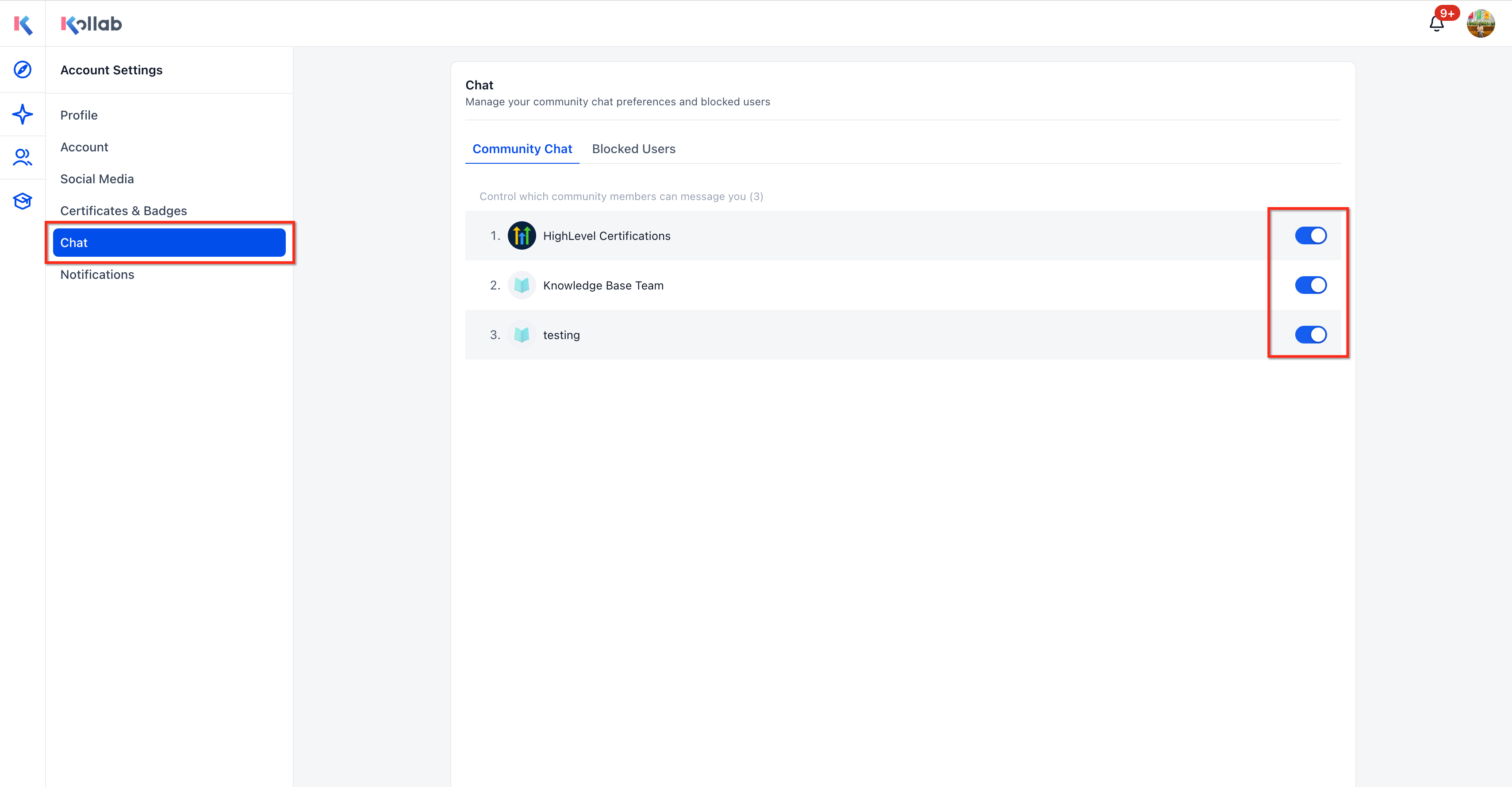
- Log in to GoKollab and review the account settings.
- Open the community where you want to connect with another member.
- Navigate to the community discussion page.
- Locate the member you wish to message.
- Select the chat or message icon for that member.
- Enter your text in the message field.
- Press send to launch the conversation.
- Open the chat inbox to see all active conversations.
- Use the search function to retrieve prior messages when needed.
06What it looks like in HighLevel
07Settings that matter
- account settings. Controls overall configuration for GoKollab features, including chat availability.
08Things to know before you rely on it
- Messages can only be sent to members who share the same community.
- If a member does not appear as available, community access or privacy settings may be restricting them.
- Email, push, or mobile notifications may not be supported; confirm before relying on those types.
09If something goes wrong
- Cannot see chat option for a member. Verify that both users share the same community and that member access, group permissions, and privacy settings allow direct messaging.
10How it connects to the rest of HighLevel
- How to start and use GoKollab chats in HighLevel Start GoKollab chats
- Using HighLevel Kollab Studio to manage communities and courses Manage communities
- Pin your favorite groups in HighLevel for fast navigation Pin groups
Michael's take

Wondering if direct messaging inside your community is worth the effort? It keeps conversations where they belong, so members don’t have to juggle another app and can stay focused on the community’s value.
I’d set up a few test chats right after confirming members share the same community. That lets you see the notification flow and search capability in action before rolling it out to the whole group.