
01Who this is for
- Marketers who send emails from a dedicated domain and need secure links.
- Agencies that manage client domains and must keep SSL status visible.
02SSL certificates for email domains, explained
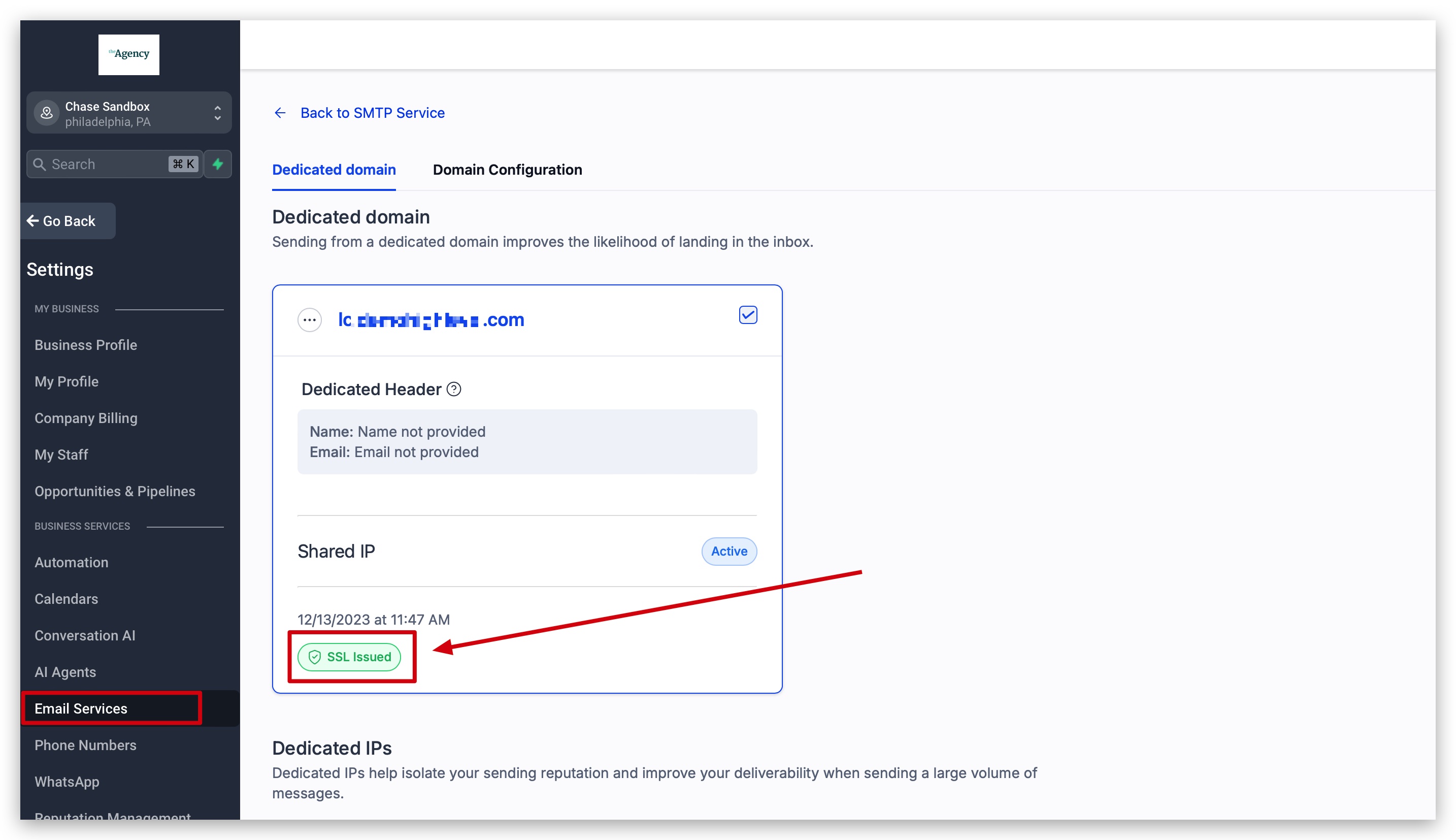
SSL certificates protect every URL generated by HighLevel email for a dedicated domain. When a domain is added and verified, the platform automatically creates a certificate that encrypts tracking links, open pixels, click links and unsubscribe URLs. The certificate status, Issued, Pending, or Unknown, appears in the Dedicated Domain and IP screen.
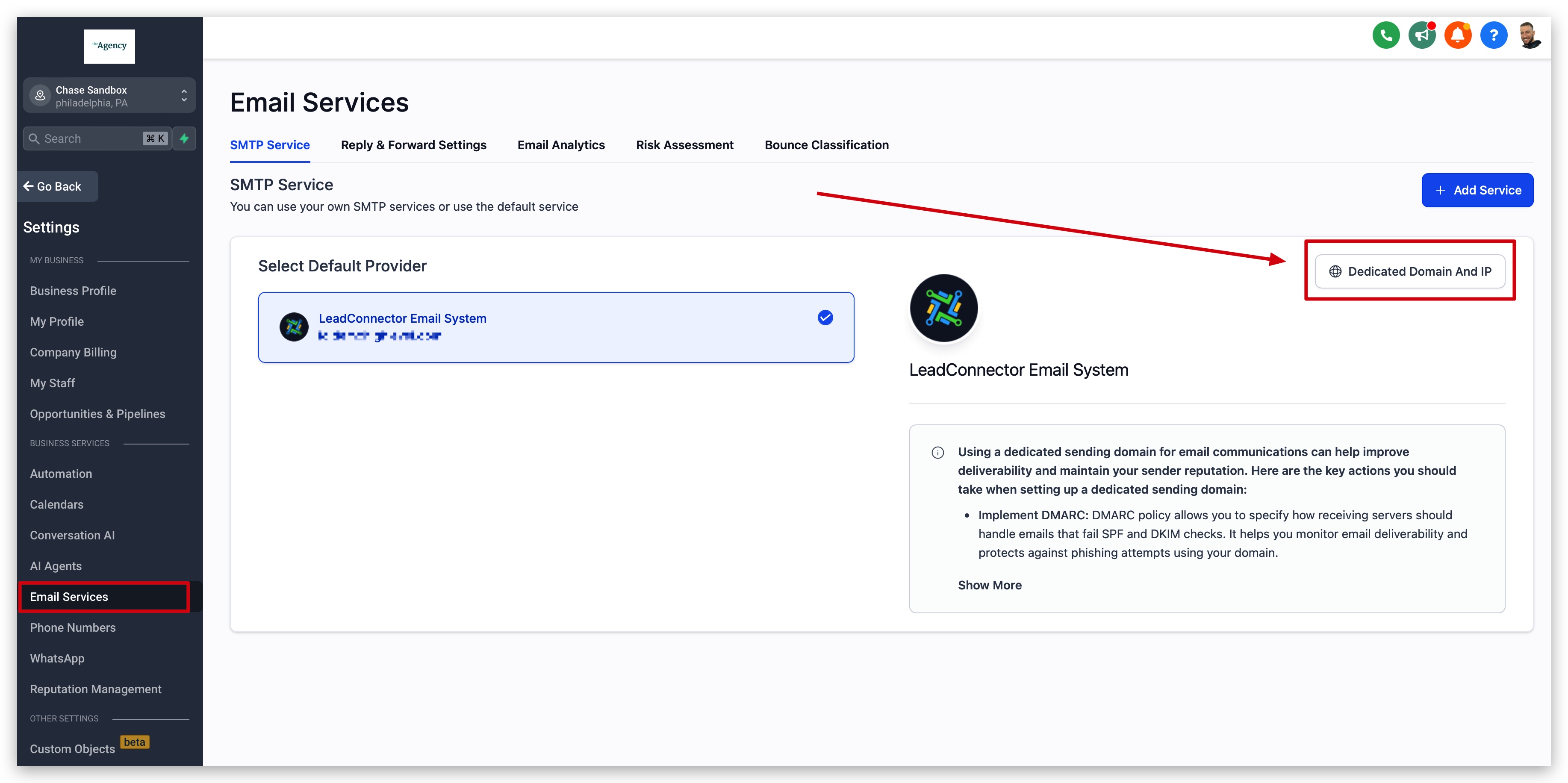
The certificate management lives under Settings, then Email Services, and finally the Dedicated Domain and IP section. From there users can verify the domain, re verify if the status is not Issued, and view the current SSL state. No extra purchase or manual certificate installation is required.
03How businesses use SSL certificates for email domains
- Digital marketing agency. The agency adds each client’s dedicated sending domain, verifies the DNS records, and then clicks Verify domain to trigger SSL issuance. They monitor the status until Issued before launching client email blasts.
- Ecommerce store. The store verifies its custom email domain, clicks Verify Now, and watches the SSL status. Once the certificate shows Issued, all promotional links, cart recovery links and unsubscribe URLs are served over a secure connection.
- SaaS startup. The startup confirms its DNS setup, uses the Verify domain button to issue the SSL certificate, and checks the Dedicated Domain and IP screen regularly to ensure the status remains Issued for ongoing newsletters.
04Before you start
- A dedicated email domain must already be added to the HighLevel account.
05How to set up and use SSL certificates for email domains in HighLevel
Verify domain and trigger SSL issuance
- Open Settings, choose Email Services, then Dedicated Domain and IP.
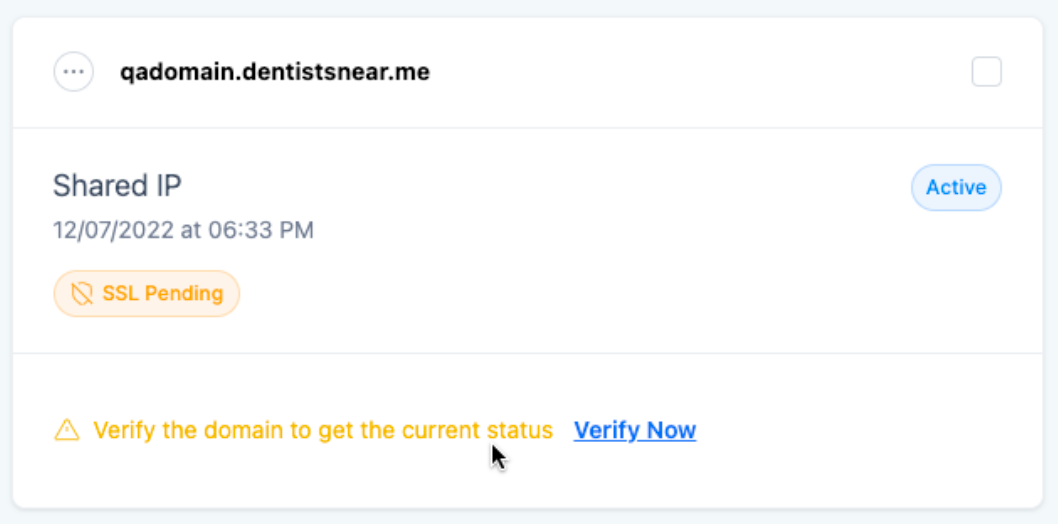
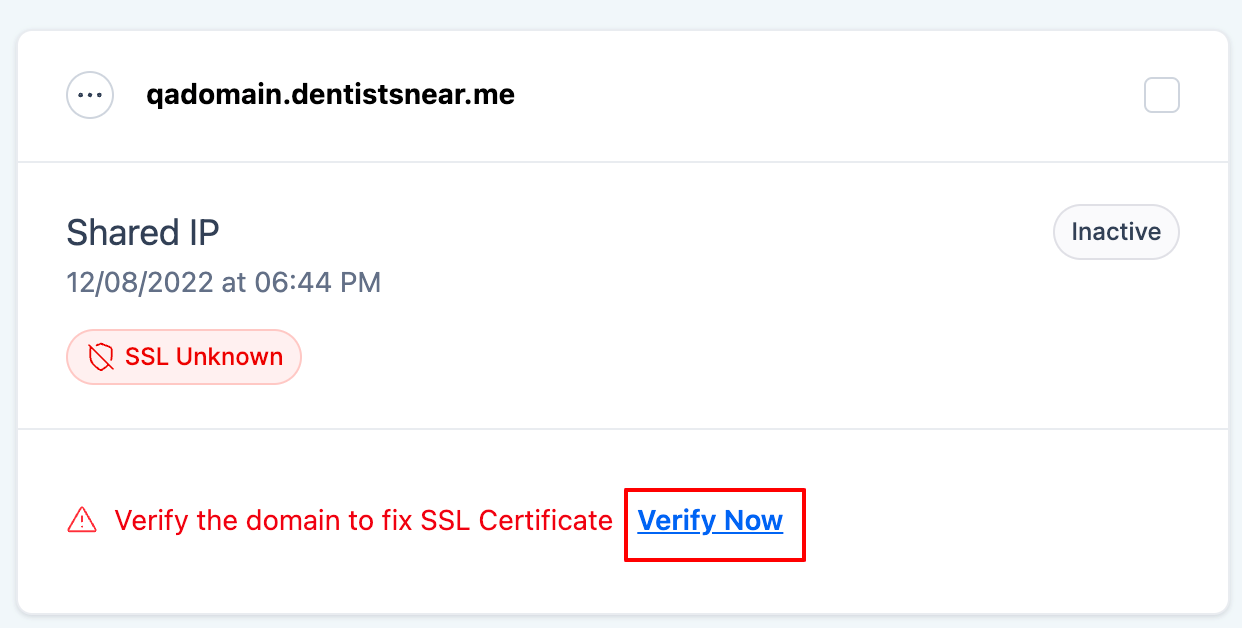
- Select the Verify Now button beside the desired domain.
- Inspect the DNS verification page and confirm all records are correct.
- Press the Verify domain button to start SSL generation.
Check SSL status for a dedicated domain
- Navigate to Settings, then Email Services, and open Dedicated Domain and IP.
- Locate the SSL status column for the domain in question.
- If the status reads Pending, click Verify Now again to re trigger issuance.
- If the status reads Issued, confirm that no further action is needed.
06What it looks like in HighLevel
07Settings that matter
- Dedicated Domain and IP. Displays SSL certificate status and provides the Verify Now and Verify domain actions for each custom email domain.
08Things to know before you rely on it
- SSL certificates are provided at no extra cost when a dedicated domain is verified (per HighLevel's help center, checked November 2026).
- Certificate issuance typically completes within a few minutes; if Pending persists beyond fifteen to thirty minutes, re verify the domain.
- The certificate covers all URLs generated by HighLevel email, including tracking, open, click and unsubscribe links.
09If something goes wrong
- Email link URLs appear broken or show a secure connection error.. Go to Settings > Email Services > Dedicated Domain and IP and click Verify domain to re issue the SSL certificate.
- SSL status remains Pending or Unknown after verification.. Repeat the domain verification steps, ensuring DNS records are correct, then click Verify Now to trigger a new certificate generation.
10How it connects to the rest of HighLevel
- Dedicated sending domain setup and management Dedicated domain overview
- How to add and verify a sending domain in HighLevel Add and verify domain
- HighLevel email warm up and DMARC guide for reliable delivery Email warm up guide
Michael's take

Setting up SSL for a dedicated email domain eliminates the risk of broken links and security warnings in your messages. Once the certificate is in place, every link. Tracking, open, click, or unsubscribe. Behaves like a trusted, encrypted path.