
01Who this is for
- Founders who manage email outreach need to protect their sender reputation and keep campaigns flowing.
- Marketing teams that run regular newsletters must monitor ESP block alerts to avoid delivery interruptions.
02ESP block notifications, explained
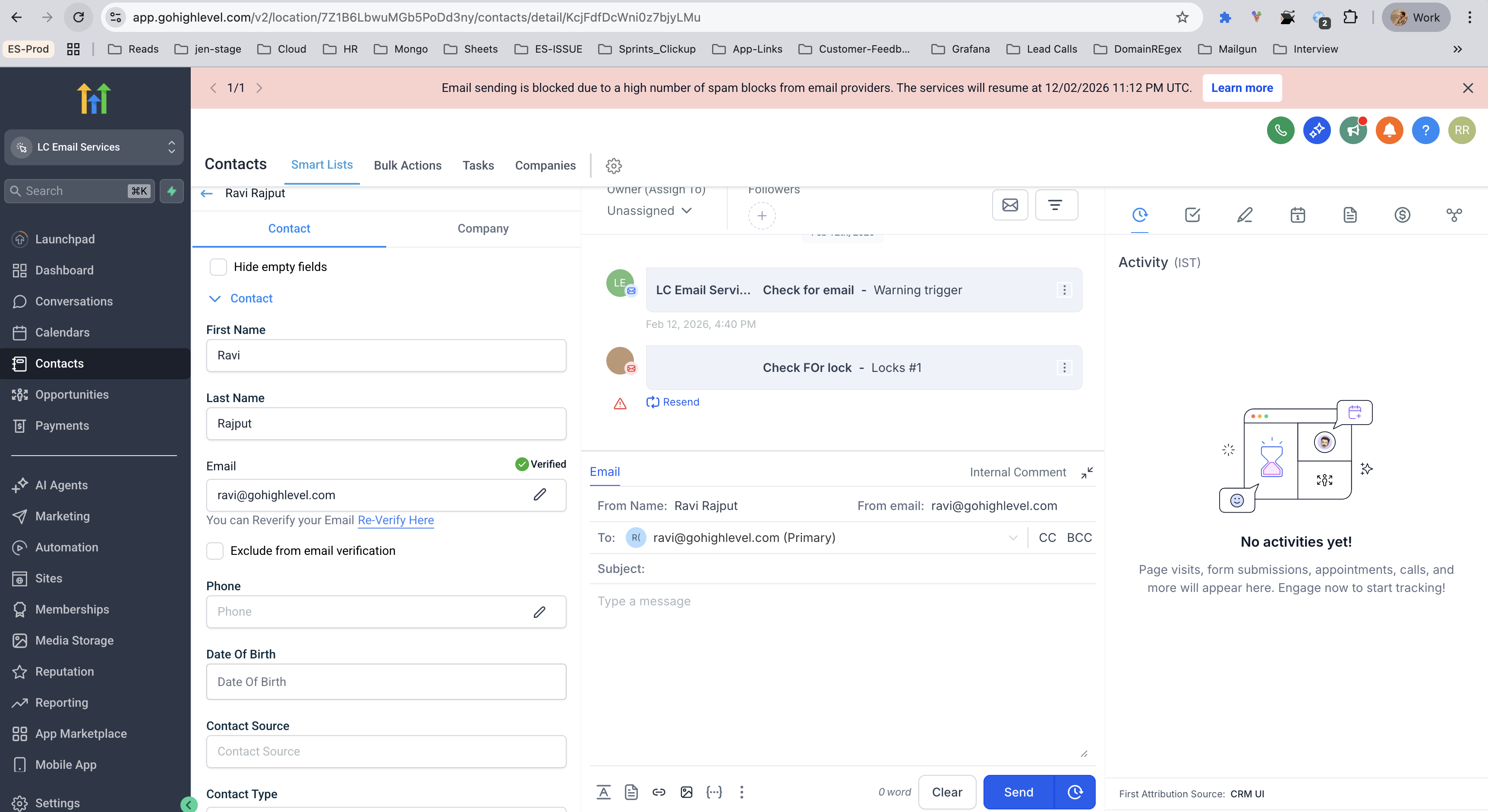
HighLevel introduces a new ESP Block System that tracks blocks from major providers such as Gmail, Yahoo, and Outlook. When the block rate reaches 3%, a warning email is sent. At 5% the system suspends sending for a set period, progressing through three temporary blocks before a permanent suspension.
The system lives within each subaccount under Subaccount Settings > Email Services > Bounce Classification. The dashboard displays block categories, provider details, and recommended actions, allowing users to address authentication, content, and list hygiene problems directly in the platform.
03How businesses use ESP block notifications
- Ecommerce store. Open the Bounce Classification page, find the ESP providers with the highest block volume, and follow the recommended fixes. Update SPF, DKIM and DMARC records, clean the customer list, and resend test orders to verify delivery.
- Real estate agency. Review the classification dashboard to see which property listing emails are being blocked. Apply the suggested content changes, enable double opt in for new leads, and monitor daily block rates to keep newsletters active.
- SaaS startup. Identify authentication failures in the Bounce Classification view, add the platform’s sending IPs to the domain’s SPF record, configure DKIM signing, and verify DMARC. Then test onboarding emails to major providers before launching a campaign.
04The numbers and rules that matter
- Effective Date: 12 Feb 2026.
- 30 days to prepare before the policy is enforced.
- ESP Block Rate 3% > Warning Email Sent > PreBlock Warning.
- ESP Block Rate 5% > Email sending suspended for 12 hours > 1st Block.
- After 1st block, 3% > Critical Warning Email Sent > Pre 2nd Block Warning.
- After 1st block, 5% > Email sending suspended for 24 hours > 2nd Block.
- After 2nd block, 3% > Final Warning Email Sent > Pre 3rd Block Final Warning.
- After 2nd block, 5% > PERMANENT SUSPENSION > 3rd Block, FINAL.
- Blocks reset after 7 consecutive days with ESP block rates below 1%.
- If you receive three blocks within any 7 day period, permanent suspension will occur.
05How to set up and use ESP block notifications in HighLevel
Immediate steps required
- Log into your subaccount.
- Open Subaccount Settings > Email Services > Bounce Classification.
- Review ESP block categories and error details.
- Identify the ESP block categories with the highest volume.
- Configure required email authentication (SPF, DKIM, DMARC) as indicated.
- Update content, list hygiene, and technical settings based on the recommendations.
Prepare for the new policy, Phase 1 audit
- Go to Subaccount Settings > Email Services > Bounce Classification to open the dashboard.
- Record current ESP block rates and categories.
- Review recent campaign performance metrics on the dashboard.
- Note problem areas that need attention.
- Examine bounce rates for the last 30 days.
- Spot patterns and the providers that block you most frequently.
Prepare for the new policy, Phase 2 implementation
- Add the platform’s sending IPs to your SPF DNS record.
- Create DKIM signing for your sending domain.
- Set up a DMARC policy starting with p=none for monitoring.
- Verify that all DNS records resolve correctly.
- Remove all bounced and invalid addresses from your lists.
- Enable double opt in for new subscriber sign ups.
- Segment contacts by engagement and purge those inactive for over six months.
- Review email templates to avoid spam trigger words, keep a 60:40 text to image ratio, and ensure clear unsubscribe links.
Prepare for the new policy, Phase 3 monitoring
- Send test emails to Gmail, Yahoo, and Outlook.
- Record delivery rates and engagement results for each provider.
- Run the emails through a spam score testing tool.
- Confirm that SPF, DKIM, and DMARC pass validation.
- Check the Bounce Classification dashboard daily for ESP block rates.
- Set up alerts for any sudden increase in block percentages.
06What it looks like in HighLevel
07Settings that matter
- Bounce Classification. Shows ESP block categories, provider specific volumes, error messages and recommended actions for each block type.
08Things to know before you rely on it
- A warning email is sent when the ESP block rate reaches 3%.
- Sending is suspended for 12 hours at a 5% block rate (first block) and 24 hours at a second 5% block rate.
- A third 5% block triggers permanent suspension.
- Blocks reset after 7 consecutive days with ESP block rates below 1%.
09How it connects to the rest of HighLevel
- How to add and verify a sending domain in HighLevel Domain verification guide
- HighLevel DMARC setup guide: configure email authentication DMARC guide
- HighLevel email warm up and DMARC guide for reliable delivery Warm up guide
Michael's take

People often think a temporary block is harmless and wait for it to clear on its own. In reality the block is a warning sign that your sender reputation is at risk, and each warning brings you closer to a permanent suspension.
If I were in your shoes I would jump straight to the Bounce Classification dashboard, fix the authentication failures first, clean the list aggressively, then retest with the major providers. Getting the fundamentals right before the 12 Feb deadline saves you from costly downtime.