
01Who this is for
- Marketing agencies that send newsletters; the tool flags risky addresses so they can avoid bounces and protect sender reputation.
- Ecommerce owners who rely on order confirmations; the assessment highlights invalid emails before a campaign launches.
- SaaS platforms that collect user sign ups; verification ensures new accounts have reachable email addresses.
02Email risk assessment tool, explained
The Risk Assessment feature runs automatically when a CSV of contacts is imported into HighLevel, provided the subaccount uses LC Email SMTP and Email Verification is not yet enabled. The system performs a bulk verification in the background and then notifies the team with a popup and an email report.
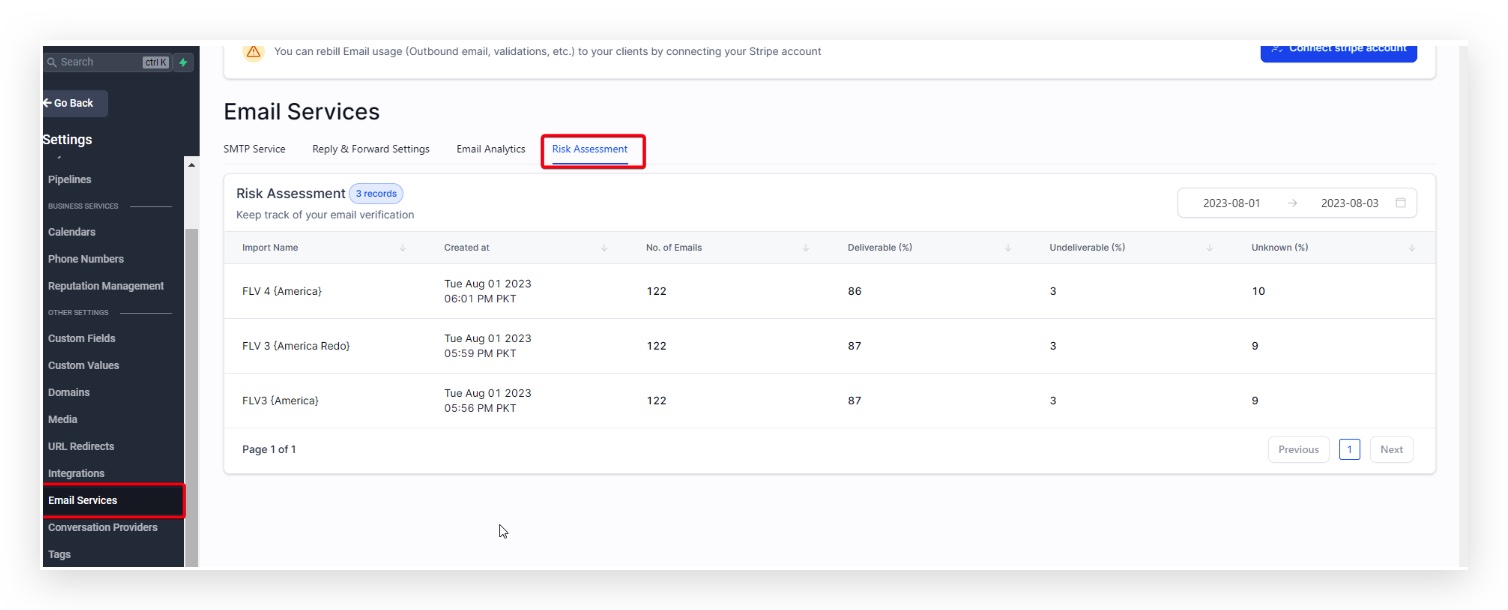
All assessment results are saved on the Risk Assessment tab under Settings > Email Services > Risk Assessment. The tab lists each import job, the date it was created, total emails processed, and the percentages of deliverable, undeliverable, and unknown addresses. Pagination lets you browse through many records.
03How businesses use email risk assessment tool
- Marketing agency. Upload a CSV of client contacts into HighLevel. The platform runs a bulk verification and sends a risk summary email. Review the percentages and decide whether to enable native Email Verification to block sending to invalid addresses.
- SaaS product. When new users sign up, import their email list as a CSV. The risk assessment identifies high risk or unknown addresses. Use the results to clean the list before onboarding communications.
- Online retailer. Before a promotional blast, import the latest customer list. The assessment highlights undeliverable emails, allowing you to remove or re verify them, which helps transactional messages reach inboxes.
04The numbers and rules that matter
- Deliverable: 71.84% (example report).
- High Risk: 17.81% (example report).
- Subaccount Age is less than 30 days triggers autoenable.
- Contact Import Risk Assessment Deliverable % is less than 90% triggers autoenable.
05Before you start
- You must be an LC Email user.
- The feature is available only for agency locations within the LC Email system.
06How to set up and use email risk assessment tool in HighLevel
Run risk assessment on a contact import
- Import a CSV file of contacts into HighLevel.
- Confirm the subaccount is using LC Email SMTP.
- Leave Email Verification disabled if it has not been enabled yet.
- Watch for a popup that appears after the import.
- Open the email sent to team members to view the risk analysis and consider enabling Email Verification.
View historical assessments
- Navigate to Settings > Email Services > Risk Assessment.
- Examine the list of verification jobs and their metrics.
- Use the pagination controls at the bottom to browse older records.
07What it looks like in HighLevel
08Settings that matter
- Records. Shows the number of bulk verification jobs currently displayed on the page.
- Date Range. Indicates the time span for the verification records shown in the view.
- Import Name. The unique label assigned to each CSV import, used to identify individual verification jobs.
- Created At. Displays the exact date and time when a verification job was started.
- No. of Emails. Counts the total email addresses included in the verification batch.
- Deliverable (%). Represents the proportion of addresses verified as valid and reachable.
- Undeliverable (%). Shows the proportion of addresses found to be invalid or unreachable.
- Unknown (%). Marks the proportion of addresses that could not be conclusively verified.
- Pagination. Controls for moving between pages when more records exist than fit on one screen.
09Things to know before you rely on it
- Bulk verification is available only to LC Email users.
- The feature applies only to agency locations within the LC Email system.
- Native email verification auto enables when the subaccount is less than 30 days old, an import risk assessment is performed, and the deliverable percentage is under 90%.
10If something goes wrong
- Many email addresses are marked as Unknown. Re run the verification later; if the problem continues, check for CSV formatting issues or contact Support.
11How it connects to the rest of HighLevel
- Set up native email verification for ongoing list cleaning. Email verification setup
- Learn about LC Email sending limits and upgrade options. LC Email limits
- Read the guide on dedicated sending domains to improve deliverability. Dedicated sending domains
Michael's take

Wondering if you should clean your email list before every campaign? The email risk assessment tool scans your imports, flags risky addresses, and gives you a clear picture of deliverability so you can prune bad contacts and reduce bounce rates.
If I were setting up a new newsletter, I’d import the list, let the tool run its analysis, and then enable native email verification right away. That ensures the system never tries to send to an invalid address, which helps protect your sender reputation.