
01Who this is for
- Agency Founders who have an existing Mailgun reputation and need control over sending limits.
- Marketing firms that send large volumes of campaign email and want a dedicated domain.
- Consultants managing multiple client subaccounts who require each client to use their own email infrastructure.
02Email services, explained
The feature lets an agency replace the built in LeadConnector email system with a custom SMTP provider such as Mailgun. Once a Mailgun service is added and marked active, all outbound messages from the agency and its subaccounts route through that provider. The configuration lives in the agency’s Settings area, not in individual subaccounts.
When active, the custom service uses the domain you verified in Mailgun and inherits the reputation and volume limits of your Mailgun plan. The default service can be re enabled at any time, and multiple Mailgun services can be stored, though only one may be active simultaneously.
03How businesses use your own email service (mailgun)
- Digital marketing agency. The agency adds its Mailgun account, enters the API key and selects the verified domain. After activating the service, every client email sent from the agency’s workflow or broadcast uses the agency’s Mailgun reputation.
- Ecommerce consultancy. The consultancy connects a Mailgun account that matches its store’s domain. By setting the service as active, order confirmations and cart abandonment emails are sent from the store’s domain, preserving brand consistency.
- SaaS startup accelerator. The accelerator configures a Mailgun provider for its cohort companies. Each subaccount can inherit the accelerator’s SMTP service unless a startup adds its own provider, allowing centralized email handling during launch.
04The numbers and rules that matter
- Default volume limits are platform managed.
- Custom volume limits are based on your Mailgun plan.
05Before you start
- Your Mailgun domain must be fully verified in the Mailgun dashboard.
- The API key you plan to use must have sending permissions for the selected domain.
06How to set up and use your own email service (mailgun) in HighLevel
Add and activate a Mailgun email service for the agency
- Open Settings > Email Services and select the SMTP Service tab.
- Click the + Add Service button in the top right corner.
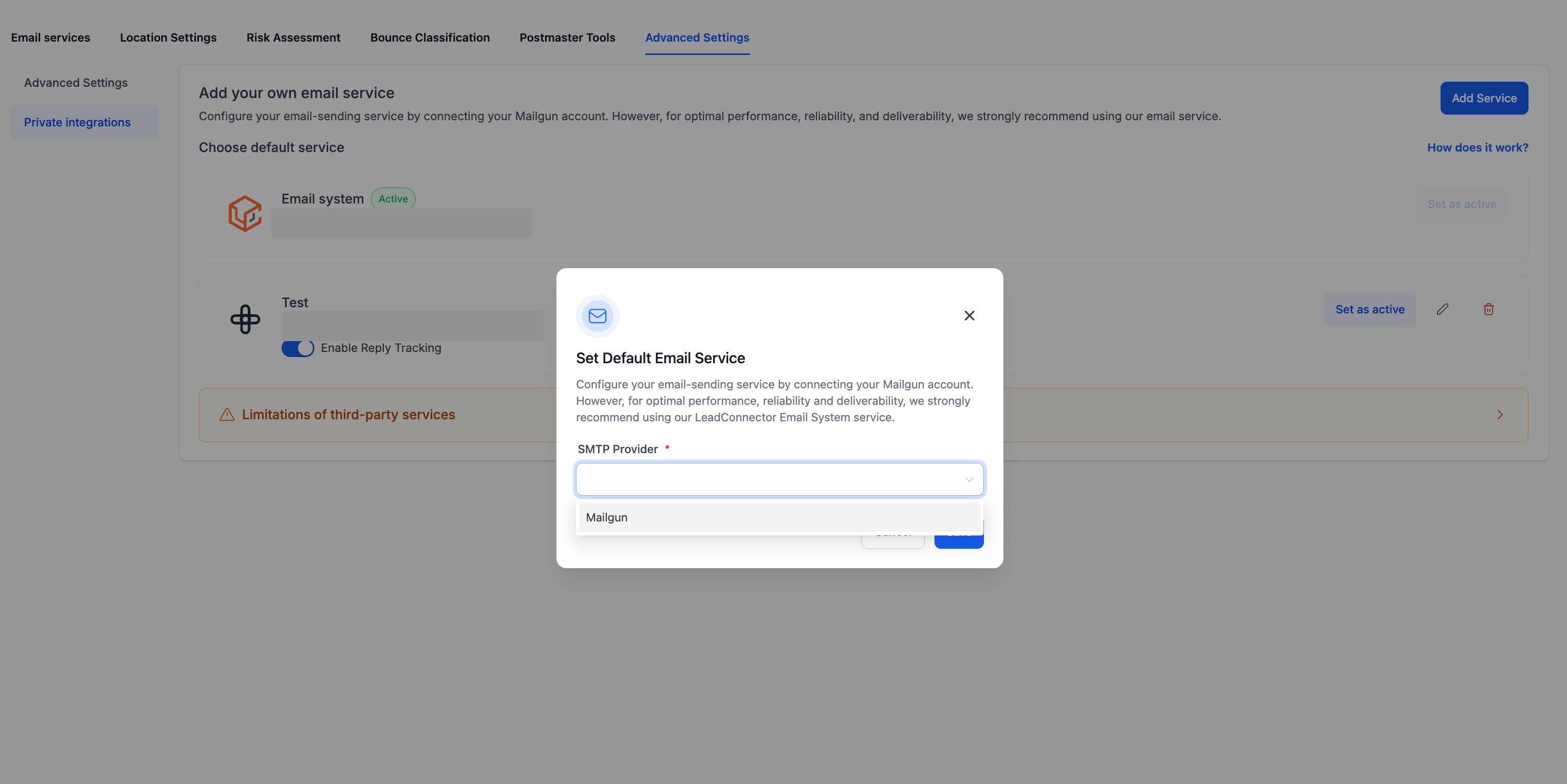
- Choose Mailgun as the SMTP provider in the Add Service popup.
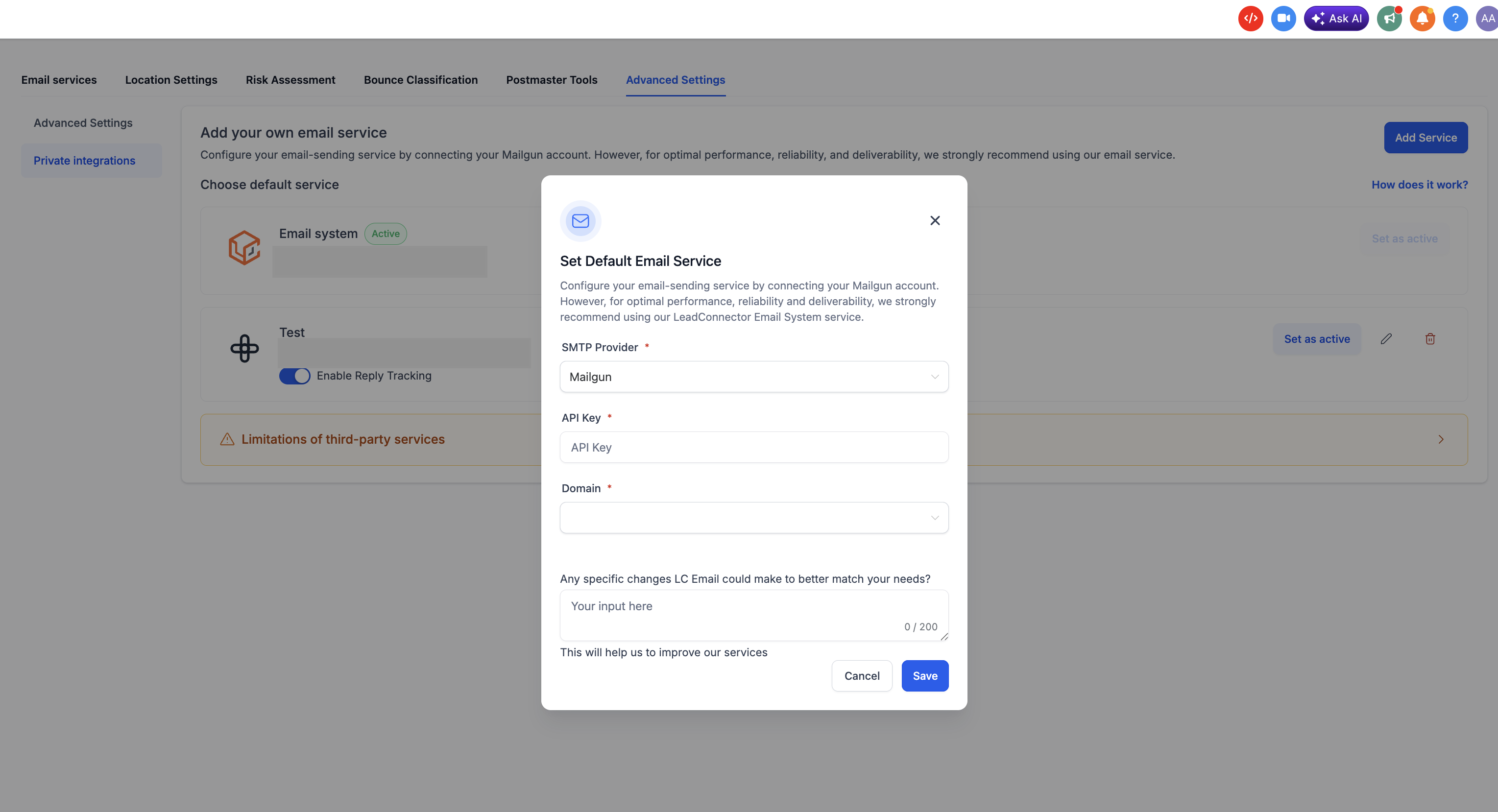
- Enter the Mailgun API Key and pick the verified domain from the dropdown.
- Save the service, locate it in the list, click Set as Active and confirm the prompt.
- Ensure your Mailgun domain is fully verified and the API key has sending permissions before activating.
07What it looks like in HighLevel
08Settings that matter
- SMTP Service. The section where custom SMTP providers are stored and managed for the agency.
- API Key. Holds the Mailgun private API key used to authenticate outbound email.
- Domain. Selects which verified Mailgun sending domain the service will use.
- Set as Active. Marks the chosen service as the default sender for all agency level outbound email.
09Things to know before you rely on it
- Only one email service can be marked as Active at any time; activating a new service deactivates the previous one.
- The custom service applies to every subaccount unless a subaccount configures its own provider.
- Switching services does not affect emails already queued; they will be sent using the service active when processed.
- Connecting Mailgun incurs no extra charge from the platform, but Mailgun’s own pricing applies.
10If something goes wrong
- Domain does not appear in the dropdown. Verify the domain in your Mailgun account, ensuring SPF, DKIM and MX records are correctly set, then refresh the Email Services page.
- API key lacks sending permissions. Generate a new Mailgun API key with sending rights for the selected domain and replace the key in the SMTP Service configuration.
11How it connects to the rest of HighLevel
- View the full guide for setting up any SMTP provider in HighLevel. SMTP provider setup
- Learn about configuring reply and forwarding options for email services. Reply and forwarding
- Check the pricing plans to understand when a custom SMTP service may be needed. Pricing
Michael's take

Connecting Mailgun allows agencies with an established sending reputation and higher volume needs to use their own domain and reputation instead of the shared platform. This can be a good fit when you need that level of control.
For agencies just starting out with low email volume, the built in LeadConnector system may be sufficient. Adding a custom service adds setup steps and requires a verified domain and API key, so you may choose to wait until your volume or reputation requirements grow.