
01Who this is for
- Founders who use LC Email to run marketing campaigns and need insight into recipient behavior.
- Agencies managing multiple client subaccounts and want separate tracking per dedicated domain.
- Small business owners sending newsletters from a custom domain and want to see which links drive engagement.
02Email tracking, explained
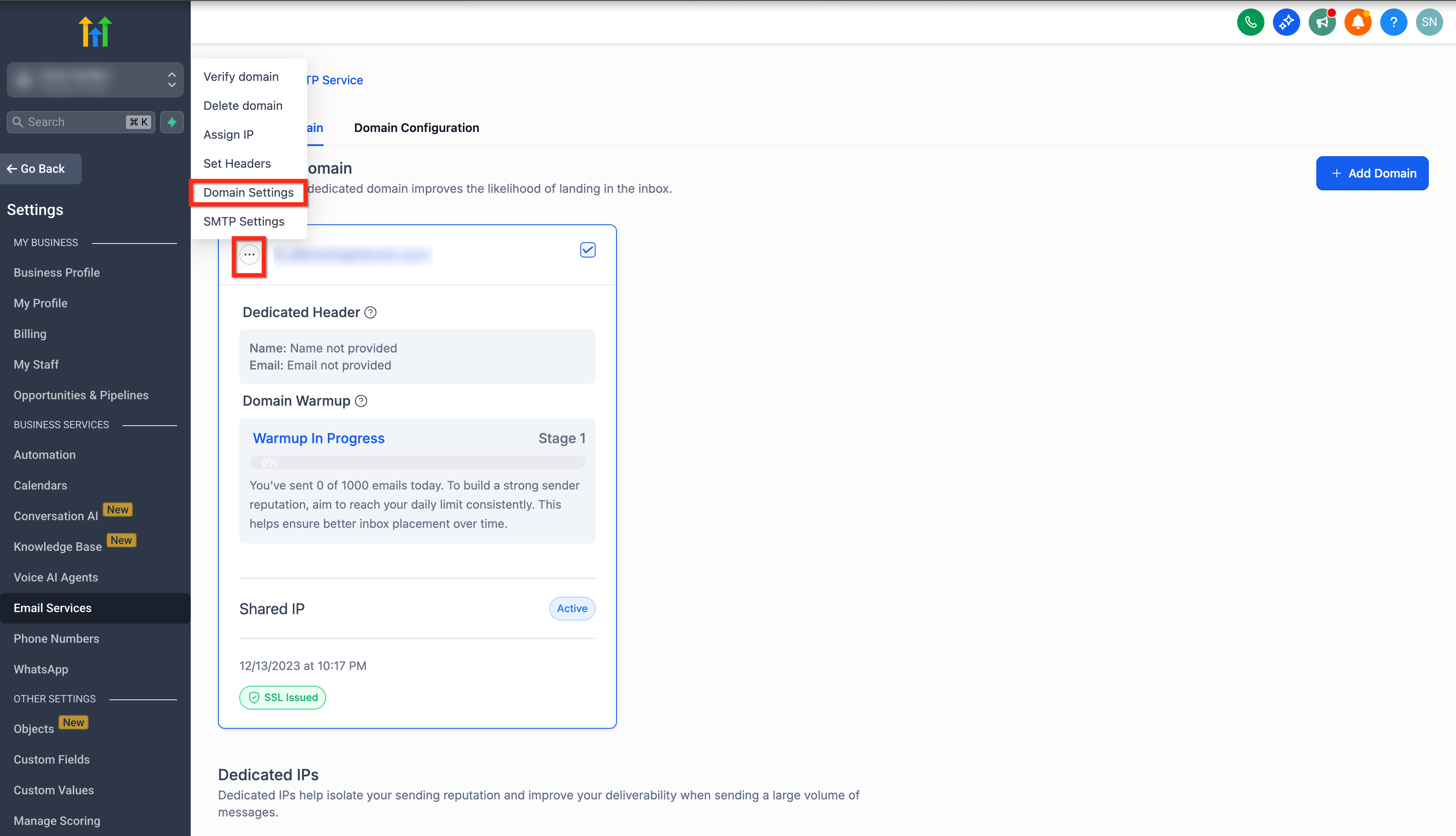
The feature lets you turn open and click tracking on or off for each dedicated LC Email sending domain. When enabled, the system records opens and clicks and attributes those events to the contact record. Controls are found under Settings > Email Services > LC Email selected > Dedicated Domain and IP, then using the three dot menu on the domain card to open Domain Settings.
03How businesses use email tracking
- Digital marketing agency. The agency opens the domain settings for each client’s dedicated LC Email domain. It enables both open and click tracking to see how each client’s audience interacts with campaign emails. The agency then reviews the engagement data in each contact’s record to refine future content.
- Ecommerce store. The store enables open tracking on its LC Email domain to know which promotional newsletters are opened. It also turns on click tracking for product links to identify which items attract interest. The store accesses the click data in HighLevel to plan follow up offers.
- Professional services firm. The firm activates open tracking for its client newsletters sent from a dedicated domain. It disables click tracking if the emails contain no links. The firm monitors open rates in contact records to gauge newsletter relevance.
04The numbers and rules that matter
- Tracking is not available for Mailgun, Gmail, or any other external provider.
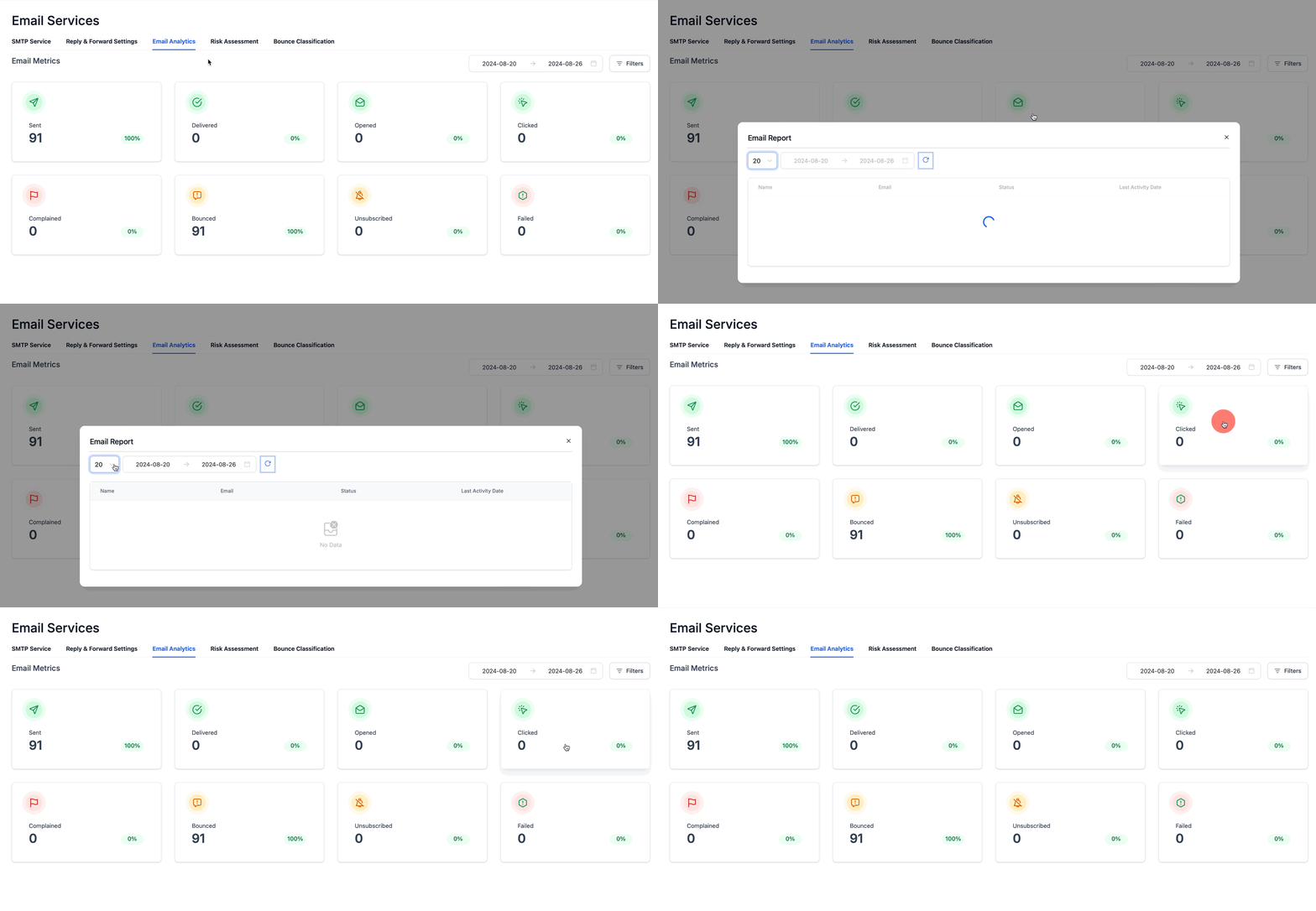
- Engagement data includes Email Sent, Email Delivered, Email Opened, Email Clicked, Email Bounced, Complained (marked as spam), Unsubscribed, and Email Failed to Send.
05Before you start
- A dedicated LC Email sending domain must already be configured for the subaccount.
06How to set up and use email tracking in HighLevel
Enable or disable email tracking for a dedicated domain
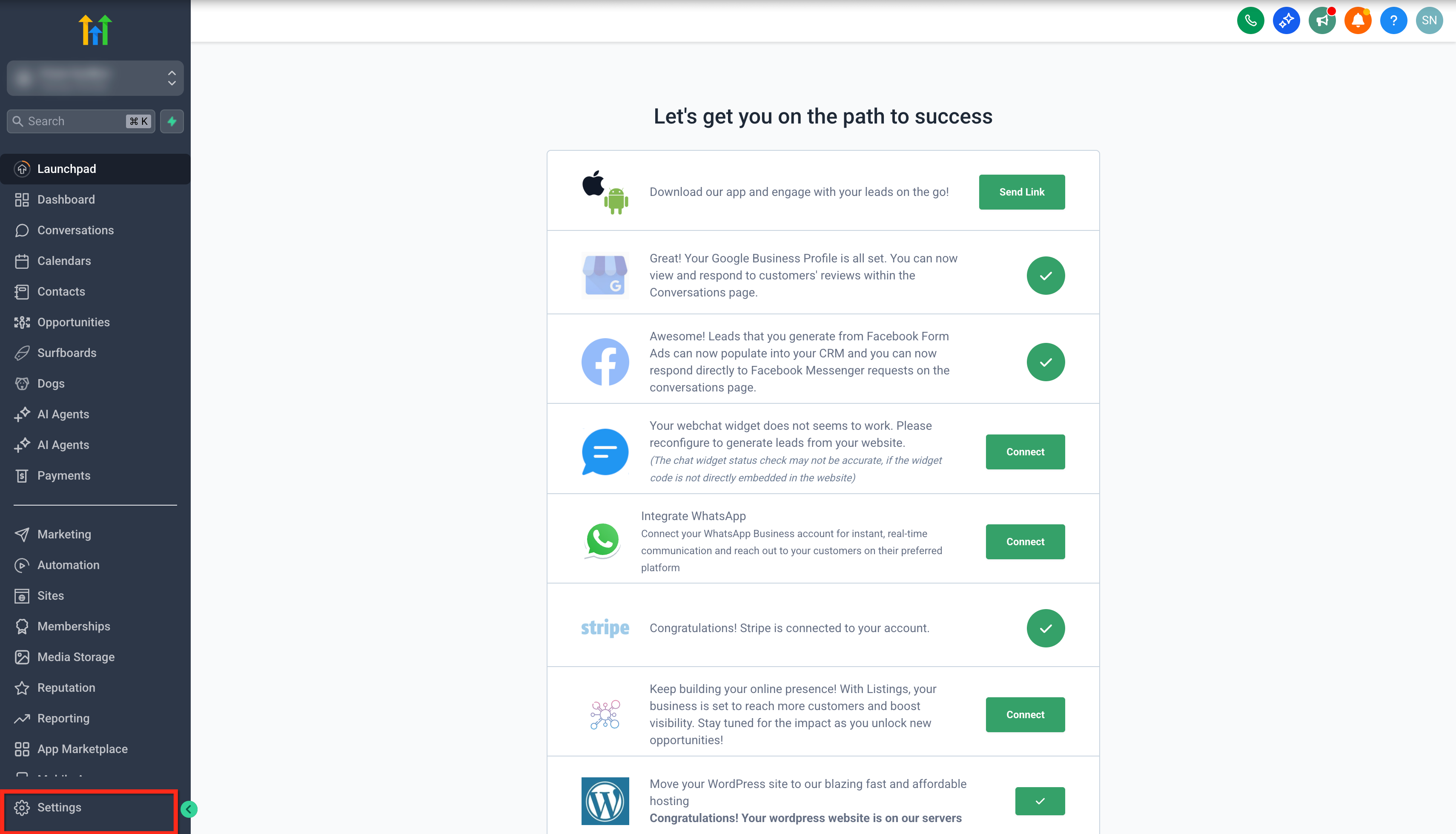
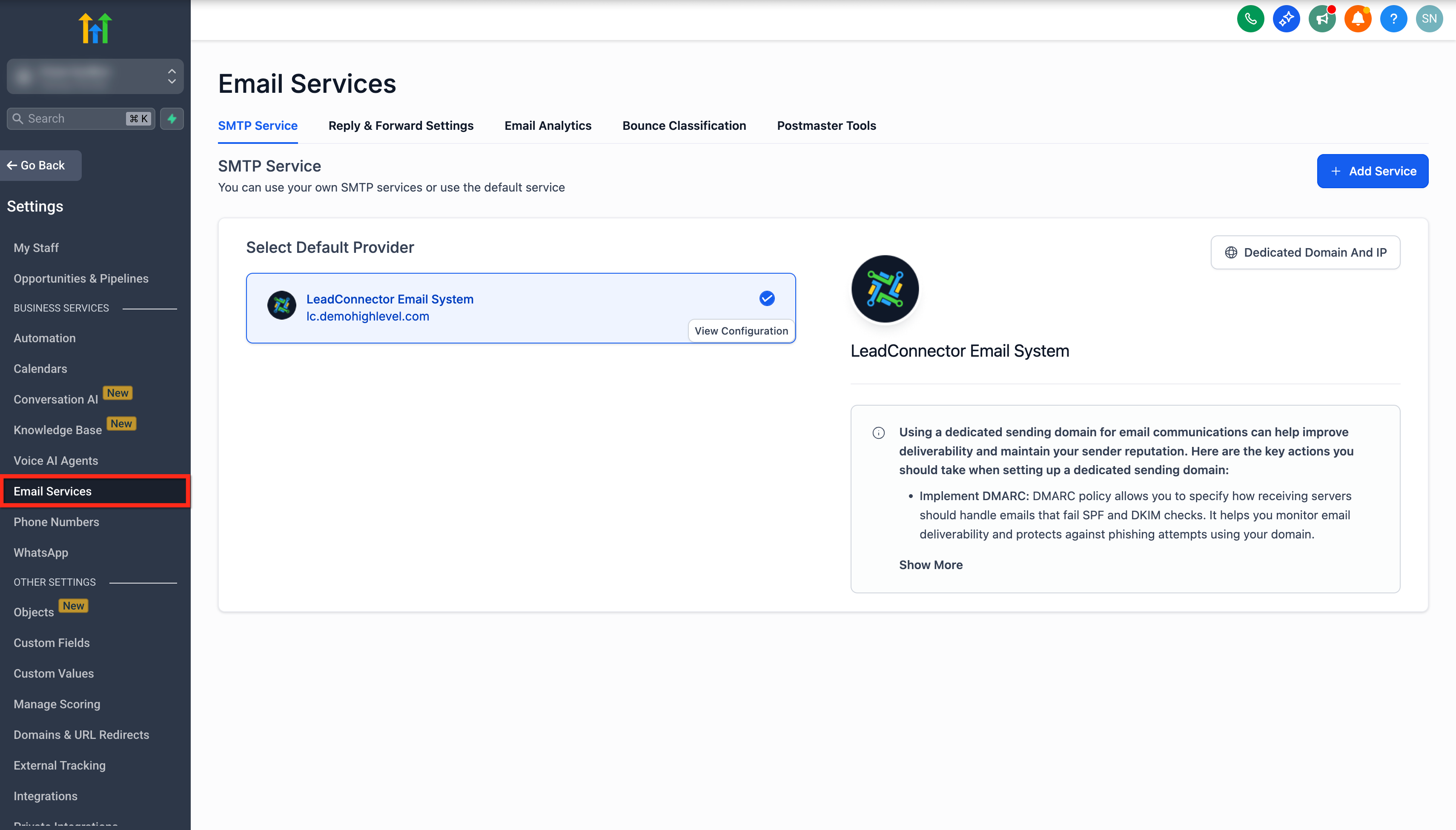
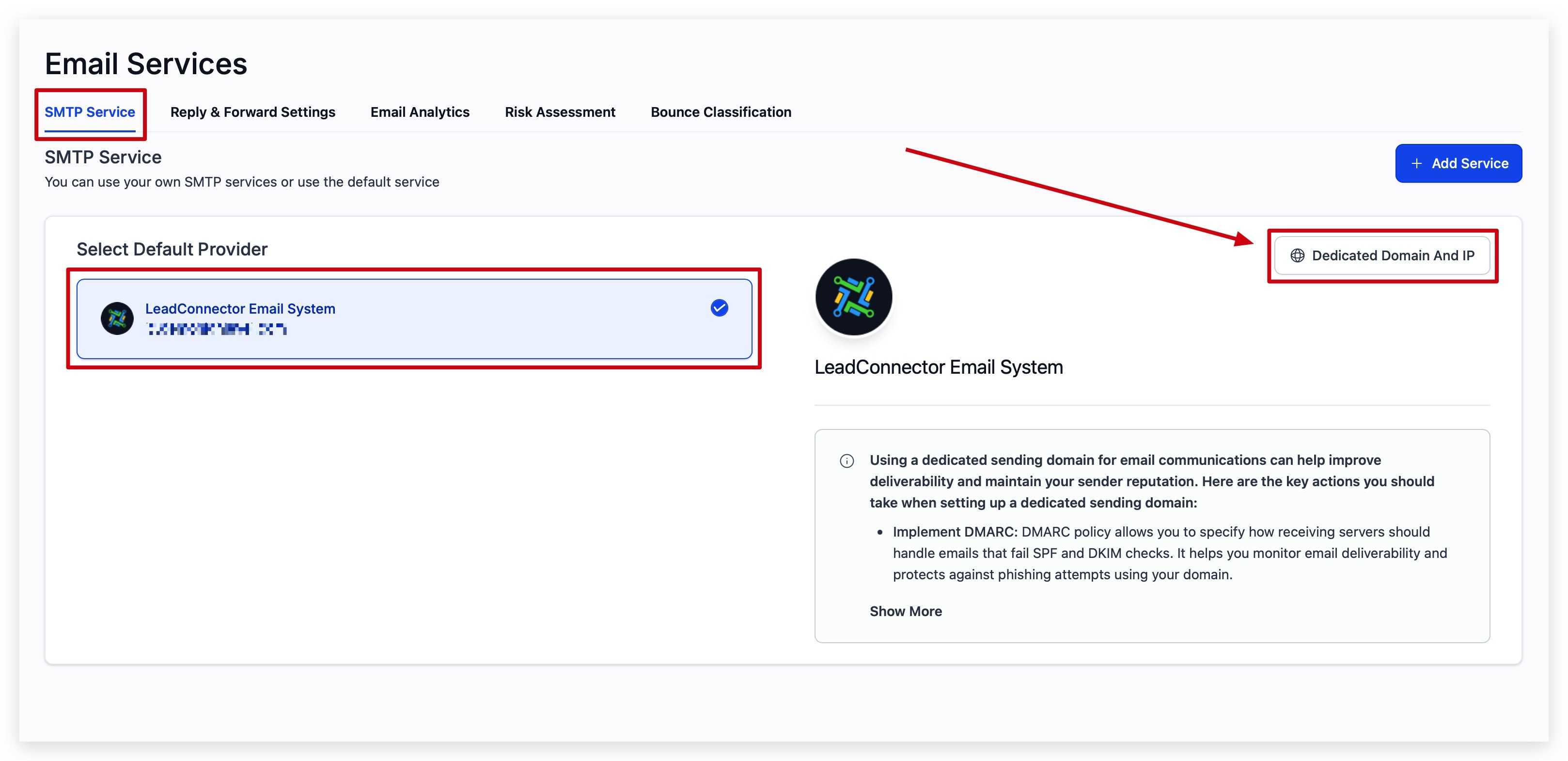
- Go to Settings > Email Services, select LC Email, and click the Dedicated Domain and IP button.
- Click the three dot menu on the dedicated domain card and choose Domain Settings.
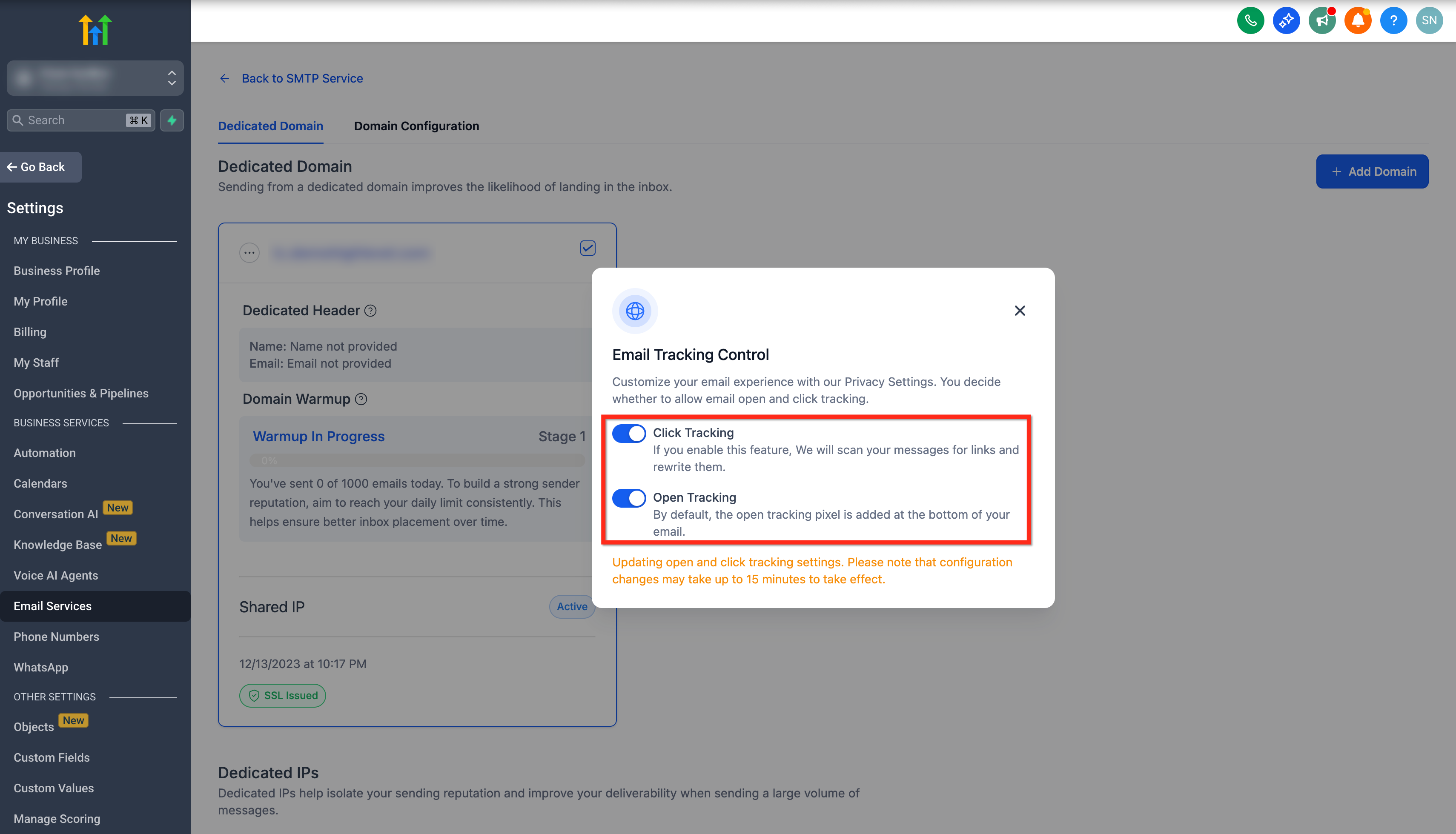
- Toggle the Open Tracking and Click Tracking switches to the desired state; changes apply immediately.
07What it looks like in HighLevel
08Settings that matter
- Open Tracking. Controls whether an invisible image is added to emails to record when a recipient opens the message.
- Click Tracking. Controls whether links in the email are wrapped with a redirect so each click is recorded.
09Things to know before you rely on it
- Tracking works only when LC Email is the SMTP provider; it is unavailable for Mailgun, Gmail, or other external providers.
- A dedicated LC Email sending domain is required; tracking cannot be used with shared or non LC domains.
- If tracking is turned off, open, click, bounce and other engagement data will no longer appear in contact records.
- Tracking settings are applied per domain, allowing different configurations for multiple dedicated domains.
10How it connects to the rest of HighLevel
- Set up a dedicated LC Email sending domain Dedicated domain setup
- Manage dedicated sending domains and IP addresses Domain management
- Best practices for email warm up and DMARC Email warm up guide
Michael's take

Wondering if the extra step of enabling tracking is worth the effort? The short answer is yes. Knowing who opened your email and who clicked a link gives you a clear picture of what’s resonating and where you might be losing interest.
If I were setting up a new product launch, I’d turn on both open and click tracking from the start, then use the data to segment contacts for a follow up sequence. Before relying on the numbers, I’d double check that the dedicated LC Email domain is configured so the analytics flow correctly.