
01Who this is for
- Ecommerce owners who run limited time sales and need urgency without hand coding timers.
- Event organizers promoting webinars or live events that have a start time or registration deadline.
- Subscription businesses that send renewal reminders or offer limited time discounts.
02Email AI smart countdown timers, explained
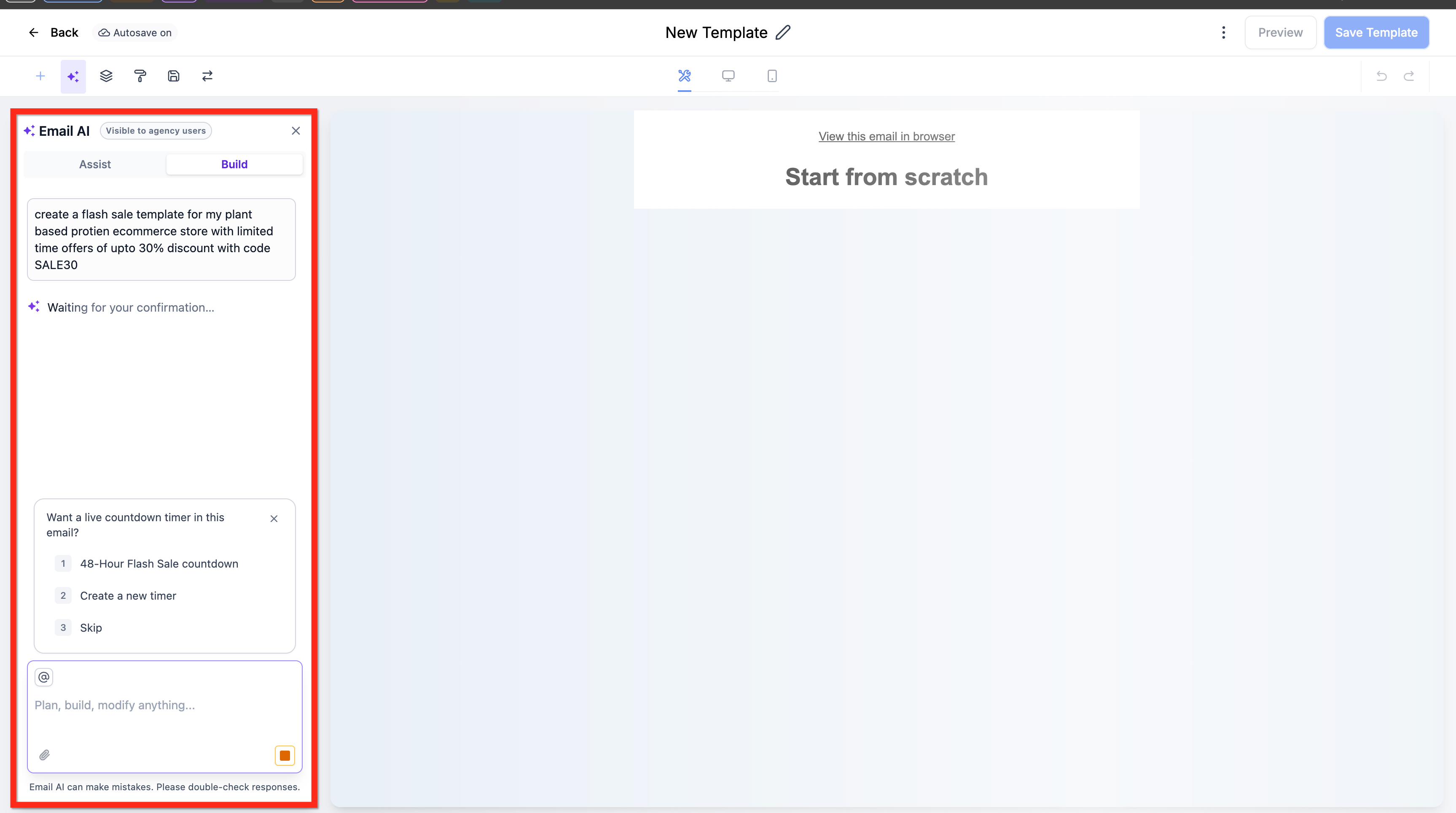
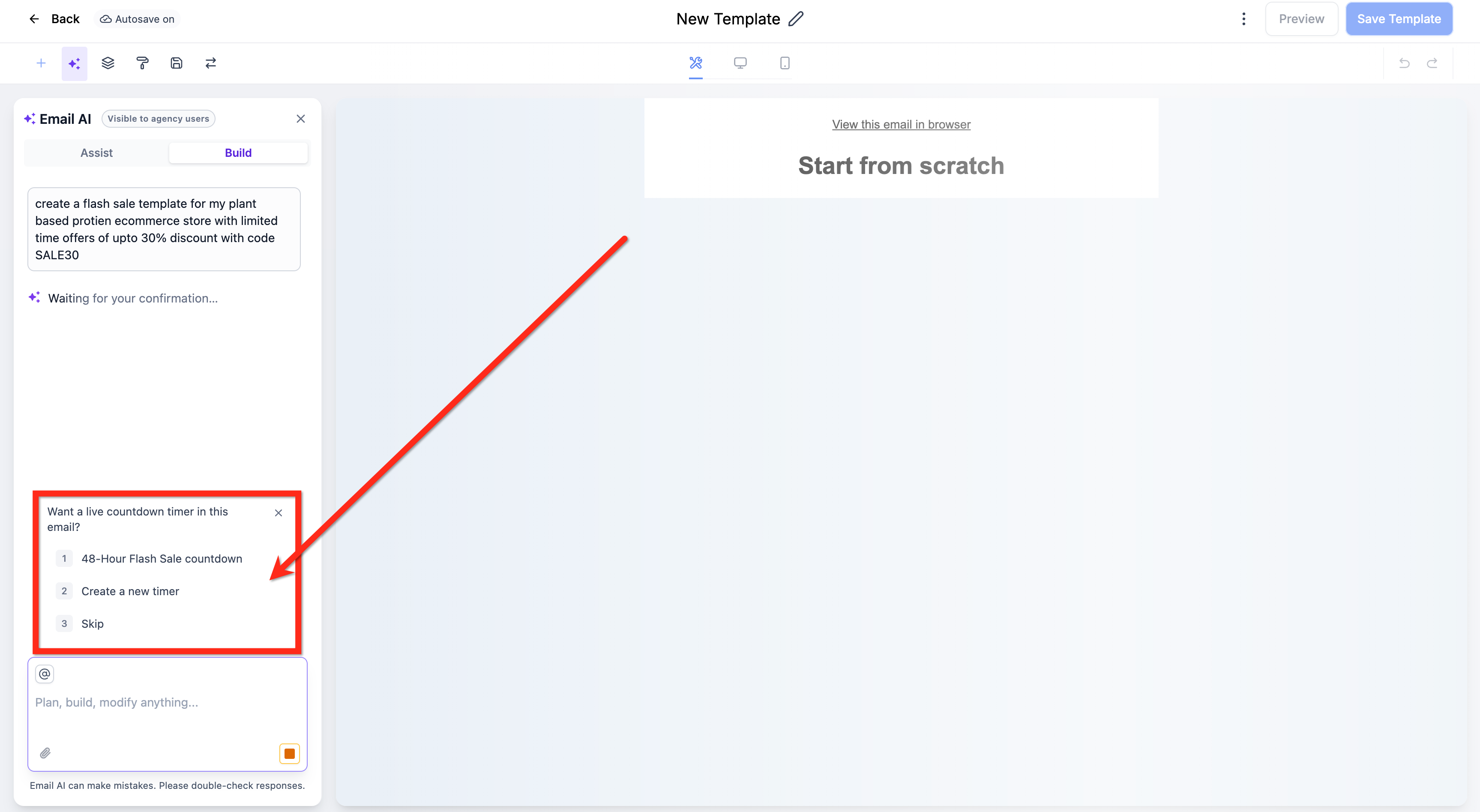
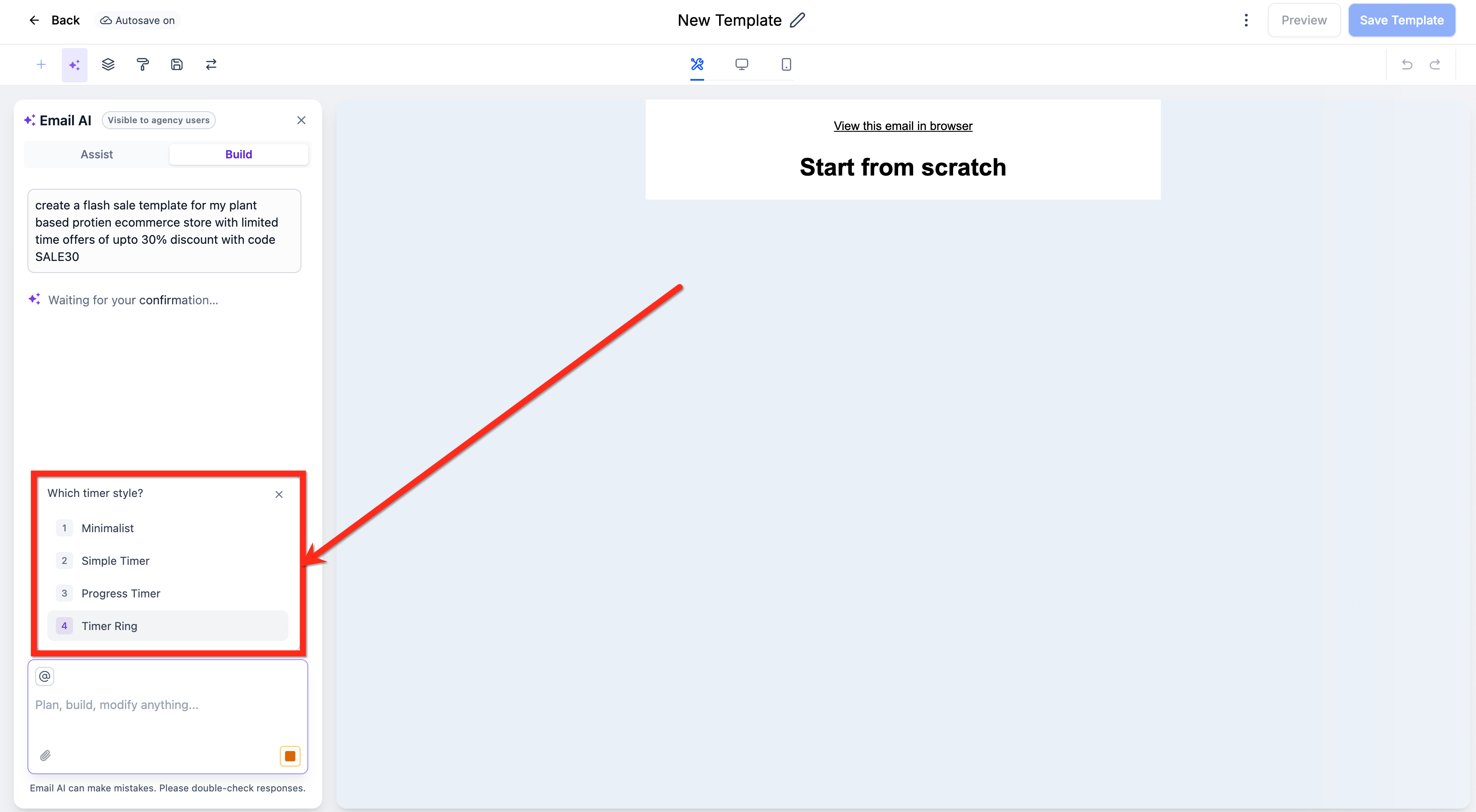
Email AI watches the subject line, body text, and campaign purpose as you compose an email. When it detects language that implies a deadline, a prompt appears offering to add a live countdown timer. The prompt lets you choose a timer you have saved before, build a new timer with custom settings, or ignore the suggestion.
The created timer includes an end date, visual style, and a link that recipients follow when they click the timer. After you confirm, Email AI inserts the timer into the template. You can drag the element to a different spot in the email builder and adjust its appearance further if needed. If you skip the prompt, the system continues without interruption, and you can add a timer later from the element library.
03How businesses use email AI smart countdown timer creation
- Online boutique. The boutique creates a flash sale email that mentions a discount ending in 24 hours. Email AI detects the deadline and offers a timer. The owner selects a new timer, sets the end date to the sale’s close, chooses a bold visual style, and adds a link to the sale page. The timer appears near the call to action button.
- Software training company. The company drafts an invitation to a live webinar scheduled for next week. Email AI recognizes the event time and suggests a timer. The marketer creates a new timer, enters the webinar start time, picks a clean style, and links the timer to the registration page. The timer is embedded automatically.
- Gym membership service. A renewal reminder email mentions that memberships expire on a specific date. Email AI offers a countdown timer. The staff reuses an existing timer that already matches the renewal deadline and visual branding, inserts it into the email, and places it next to the renew button.
04How to set up and use email AI smart countdown timer creation in HighLevel
Add a countdown timer using Email AI
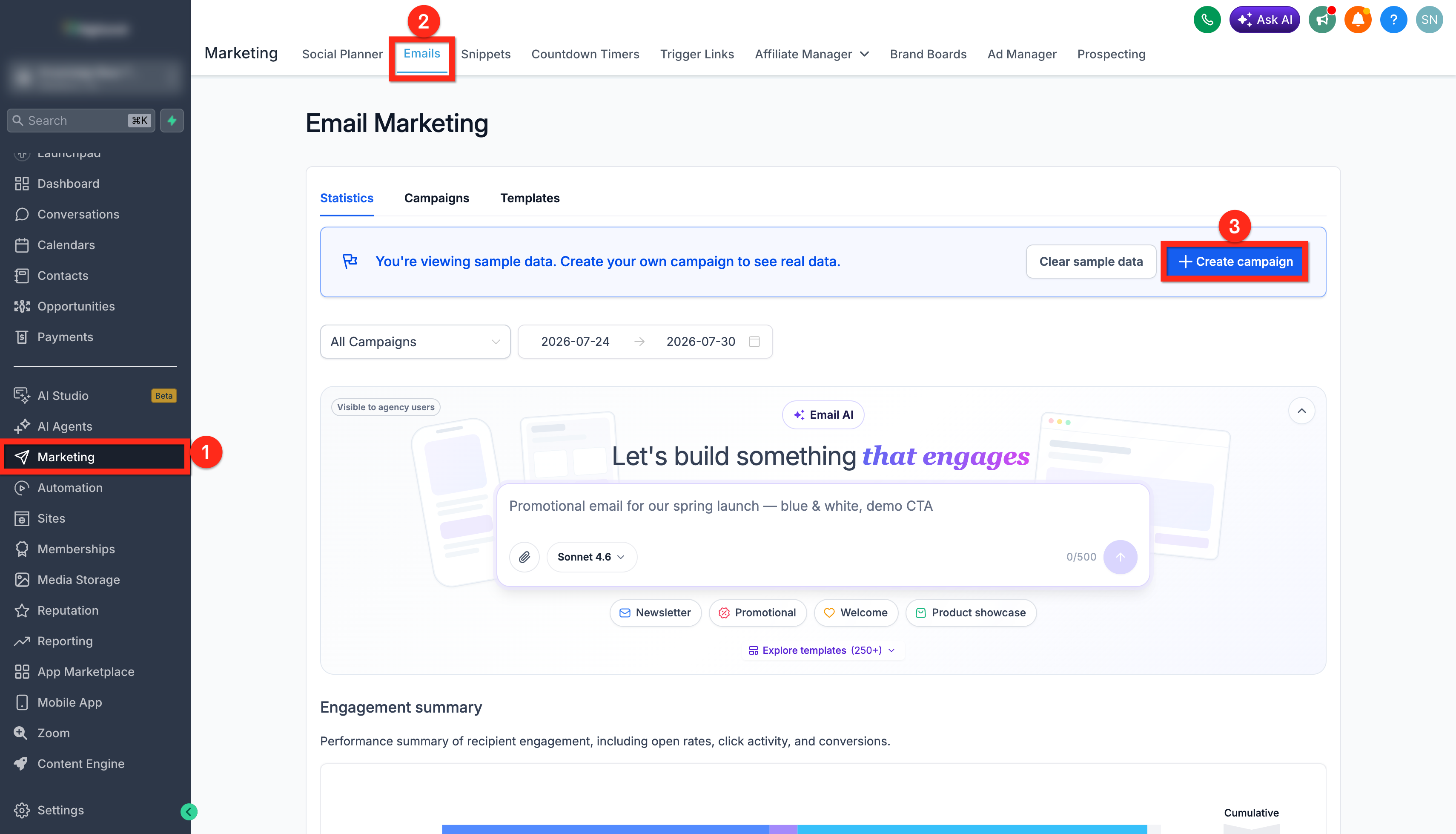
- Open Marketing > Emails and start a new email template or edit an existing one.
- Compose the email and include time sensitive details such as a sale end date or event start time.
- When the timer suggestion appears, decide whether to pick an existing timer, create a new one, or skip the prompt.
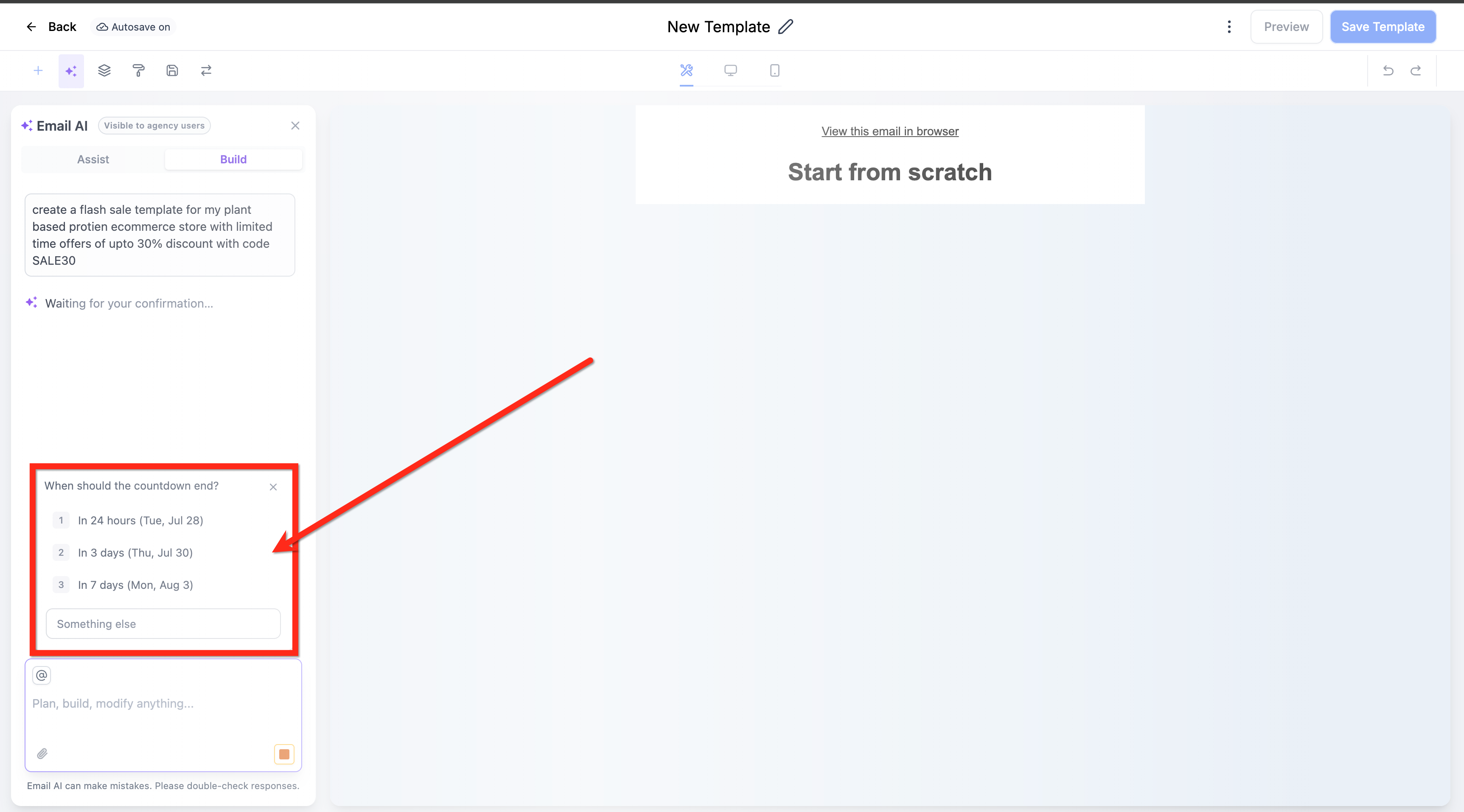
- If you choose to create a new timer, open the timer configuration screen and enter the end date and time for the offer.
- Select a visual style that matches your email design and set the destination URL for clicks on the timer.
- Save the timer; Email AI automatically embeds it into the email template.
- Check the timer’s placement in the email builder and move it with drag and drop if needed.
- Tip: You can skip the countdown timer suggestion at any time by clicking the skip option; the system will continue without interruption.
- Best practice: Place countdown timers prominently near your main call to action or offer details for maximum impact.
05What it looks like in HighLevel
06Settings that matter
- End date and time. Defines when the countdown reaches zero and the offer or event ends.
- Visual style. Controls the appearance of the timer to align with the email’s branding.
- Destination URL. The link that recipients follow when they click the countdown timer.
07Things to know before you rely on it
- Live timers work in most modern email clients; older clients show a static image of the remaining time at send.
- Email AI only suggests timers for campaigns it flags as time sensitive, such as flash sales, product launches, webinars, or expiring offers.
- No suggestion is made for welcome messages, receipts, newsletters without deadlines, password resets, or general informational emails.
08How it connects to the rest of HighLevel
- Set up and draft emails with Email AI (Beta 2.0) Email AI guide
- View all email features available in HighLevel All Email features
- Start a 30 day HighLevel trial 30 day trial
Michael's take

I find the smart countdown timer to be a handy tool that adds a sense of urgency to reminders. When I have a promotion with a set end time, the feature lets me add a timer without having to build one from scratch.
In a fast moving ecommerce flash sale, the AI can spot the sale end date and suggest a timer, letting me include it quickly.