
01Who this is for
- Marketing managers who need fast, brand consistent email drafts without manual styling.
- Small business owners who want to generate on brand campaigns with minimal copywriting effort.
- Agency admins who must provide subaccounts with a quick way to produce client specific emails.
02Email AI (Beta 2.0), explained
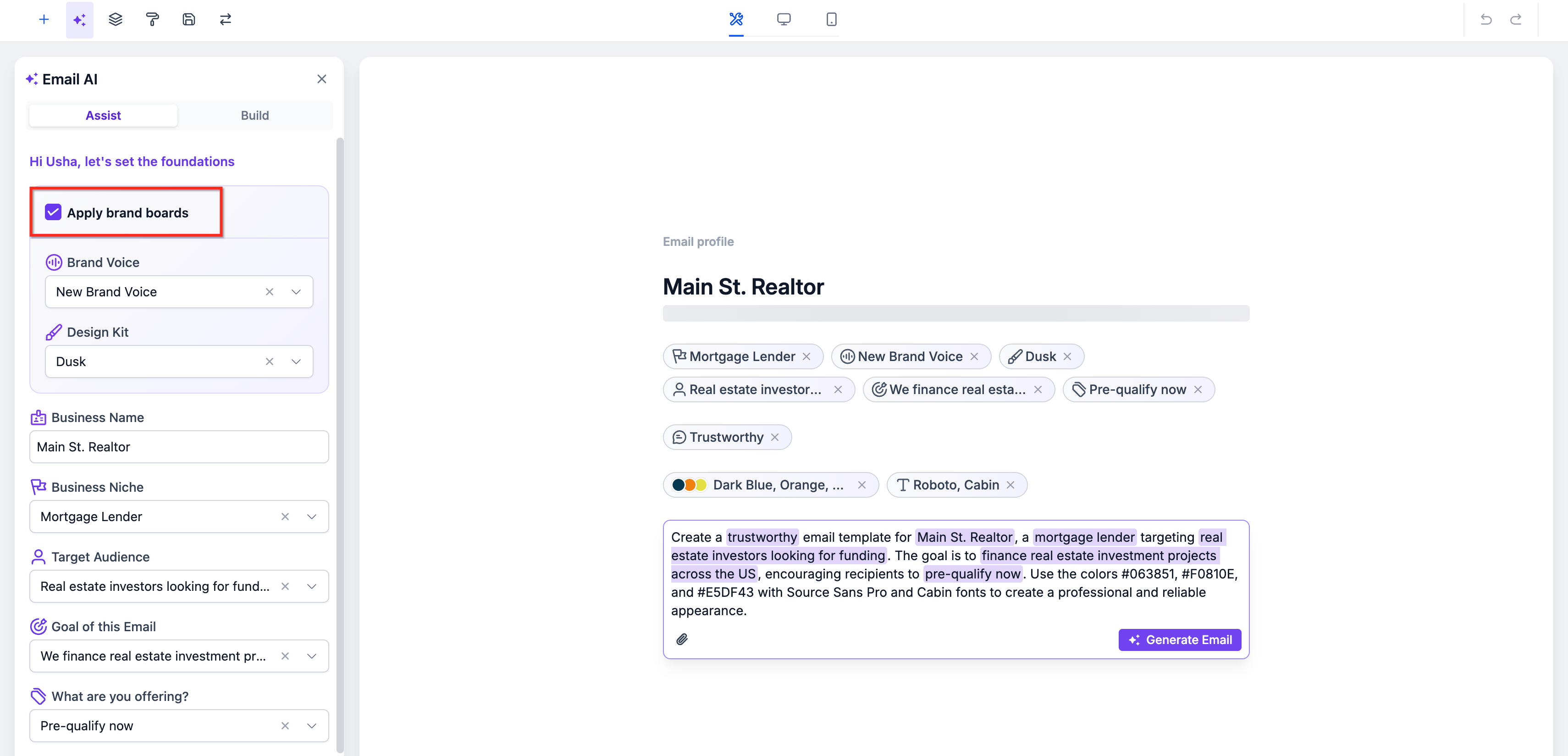
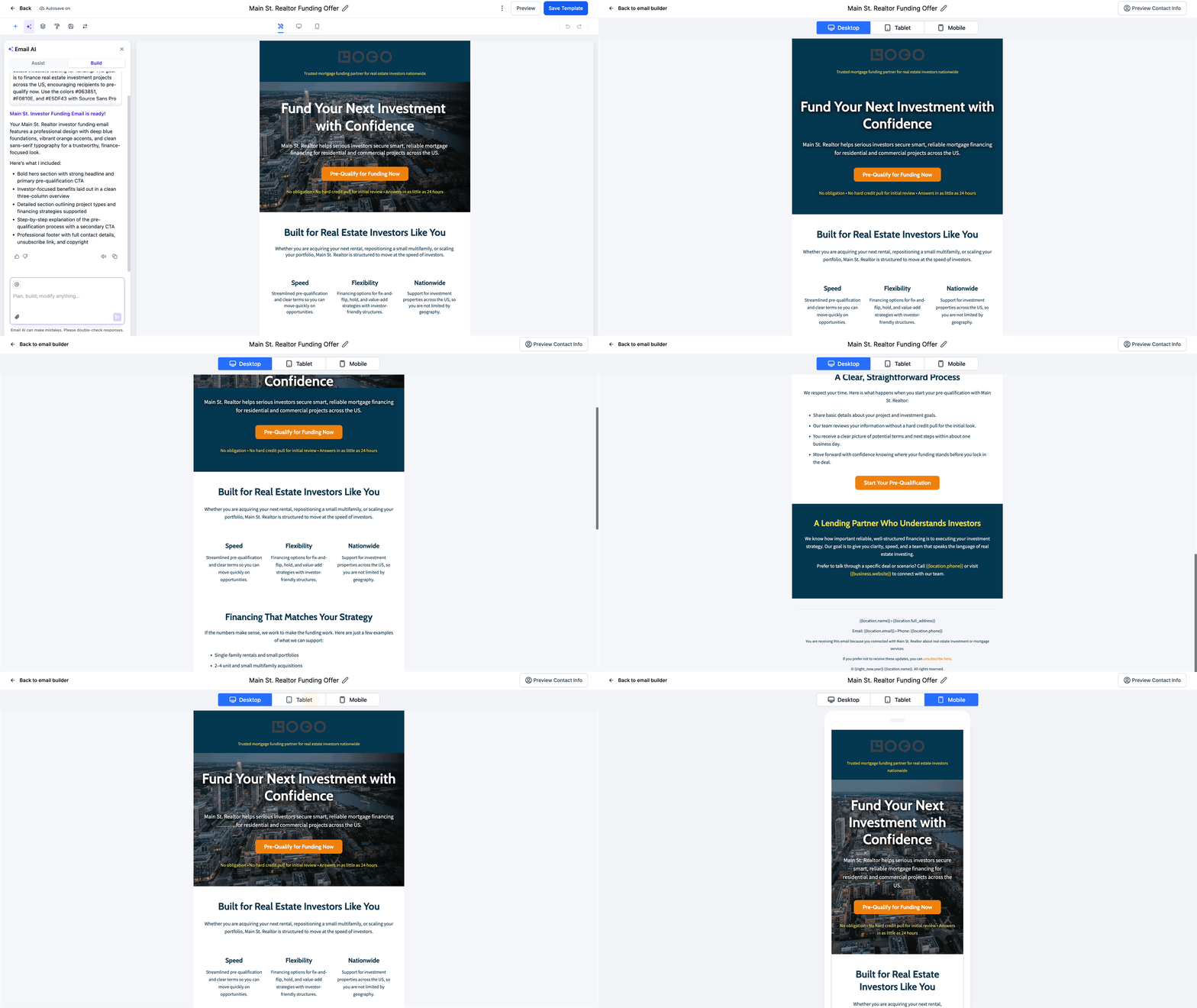
Email AI is a tool inside the Email Marketing builder that helps you plan, draft and design full emails. It pulls typography and colour tokens from the selected Brand Board so every generation follows your brand guidelines. An Assist Mode button guides prompt creation and shows the active Brand Board.
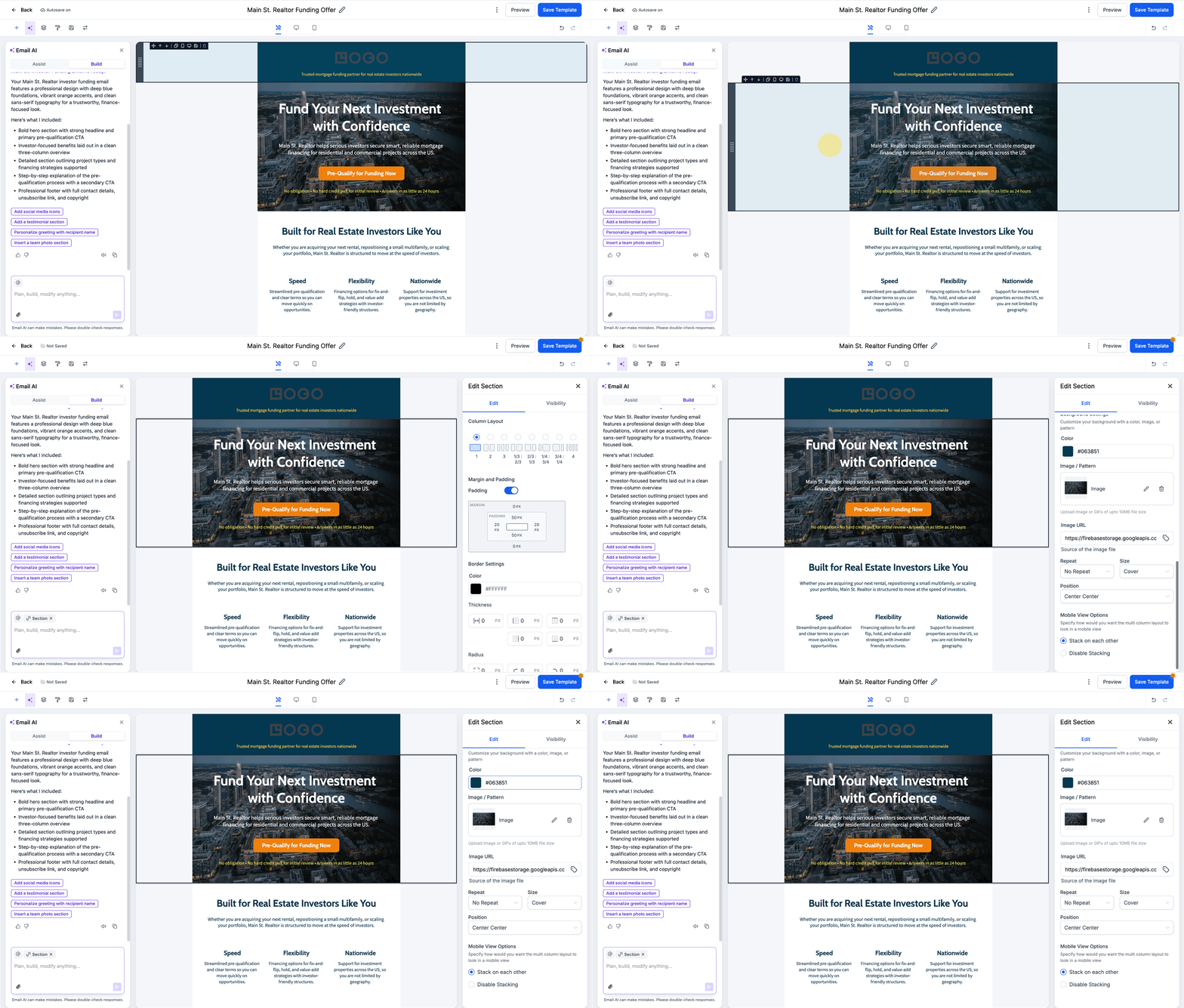
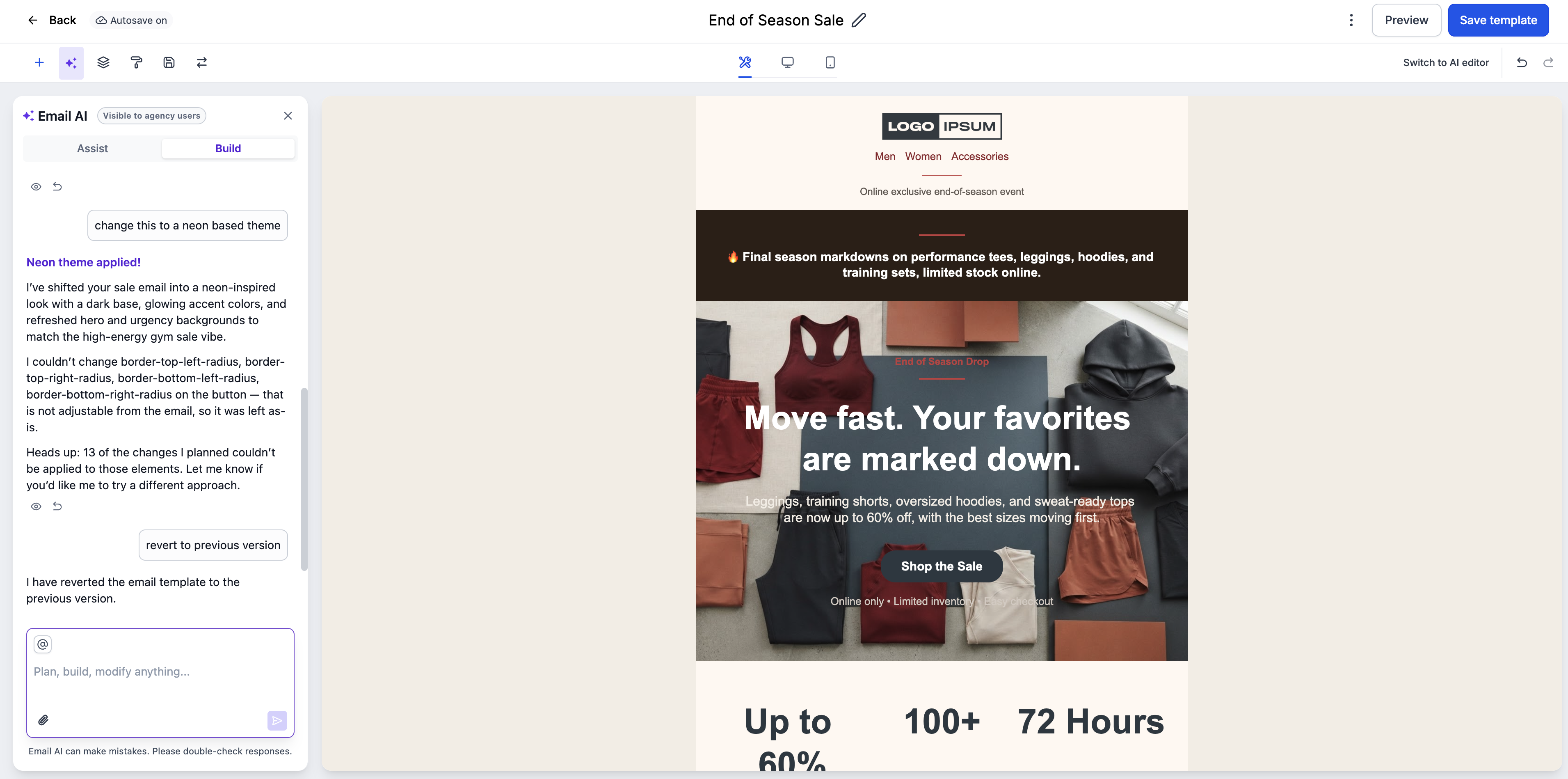
After a draft appears you can ask the AI to rewrite, shorten, translate, add sections or change the theme using plain language. The generated layout is editable, and a version history records each iteration. You can restore any earlier version directly from the chat or the Kebab Menu. The feature lives under Email Marketing > Emails > Templates.
03How businesses use email AI (Beta 2.0)
- Ecommerce store. The store selects a product launch prompt that describes the audience, offer and tone. Email AI builds a draft with brand colours and a clear call to action. The marketer then refines the copy with a Translate command to reach international shoppers.
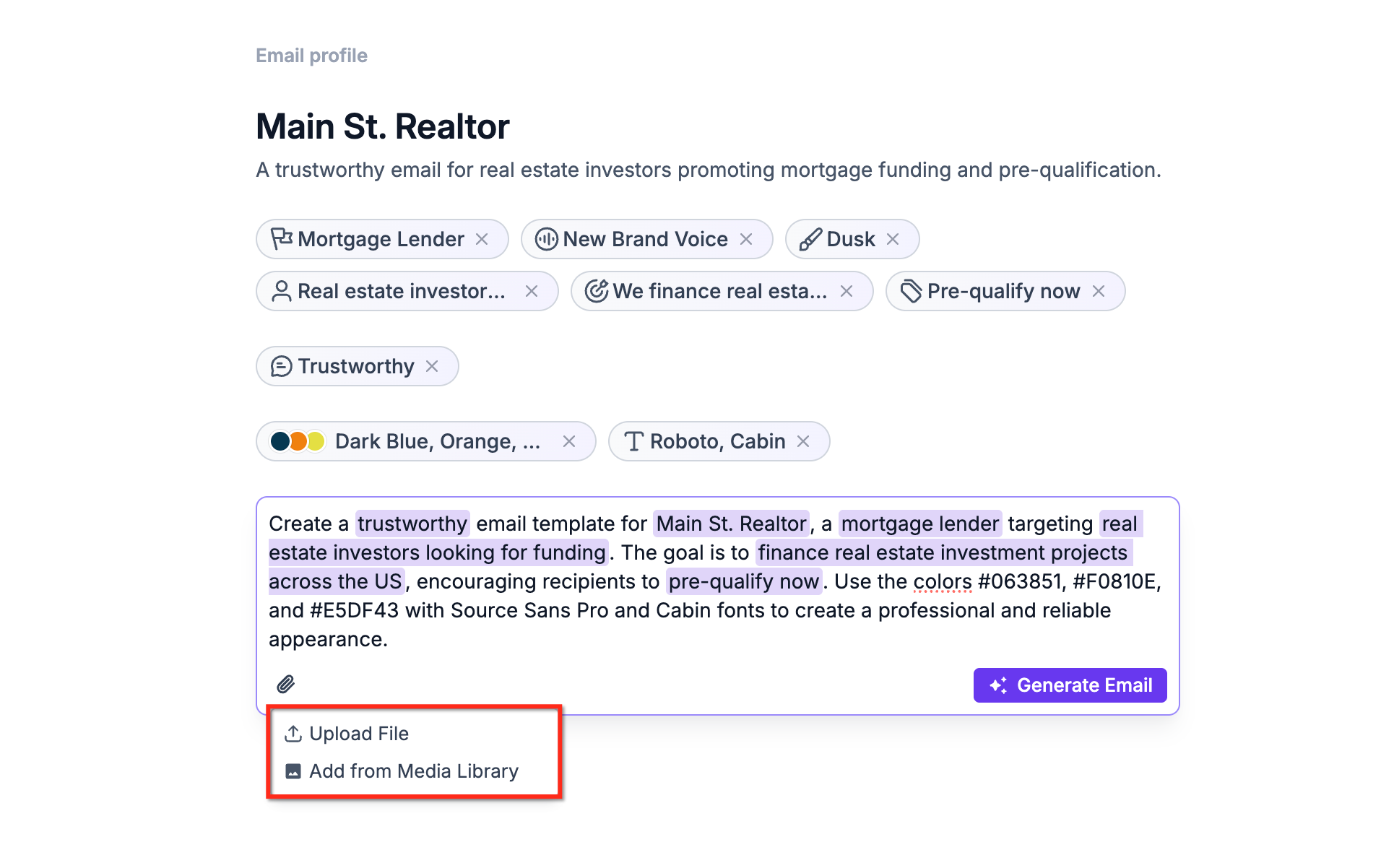
- Real estate agency. An agent uploads a screenshot of a competitor newsletter as a reference. Email AI recreates a similar layout using the agency Brand Board and inserts property details. The agent can add a new section for virtual tours with a simple Add Section command.
- SaaS startup. The Founder writes a prompt that outlines a new feature announcement. Email AI produces an on brand email with headings, body text and a button. The Founder shortens the copy with a Shorten command and saves the final version for the upcoming campaign.
04Before you start
- Email Marketing access must be enabled for the account.
- A Brand Board should be configured for optimal styling.
- Lab permissions are required to toggle the Email AI feature.
05How to set up and use email AI (Beta 2.0) in HighLevel
Set up and use Email AI
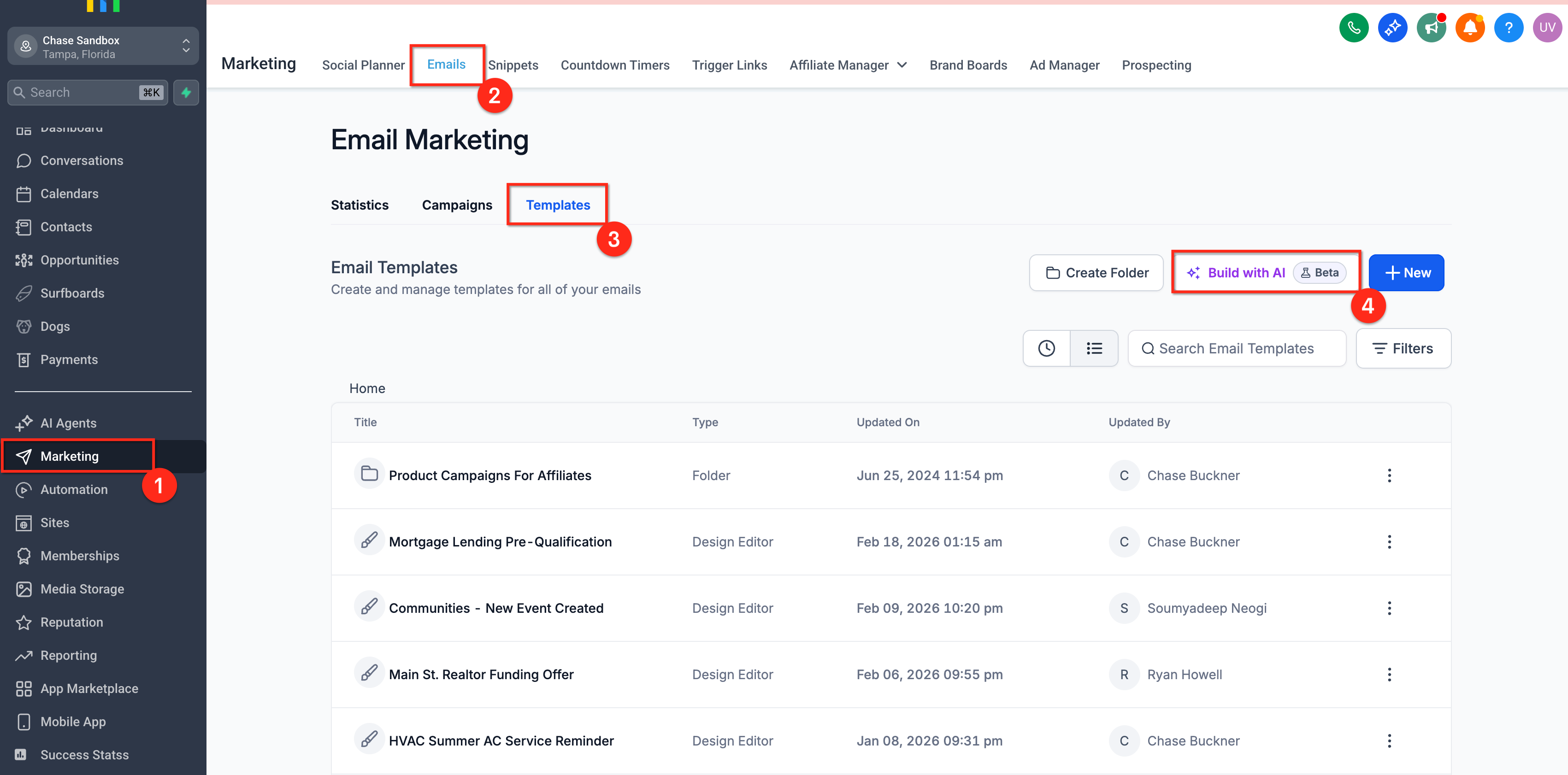
- Open Email Marketing, select Emails and open the Templates tab.
- Click Build with AI to launch the generator.
- Turn on Assist Mode and verify the correct Brand Board is selected.
- Choose either a reference file or a typed prompt to start the draft.
- Refine the draft with commands such as Rewrite, Shorten, Translate, Add Section or Change Theme.
- Preview all links, images and compliance content and make any final manual edits.
- Open Version History from the Kebab Menu and click Save Template to finish.
06What it looks like in HighLevel
07Settings that matter
- Email AI (Beta 2.0). Controls whether the Email AI feature is available for subaccounts in the Labs section.
08Things to know before you rely on it
- Complex custom code, tracking pixels or scripts from a reference are not copied into the generated email.
- Sample images are replaced with placeholder assets and must be swapped with licensed images after generation.
- Changes to the default Brand Board only affect emails generated after the change, not existing drafts.
09How it connects to the rest of HighLevel
- Configure sender name and address priority for emails. Sender priority
- View pricing options and plan eligibility for Labs features. Pricing
Michael's take

Getting a consistent look across every campaign while still moving fast is a daily headache for many marketers. Email AI (Beta 2.0) helps reduce the manual styling effort by pulling your Brand Board colors and fonts automatically, so you can focus more on the message.
The first setting I would lock in is Assist Mode with the correct Brand Board selected. That should help ensure every draft starts on brand, which can save time and cut back and forth edits later on.