
01Who this is for
- Agency owners who manage multiple client locations can build templates where they are needed without turning on Email AI for each client.
- Marketing managers for agencies can avoid duplicate template work by creating assets directly in the target location.
- Location administrators retain their own Email AI controls, ensuring client users only see the feature when their Labs setting allows it.
02Email AI access for agency users across locations, explained
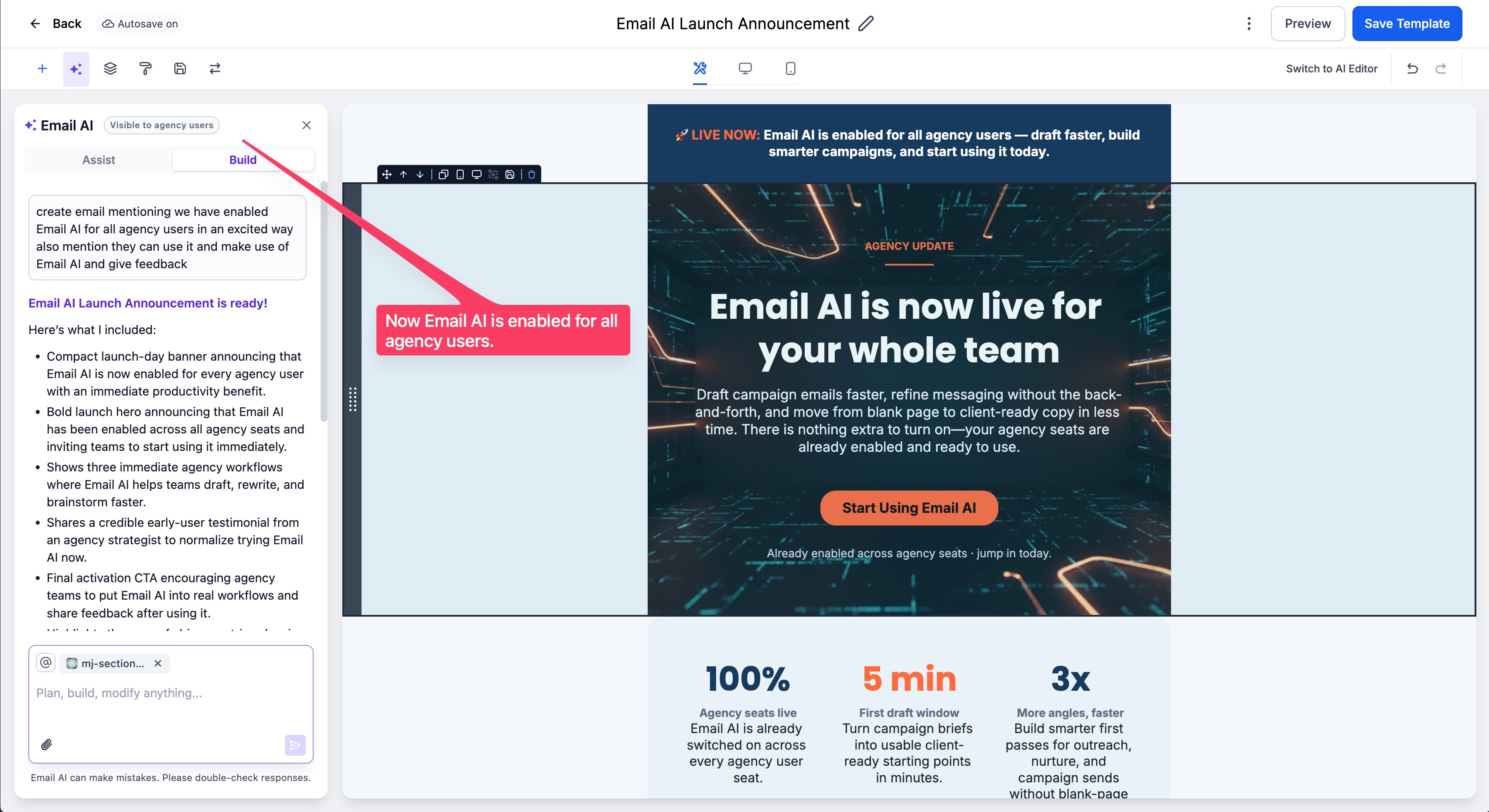
Email AI provides on demand draft generation, styling, and conversational editing for email content. It works inside the HighLevel email builder and respects each brand’s settings.
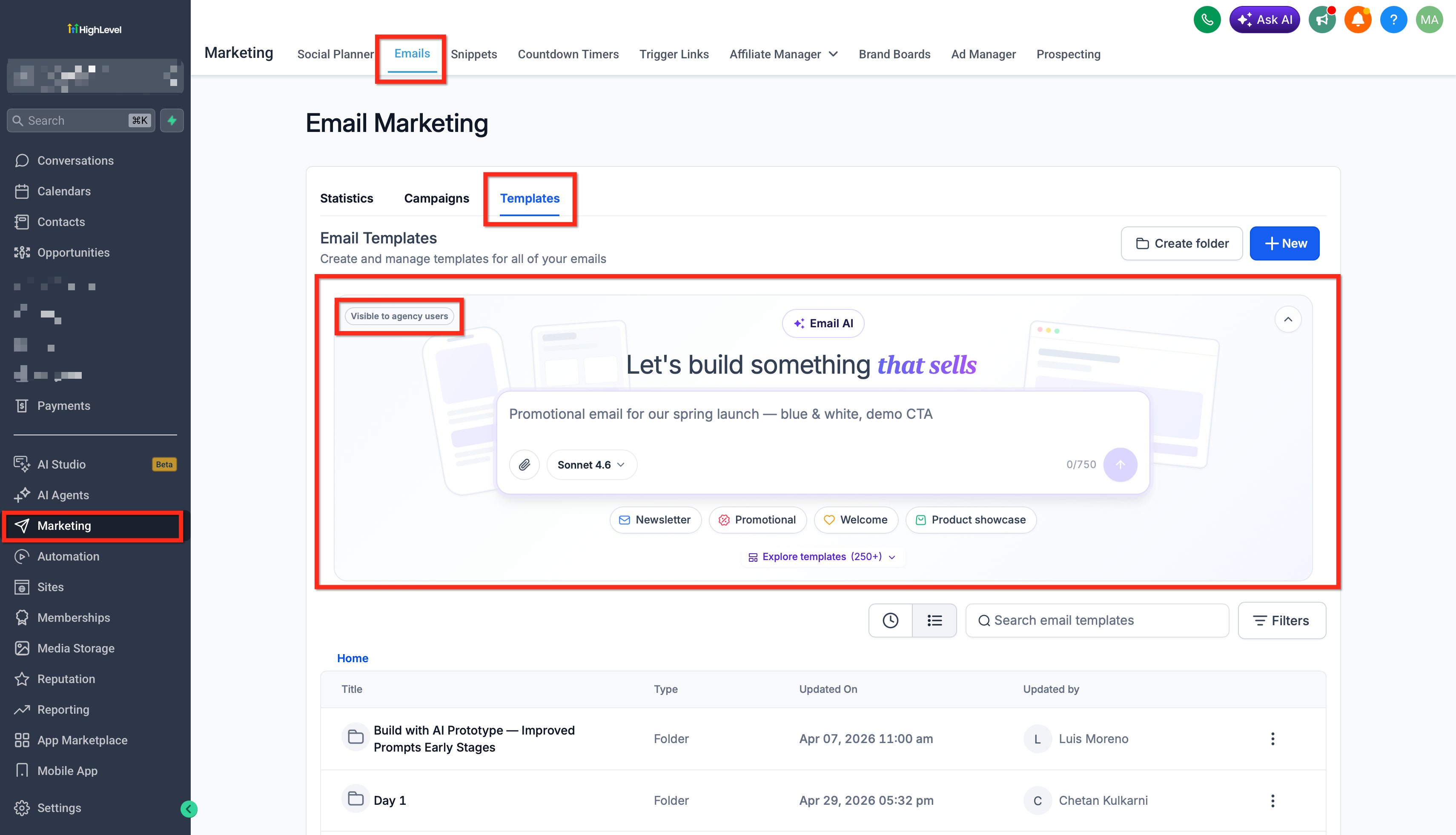
When an agency user opens a location, the platform checks both the user’s agency context and the location’s Labs configuration. If the location has Email AI disabled, the agency user still sees the feature, marked with a “Visible to Agency Users Only” tag. Location users see the feature only if their Labs setting enables it.
The feature lives in the Marketing section under Emails > Templates. The tag indicates the disparity between agency and location access, and does not change any permission or module rights.
03How businesses use email AI access for agency users across locations
- Digital marketing agency. The agency logs in, selects a client’s location, and creates a new Email AI template directly in that location. The template is saved for future use without needing to enable Email AI for the client’s own users.
- Boutique consulting firm. Consultants open the location for a specific client, view the “Visible to Agency Users Only” indicator, and draft a proposal email with Email AI. They then save the template for that location’s email campaigns.
- Healthcare network. A network’s central marketing team accesses a clinic location, uses Email AI to craft patient reminder emails, and stores the template in the clinic’s library while clinic staff continue to have no Email AI access.
04Before you start
- The user must be logged in as an agency user.
- The agency user must already have access to the target location.
05How to set up and use email AI access for agency users across locations in HighLevel
Enable Email AI for agency users in a location
- Log in to HighLevel as an agency user.
- Open the location where the template will be created or edited.
- Navigate to Marketing > Emails > Templates and select Type in to Build with AI; note the “Visible to Agency Users Only” tag.
- If Email AI is disabled for location users, verify that the “Visible to Agency Users Only” tag appears.
- Recognize that the tag does not require enabling Email AI for the location before proceeding.
- Important: Expanded Email AI availability does not give access to a location or module the user cannot otherwise access.
- If location users also need access, ensure the Email AI Labs configuration is enabled for that location.
- Create or modify the desired email template using Email AI.
- Save the template to store the changes.
06What it looks like in HighLevel
07Settings that matter
- Visible to Agency Users Only. Shows that Email AI is accessible to the agency user even though the location’s Email AI setting is disabled for its own users.
- Email AI Labs configuration. Controls whether location users can use Email AI; agency users are unaffected by this setting.
08Things to know before you rely on it
- Agency user access does not override existing user type, role, subaccount assignment, or module permissions.
- The feature does not automatically share a newly created template with other locations; template sharing must be used intentionally.
09How it connects to the rest of HighLevel
- Create on brand emails faster with Email AI (Beta 2.0) Email AI guide
- Configure email reply and forwarding settings Reply and forwarding
- Manage outgoing system generated emails System emails
Michael's take

Don’t assume the tag means you can bypass the location’s Labs settings.