
01Who this is for
- Marketing managers can quickly keep email designs on brand without switching screens.
- Design freelancers can capture client brand assets directly while editing an email.
- Small business owners can set up their brand palette, fonts, and logos in the same place they craft campaigns.
02Brand boards, explained
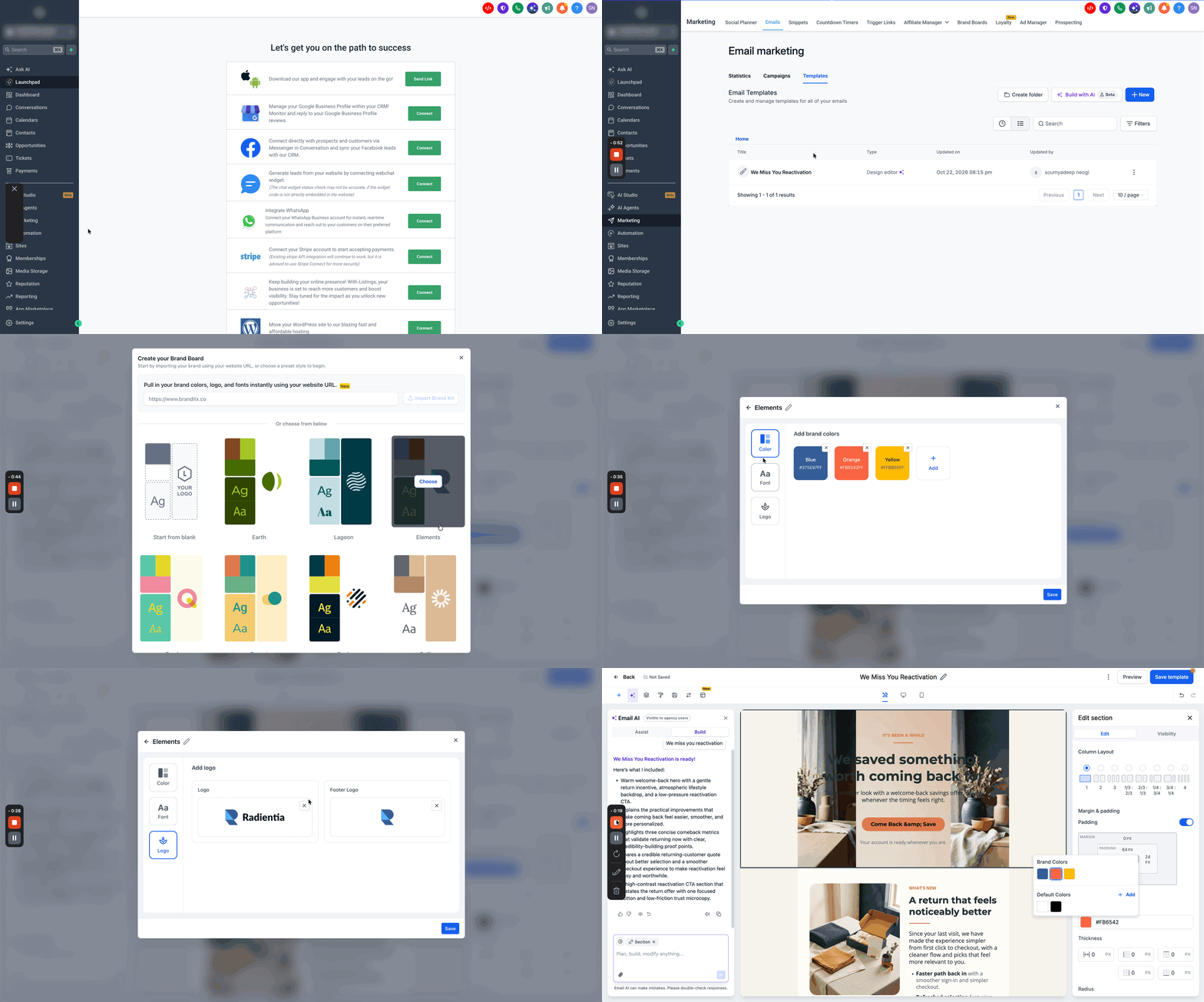
The feature adds a Create Brand Board button to the color picker inside the Email Builder. When clicked, a pop up appears where you can import colors, fonts, and logos from a website URL, choose a ready made preset, or begin with a blank board. Only brand colors are required; fonts and logos are optional. After saving, the new brand colors become right away selectable in the same color picker, allowing you to style the email without leaving the builder. The option is visible only when no Brand Board exists; existing boards can be accessed directly from the color picker.
03How businesses use brand boards
- Marketing agency. An agency creates a new Brand Board while editing a client email template, imports the client’s website colors, adds the client’s logo, and then applies the saved palette to all campaign emails without leaving the builder.
- Ecommerce store. The store owner opens a product announcement email, uses the Create Brand Board button to start from a preset style, adds a custom font, saves the board, and immediately uses the brand colors to match the storefront’s look.
- Consulting firm. A consultant edits a newsletter, selects Start from blank to define unique brand colors, optionally uploads a logo, saves the board, and then picks those colors from the Brand Colors section for consistent branding.
04Before you start
- Ensure the account does not already have a Brand Board; the option appears only when none exists.
- Open an email template in the Email Builder to access the color picker.
05How to set up and use brand boards in HighLevel
Create a brand board from the Email Builder
- Navigate to Marketing > Emails > Templates and either create a new template or edit an existing one.
- In the Email Builder, click any color picker and select Create Brand Board.
- Choose Import from URL, pick a preset style, or select Start from blank.
- Review the suggested brand colors and, if desired, add fonts and logos via the Font and Logo tabs.
- Press Save to store the new Brand Board.
- Return to the color picker and choose your saved colors under Brand Colors.
06What it looks like in HighLevel
07Settings that matter
- Create Brand Board. Opens a pop up that lets you build a new Brand Board without leaving the Email Builder.
- Import from URL. Pulls brand colors, fonts, and logos from a specified website address.
- Preset style. Loads a ready made set of brand attributes to start from.
- Start from blank. Begins a new Brand Board with no pre filled values.
- Font. Allows you to add or edit font selections for the Brand Board.
- Logo. Enables you to upload or choose logos to associate with the Brand Board.
08Things to know before you rely on it
- The Create Brand Board button appears only when no Brand Board already exists in the account.
- Only brand colors are mandatory; fonts and logos are optional.
09How it connects to the rest of HighLevel
- Explore all email capabilities in HighLevel. All Email features
- Read the guide on email warm up and DMARC for reliable delivery. Email warm up and DMARC
- Check pricing and plan details for accessing advanced branding features. HighLevel pricing and plans
Michael's take

Having the ability to capture your brand palette without leaving the Email Builder feels convenient when working on a new email.
If you already have a separate design system, you might prefer to stick with your existing workflow rather than using the pop up.