
01Who this is for
- Founders of SaaS startups who need personalized email timing without manual scheduling.
- Sales teams in real estate agencies looking to increase open rates on one to one outreach.
- Coaches who send follow up emails and want each client to receive messages at their most active moment.
02AI Schedule for Emails, explained
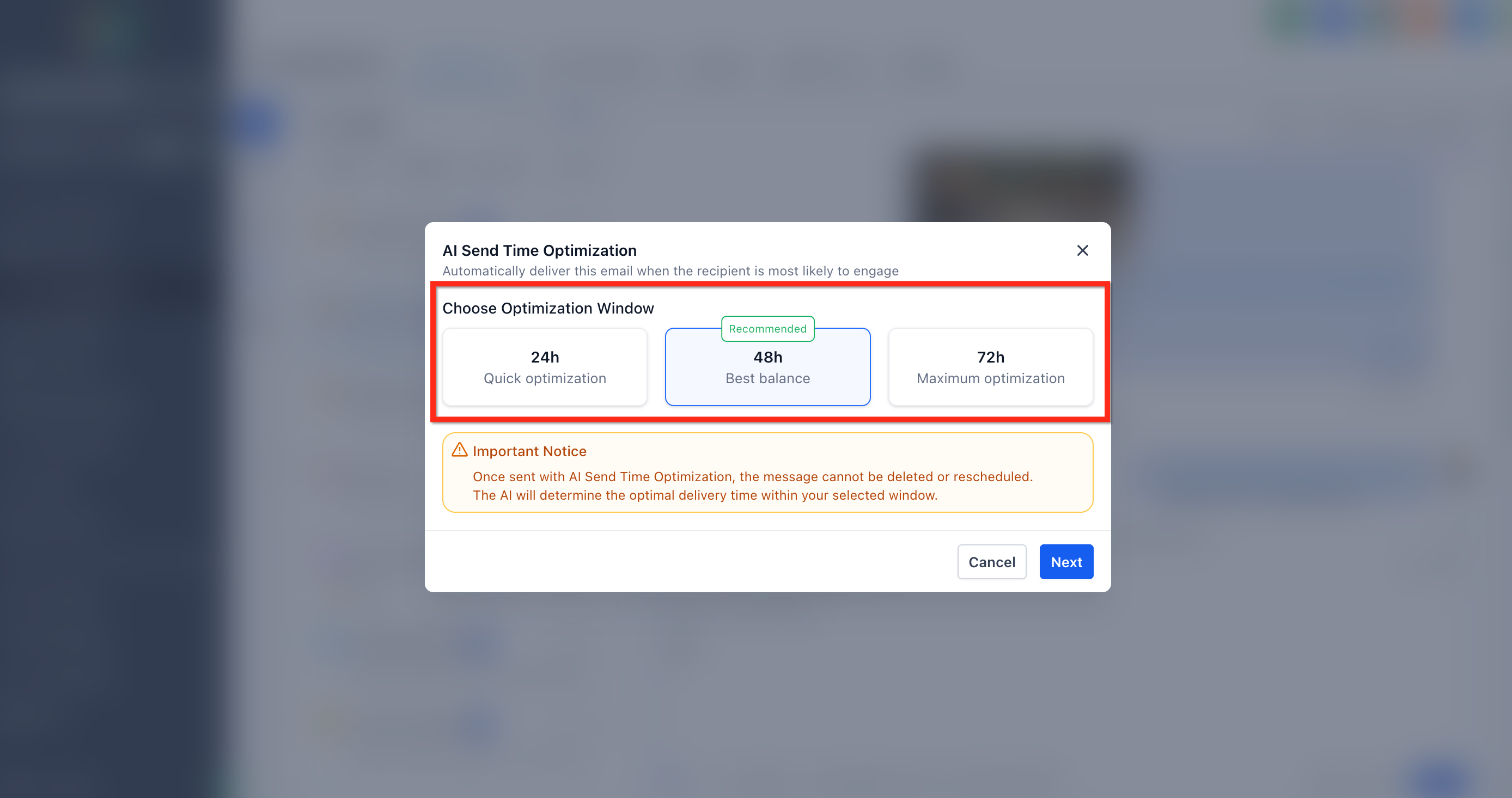
AI Schedule uses engagement intelligence to pick the moment a contact is most likely to notice, open, and reply to an email. You select a time window, such as 12, 48, or 72 hours, and the platform’s AI reviews the recipient’s historical activity to find the optimal point inside that range.
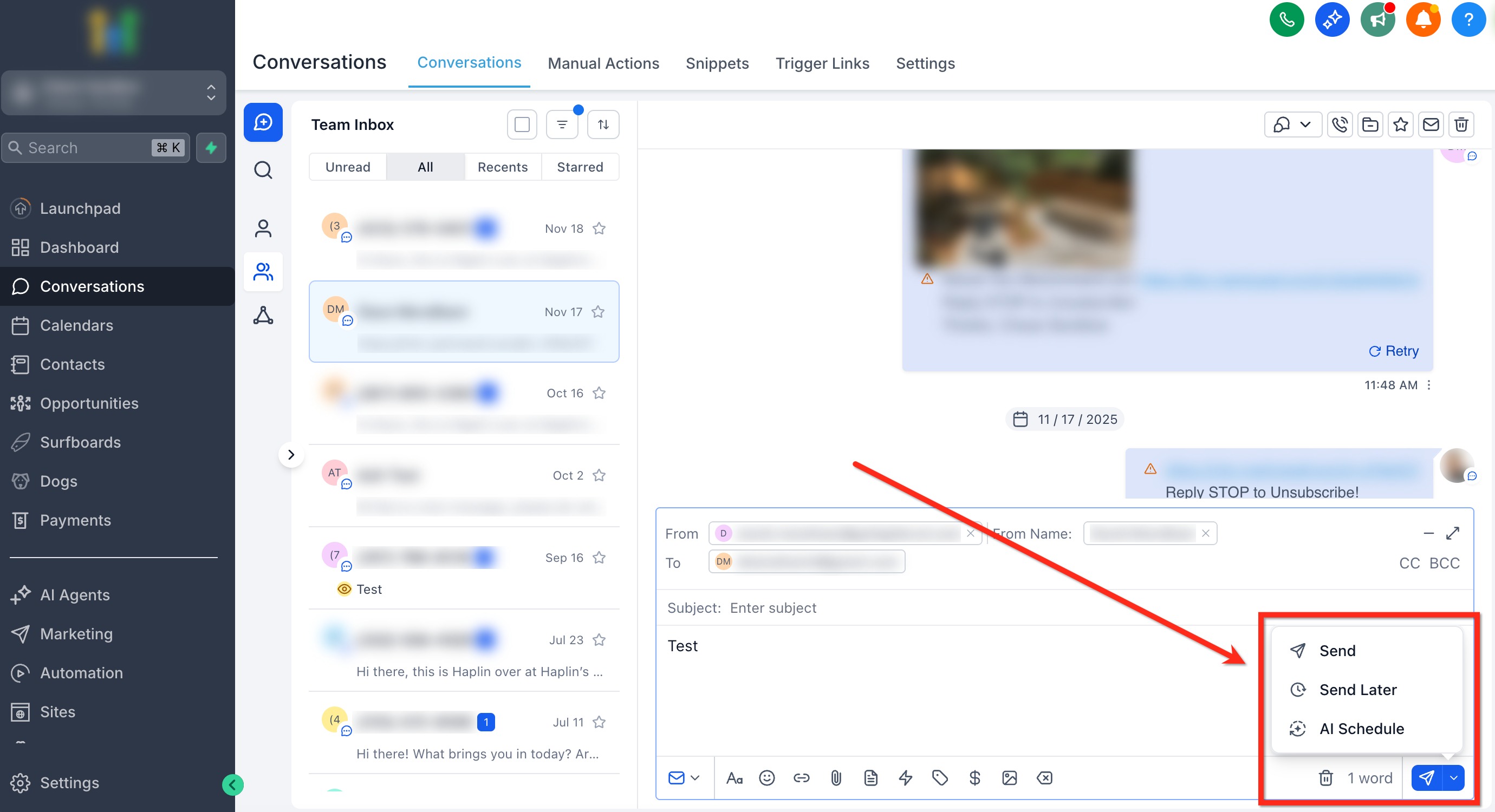
When you confirm sending, the email is queued for delivery at the AI chosen time. If the system lacks sufficient engagement data for that contact, it sends the message immediately to avoid missing the window. The option appears alongside Send Now and Send Later in the Conversations email composer.
The feature is limited to subaccounts that use LC Email or Mailgun and cannot be used when 2 way sync is enabled.
03How businesses use AI Schedule for Emails
- Real estate agency. An agent drafts a property update in a Conversation, selects AI Schedule, chooses a 48 hour optimization window, and confirms. The platform times the email for each prospect based on their past opens, without the agent manually calculating time zones.
- SaaS startup Founder. The Founder writes a personalized demo invitation in Conversations, picks the AI Schedule option, sets a 12 hour window for quick follow up, and sends. AI determines the best moment for each lead, spreading sends to avoid a single blast.
- Online coaching practice. A coach composes a session reminder, selects AI Schedule, chooses a 72 hour window for less time critical messages, and clicks Send with AI Optimization. The system delivers each reminder when the client historically engages most.
04The numbers and rules that matter
- AI Schedule is not supported for accounts with 2 way sync enabled.
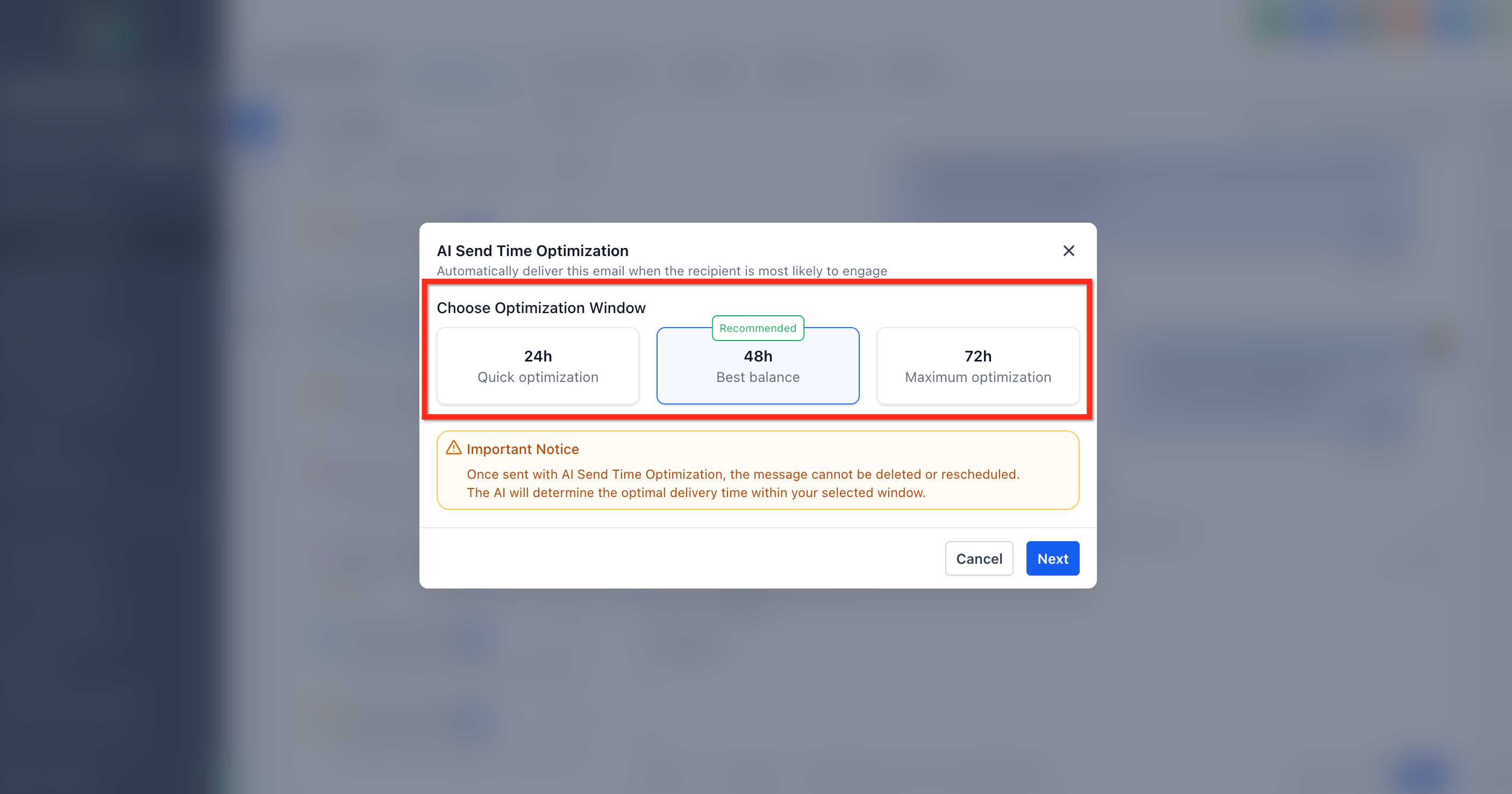
- Optimization windows available: 12 h, 48 h, 72 h.
05Before you start
- Subaccount must use LC Email or Mailgun as the email provider.
- Account must not have 2 way sync enabled.
06How to set up and use AI Schedule for Emails in HighLevel
Send email with AI Schedule
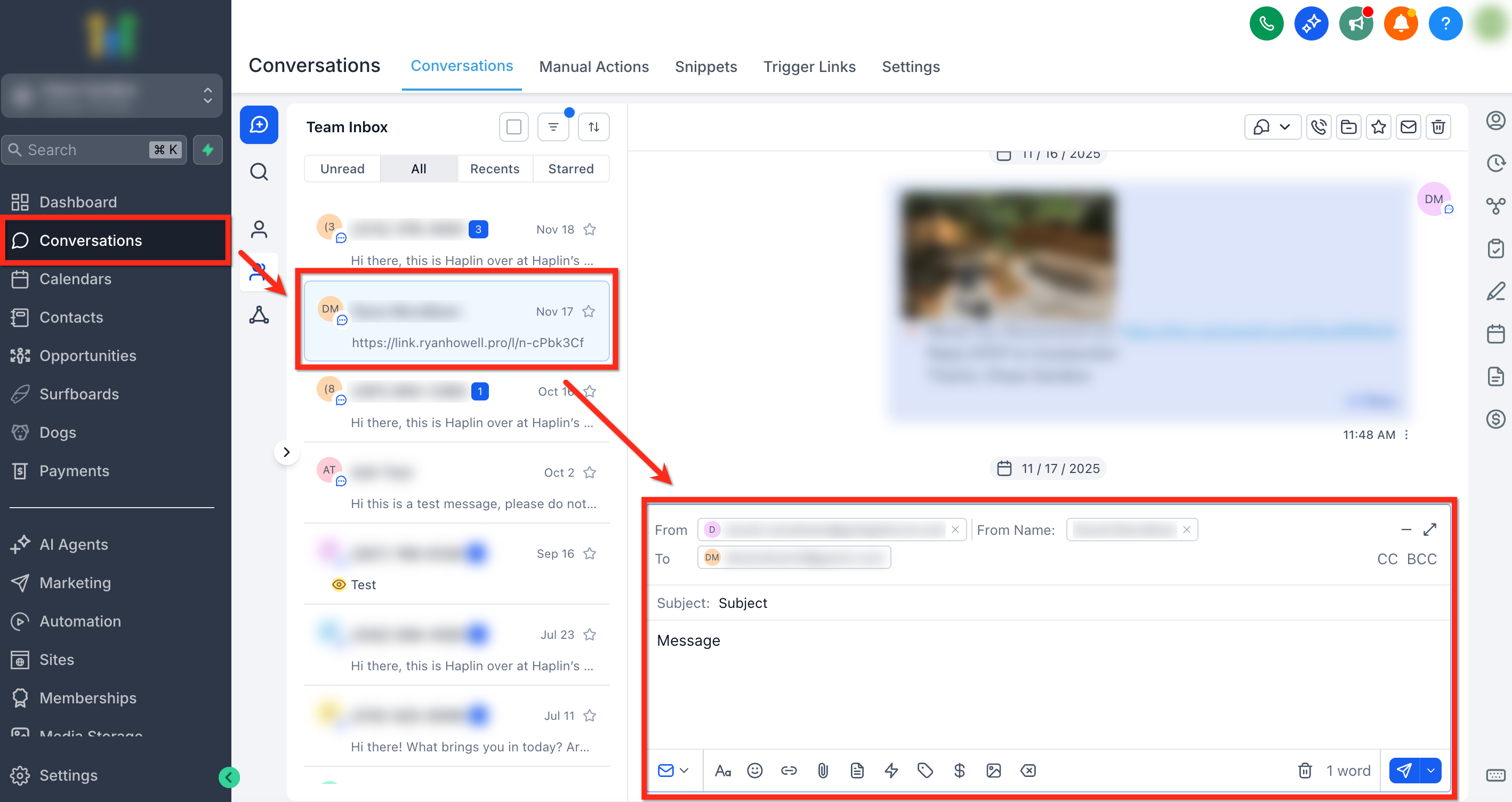
- Open a Conversation and compose the email subject and body.
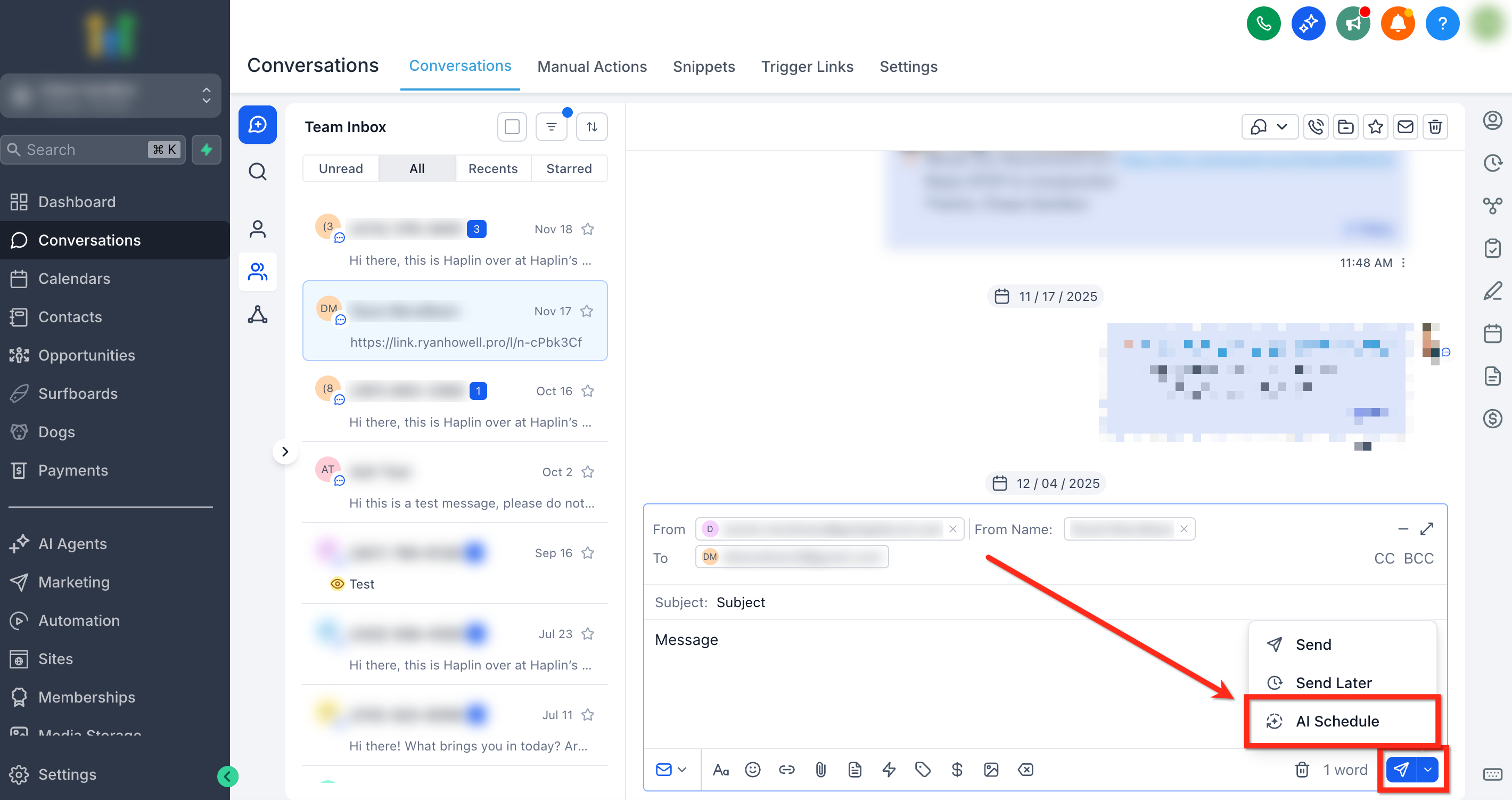
- Click the Send menu and choose AI Schedule.
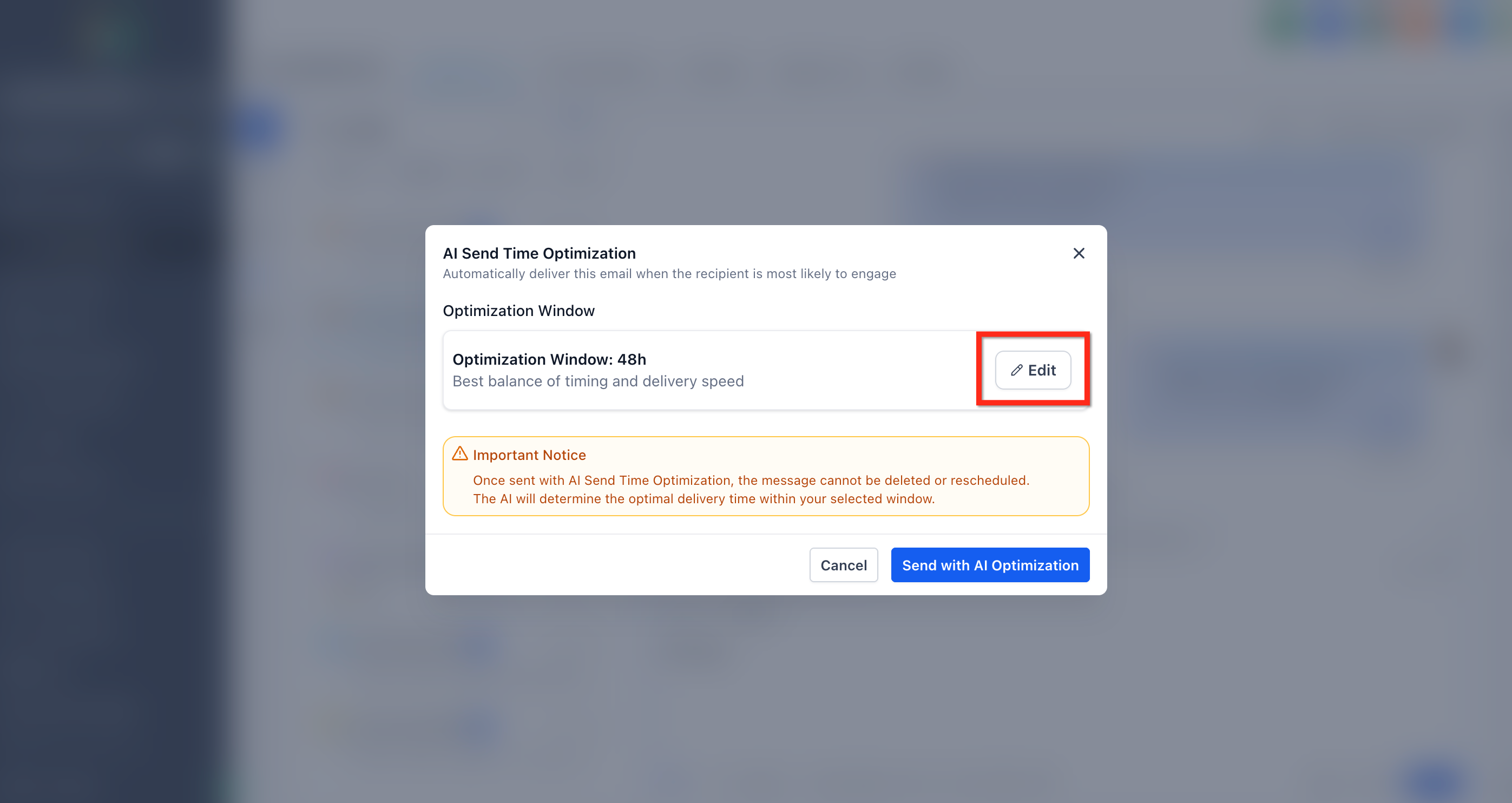
- Open the Optimization Window selector by clicking Edit.
- Select the desired window (12h, 48h, or 72h) and click Next.
- Confirm by clicking Send with AI Optimization.
- After confirming, the email cannot be deleted or rescheduled, so double check the content before sending.
07What it looks like in HighLevel
08Settings that matter
- Optimization Window. Defines the time range, such as 12 hours, 48 hours, or 72 hours, in which the AI can choose the optimal send moment for each contact.
09Things to know before you rely on it
- After confirming Send with AI Optimization, the email cannot be deleted or rescheduled.
- Available only for subaccounts using LC Email or Mailgun.
- Not supported for accounts that have 2 way sync enabled.
- If a contact lacks sufficient engagement data, the email is sent immediately.
10How it connects to the rest of HighLevel
- Explore all email capabilities in HighLevel. All Email features
- Set up LC Email or Mailgun to use AI Schedule. LC Email overview
- Compare plans and trial options for HighLevel. Pricing and plans
Michael's take

AI Schedule for Emails takes the guesswork out of timing, nudging each message into the moment a contact is most likely to open.
Don’t forget to double check the email before you hit the AI send button, because you can’t edit or cancel it afterward.