
01Who this is for
- Founders who issue service contracts and need to give clients the ability to select add ons.
- Sales managers looking to present flexible pricing options inside documents.
- Customer support leads handling contract approvals that require quantity adjustments by signers.
02Quotes with optional items, explained
The feature adds a checklist style product list to a document quote. Document creators can list fixed services together with optional ones, and configure each line to be selectable by the signer. Quantity fields can be made editable and limited to a minimum and maximum value.
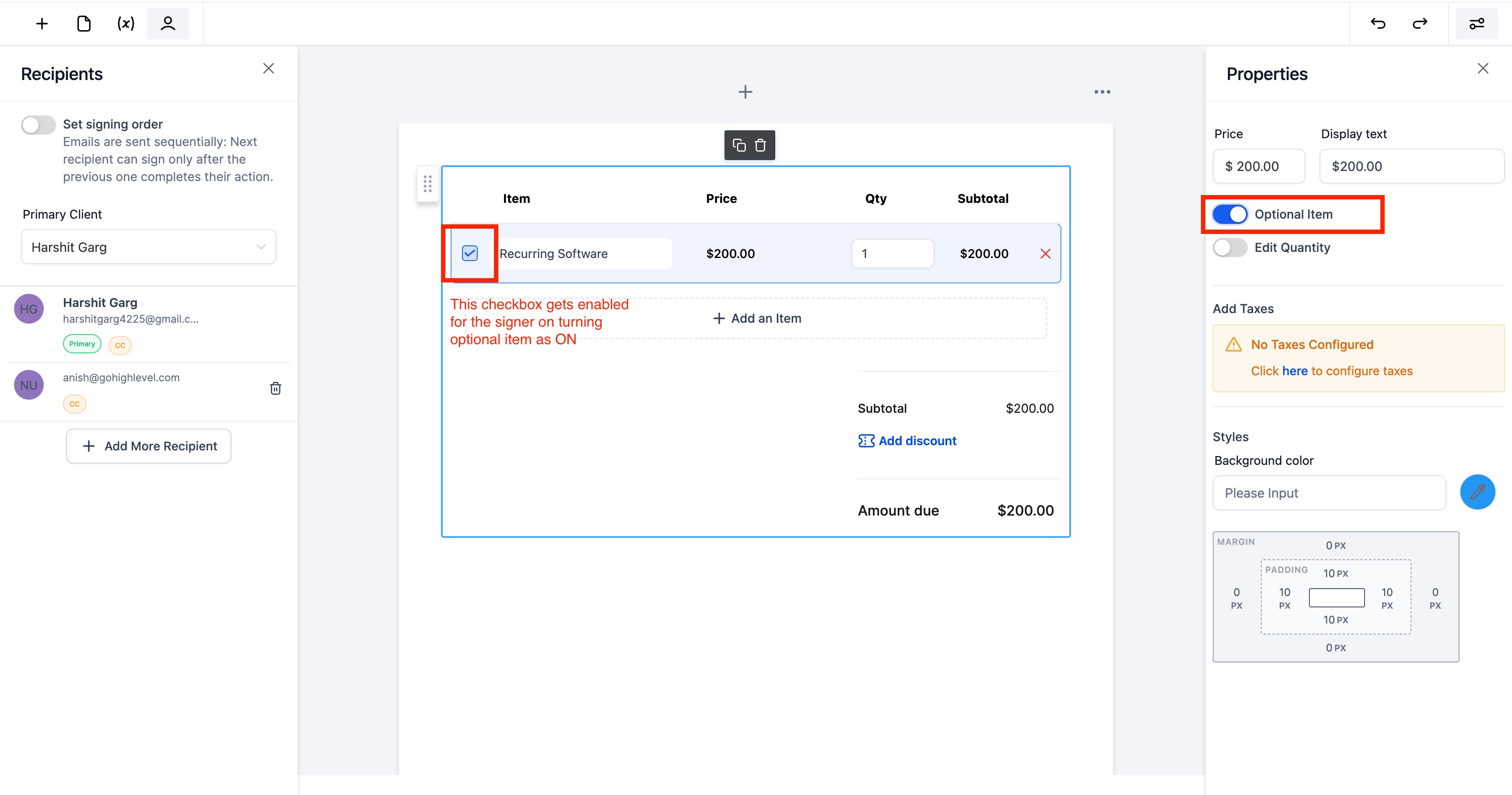
When the document is sent, the product list is attached to the primary recipient automatically. Signers see the optional items as checkboxes and, if allowed, can change the quantity for each selected line. The total amount shown in the quote recalculates in real time based only on the items the signer has chosen.
These controls are found in the Documents & Contracts area of HighLevel while editing a document. The toggles for editing quantity and marking a line as optional appear beside each product entry in the product list editor.
03How businesses use quotes with optional items
- Web design agency. The agency creates a quote document that includes core website development and optional SEO packages. By enabling the optional item toggle, clients can check the SEO service they want. The quantity toggle lets them specify the number of monthly SEO reports, and the total price updates accordingly.
- Home renovation contractor. The contractor adds a product list with required remodeling work and optional finish upgrades such as premium flooring. Each upgrade is marked as optional, and the quantity toggle allows the homeowner to pick how many rooms receive the upgrade. The final amount reflects only the selected upgrades.
- Fitness studio. When sending a membership agreement, the studio lists the basic plan and optional add on classes. The optional item toggle lets members choose which classes to include, while the quantity edit lets them set the number of sessions per week. The quote total adjusts to the chosen classes and session count.
04The numbers and rules that matter
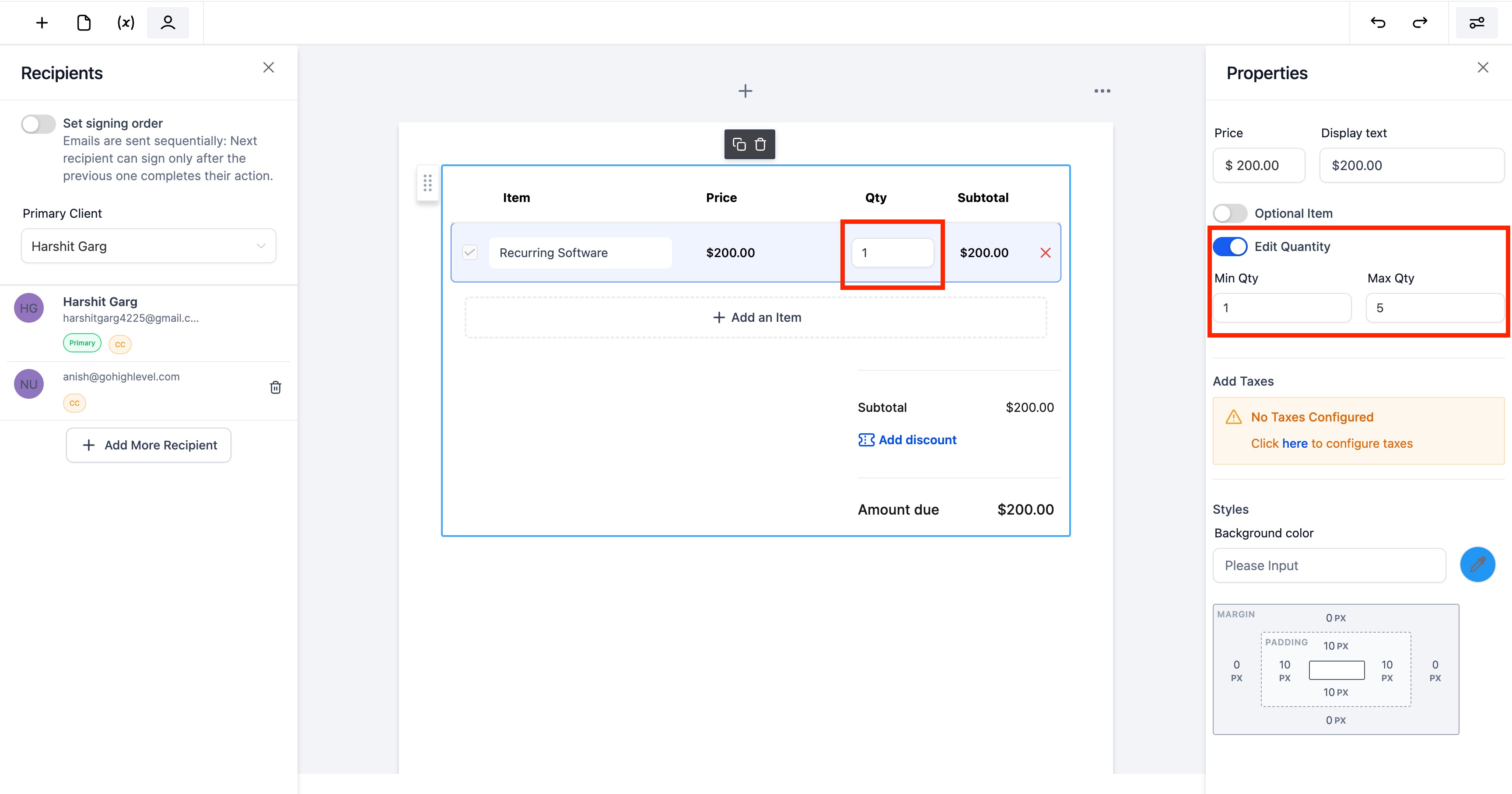
- Ability to Toggle and make the quantity editable for the signer and set limits on minimum and maximum quantity that can be selected.
05How to set up and use quotes with optional items in HighLevel
Add optional items to a quote
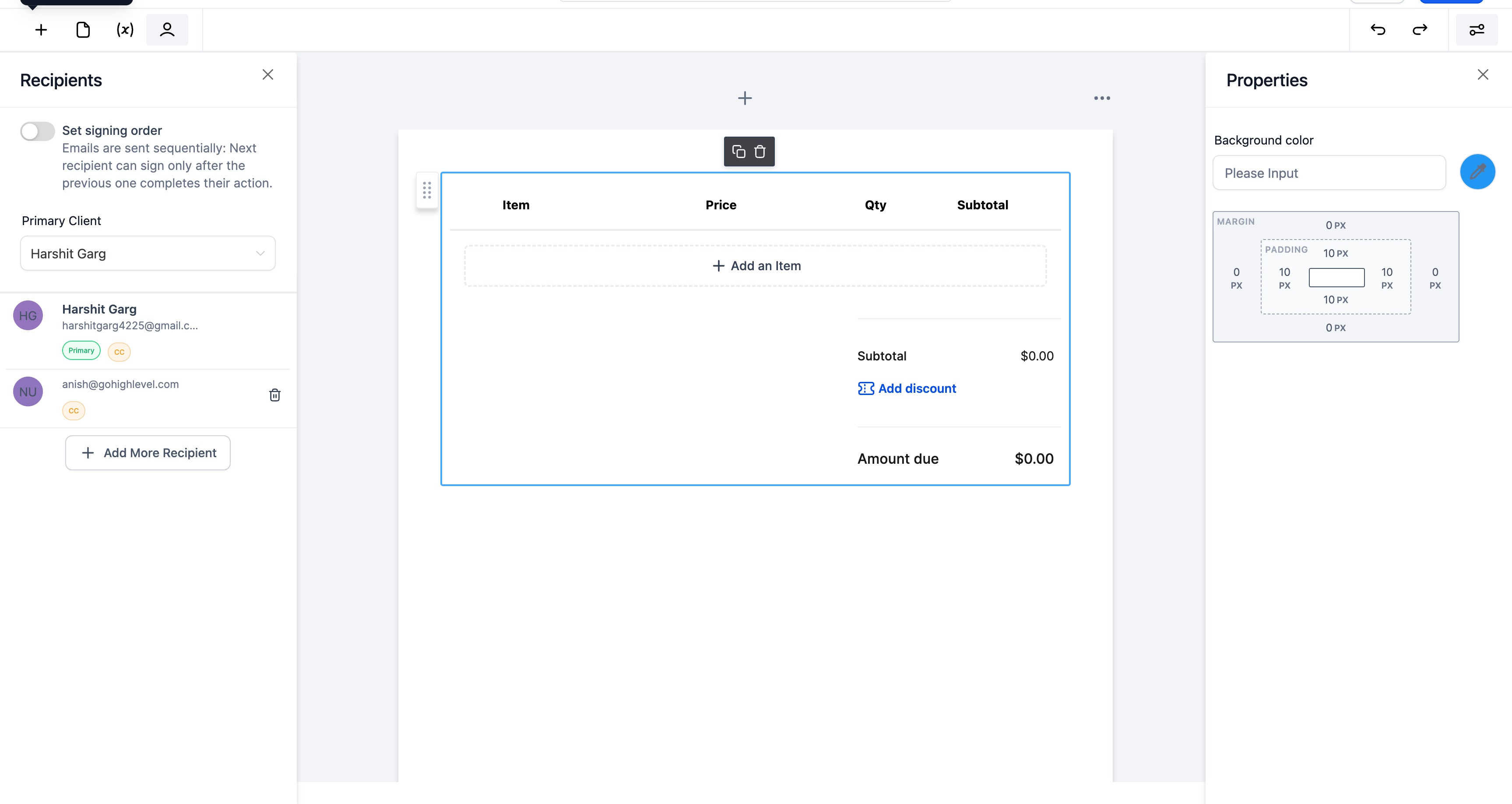
- Select the option to add a product list to the document.
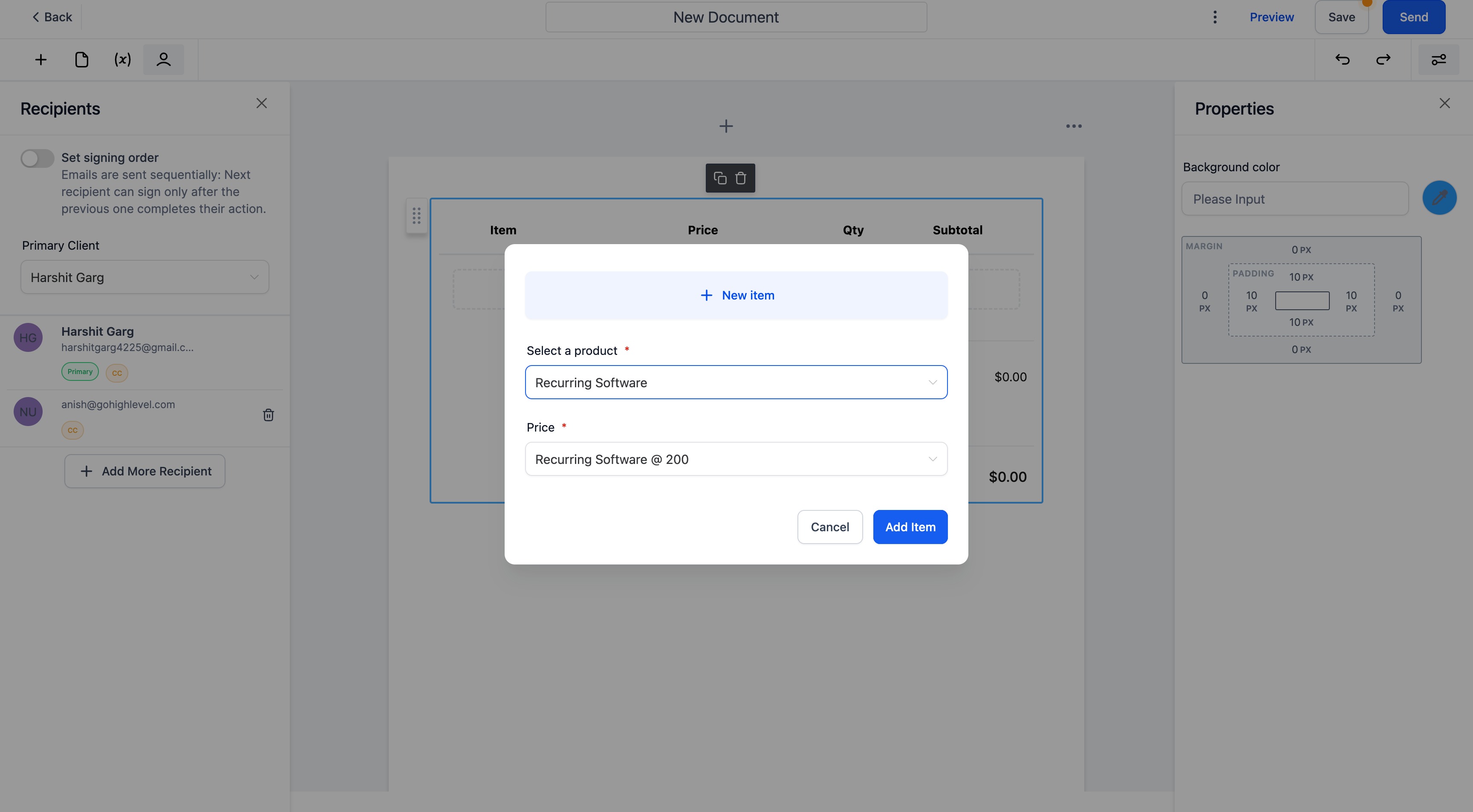
- Create a new product entry inside the list.
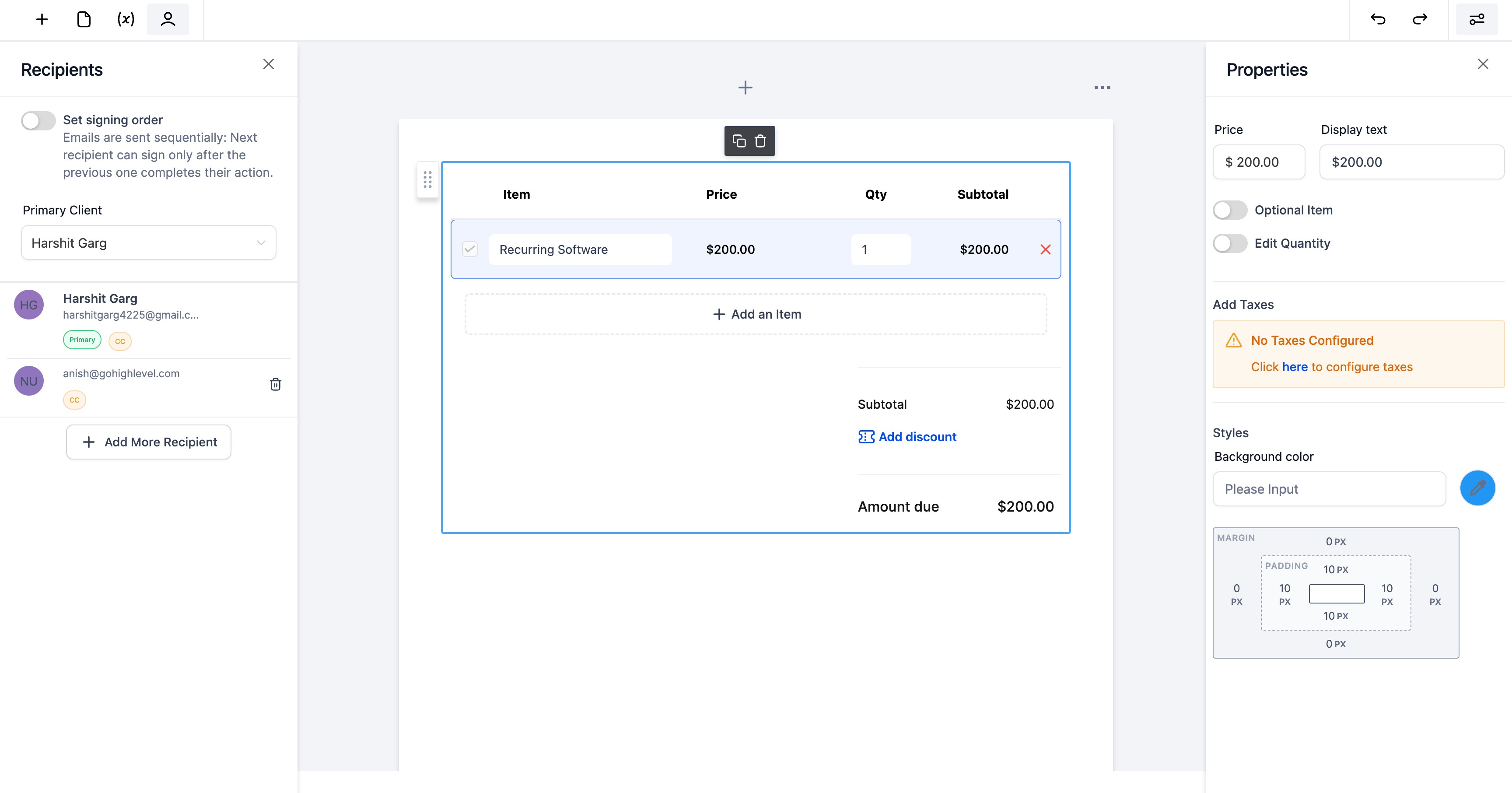
- Turn on the Edit Quantity toggle so the signer can modify the amount.
- Activate the Optional Item toggle to make the product selectable by the signer.
06What it looks like in HighLevel
07Settings that matter
- Edit Quantity Toggle. Controls whether the signer can change the quantity for that product line.
- Optional Item Toggle. Determines if the product appears as a selectable option for the signer.
08Things to know before you rely on it
- The product list is assigned to the primary recipient by default.
- Quantity limits can be set for each optional item, defining minimum and maximum selectable amounts.
- The total amount updates only based on items that the signer has selected.
09How it connects to the rest of HighLevel
- Learn how to create and send documents in HighLevel. Create documents
- Explore all features available in the Documents & Contracts module. All features
- Review pricing options for HighLevel plans. Pricing
Michael's take

Offering optional items in a quote can turn a static contract into a flexible sales tool, letting clients add extras and see the price change.
Set sensible minimum and maximum quantities to avoid unintended totals.