
01Who this is for
- Sales teams gain a quick way to deliver proposals when email is missed, improving response time.
- Service providers can reach clients on the channel they check most often, ensuring contracts are seen promptly.
- Real estate agents benefit from sending listing agreements via text, matching the fast pace of property deals.
02Documents and contracts via SMS, explained
The SMS document feature expands the platform’s delivery options beyond email. You can send a contract as a text, choose SMS alone or combine it with email, and standardize the default channel for all document notifications. Global defaults live under the Customer Notifications settings, while individual sends let you pick a channel at the moment of delivery.
Snippets store reusable SMS messages, so any team member can select the same wording each time. The same send action can be placed inside a workflow, allowing automatic document delivery when a trigger fires, such as a stage change or form submission. All controls are found inside the Payments > Documents & Contracts section and the Marketing > Snippets area.
03How businesses use documents and contracts via SMS
- Real estate brokerage. Agents create an SMS snippet that includes a link to the purchase agreement. When a buyer reaches a certain stage, the workflow automatically sends the agreement via SMS, ensuring the client receives it right away on their phone.
- Insurance agency. Agents set the global default to Email + SMS. When a new policy document is prepared, they open the document, choose the SMS channel, select the pre written snippet, and send it, letting customers view the policy both in email and as a text.
- Fitness studio. The staff defines an SMS snippet that asks members to sign a liability waiver. For a one off class signup, they open the waiver document, pick SMS as the channel, attach the snippet, and send it directly to the member’s phone.
04Before you start
- Create at least one SMS snippet in Marketing > Snippets before attempting to send a document via SMS.
- Set the preferred default delivery method in Customer Notifications if you want a consistent channel for all document events.
05How to set up and use documents and contracts via SMS in HighLevel
Set global defaults for document notifications
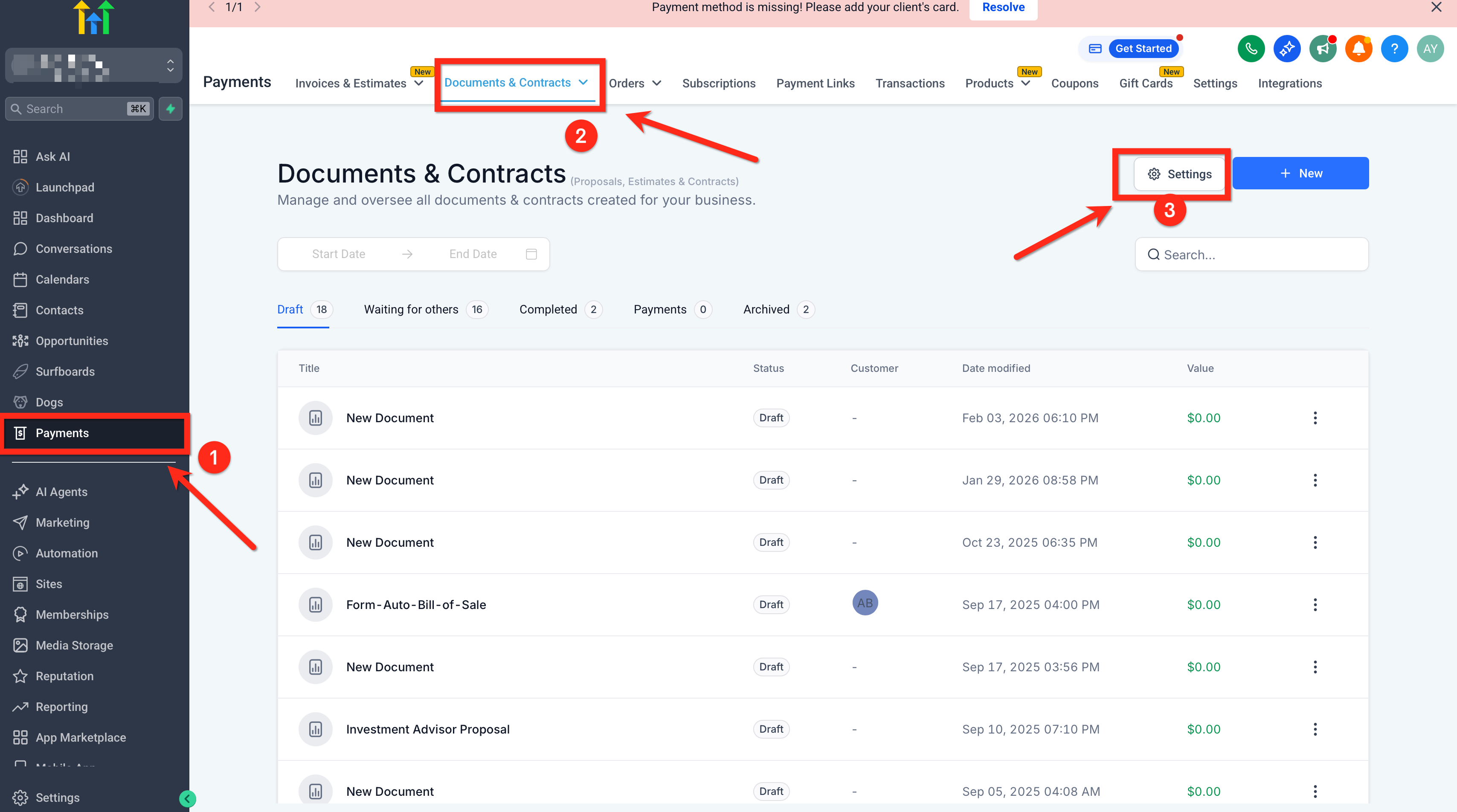
- Open Payments and select Documents & Contracts.
- Click the Settings icon.
- Choose the Customer Notifications tab.
- Select the default delivery option, either SMS only or Email plus SMS.
- Save the configuration.
Create an SMS snippet
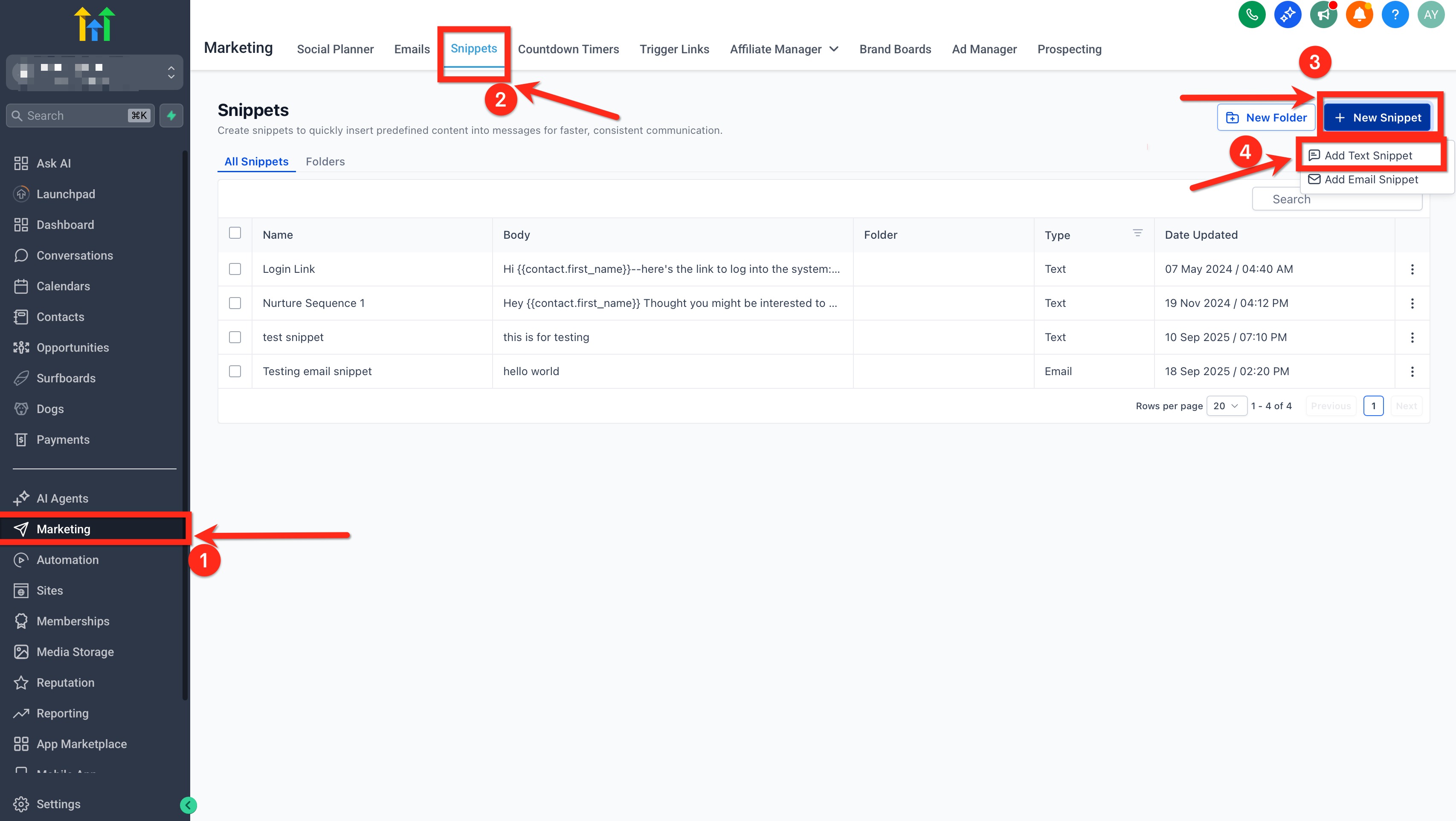
- Navigate to Marketing then Snippets.
- Press New Snippet.
- Choose SMS as the snippet type.
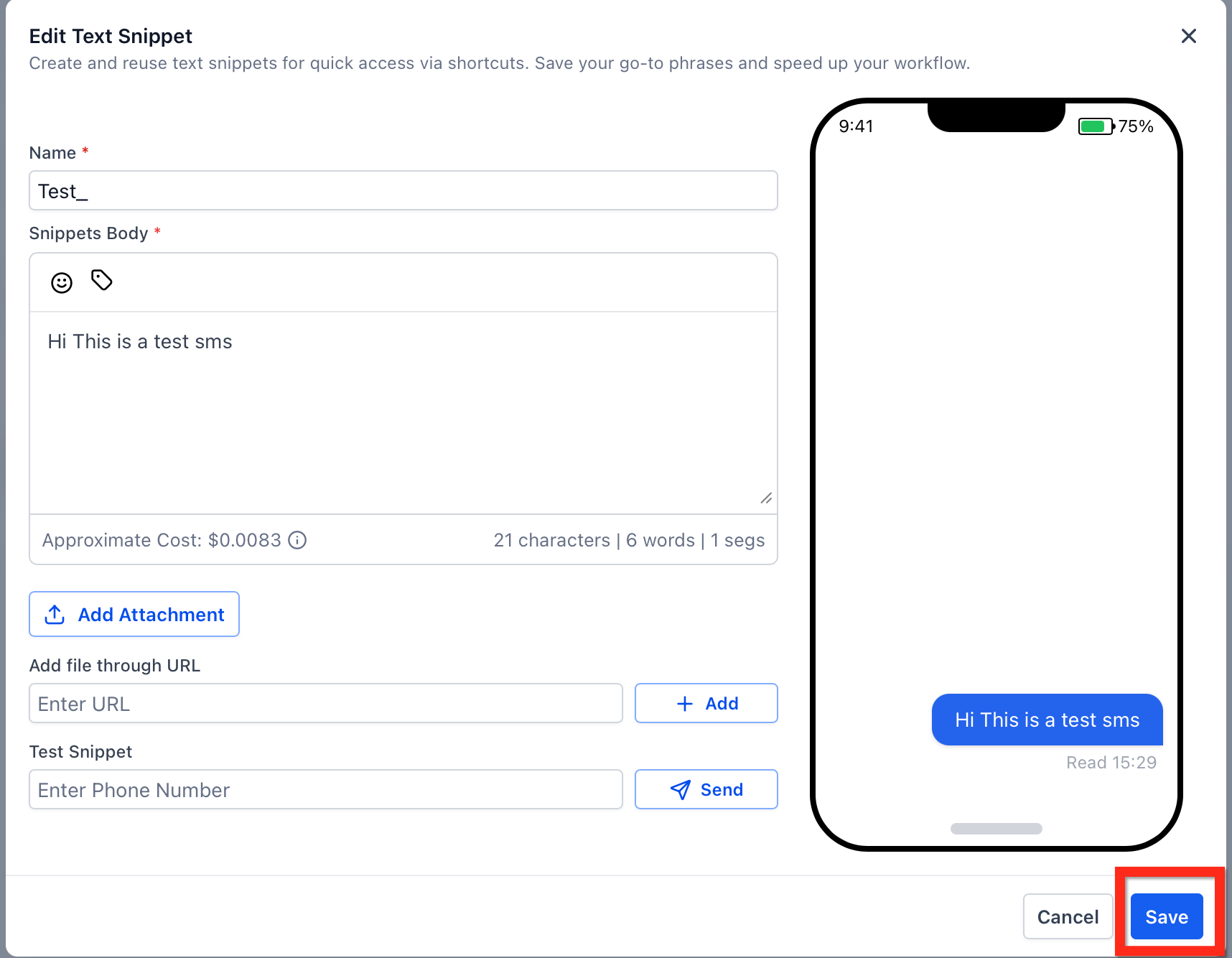
- Enter the text you want to send.
- Save the snippet.
Send a document to a single contact
- Open the document you wish to send.
- Click the Send button.
- Choose the delivery channel: Email, SMS, or Email + SMS.
- If SMS is selected, pick the SMS snippet you created.
- Review the details shown.
- Confirm to send the document.
Add a document send action to a workflow
- Go to Automation then Workflows.
- Open an existing workflow or create a new one.
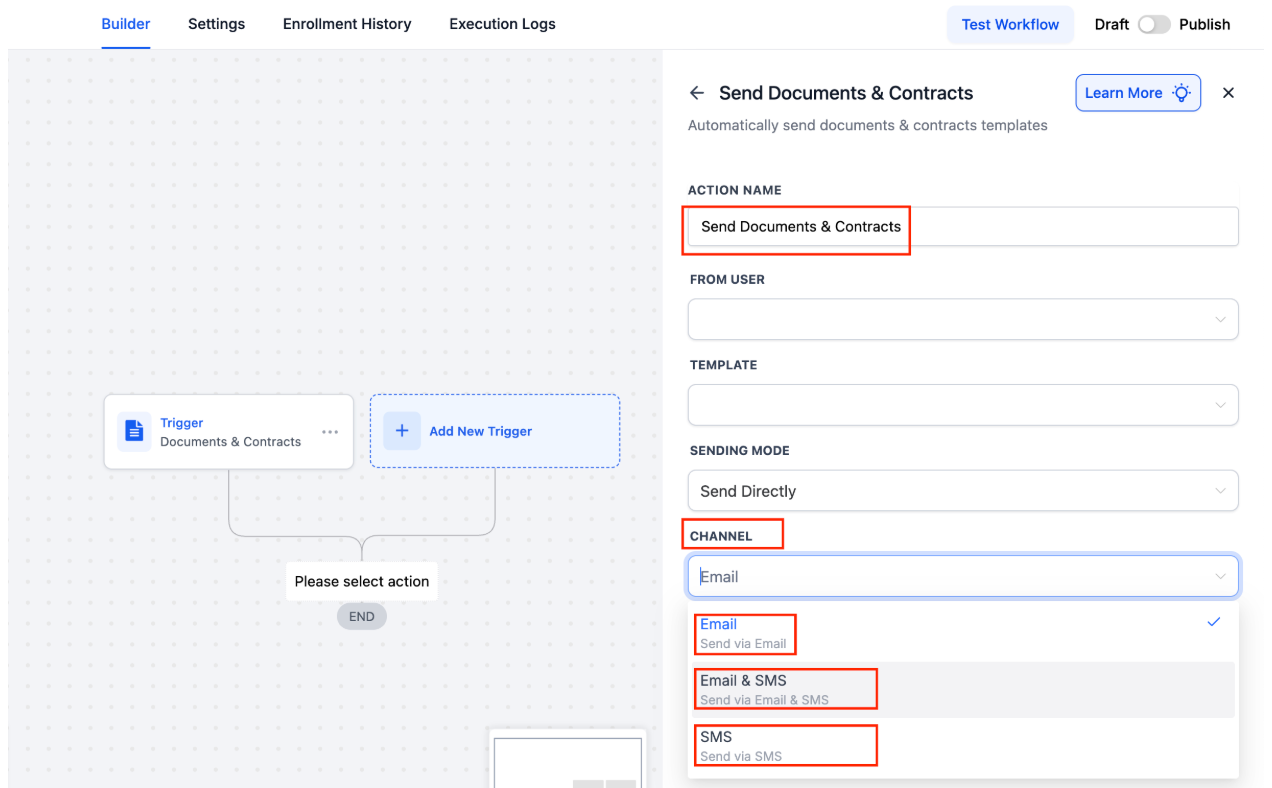
- Add the Send Documents & Contracts action.
- Select the document or contract template to send.
- Set the sending channel based on your account defaults.
- Save and publish the workflow.
Complete the end to end setup for SMS document delivery
- Navigate to Payments > Documents & Contracts > Settings > Customer Notifications.
- Choose the default method for supported document events.
- Create at least one SMS snippet under Marketing > Snippets.
- Open the document you intend to send.
- Click Send and select SMS or Email + SMS.
- Select the SMS snippet when prompted.
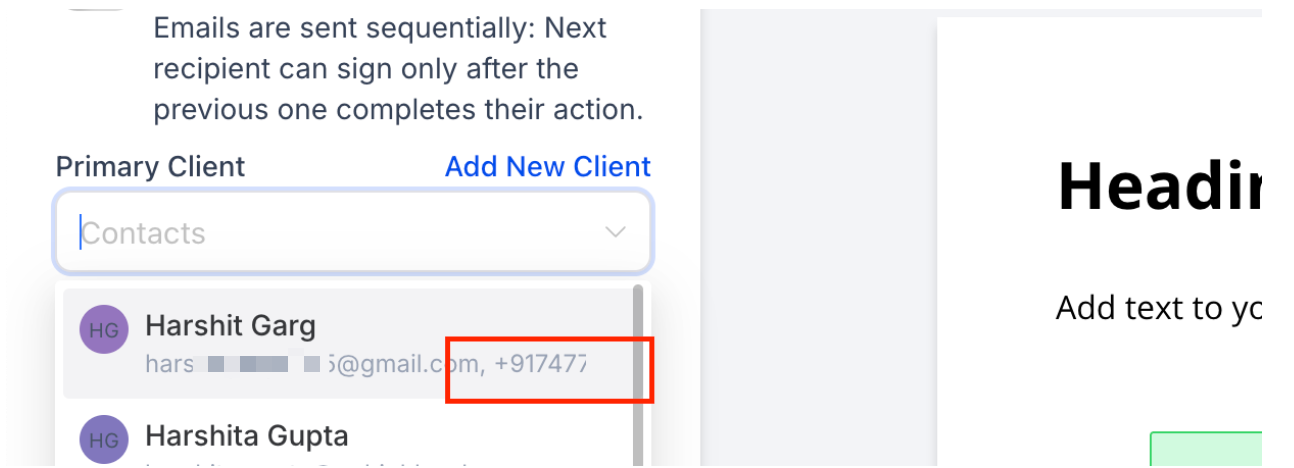
- Verify the recipient’s contact details and then dispatch the document or configure the same flow inside a workflow.
06What it looks like in HighLevel
07Settings that matter
- Customer Notifications. Controls the default delivery method, SMS only or Email + SMS, for document related messages such as receipt and signature alerts.
08Things to know before you rely on it
- Document Received notifications follow the global default but can be changed later when the option is supported.
- Document Signed notifications always use the global setting you configured.
- Only SMS snippets can be used for the SMS channel.
09How it connects to the rest of HighLevel
- Full guide on creating and sending documents and contracts Documents & Contracts basics
- Automate document sends inside a workflow Workflow document automation
- Review HighLevel pricing and plan options Pricing information
Michael's take

If I were setting this up, I’d lock in the global notification default first, then draft a short SMS snippet that tells the client exactly what to do. That way every send looks professional without extra copy pasting.