
01Who this is for
- Startup Founders who need quick agreements without managing new contacts.
- Real estate agents who must capture on the spot signatures for lease forms.
- Freelancers who share standard contracts with one time clients.
02Public document links, explained
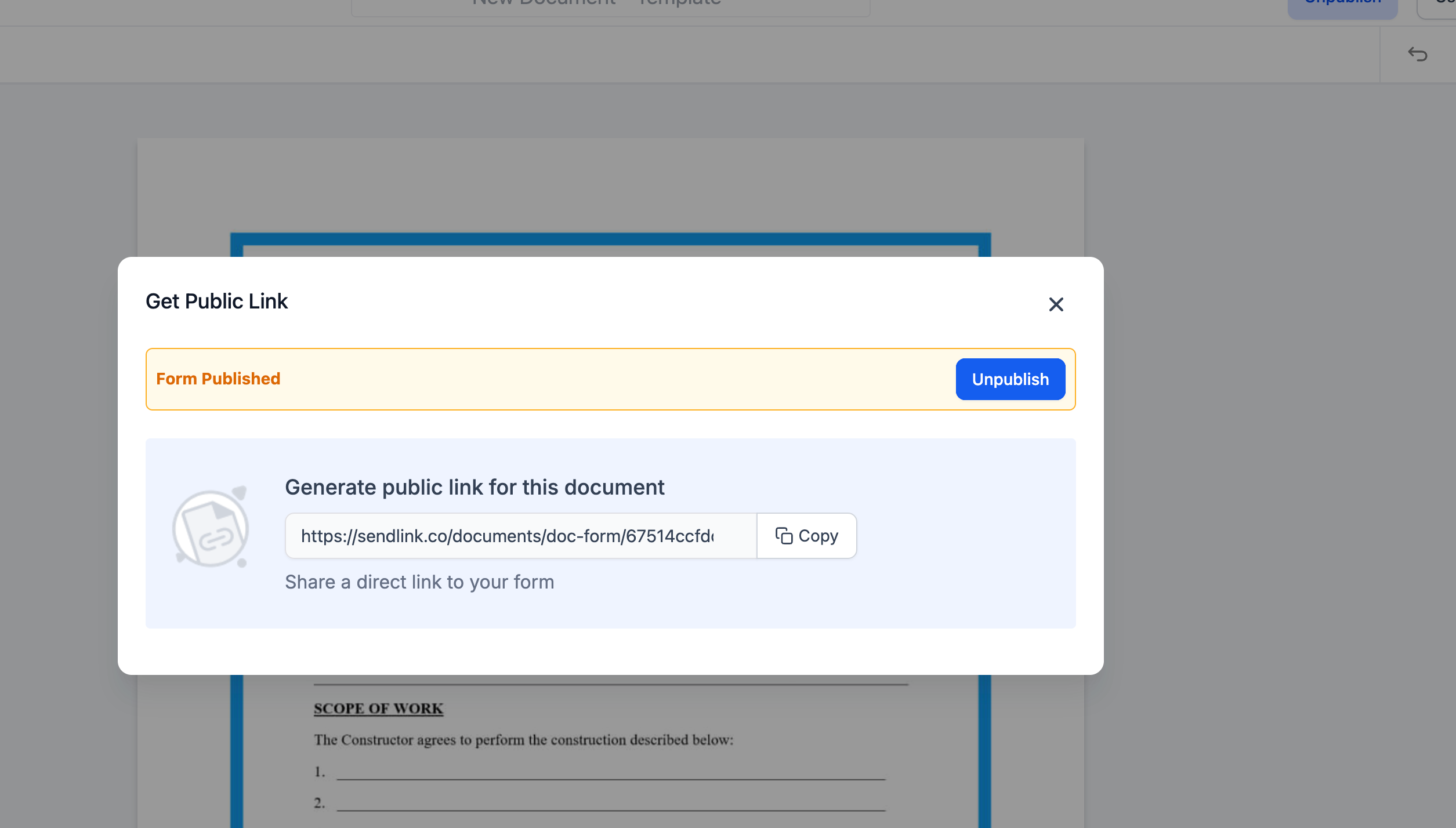
Public Document Links are created inside the Documents & Contracts > Templates area. When you publish a template as public, the system produces a unique URL that can be sent to anyone. Recipients open the link, enter their name and email, and sign the document.
The signed version is automatically emailed to the signer and saved in the Responses section of HighLevel. You can view, download, or delete those responses at any time. If you no longer wish to accept signatures, you can unpublish the document, which immediately disables the link.
These links work independently of workflow automation, so you may still use the same template in automated processes while also offering a public URL for ad hoc signers.
03How businesses use Public Document Links
- SaaS startup. The startup creates a public Terms of Service template, copies the generated link, and includes it in onboarding emails. New trial users click the link, provide their name and email, sign, and receive a copy automatically.
- Car rental agency. The agency publishes a rental agreement as a public document, shares the link via SMS with walk in customers, and the customers sign on their phones. Signed agreements are stored in Responses for record keeping.
- Consulting firm. The firm builds a standard NDA template, makes it public, and sends the link to prospective clients. Clients fill in their details, sign, and get an emailed copy while the firm tracks all signed NDAs centrally.
04The numbers and rules that matter
- There’s no limit on the number of people who can sign through one link.
05How to set up and use Public Document Links in HighLevel
Create and share a public document
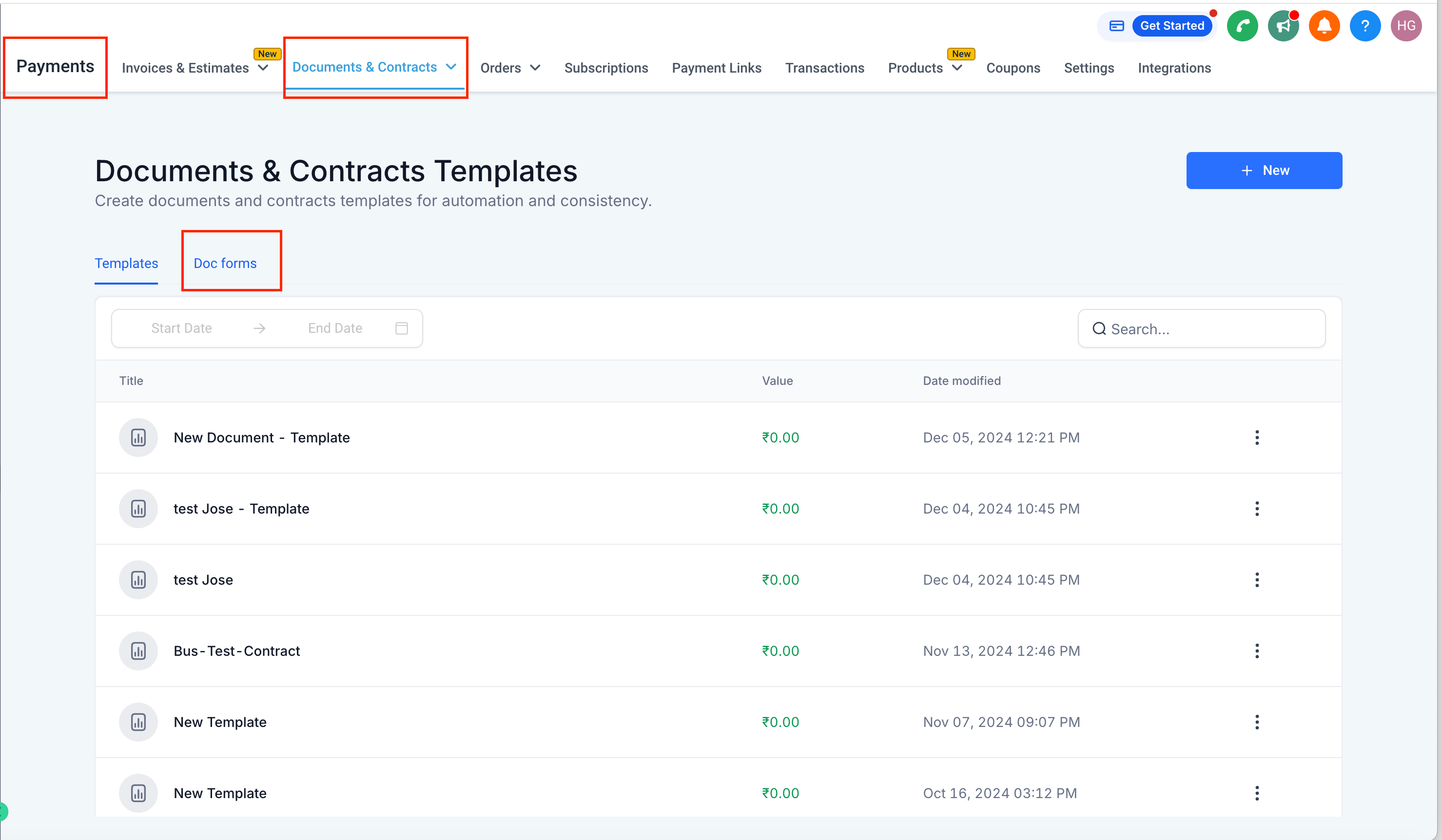
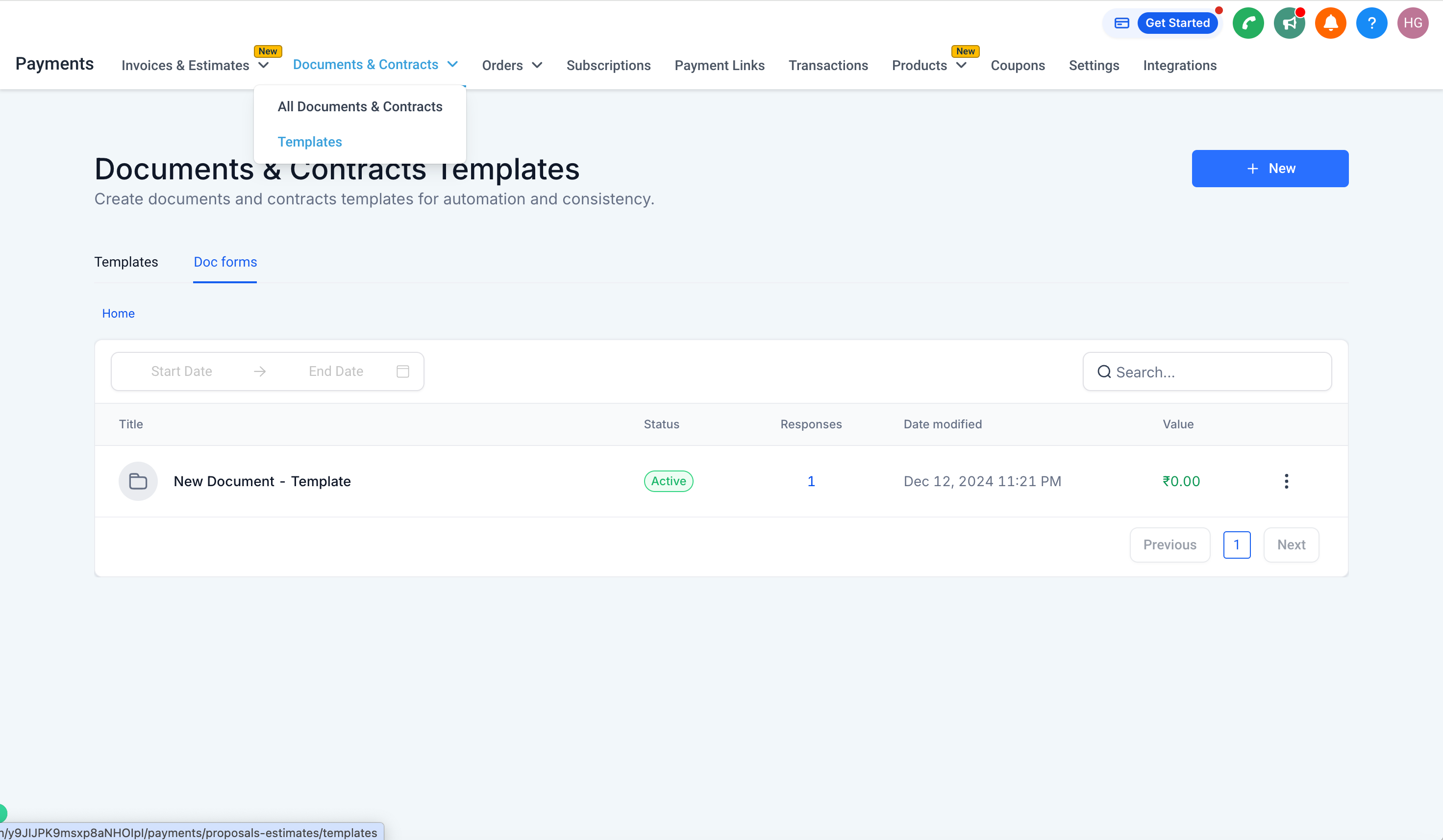
- Open HighLevel and go to Documents & Contracts > Templates.
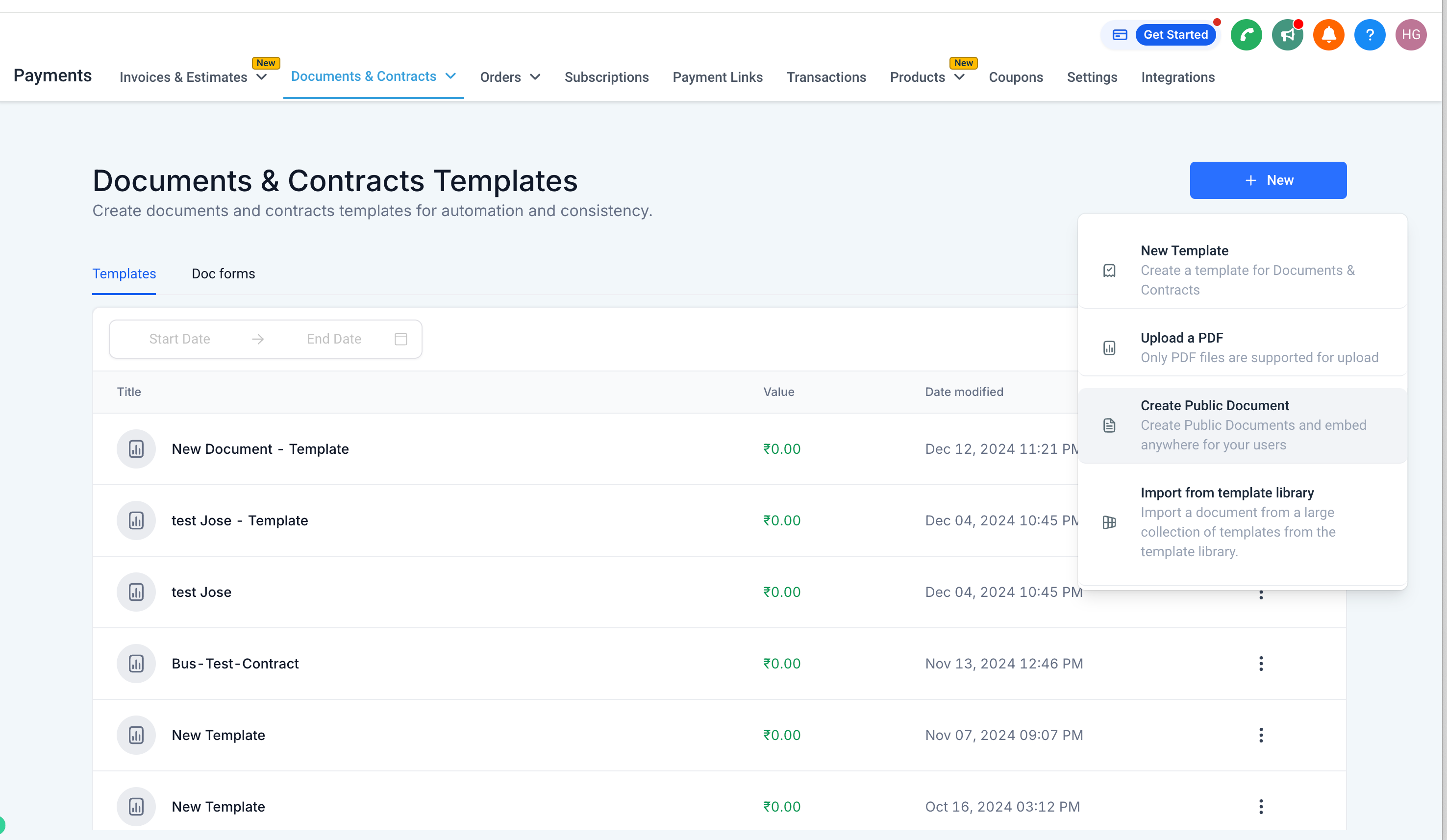
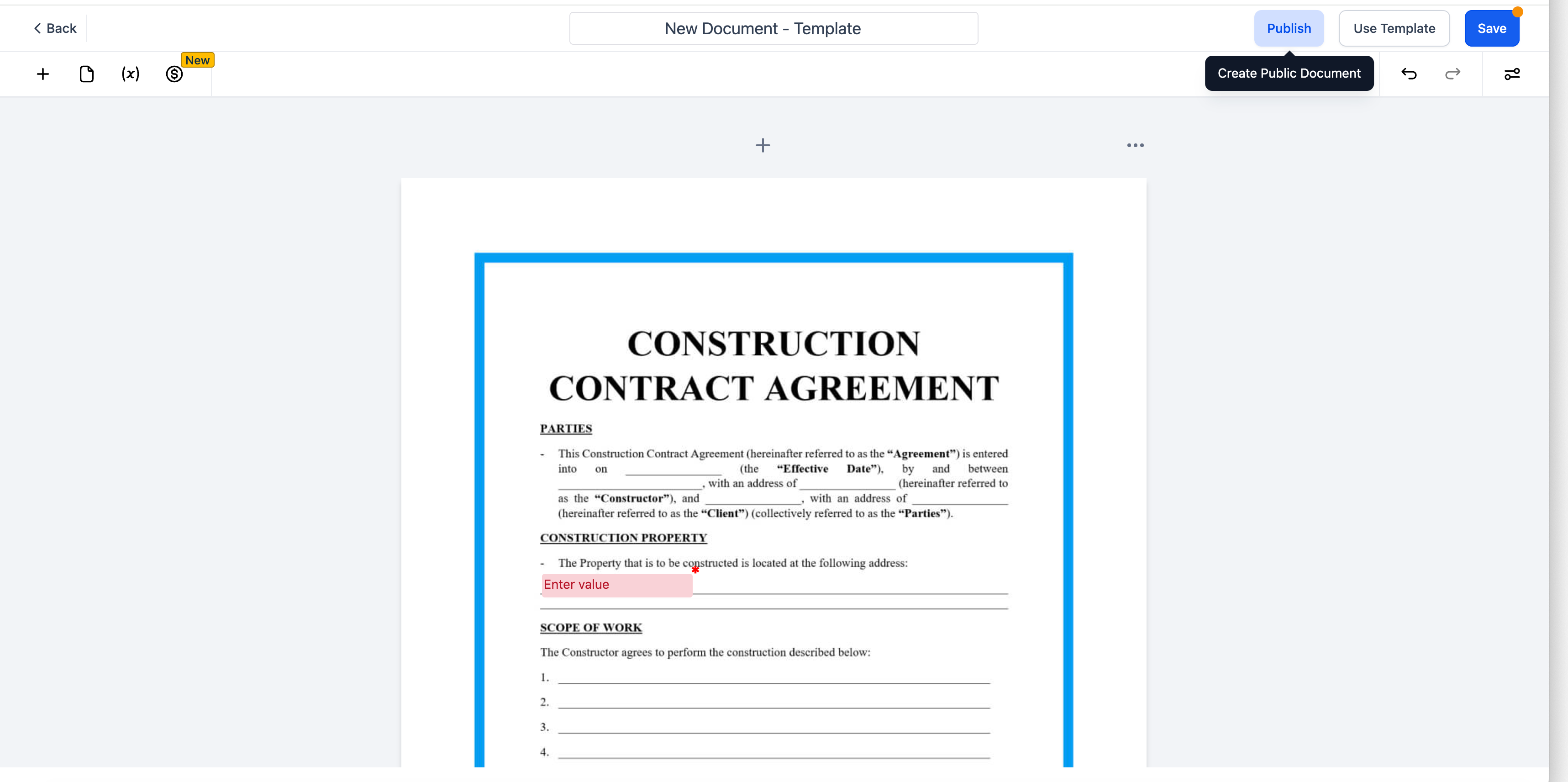
- Click New Template > Publish, or choose New > Create Public Document.
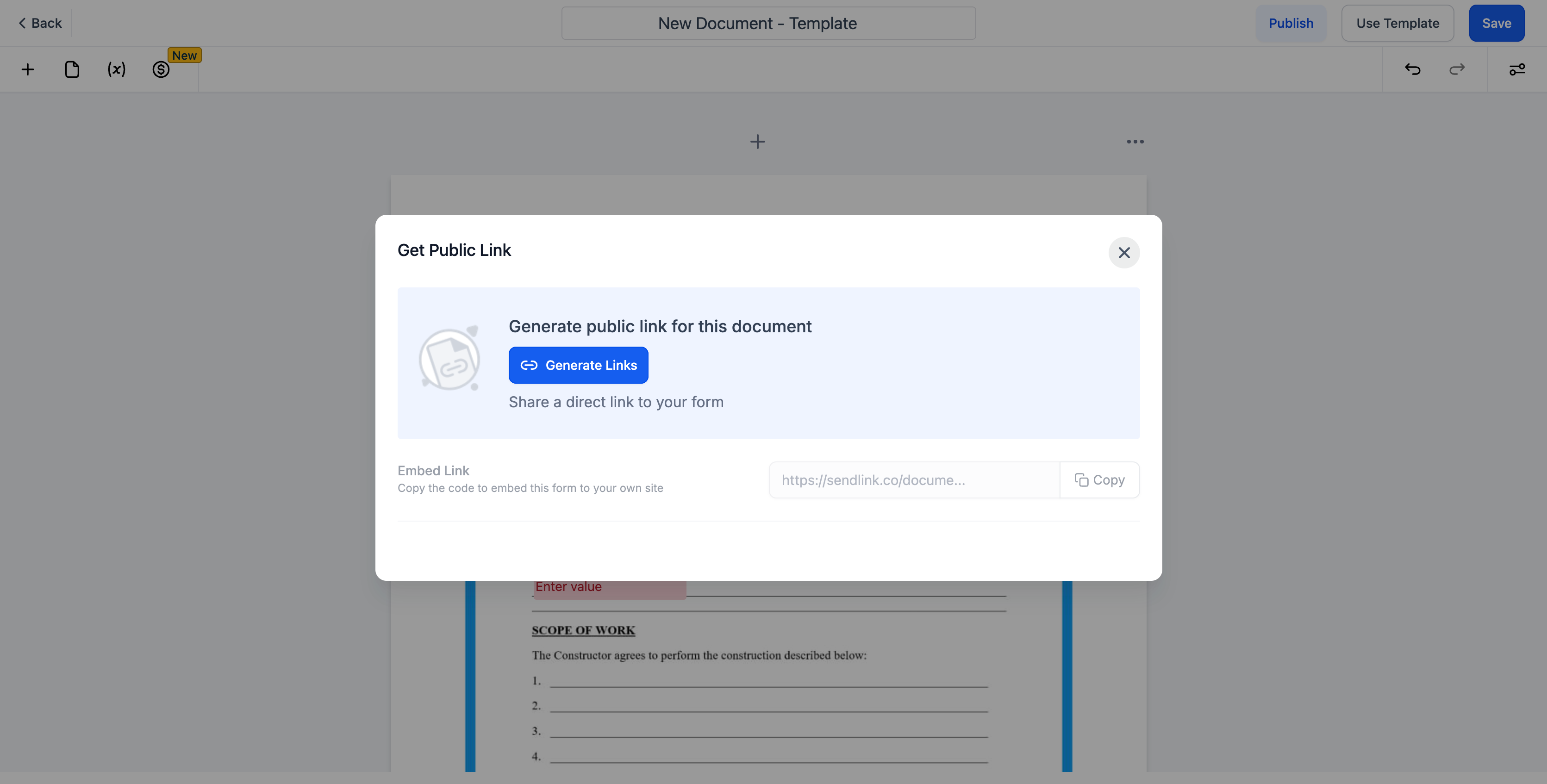
- Locate the unique public link that appears after publishing.
- Copy the public link to the clipboard.
- Paste the link into an email, chat, or other communication channel and send it.
- Recipient opens the link and enters first name, last name, and email address.
- Recipient signs the document.
- In HighLevel, unpublish the document to stop accepting new signatures.
06What it looks like in HighLevel
07Things to know before you rely on it
- There is no limit on the number of people who can sign using a single public link.
- Unpublishing a document disables its link immediately.
- Public Document Links operate independently of workflow automation.
08How it connects to the rest of HighLevel
- Explore all Documents & Contracts features All Documents & Contracts features
- Create and send document templates automatically in a workflow Workflow automation with documents
- View HighLevel pricing and plan options HighLevel pricing
Michael's take

Public Document Links can feel risky if you let a live URL float around without a way to stop it. That open access means anyone with the link can sign, so you need to be comfortable with the document’s content being publicly reachable until you unpublish it.
When you need a fast, no contact signature. Like a simple NDA or a one off service agreement. The feature saves a lot of back and forth. You just publish, copy the link, and let the other party sign without creating a new contact record.