
01Who this is for
- Real estate agents, keep client information current automatically after contracts are signed.
- Insurance brokers, capture policy dates directly into contact records without manual entry.
02Linked text and date fields, explained
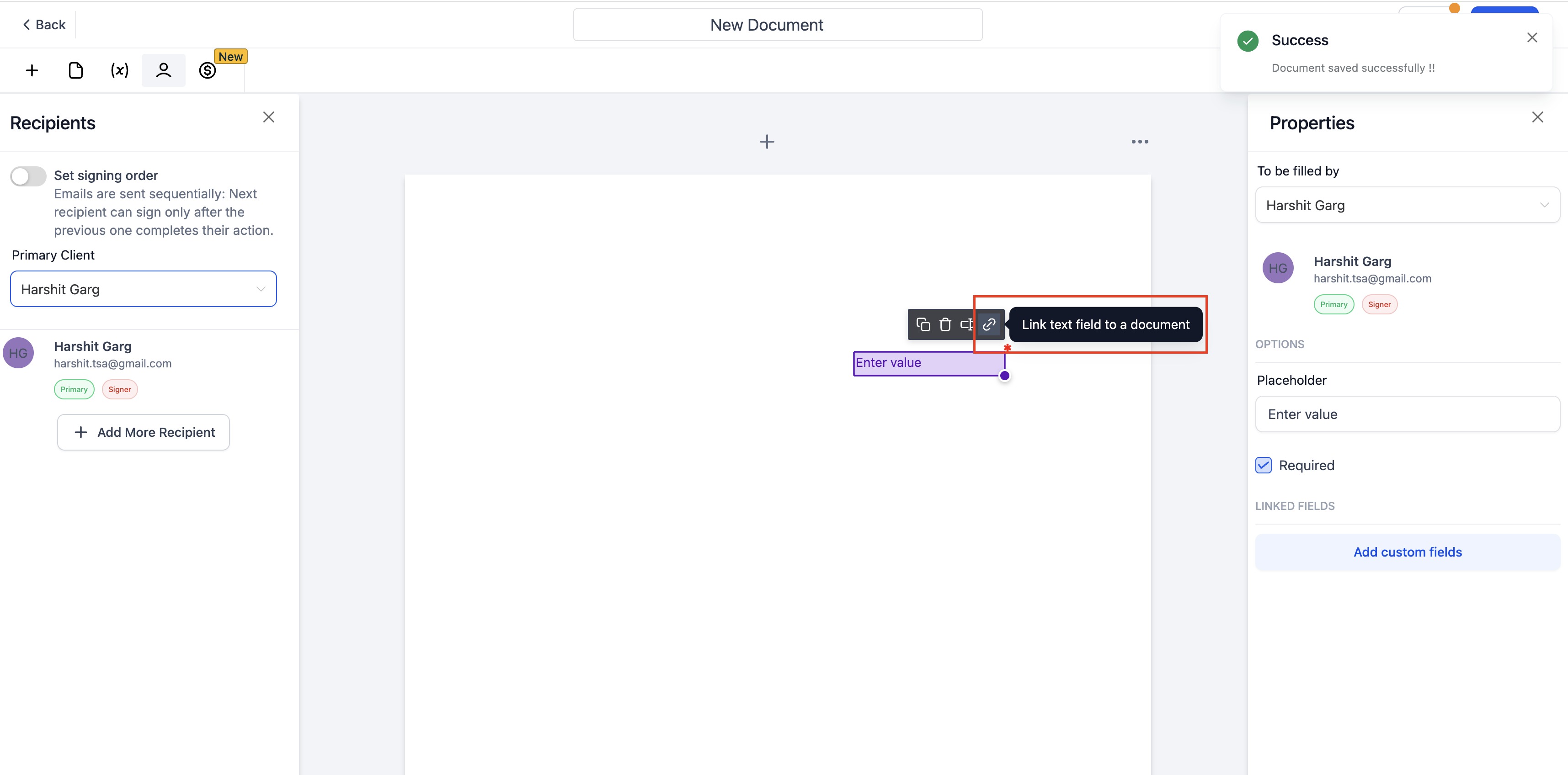
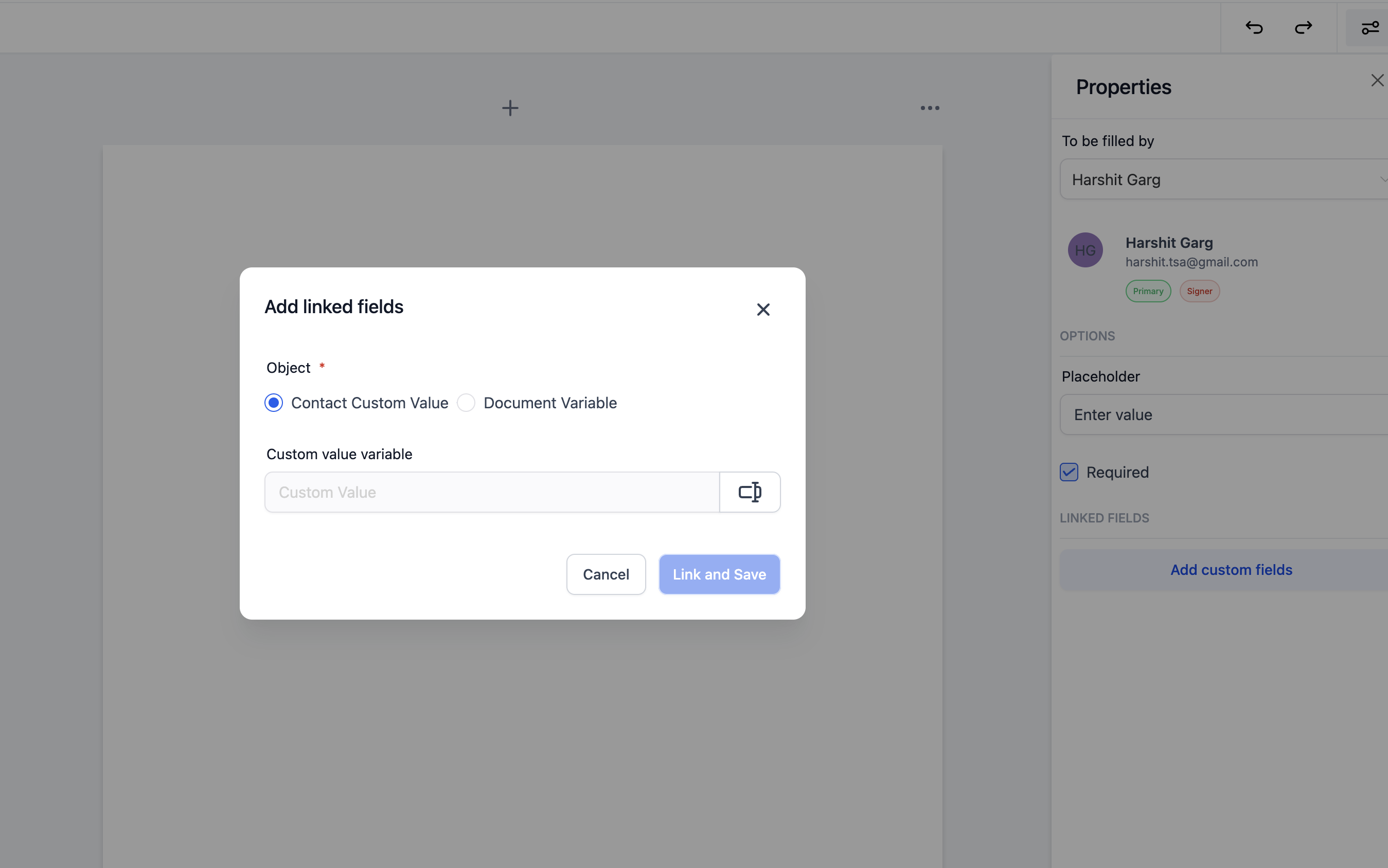
In the Documents and Contracts area you can add text or date fields to a template and link each to a custom value stored on a contact or on the document itself. The link is set by selecting the link button on the field after adding a recipient.
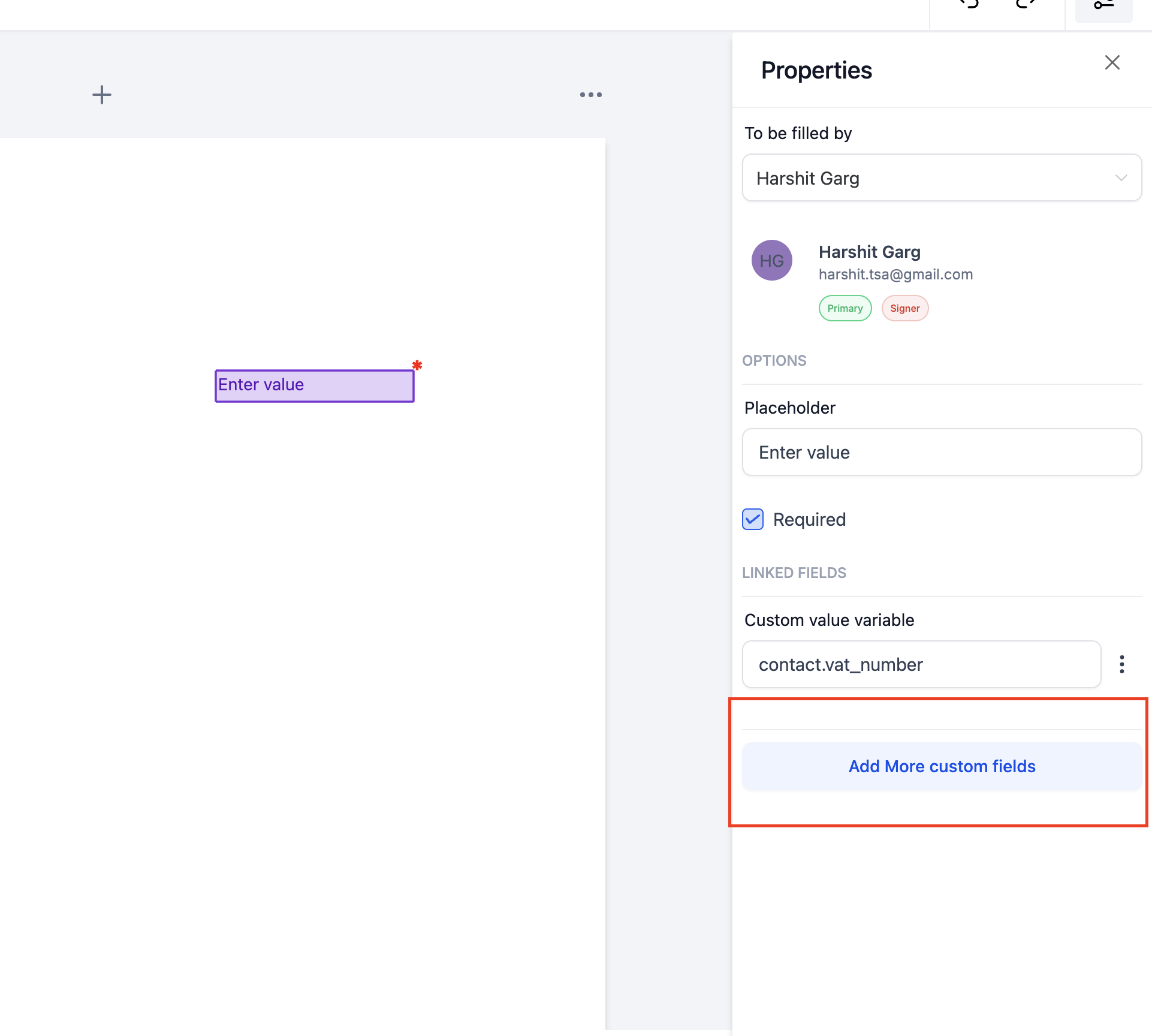
When the recipient signs the document, any linked fields are updated in the appropriate record without additional steps. All filled field data can be downloaded from the dashboard as a CSV file for easy tracking.
03How businesses use linked text and date fields
- Property management company. Create a lease agreement with a date field linked to a custom lease start value. After a tenant signs, the start date updates automatically in the tenant’s contact record and can be exported via CSV.
- Legal firm. Add a case number text field to a retainer agreement and link it to a custom case ID. Once the client signs, the case ID syncs to the contact record, allowing the firm to keep case data consistent.
- Healthcare clinic. Insert an appointment date field in a consent form and link it to a custom appointment date value on the patient record. Signing the form updates the patient’s record right away and the data can be exported for reporting.
04How to set up and use linked text and date fields in HighLevel
Link custom values to text and date fields and export the filled data
- Open the Documents and Contracts editor, create a new document and drag a text or date field to the desired location.
- Add a recipient to the document, then click the link button above the text or date field.
- Choose the contact or document custom values to link, and assign multiple custom values to a single field if needed.
- After the recipient signs, the linked fields automatically update the related contact or document record.
- Go to the dashboard and download a CSV file containing all filled field data.
05What it looks like in HighLevel
06Things to know before you rely on it
- Linking currently works only with contact custom values; support for opportunity custom values is planned for a future update.
07How it connects to the rest of HighLevel
- Create, clone, and send documents in HighLevel Documents & Contracts guide
- Set up a Documents & Contracts trigger in a workflow Workflow trigger guide
- Explore all Documents & Contracts features Feature overview
Michael's take

Michael ReimerFounder of CRM Pros, HighLevel Commander and Certified Admin
A great way to keep client records current without extra typing. Agencies that already rely on Custom Values should use it, but teams that never capture data in contracts can skip it.
Get More InformationOpens on HighLevelPublished November 2, 2026 · Updated November 16, 2026