
01Who this is for
- Compliance managers can enforce signing windows to meet regulatory timelines.
- Sales teams can ensure contracts are closed within a valid period, avoiding outdated offers.
- HR departments can lock onboarding forms after a set period, preventing late submissions.
02Document expirations, explained
Document Expiration is a feature that adds a time limit to documents sent for signature. Users specify how many days a document remains active; after that period the system marks it as expired.
When a document expires, its status changes to Expired, the signing fields are disabled, and recipients see a message that the document is no longer available. Senders may choose to resend a new version if needed.
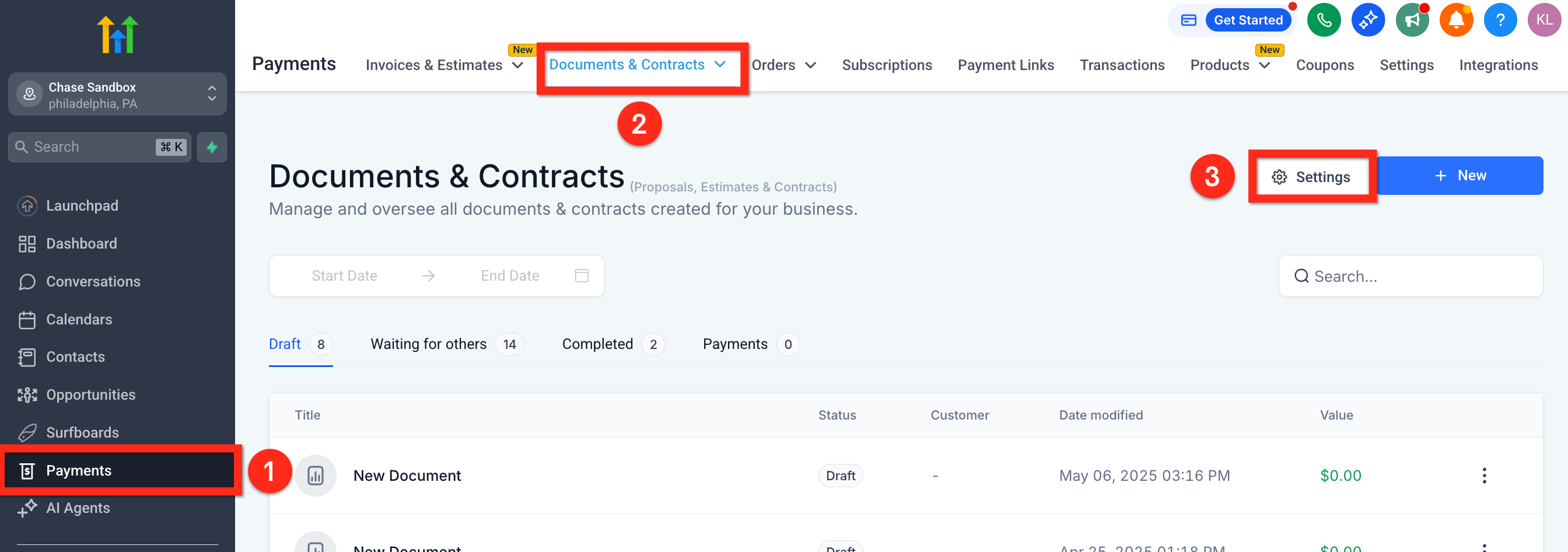
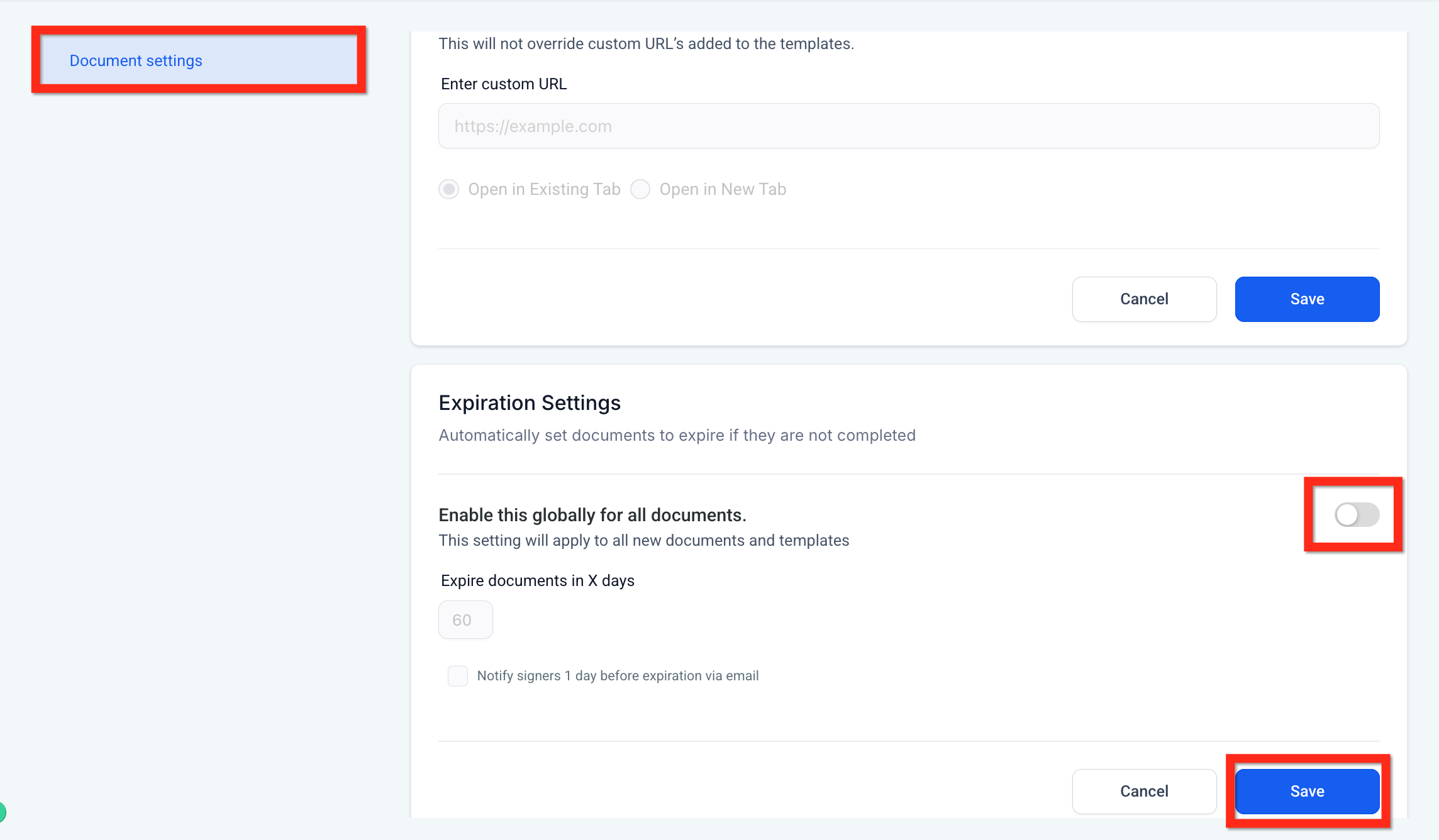
The setting is controlled in the platform under Payments > Documents > Settings > Documents. Within the Document Settings menu, the Expiration Settings section contains the toggle, default day count, and optional reminder notification control.
03How businesses use document expiration
- Legal firm. The firm enables expiration globally and sets a default period for all client agreements. For specific contracts they can override the default with a shorter period and turn on the one day reminder to prompt clients before the deadline.
- Fitness studio. The studio activates the feature and chooses a short expiry for membership enrollment forms. They leave the reminder off because members receive in person prompts, and if a member misses the window the staff creates a new form.
- SaaS provider. The provider sets a default expiry for trial sign up agreements and enables the optional reminder email. For enterprise contracts they specify a custom period directly on the document, overriding the global default.
04The numbers and rules that matter
- Optional reminder notifications can be sent 1 day before expiry.
05How to set up and use document expiration in HighLevel
Enable document expiration
- Open the Payments section and choose Documents.
- Select Settings then Documents.
- Find Document Settings in the left hand menu.
- Scroll to the Expiration Settings area and toggle the switch on.
- Enter the default number of days and optionally enable reminder notifications.
06What it looks like in HighLevel
07Settings that matter
- Expiration Settings. Turns the document expiry capability on or off for the entire location.
- Default number of days. Sets the standard period after which documents automatically expire, unless a specific document overrides it.
- Reminder notifications. When enabled, sends a reminder email to recipients one day before the document reaches its expiry date.
08Things to know before you rely on it
- The feature can be disabled at any time by toggling it off in the settings panel.
- The default expiry period can be changed for individual documents when they are created.
- The countdown starts when the document is sent and follows the location’s timezone.
- Reminder emails are optional and are sent only one day before expiry.
- The expiry date cannot be altered after the document has been sent; a new document must be created.
09How it connects to the rest of HighLevel
- Explore all Documents & Contracts capabilities Documents & Contracts overview
- Learn how to configure email templates and reminders for documents Email templates setup
- Add multiple signers or CCs when sending a document Multiple recipients
Michael's take

Document expiration helps keep signatures aligned with deadlines and provides a clear cut off point.
Don’t forget that once a document is sent the expiry date can’t be changed, so set the correct window before you hit send.