
01Who this is for
- Sales managers who need to confirm contract progress without opening each file.
- Customer support teams tracking whether clients have viewed shared documents.
- Legal assistants who must verify signatures and timestamps for compliance.
02Document activity tracking, explained
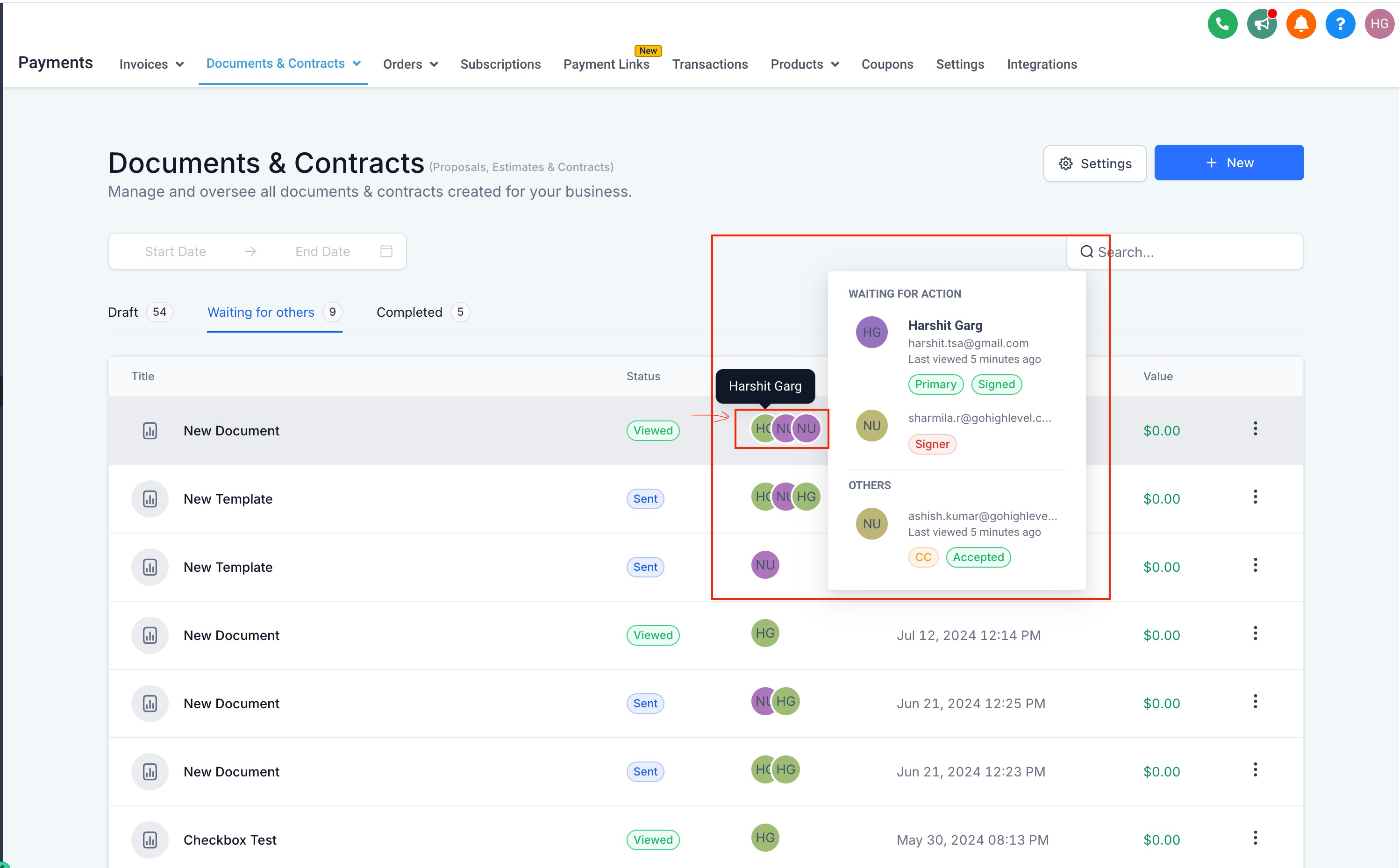
The activity view adds a hover overlay to the contact icons on each document line in the Documents and Contracts area. When you move the cursor over an icon, a small modal appears showing the most recent action time, any tags, and the participant’s current status.
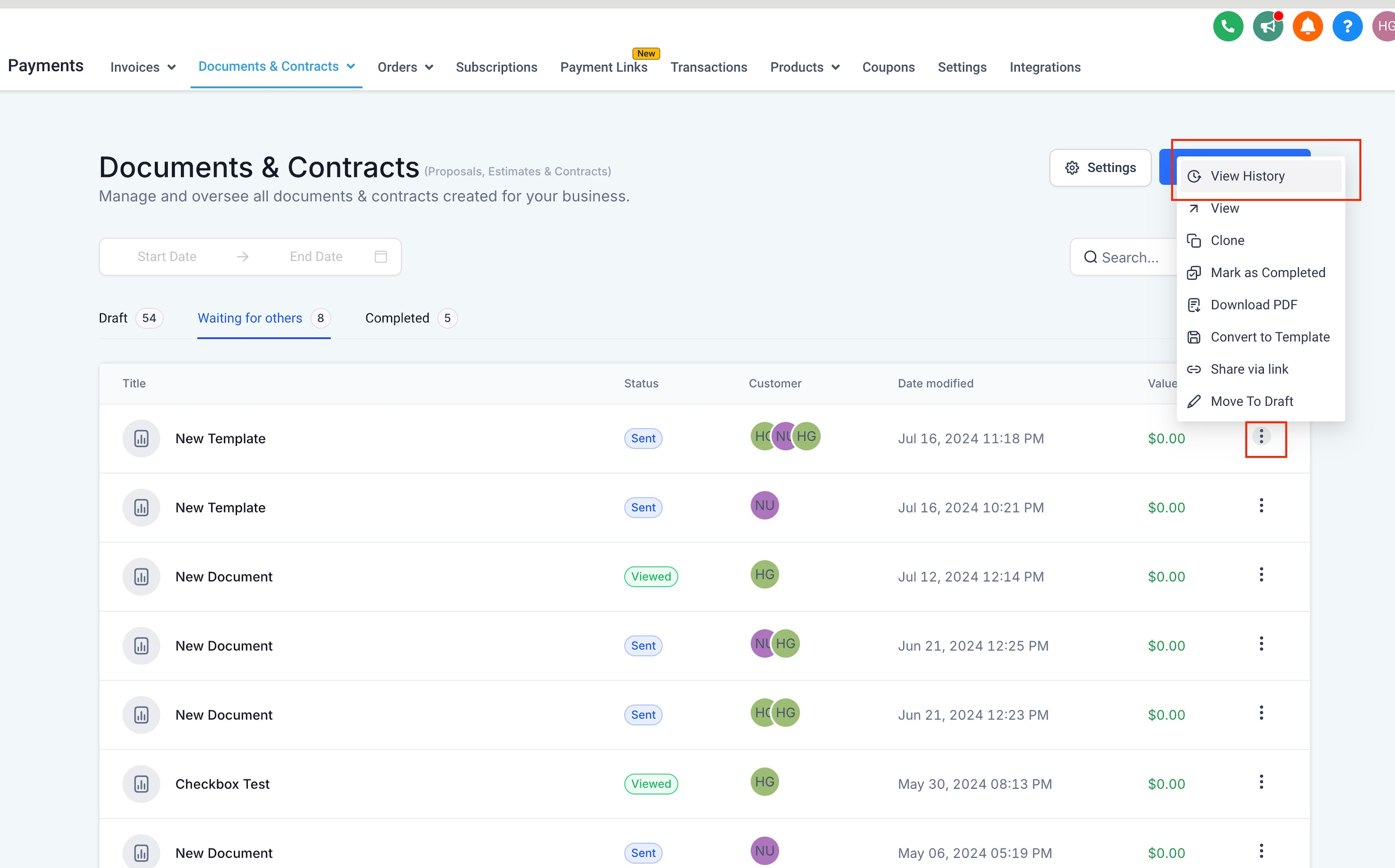
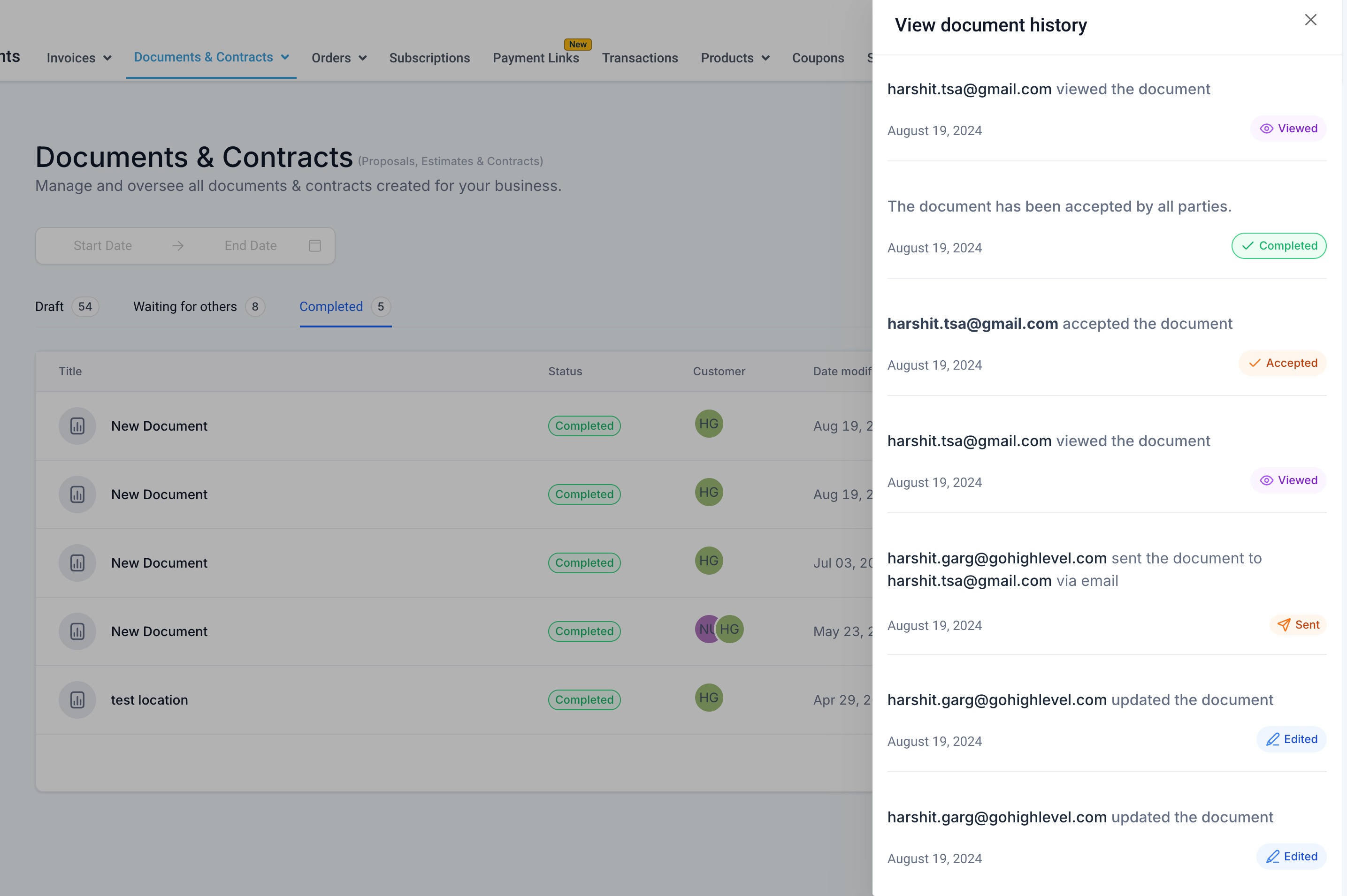
A three dot menu on the document line provides a "View History" option. Selecting it opens a right hand drawer that lists every recorded action, sent, edited, viewed, signed, chronologically. This gives a full audit trail without opening the actual document.
The feature lives inside the Documents and Contracts module, accessible from the main navigation. All interactions are performed from the dashboard view, keeping the workflow fast and avoiding extra clicks.
03How businesses use document activity tracking
- Real estate brokerage. Agents hover over client icons on a lease agreement line to see if the client has opened and signed it. If needed, they click the three dot menu to pull the full activity log and follow up accordingly.
- Recruiting firm. Recruiters track candidate offer letters by checking the hover timestamps for each recipient. The detailed history drawer lets them verify when each party viewed or edited the document before finalizing placements.
- Dental practice. The office staff view the hover modal on consent forms to confirm patients have read the documents. They use the history pane to ensure signatures were captured before appointments.
04How to set up and use document activity tracking in HighLevel
View document activity
- Open the Documents and Contracts section.
- Locate the document line item on the dashboard.
- Hover over the contact icons displayed in that line.
- Read the last action time, tags, and status shown in the hover modal.
- Click the three dot menu on the line item and choose View History.
- Examine the complete list of actions in the right hand drawer.
05What it looks like in HighLevel
06Things to know before you rely on it
- The last action time appears only for documents sent after this feature was released; older documents will not display a timestamp.
07How it connects to the rest of HighLevel
- Explore all Documents & Contracts capabilities. Documents & Contracts overview
- Check pricing options for the platform. Pricing
- Start a free trial to test document activity tracking. 30 day trial
Michael's take

Keeping track of where a contract sits can be a nightmare when you have to open each file to see if a client has looked at it or signed it. The hover preview and history drawer give you that snapshot in seconds, so you can chase the right person at the right time.
The first thing I’d get right is making sure every new document is sent through the system so the last action time appears in the hover view. Without that, you lose the status signal the feature provides.