
01Who this is for
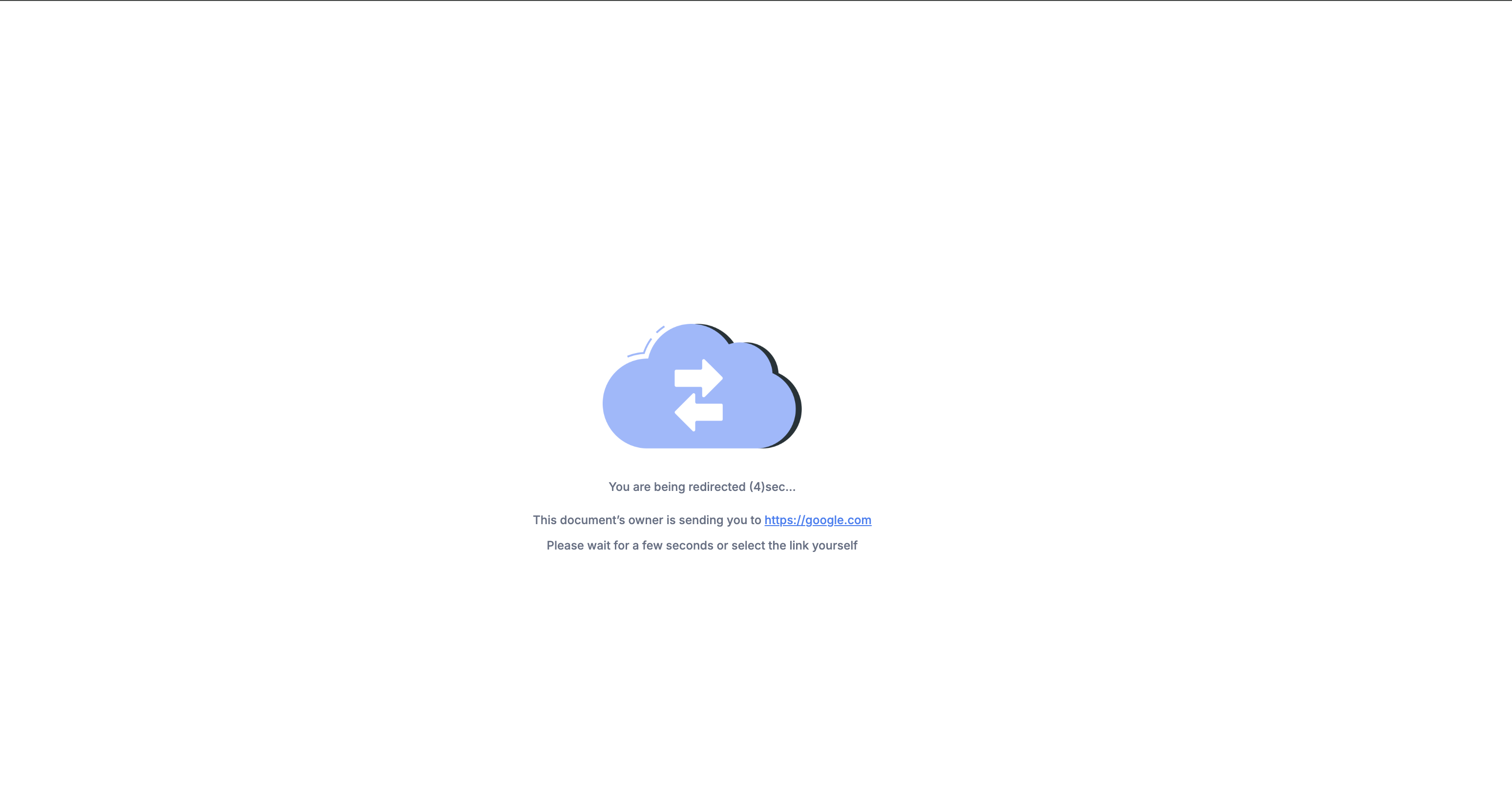
- Businesses can automatically send signers to a thank you page after a contract is completed.
- Teams can direct users to onboarding or scheduling pages immediately after a payment is processed.
02Custom URL redirections, explained
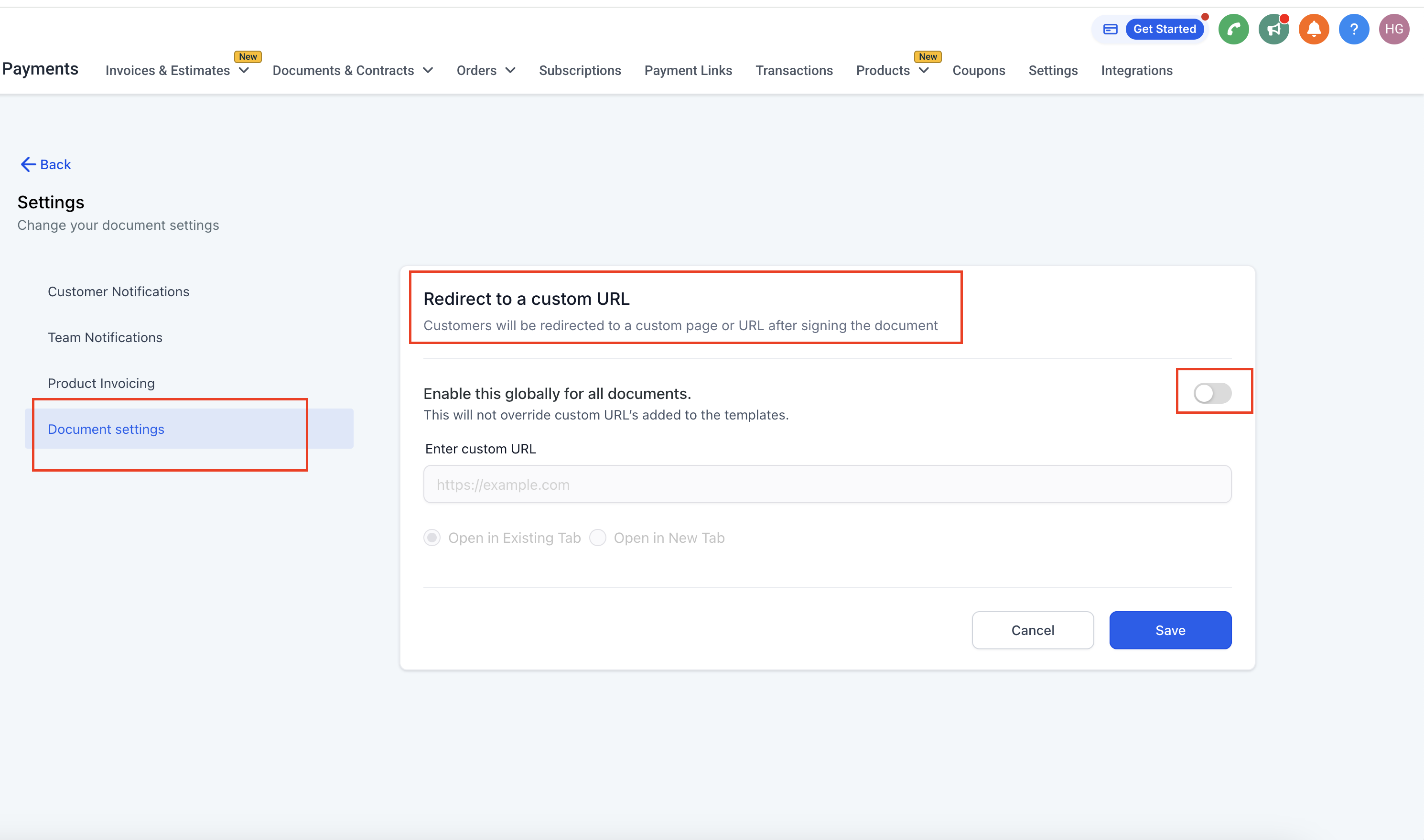
The redirect feature lives inside the Documents & Contracts module. A global toggle controls whether every signed document sends the user to a URL you specify. That setting is accessed through the Payments > Documents & Contracts path and the Document Settings screen.
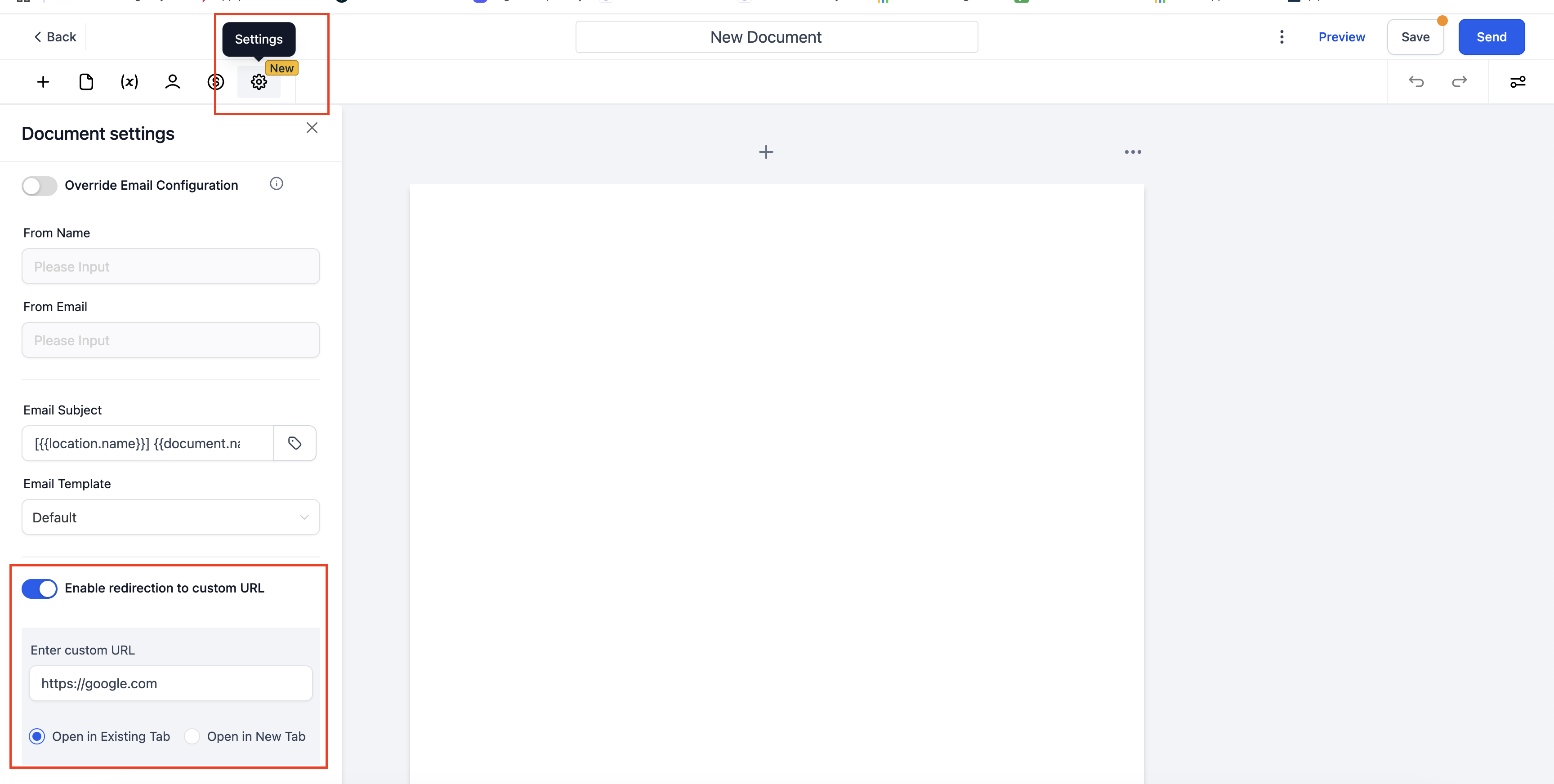
Each document can also hold its own redirect URL. When a document has its own URL, it overrides the global setting, ensuring the most relevant destination is used for that specific contract or invoice.
If a document includes a payment field, the same redirect logic applies after the payment is processed. The global setting works for all payments, while a document level URL takes priority when defined.
03How businesses use custom URL redirection
- Digital marketing agency. The agency enables a global redirect to its client portal. After a prospect signs a proposal, they land on the portal where they can view next steps. The agency also adds a document specific URL for a high value contract that points to a custom onboarding checklist.
- Fitness studio. The studio creates a new membership agreement and sets a redirect URL that opens a class booking page in a new tab. When members sign the agreement, they are immediately taken to the schedule to reserve their first session.
- Consulting firm. The firm adds a payment option to its service contract. It activates the global redirect so that after a client pays the invoice, they are sent to a thank you page that includes a link to a feedback survey.
04Before you start
- A Document must exist in the Documents & Contracts module.
- If you want a redirect after payment, the document must contain a payment field.
05How to set up and use custom URL redirection in HighLevel
Enable global custom URL redirection
- Go to Documents & Contracts.
- In the left menu, select Payments > Documents & Contracts.
- Open the Settings panel by clicking the gear icon at the top right.
- Choose Document Settings from the sidebar.
- Toggle on “Redirect to a Custom URL”.
- Flip the switch to enable the redirect globally for all documents.
- Enter the target web address.
- Select Open in Existing Tab or Open in New Tab.
- Click Save to confirm.
Set up a custom URL per Document
- Open an existing document or create a new one from Documents & Contracts.
- Click Settings then Document Settings at the top.
- Switch on “Enable redirection to custom URL”.
- Input the desired web address.
- Choose same tab or new tab opening option.
- Save the document.
- Send the document if ready.
Redirection after payment
- Ensure the document includes a payment option.
- When payment is processed, the global redirect applies unless a document level URL is set.
- If a document level URL is defined, it overrides the global redirect for that contract.
06What it looks like in HighLevel
07Settings that matter
- Redirect to a Custom URL. Turns on the ability to send signers to a web address after they finish a document.
- Open in Existing Tab. Opens the redirect link in the same browser tab that the document was signed in.
- Open in New Tab. Opens the redirect link in a new browser tab, leaving the current tab unchanged.
- Enable redirection to custom URL. Activates a document level redirect and lets you specify the destination URL for that single document.
08Things to know before you rely on it
- A document level URL overrides any global redirect that is active.
- Global settings do not replace a custom URL added directly to a specific Document or Template.
09If something goes wrong
- Redirect does not occur after signing. Use the Preview option on the document to verify that the redirect URL works before sending.
- Unexpected URL is opened. Check if a document level redirect is set; remove or disable it to rely on the global setting.
10How it connects to the rest of HighLevel
- Learn how to create, clone and send documents and contracts. Create, clone and send documents
- Explore all features available in Documents & Contracts. All Documents & Contracts features
- Review pricing plans and trial options for HighLevel. HighLevel pricing and plans
Michael's take

When you need to turn the moment a client signs a contract into a next step. Like a thank you page or a scheduling link. The feature can keep the experience in your brand’s flow.
If you already have a manual hand off after signing or you don’t have any follow up actions, the redirect adds little value. In those cases you might skip it and focus on other parts of the workflow.