
01Who this is for
- Sales managers can see why prospects turn down agreements and adjust follow up strategies.
- Customer success teams can use decline notes to address objections early in the onboarding flow.
- Legal coordinators can track declined contracts for compliance and audit purposes.
02Decline documents, explained
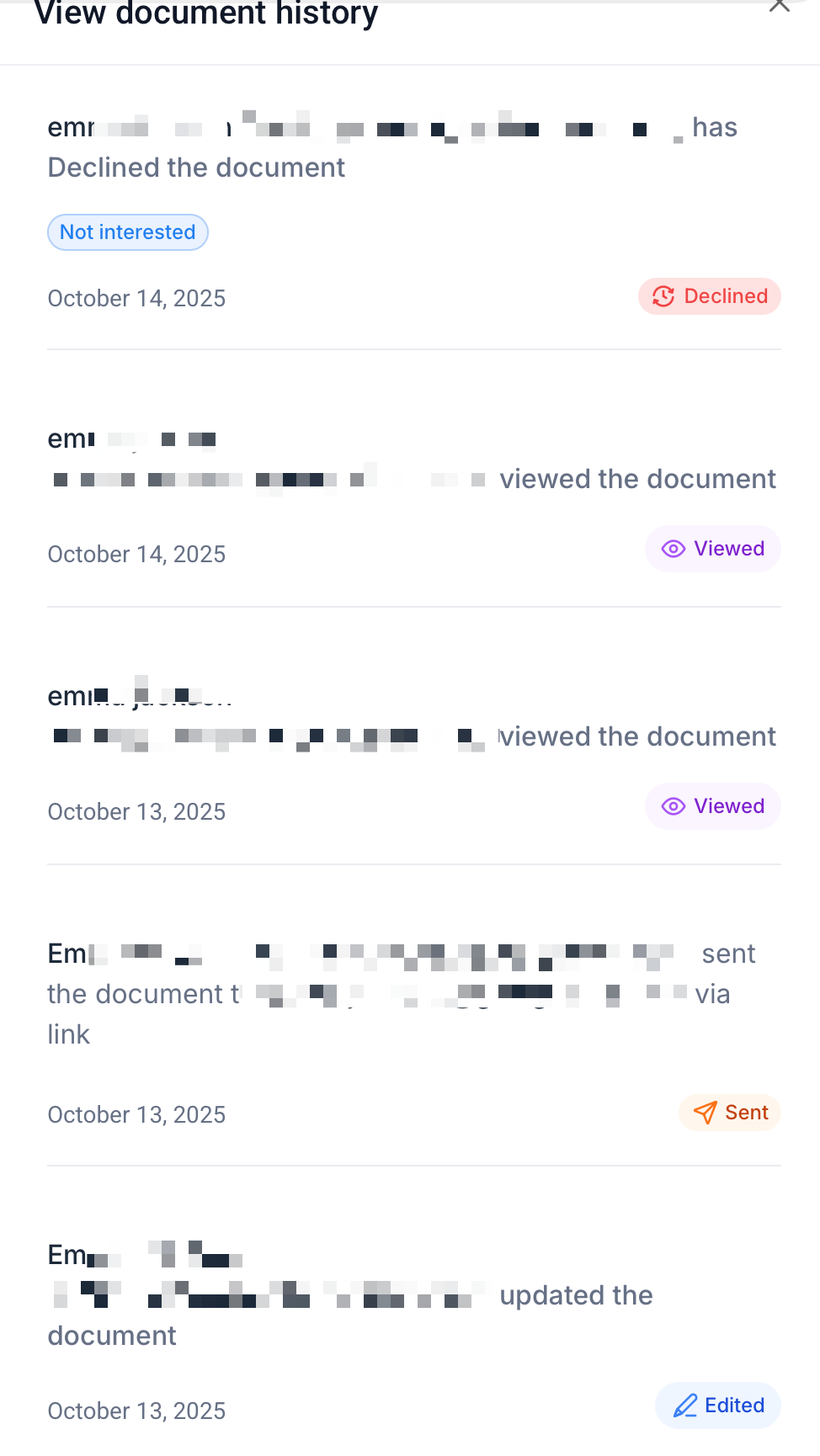
Decline Documents adds a Declined status to the Documents & Contracts module. When a document is declined, HighLevel stores the selected reasons and any optional notes, then moves the file to the Archived area where it can no longer be signed. The decline event appears in the document’s history, showing who declined it, when, and why. The feature lives inside the Documents & Contracts section and can be referenced in Workflows, email templates, and reports.
The system captures structured feedback through predefined decline reasons and free form notes. Those values are exposed as custom values, Document Decline Reasons and Document Decline Reasons Body, that can be inserted into email templates or notifications. By using the Declined status as a workflow trigger, teams can automate internal alerts, task creation, or nurture sequences whenever a document is declined.
03How businesses use decline documents
- Real estate brokerage. A buyer receives a purchase agreement and uses the Decline Document option to explain why the terms are not acceptable. The broker reviews the decline reason in the archived document history and launches a workflow that sends a tailored follow up email with new offer options.
- SaaS startup. After sending a subscription contract, the sales lead declines it and adds notes about pricing concerns. The startup’s workflow detects the Declined status, creates a task for the sales rep, and uses the Document Decline Reasons custom value in a personalized email offering a discount.
- Legal services firm. An attorney sends a service agreement that the client declines, providing detailed feedback. The firm accesses the document’s View History to capture the client’s objections and records the decline in the case file for future reference.
04How to set up and use decline documents in HighLevel
Recipient declines a document
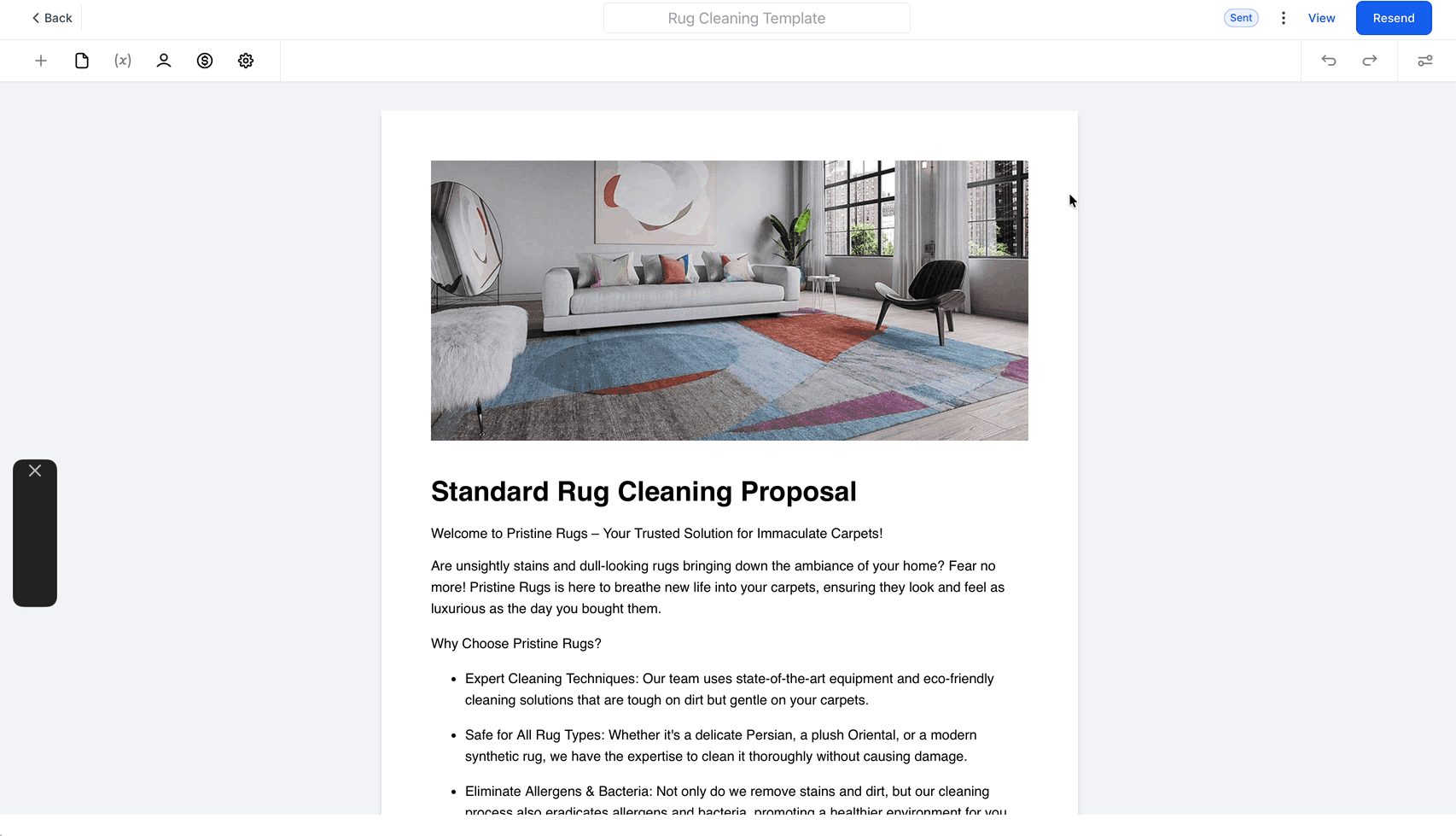
- Open the document that was sent to you.
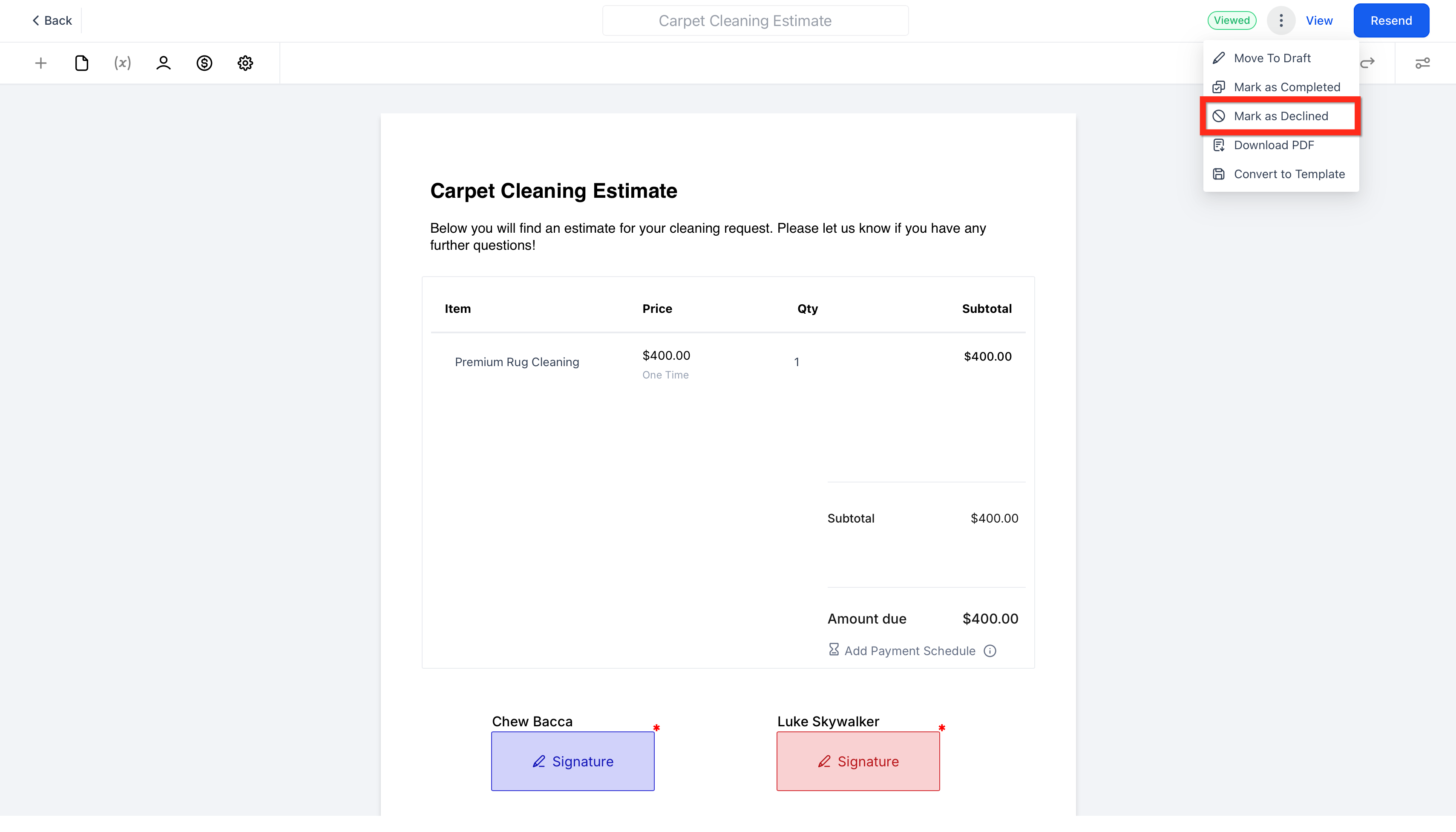
- Click the menu button at the top right of the document.
- Select the Decline Document option.
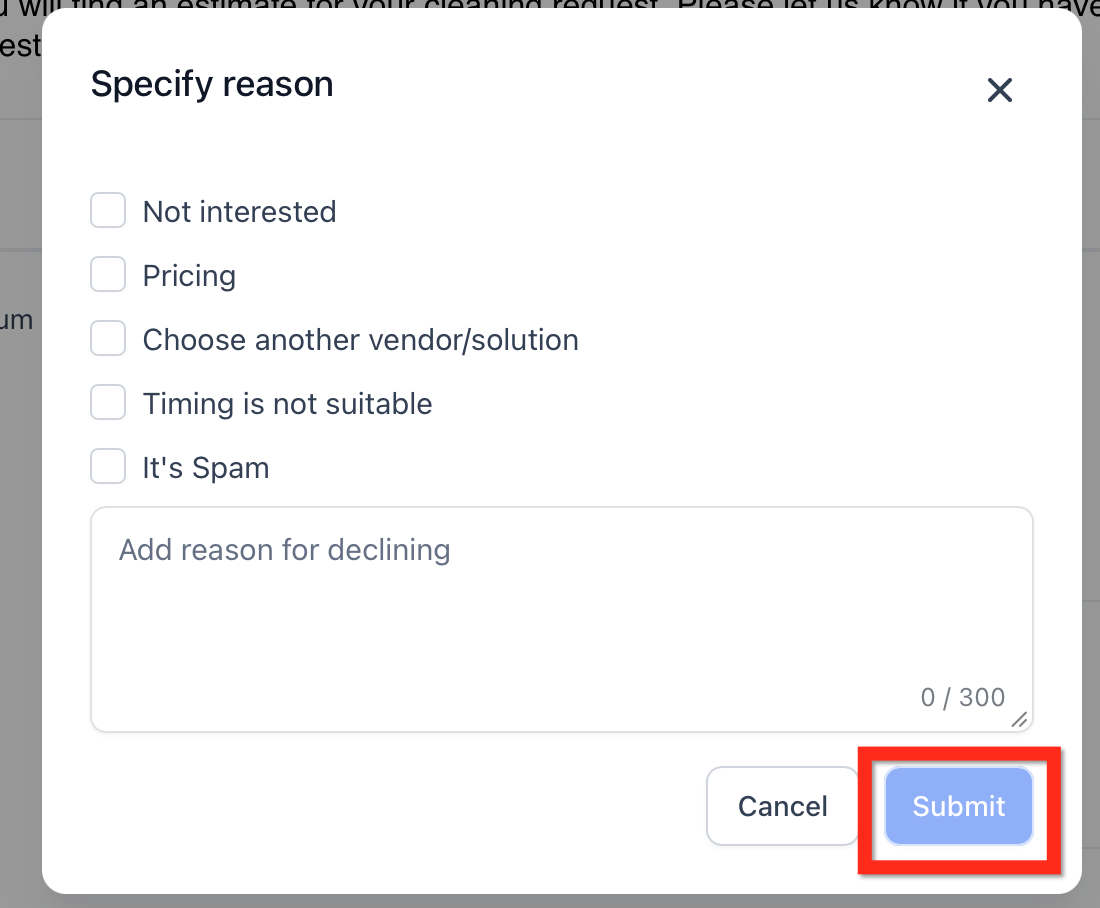
- Choose one or more decline reasons if they appear.
- Enter any additional notes you wish to provide.
- Click Submit to complete the decline.
Business user declines a document
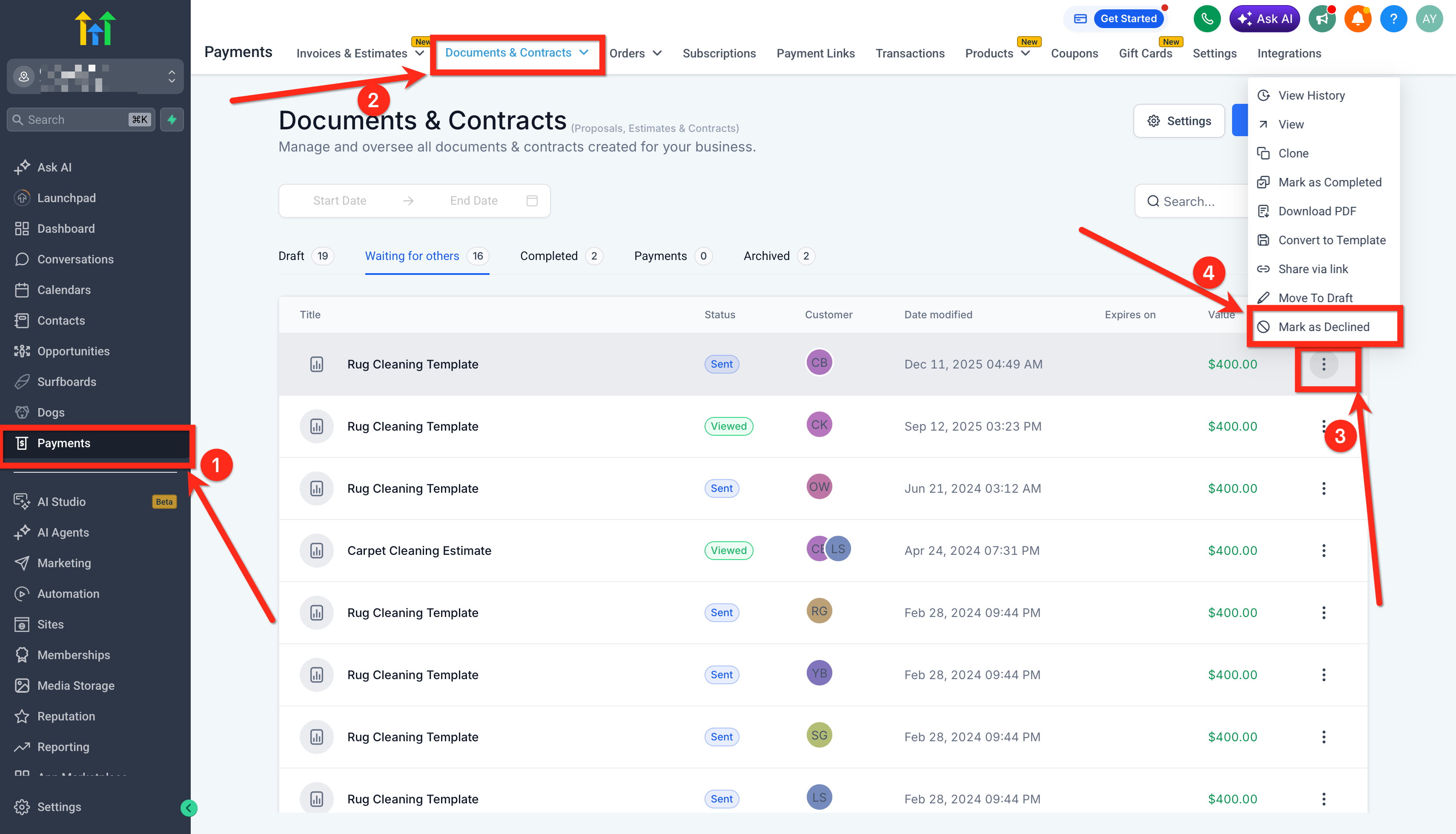
- Open the sent document from the Documents & Contracts area.
- Use the available decline action after the document has been sent.
- Confirm the decline so the document status updates.
Use Declined status in a workflow
- Navigate to Workflows.
- Add a new trigger.
- Select Documents & Contracts as the trigger type.
- Choose the document Status filter.
- Set the filter value to Declined.
- Add the actions you want, such as emails, internal notifications, task creation, or pipeline updates.
Track declined documents and view history
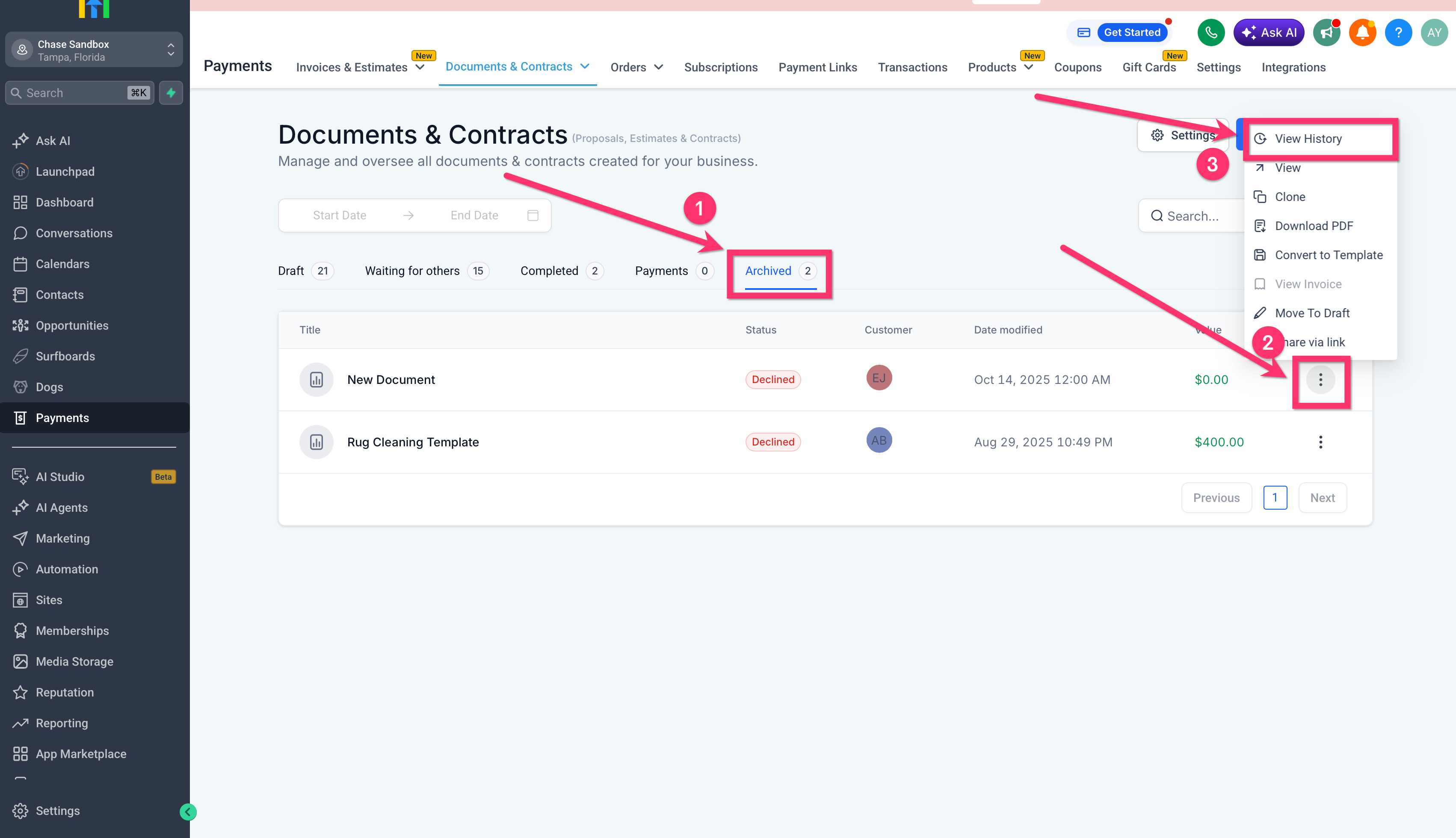
- Go to Documents & Contracts.
- Open Archived to locate declined documents.
- Select the declined document you want to review.
- Open View History to see the decline timeline and details.
Set up and use Decline Documents
- Send a document through Documents & Contracts in HighLevel.
- Allow the recipient to open the document and use the Decline Document option from the top right menu if they choose not to sign.
- Check that the document status changes to Declined in Documents & Contracts.
- Open Archived to confirm the document has moved there after decline.
- Open View History to review who declined it, when, and what reasons or notes were submitted.
- Create a workflow using Documents & Contracts > Status > Declined to automate follow up actions.
- Add Document Decline Reasons and Document Decline Reasons Body to email templates for decline aware messaging.
- Review decline patterns over time to inform offer and process improvements.
05What it looks like in HighLevel
06Settings that matter
- Document Decline Reasons. Provides a comma separated list of the reasons the recipient selected when declining a document.
- Document Decline Reasons Body. Returns the detailed feedback or notes entered by the recipient during the decline flow.
07Things to know before you rely on it
- Decline reasons are optional and only appear if they have been configured for the document.
- A declined document is moved to Archived and cannot be signed afterward.
08How it connects to the rest of HighLevel
- Send documents through HighLevel Create and send documents
- Create a Documents & Contracts workflow trigger Workflow trigger guide
- Set up email templates that use decline custom values Email template setup
Michael's take

Decline documents is a useful way to turn lost deals into data.
Teams that never use contracts or don’t need feedback on unsigned agreements should skip it.