
01Who this is for
- Photographers who need the shoot date on every service agreement.
- Consultants who schedule sessions and want the date recorded in contracts.
- Businesses that use an opportunity pipeline and require the booking date in proposal documents.
02Appointment dates in contracts, explained
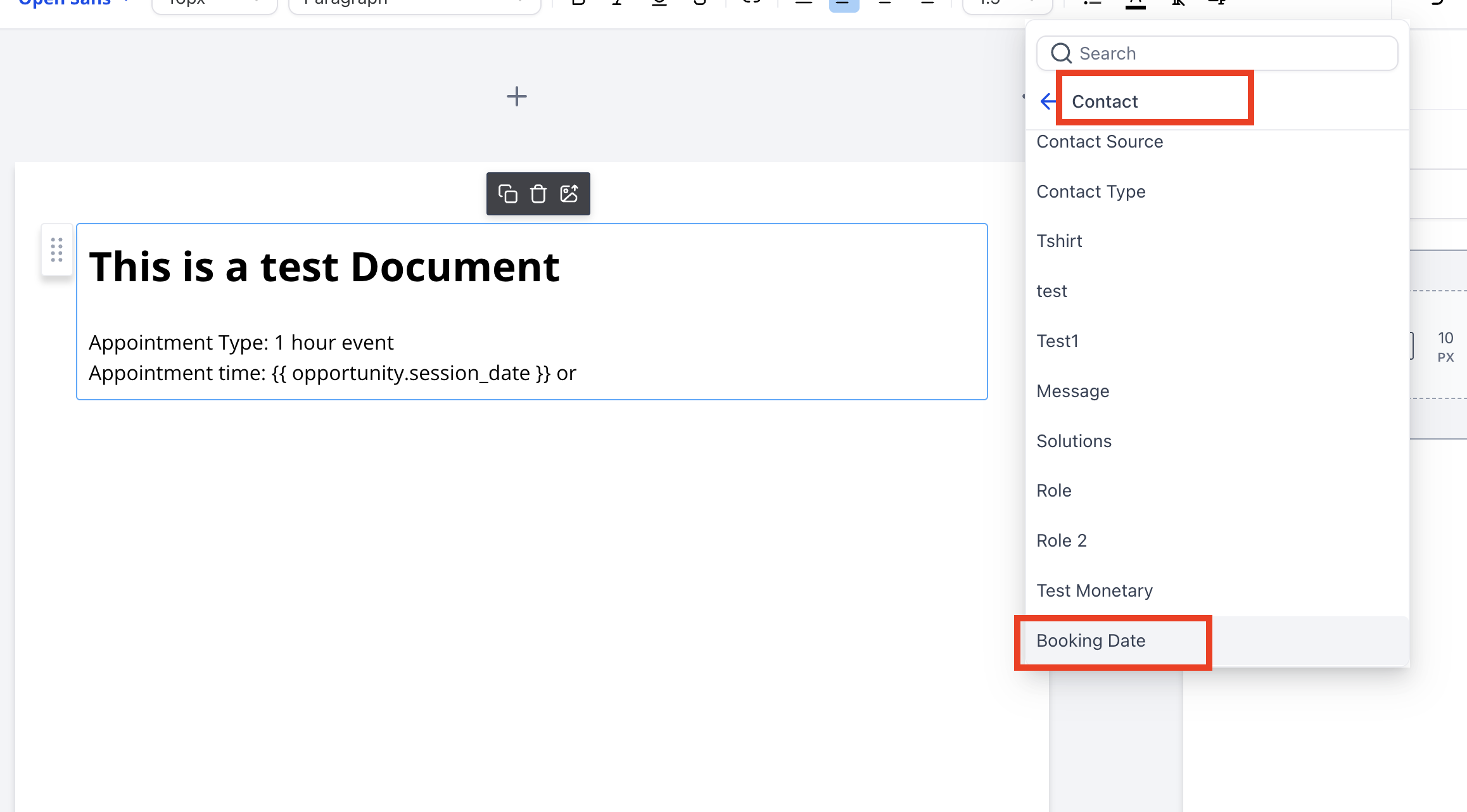
The feature stores the appointment start time in a custom text field on a Contact or an Opportunity. The field is then referenced inside a contract template using a merge tag.
When a client books, a workflow triggers, copies the appointment start time into the custom field, and runs a Send Documents & Contracts action. The contract is sent with the date already filled.
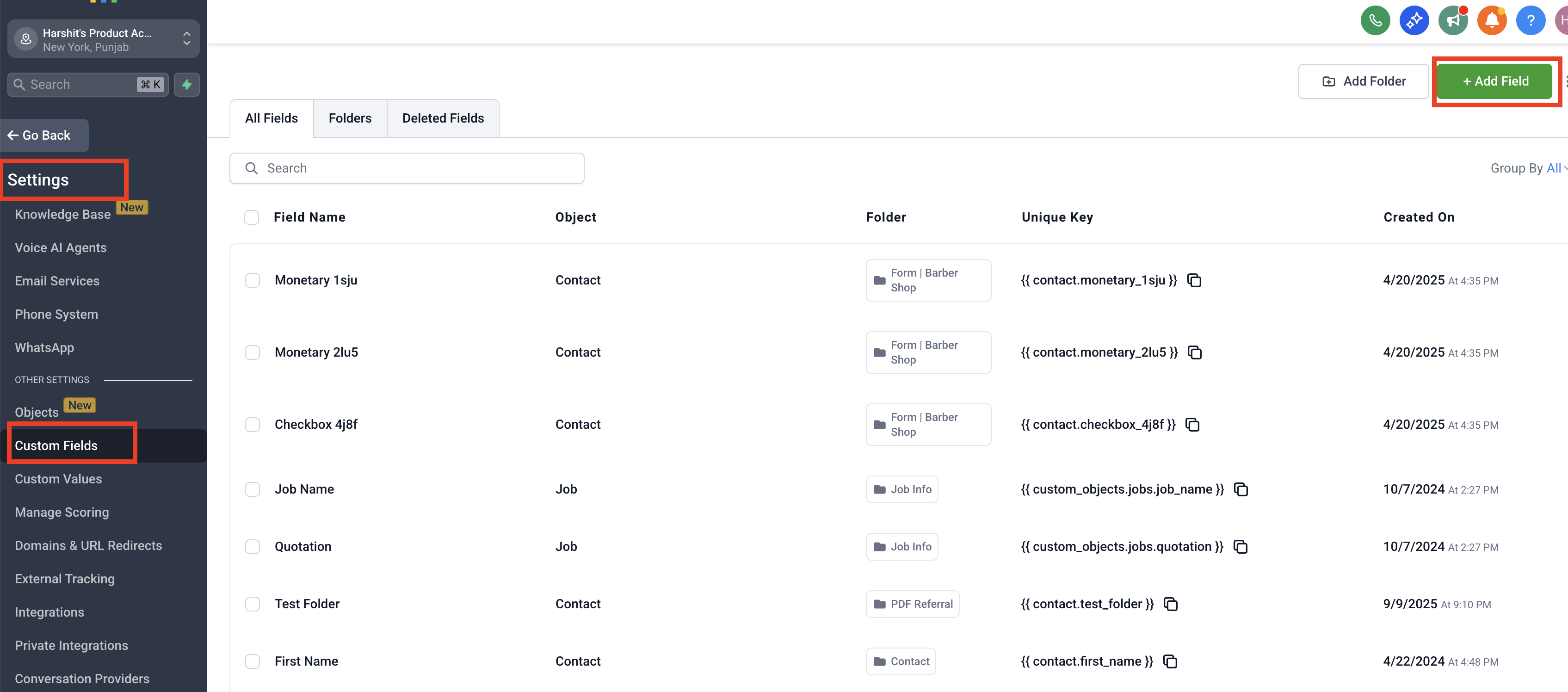
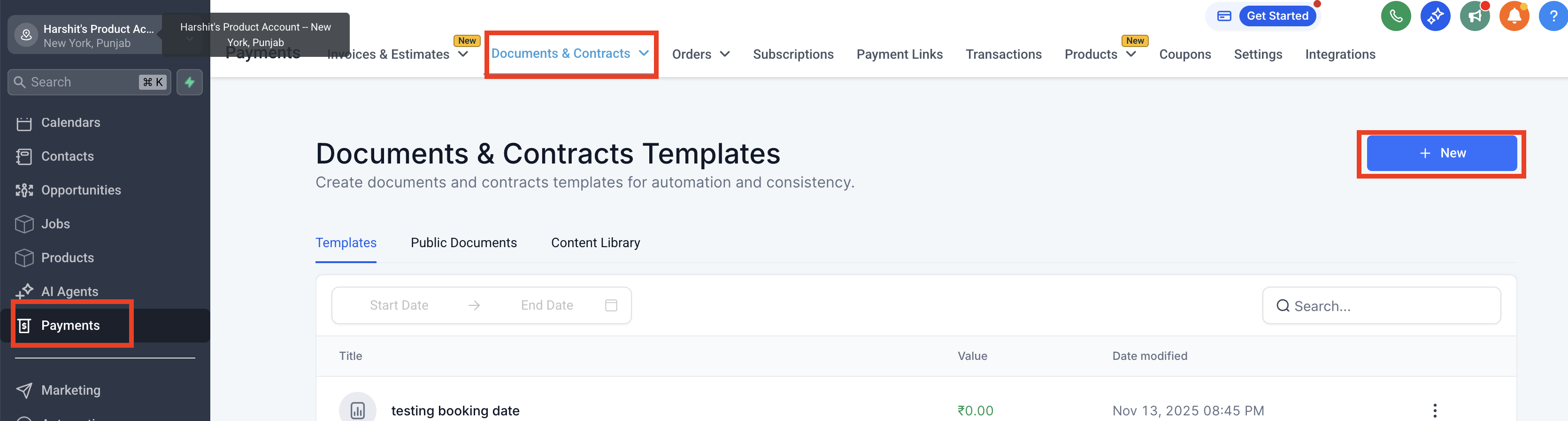
Settings for this live under Settings > Custom Fields, Payments > Contracts, and the Workflow builder where the actions are added.
03How businesses use appointment dates in contracts
- Photography studio. Create a custom contact field called Session Date. Build a workflow that updates this field with the appointment start time, then sends the photo session contract. The client receives a contract that already shows the shoot date.
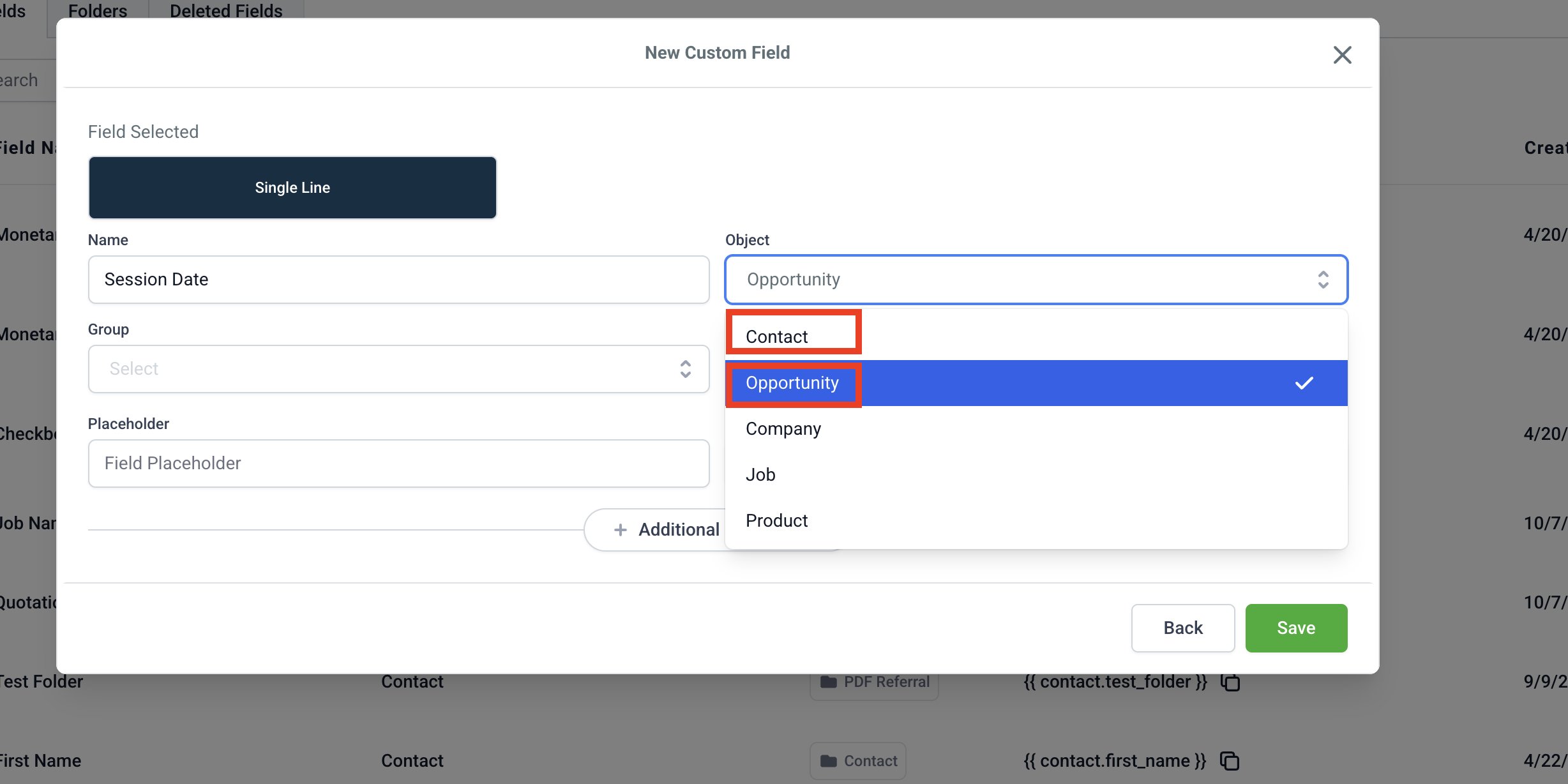
- Consulting firm. Add an Opportunity custom field named Booking Date. When a prospect books a discovery call, the workflow finds the most recent opportunity, fills the field, and delivers the consulting agreement with the call date prefilled.
- Event planning agency. Use the simple contact method to capture the event date. The workflow updates the contact’s custom field and sends the event contract template, ensuring the date appears without manual entry.
04Before you start
- Create a custom text field in Settings > Custom Fields for Contact or Opportunity.
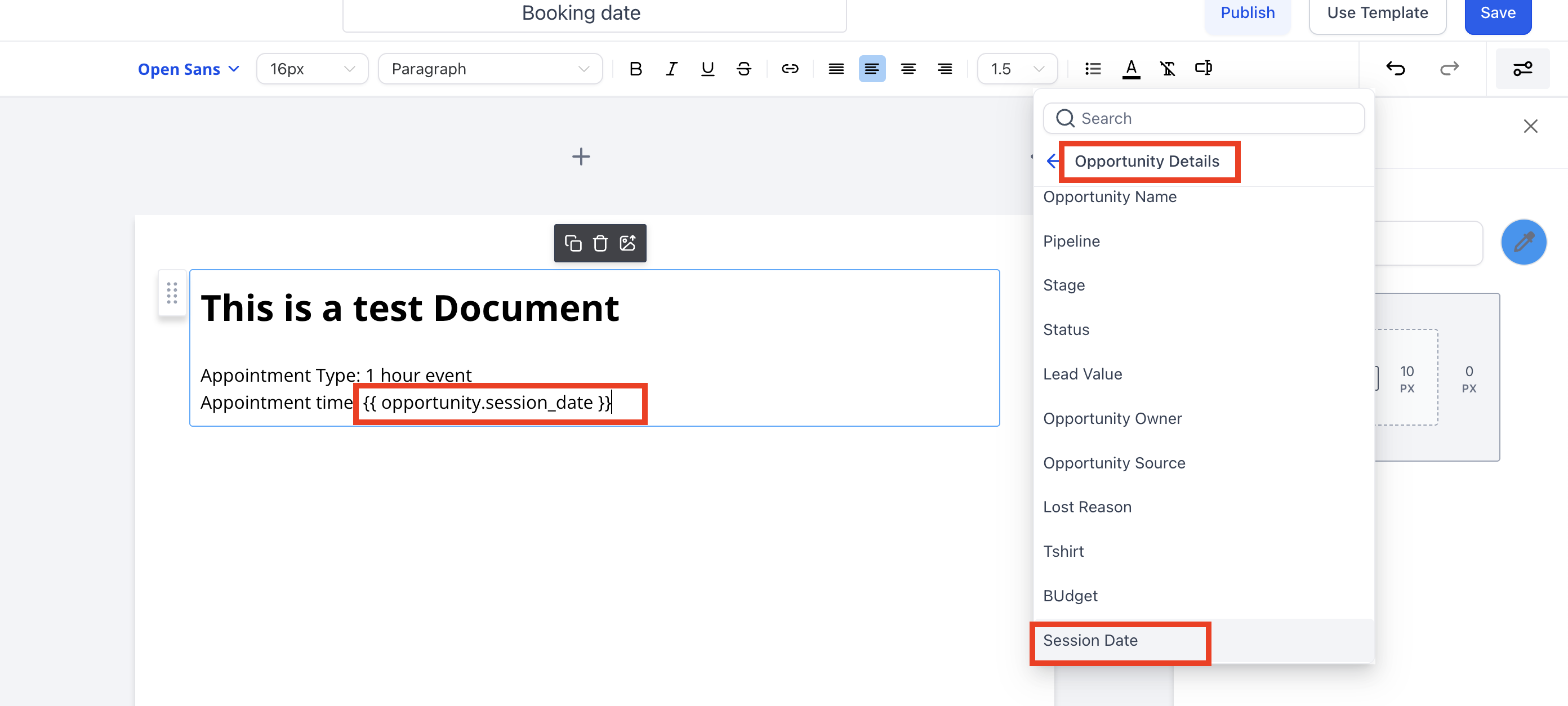
- Clone or create a contract template in Payments > Contracts and insert the new merge tag ({{contact.session_date}} or {{opportunity.session_date}}).
05How to set up and use appointment dates in contracts in HighLevel
Simple contact method (8 steps)
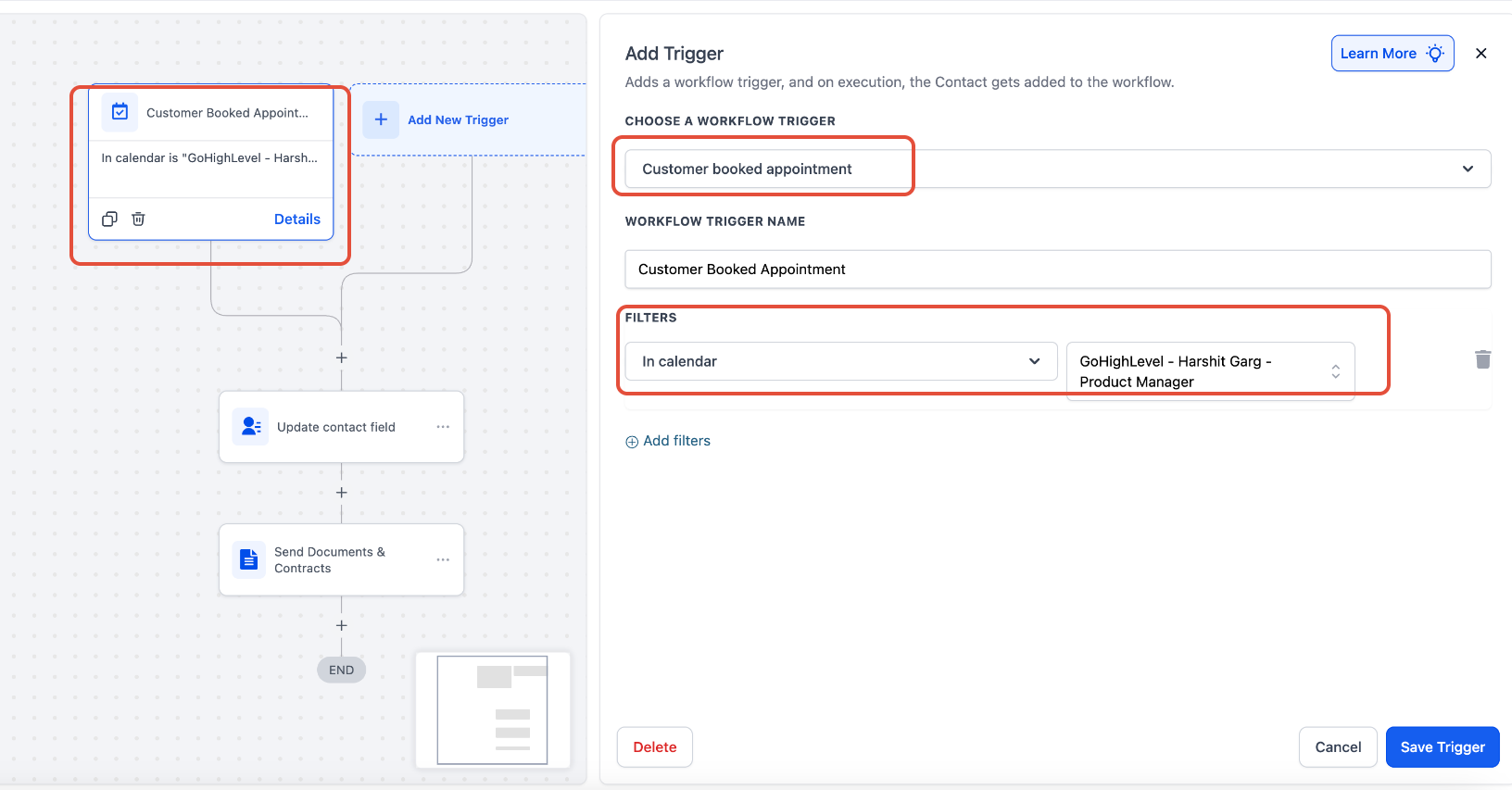
- Add a new workflow and select Customer Booked Appointment as the trigger.
- Optionally add a filter for the specific calendar.
- Click the (+) button and choose Update Contact Field.
- Select the custom contact field you created (e.g., Session Date).
- Click the tag icon and pick Appointment > Start Time as the value.
- Click the (+) button under the previous step and select Send Documents & Contracts.
- Choose the updated contract template from the Template dropdown.
- Save the workflow and publish it.
Advanced opportunity method (10 steps)
- Add a new workflow with the Customer Booked Appointment trigger and filter for the calendar.
- Click the (+) icon and select Find Opportunity.
- Set Opportunity to be found to Most recently created opportunity.
- Add a field filter: choose the custom field and set condition to Is Empty.
- On the Opportunity Found branch, click (+) and select Update Opportunity.
- Choose the custom opportunity field you created (e.g., Session Date).
- Click the tag icon and select Appointment > Start Time as the value.
- Click (+) under the update step and select Send Documents & Contracts.
- Pick the opportunity based contract template from the Template dropdown.
- Save the workflow and publish it.
06What it looks like in HighLevel
07Settings that matter
- Custom Field. Defines a text field on a Contact or Opportunity where the appointment date is stored.
- Template dropdown. Lets you choose which contract template the Send Documents & Contracts action will use.
08Things to know before you rely on it
- The {{appointment.start_time}} merge tag cannot be placed directly in a contract template.
- Send Contract actions only read values from Contact or Opportunity fields.
- The advanced method requires an existing opportunity for the contact; otherwise an opportunity must be created first.
09If something goes wrong
- The contract was sent but the date field is blank.. Verify that the Update Contact Field or Update Opportunity step appears before the Send Contract step. Ensure an opportunity exists when using the advanced method.
- The old template without the date was sent.. Edit the Send Contract action and select the newly cloned template from the dropdown.
10How it connects to the rest of HighLevel
- Create and use document templates Document templates guide
- Automatically send contracts in a workflow Workflow contract automation
- Set up a Documents & Contracts workflow trigger Trigger setup
- HighLevel pricing and plans Pricing page
Michael's take

Automatic date insertion can feel fragile if you skip the step that copies the appointment time into a custom field first. Without that bridge, the contract will arrive missing the crucial booking information.
When it works, the contract sent includes the session date prefilled.