
01Who this is for
- Founders of subscription based businesses: they can automate billing tied to signed agreements.
- Finance managers at agencies: they reduce manual invoice creation for recurring client services.
02Recurring invoices, explained
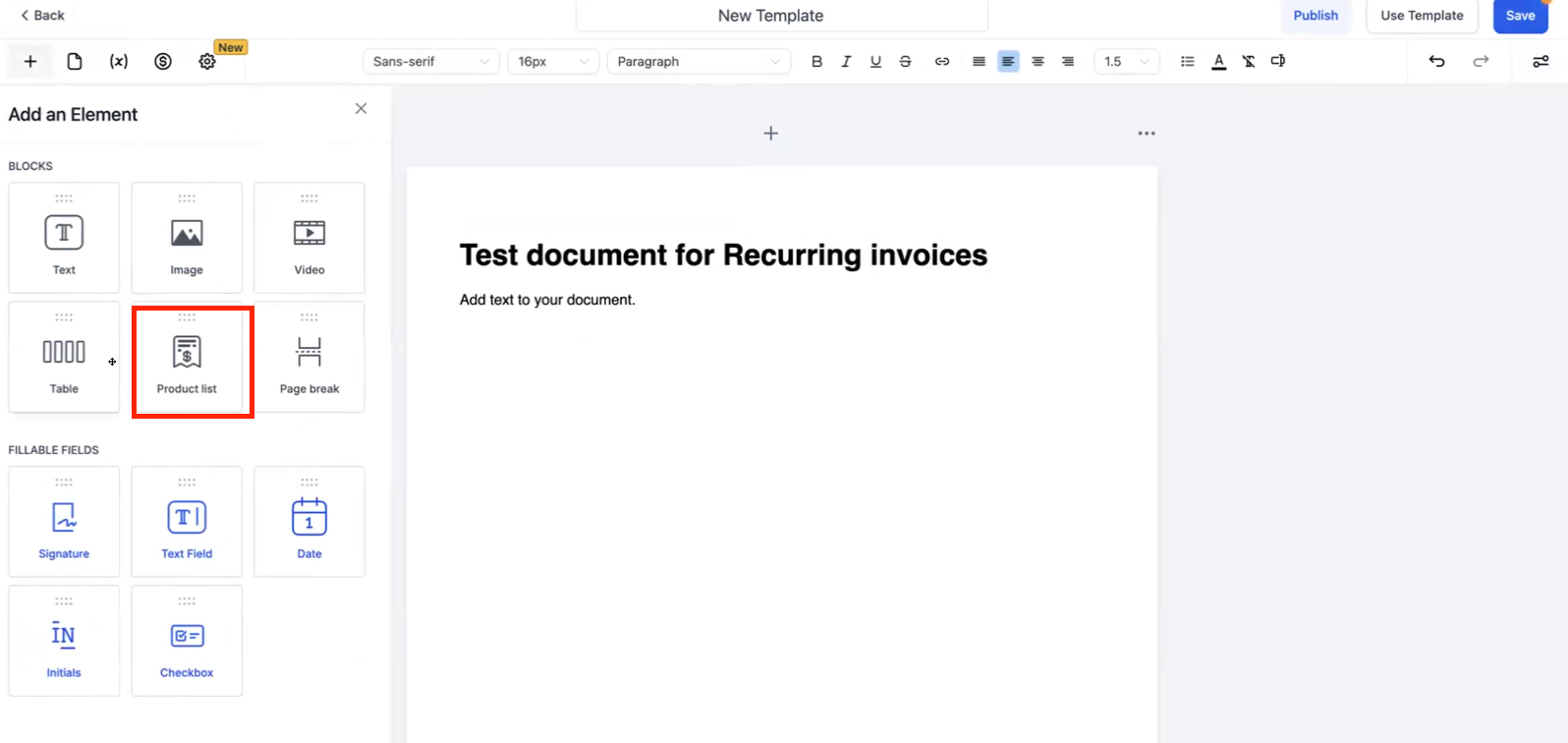
The feature adds a product list to a document template. Each product can be marked as one time or recurring. When a recurring product is included, the system automatically opens a settings drawer so you can define the invoice schedule and whether the signer is sent directly to the invoice after signing. The invoice settings live inside the product list of the template.
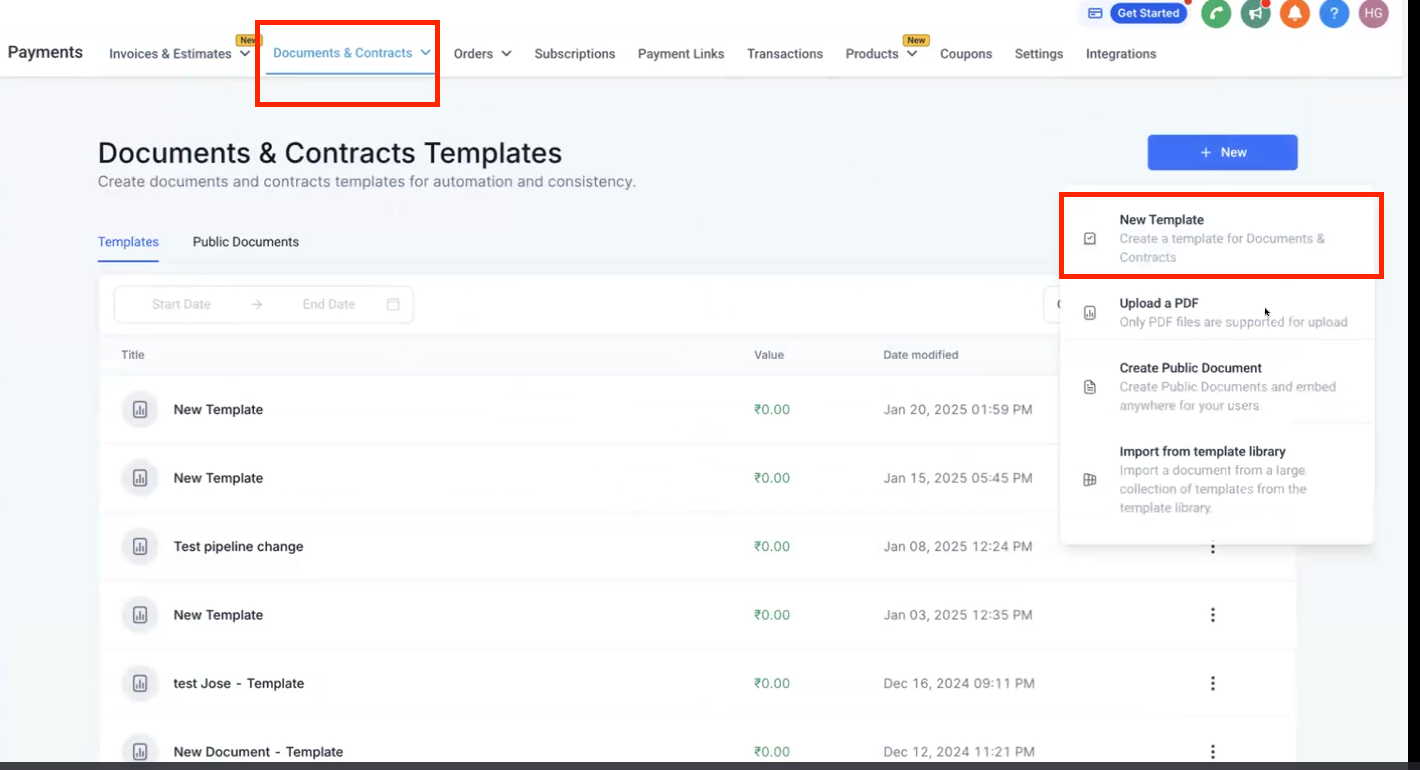
Templates are saved in Payments > Documents & Contracts > Templates. After a template is saved, a workflow can reference it. When the workflow runs, the signer receives the document, signs it, and the platform generates the first invoice according to the schedule you chose. If direct payment is enabled, the signer is taken to the invoice page and also receives an email copy.
03How businesses use recurring invoices
- Co working space provider. Add a monthly membership fee as a recurring product in a contract template. When a member signs the agreement, the platform creates the first month's invoice right away and schedules future invoices on the same day each month.
- Online course creator. Include a recurring subscription for course access alongside a one time onboarding fee. The signer receives the contract, signs, and is immediately redirected to pay the setup fee and the first subscription invoice.
- Home service contractor. Create a template with a recurring service charge and a one time equipment installation fee. After the homeowner signs, the system sends an invoice for the installation fee and sets a monthly schedule for the service charge.
04How to set up and use recurring invoices in HighLevel
Create and configure template
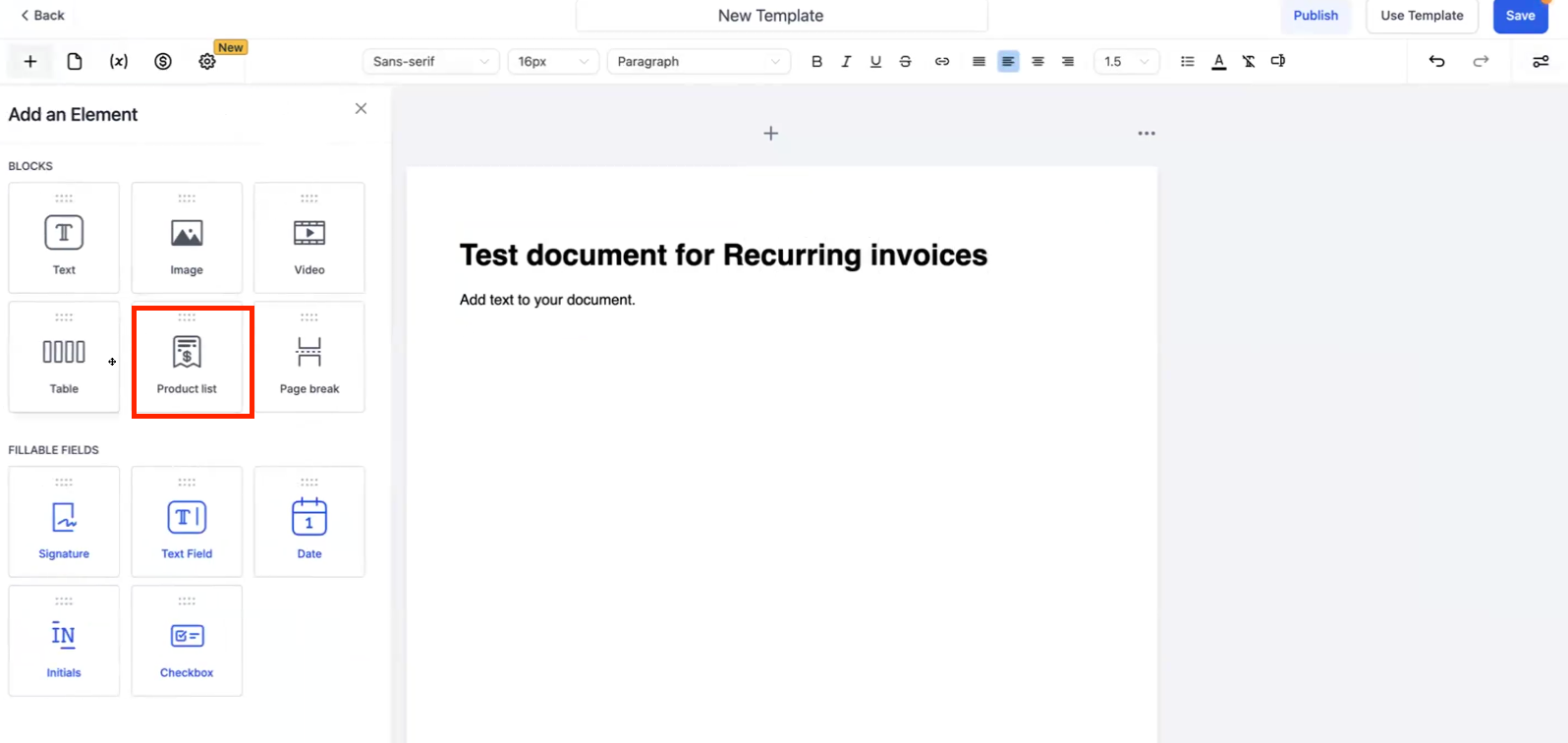
- Navigate to Payments > Documents & Contracts > Templates > New Template.
- Add a product list to the new template.
- Insert a signature element where required.
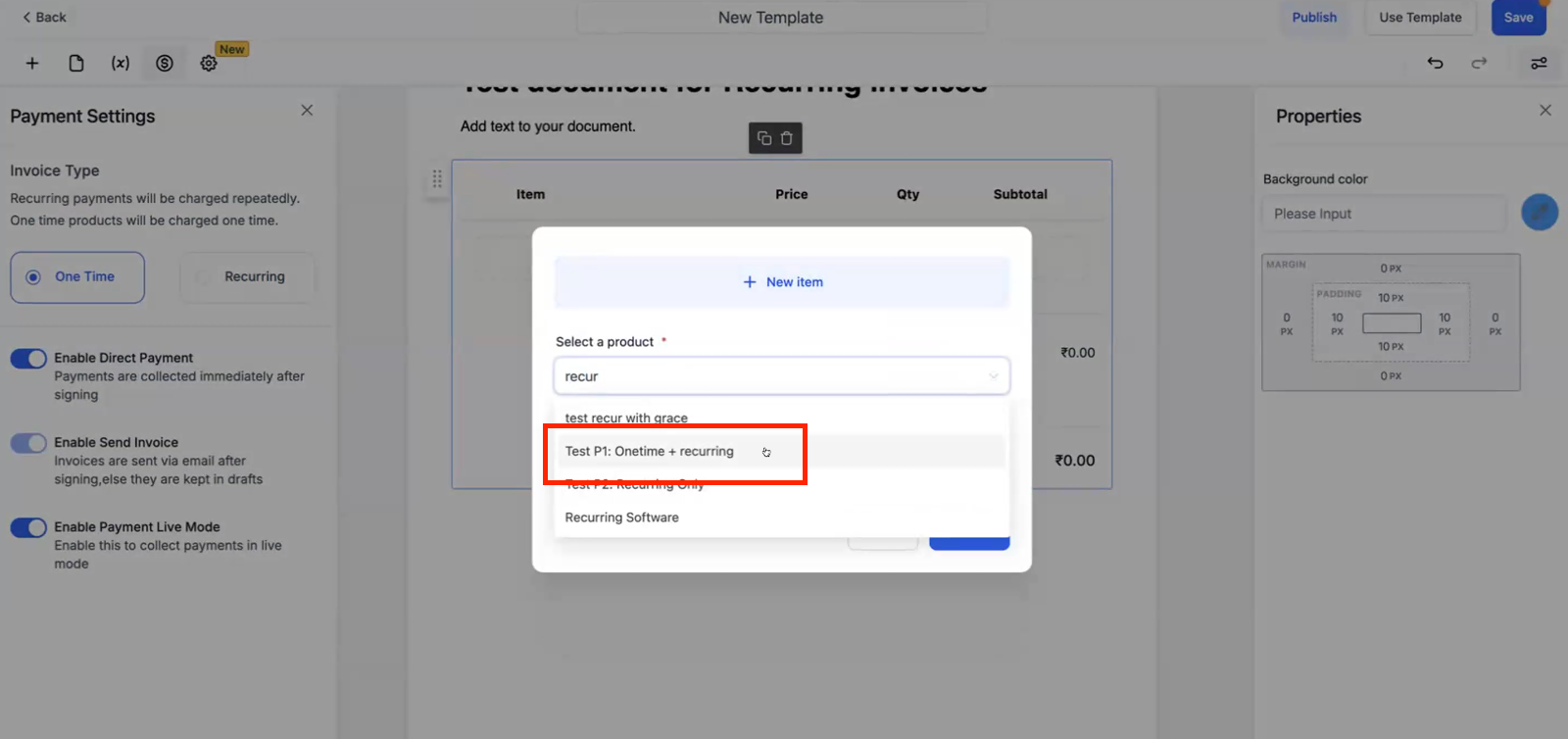
- Add a recurring product to the product list.
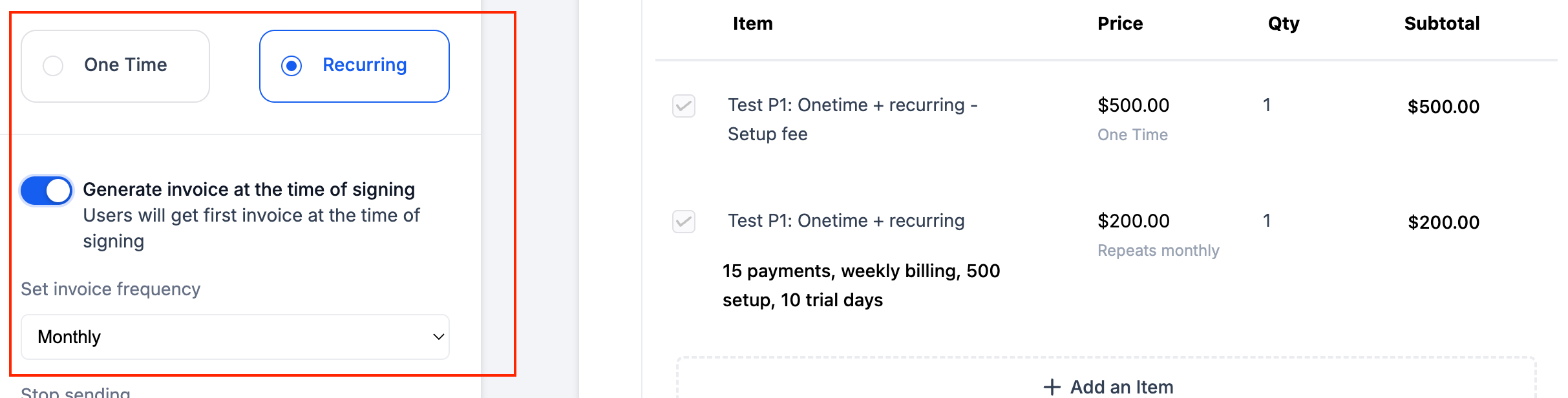
- When the product is added, the settings drawer opens automatically for configuration.
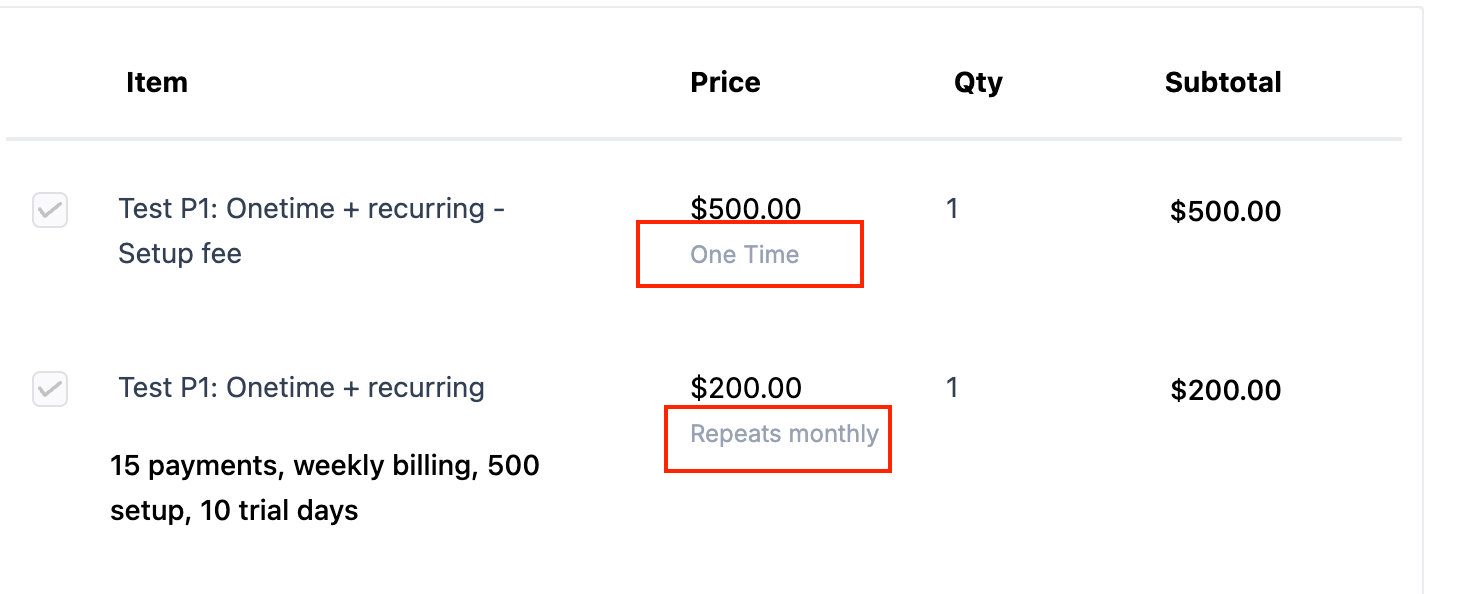
- Observe the product list showing visual tags that separate one time and recurring items.
- Set the "Generate Invoice at Signing" toggle on or off according to your billing preference.
- Set the "Enable Direct Payment" toggle on or off to control post signing payment flow.
Set up workflow to send document
- Save the configured template.
- Go to Workflows and create a new workflow that uses the saved template.
- Activate the workflow so that the signer receives the document with the attached invoice.
- After the signer completes the document, they are redirected to the invoice page and receive an email copy of the invoice.
05What it looks like in HighLevel
06Settings that matter
- Generate Invoice at Signing. Controls whether the first invoice is created at the moment the document is signed or on a custom future date.
- Enable Direct Payment. Determines if the primary signer is sent straight to the invoice page after signing and receives an email with the invoice.
07Things to know before you rely on it
- Only recurring products are included in subsequent invoices; one time products are billed just once.
- Recurring products with a setup fee appear as two line items, one for the recurring charge and one for the one time fee.
- If a payment schedule date falls after the invoice due date, the invoice will not be generated; set the first payment to “Upon primary signature” to avoid this.
08If something goes wrong
- Payment schedule in document, but invoice was not generated. Set the first payment to “Upon primary signature” so the schedule aligns with the invoice due date.
09How it connects to the rest of HighLevel
- Learn how to create and send document templates Create templates
- Set up a Documents & Contracts trigger in a workflow Workflow trigger
- View HighLevel pricing and plans Pricing
Michael's take

I appreciate how automating invoice creation at the moment a contract is signed integrates billing directly into the signing flow.
Don’t let a custom first payment date break the schedule; always set the initial payment to “Upon primary signature.”.