
01Who this is for
- Agency owners benefit because the library enforces brand and term consistency across client proposals.
- Sales managers gain speed by reusing approved pricing blocks when building contracts.
- New team members reduce training time by selecting ready made components from a shared library.
02Content Library for Documents & Contracts, explained
The Content Library lives inside the Documents & Contracts editor and the template editor. It holds either single blocks such as a signature table or an entire page that has been saved for later use. Users access the library through a dedicated panel while editing a document.
When a saved item is needed, the editor provides a Content Library tab that lists custom blocks and pages. Users drag the chosen item into the document and then adjust any text, variables, or pricing. The library does not interfere with existing workflows, triggers, or notifications.
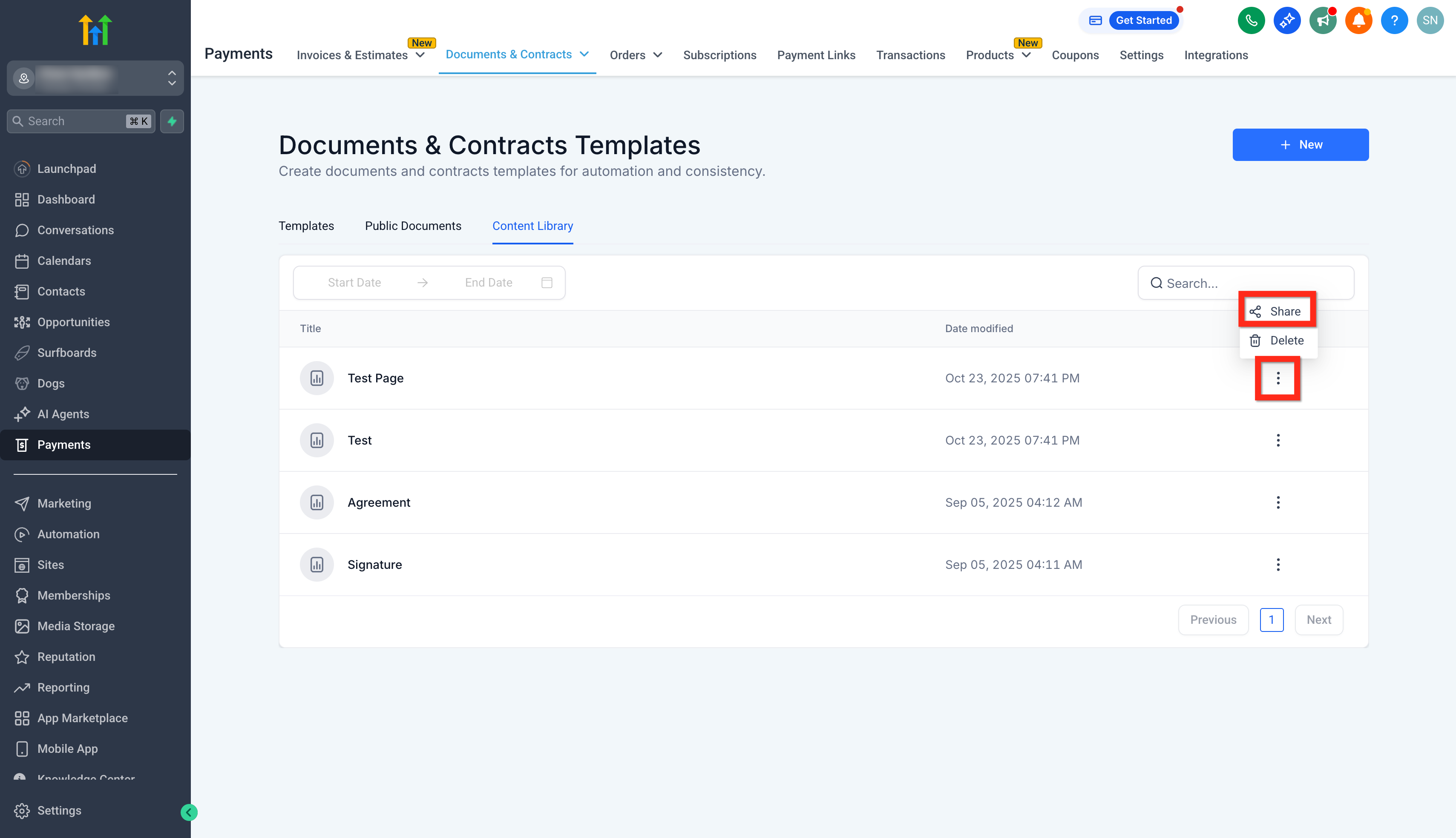
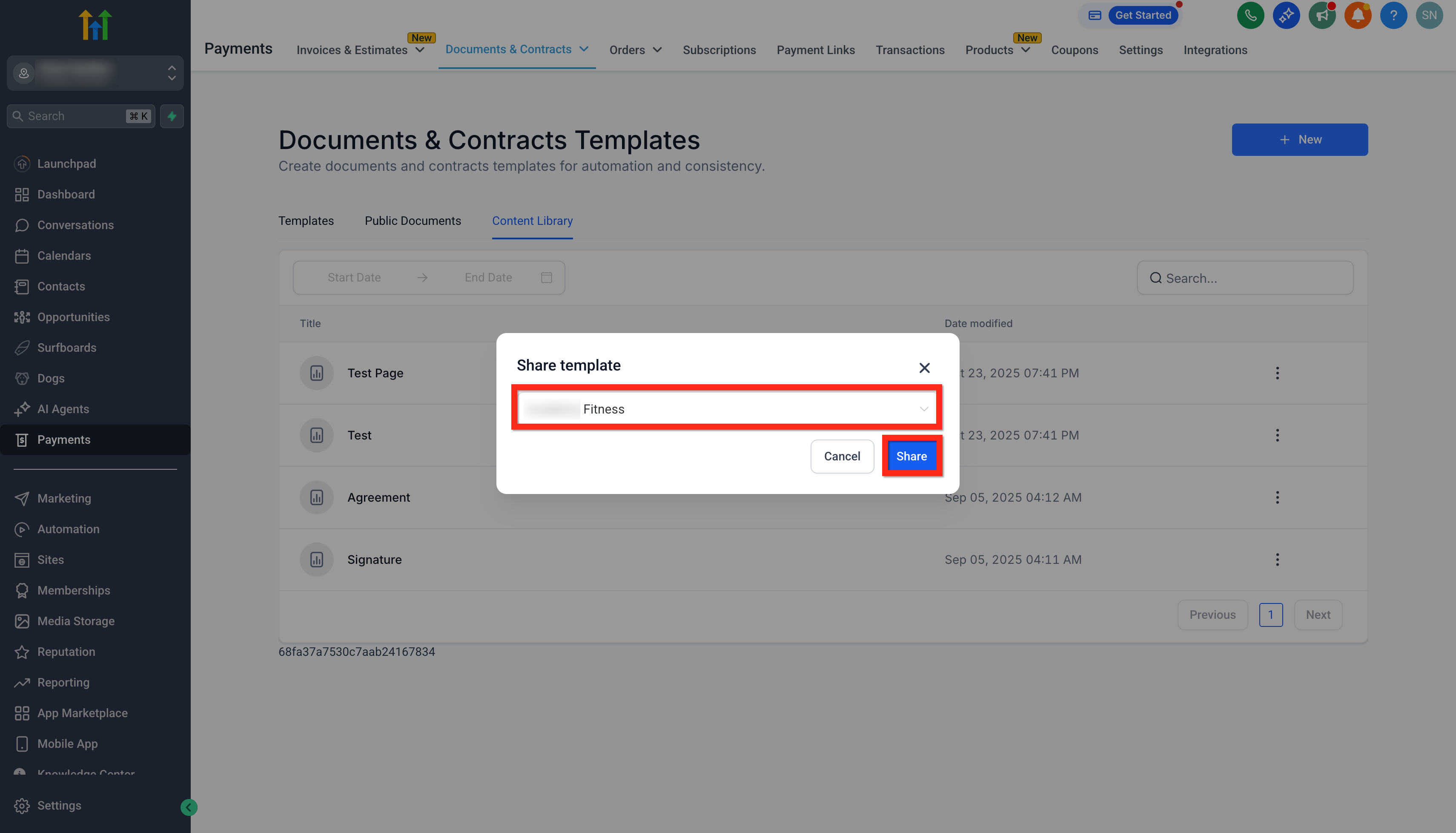
Optionally, library items can be shared with other locations. A share action copies the selected block or page to the target location’s library, making it available to all users in that location.
03How businesses use content library for documents & contracts
- Real estate agency. The agency creates a standard property disclosure block, saves it to the Content Library, and then drags that block into every new contract draft. This ensures the disclosure text is identical for all listings.
- Marketing agency. A marketing team designs a branded header page, adds it to the Content Library, and inserts the page into proposals for each client. The header keeps branding uniform without rebuilding it each time.
- Legal firm. The firm builds a signature table template, saves it, and later drops the table into any agreement. Lawyers only need to fill in client details, reducing manual formatting.
04The numbers and rules that matter
- No limit on how many items can be saved.
05How to set up and use content library for documents & contracts in HighLevel
Set up and use the Content Library
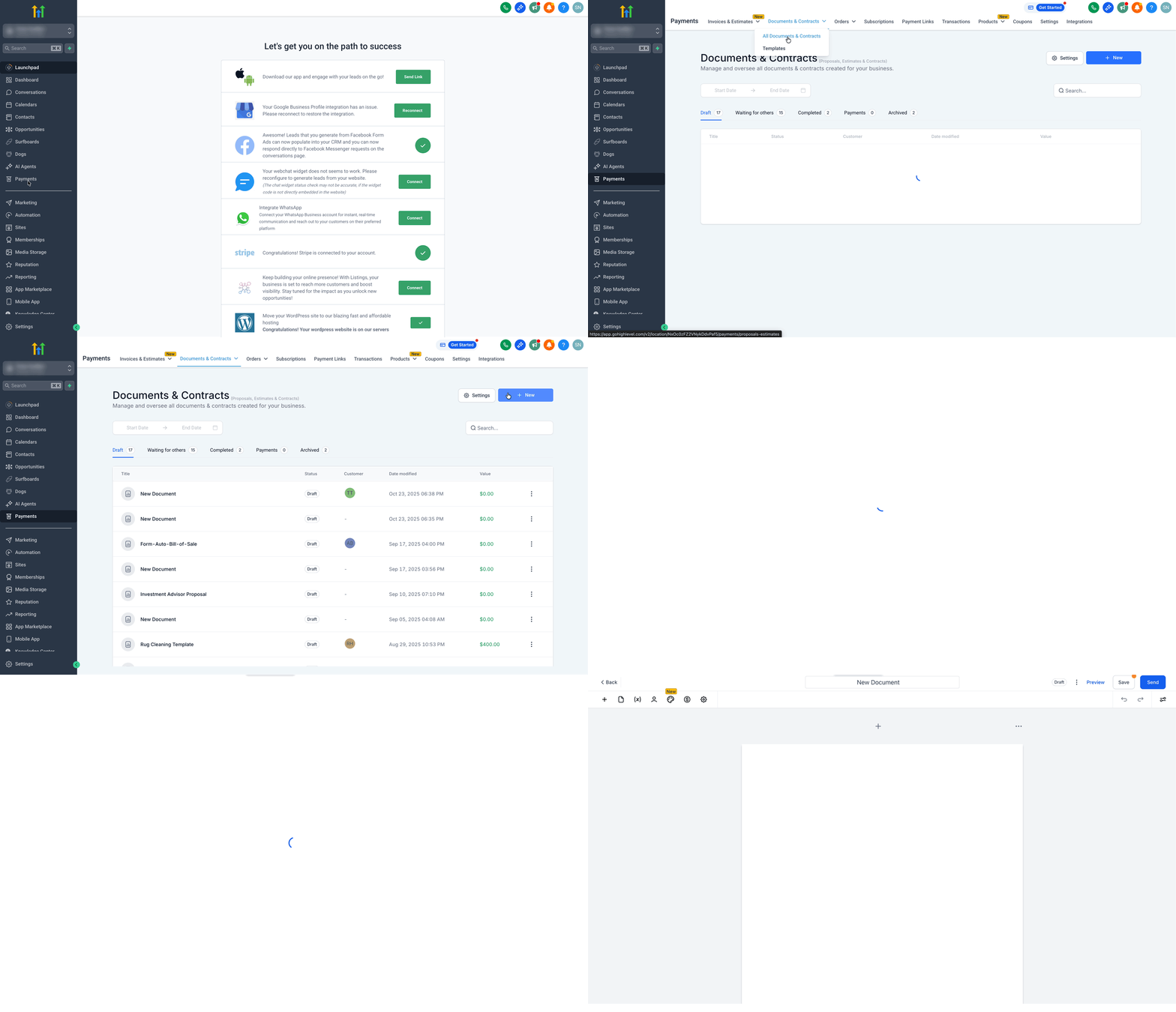
- Navigate to Payments > Documents & Contracts > All Documents & Contracts.
- Click + New > New Document.
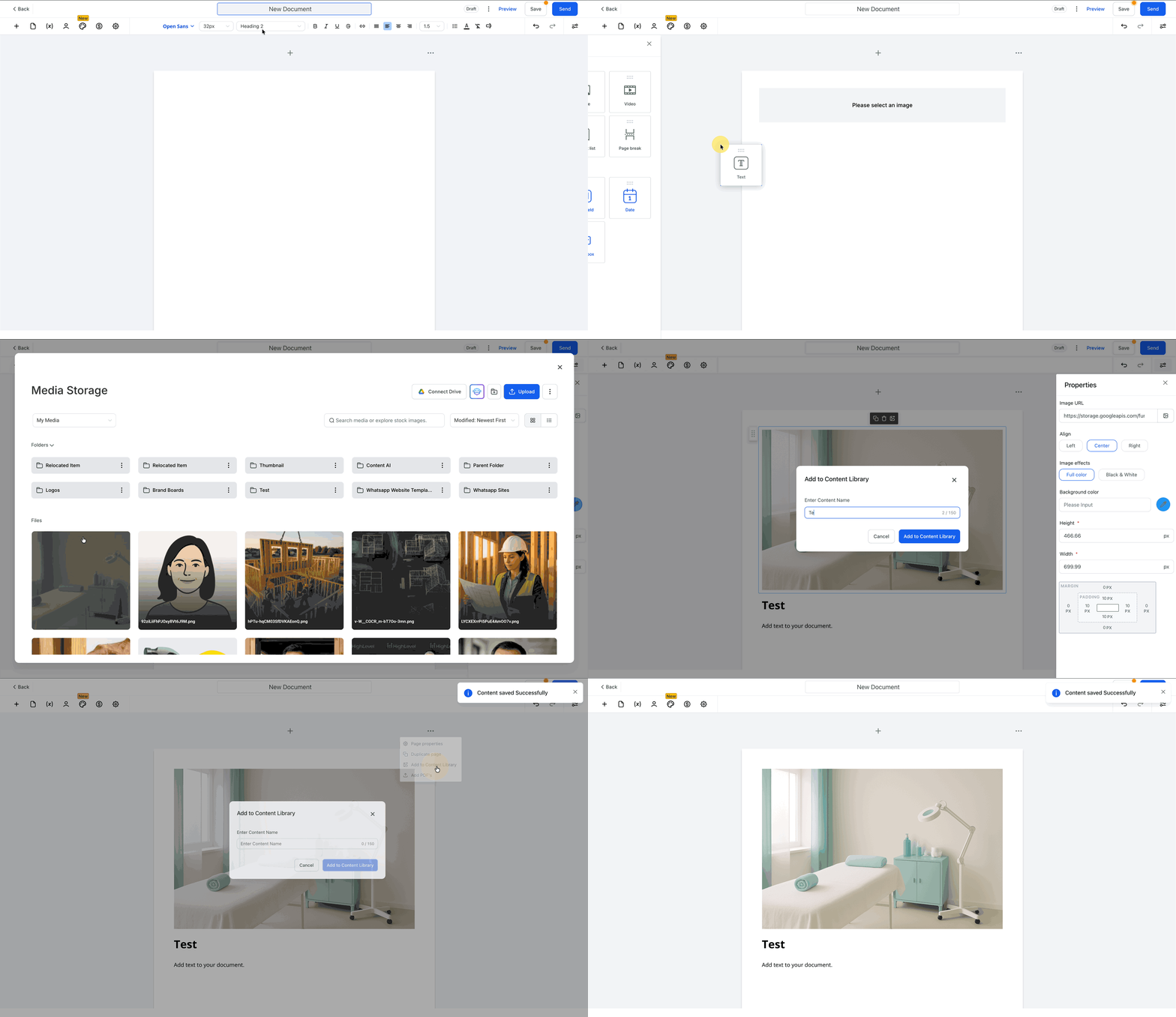
- Add blocks such as text, images, pricing, or signatures, or design a full page.
- For a block, hover over the block and select Add to Content Library.
- For a page, open the page, click the three dots, and choose Add to Content Library.
- Enter a clear name for the item and confirm by clicking Add to Content Library.
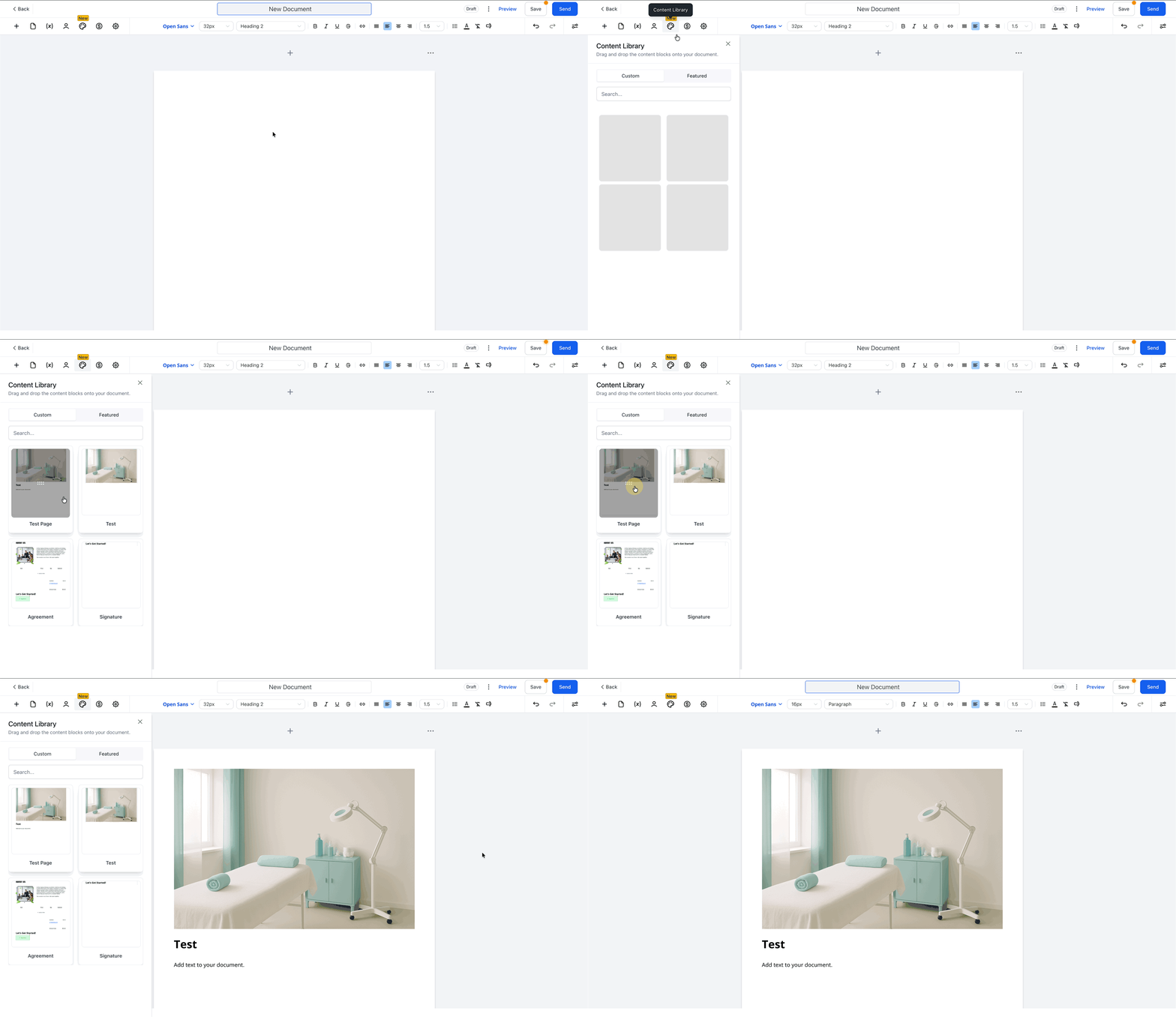
- In the editor, click on Content Library and switch to the Custom tab.
- Drag the saved block or page from the library into the document.
- Edit any text, variables, or pricing as needed.
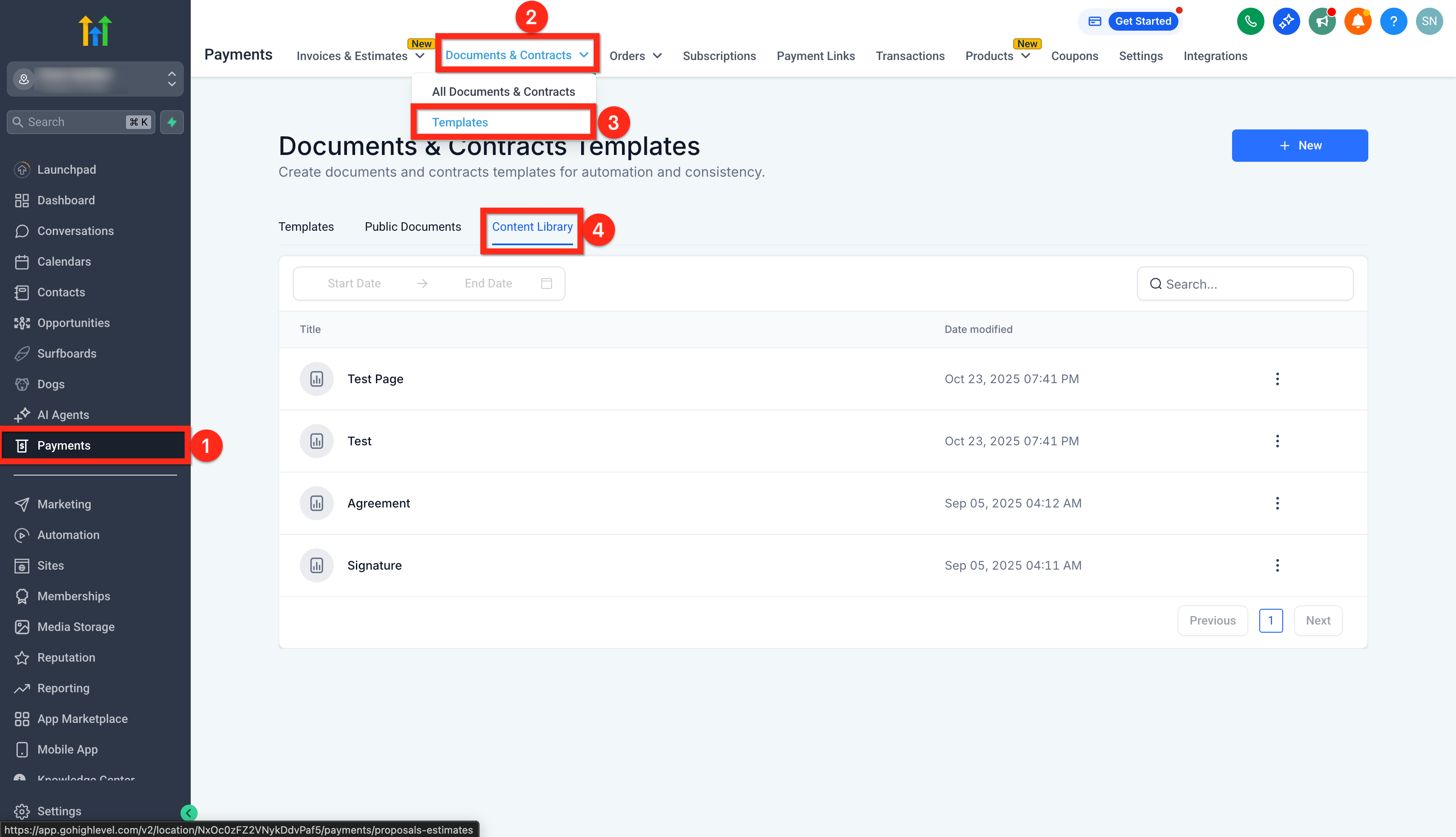
- Go to Payments.
- Hover over Documents & Contracts.
- Click Templates.
- Click Content Library.
- Click the three dots next to an item and select Share.
- Choose the target location and confirm by clicking Share.
06What it looks like in HighLevel
07Things to know before you rely on it
- There is no limit on how many items can be saved in the Content Library.
08How it connects to the rest of HighLevel
- Learn how to create, clone and send documents in HighLevel HighLevel documents & contracts guide
- Automatically send document templates from a workflow Workflow automation
- See HighLevel pricing and plans Pricing page
Michael's take

If your business rarely reuses content or you already have a separate design system, the library may add little value. In that case the extra steps of saving and sharing components could outweigh any speed gains.