
01Who this is for
- Founders who need to send contracts with supporting PDFs can bundle everything in a single email, avoiding follow up requests.
- Small agencies that deliver branded proposals can include design assets without resorting to external file sharing services.
- Consultants who automate document delivery via workflows benefit from attachments traveling automatically with each email.
02Attachments to documents, explained
This feature allows you to place up to five image or PDF files inside any document or template built within HighLevel. The files are stored on the document itself and are included as true email attachments whenever the document is sent.
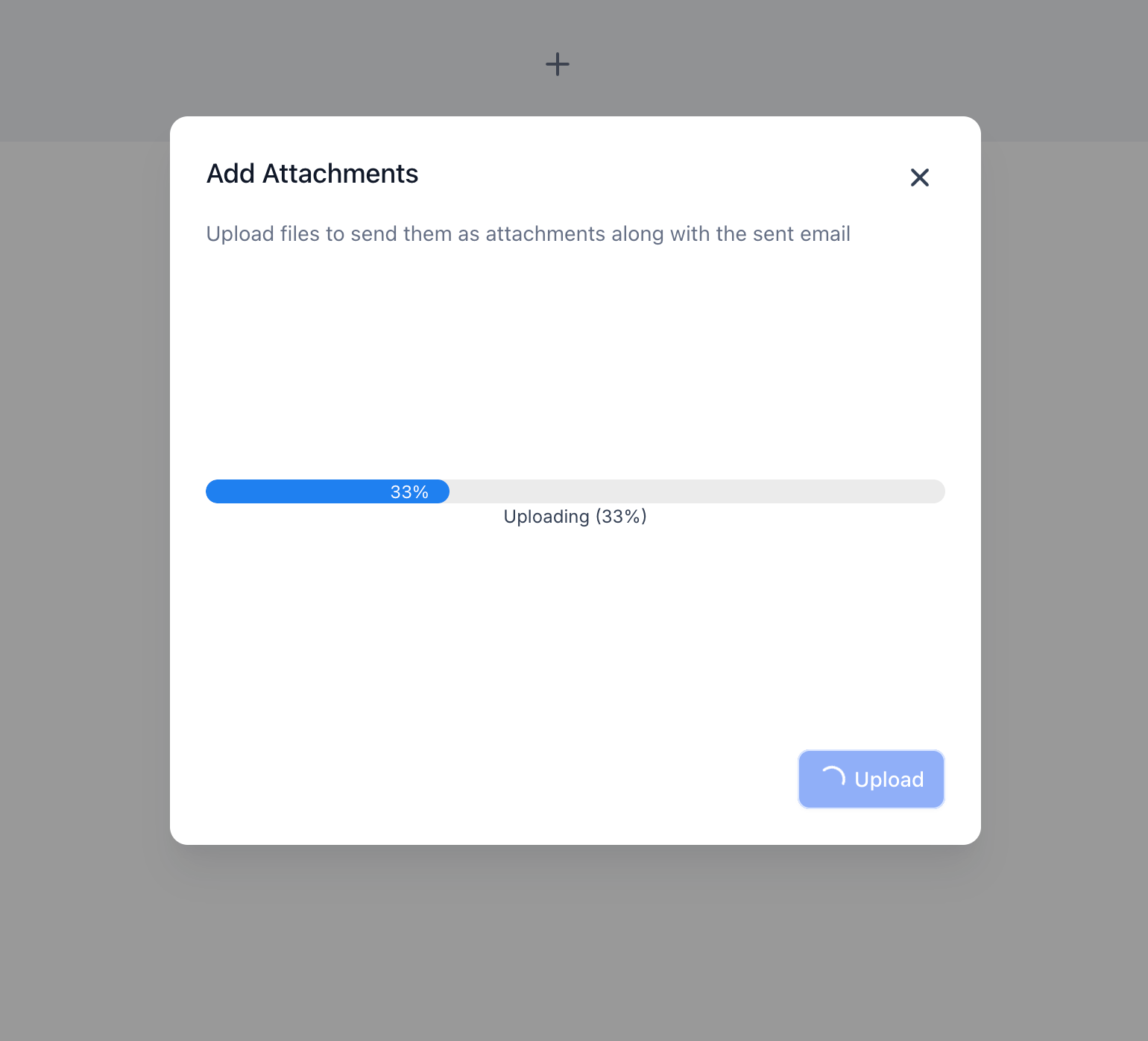
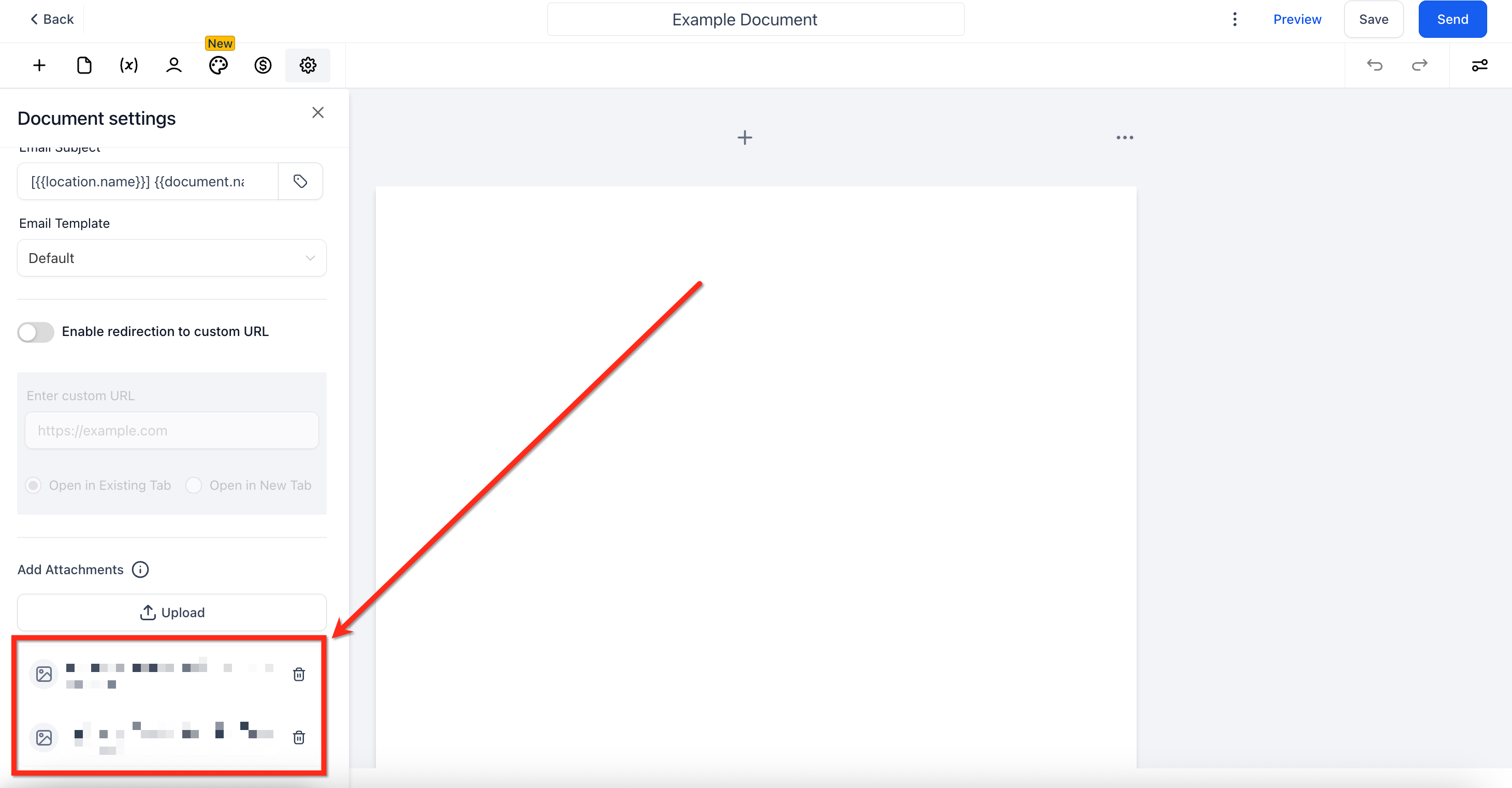
Attachments are managed from the Settings panel of the builder. You can upload, view upload progress, replace, or delete files before saving. When a document is dispatched, whether manually or through a workflow, the attached files travel with the email, appearing as downloadable items for the recipient.
03How businesses use attachments to documents
- Real estate agency. An agency can attach property photos and inspection reports to a lease agreement template. When the agreement is emailed to a tenant, the photos arrive as attachments, so the tenant sees all relevant documents at once.
- Dental practice. A dentist can upload pre treatment consent forms and postoperative care PDFs to a treatment plan template. Sending the plan to a patient delivers both the plan and the instructions in a single message.
- Marketing consultancy. The consultancy adds campaign briefs and branding guidelines to a proposal template. When the proposal is sent through a workflow, the brief and guidelines are automatically attached to the email.
04The numbers and rules that matter
- Supports up to 15 MB per file.
- Supports up to 5 attachments.
- Keep total email size under 20 MB for best deliverability.
05Before you start
- Access to HighLevel with the Documents & Contracts feature enabled.
06How to set up and use attachments to documents in HighLevel
Upload attachments to a document or template
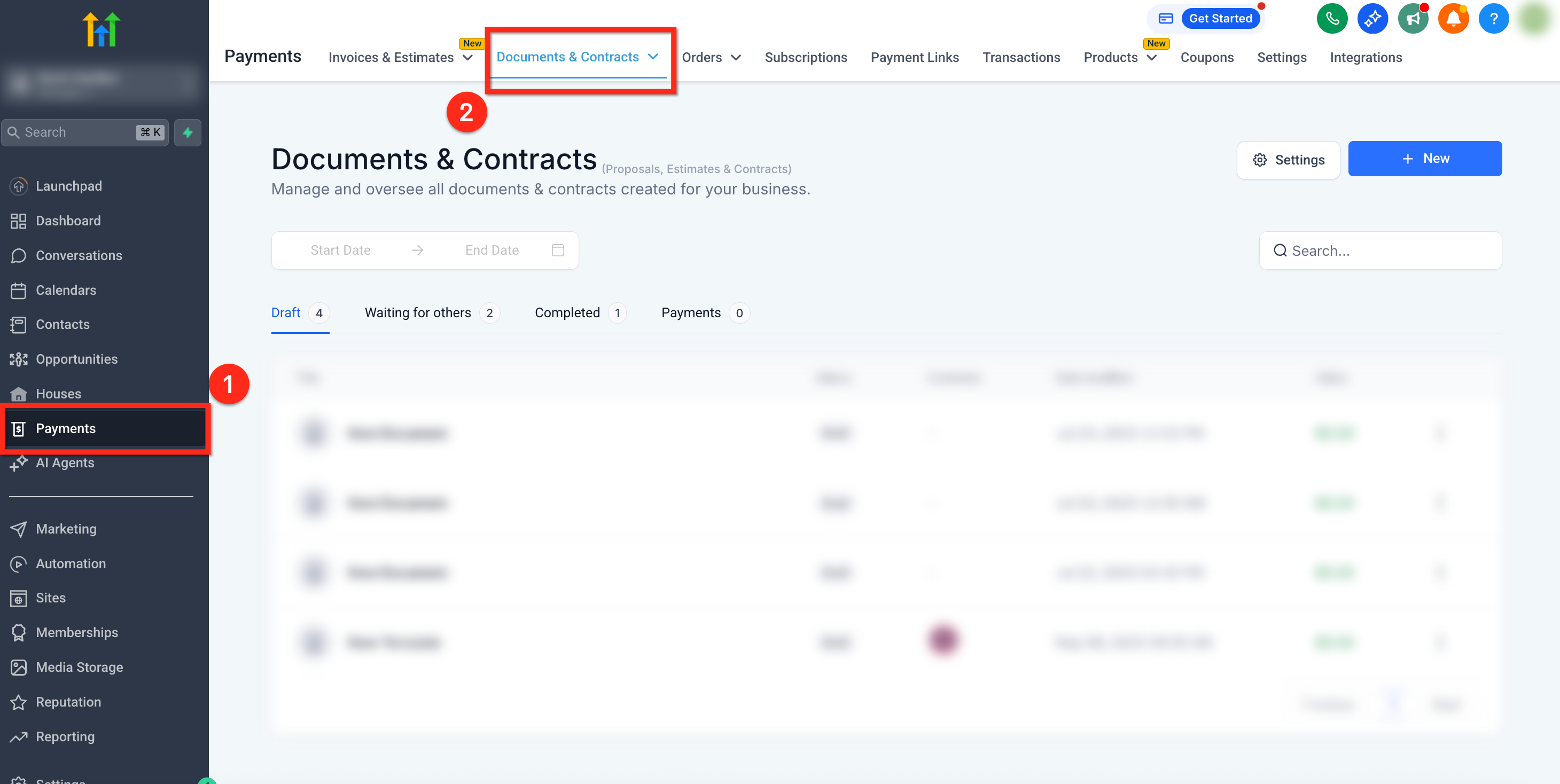
- Open the left navigation and select Payments.
- In the top ribbon, click the Documents & Contracts tab.
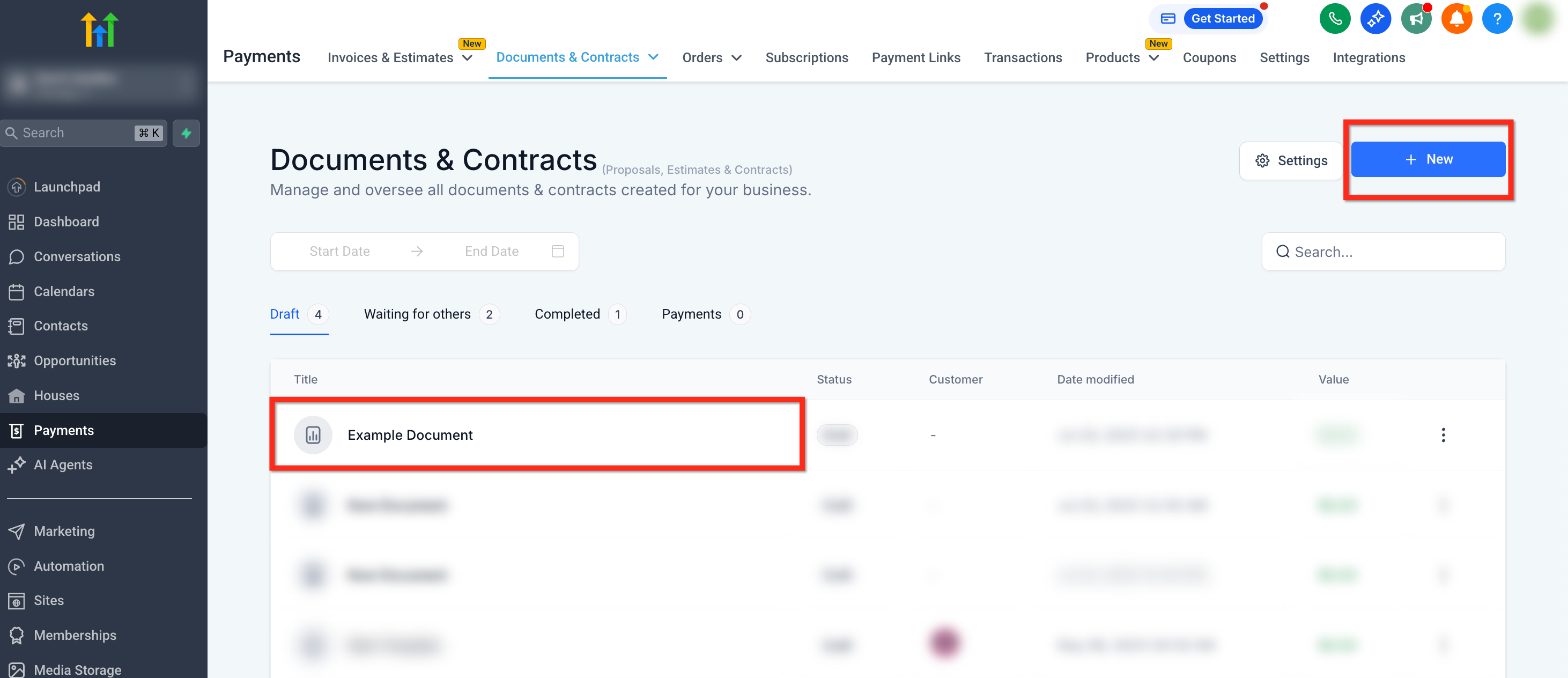
- Choose an existing document/template by clicking its name, or create a new one with the blue + New button.
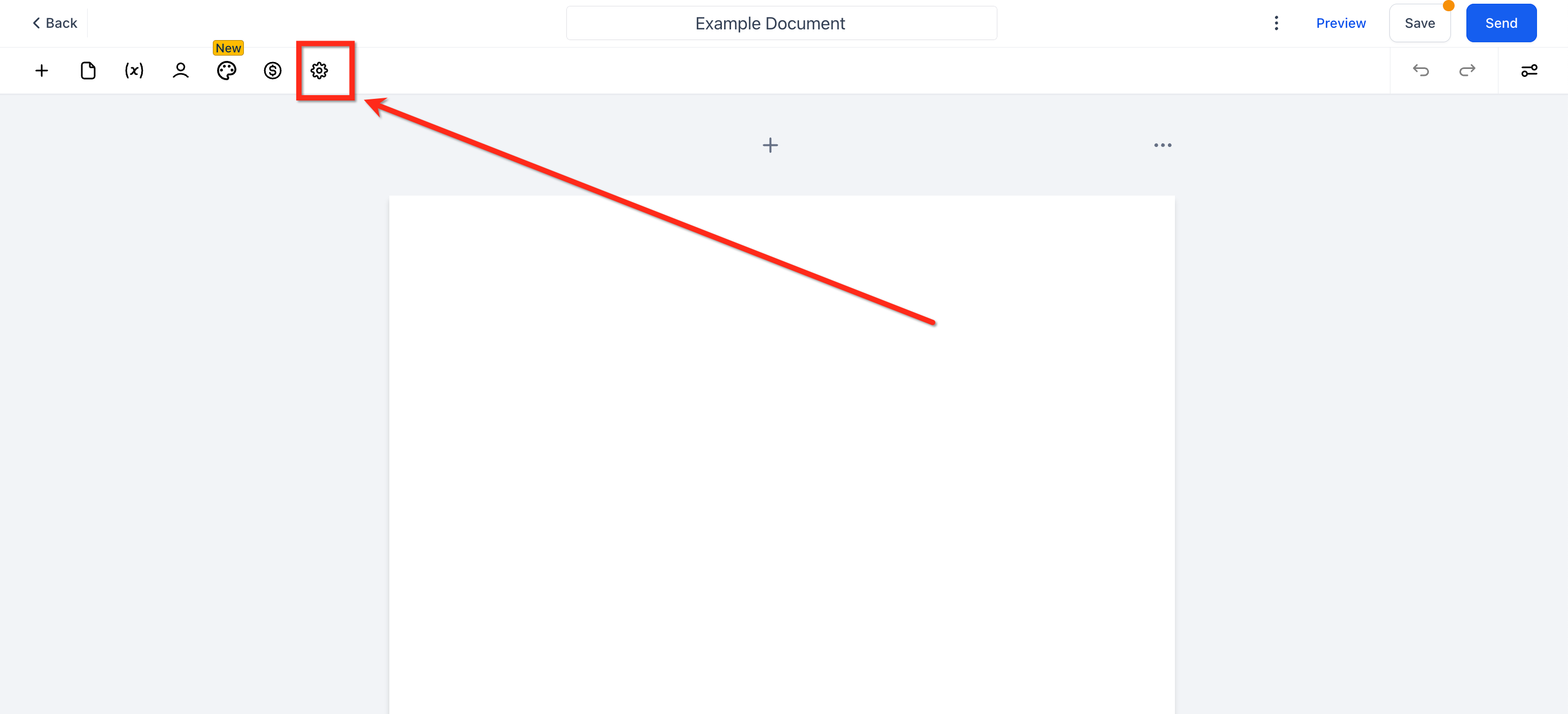
- In the builder, click the Gear icon in the upper left corner to open Settings.
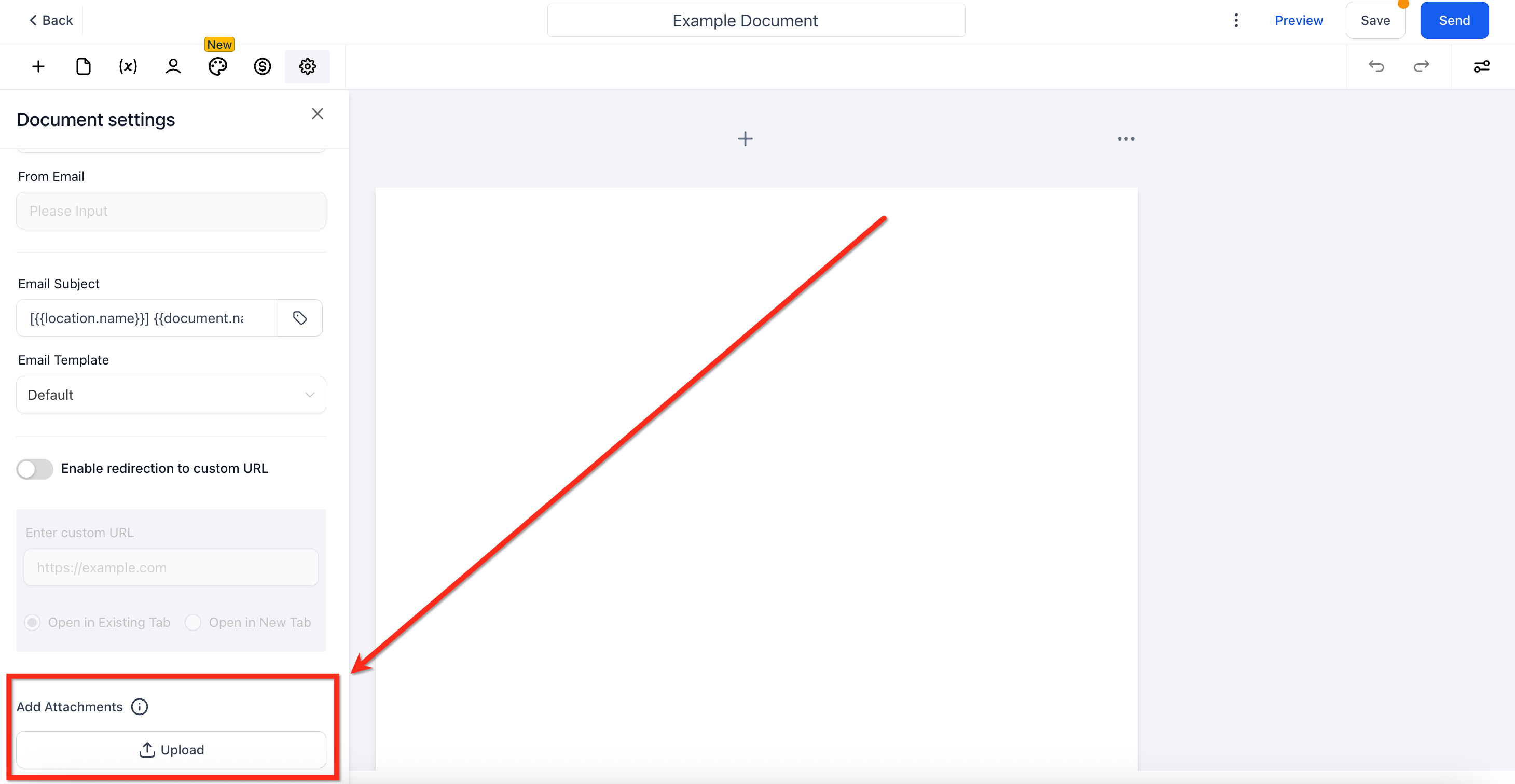
- Scroll down to the Add Attachments section and press Upload.
- Drag and drop, or browse for, SVG, PNG, JPG, or PDF files that are 15 MB or smaller.
- Press the Upload button to start the transfer.
- Watch the upload progress bar until it reaches 100 %.
- If needed, remove a file by clicking its Trash Can icon.
- Click Save to store the attachments on the document.
07What it looks like in HighLevel
08Settings that matter
- Add Attachments. Controls which files are attached to the document email; you can upload, preview, and delete files here.
09Things to know before you rely on it
- Only SVG, PNG, JPG, and PDF formats are accepted.
- Each file may be up to 15 MB in size.
- A maximum of five attachments can be added to a single document.
- If a file exceeds 15 MB, the upload will fail.
10If something goes wrong
- Upload fails for a file larger than 15 MB. Reduce the file size by compressing or splitting it, then attempt the upload again.
11How it connects to the rest of HighLevel
- Create, clone, and send documents in HighLevel Documents & contracts guide
- Automatically send document templates in a workflow Workflow template automation
- Set up email templates and team alerts for documents Email template setup
Michael's take

When you need to send a contract plus a few supporting PDFs or images, the attachment feature lets you deliver everything in one email, avoiding extra links.
If you’re only sending a simple text contract or already rely on a dedicated file sharing service, the attachment feature may add little value, and the larger email size could affect deliverability.