
01Who this is for
- Agency owners who need client facing reports, because widgets provide professional SMS health views.
- Marketing managers overseeing team messaging, since the Sent by filter tracks individual user activity.
- Operations supervisors monitoring delivery health, as status filters highlight sent versus delivered messages.
02SMS widgets, explained
SMS reporting widgets appear in the Dashboards area of a HighLevel subaccount. They are selectable components that pull SMS activity data and render it as charts or counts on a dashboard page.
Each widget can be customized with chart type, grouping, date range, and a set of filters such as Status, Direction, Source, Sent by, and Workflow. Filters can be combined using AND or OR logic to create precise reporting views.
The widgets are also available in the Reporting and Custom Metrics sections, so the same data can be used in other reporting contexts without rebuilding the view.
03How businesses use SMS widgets
- Digital marketing agency. The agency opens a client dashboard, adds the SMS by Status widget, and applies a Status = Delivered AND Source = Workflow filter. This creates a client ready health report that shows only successfully delivered automated messages.
- Real estate brokerage. A broker adds the SMS by Sender widget to the team dashboard, selects the Sent by filter for each agent, and saves the widget. The resulting view lets the manager compare outbound messaging volume per agent.
- Healthcare clinic. The clinic includes the SMS Volume Over Time widget on its operational dashboard, sets the date range to the last month, and uses the chart to monitor daily appointment reminder traffic.
04The numbers and rules that matter
- Status options include Sent, Delivered, Failed, Pending, Undelivered, Clicked, Read.
- Source options include Workflow, Campaign, Bulk action, Other.
05Before you start
- Access to a HighLevel subaccount with the Dashboards feature enabled.
06How to set up and use SMS widgets in HighLevel
Add and configure an SMS widget
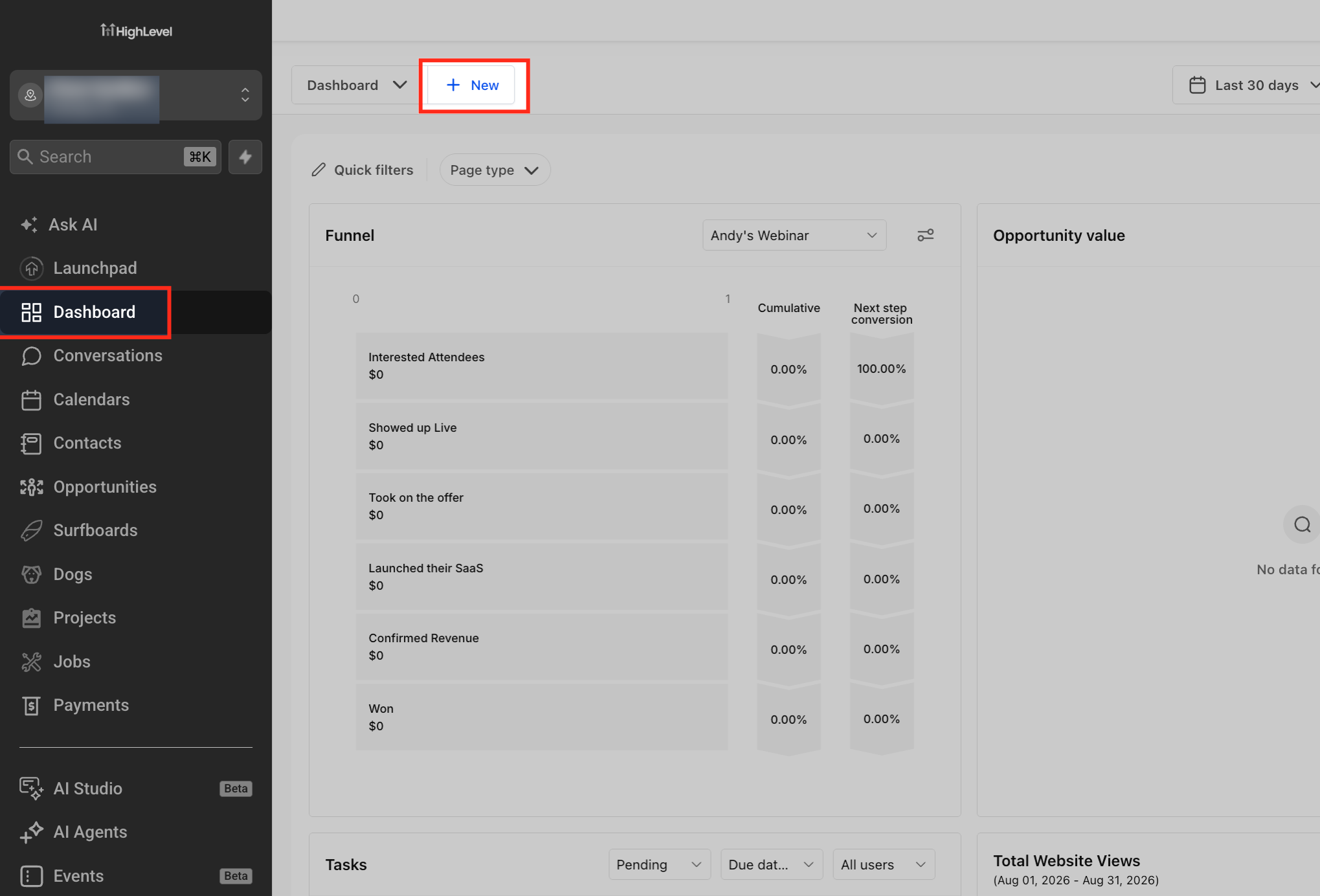
- Navigate to Dashboards in the HighLevel subaccount and open or create the target dashboard.
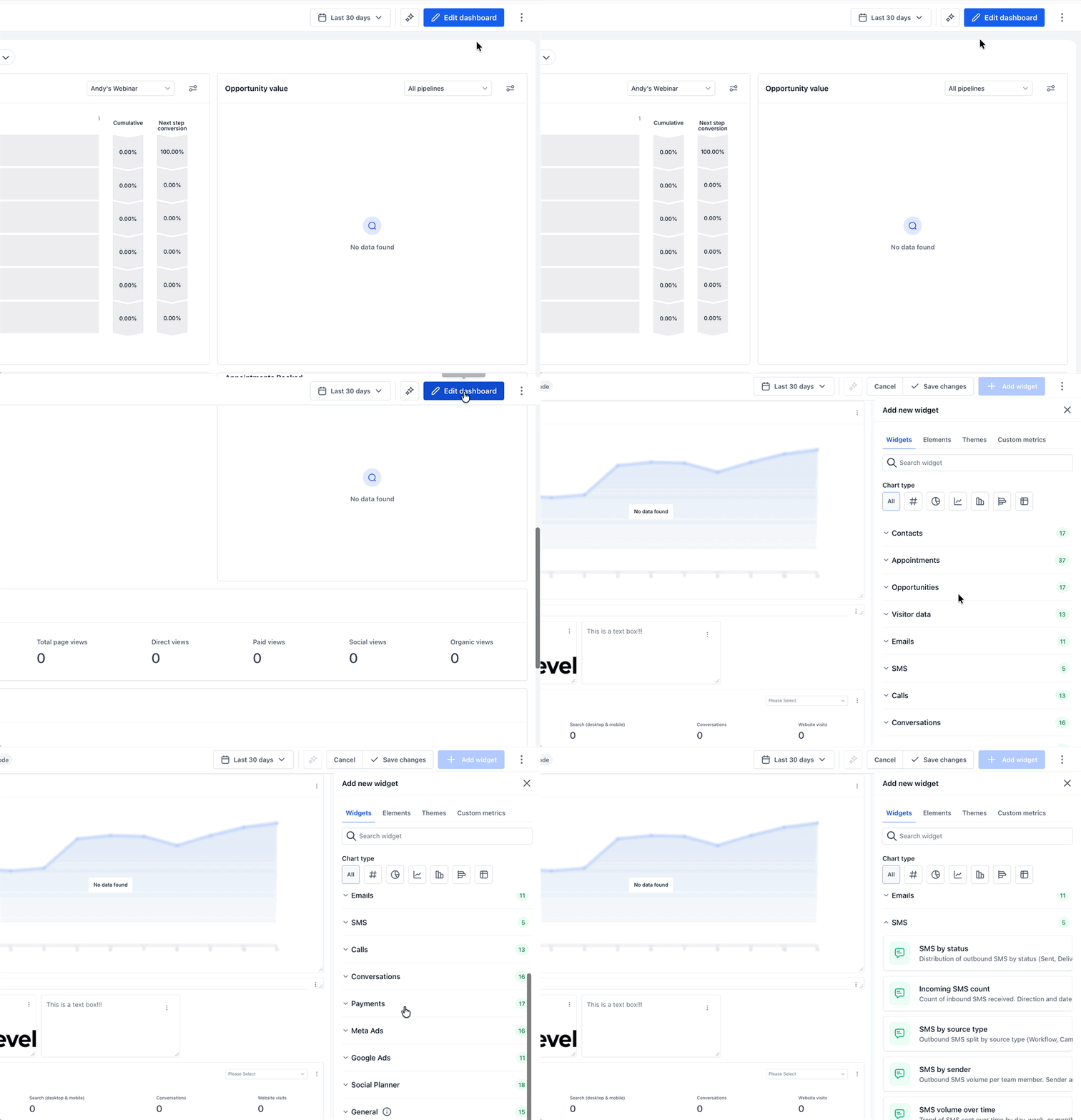
- Click the Edit dashboard button.
- Click the Add widget button.
- In the widget panel, scroll to the SMS section and select the desired widget.
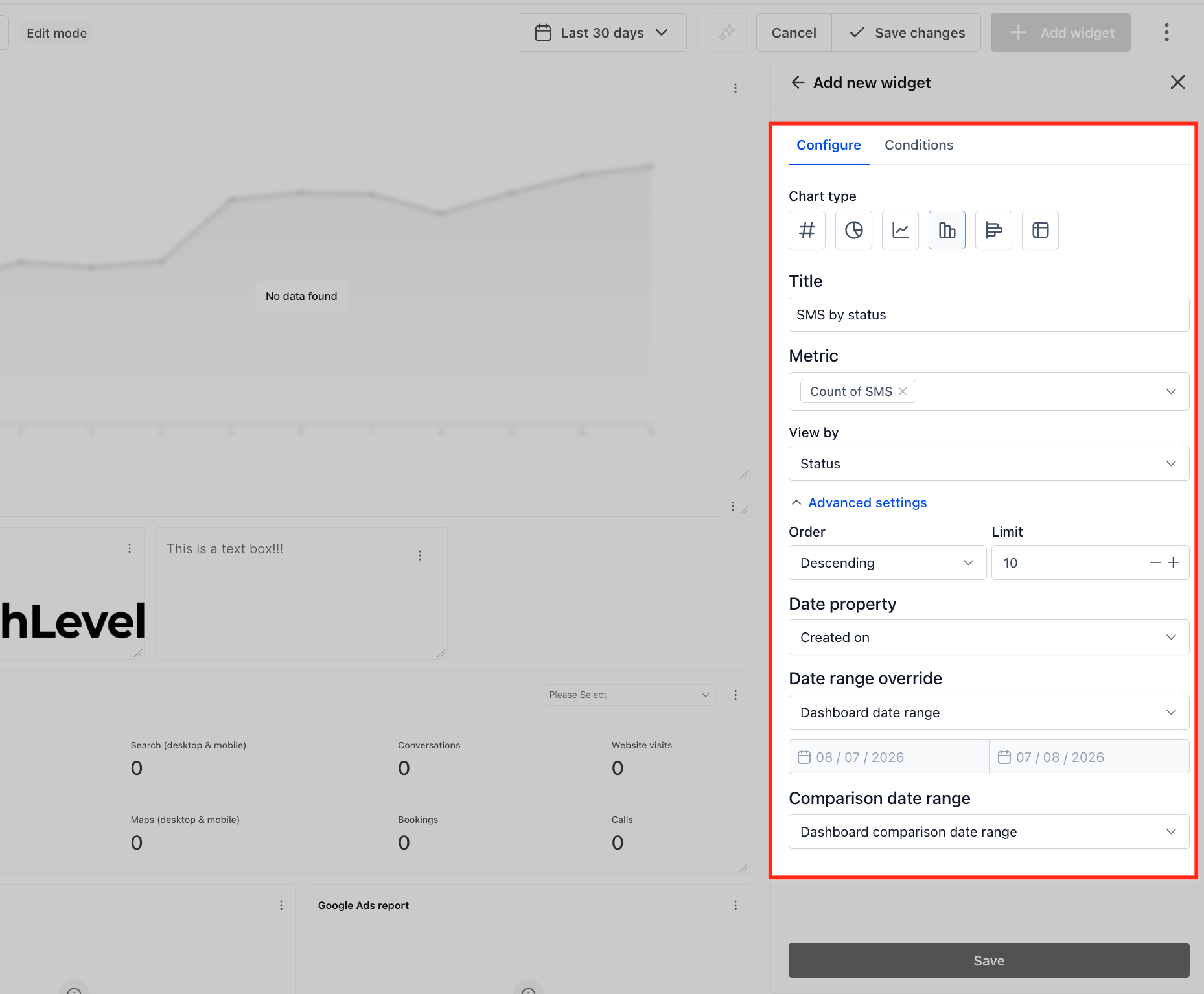
- Open the Configure tab and choose a chart type.
- Set the grouping option and date range within the Configure tab.
- Switch to the Conditions tab and add filters (Status, Direction, Source, Sent by, Workflow) using AND OR logic.
- Click Save changes to place the widget on the dashboard.
07What it looks like in HighLevel
08Settings that matter
- Status. Filters messages by delivery outcome such as Sent, Delivered, Failed, Pending, Undelivered, Clicked, or Read.
- Direction. Filters messages by inbound or outbound flow to isolate two way conversation volume.
- Source. Filters messages based on what triggered them: Workflow, Campaign, Bulk action, or Other.
- Sent by. Filters messages by the team member who sent them, enabling tracking of individual activity.
- Workflow. Filters messages by the specific workflow that generated them, useful for automation analysis.
- AND OR Logic. Controls how multiple filters are combined, allowing precise data slices such as Status = Delivered AND Source = Workflow.
09Things to know before you rely on it
- SMS widgets track standard SMS messages only; MMS tracking depends on how the subaccount processes multimedia messages.
- Widgets refresh periodically; real time data depends on dashboard refresh settings and subaccount configuration.
10How it connects to the rest of HighLevel
- How to add and customize dashboard widgets in HighLevel Add and customize widgets
- Customizing dashboard widgets in HighLevel Widget customization
- HighLevel dashboard permissions and user specific widget settings Dashboard permissions
Michael's take

SMS widgets feel like a small convenience that can become a real shift for agencies that need concise reporting without digging through conversations. The ability to pull delivery health, volume trends and team activity onto a single screen turns a scattered data set into a clear snapshot.
A marketing agency that runs multiple client campaigns will find these widgets fit perfectly. They can build a client dashboard that mirrors the professionalism of email and call reports, then add a quick view of SMS performance to keep everyone on the same page.