
01Rearrange widgets, explained
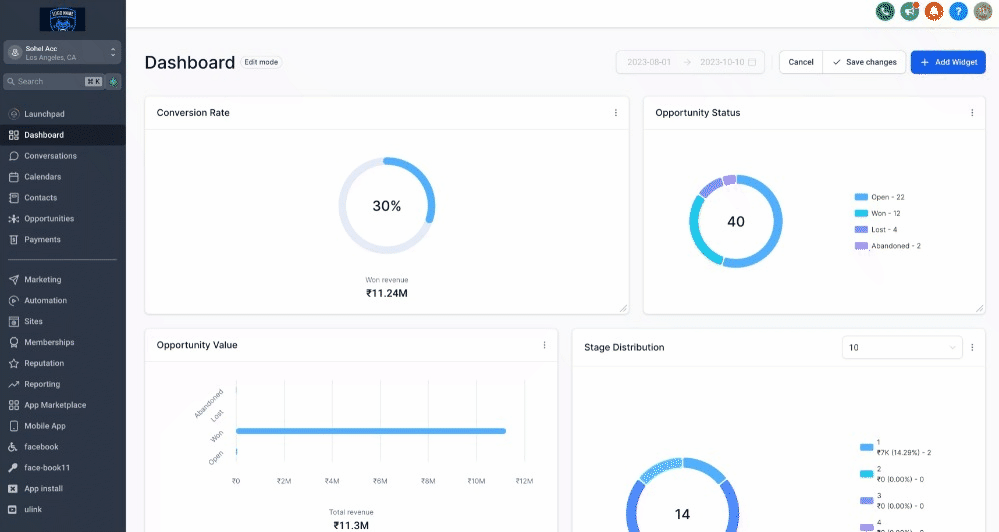
The feature lets you customize the layout of your dashboard. By entering Edit Mode you can drag and drop a widget to your desired location.
Your changes stay private to your account unless you have admin rights that allow a global layout. When you are satisfied, you click Save to make the new arrangement permanent, or Cancel to revert to the previous layout.
02The numbers and rules that matter
- Available exclusively for the $497 plan and beyond.
03Before you start
- Be on the $497 plan or higher.
04How to set up and use rearrange widgets in HighLevel
Rearrange widgets
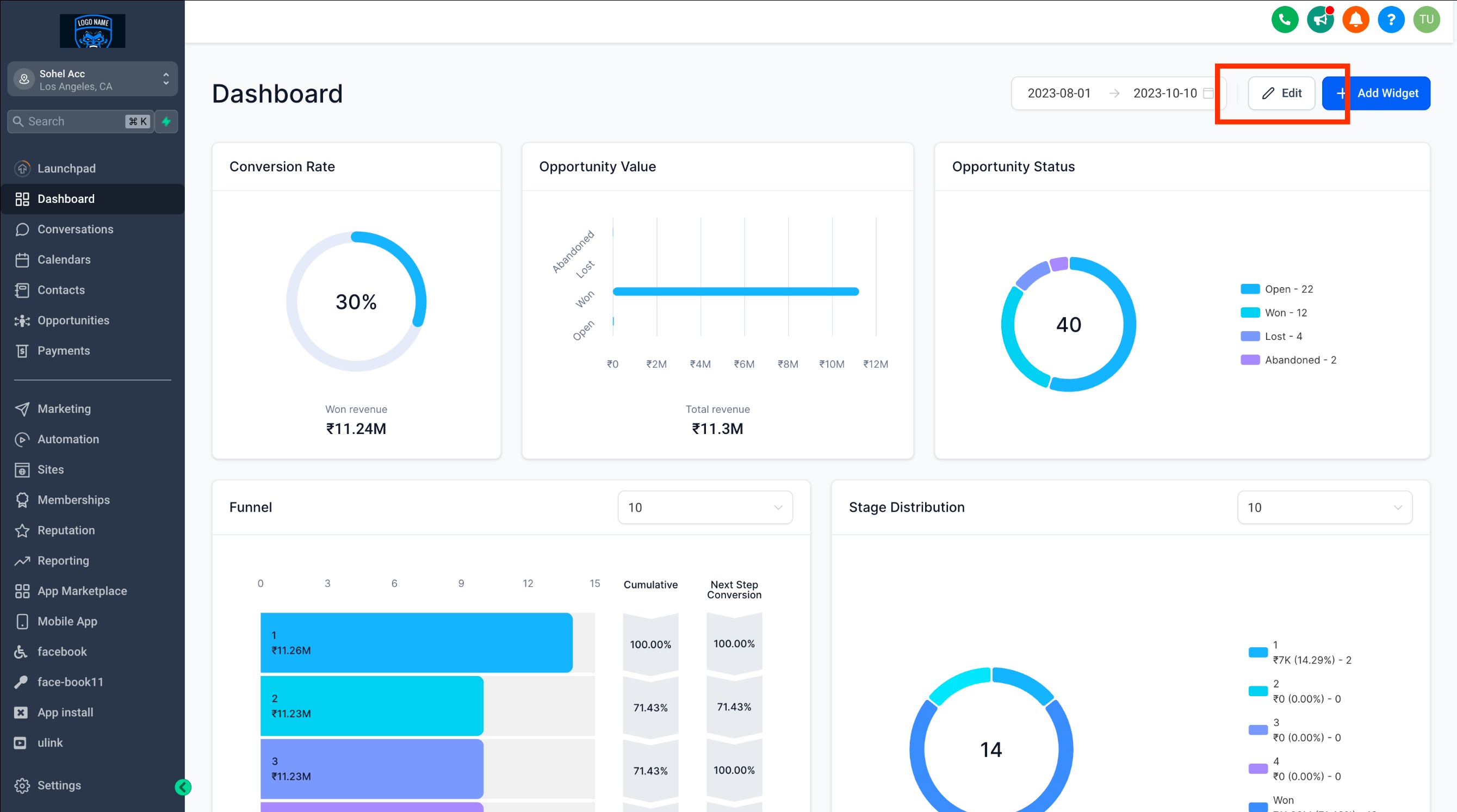
- On your dashboard, click the "EDIT" button.
- Drag and drop the widget to your desired location.
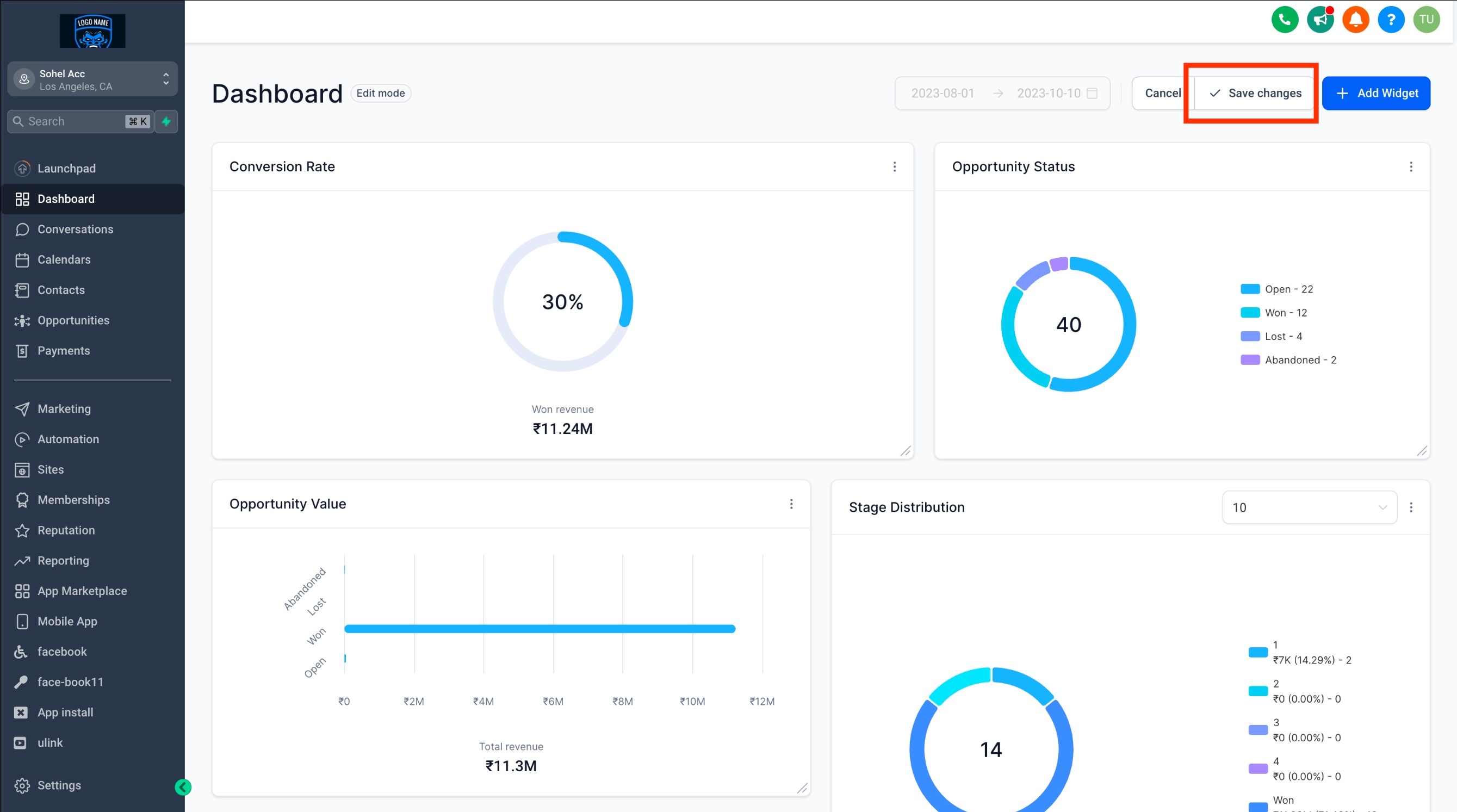
- Click "Save" to keep the new layout or click "Cancel" to undo.
05What it looks like in HighLevel
06Settings that matter
- Edit mode. Enables drag and drop rearrangement of widgets; changes are not saved until you exit edit mode.
Michael's take

Michael ReimerFounder of CRM Pros, HighLevel Commander and Certified Admin
When a dashboard feels cluttered, finding the data you need can become a daily distraction. The quickest win is to switch the dashboard into Edit Mode and lock down a layout that puts your top priority widgets front and center.
Get More InformationOpens on HighLevelPublished November 2, 2026 · Updated November 3, 2026