Home/HighLevel/Features/Dashboards/How to add Insight Widgets to your HighLevel dashboard

Reporting and Dashboards

How to add Insight Widgets to your HighLevel dashboard

In short

Insight widgets in HighLevel let you select suggested widgets from Opportunities, Appointment Reports, or Call Reports and place them on a dashboard, keeping key business data organized.

AreaDashboards · Dashboard Widgets
Used forTrack opportunity and pipeline performance, Track appointment activity, Track call activity
Setup steps5 steps in 1 task
Last updatedNovember 3, 2026

01Insight widgets, explained

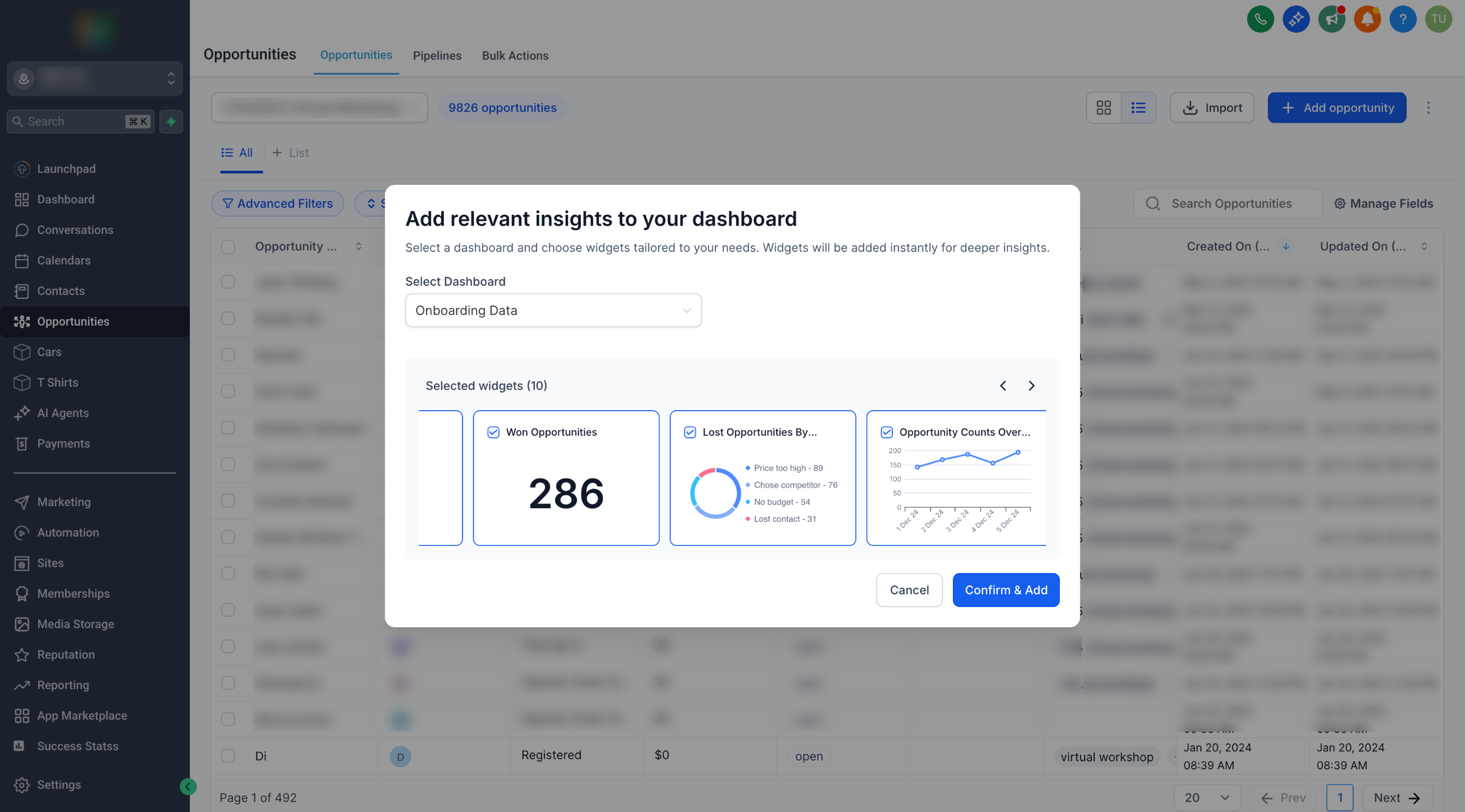
Insight widgets are elements that display business metrics on your dashboard.

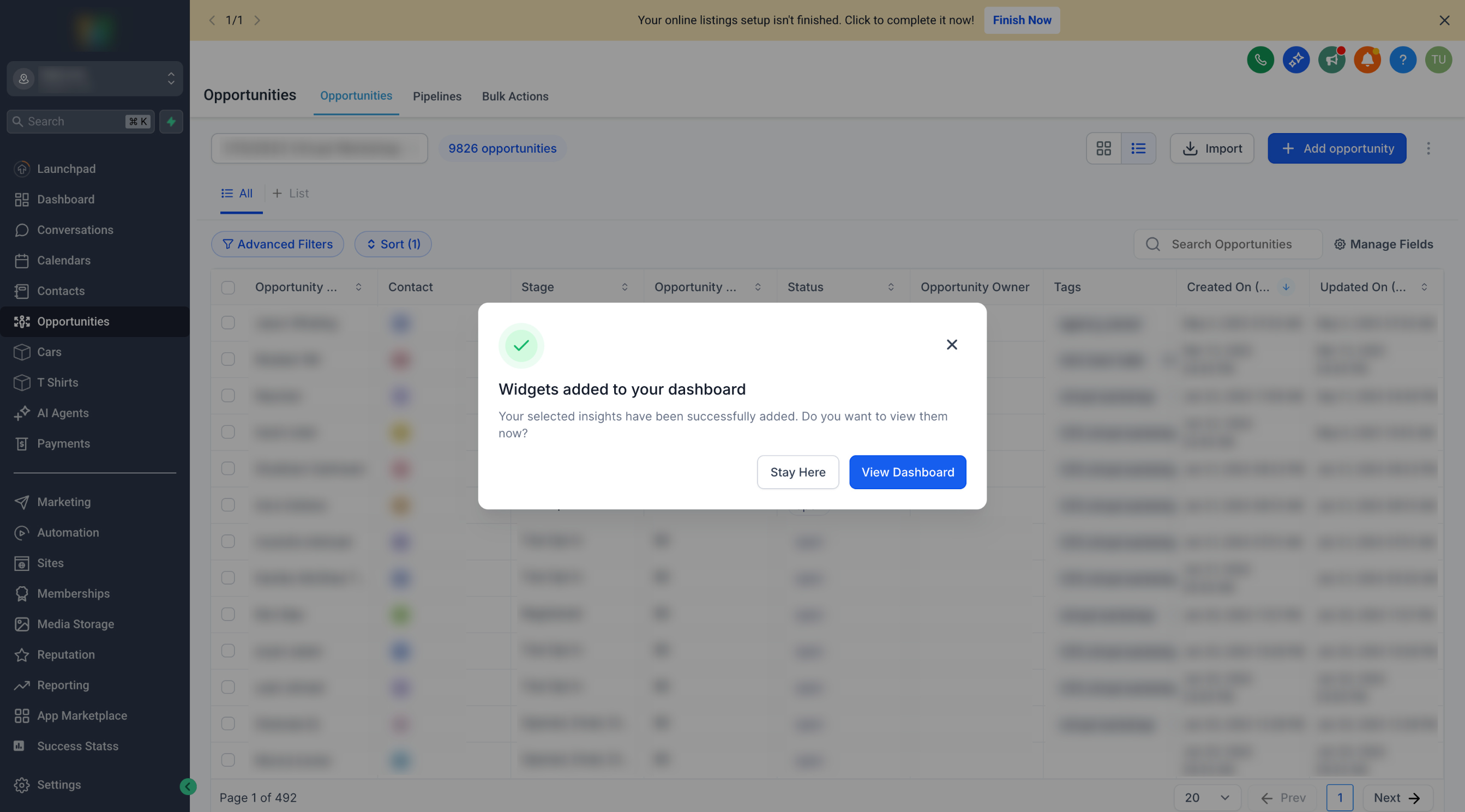
Once added, the widgets appear on the dashboard you chose. You can visit the dashboard to view and customize the added widgets.

02How businesses use insight widgets

  • Track opportunity and pipeline performance. Add widgets from the Opportunities page.
  • Track appointment activity. Add widgets from the Appointment Reports page.
  • Track call activity. Add widgets from the Call Reports page.

03How to set up and use insight widgets in HighLevel

Add insight widgets

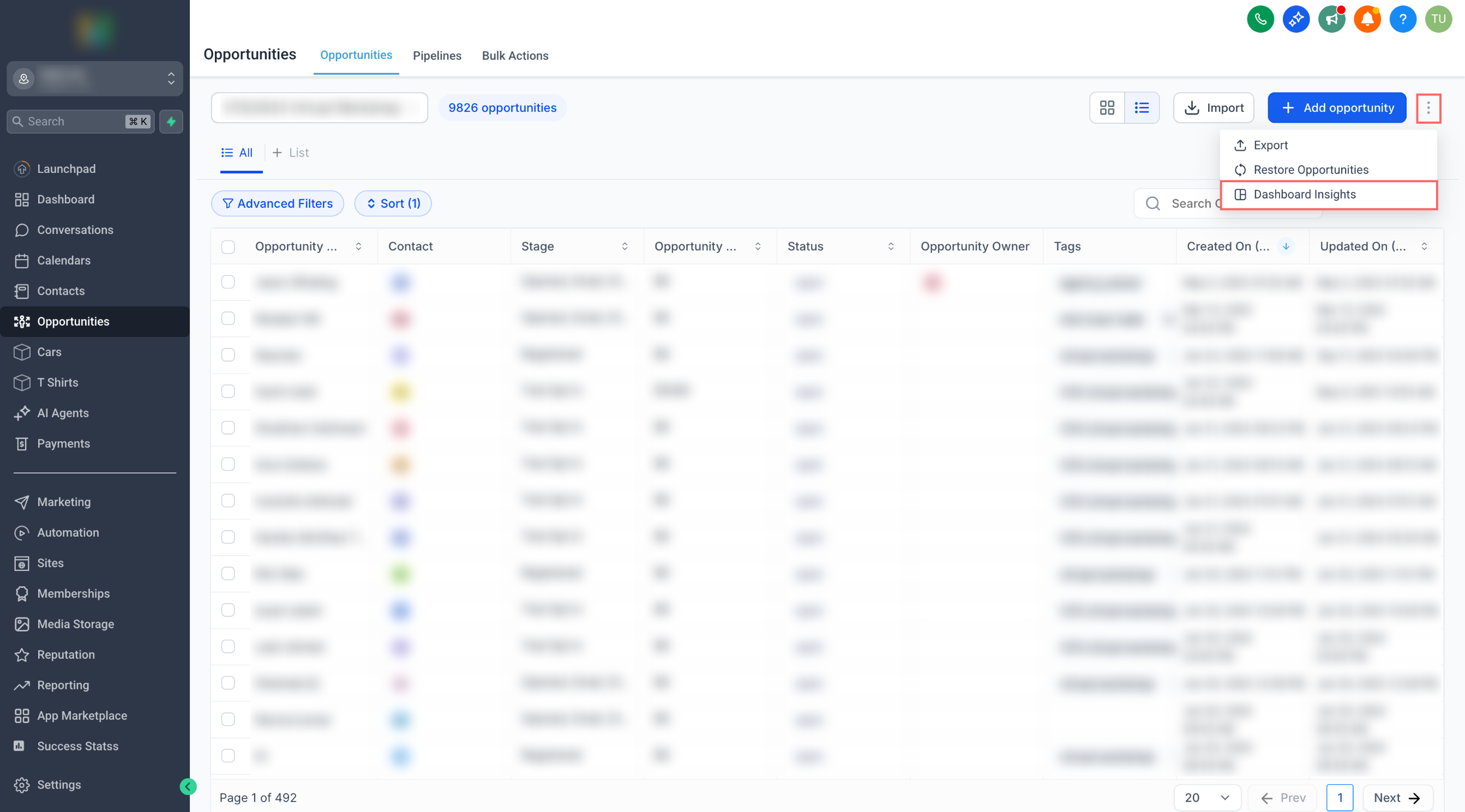
  1. Navigate to Opportunities, Appointment Reports, or Call Reports in your HighLevel subaccount.
  2. Select the dashboard where you want to add the widgets.
  3. Review the suggested widgets and select the ones you want to add.
  4. Click Add to add the selected widgets to your dashboard.
  5. Continue working on the current page or visit your dashboard to view and customize the added widgets.

04What it looks like in HighLevel
Michael's take

Michael Reimer
Michael ReimerFounder of CRM Pros, HighLevel Commander and Certified Admin

Adding insight widgets can feel like a shortcut that bypasses the usual back and forth between pages, but you still need to be clear on which metrics matter before you click. The upside is you get those key numbers on your dashboard without breaking your flow, so you can keep an eye on pipeline health, appointments, or calls in one place.

Get More InformationOpens on HighLevelPublished November 2, 2026 · Updated November 3, 2026

Common questions

Common questions about insight widgets.

Where can I add insight widgets in HighLevel?

You can add insight widgets from the Opportunities, Appointment Reports, and Call Reports pages.

Do I need to leave the current page to add a widget?

No. You can select and add suggested widgets directly while staying on the page you are viewing.

Can I change a widget after adding it?

Yes. After adding, you can go to the dashboard to view and customize the widget.

Next step

Pick the features that matter. Then get the plan that unlocks them.

Explore the features you want, start with the five at the top, and upgrade through my link when you are ready. The bonuses and the team come with it.

The features directory explains every HighLevel feature in plain English. Browse it to see what the platform can do.

Back to the FeaturesSee the full details
⌃

Site preview

Explore the next page

This destination is reserved in the page inventory and is not built yet.