
01Who this is for
- Marketing agencies that need to combine website traffic with ad and HighLevel data for client reporting.
- Ecommerce owners who want to monitor user engagement and conversion trends alongside sales metrics.
- Consultants who require a single view of GA4 performance for multiple client accounts.
02Google analytics widgets, explained
Google Analytics widgets are pre built visual blocks that display GA4 data inside a HighLevel subaccount. Once a GA4 property is connected, the widgets pull metrics such as Total Users, Engagement Rate, or Sessions by Channel directly into the platform.
The widgets can be placed on permanent dashboards for daily monitoring or on custom reports that are emailed on a schedule. They behave like any other HighLevel widget: you choose a chart type, set filters, and they automatically refresh with the latest GA4 data.
You find the widget library when editing a dashboard or building a custom report. The Google Analytics category houses all available metrics, which you can add, resize, duplicate, or remove as needed.
03How businesses use Google analytics widgets
- Digital marketing agency. The agency edits a client’s dashboard, adds a Sessions by Channel widget, filters for paid social, and saves the view. This lets the team see paid traffic performance alongside ad spend in real time.
- Ecommerce store owner. The owner creates a custom report, drags a Top Pages by Views widget onto the canvas, sets a date range for the last month, and schedules the report to email weekly to the sales team.
- Consulting firm. A consultant duplicates a Total Users widget, changes one copy’s filter to New Users only, and places both on a dashboard to compare new versus returning visitors for multiple client sites.
04The numbers and rules that matter
- Supported version: Google Analytics 4 (GA4).
05Before you start
- A GA4 property and data stream must be connected via Settings > Integrations > Google Analytics.
- User must have permission to Edit dashboards or Create or Schedule reports.
06How to set up and use Google analytics widgets in HighLevel
Add widgets to a dashboard
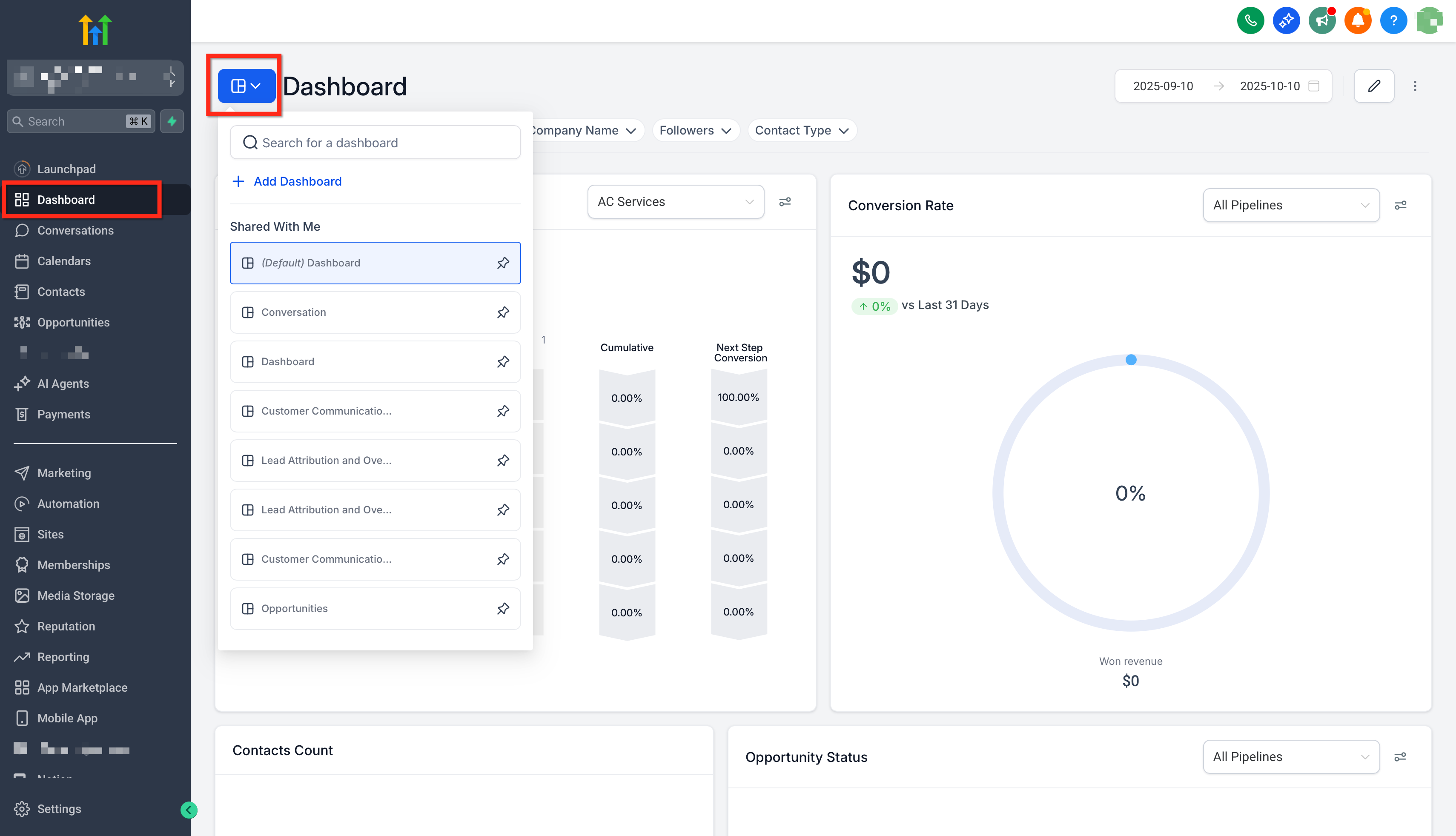
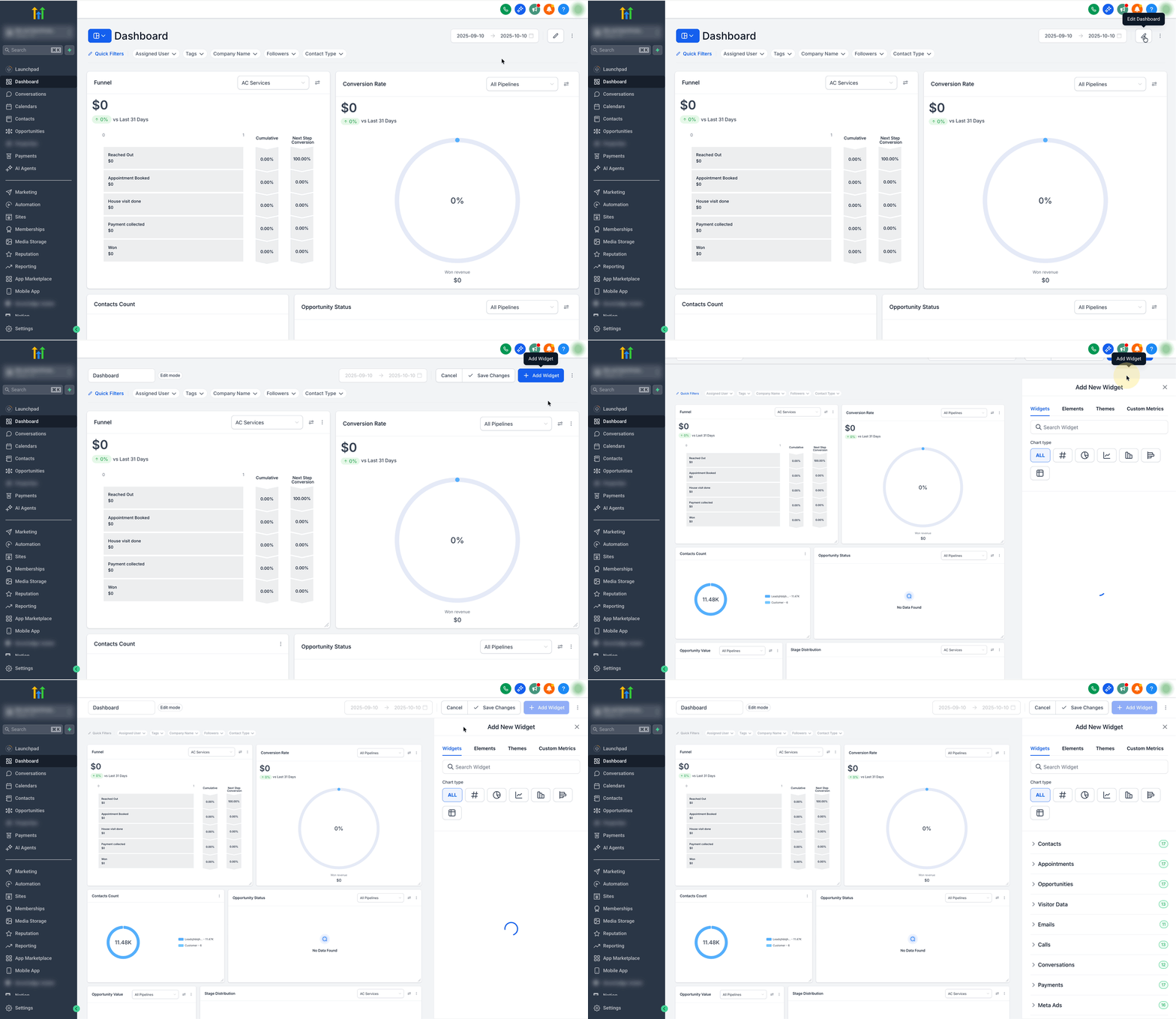
- In your Subaccount, open Dashboard and click the blue button in the top left to open the desired dashboard.
- Select Edit Dashboard then choose Add Widget.
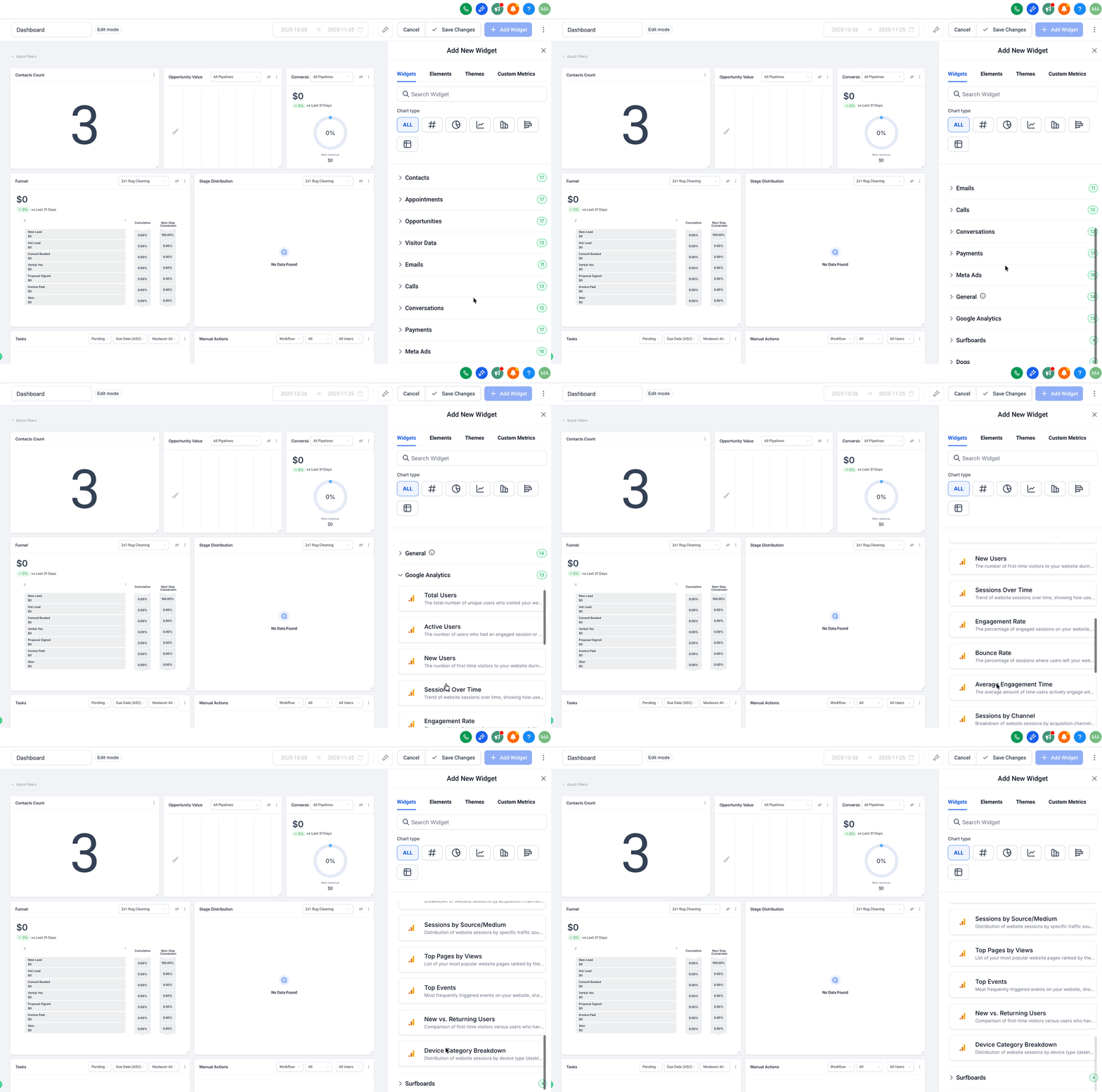
- Pick a chart type, scroll to the Google Analytics category, and select the desired metric or Top widget.
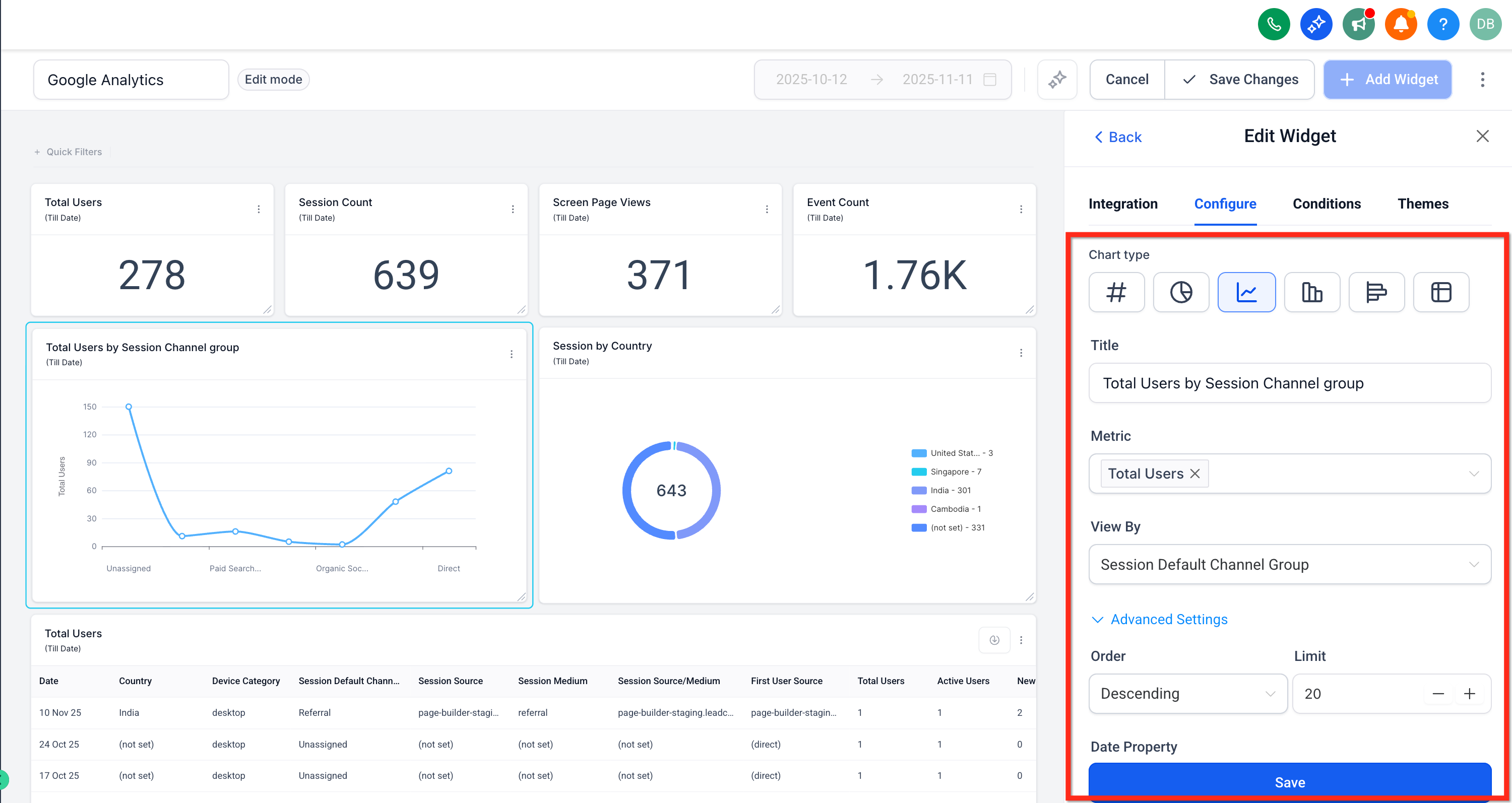
- Apply any needed filters or adjust theme and colors.
- Press Save so the widget begins pulling GA4 data.
Add widgets to a custom report
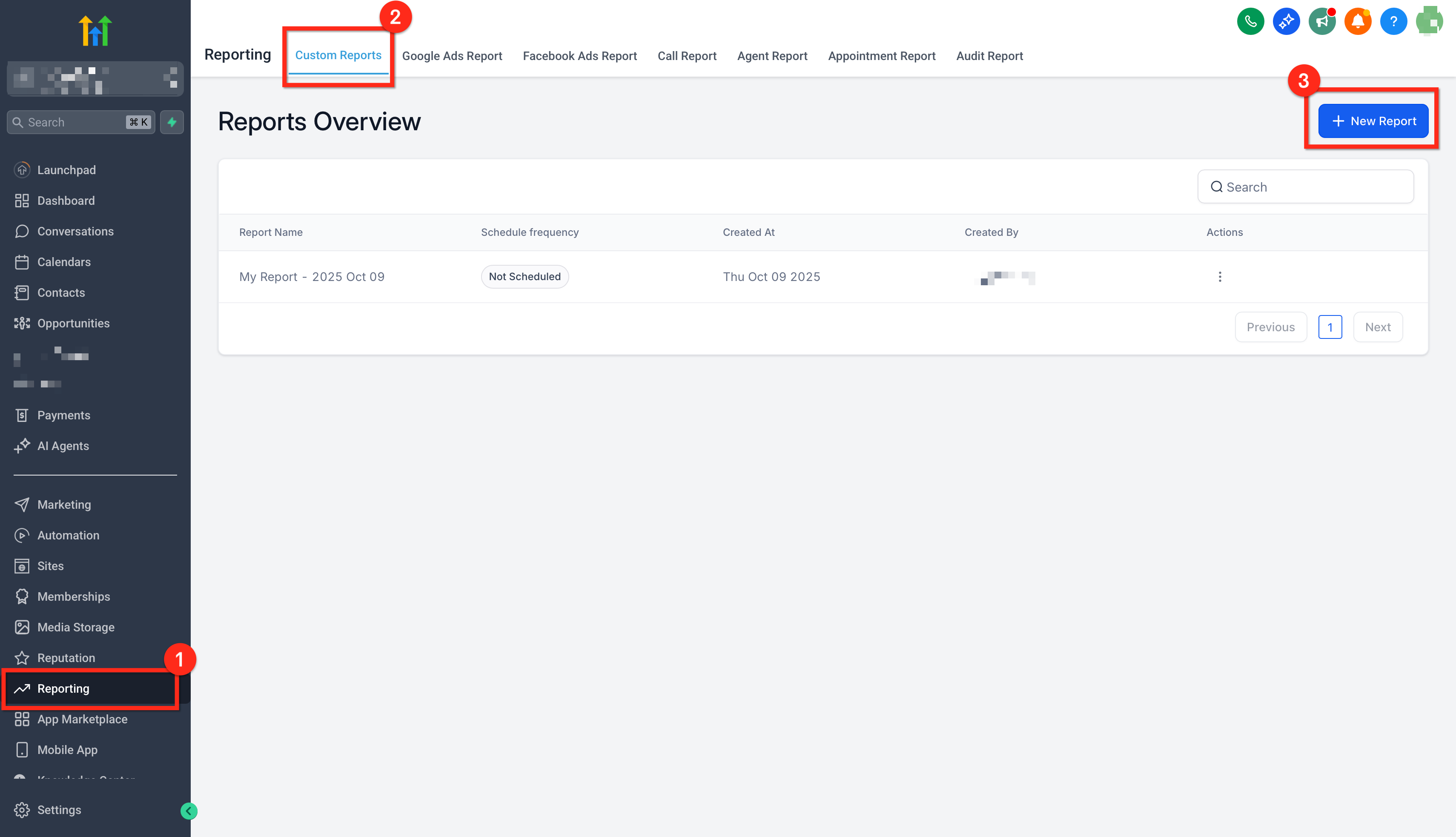
- In your Subaccount, go to Reporting > Custom Reports, open an existing report or click New Report.
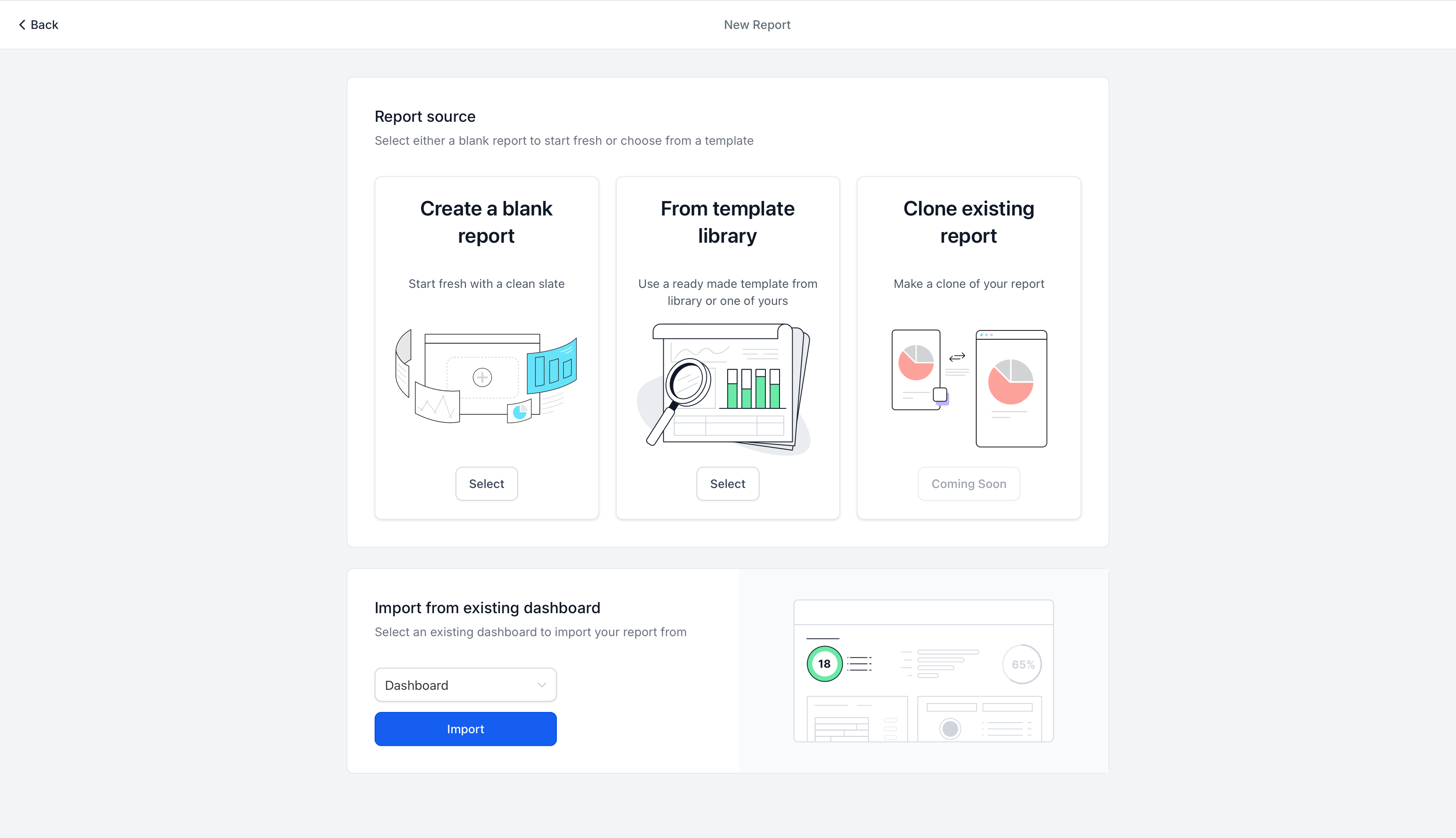
- Start from a blank canvas, a template, or import an existing dashboard layout.
- Click Add Widget/Element, locate Google Analytics in the list, and drag the desired widgets into the layout.
- Configure each widget’s chart type, filters, and theme, then click Save.
- Click Send or Schedule to set up email delivery of the report.
07What it looks like in HighLevel
08Settings that matter
- Chart type. Determines whether the widget displays data as numeric, donut, line, bar, or table visual.
- Filters & conditions. Restricts widget data by criteria such as channel, source/medium, page, or event.
- Theme. Applies optional color and style choices to keep the widget appearance consistent.
- Date range controls. Sets the time window for all widgets on the page, affecting the data shown.
09Things to know before you rely on it
- Only Google Analytics 4 (GA4) properties are supported; Universal Analytics is not.
- A widget may show “No Data” if the GA4 connection is missing, the date range is too narrow, or filters exclude all traffic.
10If something goes wrong
- Widget shows “No Data”. Confirm the GA4 property is connected, expand the date range, and review any applied filters for over restriction.
11How it connects to the rest of HighLevel
- Learn how to add and customize dashboard widgets in HighLevel Dashboard widgets guide
- Creating and adding dashboard widgets in HighLevel Add dashboard widgets
- How to embed external content on a HighLevel dashboard Embed external content
Michael's take

Be aware that pulling GA4 data into HighLevel adds a dependency on the integration staying connected; any break in the GA4 link will cause widgets to show no data and can interrupt client reports. Make sure the right Google account has view access to the property and that the integration is tested after any permission changes.
The integration lets agencies view website analytics alongside CRM and ad data in a single screen, reducing the need for separate spreadsheet exports.