
01Who this is for
- Agency owners can show clients ad performance without leaving the platform, keeping reporting centralized.
- Marketing managers gain a quick view of spend, clicks and conversions alongside other campaign metrics.
- Founders of ecommerce businesses can monitor cost efficiency and ROAS directly within their internal dashboards.
02Google Ads widgets, explained
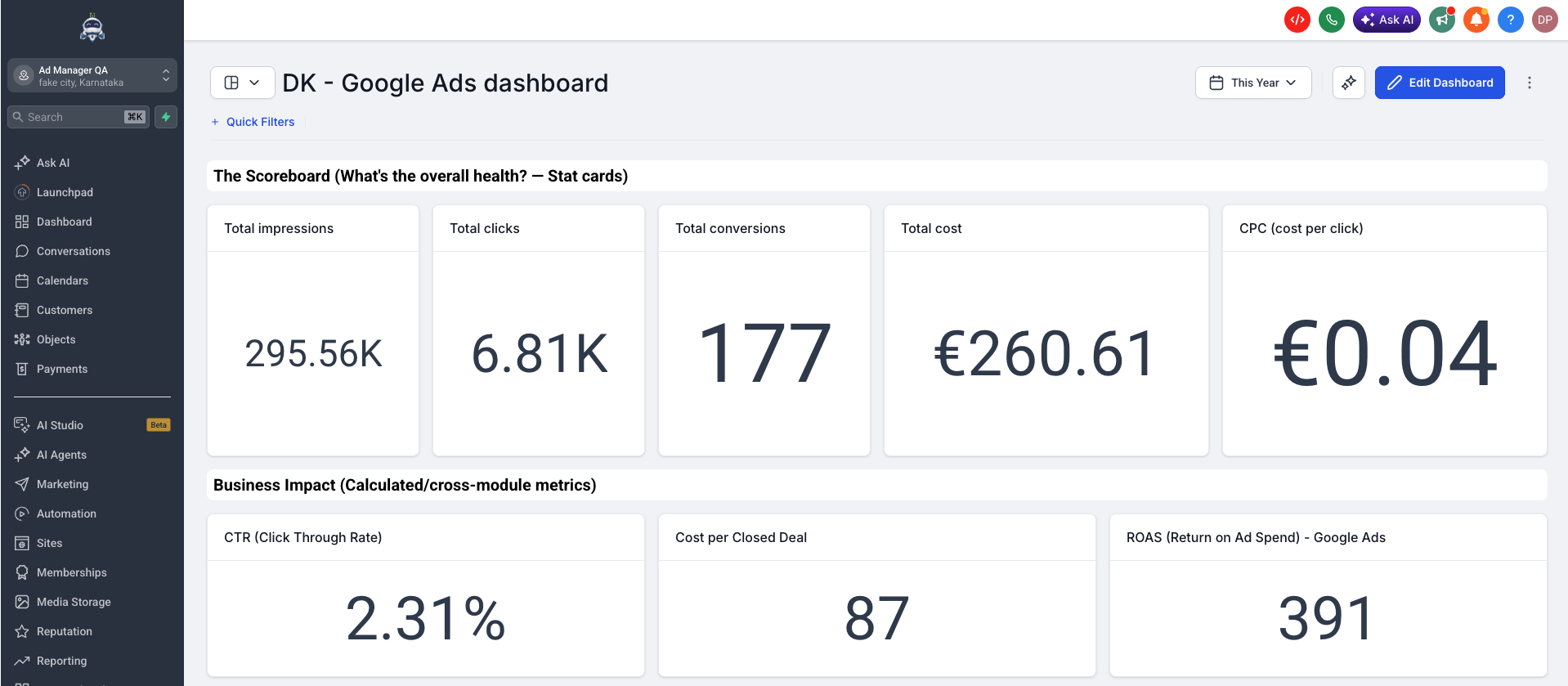
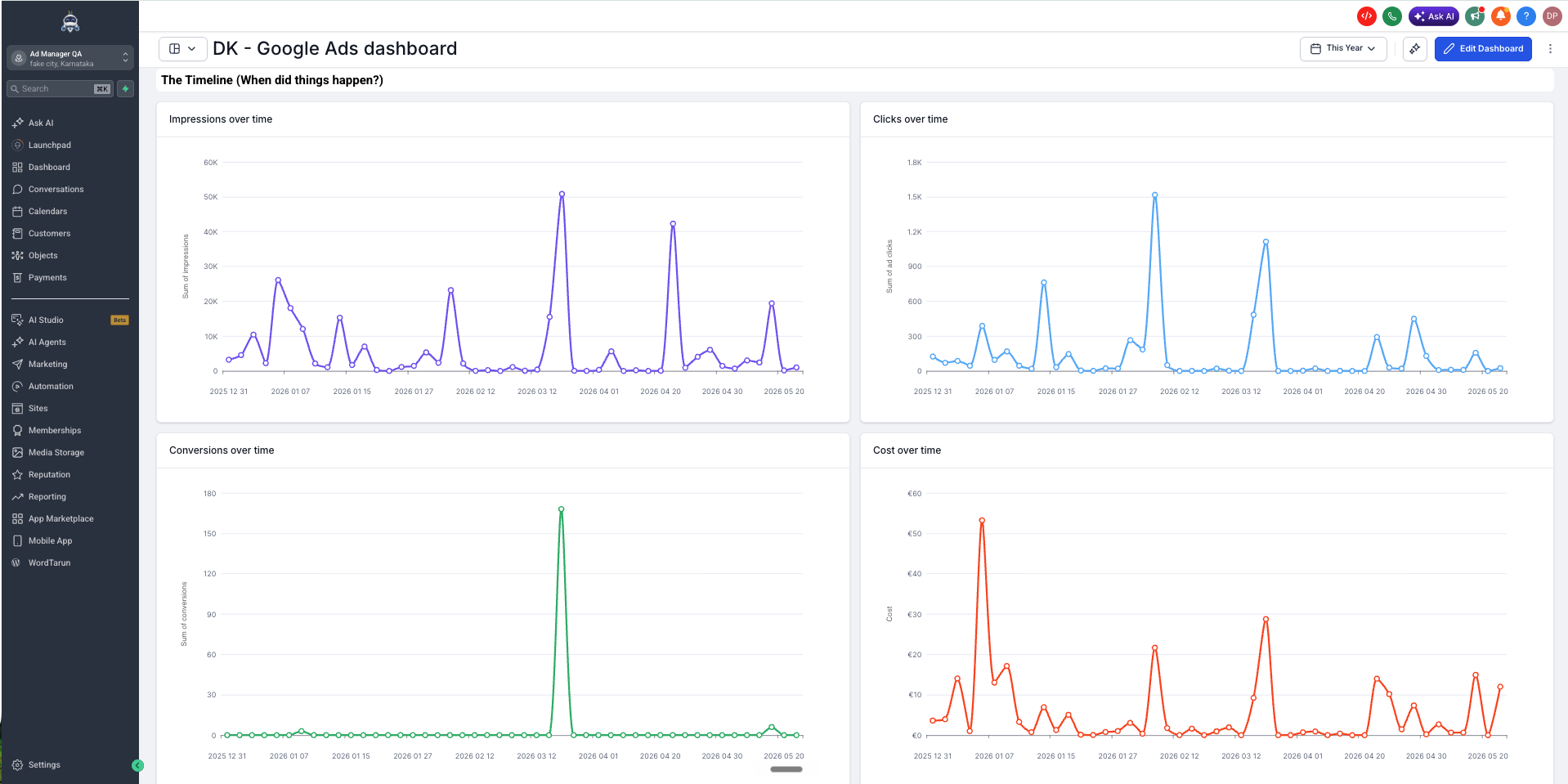
Google Ads widgets retrieve data from a Google Ads account that has been linked at the subaccount level. Once the connection exists, eleven different widgets become available, each showing a specific metric such as total cost, clicks by campaign or CPC. The widgets appear on a dashboard canvas or inside a custom report layout.
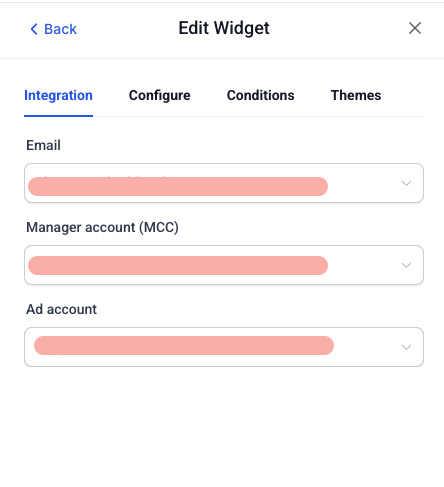
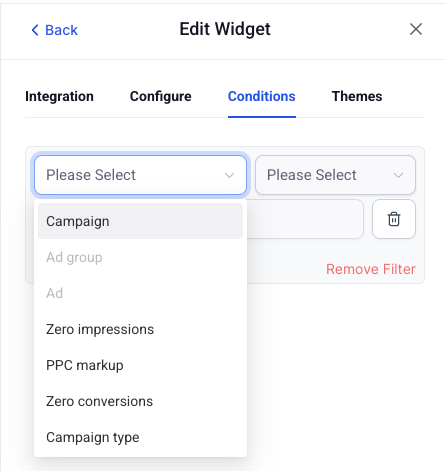
Each widget offers four configuration tabs: Integration confirms the linked Google Ads account, Configure sets visual options and date range, Conditions adds filters like campaign or zero conversion exclusion, and Themes lets you match colors to branding. After saving, the widget updates automatically and can be combined with other marketing widgets.
The feature lives under the Dashboards and Reporting sections of a subaccount. Access requires Dashboards & Reporting permission and a Google Ads connection in Settings > Integrations > Google Ads.
03How businesses use Google Ads widgets
- Digital marketing agency. The agency connects each client’s Google Ads account at the subaccount level, then adds Total cost, Cost over time and CPC widgets to a shared client dashboard. They adjust Conditions to show only the client’s primary campaigns and schedule a custom report that emails the client weekly.
- Local service business. The owner links their Google Ads account, places a Total conversions widget on the main dashboard, and configures the widget to display the last 30 days. They use the Themes tab to match the widget’s colors with their brand palette.
- Ecommerce Founder. The Founder adds Clicks by campaign and Conversions by campaign widgets to a custom report, filters each widget to the top performing ad groups in the Conditions tab, and then schedules the report to be emailed to the sales team each morning.
04The numbers and rules that matter
- 11 Google Ads widgets are available.
- Metrics in Custom Metrics: Cost, Sum of conversions, Sum of ad clicks, Sum of impressions, Average Cost Per Click (CPC).
05Before you start
- Google Ads must be connected at the subaccount level via Settings > Integrations > Google Ads.
- The user needs Dashboards & Reporting permission to view or edit dashboards and to create custom reports.
06How to set up and use Google Ads widgets in HighLevel
Add Google Ads widgets to a dashboard
- Verify a Google Ads connection exists in the subaccount (Settings > Integrations > Google Ads).
- Open the desired dashboard or create a new one inside the subaccount.
- Select Edit dashboard from the top right corner.
- Press the + Add widget button to open the widget panel.
- Scroll to the Google Ads section and choose the widget to place on the canvas.
- Use the Integration, Configure, Conditions and Themes tabs to adjust the widget.
- Click Save changes to publish the widget on the dashboard.
Add Google Ads widgets to a custom report
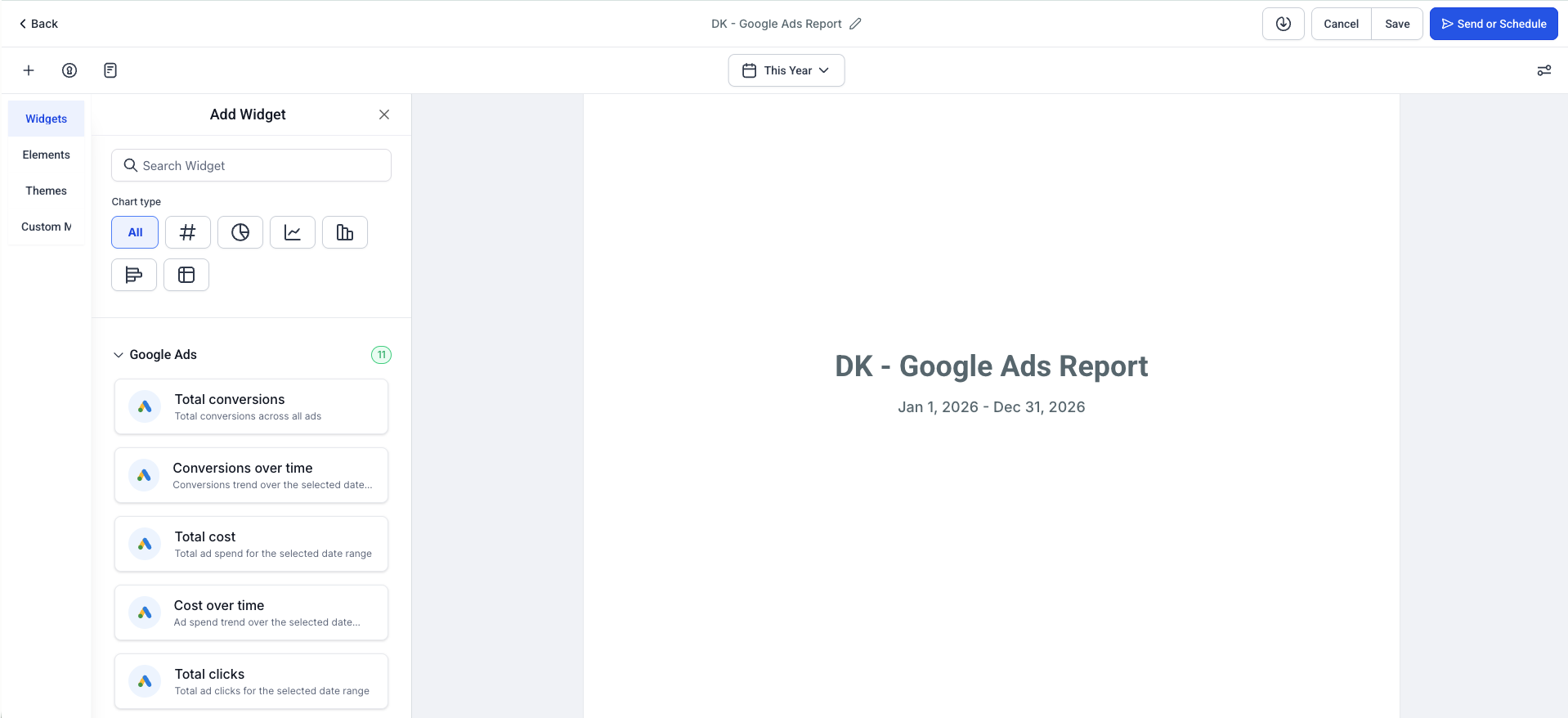
- Navigate to Reporting > Custom reports and open an existing report or start a new one.
- Pick a blank canvas, a template, or import a dashboard layout.
- Click Add widget / element in the report builder toolbar.
- Scroll to the Google Ads section and drag the desired widgets onto the layout.
- Open each widget’s edit panel and configure Integration, Configure, Conditions and Themes.
- Press Save to store the report design.
- Choose Send or Schedule to enable automatic email delivery of the report.
07What it looks like in HighLevel
08Settings that matter
- Email. Specifies which Google Ads account supplies data for the widget.
- Manager account (MCC). Selects the manager account that contains the client’s ad accounts, or the client account itself if no manager is used.
- Ad account. Identifies the specific Google Ads account whose campaigns are displayed in the widget.
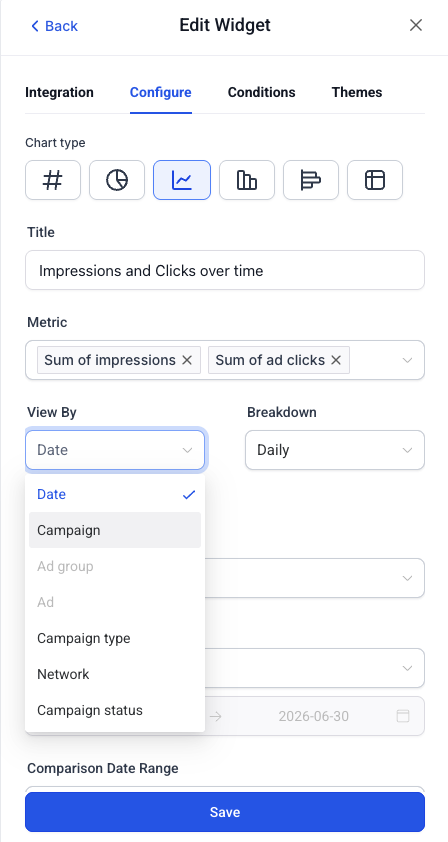
- Chart type. Determines the visual format, Numeric, Line, Bar, Horizontal bar, or Table, available for the widget.
- Title. Allows renaming of the widget to suit the dashboard or client context.
- Date range. Sets the period of data shown; defaults to the dashboard’s date range but can be overridden.
- View by. Controls how data is grouped, such as by Date, Campaign, Ad group, Ad, Campaign type, Network or Campaign status.
- Breakdown. Defines the time granularity for date grouping, with options from Daily to Yearly.
- Campaign. Filters the widget to include only selected campaigns.
- Ad group. Filters the widget to a specific ad group within a campaign.
- Ad. Filters the widget to a specific ad.
- Zero impressions. Option to include or exclude ads that have no impressions.
09Things to know before you rely on it
- Eleven distinct Google Ads widgets are provided.
- Widget options such as chart type vary depending on the specific widget.
- PPC markup filtering works only when the agency has configured markup in Ad Manager settings.
- Google Ads widgets are available on any plan that includes Dashboards & Reporting.
- Widgets refresh automatically; no manual update is required.
10If something goes wrong
- Widget shows no data. Confirm the Google Ads connection exists at the subaccount level (Settings > Integrations > Google Ads) and widen the date range or remove overly restrictive conditions.
- Integration fields are empty or show an error. Re establish the Google Ads connection in Subaccount > Settings > Integrations > Google Ads.
- Total cost widget displays $0 while the Reporting tab shows spend. Open the widget’s Integration tab and verify the Email, Manager account (MCC) and Ad account match the account that recorded the spend.
11How it connects to the rest of HighLevel
- Learn how to add and customize dashboard widgets in HighLevel Add and customize widgets
- View HighLevel pricing and plan details Pricing
- Start a 30 day trial of HighLevel Free trial
Michael's take

Google Ads widgets give a small business a quick, at a glance view of ad spend, clicks and conversions right inside HighLevel, cutting out the need to juggle separate dashboards.
Forget to double check the Google Ads connection before adding widgets; the data will stay blank.