
01Duplicate widgets, explained
The Duplicate Widget feature creates a copy of a widget that already exists on a dashboard. Instead of building a new widget from scratch, you can duplicate an existing one, make minor adjustments, and save it as a new widget.
02How to set up and use duplicate widgets in HighLevel
Duplicate a widget
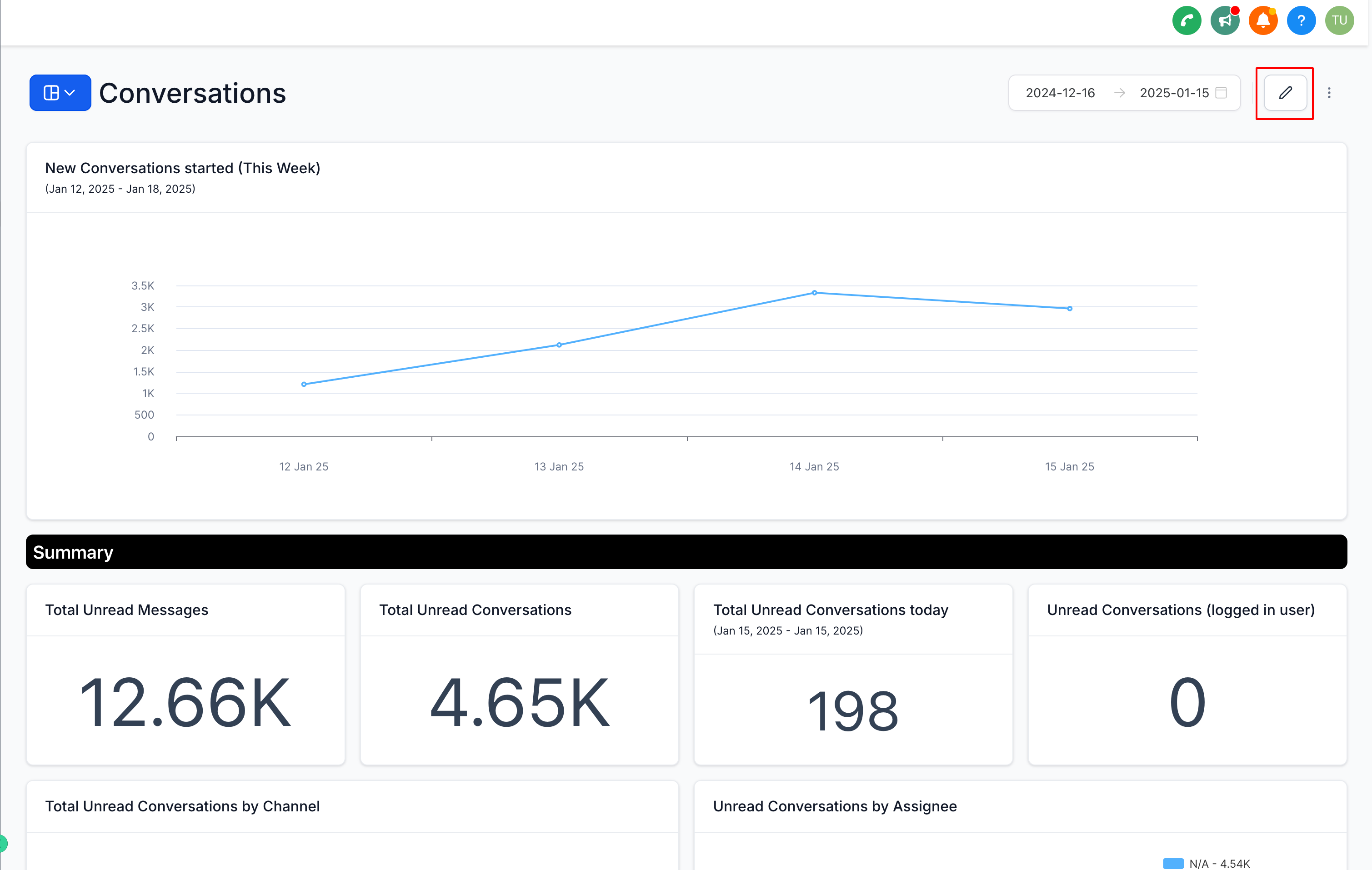
- Enter Dashboard Edit Mode: Navigate to the dashboard where you want to duplicate a widget and click the Edit button.
- Locate the widget you want to duplicate.
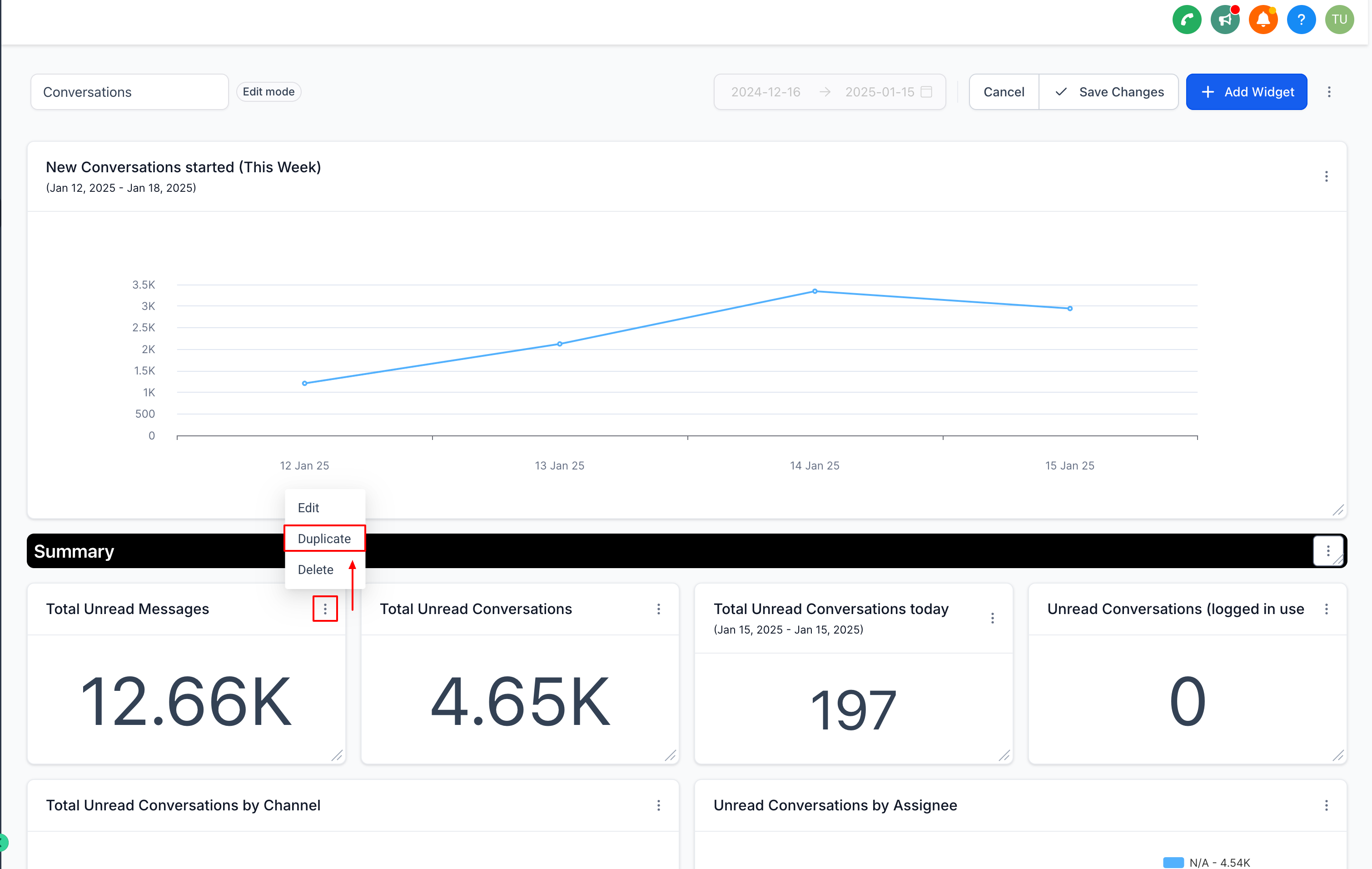
- Click the three dot menu (⋮) in the top right corner of the widget card.
- Select the Duplicate option from the dropdown menu.
- A duplicate of the widget will appear on your dashboard.
- Customize the duplicated widget as needed.
- Once you’ve made your edits, click Save to finalize the widget.
03What it looks like in HighLevel
Michael's take

Michael ReimerFounder of CRM Pros, HighLevel Commander and Certified Admin
Duplicating widgets is a quick way for a small business to clone a complex dashboard element and then tweak it without rebuilding each time.
Avoid forgetting to click Save after editing the duplicate.
Get more informationOpens on HighLevelPublished November 2, 2026 · Updated November 3, 2026