
01Who this is for
- Marketing teams that need to show client specific metric names and date ranges without building new widgets.
- Sales managers who want permanent filters such as assigned user or lead value on opportunity widgets.
- Agency owners who must duplicate a widget to present different reporting periods for multiple clients.
02General widgets, explained
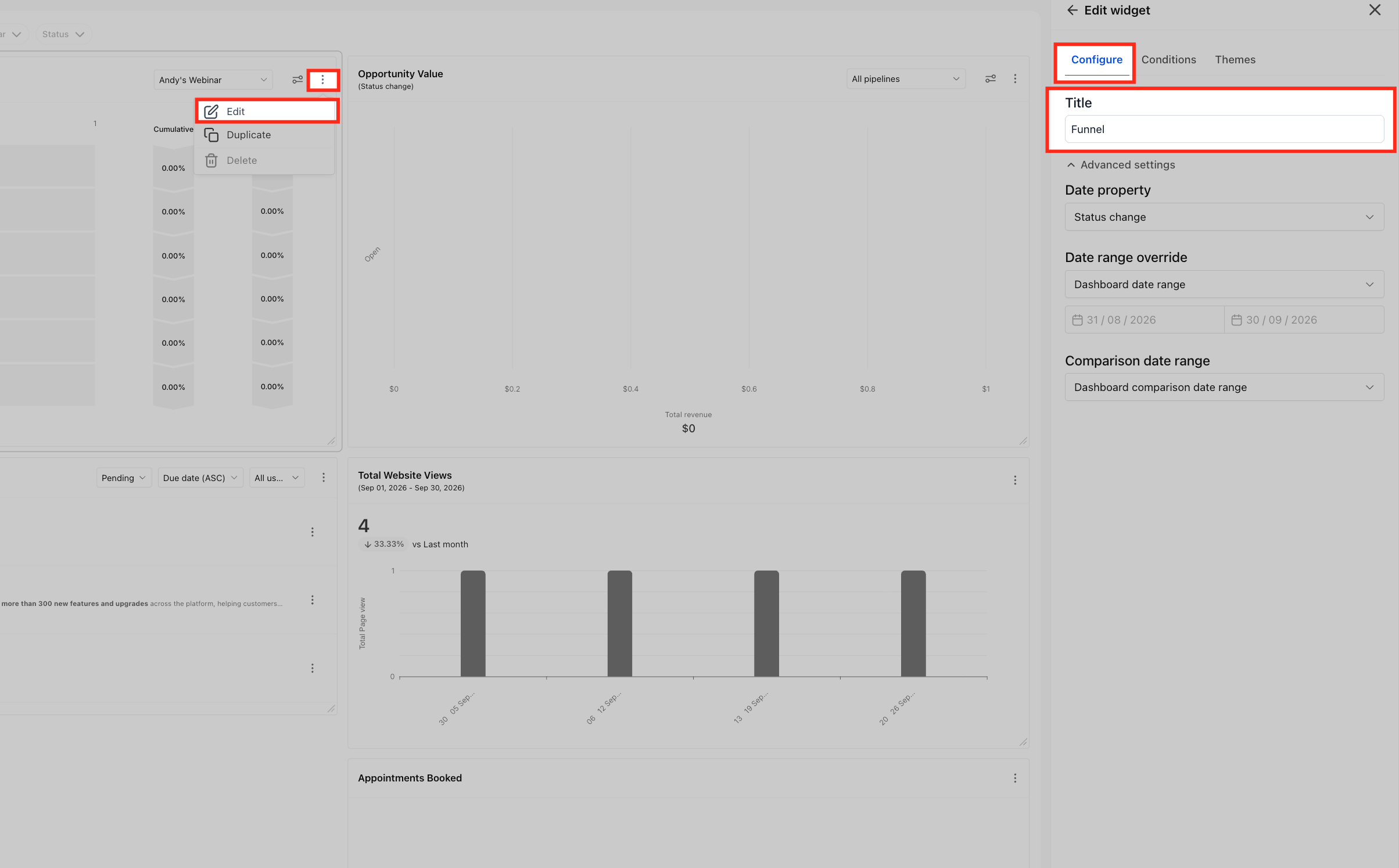
General Widgets appear on a subaccount dashboard as ready made reports. They can now be edited, allowing a title change, widget level date range, comparison period, permanent Conditions, and visual theme. Editing opens a panel with three tabs, Configure, Conditions, and Themes, where each setting is adjusted and saved.
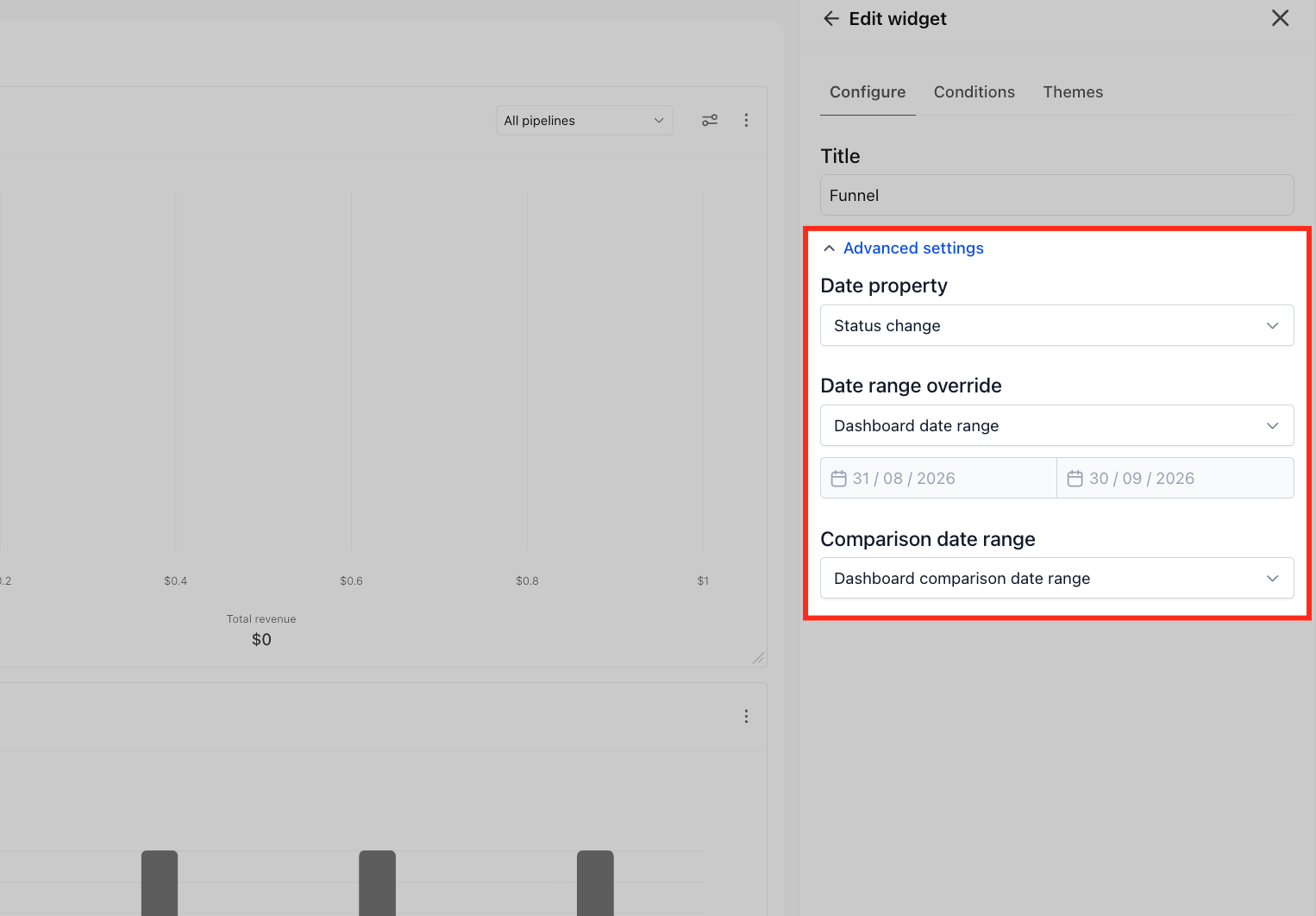
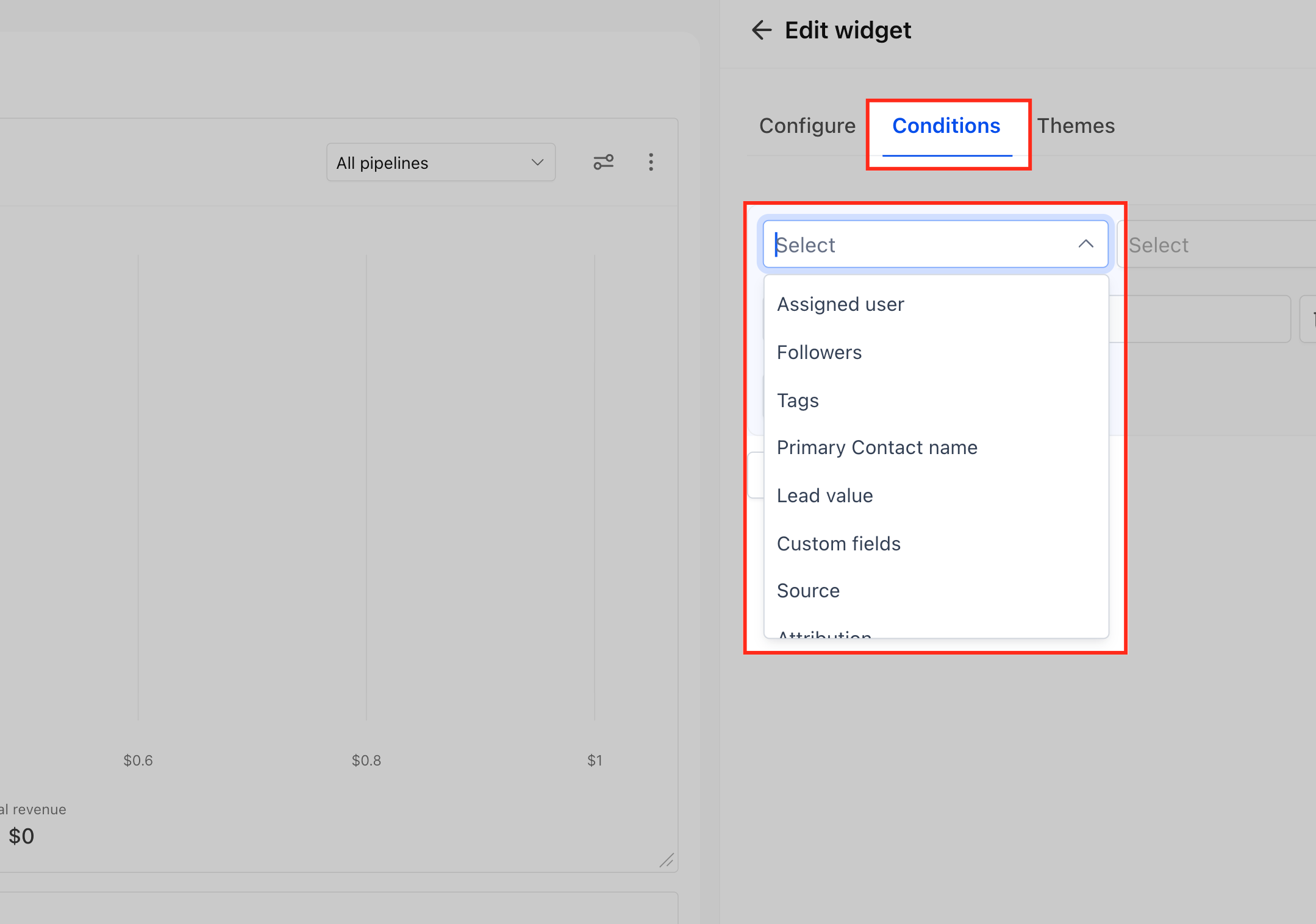
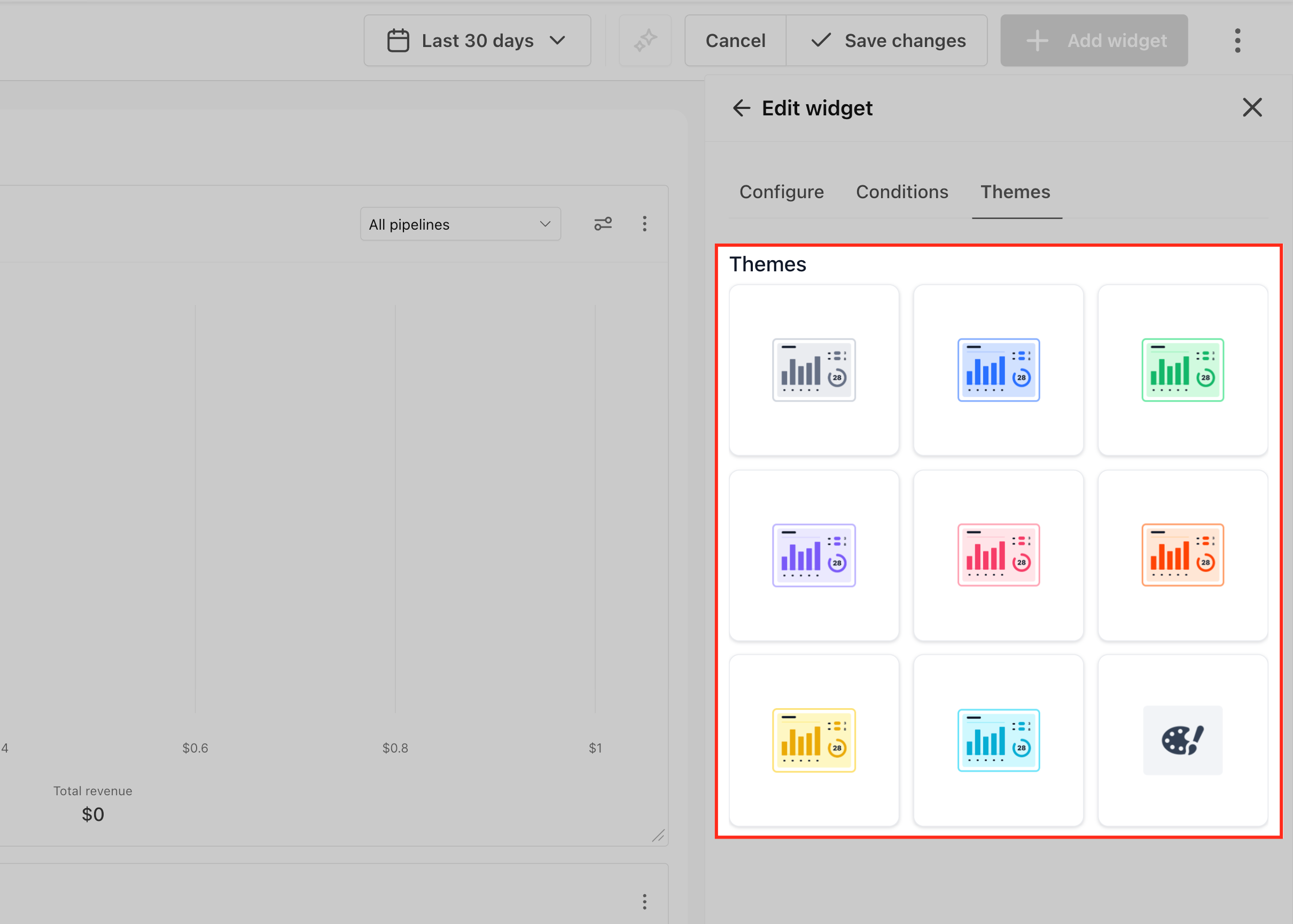
The Configure tab holds the Title field, Date property, Date range override, and Comparison date range. The Conditions tab lets you add permanent filters based on fields like assigned user, tags, source, lead value, and custom fields. The Themes tab offers visual styles that change the widget’s look without recreating it. Widgets can be duplicated for variations or deleted when not needed.
03How businesses use general widgets
- Digital marketing agency. The agency opens a client’s subaccount dashboard, edits the Lead Source Report widget, renames it to match the client’s terminology, adds a Condition to show only leads tagged "Paid", and applies a theme that matches the client’s brand colors.
- Real estate brokerage. A broker edits the Opportunity Value widget, sets a Date range override for the last quarter, selects a Comparison date range of Last year, and adds a Condition filtering for properties with a custom field "Property Type" equal to "Commercial".
- Ecommerce store. The store manager duplicates the Funnel widget, changes the duplicated widget’s title, applies a different theme, and adds Conditions to isolate traffic from a specific advertising source.
04How to set up and use general widgets in HighLevel
Edit a general widget
- In the Subaccount view, choose Dashboard from the left navigation.
- Click the Edit dashboard button at the top right.
- Find the General Widget you wish to modify.
- Hover over that widget and click the three dot menu (⋮).
- Choose Edit from the menu.
- The Edit widget panel appears with tabs for Configure, Conditions, and Themes.
- Adjust the desired settings.
- Press Save to apply changes.
Configure widget title and reporting period
- Open the Edit widget panel and select the Configure tab.
- Click inside the Title field.
- Type the new widget title.
- Expand the Advanced settings section.
- Select the Date property that the widget should use for calculations.
- Set a Date range override to give the widget its own reporting period.
- Choose a Comparison date range such as Last year or Last period.
- Click Save to store the changes.
Add a condition
- Within the Edit widget panel, go to the Conditions tab.
- Pick the field you want to filter by.
- Choose the appropriate operator for that field.
- Enter or select the value to compare.
- Press + AND to require another condition in the same filter group.
- Press + Add filter to start a new filter group.
- Add any extra conditions needed for the widget.
- Click Save to keep the conditions.
Apply a theme to a General Widget
- In the Edit widget panel, open the Themes tab.
- Click the visual theme you wish to use.
- Look at the widget preview to see the new appearance.
- Click Save to apply the theme.
Duplicate a General Widget
- From the Subaccount view, open the Dashboard.
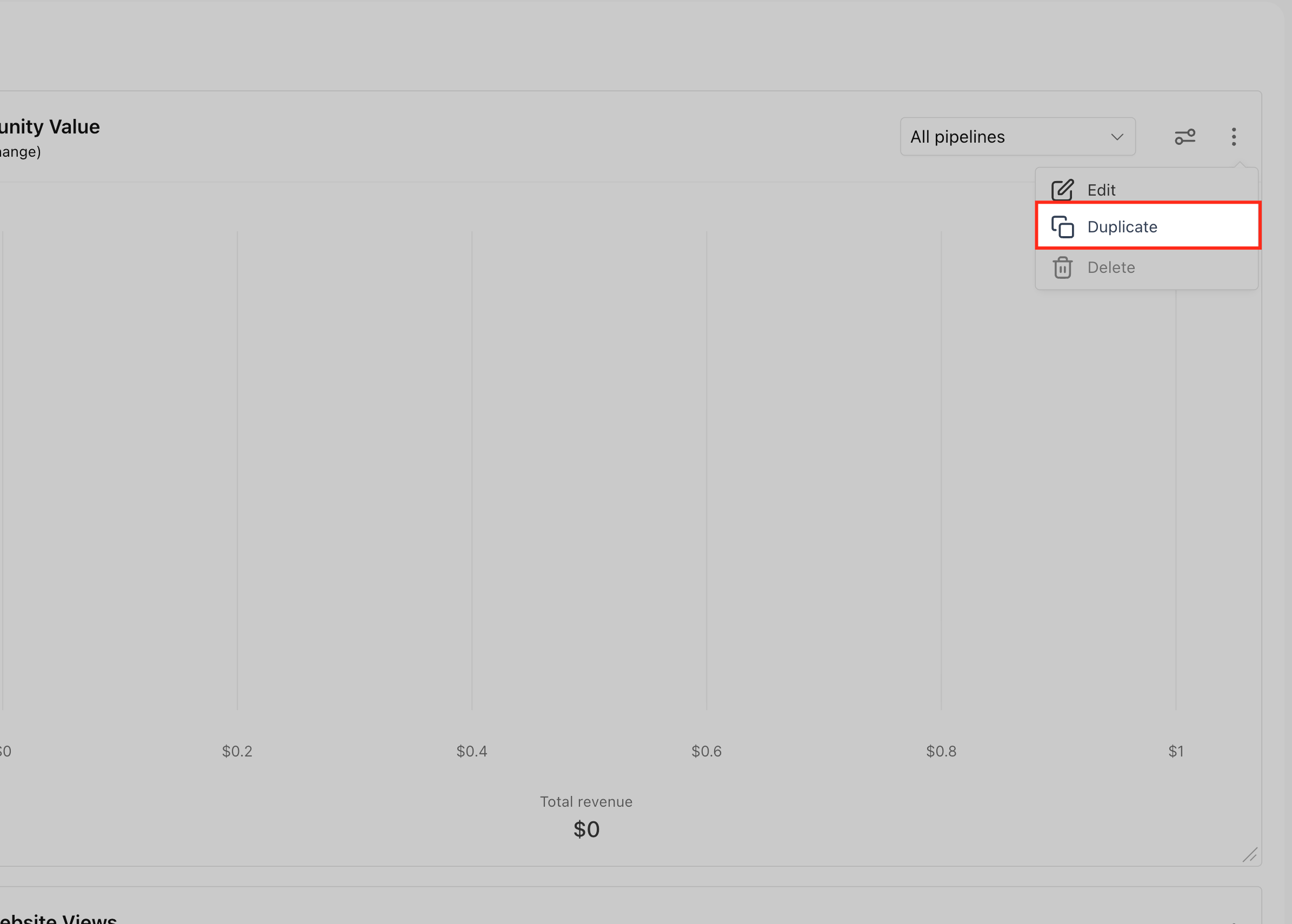
- Click the three dot menu (⋮) on the widget you want to copy.
- Choose Duplicate from the menu.
- Modify the duplicated widget as needed.
Delete a General Widget
- In the Subaccount view, go to Dashboard.
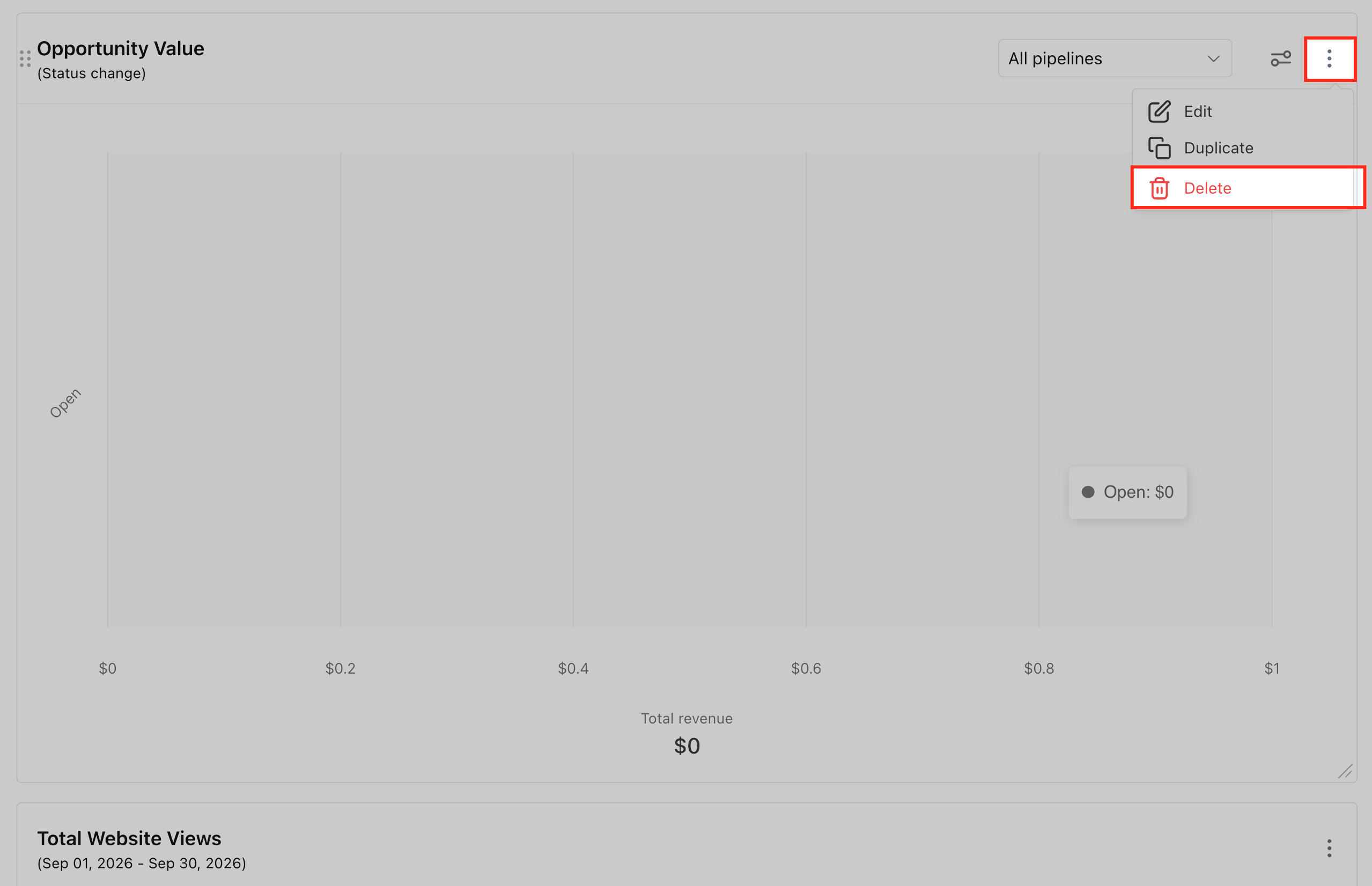
- Click the three dot menu (⋮) on the widget you wish to remove.
- Select Delete to remove the widget.
05What it looks like in HighLevel
06Settings that matter
- Title field. Controls the text that appears as the widget’s heading.
- Date property. Determines which date attribute the widget uses for its calculations.
- Date range override. Assigns a specific reporting period to the widget, independent of the dashboard’s overall range.
- Comparison date range. Sets a period to compare the current data against, such as Last year or Last period.
- Conditions. Permanent filters that limit which records are counted in the widget.
- Themes. Visual style applied to the widget’s appearance.
07Things to know before you rely on it
- General Widgets do not respond to dashboard Quick Filters in the current release.
- Tasks, Manual Actions, Google Business Profile, and Email Health Report widgets lack a Conditions tab.
- Comparison date range supports only Last year and Last period options.
- Available condition fields differ by widget type according to the article’s table.
- Conditions saved on a widget remain after exiting edit mode.
08How it connects to the rest of HighLevel
- Learn about the variety of dashboard widgets available Dashboard widgets overview
- Step by step guide to adding and customizing dashboard widgets Customize widgets guide
- Details on dashboard permissions and user specific widget settings Dashboard permissions FAQ
Michael's take

General widgets are worth the effort when you need quick, customizable reporting without building from scratch.
If you prefer a static dashboard and never need to adjust titles, dates or filters, you can skip this feature.