
01Who this is for
- Admins who need to control what data their team can find quickly.
- Sales managers who rely on contact and opportunity lookups in many modules.
02Searchable fields, explained
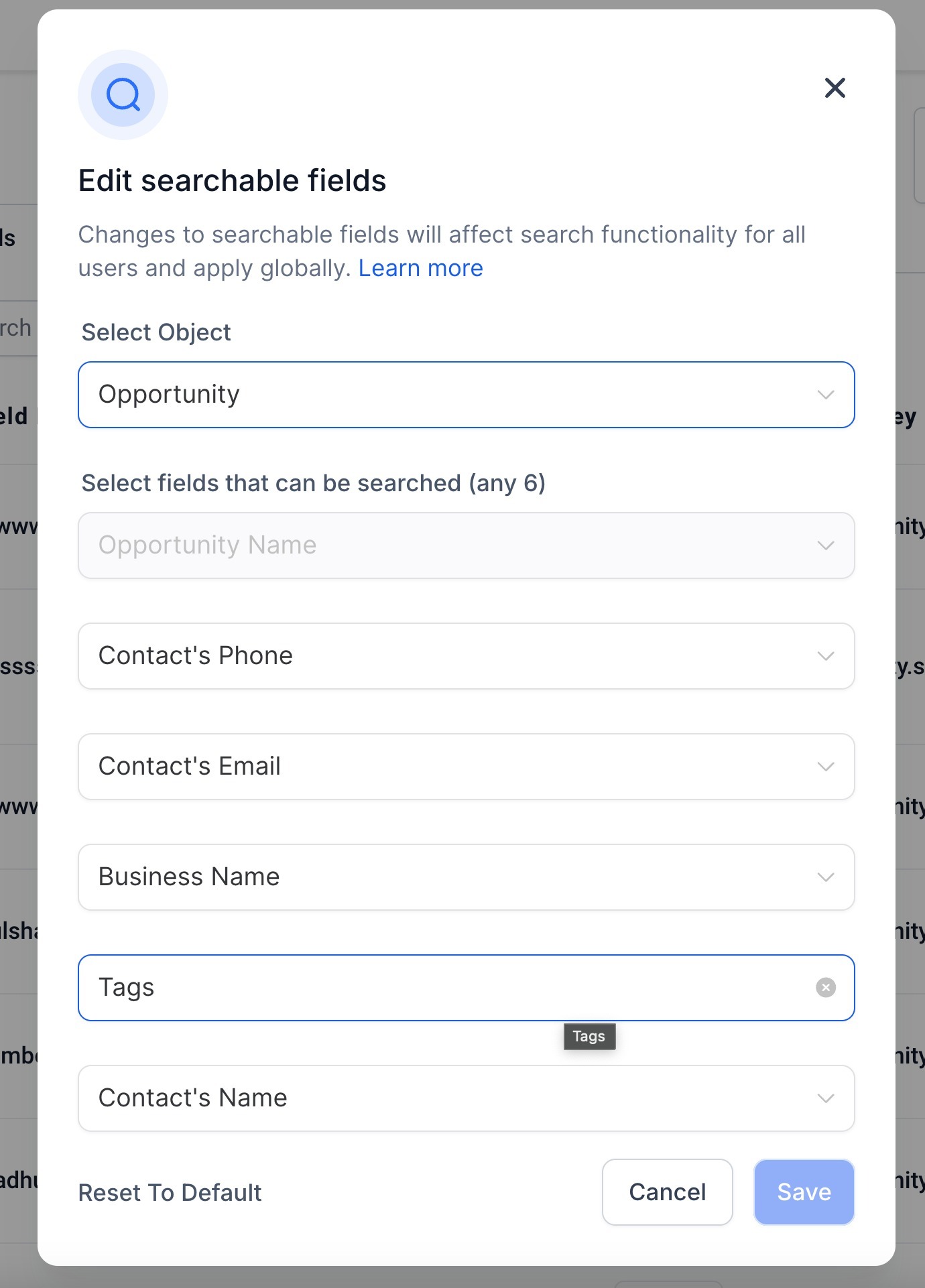
The feature gives admin users the ability to pick which fields are included in search queries for contacts, opportunities and custom objects. Admins can also enable regex patterns for certain fields.
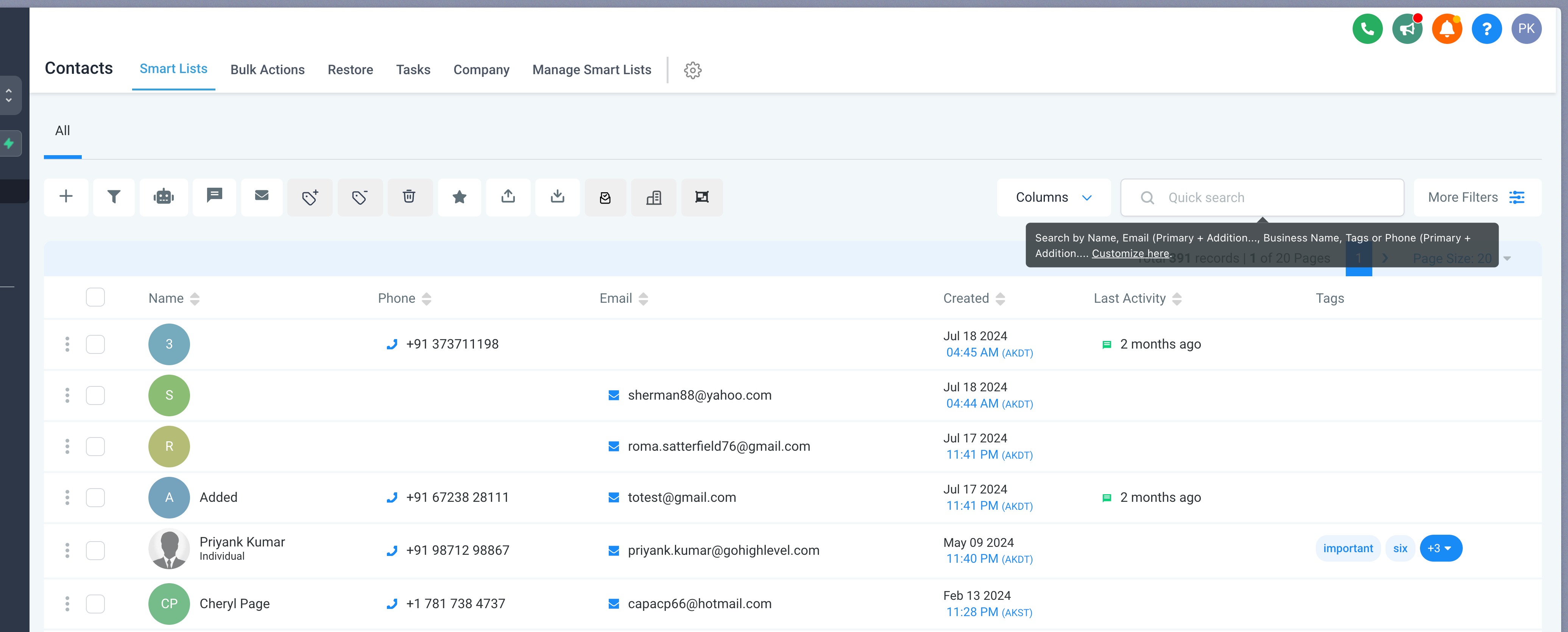
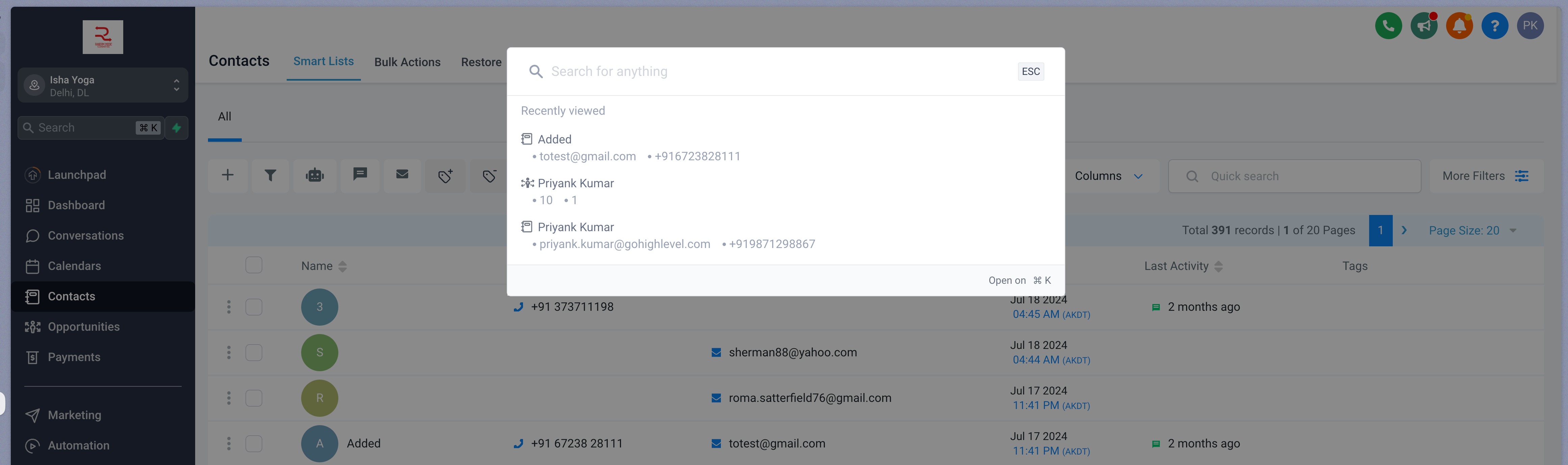
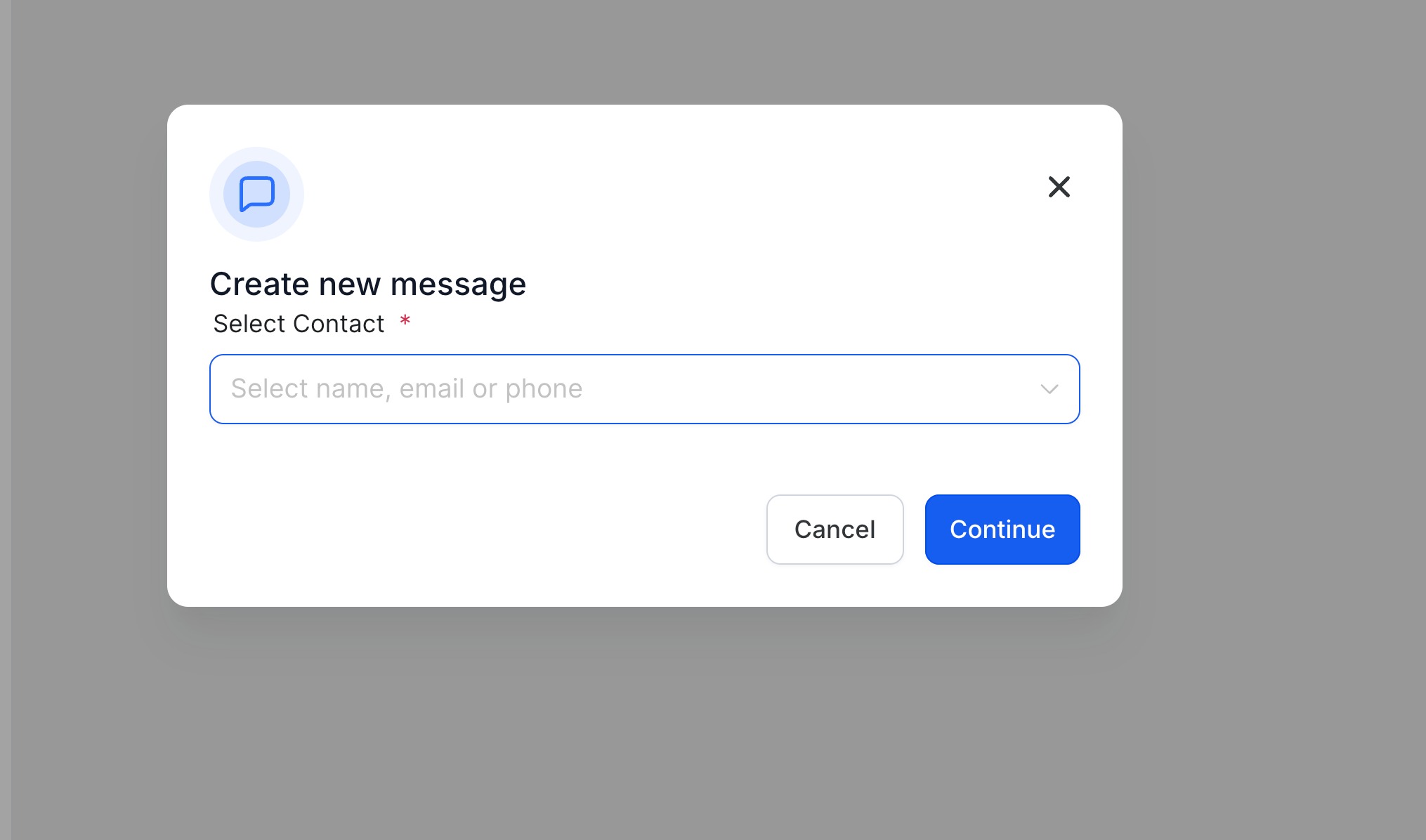
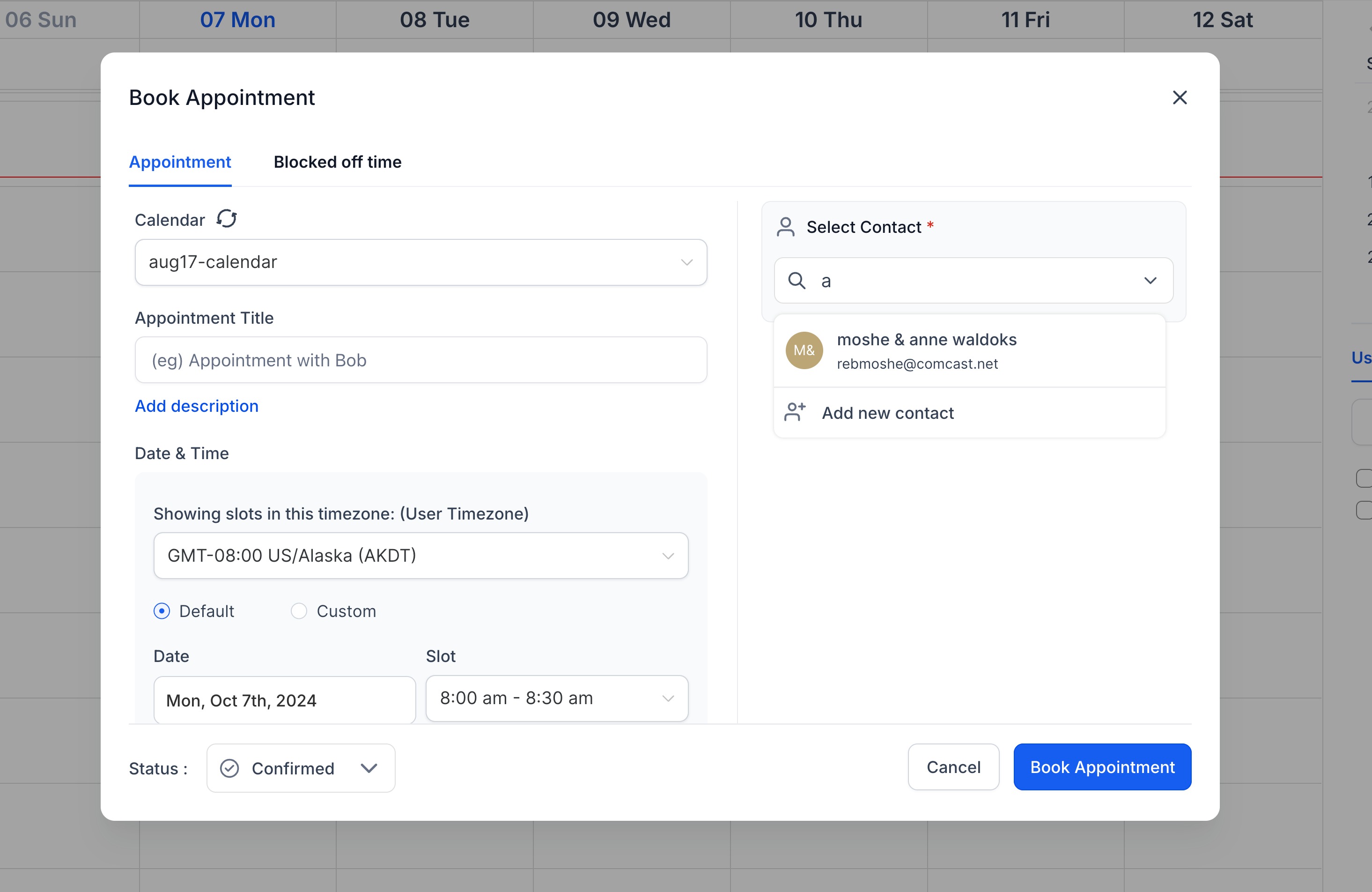
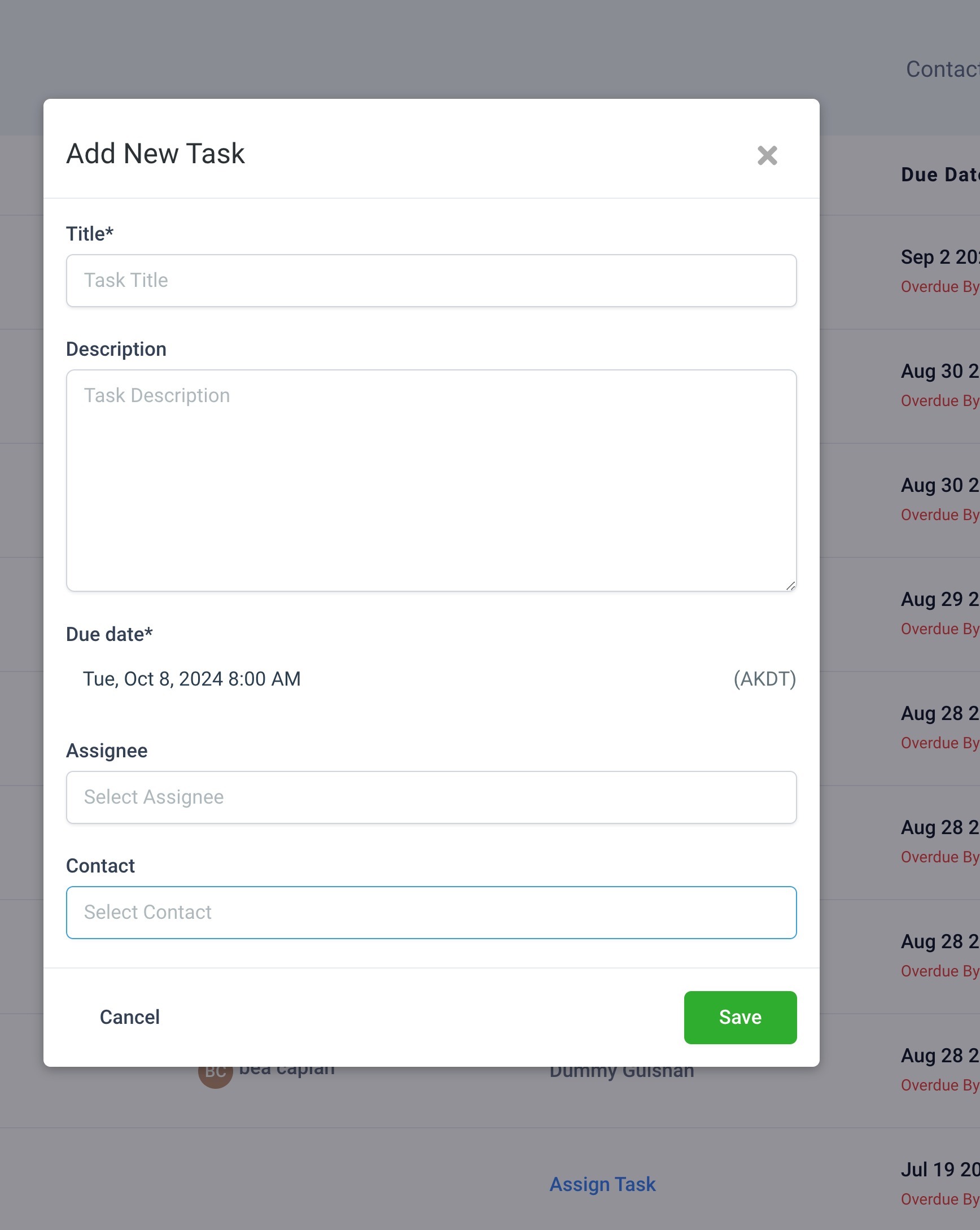
When a change is saved it is visible to every user and influences all search boxes that reference the object. The update spreads across the contact search bar, global search, conversation creation, calendar appointments, task actions and many other modules.
The setting lives under Subaccount > Settings > Custom Fields. From there the admin opens the three dot menu and selects Edit searchable fields to make changes.
03How businesses use searchable fields
- Real estate agency. The agency marks property address and listing ID as searchable so agents can locate listings from any search bar. They keep the mandatory name, phone and email fields for contacts.
- Recruitment firm. Recruiters set candidate skill tags and resume notes as searchable fields. They use regex to find candidates whose notes contain specific keywords.
- SaaS startup. The startup adds subscription plan and trial end date to the searchable fields for custom objects, allowing support staff to find accounts faster.
04The numbers and rules that matter
- For Contacts and Opportunities you can search for up to 6 fields.
- A minimum of 3 characters need to be added in the search box for any search to execute.
05Before you start
- User must have admin privileges.
06How to set up and use searchable fields in HighLevel
Update searchable fields
- Launch the Subaccount > Settings > Custom Fields.
- Open the three dot menu at the top right.
- Click Edit searchable fields.
- Choose the object you want to modify.
- Select the fields you want to make searchable.
- Save the changes and confirm.
07What it looks like in HighLevel
08Settings that matter
- Edit searchable fields. Controls which fields are included in platform searches for the selected object.
09Things to know before you rely on it
- Admins can select up to 6 searchable fields for contacts and opportunities.
- Contact Name, Phone Number and Email Address cannot be removed from contact searchable fields.
- Opportunity Name cannot be removed from opportunity searchable fields.
- Searches require at least 3 characters in the search box.
- Regex does not work on fields such as contact name, phone number, monetary values, numeric fields and similar.
10How it connects to the rest of HighLevel
- How to view and filter contact records contact records view guide
- Understanding sample data in HighLevel Sample data overview
- Set up associations between opportunities and companies Object associations setup
Michael's take

Wondering if tweaking searchable fields is worth the effort? It’s a quick admin tweak that can improve how your team finds contacts and deals, especially when you have a lot of custom data floating around.
I’d start in the Custom Fields settings, add the most useful fields for your sales flow, and then try the global search to see how it feels.