
01Who this is for
- Admins who need HighLevel language to match their organization’s terminology.
- Team leaders who want consistent terminology across navigation, reports and dashboards.
02Rename standard objects, explained
The feature allows an admin to replace the default labels of the three core CRM objects, Contacts, Opportunities and Companies, with custom singular and plural names. Only the display labels change; the underlying data keys, merge fields and API fields remain unchanged, so existing automations and integrations keep functioning.
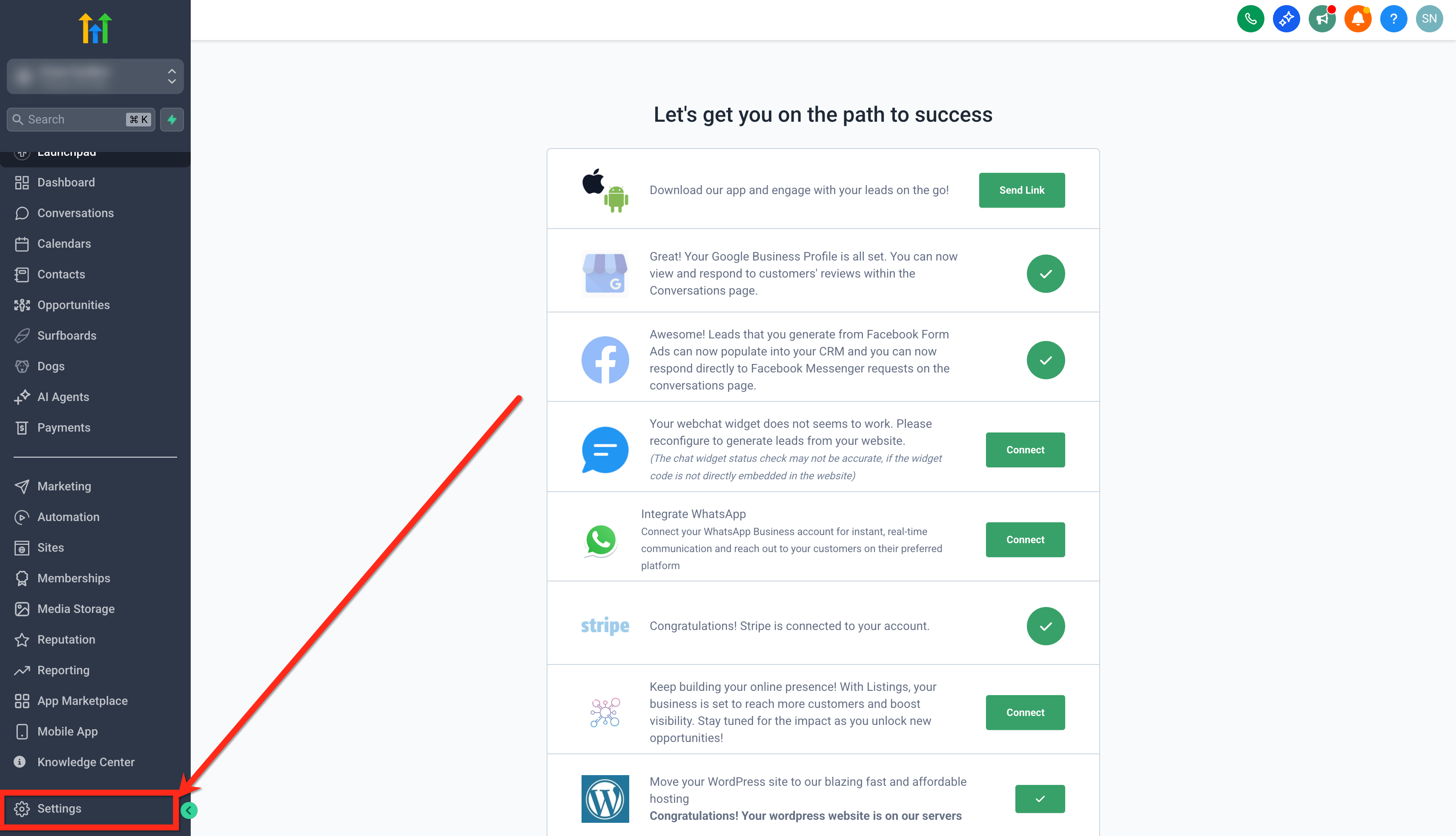
The renaming controls are located under Settings > Objects and are available to users who have Admin rights with access to Settings > Custom Objects. After selecting an object, the admin can edit the singular and plural names and save the changes.
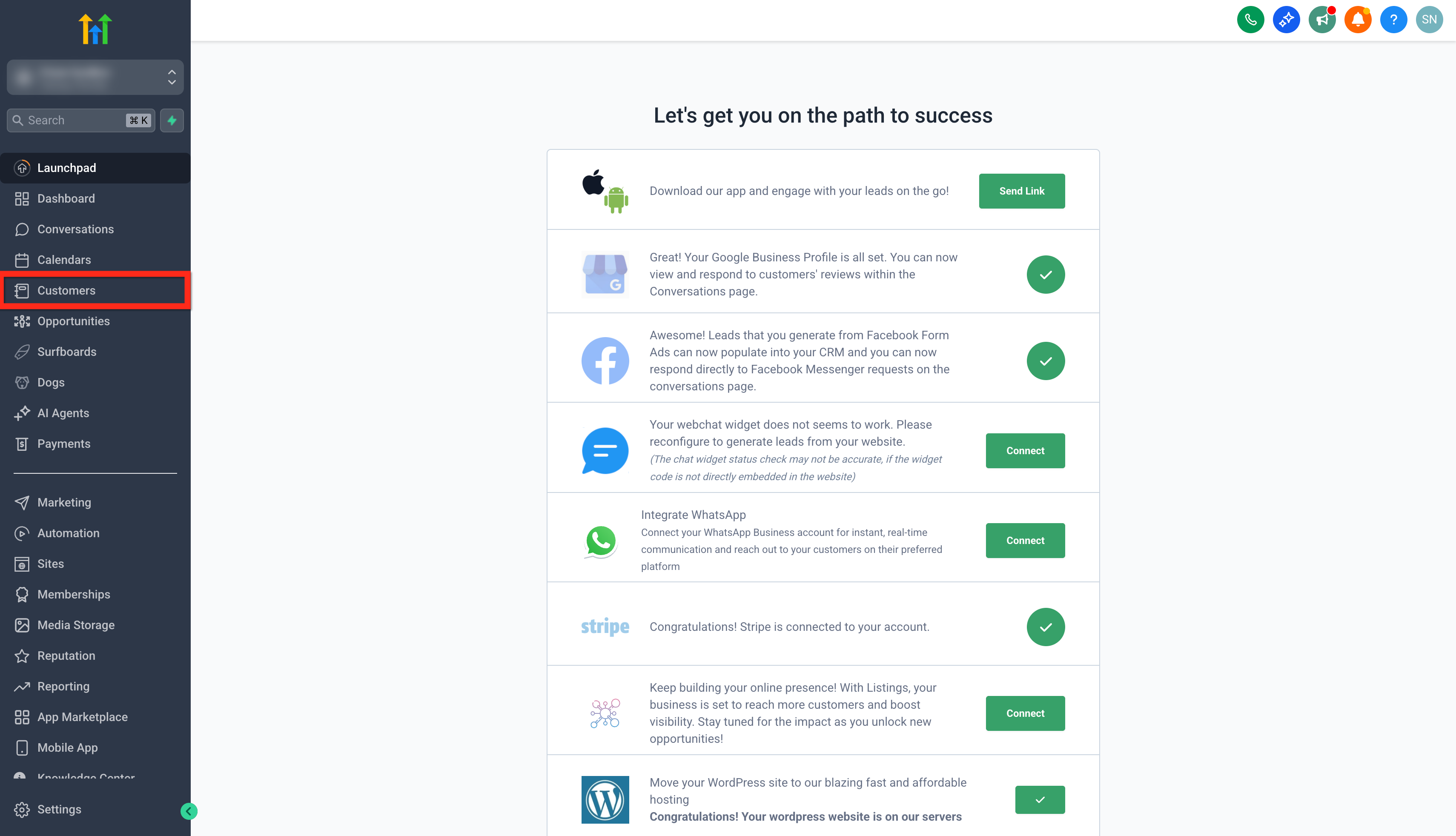
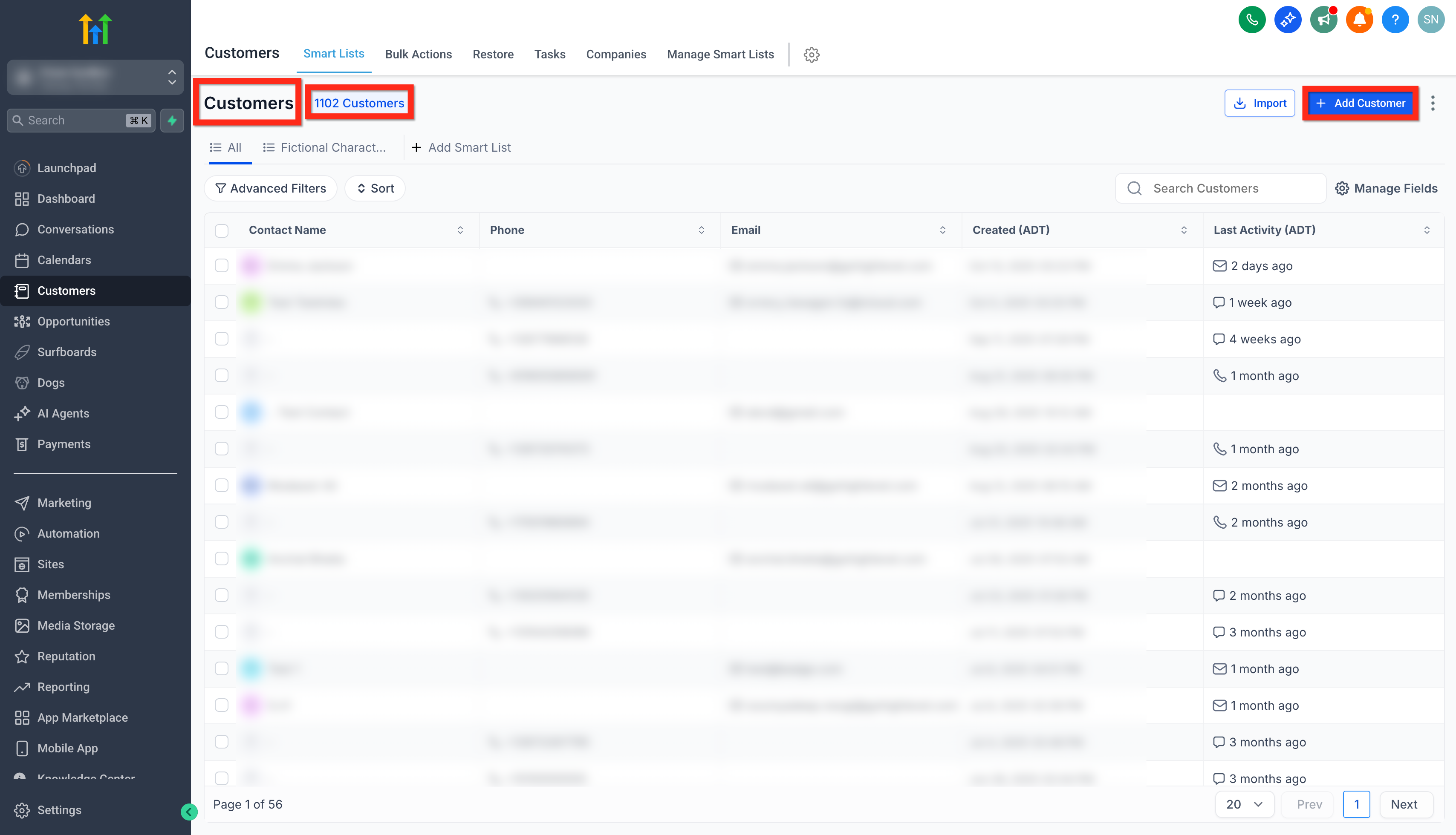
Once saved, the new labels propagate right away across the platform, updating navigation menus, filter lists, smart lists, reports, dashboards and Conversation AI references without any further action.
03How businesses use rename standard objects
- Real estate agency. The agency admin opens Settings > Objects, selects the Contacts object and renames it to "Clients" for both singular and plural forms. The team then sees "Clients" throughout HighLevel, including in filter lists and dashboard widgets.
- SaaS startup. The startup’s admin edits the Opportunities object, changing the name to "Deals". All existing pipelines, reports and AI chat references automatically display "Deals" instead of "Opportunities".
- Consulting firm. The firm’s admin renames Companies to "Organizations" via Settings > Objects. Navigation menus, smart lists and associated modules show the new term, keeping the language consistent with client contracts.
04The numbers and rules that matter
- Maximum length: 50 characters for both singular and plural names.
05Before you start
- User must have Admin role with access to Settings > Custom Objects.
06How to set up and use rename standard objects in HighLevel
Rename a standard object
- Open the Settings area.
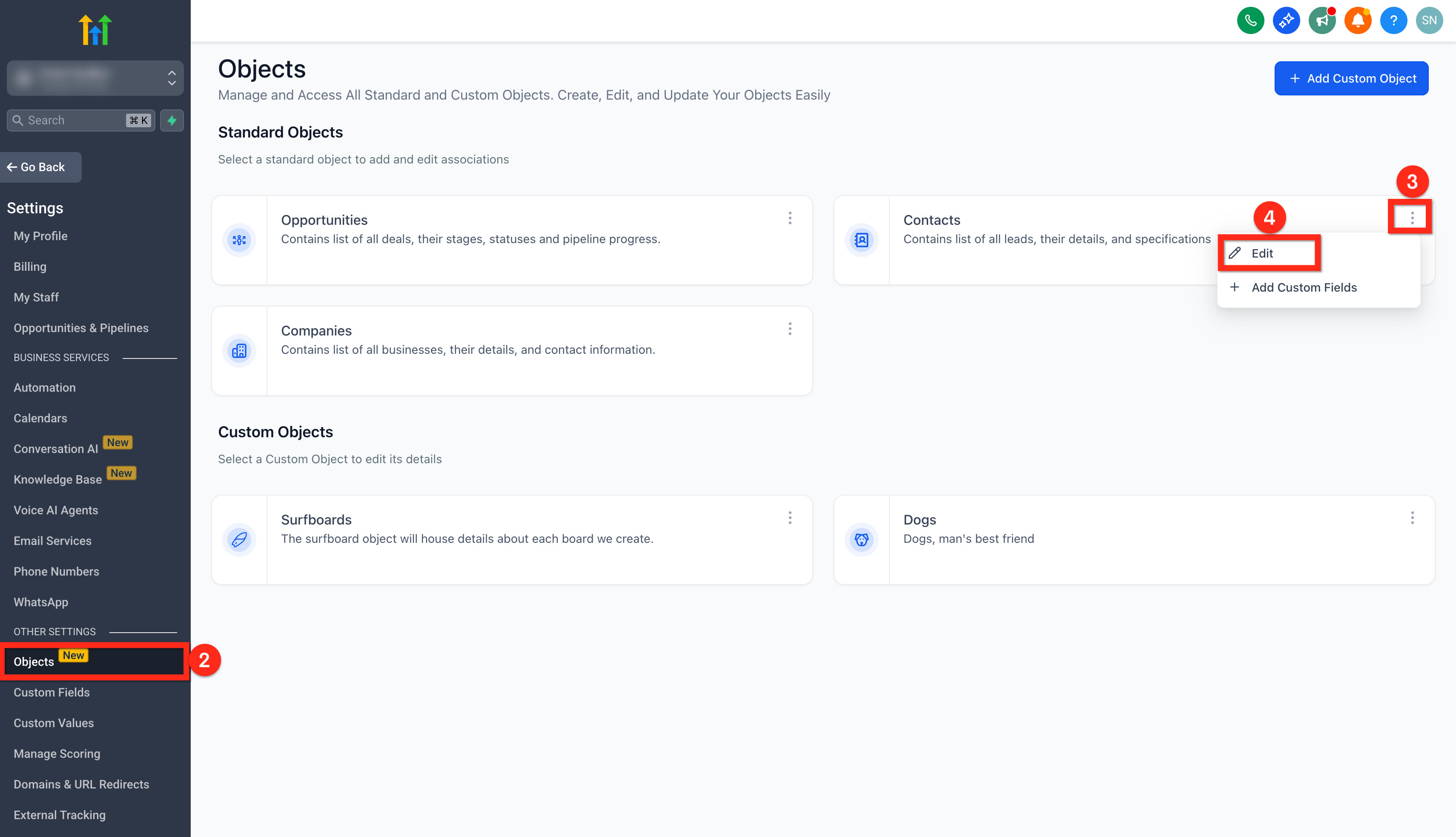
- Select the Objects option.
- Click the three dot menu on the object you wish to rename, such as Contacts.
- Choose Edit from the menu.
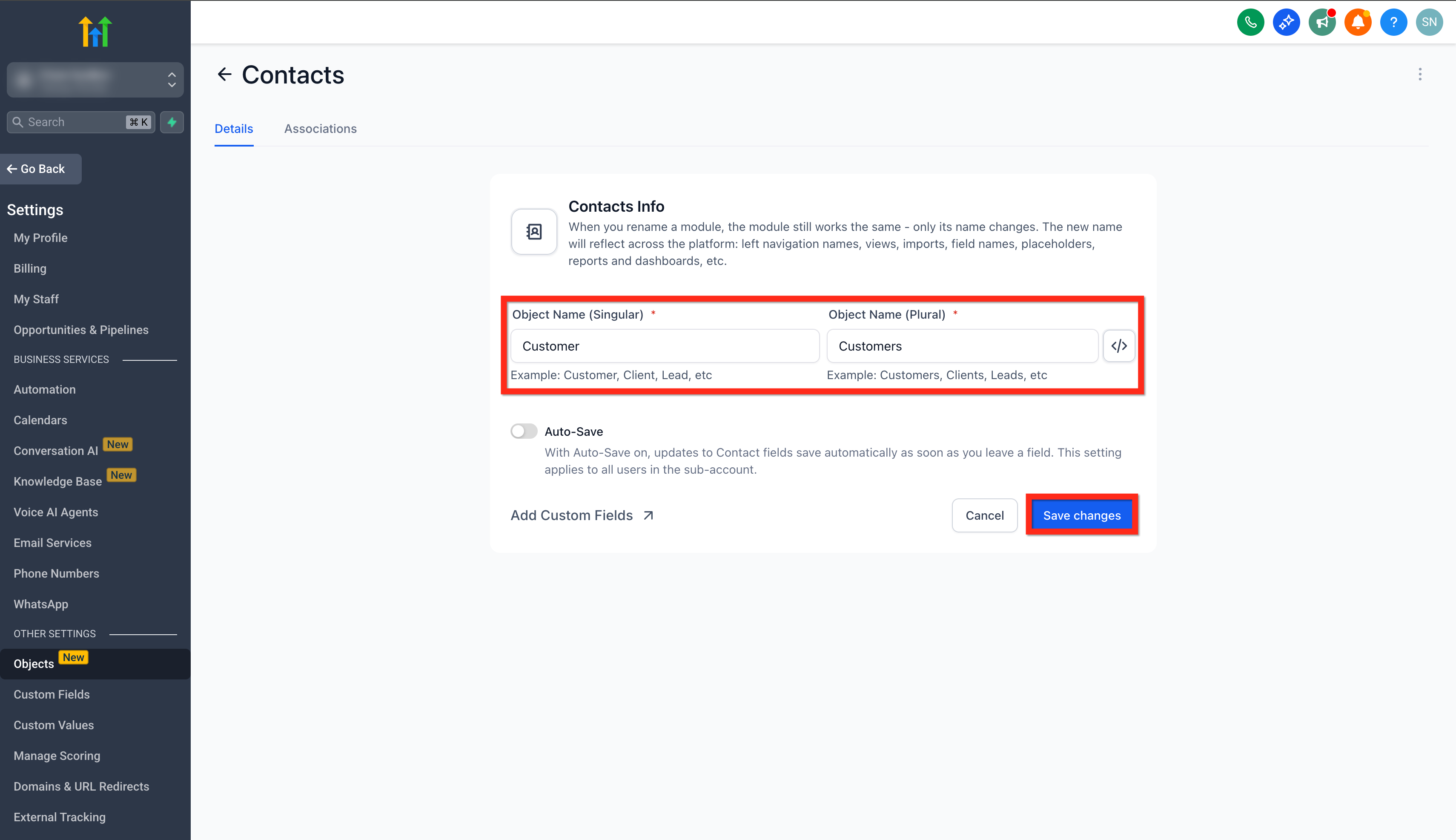
- Enter a new singular name and a new plural name in the Object Name section.
- Press Save Changes to apply the new labels.
- Verify that Conversation AI reflects the updated name immediately.
07What it looks like in HighLevel
08Settings that matter
- Singular Name. Defines the label shown on individual record pages.
- Plural Name. Defines the label shown on list views, filters and smart lists.
- Object Name. Group of fields that control the display names for an object.
09Things to know before you rely on it
- Maximum length for both singular and plural names is 50 characters.
- Each singular and plural label must be unique across all objects.
- Only the three standard objects, Contacts, Opportunities and Companies, can be renamed.
- Renaming changes only display labels; internal object keys, API fields and merge field names stay the same.
10How it connects to the rest of HighLevel
- Configure searchable fields for the newly named objects Searchable fields guide
- View how the renamed objects appear in list views and filters List views guide
- Learn about sample data that uses default object names Sample data FAQ
Michael's take

When teams speak a different language than the default CRM terms, adoption stalls and onboarding drags. Renaming standard objects lets everyone work in the words they already use.
The first setting I would lock down is the singular and plural names for each object. Getting those right ensures the UI, reports and Conversation AI all show consistent language from the start.