
01Who this is for
- Founders who need a unified view of deals and related assets to reduce navigation time.
- Sales managers who want to see the full chain from company to opportunity to custom object.
- Operations staff who rely on linked records for accurate reporting and data exports.
02Associations between opportunities, companies & Custom Objects, explained
The association feature connects Opportunities, Companies, and Custom Objects in HighLevel. You can define one to one, one to many, many to one, or many to many relationships, and add up to ten label pairs per object combination. Each label can hold up to 1,000 linked records per side.
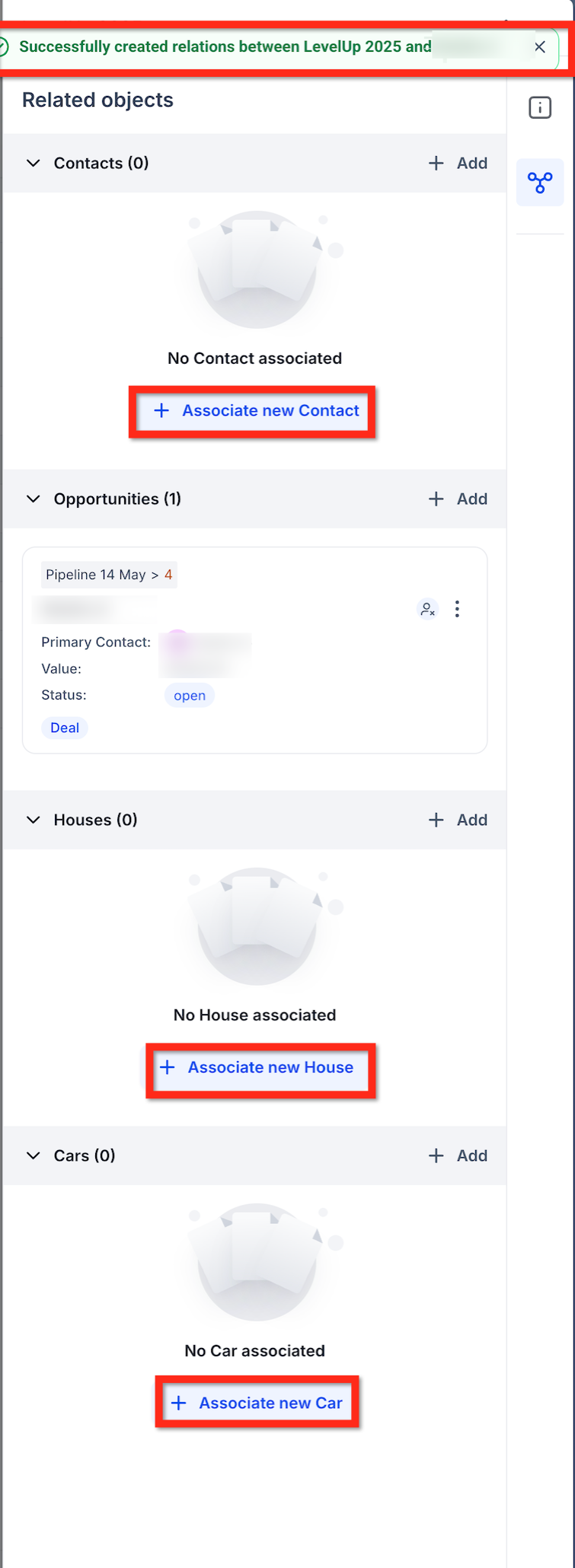
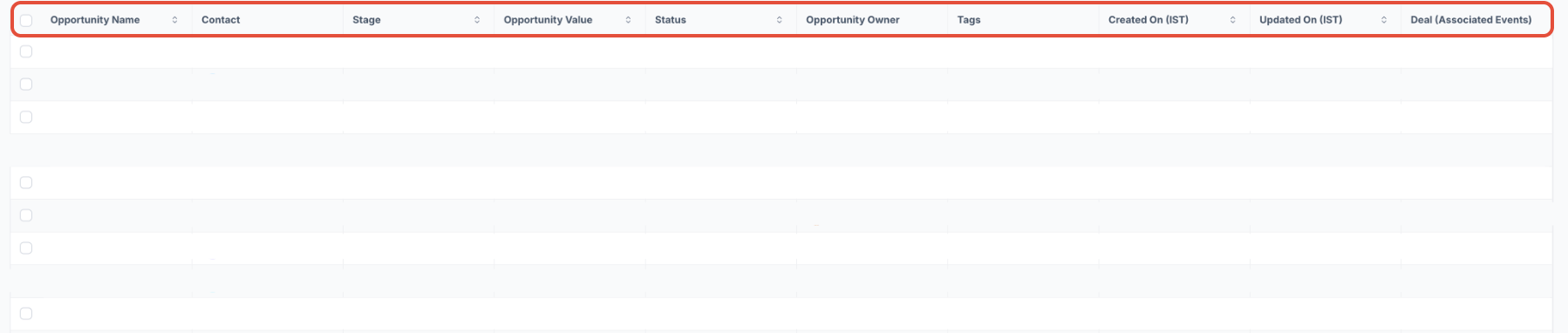
Associations are managed from the record panels of any supported object. From an Opportunity, Company, or Custom Object, you can add or remove links without leaving the current screen. Linked records appear in the Associated Objects panel, on Kanban cards, and as columns in List Views.
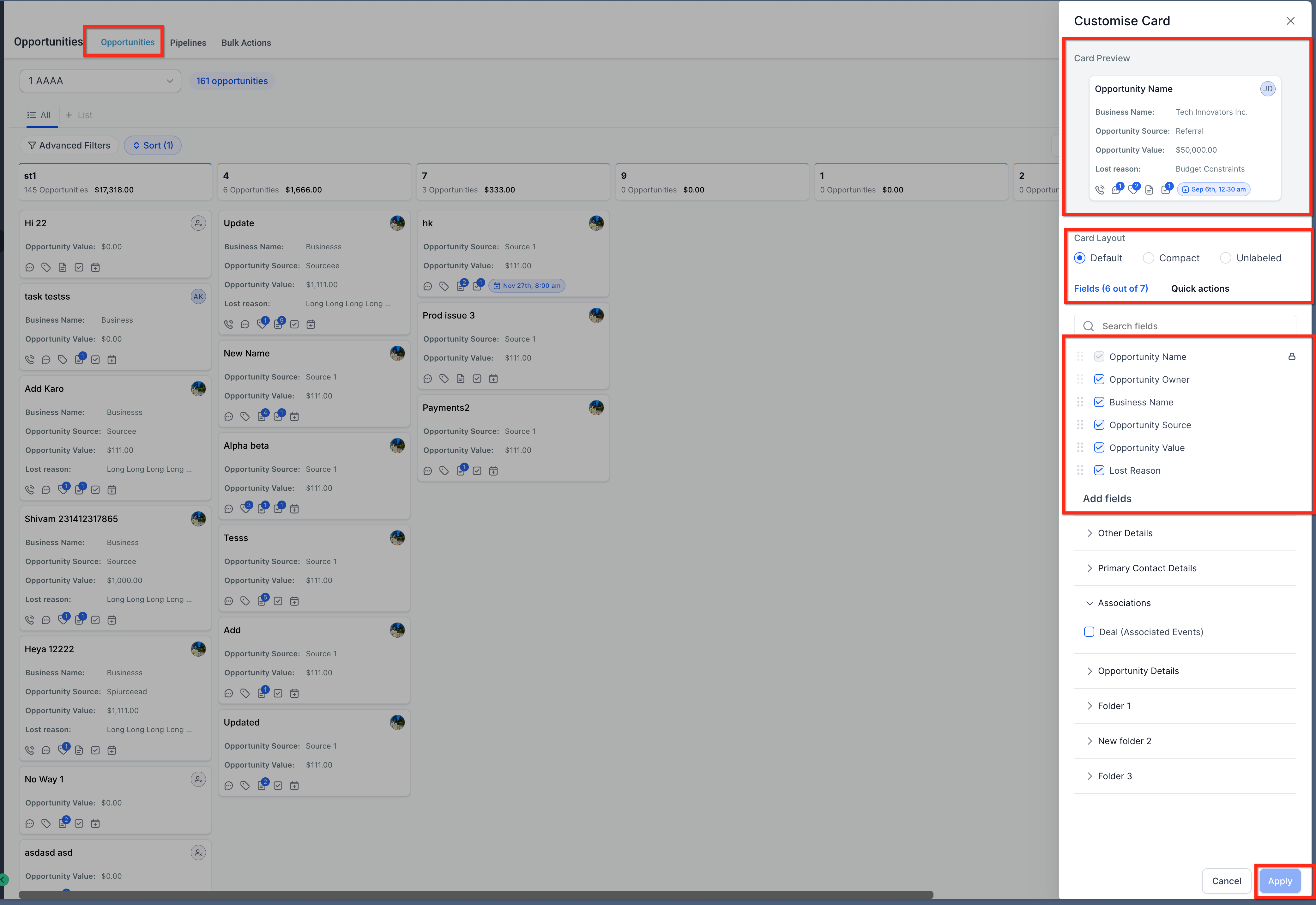
The setup lives under Settings > Custom Objects. After creating an association, you can add its label to field layouts via Manage Fields, making the linked data available for reporting, filters, and bulk actions.
03How businesses use associations between opportunities, companies & Custom Objects
- Real estate brokerage. Create an association between Property custom objects, Opportunities, and Companies to keep buyer, listing, and agency information together. Staff can open a property record and right away see the related deal and brokerage company.
- Event management firm. Link Event custom objects to Companies and Sponsorship Opportunities. When viewing a sponsor company, the associated event records appear, allowing the team to manage sponsorships without switching screens.
- Insurance agency. Associate Policy or Quote custom objects with Opportunities and Companies. Agents can view a client’s policy details directly from the opportunity record, ensuring full lifecycle tracking.
04The numbers and rules that matter
- Create up to 10 labels per object pair.
- Each label supports up to 1,000 linked records per side.
- Optional record limits up to 1,000 per side.
05How to set up and use associations between opportunities, companies & Custom Objects in HighLevel
Create an association between records
- Navigate to Settings > Custom Objects > [Your Object].
- Select the Associations tab.
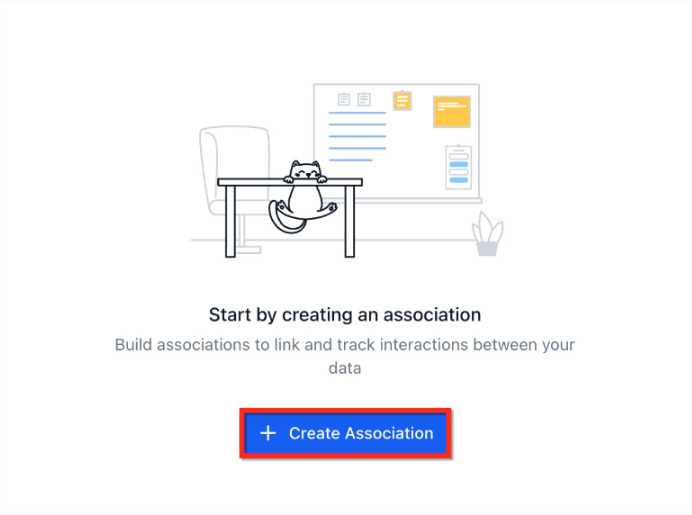
- Choose Create Association.
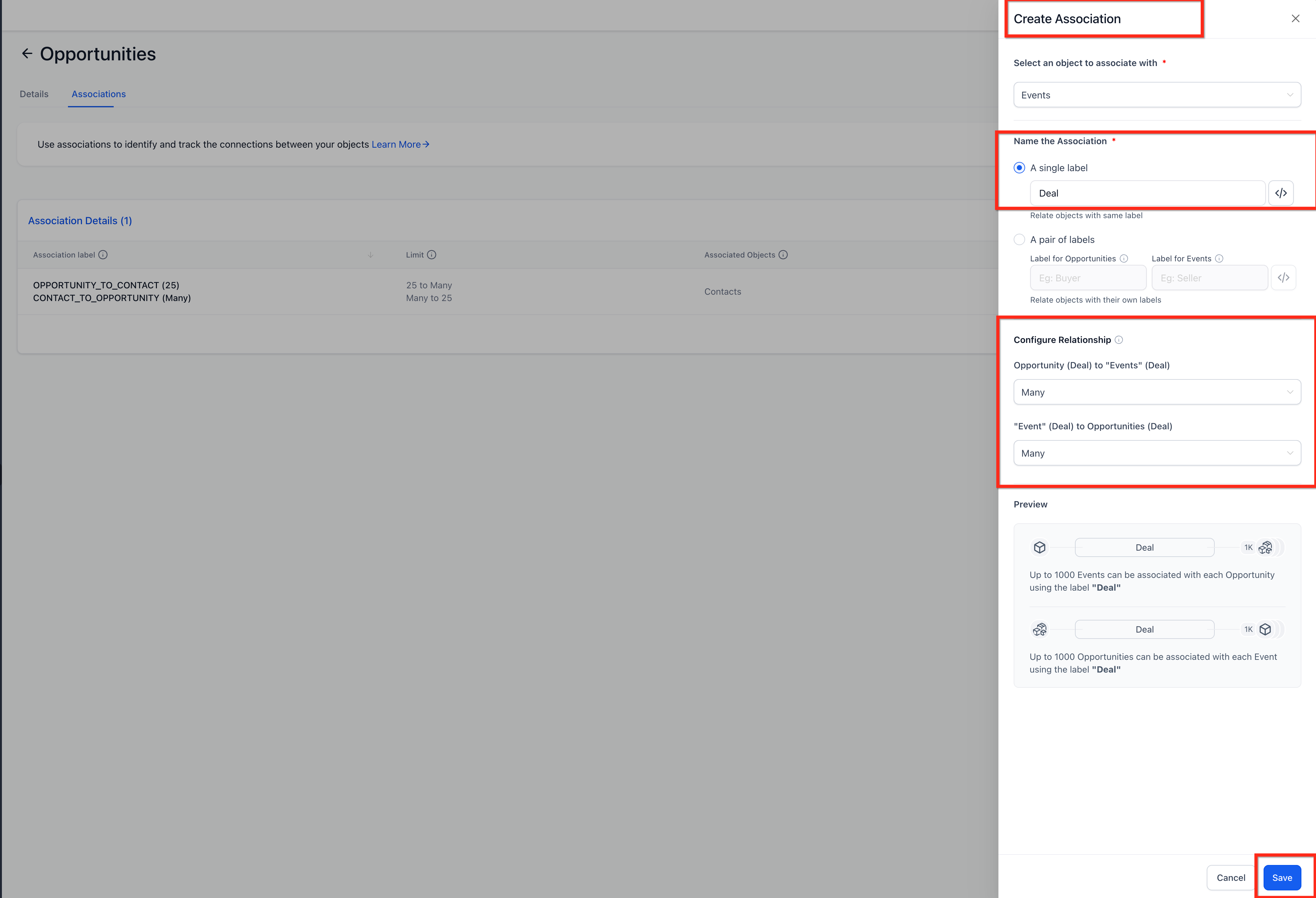
- Pick the target object type, either Opportunities or Companies.
- Enter a label for the association, using either a single term or a pair of terms.
- Select the relationship type: One to One, One to Many/Many to One, or Many to Many.
- (Optional) Define a record limit up to 1,000.
- Review the preview and click Save.
06What it looks like in HighLevel
07Settings that matter
- Association Label (Object Types). Adds a column to record layouts that displays linked records for the chosen object type.
08Things to know before you rely on it
- You can create up to ten labels for each object pair.
- Each label supports a maximum of 1,000 linked records per side.
- Record limits can be set to a maximum of 1,000 when configuring an association.
- When a record is deleted, any associations involving that record are automatically removed.
- API and automation support for associations is pending and may be introduced in a future release.
09How it connects to the rest of HighLevel
- Learn the limits for object relationships in HighLevel. Association limits
- See how to set default activity associations that can work with linked records. Default activity associations
- Find tips for displaying associated records in list views, sorting, and filtering. List view tips
Michael's take

Most people think they need to build separate tables or export import cycles just to keep deals, companies and assets in sync. That creates duplicated data and endless manual matching. Instead, I would set up an association once and let HighLevel keep the connections live across every view.