
01Who this is for
- Subaccount administrators need to control activity linking for their sales team.
- Sales managers benefit from consistent communication history across related records.
- Customer support leads can reduce manual linking when logging calls and notes.
02Default activity associations, explained
The feature lets admins decide which related records receive a new activity. Rules are set per activity type (Email, SMS, Call, etc.) and per originating object (Contact, Opportunity, Company, or a Custom Object). When an activity is created, the platform applies the saved rule to select eligible related records.
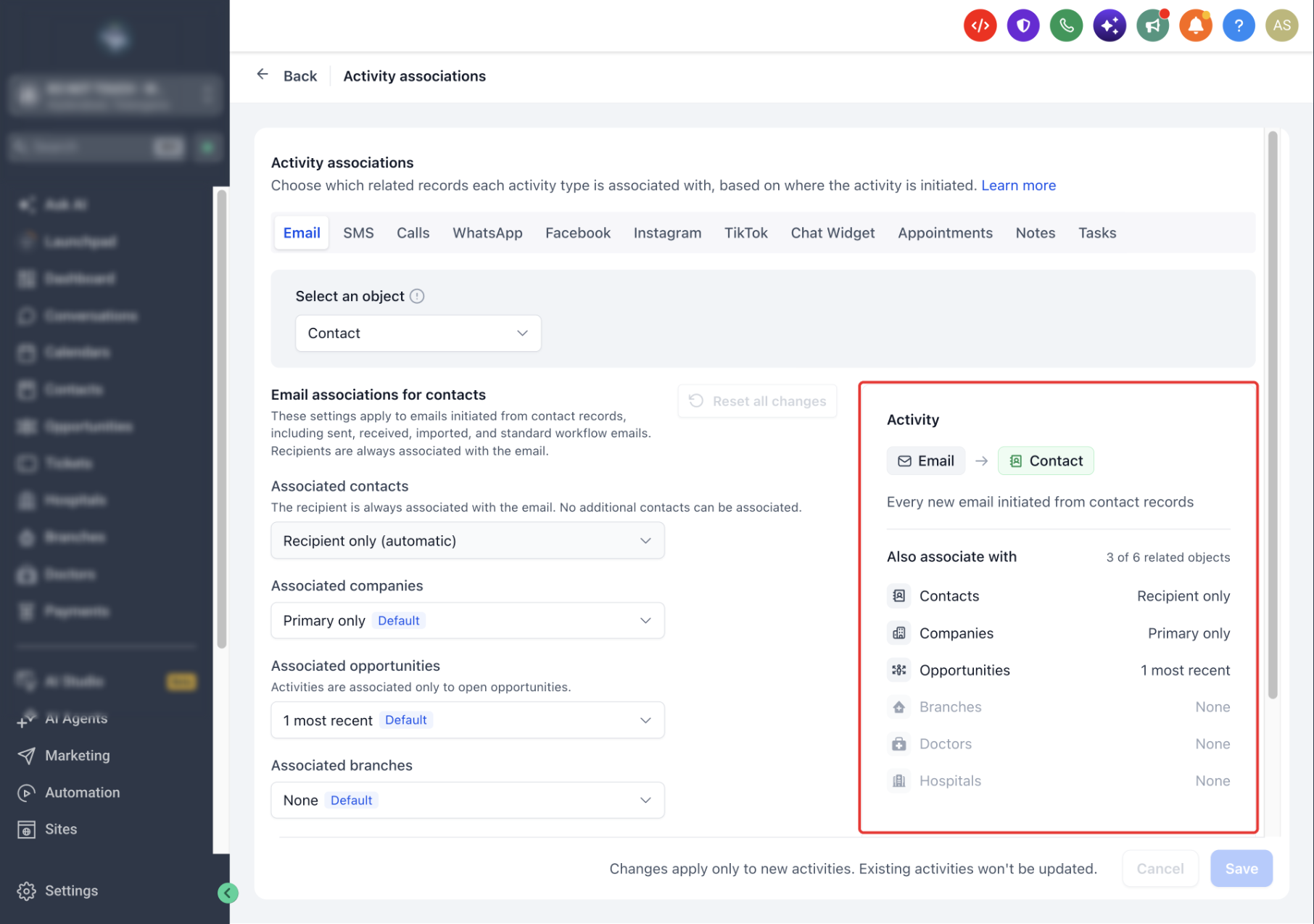
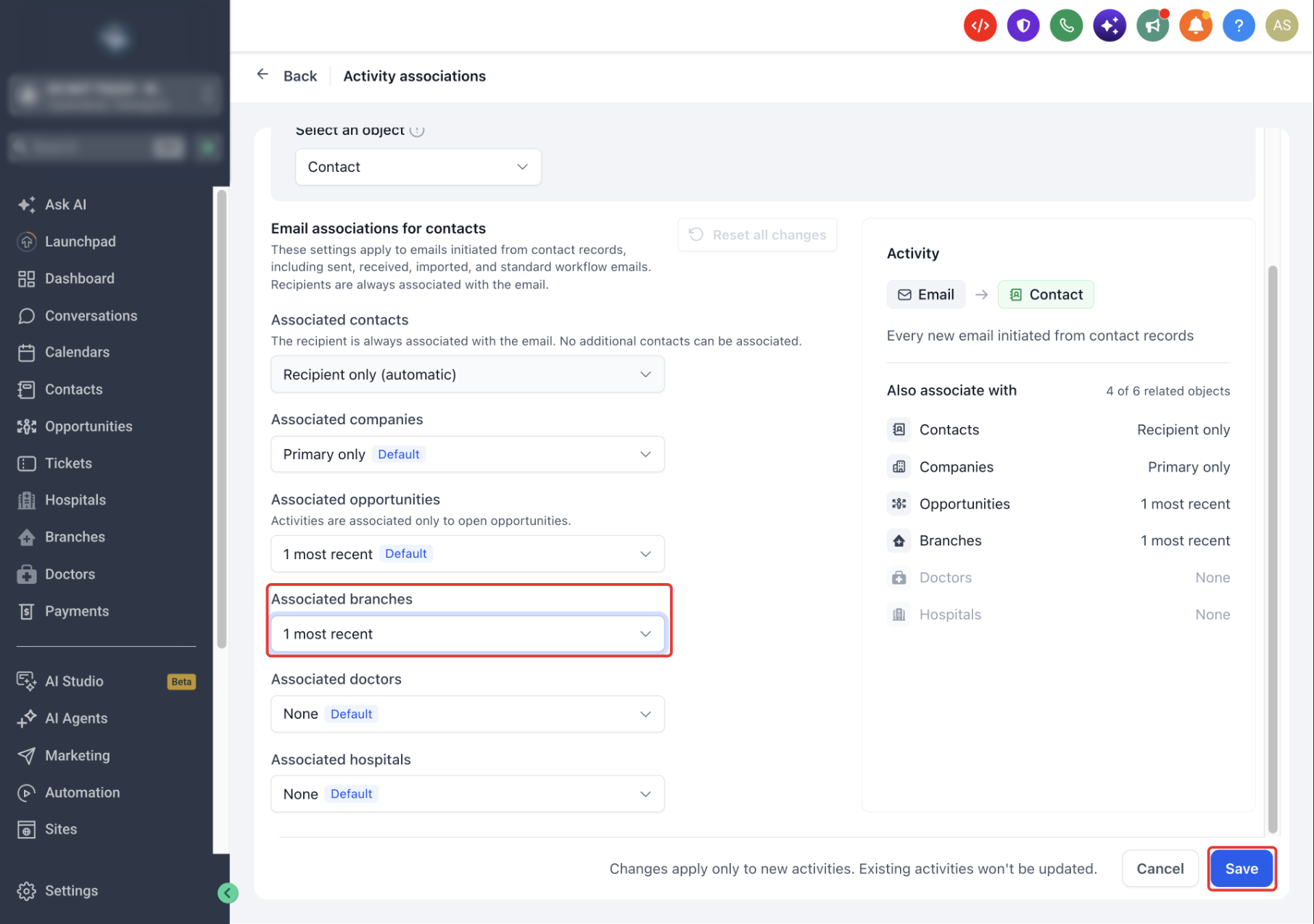
Configuration lives in the Subaccount Settings under Objects. A preview panel shows which records will be attached before the activity is saved. Changes affect only future activities; existing records keep their original links.
Rules include options such as no association, linking to the primary related record, linking to the most recent eligible record, or linking to up to ten recent records. Some activity types have restrictions, for example, notes can link to only one related record.
03How businesses use default activity associations
- Real estate brokerage. The broker configures email rules so an email sent from a Contact also appears on the Contact's primary Company and the most recent open Opportunity, keeping property negotiations visible across related records.
- Dental practice. The practice sets task rules so a task created from an Opportunity automatically links to the primary Company and the primary Contact, allowing staff to see relevant follow up work on both patient and office records.
- Software SaaS startup. The Founder adjusts call rules on Custom Objects so calls made from a subscription record do not add extra related objects; only the required participants remain linked, simplifying call logs.
04The numbers and rules that matter
- Associate to all selects up to 10 most recently associated eligible records.
- Notes support only one associated record per related object type.
- Tasks support up to 10 associated records per object type.
- Manually created Appointments support up to 10 associated records in total, excluding the Contact.
05Before you start
- Feature must be enabled for the location through the private beta.
- User must have subaccount administrator rights to open the settings.
- Related records need to be already associated with the originating record.
06How to set up and use default activity associations in HighLevel
Configure association rules
- Open the HighLevel Subaccount view.
- Choose Settings from the left navigation.
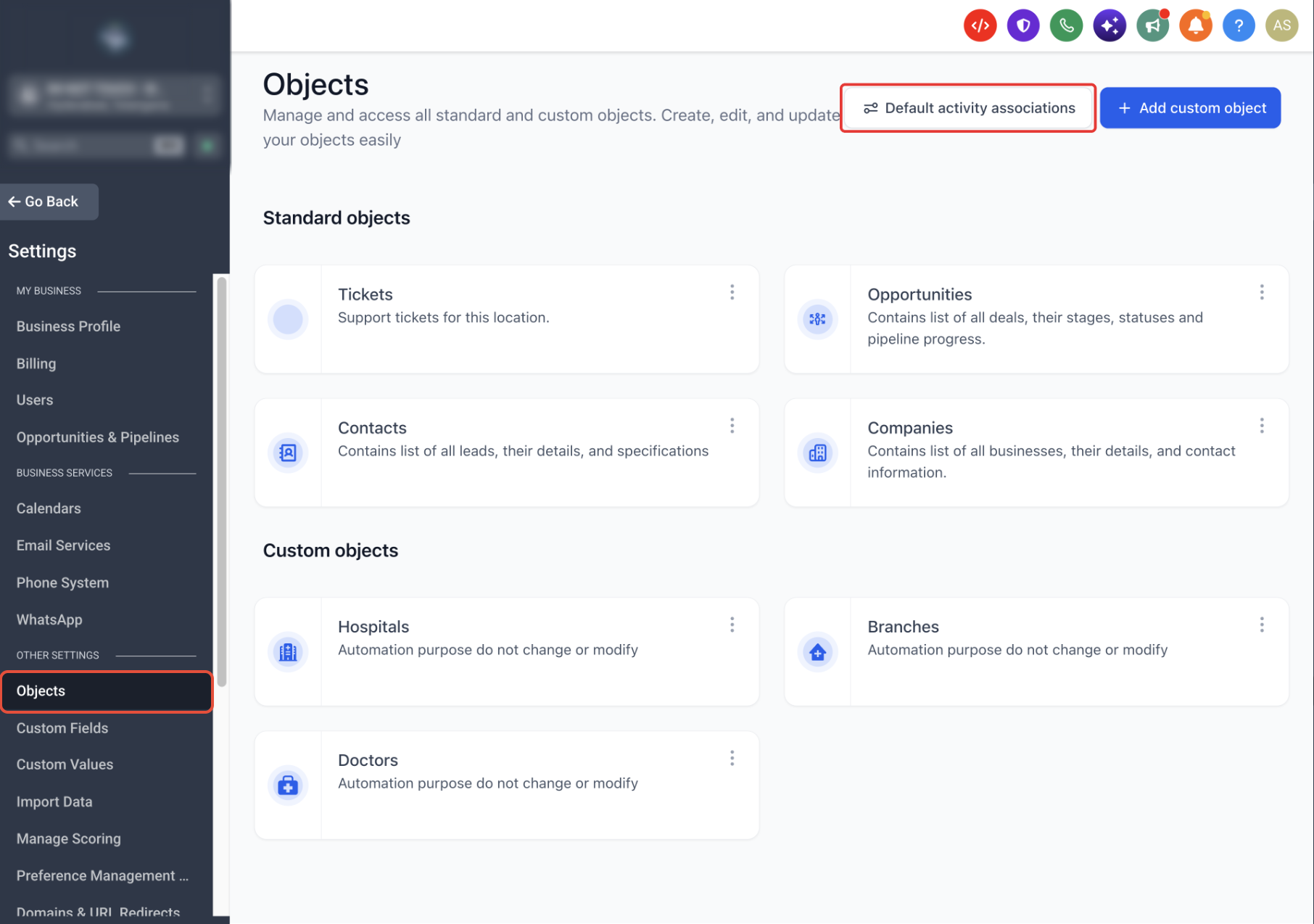
- Select Objects.
- Click the Default activity associations button in the upper right.
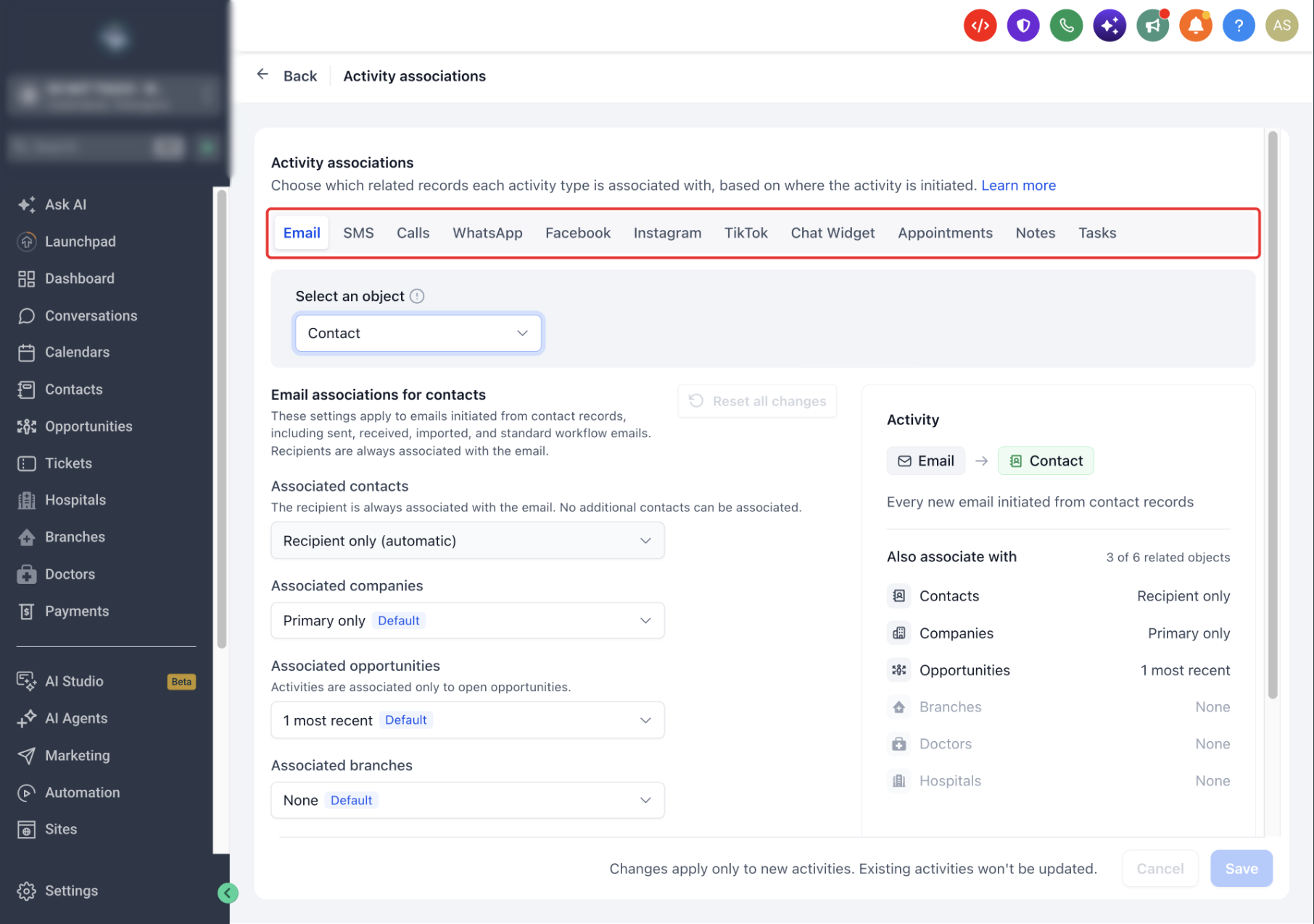
- On the Activity associations page, pick the activity type to edit.
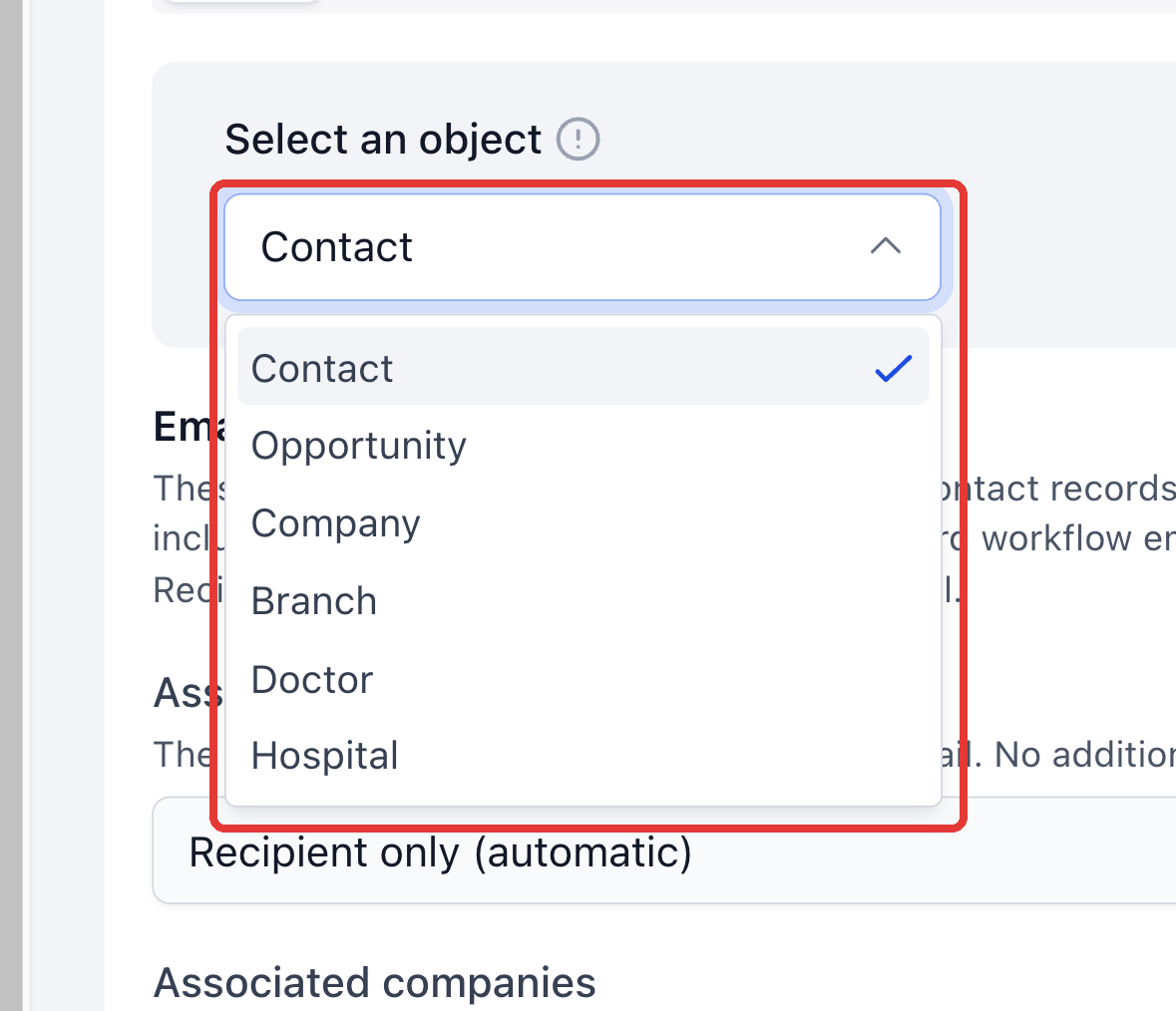
- Under Select an object, choose Contact, Opportunity, Company, or a Custom Object where the activity will start.
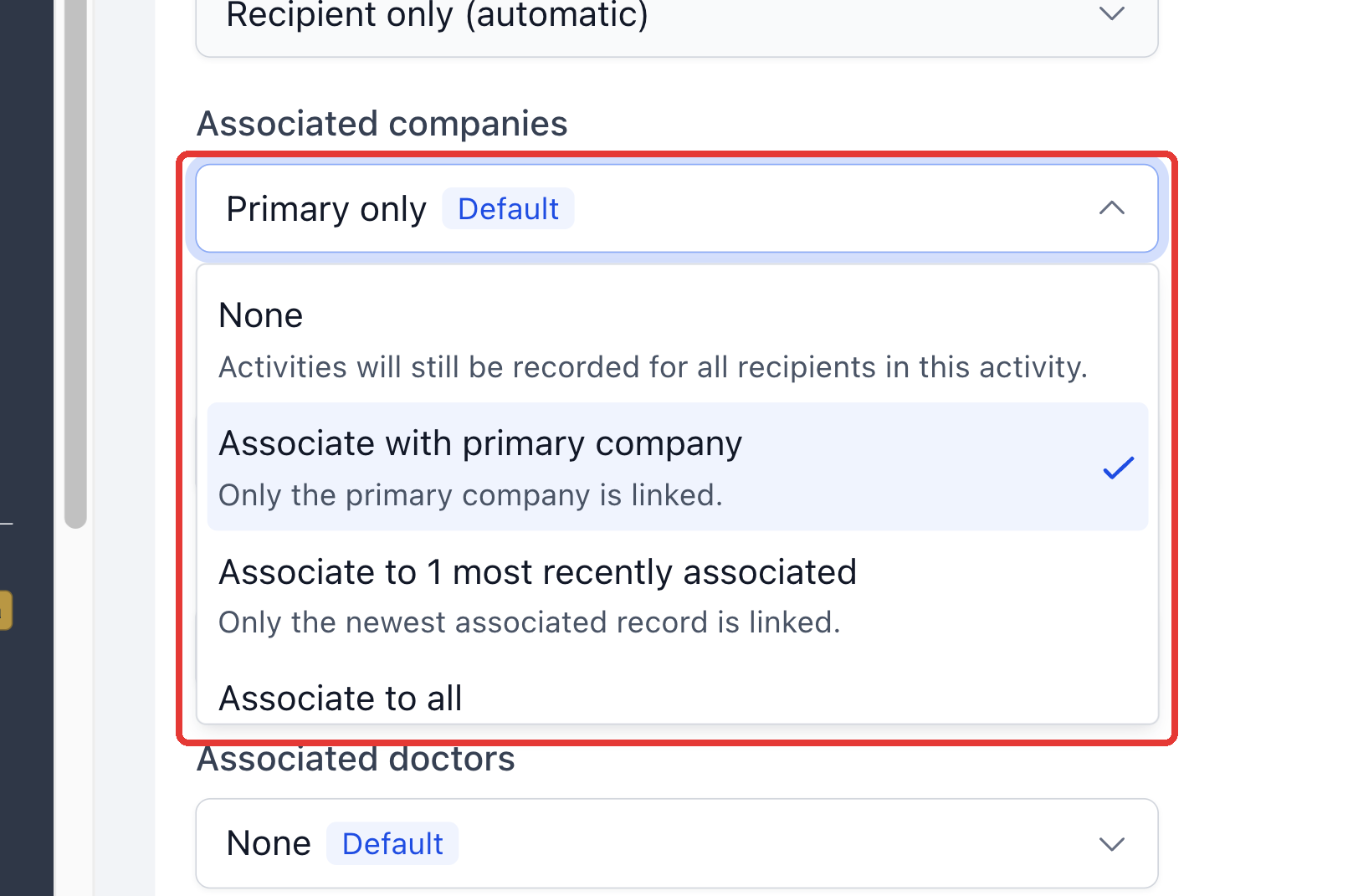
- For each editable related object row, select a rule such as Associated companies or Associated opportunities.
- Check the preview panel on the right to see which records will be linked.
- Press Save to store the new configuration.
Reset association rules to default
- Open the HighLevel Subaccount view.
- Choose Settings from the left navigation.
- Select Objects, then click Default activity associations.
- Pick the activity type and the originating object you wish to reset.
- Click Reset all changes.
- In the confirmation dialog, choose Reset to default.
- Click Save to apply the restored settings.
07What it looks like in HighLevel
08Settings that matter
- None. Prevents any records of that related type from being added; required participants remain linked.
- Associate with primary {object}. Links the record marked as Primary for supported relationships, such as a Contact's primary Company.
- Associate to 1 most recently associated. Selects the most recent eligible related record of that type.
- Associate to all. Links up to ten of the most recent eligible records of the chosen type.
09Things to know before you rely on it
- Notes can have only one associated record per related object type.
- Tasks may link to up to ten records per object type, including any already attached.
- Manually created appointments can link to up to ten records in total, not counting the Contact.
- The Associate to all option returns a maximum of ten recent eligible records.
- Only open Opportunities are considered for automatic Opportunity associations.
- Reset all changes is disabled until a change has been saved for the selected activity type and object.
10How it connects to the rest of HighLevel
- Association limits explain the maximum number of records that can be linked to an activity. Association limits
- Searchable fields configuration helps you locate records when setting up activity associations. Searchable fields
- The notes guide shows how to add, sort, and manage notes across contacts, opportunities, and companies. HighLevel notes
Michael's take

In my experience, the automatic links reduce the need to manually attach related records on each email or call. The feature does not retroactively fix older logs, so teams that need historic clean up will still have work to do.