
01Who this is for
- Team members can add internal notes to contacts to capture call summaries, payment confirmations, or client preferences.
- Salespeople can view notes across an opportunity to see all interactions tied to a deal.
02Notes, explained
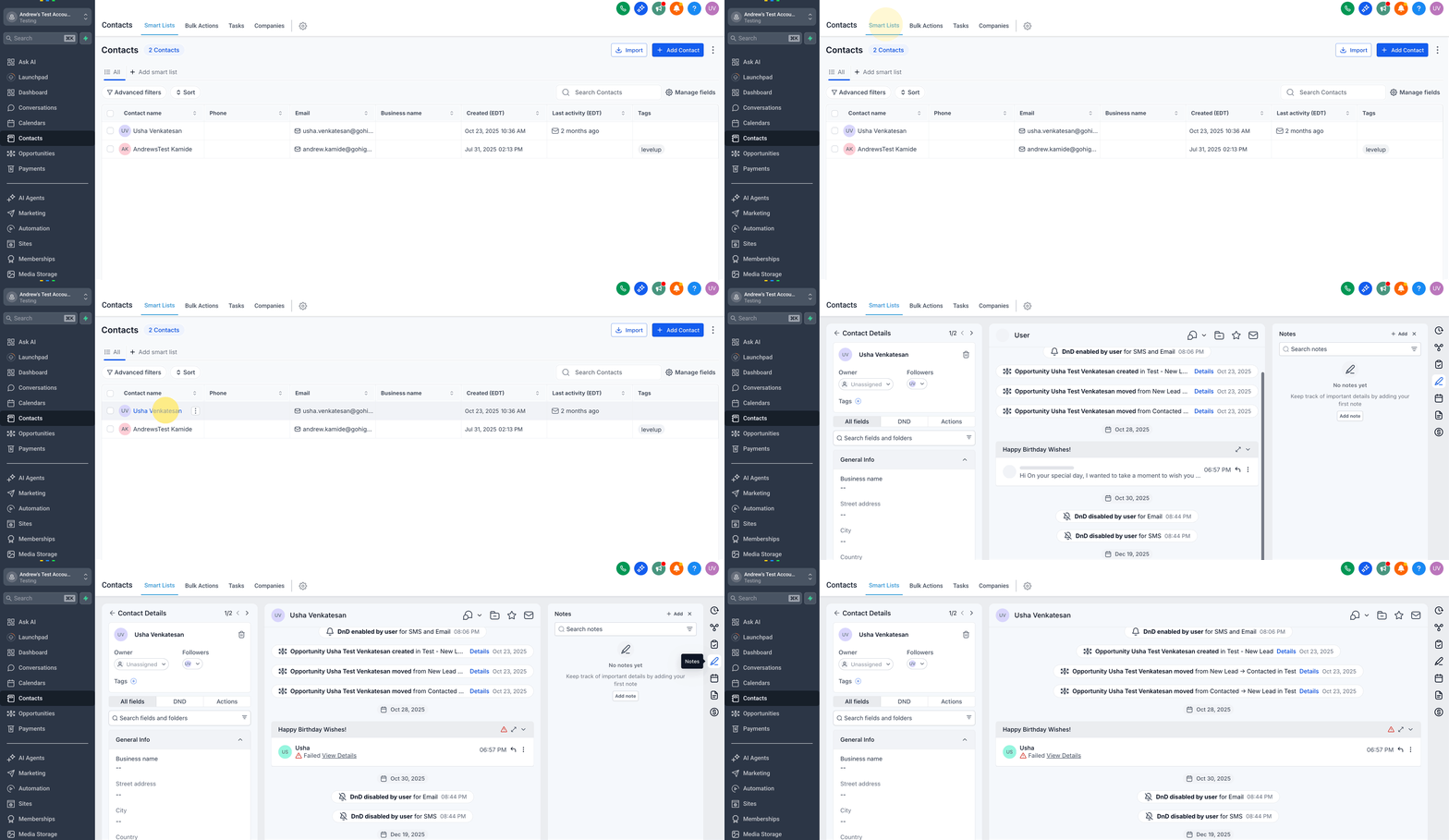
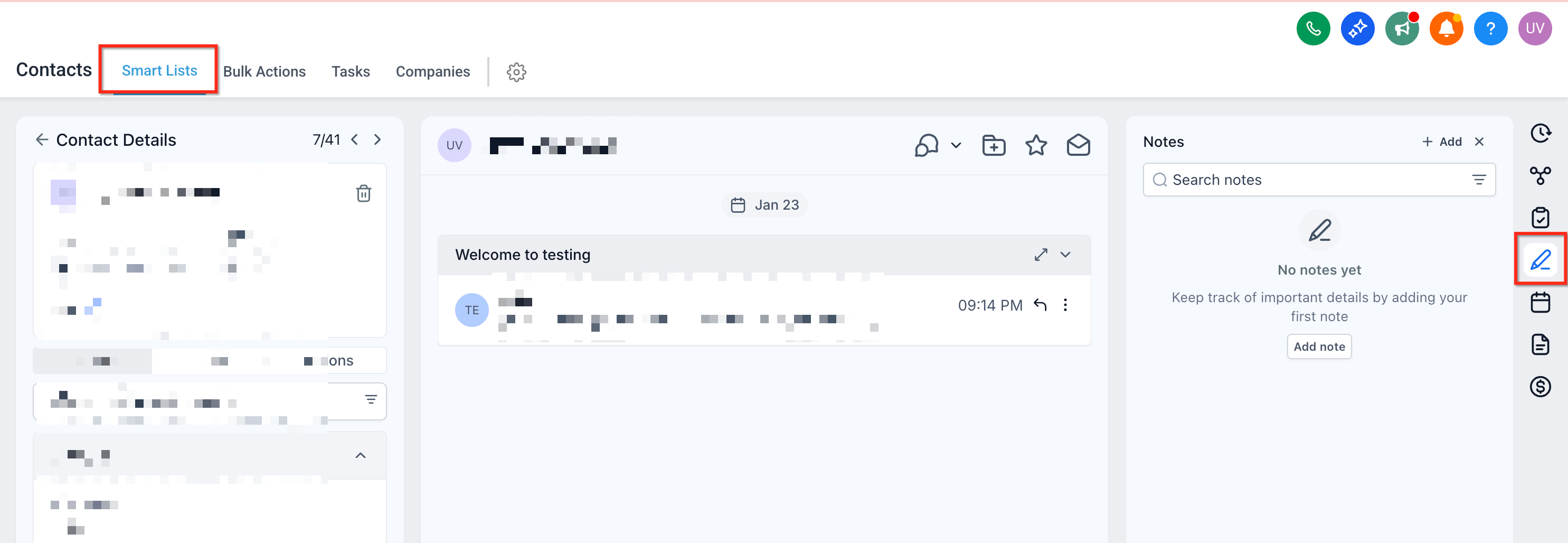
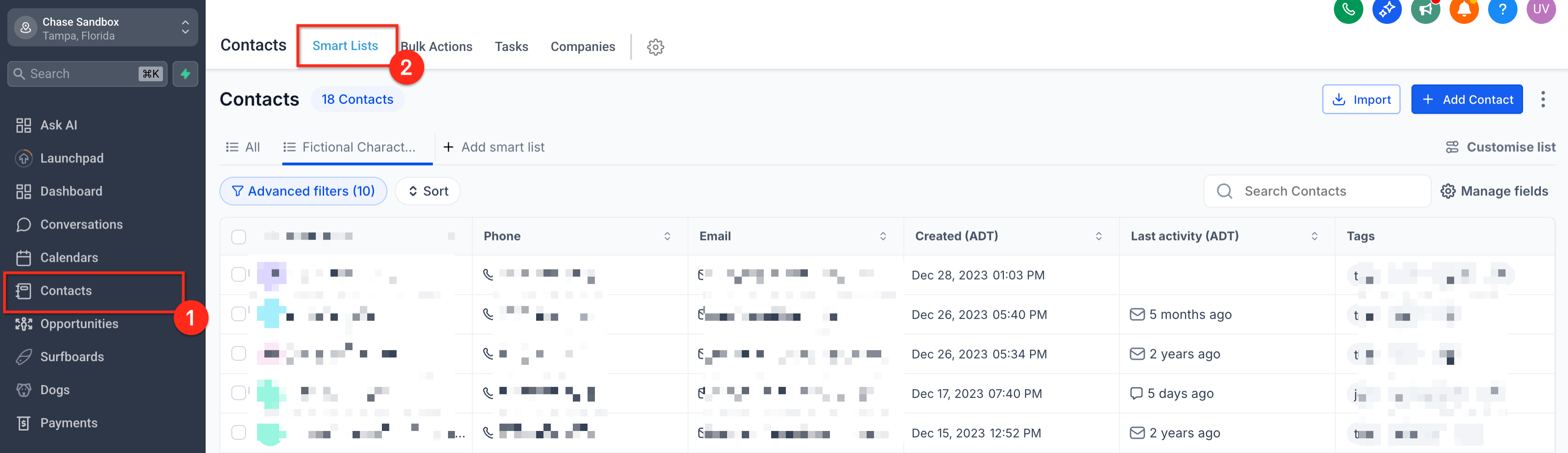
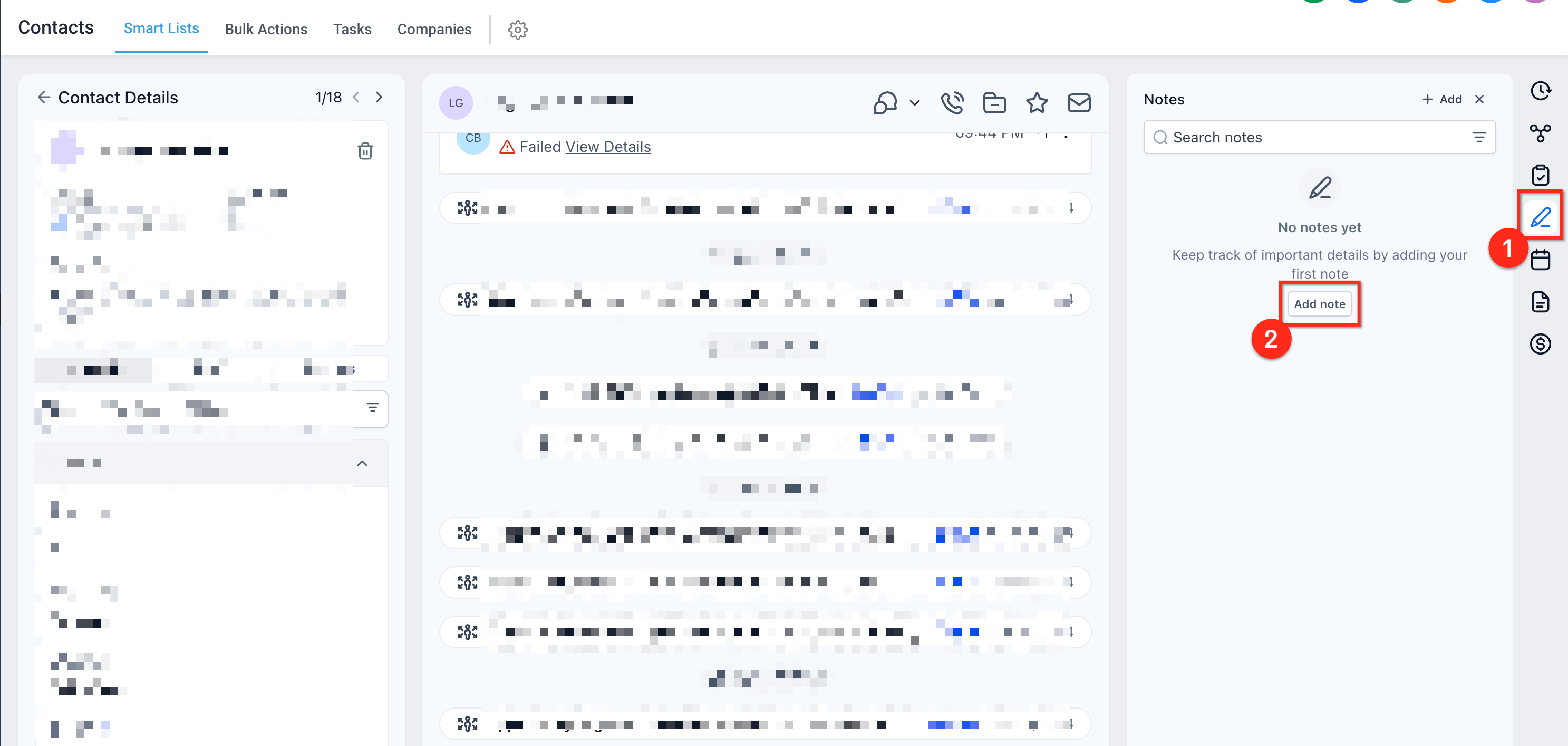
Notes act as an internal log attached to contacts, opportunities or companies. Each record contains its own Notes panel where users can type a title, description, choose a color label and attach files. The panel is reachable from the record’s main view.
The platform stores attached files in a private "Notes attachments" folder. Notes do not appear in client portals or outbound communications. Users can find specific notes using the search bar or organize them by sorting on the creation date, choosing either oldest first or newest first order.
03How businesses use notes
- Contact management. Staff open a contact record, add a note with a title and color label, and attach a document such as a payment receipt for future reference.
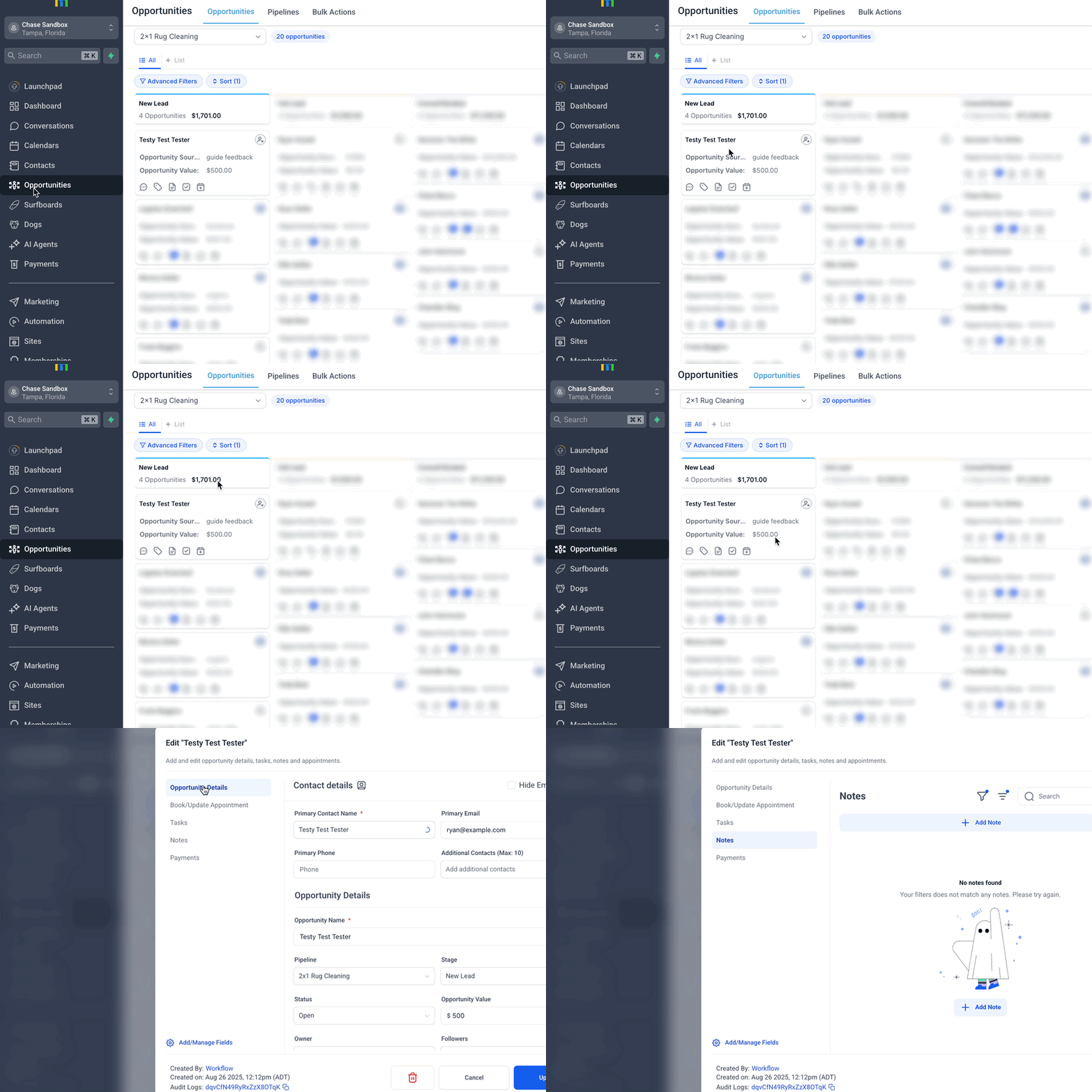
- Opportunity tracking. The sales team accesses an opportunity, creates a note titled with feedback details, and sorts notes to view the most recent updates first.
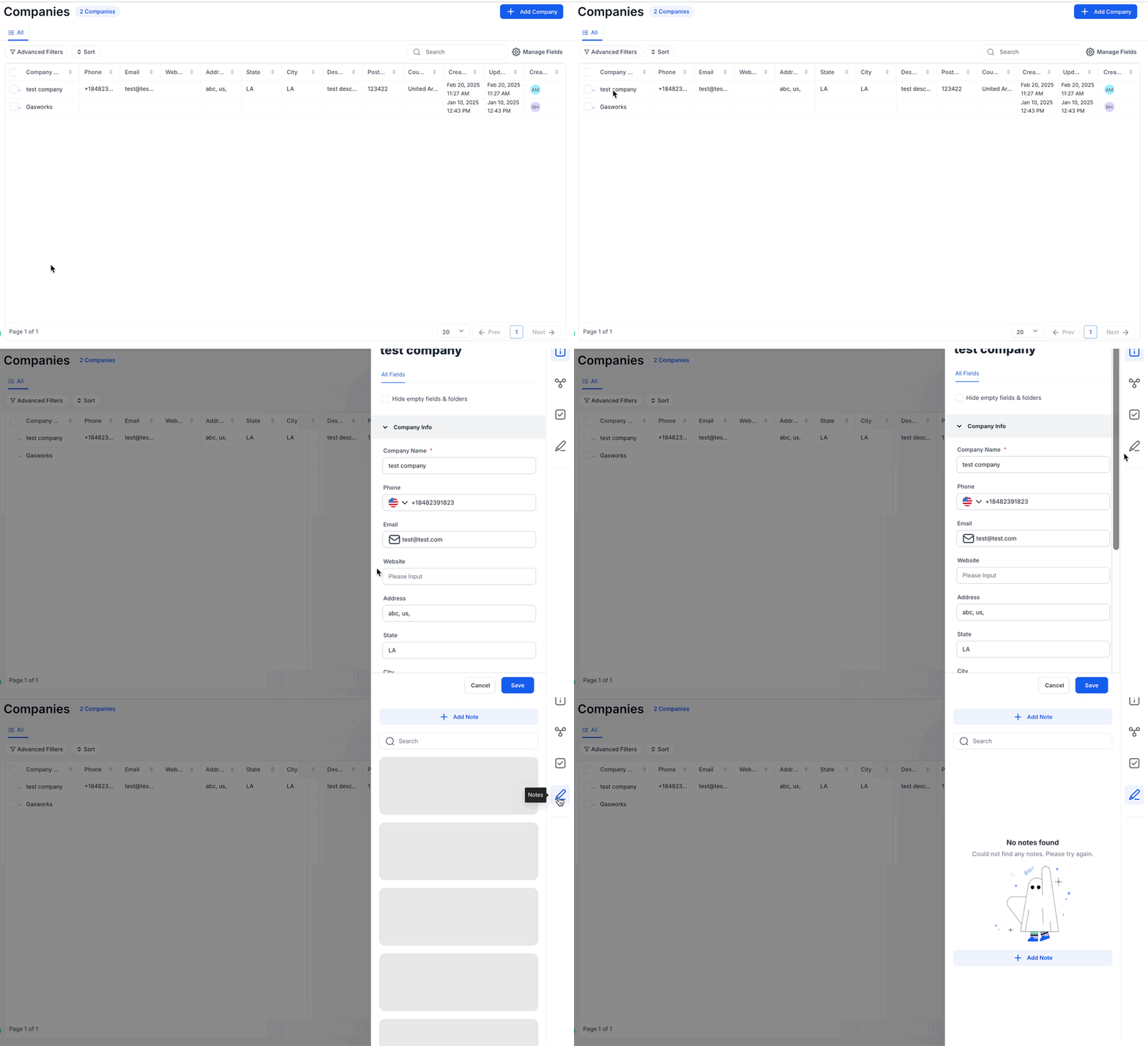
- Company overview. An account manager opens a company record, adds a note summarizing stakeholder discussions, and uses the color label to categorize the note for quick scanning.
04How to set up and use notes in HighLevel
Add a new note to a record
- Open the desired contact, opportunity or company and select its Notes tab.
- Click the + Add Note button in the notes panel.
- Enter a title and fill in the description field.
- Choose a color label to categorize the note.
- Upload any supporting documents as attachments.
- Press Save to store the note.
Sort notes by their creation date
- Open the Notes section for the selected record.
- Click the Sort icon within the notes panel.
- Select either Ascending (oldest first) or Descending (newest first) order.
05What it looks like in HighLevel
06Settings that matter
- Title. Defines the short heading displayed at the top of the note.
- Description. Holds the detailed text of the note.
- Color label. Applies a visual tag that helps categorize and locate notes quickly.
- Attachments. Adds private files to a note; new uploads are stored in the Notes attachments folder.
07Things to know before you rely on it
- Notes are visible only to internal users; clients cannot see them anywhere.
- Newly uploaded attachments are private by default; older attachments keep their existing visibility.
- Notes cannot be used as triggers in automations or workflows.
- Notes cannot be exported as a standalone report; they appear only when exporting full records.
08How it connects to the rest of HighLevel
- CRM Notes Association, Link Notes Across Contacts & Opportunities Notes association
Michael's take

When you need a single place for your team to capture call logs, payment confirmations or client preferences, Notes pay for themselves. They keep critical context from slipping through the cracks and let salespeople and account managers see the whole story without hunting through emails or chat logs.
If your process already relies on external documents or you don’t need a shared internal log, the feature adds little value. Without a habit of regularly adding titles, colors or attachments, the notes can become a noisy dump rather than a useful reference.