
01Who this is for
- Founders who manage multiple client dashboards need rapid access to up to date data.
- Sales teams that rely on real time opportunity views require fast loading of records.
02CRM data loading, explained
When a dashboard or a specific module in HighLevel takes longer than usual to show data, the slowdown is often linked to the web browser rather than the platform itself. Common causes include cached files, active extensions, or incompatibilities with the current browser.
The troubleshooting workflow lives within the user’s browser environment. It starts with an incognito login, moves through clearing cache, disabling extensions, testing alternative browsers, and finishes with capturing any console error messages for a support ticket.
03How businesses use CRM data loading
- Digital marketing agency. The agency notices that campaign performance dashboards load slowly. It opens an incognito window, clears the cache, and if needed disables extensions. When the issue remains, the agency switches to Firefox and captures console errors for the support team.
- Real estate brokerage. Agents find that property listing modules are delayed. They clear their browser cache, reload the page, and sign in again. If the delay persists, they try Safari and record any console messages before filing a ticket.
- Health clinic. Clinic staff experience lag when viewing patient appointment tables. They disable all browser extensions, repeat the cache clear step, and test Chrome versus Edge. Should the problem continue, they take a screenshot of the console error and submit it to HighLevel support.
04How to set up and use CRM data loading in HighLevel
Troubleshoot slow data loading
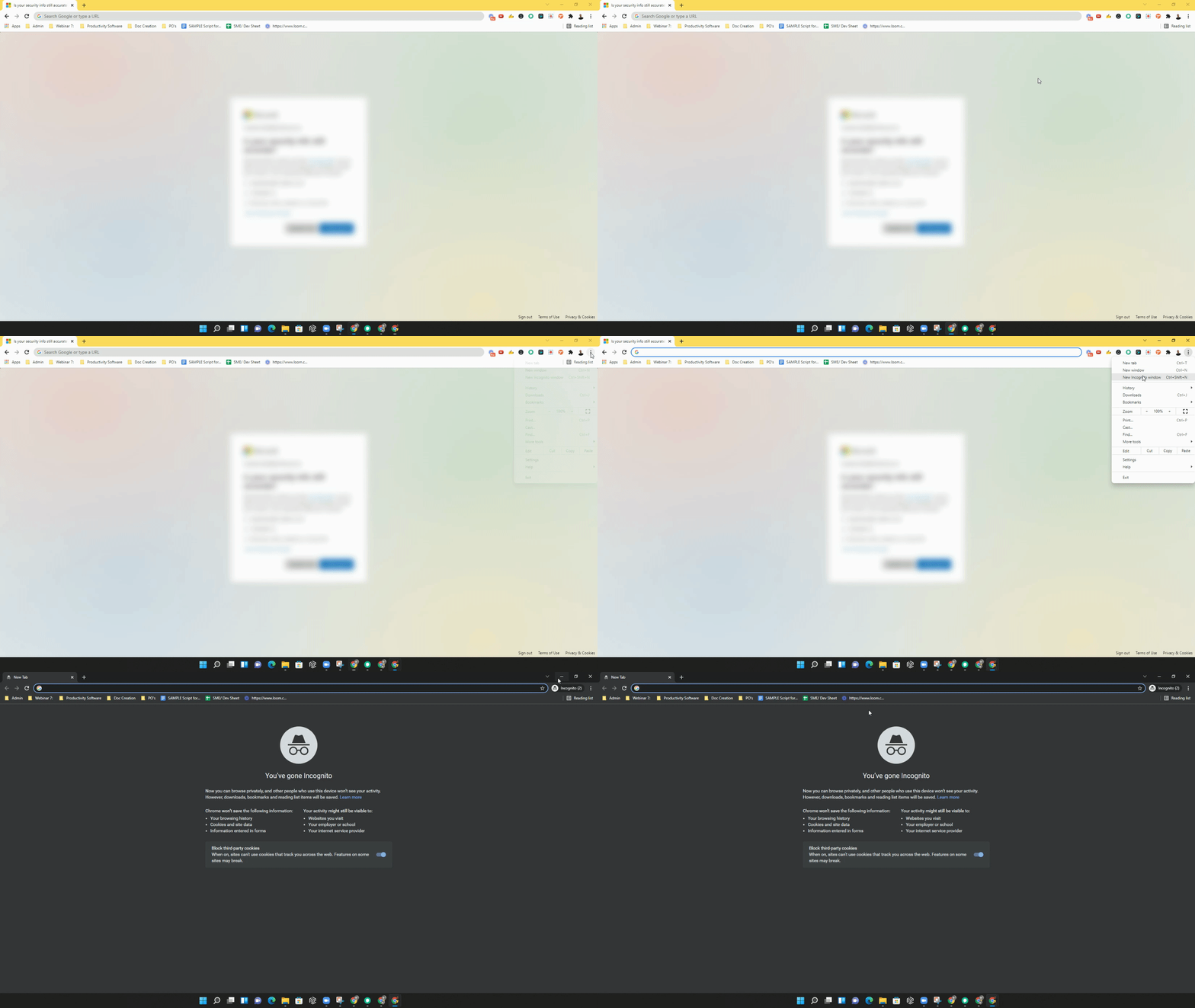
- Open an incognito window, log in to HighLevel, and see if the dashboard still loads slowly.
- If the problem persists, clear the browser cache, reload the page, and sign in again.
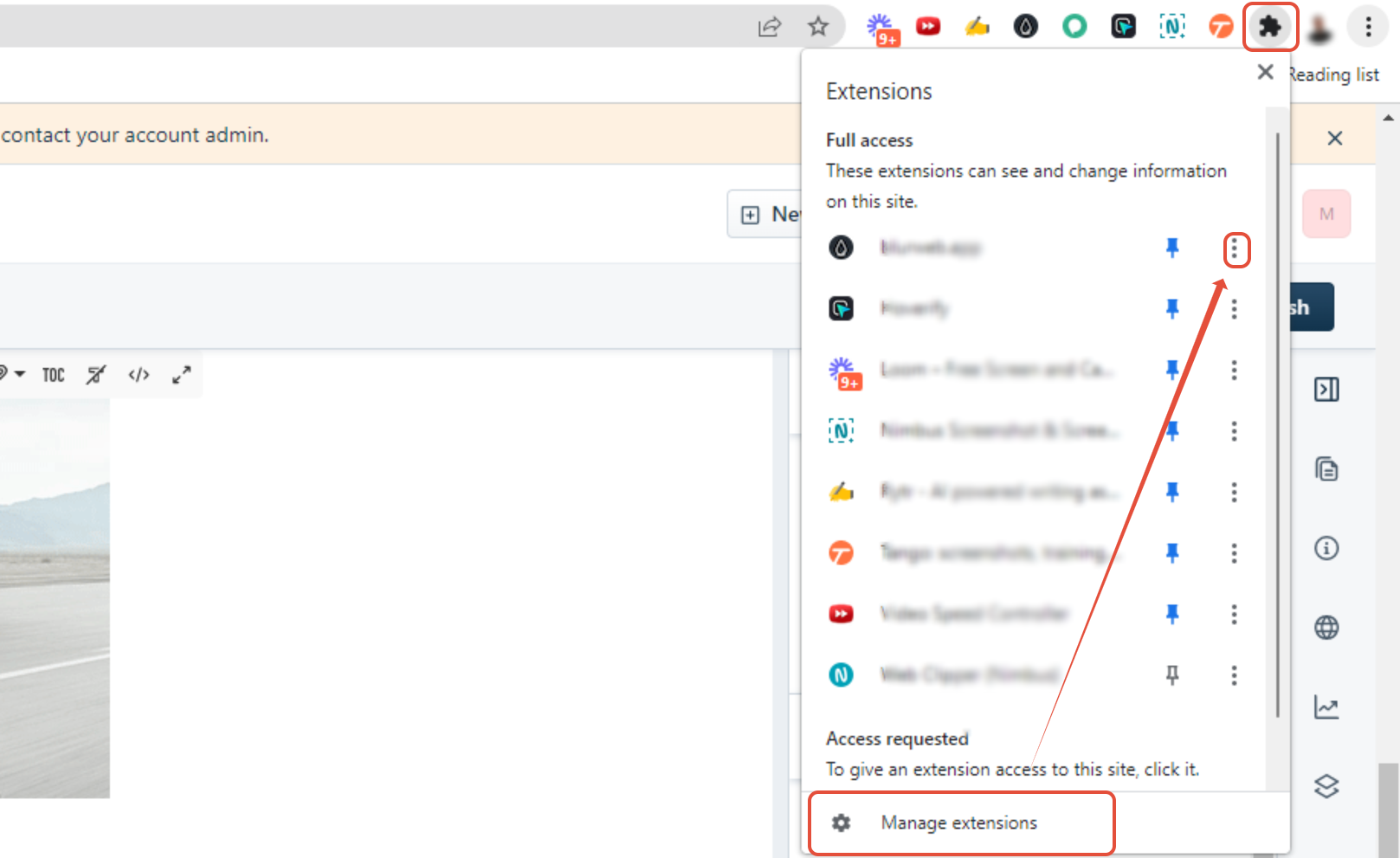
- If loading remains slow, disable all browser extensions, then repeat the cache clear and reload step.
- Test the dashboard in a different browser such as Firefox, Safari, or Chrome.
- Right click the page, choose Inspect, open the Console tab, screenshot any error message, and raise a support ticket.
05What it looks like in HighLevel
06If something goes wrong
- Dashboard or module loads slowly. Test in an incognito window to determine if the problem is related to cached data.
- Slow loading persists after incognito test. Clear the browser cache and reload the page, signing in again.
- Loading remains slow after clearing cache. Disable all browser extensions and repeat the cache clear step.
- Problem continues across browsers. Try accessing the platform with a different browser like Firefox, Safari, or Chrome.
- No improvement after all steps. Capture the console error via Inspect > Console and include the screenshot in a support ticket.
07How it connects to the rest of HighLevel
- Loading states and troubleshooting guide Loading guide
- Viewing your records: list views, sorting, and filters Record view guide
- All platform features overview Platform features
Michael's take

When users wait for a contact list or pipeline view to appear, fixing the browser issue can improve speed.
If the data load problem stems from deeper platform issues or server latency, the browser steps won’t help. In those cases you’ll still need to raise a ticket and wait for the HighLevel team to address the root cause.