
01Who this is for
- Founders of SaaS startups, need clean relationship data to avoid confusing client connections.
- Real estate agency owners, want to cap the number of properties any agent can manage.
02Association limits, explained
Association limits are rules that define how many records may be connected between two objects. They are set per association label and are enforced directly in the HighLevel user interface. When the defined maximum is reached, the platform right away shows an error message, preventing further linking.
The limits apply to several relationship types. For multi label associations you can choose one to one, one to N (where N is up to 1000), one to many, N to M (N up to 1000) or many to many. For single label contact to contact links you can use one to one, many to many or a custom N to N.
All configuration options are located in the Settings area under Objects. Within a custom object or Contacts record you access the Associations tab to create or edit an association, select its type, and define any applicable limits.
03How businesses use association limits
- Real estate agency. Create a one to N association from Agent to Property, set the limit to 50, and let agents assign properties until the UI warning stops further additions.
- Marketing firm. Define a many to many relationship between Campaign and Lead, set a limit of 1,000 connections per label, and rely on the instant error message when a campaign exceeds the cap.
- Consulting practice. Establish a one to one link between Consultant and Client record, enforce the rule so each client can only be paired with a single consultant, and see the UI prevent duplicate assignments.
04The numbers and rules that matter
- One to N (where N ≤ 1000).
- N to Many (where N ≤ 1000).
- Limit example: N = 50 for agents to properties.
- Limits are enforced per label and reflected in the user interface.
05How to set up and use association limits in HighLevel
Set up association limits for a custom object or contacts
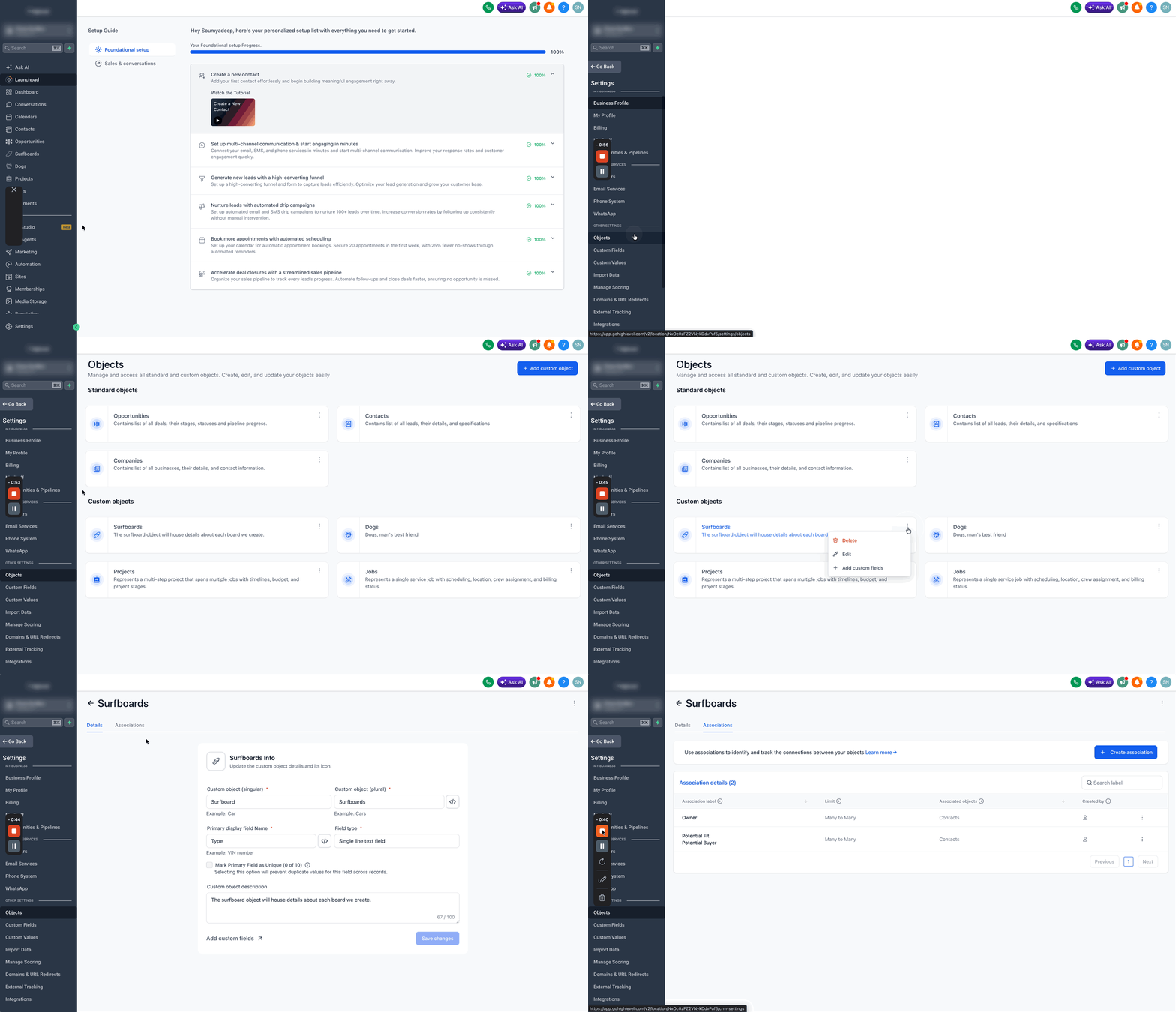
- Open the desired subaccount and go to Settings > Objects.
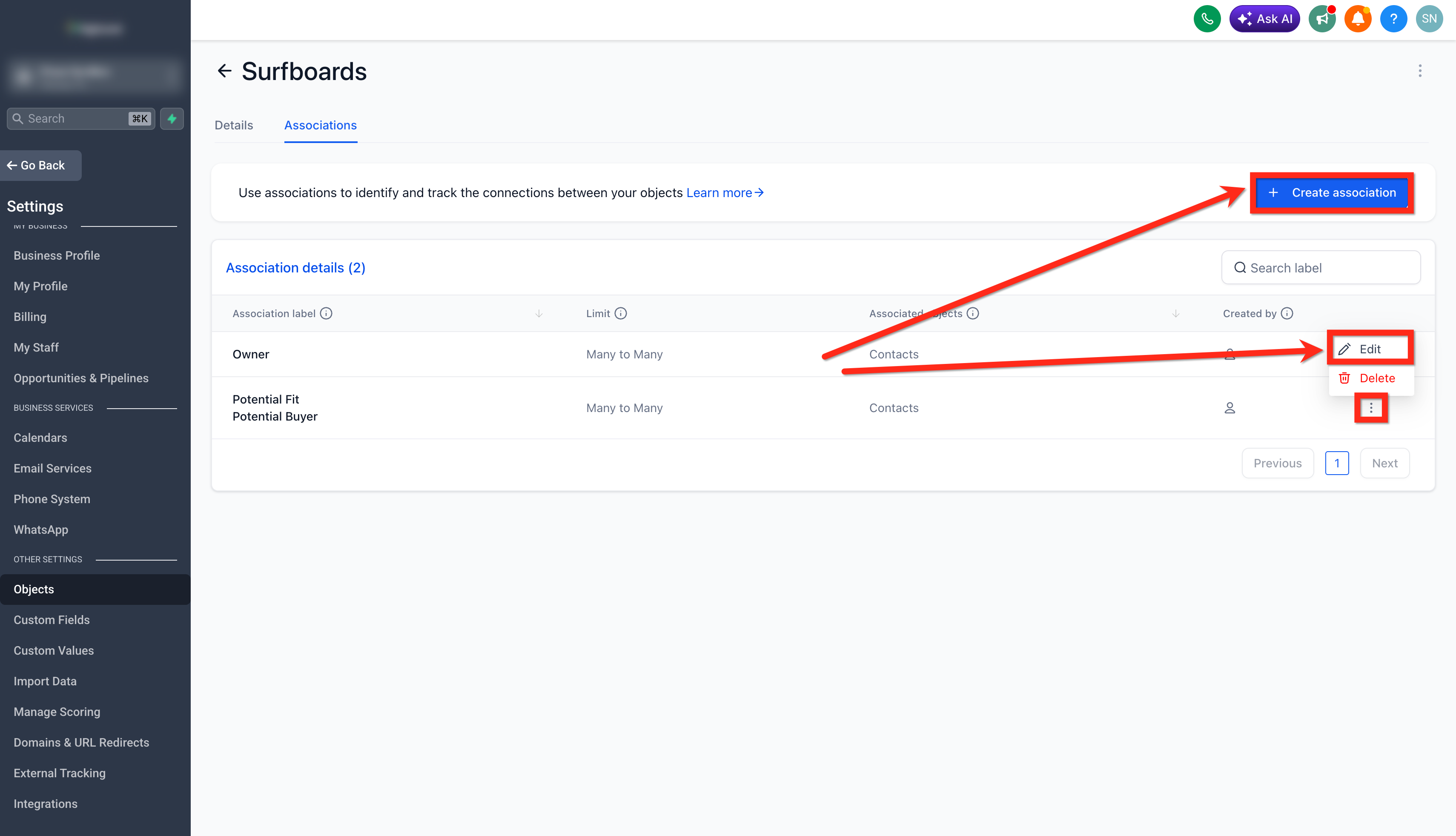
- Select the target Custom Object or Contacts and click the three dot menu, then choose Edit.
- Navigate to the Associations tab within the edit screen.
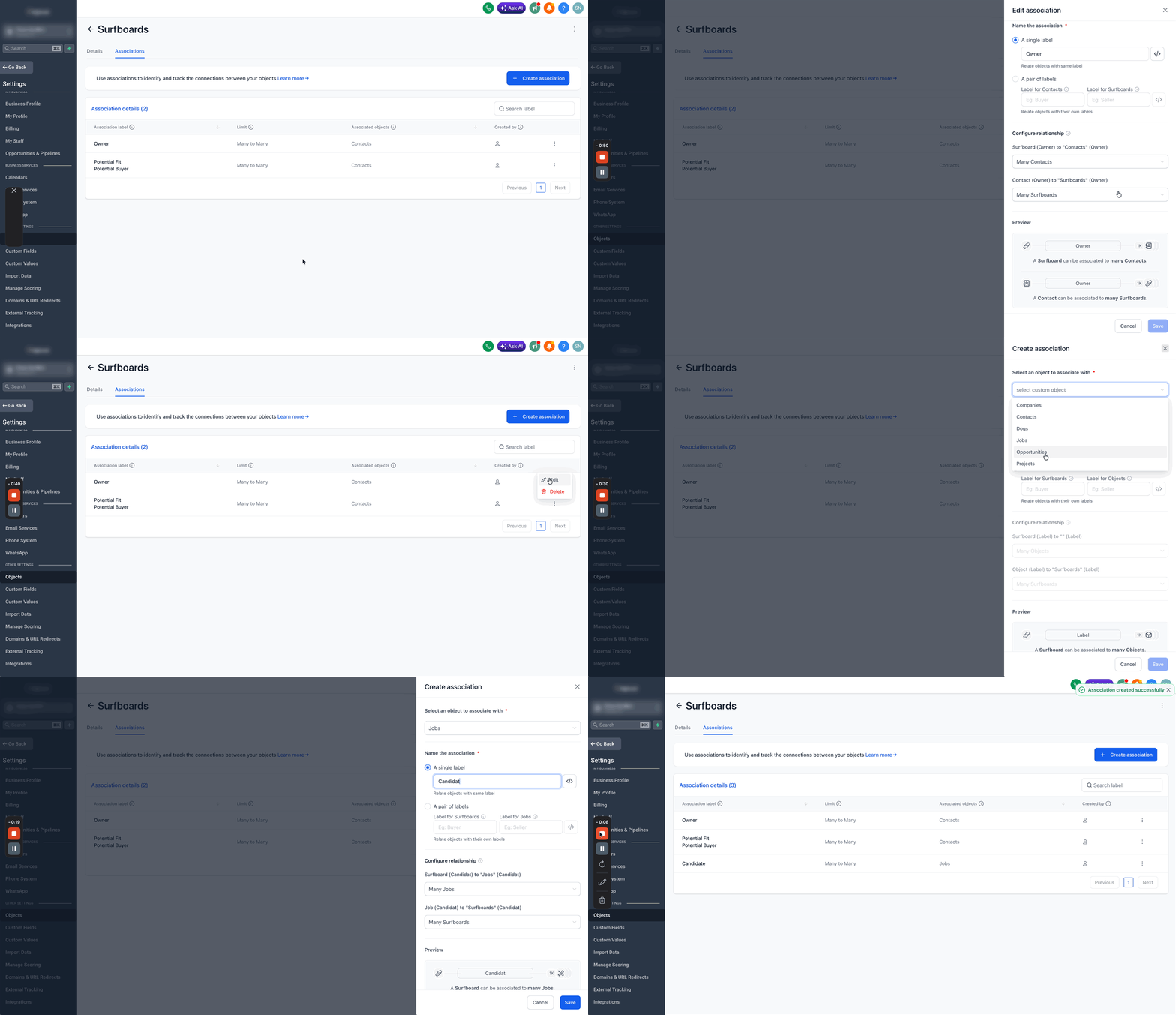
- Press Create Association or select an existing association to modify.
- Pick either a single label or a pair of labels for the association.
- In the Configure Relationship section, choose the relationship type and enter a limit value when the type supports it.
- Review the settings in the Preview area to ensure constraints are correct.
- Save the changes; the new association limits appear in the Associations tab.
- When a limit is exceeded, the UI shows an instant error message and prevents further linking.
06What it looks like in HighLevel
07Settings that matter
- Configure Relationship. Determines the type of link (e.g., 1:1, 1:N) and lets you specify a maximum count when the selected type allows a limit.
- Limits. Sets the numeric ceiling for how many records can be associated under the chosen relationship type.
08Things to know before you rely on it
- Multi label one to N and N to M relationships can have a maximum of 1,000 linked records.
- Limits are enforced for each label separately and appear as UI warnings when exceeded.
- Single label contact to contact associations support one to one, many to many, and custom N to N types.
09How it connects to the rest of HighLevel
- Learn how to associate opportunities and companies with custom objects Associations between opportunities, companies & custom objects
- Set default activity associations for consistent linking Default activity associations
- Explore all features including association management All features
Michael's take

Association limits feel like a modest convenience that can turn messy data into tidy, reliable relationships. For a business that depends on consistent linking. Like a real estate office tracking which agents handle which properties. This feature removes the guesswork and keeps everyone on the same page.
If I were setting it up, I’d start with the agent to property limit so no one gets overloaded. I’d preview the constraint first, then roll it out and watch the UI warning keep the assignments honest.