
01Who this is for
- Sales teams that dial out from an external dialer can keep every outbound conversation attached to the right prospect.
- Customer support centers using a separate call platform can see inbound help calls in the contact timeline.
- Marketing agencies that schedule reminder calls through a third party service can track those calls in HighLevel for reporting.
02Log external calls, explained
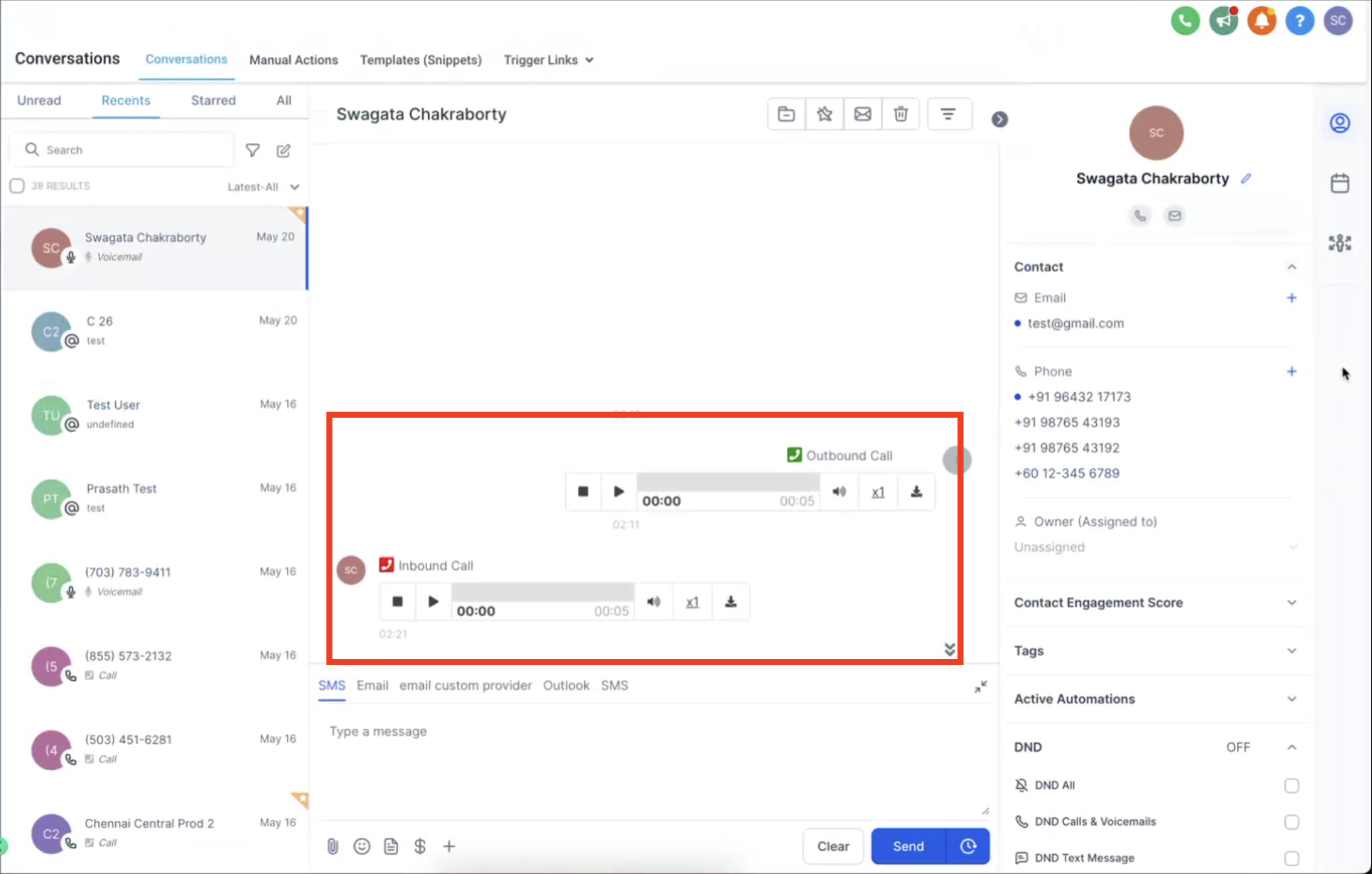
Log External Call is a workflow action that creates a call record in a contact’s Conversations area. The action stores data you map from the workflow, including call direction, timestamp, phone numbers, status and an optional recording reference.
The action works inside a workflow that already has a contact context. A common pattern is to receive call data via an Inbound Webhook trigger, split inbound and outbound flows, identify or create the contact, and then run Log External Call.
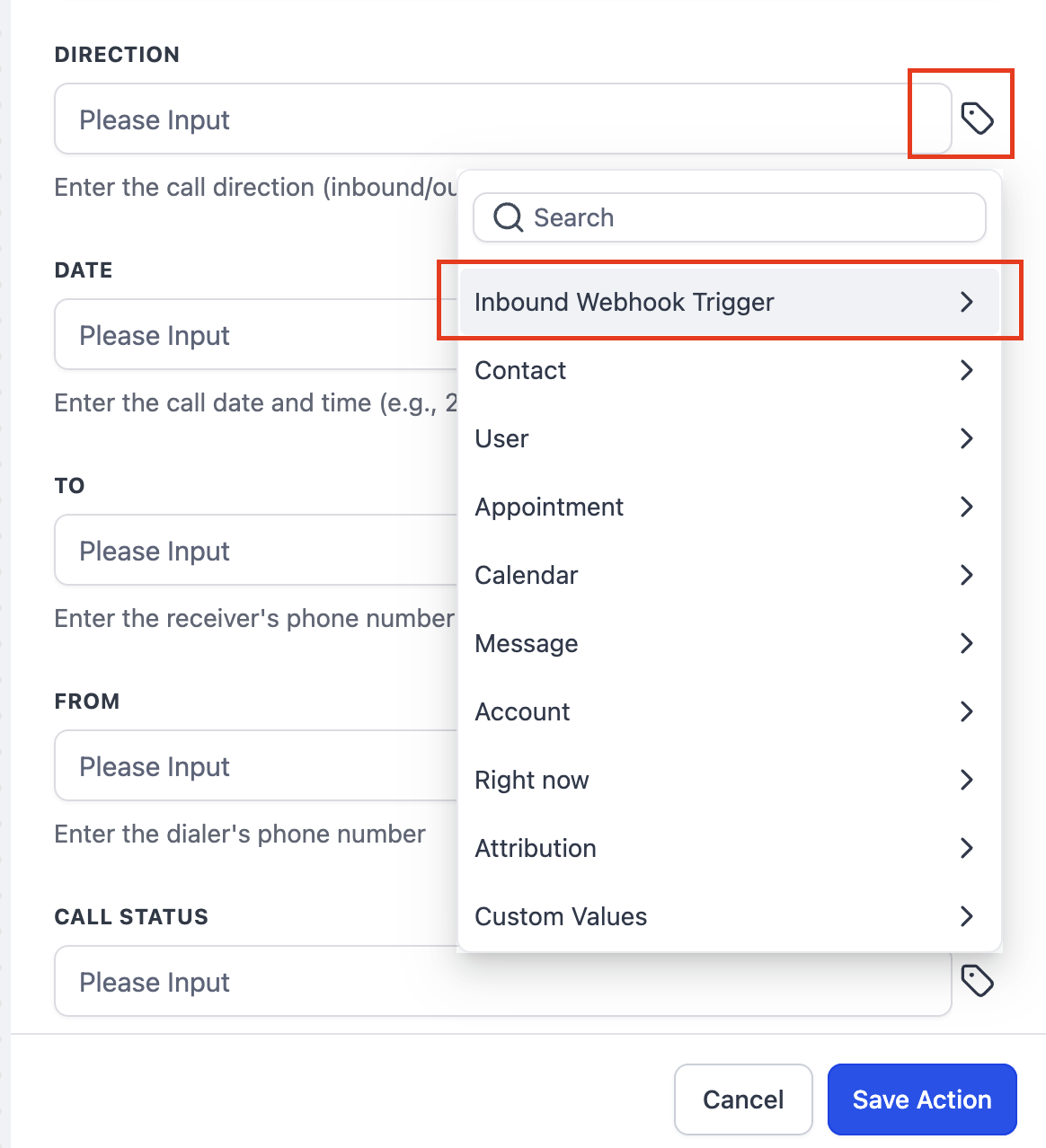
You find the action in Automation > Workflows. After adding the Log External Call step, each field displays a custom value picker so you can pull the appropriate webhook values into the call record.
03How businesses use log external call workflow action
- Real estate agency. The agency routes all client calls through a VoIP provider. It configures the provider to POST call details to a HighLevel Inbound Webhook, then maps those values in Log External Call so each client’s call history includes both inbound inquiries and outbound follow ups.
- Dental practice. The practice uses an external reminder call service. The service sends call time, status and recording link to the webhook. The workflow creates or finds the patient contact, logs the reminder call and attaches the recording for staff review.
- SaaS startup. A sales team dials prospects from a third party sales dialer. The dialer posts outbound call data to the webhook. The workflow identifies the prospect by the To number, logs the outbound call, and saves the call recording for later quality checks.
04The numbers and rules that matter
- International E.164 style phone formatting such as +15551234567 is recommended for contact matching.
05Before you start
- Access to Automation > Workflows to create or edit a workflow.
- An external calling system that can send HTTP POST requests to a URL.
06How to set up and use log external call workflow action in HighLevel
Set up Log External Call using an Inbound Webhook
- Open Automation > Workflows in HighLevel.
- Create a new workflow or open an existing one.
- Add the Inbound Webhook trigger to the workflow.
- Copy the webhook URL that HighLevel generates.
- Configure your external calling system to POST call data to that URL.
- Send a sample request from the external system to the Inbound Webhook.
- Confirm that HighLevel receives the sample payload.
- Review the list of values that the webhook makes available.
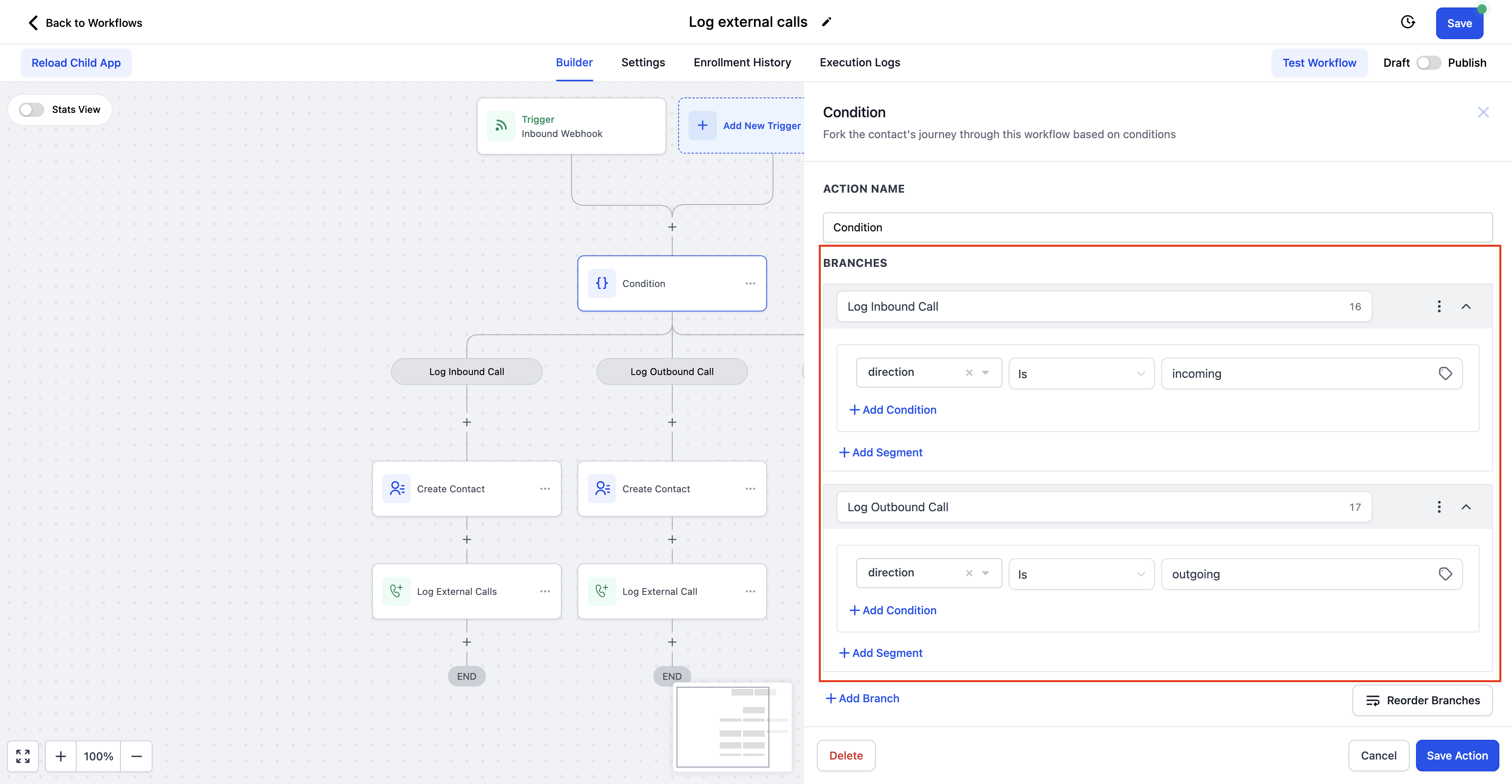
- Add an If/Else action after the webhook trigger.
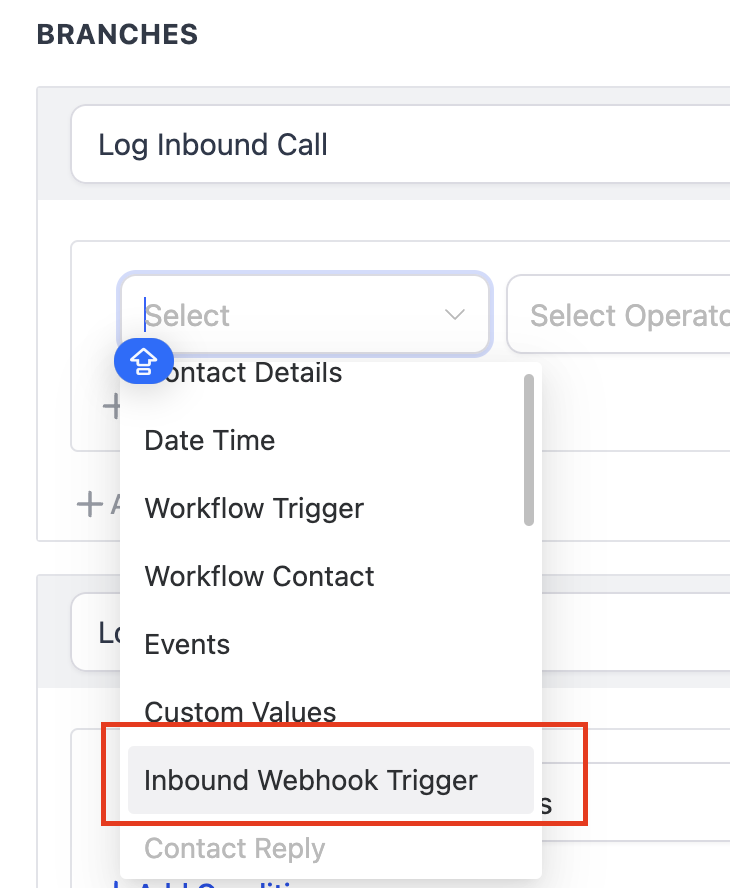
- Set the condition to evaluate the incoming call direction value.
- Create a branch for inbound calls.
- Create a branch for outbound calls.
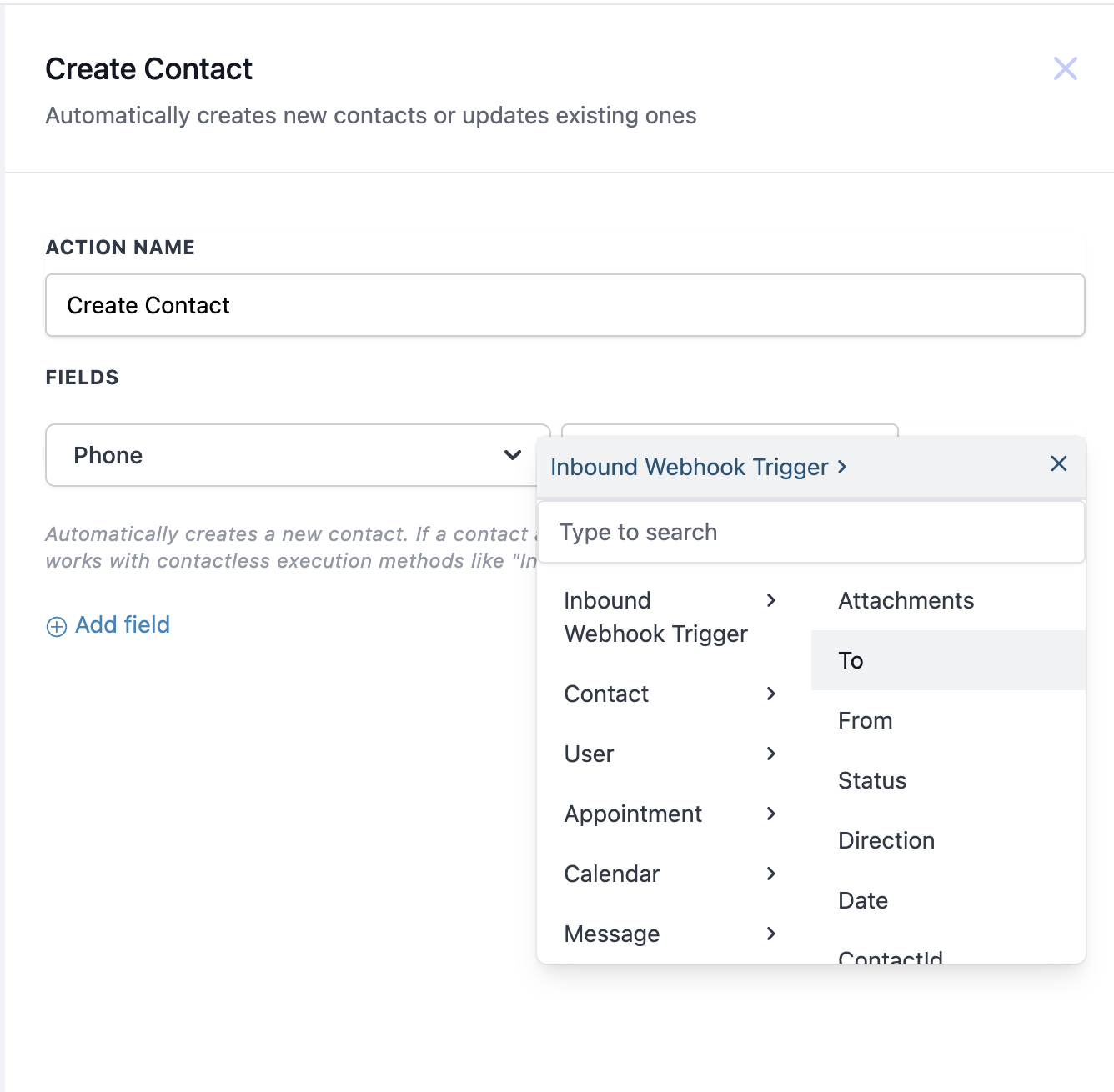
- In the inbound branch, map the From number to the Phone field of a Create Contact action.
- In the outbound branch, map the To number to the Phone field of a Create Contact action.
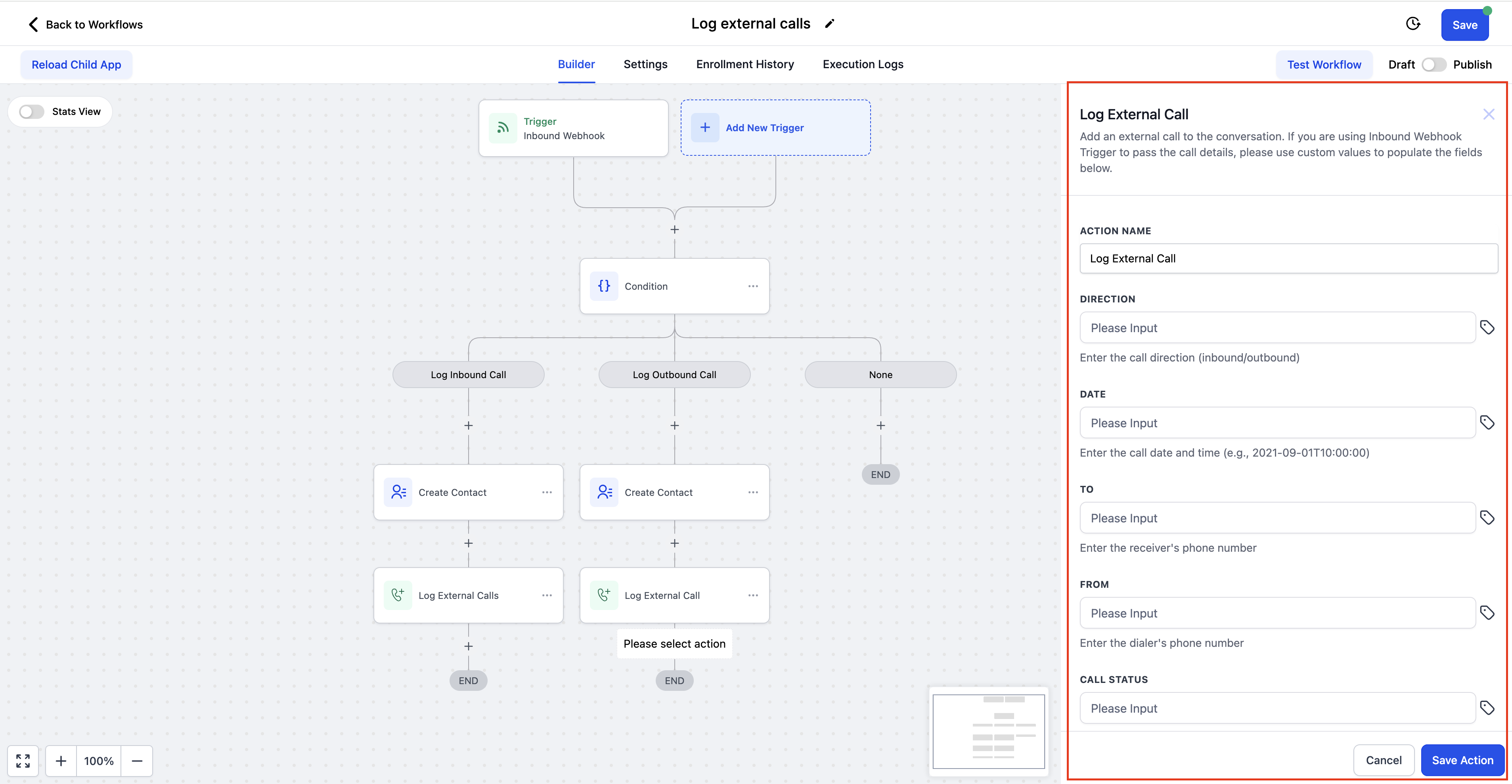
- Add the Log External Call action after the contact identification step.
- Map Direction, Date, To, From, Call Status and Attachment fields to the corresponding webhook values.
- Save the Log External Call action.
- Test the workflow with representative inbound and outbound payloads.
- Verify that the call appears in the contact’s Conversations area with all mapped details.
- Publish the workflow once testing confirms the expected behavior.
07What it looks like in HighLevel
08Settings that matter
- Direction. Specifies whether the logged call was inbound or outbound.
- Date. Records the exact date and time the call took place.
- To. Stores the destination phone number for the call.
- From. Stores the originating phone number for the call.
- Call Status. Captures the outcome or status reported by the external system.
- Attachment. Links a compatible recording reference so the call recording can be accessed.
09Things to know before you rely on it
- Field values must match the formats supported by the Log External Call action; custom dispositions are not automatically converted.
- Use international E.164 formatting for phone numbers to ensure proper contact matching.
- The Attachment field works only when the external system provides a recording reference that HighLevel can read.
10If something goes wrong
- External call does not appear in Conversations. Check the workflow execution logs to confirm the webhook received data, the correct If/Else branch ran, the contact was identified or created, and all Log External Call fields were populated. Refresh the webhook mapping if the payload structure changed.
11How it connects to the rest of HighLevel
- Add a manual call task to a workflow Manual call task
- Overview of all Conversations features Conversations features
- HighLevel pricing and plans Pricing
Michael's take

Adding external call logs is a small convenience that keeps your contact timeline honest. If your team already uses a separate phone service, pulling those calls into HighLevel means no one has to switch screens to see what happened on a call.
A real estate office that routes all inbound leads through a call center platform can map the call data to Log External Call, create the contact on the fly, and have the recording right in the contact record. The first thing I’d do is fire a test payload through the webhook and watch the call show up in Conversations before I let any live leads flow through.