
01Who this is for
- Customer support teams, they can review exact customer requests and provide consistent follow up.
- Sales managers, they can scan transcripts for objections and coach reps using real call examples.
- Real estate agents, they can revisit property enquiry calls to confirm details before reaching out again.
02WhatsApp call recordings, explained
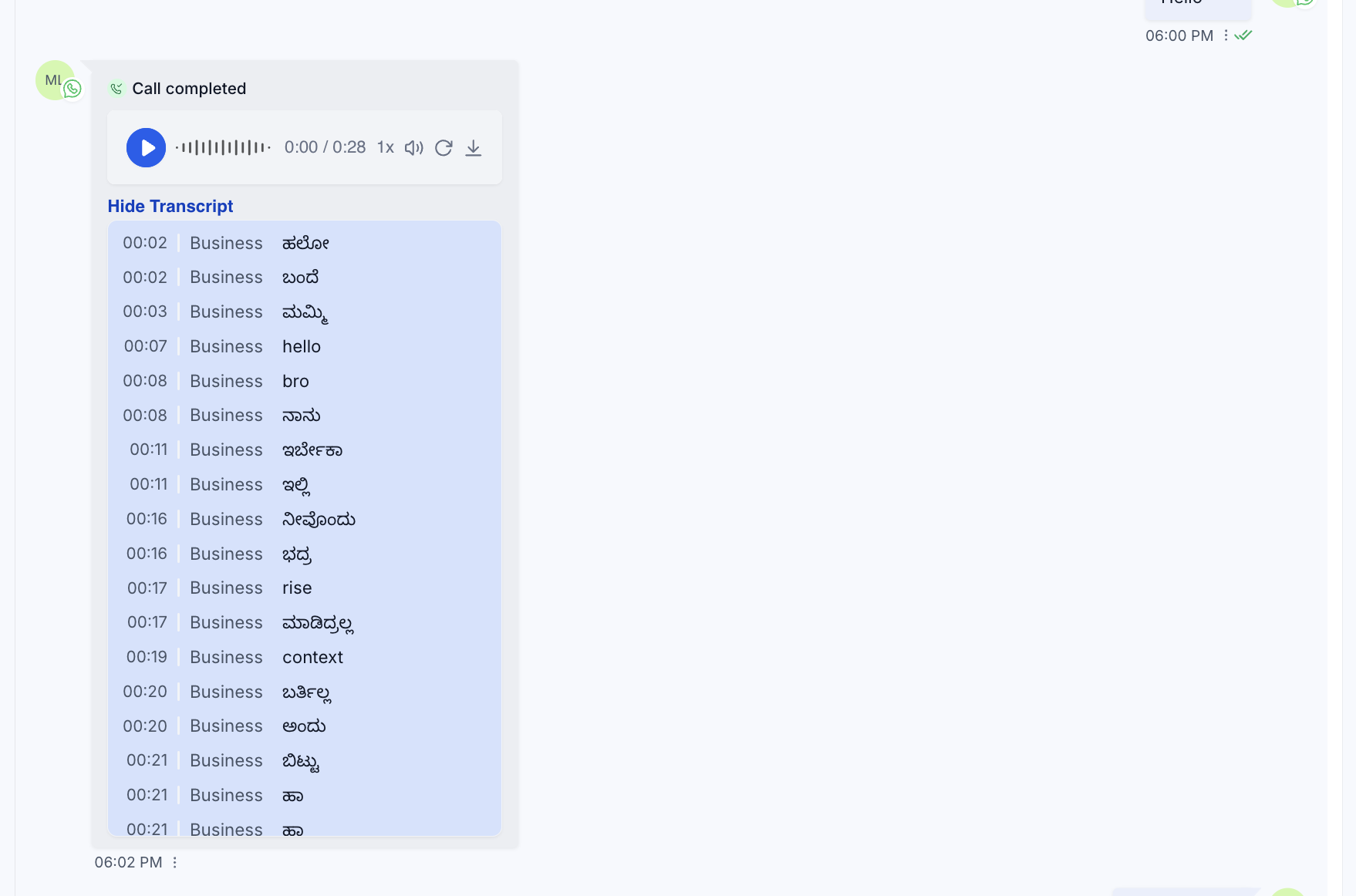
The feature records completed WhatsApp calls automatically once it is turned on for a specific WhatsApp number. After the call ends, HighLevel stores the audio file and runs a transcription process that separates the speaker labels for team members and the customer. Both the recording and the transcript are added to the contact’s conversation view, alongside prior WhatsApp messages.
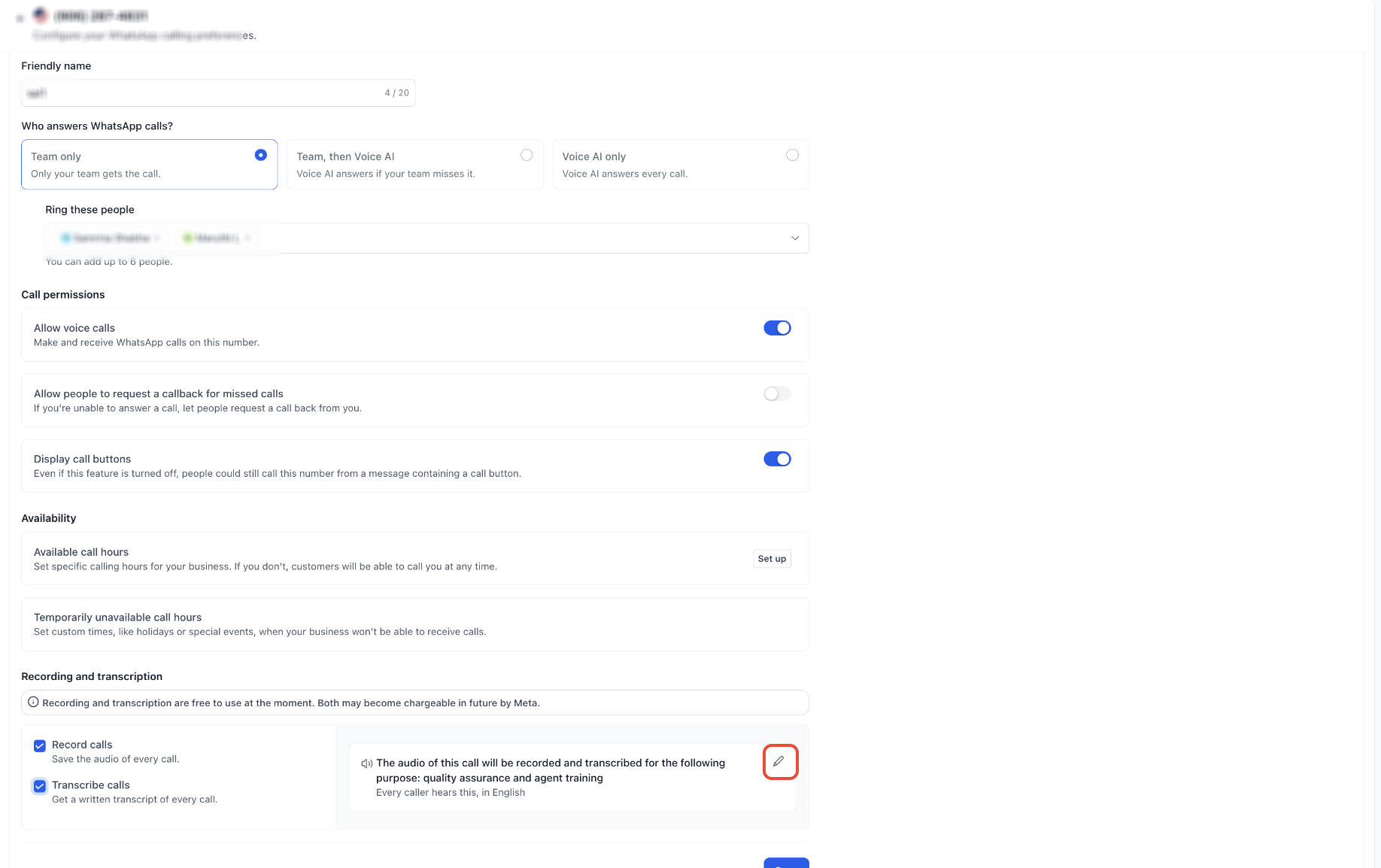
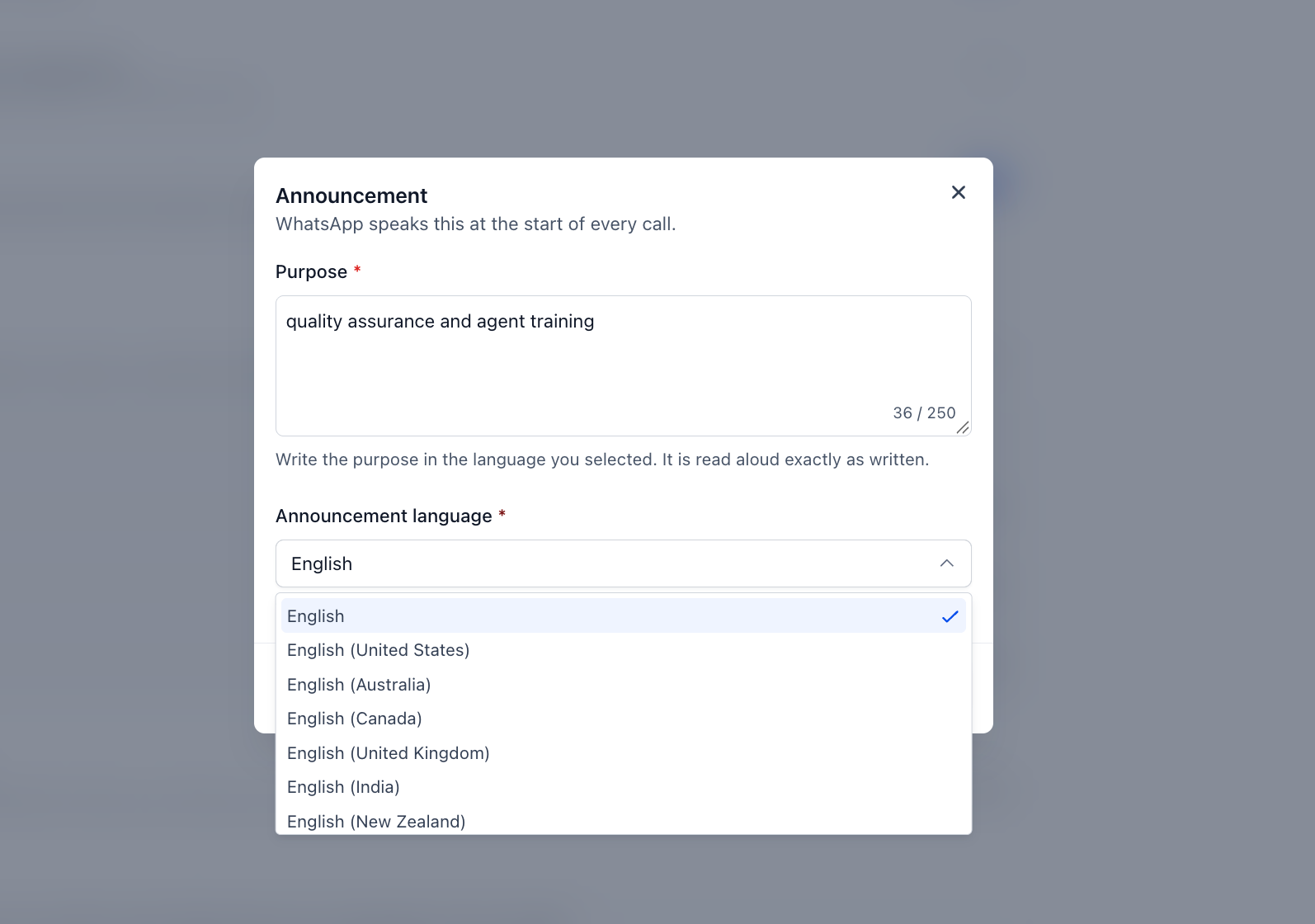
The recordings include playback controls such as scrubbing, speed adjustment, and a visual link to the transcript. Transcription detects the spoken language without needing a matching consent announcement language. The settings are managed under the WhatsApp Calling section of Settings, and they apply only to WhatsApp calls, not to standard phone calls.
03How businesses use WhatsApp call recordings
- Legal services firm. The firm enables recording for its client consultation WhatsApp line. After each call, the transcript is saved in the client’s conversation, allowing attorneys to reference exact statements when drafting documents.
- Fitness studio. The studio turns on recording for membership inquiries. Staff later listen to specific parts of a call while reading the transcript to verify class schedules and pricing discussed with prospects.
- Ecommerce retailer. The retailer activates the feature on its support number. When a customer reports an issue, the support team reads the transcript to locate the problem description and then plays the relevant audio segment for clarification.
04Before you start
- WhatsApp Calling must be enabled for the subaccount.
- The WhatsApp number must meet the eligibility requirements for calling.
05How to set up and use WhatsApp call recordings in HighLevel
Enable call recording and transcription
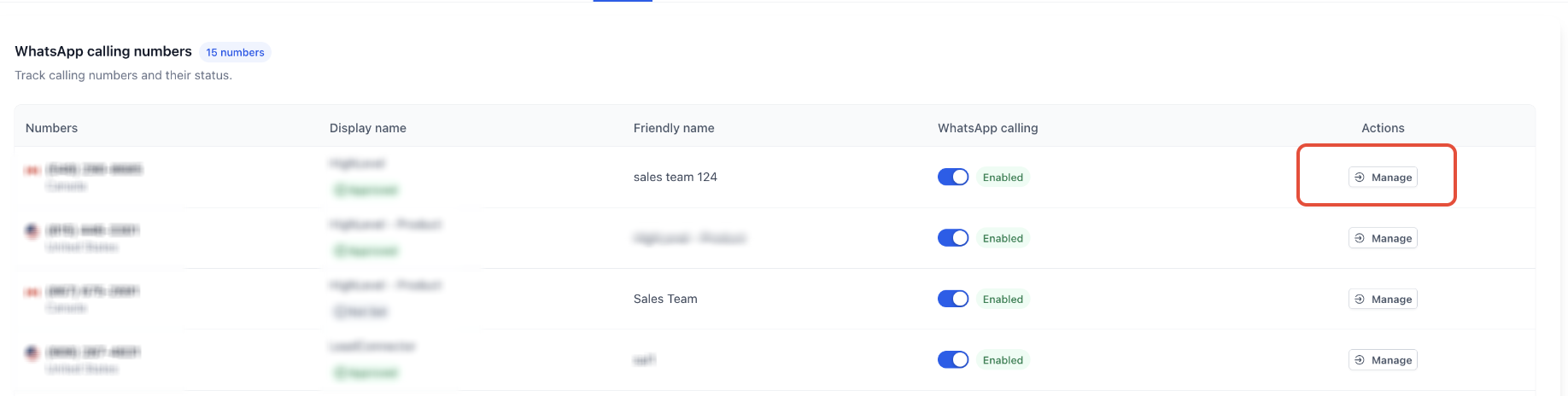
- Open Settings, select WhatsApp, then go to the Calling tab.
- Choose the phone number you want to configure.
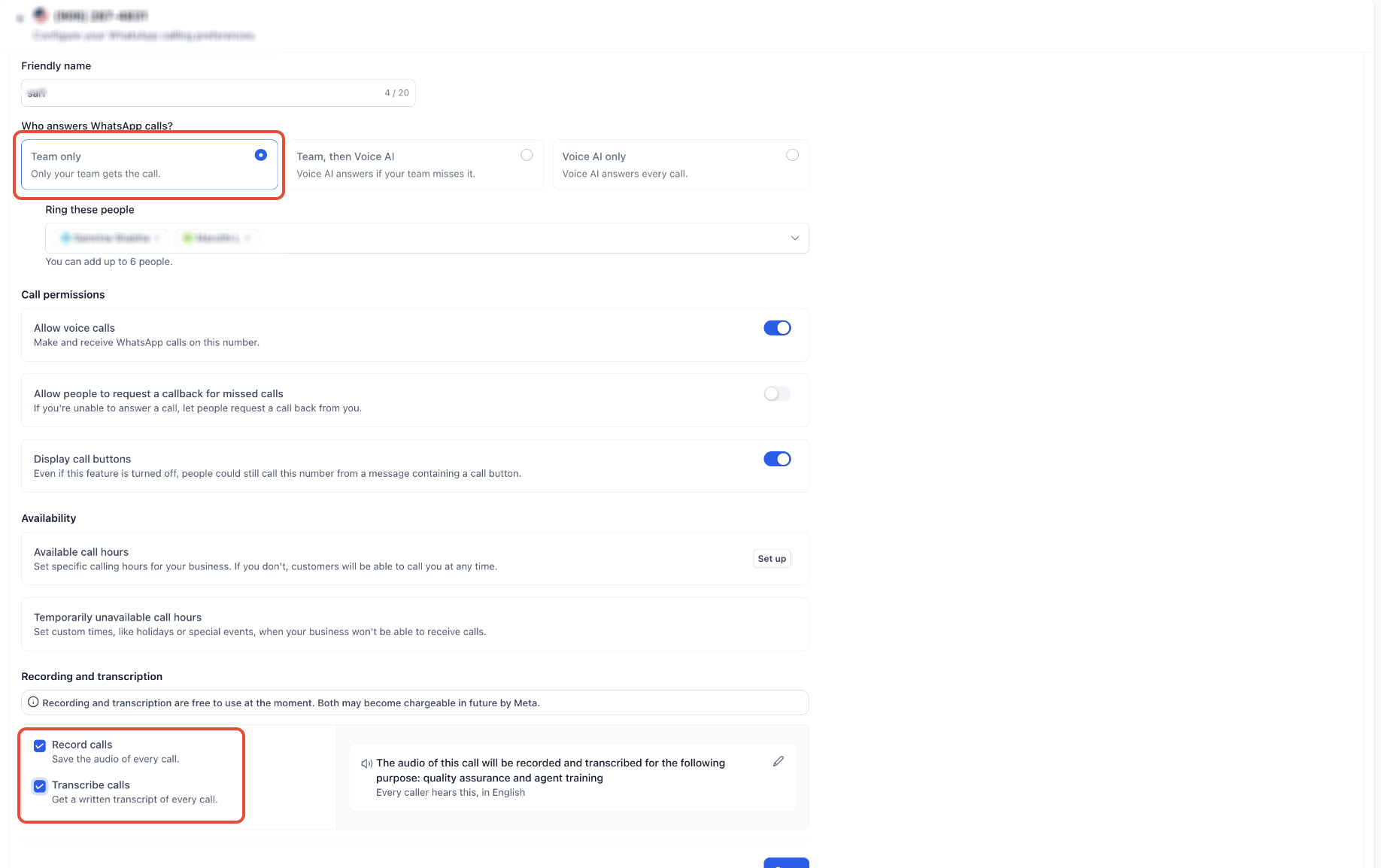
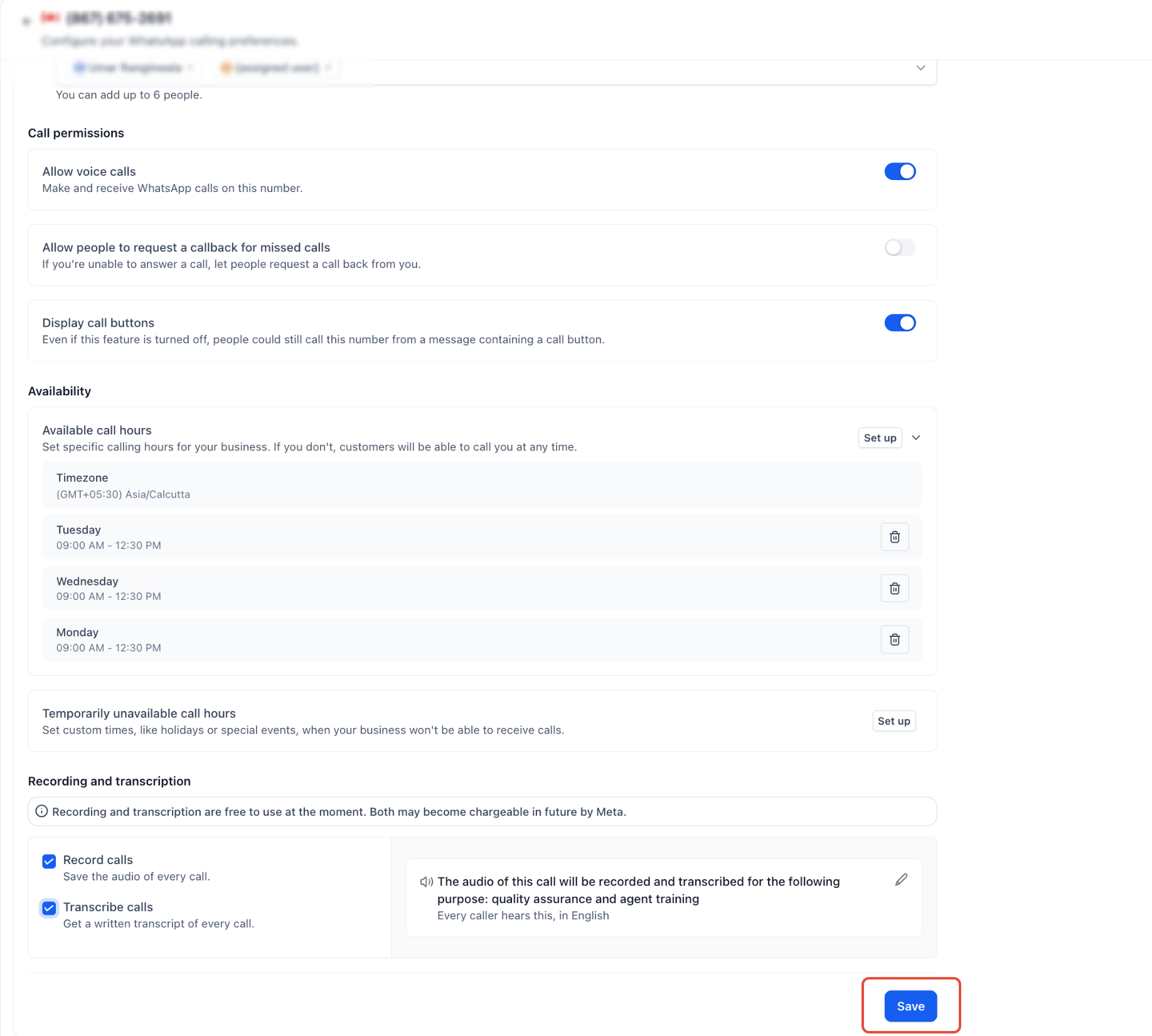
- Toggle on Call Recording and Call Transcript, then click Save.
06What it looks like in HighLevel
07Settings that matter
- Call Recording. Turns on automatic audio capture for completed WhatsApp calls.
- Call Transcript. Generates a written, speaker separated transcript for each recorded call.
08Things to know before you rely on it
- The feature is free at launch; future charges may be applied by Meta (per HighLevel's help center, checked November 2026).
- Transcripts become available only after the call has been processed; they are not instant.
- Only WhatsApp calls are affected; standard phone call recording requires separate settings.
09If something goes wrong
- Cannot find the WhatsApp Calling settings.. Confirm that WhatsApp Calling is available for the subaccount and that the connected number meets eligibility requirements.
- Transcript does not appear immediately after a call ends.. Allow processing time and check the conversation again later.
10How it connects to the rest of HighLevel
- Explore manual call actions in workflows for follow up tasks. Manual call actions
- See the full list of Conversations features. All Conversations features
- Review HighLevel pricing and plan options. HighLevel pricing
Michael's take

Do I really need a recorded copy of every WhatsApp conversation? In my experience, having the audio and a text version can be helpful for teams that need precise details.
If I were setting this up, I’d enable the consent announcement in the language my customers hear most, then let the team practice pulling a transcript to find key points. A quick test call can confirm the recording appears in Conversations and that a transcript is generated.