
01Who this is for
- Customer support teams benefit because organized snippets let agents reply faster with consistent text.
- Sales teams gain efficiency by storing common outreach emails and quickly inserting them during conversations.
- Marketing staff can keep a library of campaign copy and share filtered views with colleagues.
02HiRise snippets page, explained
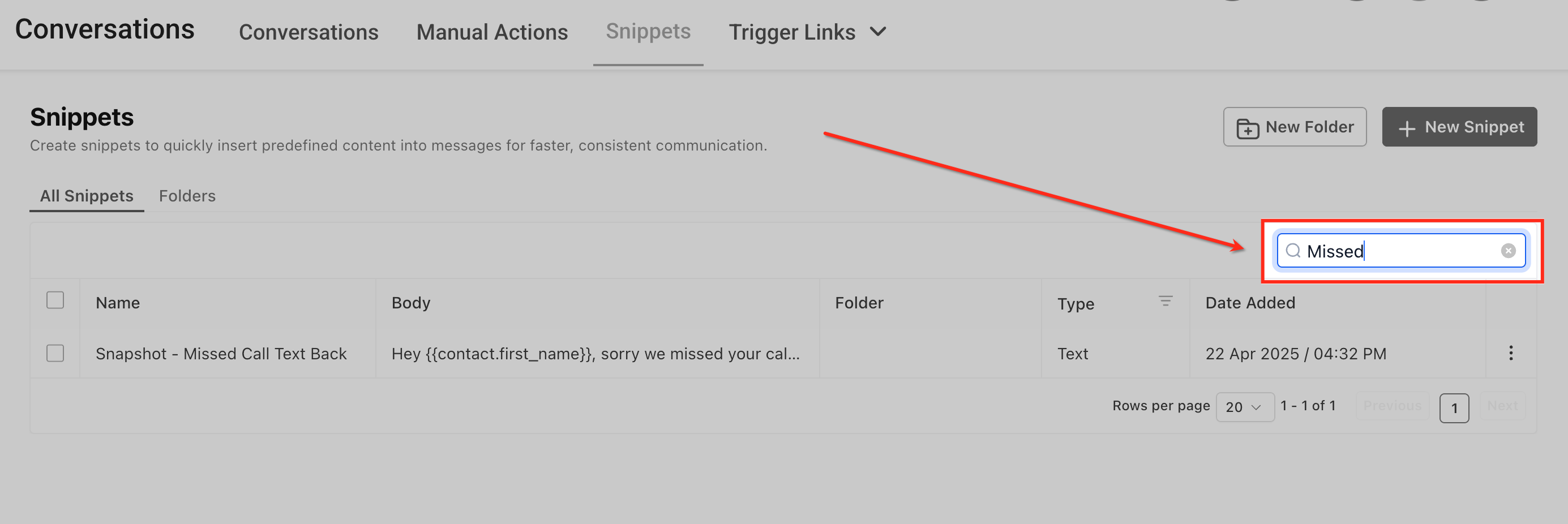
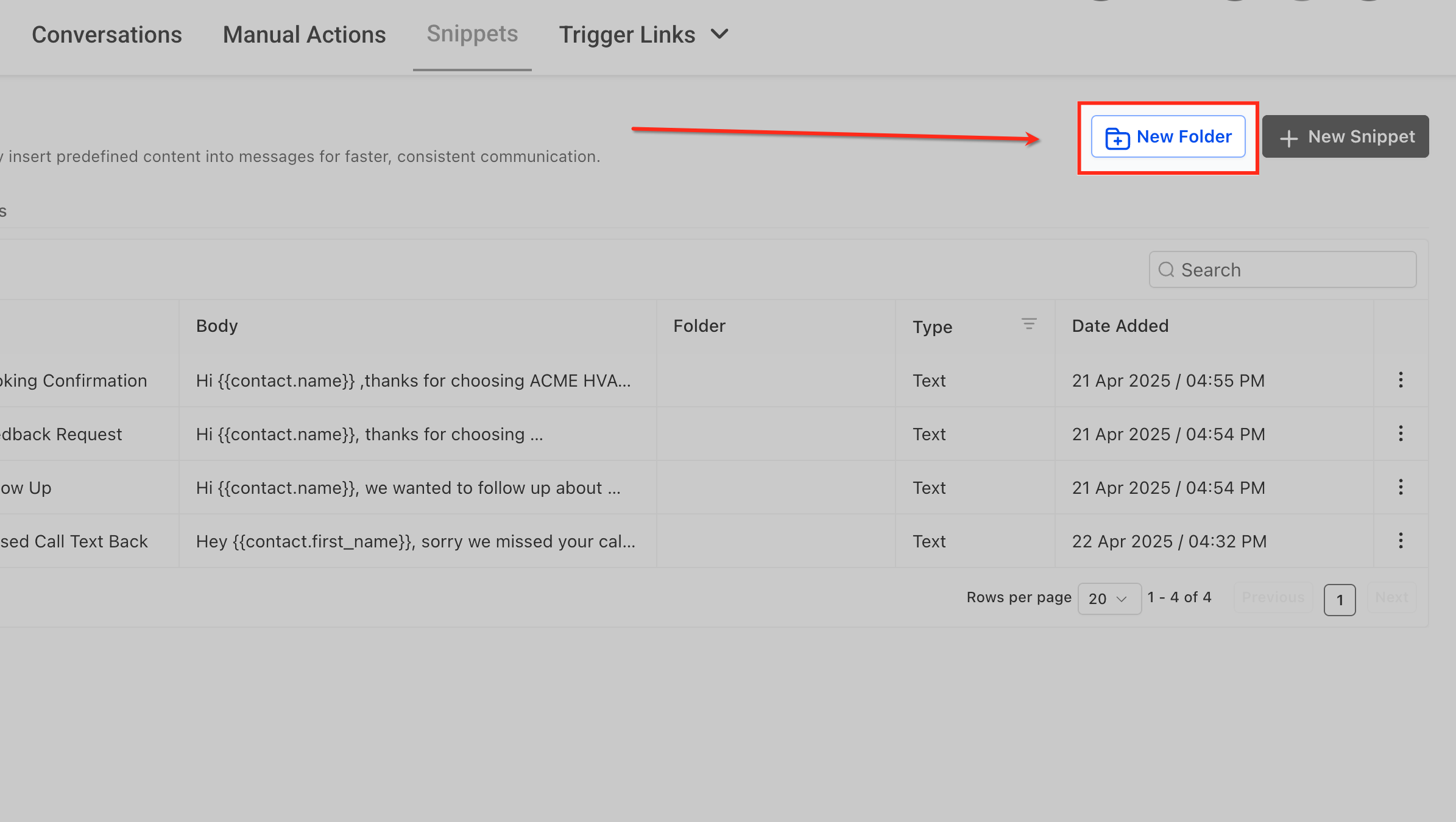
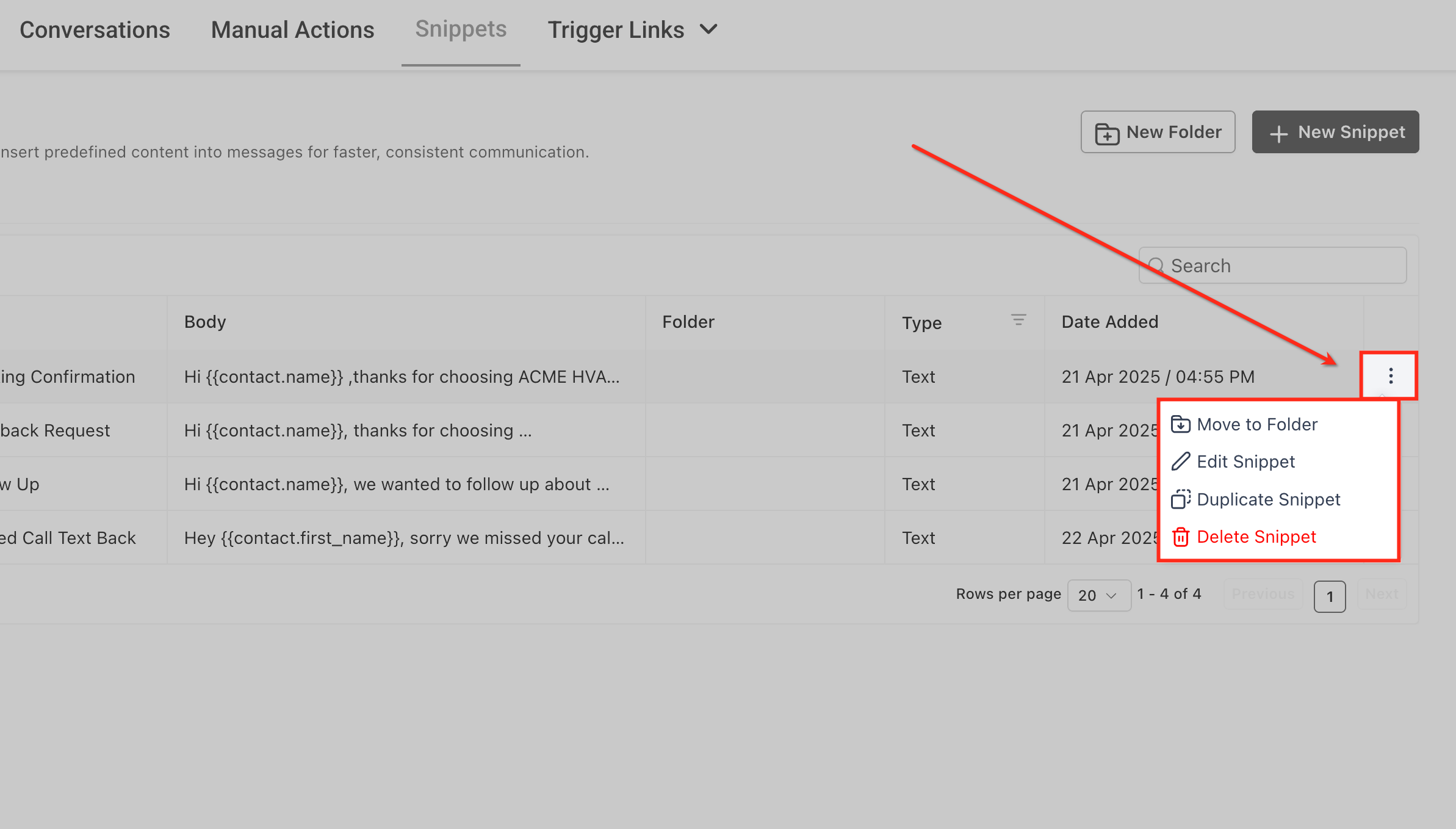
The HiRise Snippets page replaces the classic snippet list with a single table view built on HighLevel’s HiRise design system. It shows all text and email snippets used in conversations and places the New Folder and + New Snippet buttons at the top right for quick access.
The page loads right away even for large libraries and remembers any search term, filter choice, page number and rows per page in the URL. Sharing that link lets another user open the exact same view, which aids collaboration.
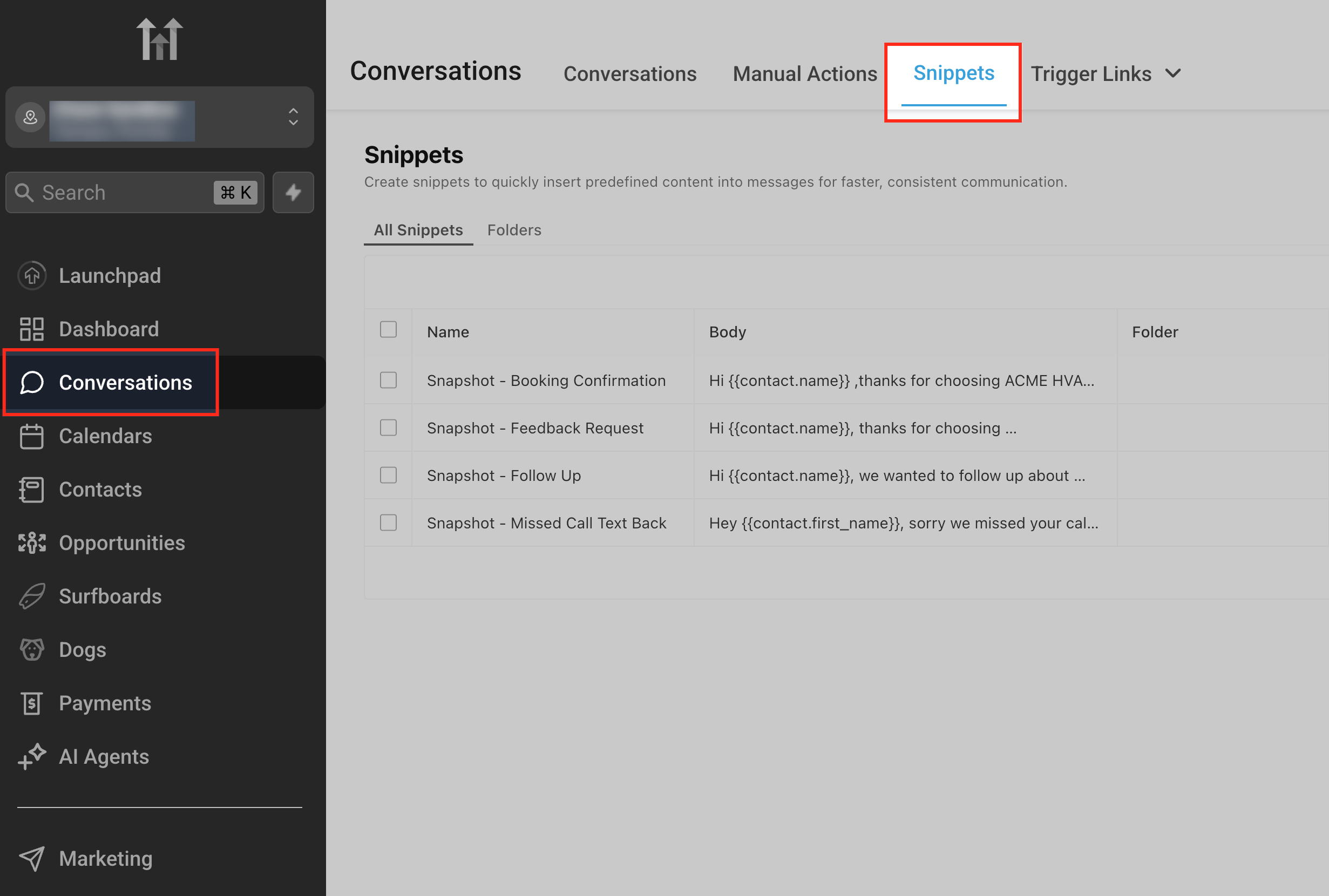
You reach the page from the left navigation by selecting Conversations and then the Snippets tab. From there you can search, create new snippets, organize them into folders, and manage each snippet through a three dot menu that opens side panels.
03How businesses use the HiRise snippets page
- Software development agency. The agency creates text snippets for common client onboarding messages and email snippets for proposal follow ups. Team members open the Snippets page, click + New Snippet, choose the appropriate type, write the content and save it for repeated use.
- Real estate office. Agents store email snippets for property listings and text snippets for appointment reminders. They also group these snippets into folders like "Listing Updates" or "Client Follow up" using the New Folder button, making it simple to locate the right message.
- Dental practice. The practice builds text snippets for appointment confirmations and email snippets for treatment plans. Staff share a URL that includes a filtered view of the "Patient Communication" folder so all receptionists see the same set of reusable messages.
04The numbers and rules that matter
- Shared URLs preserve search terms, page number, and rows per page.
05Before you start
- Users must have View & Manage Conversations permission to access Snippets.
- The HiRise Snippets page is automatically enabled; no additional setup is required.
06How to set up and use the HiRise snippets page in HighLevel
Create a new text or email snippet
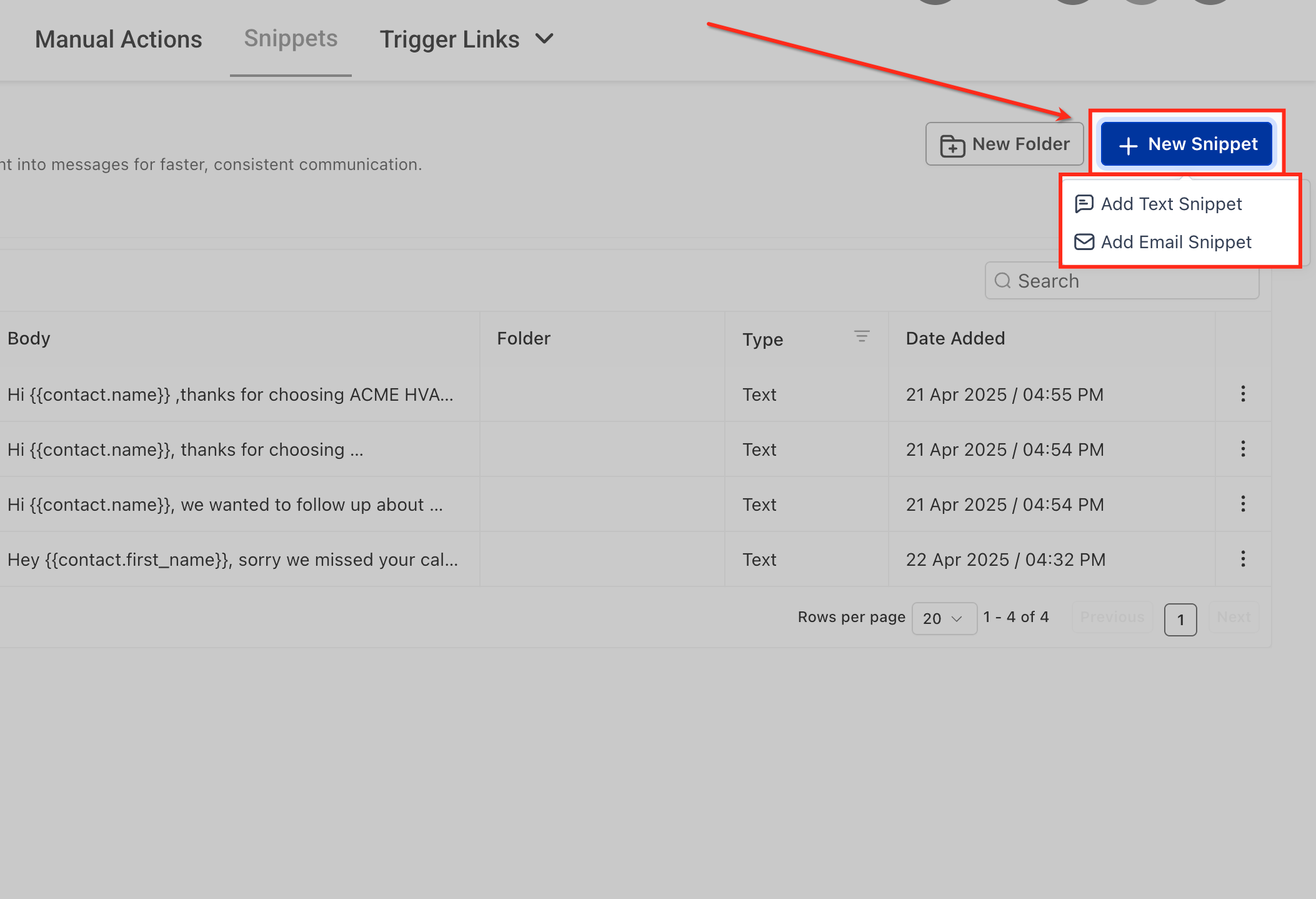
- Click the + New Snippet button located at the top right of the Snippets page.
- Select Add Text Snippet or Add Email Snippet from the menu that appears.
- Enter the content, give the snippet a name, and save the new snippet.
07What it looks like in HighLevel
08Things to know before you rely on it
- Shared URLs only work within the same subaccount; users in other subaccounts will see an authorization error.
- The classic layout has been retired and cannot be restored.
- No Labs or beta toggle is required; the HiRise design is live for all accounts.
09How it connects to the rest of HighLevel
- Step by step guide to create and organize snippets in conversations Snippets guide
- Explore all features available in the Conversations module Conversations overview
- Review HighLevel pricing and plan options Pricing
Michael's take

People often assume they have to flip a Labs switch or enable a beta before the new Snippets page appears. In reality the HiRise Snippets upgrade is already on for every account. Just navigate to Conversations > Snippets and you’ll see the fresh layout.
If I were setting up a new agency, I’d dive straight into creating folders for each client’s standard replies. That way the whole team lands on the same organized view and can pull the right message without hunting around.