
01Who this is for
- Sales managers benefit because they can view and edit opportunities while chatting with prospects.
- Customer support teams gain speed by updating contact details without leaving the ticket.
- Appointment schedulers stay organized by booking or rescheduling meetings directly in the chat.
02Right panel & expandable sidebar in conversations, explained
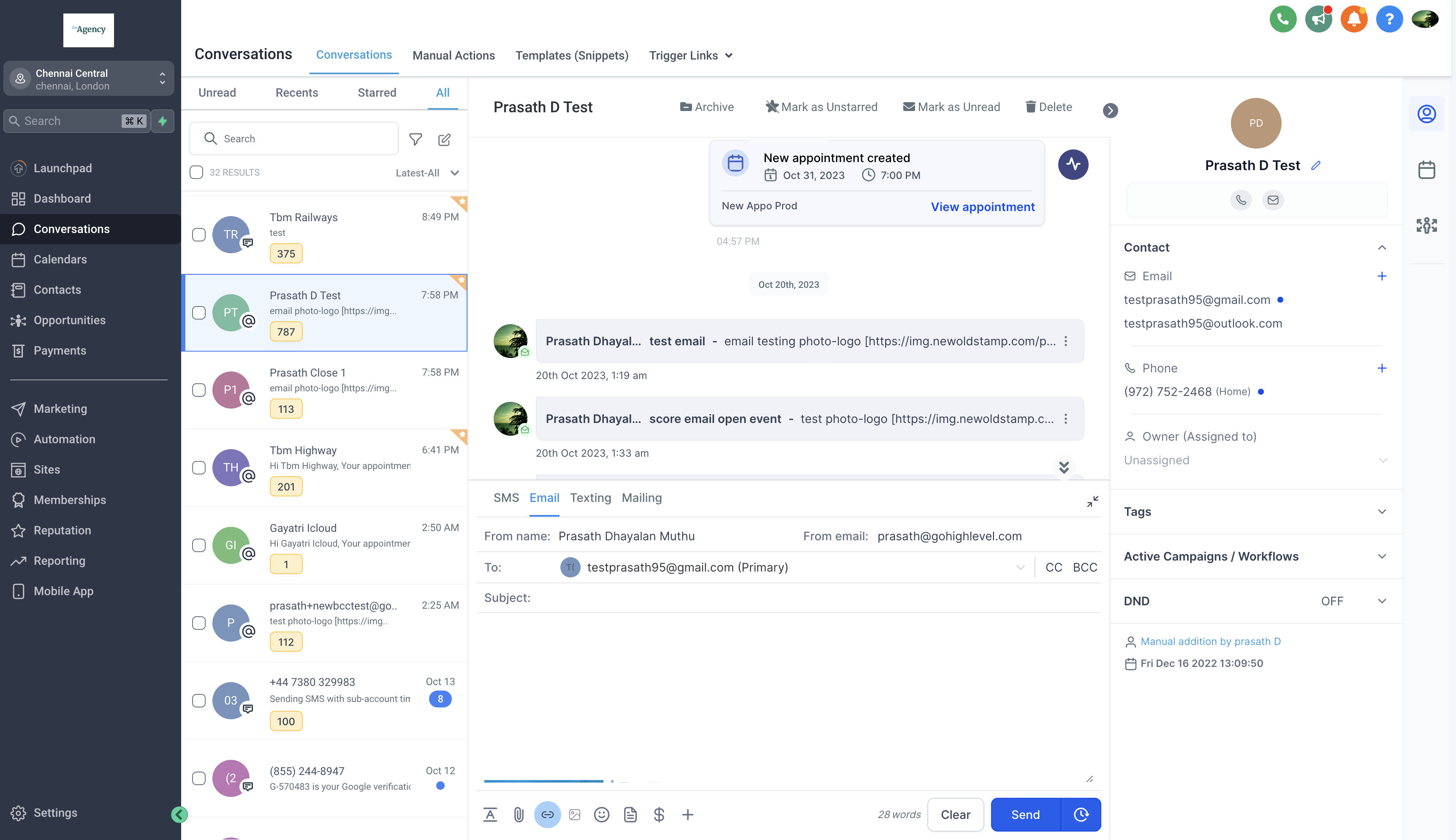
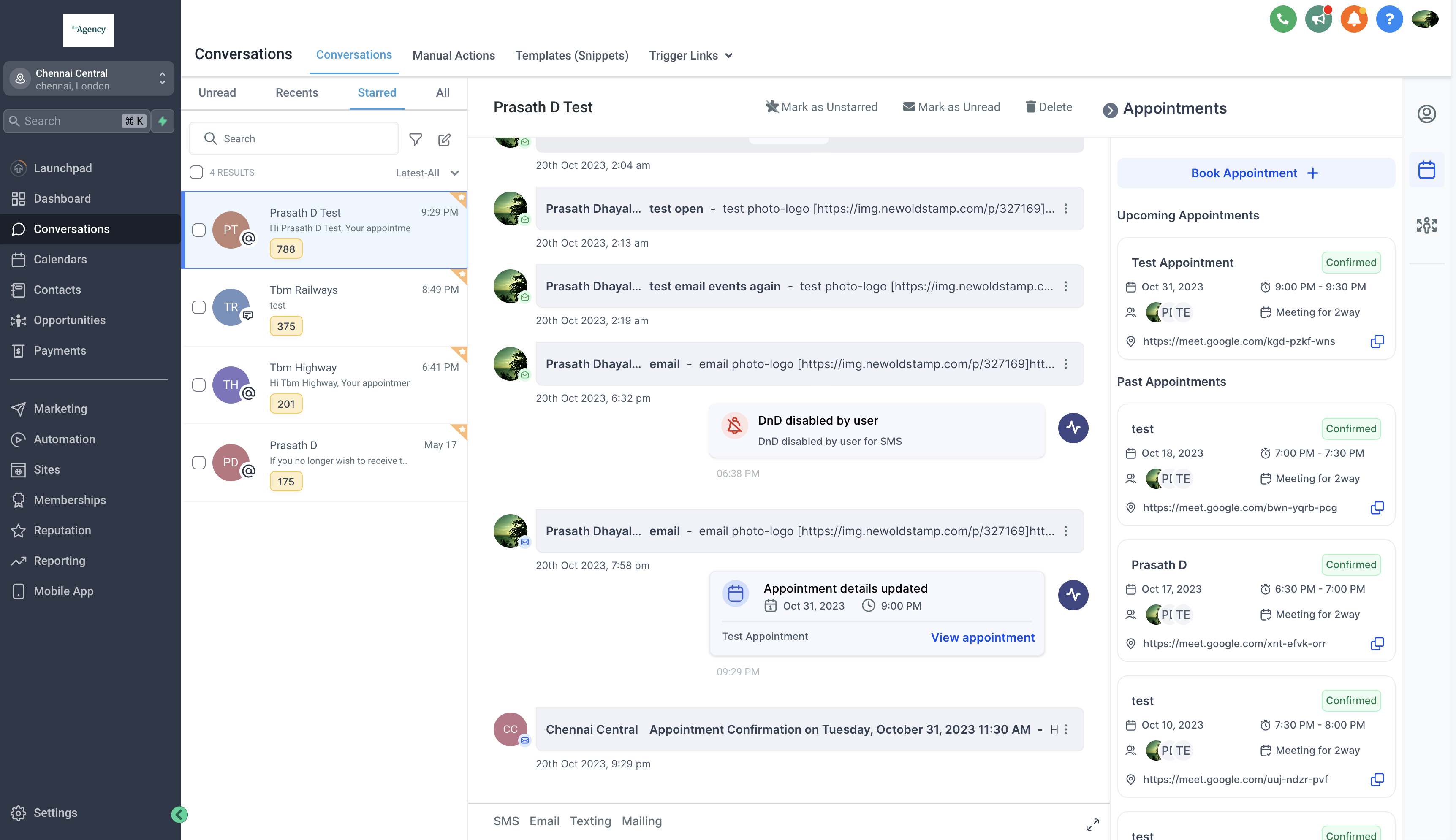
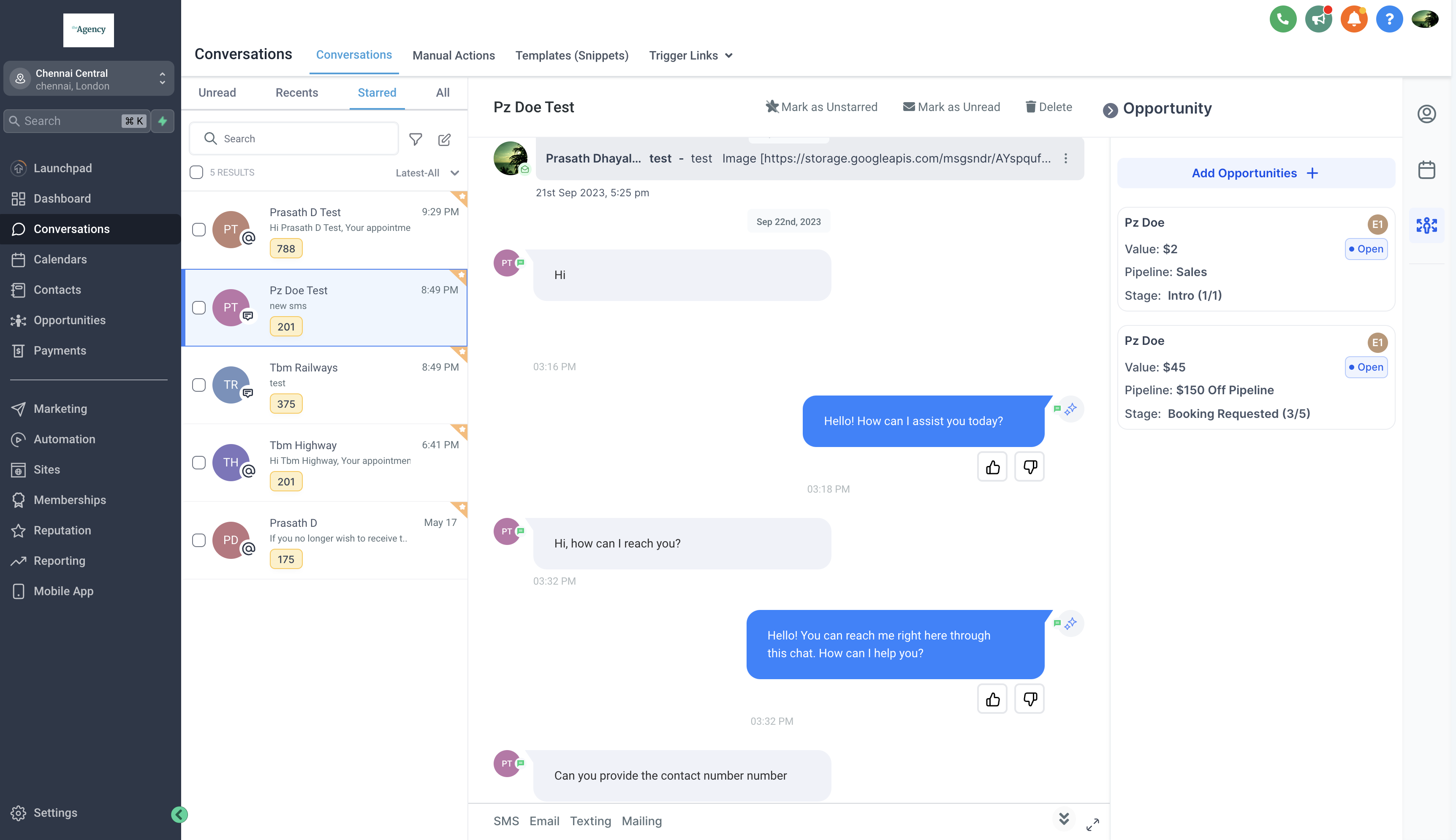
The feature adds a right hand panel that appears inside the Conversations module. When opened, the panel shows three tabs, Contact, Appointments, and Opportunity, each populated with relevant fields and actions. Users can collapse the panel to regain full screen space or expand it to work with the data.
In the Contact tab, a user can add, edit, and manage a contact's name, phone, email, owner, tags, campaign links, and Do Not Disturb (DnD) settings. The Appointments tab lets the user create new appointments, view upcoming or past events, and reschedule them. The Opportunity tab provides a place to create new opportunities, see existing ones tied to the contact, and edit their details. All these actions happen without navigating away from the conversation thread.
03How businesses use right panel & expandable sidebar in conversations
- Real estate agency. Agents open a conversation with a lead, expand the panel, and update the lead's contact details and DnD status. They then schedule a property showing using the Appointments tab and record the prospect's interest as an opportunity, all without leaving the chat.
- Dental practice. Front desk staff receive a patient’s message, open the panel, and edit the patient’s email and phone number. They book the next cleaning appointment and note the treatment plan as an opportunity, keeping the record linked to the conversation.
- Software SaaS startup. A sales rep chats with a trial user, expands the panel, and adds tags for the user's industry. They set a follow up call in the Appointments tab and create a new sales opportunity, editing its value directly from the conversation.
04The numbers and rules that matter
- Tabs available: Contact, Appointments, Opportunity.
- Contact fields include name, phone number, email, owner, tags, campaign associations, Do Not Disturb settings.
05What it looks like in HighLevel
06Settings that matter
- Do Not Disturb (DnD) settings. Controls whether a contact receives notifications while they are marked as Do Not Disturb.
07How it connects to the rest of HighLevel
- Explore all Conversations features to see related tools. All Conversations features
- Set up a chat widget to start new conversations from your website. Chat widget setup
- Learn how conversation filters can help you find specific threads. Conversation filters
Michael's take

The right panel lets you update a contact or book a meeting right inside the conversation, keeping the focus on the chat.
If I were setting up a new sales workflow, I’d enable the panel, flip through the three tabs, and make sure my reps can edit contacts and schedule calls without losing the thread.