
01Who this is for
- Founders of agencies who need to quickly generate compliant WhatsApp messages for multiple clients.
- Small business owners who want a starting point for common notifications without writing each one from scratch.
02WhatsApp Template Library, explained
The library is a collection of message drafts that Meta has previously approved. It appears as a modal during the WhatsApp template creation flow and lets you filter by purpose, category, industry and language. You pick a template, see a preview, and then edit the prefilled form before submitting it for your own approval.
The library does not bypass Meta’s review process. Selecting a prebuilt entry creates a brand new template in your subaccount, which must be approved separately. Approved templates behave like any other WhatsApp template and can be used in workflows, bulk actions or one to one conversations.
03How businesses use WhatsApp Template Library
- Ecommerce store. An online retailer opens the template library, filters for order confirmation messages, edits the product details and links, then submits the customized version for Meta approval. Once approved, the template is added to order fulfillment workflows.
- Dental practice. A dental office searches the library for appointment reminder templates, updates the clinic address and patient name placeholders, and saves the edited version. After Meta approval, the reminder is triggered automatically from the appointment scheduling workflow.
- Real estate agency. A realtor selects a property showing invitation template, changes the location field to the listing address, and adds a button linking to a scheduling page. The edited template is submitted for approval and later used in bulk outreach campaigns.
04The numbers and rules that matter
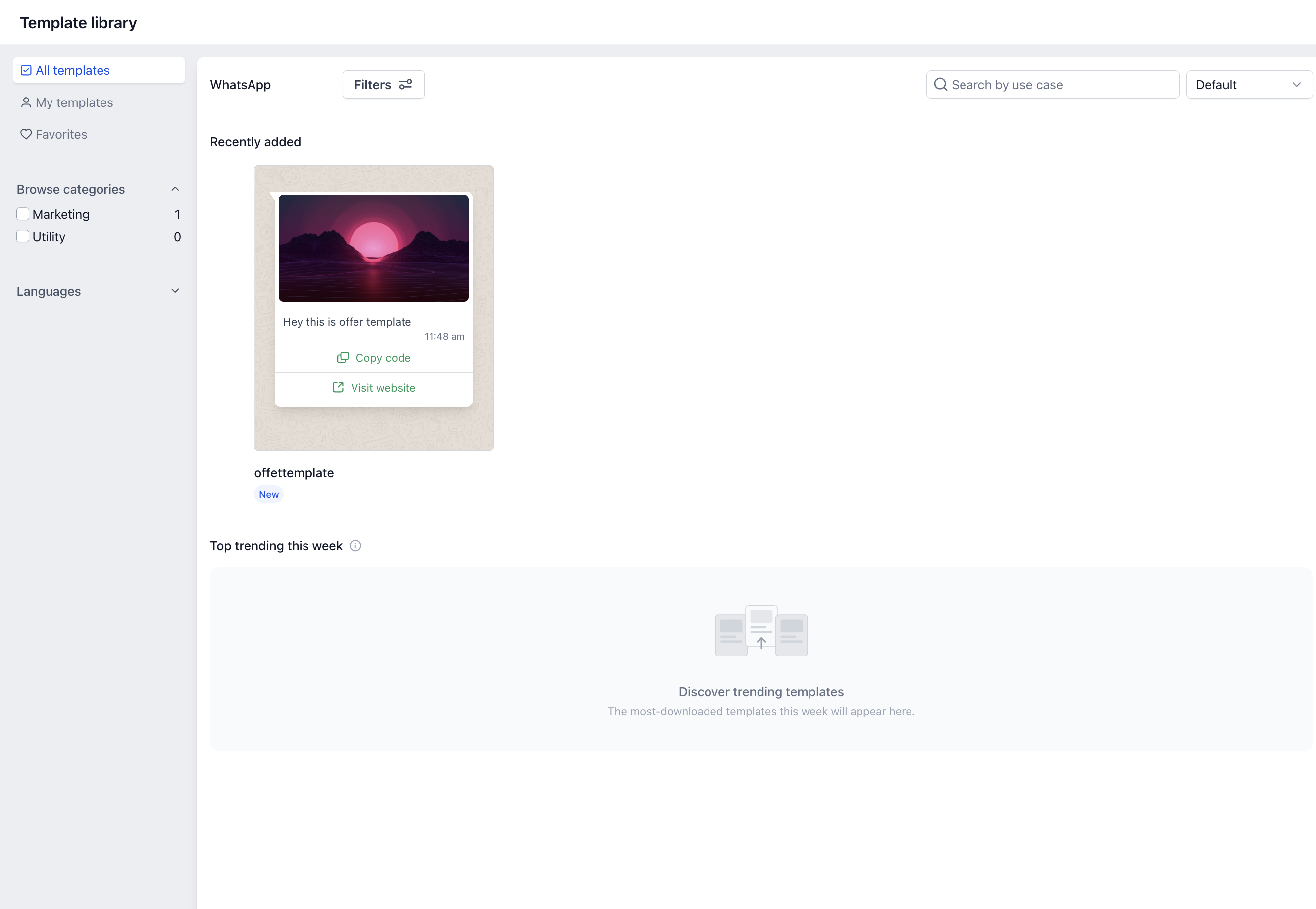
- Filter panel options include Purpose, Category, Industry, and Language.
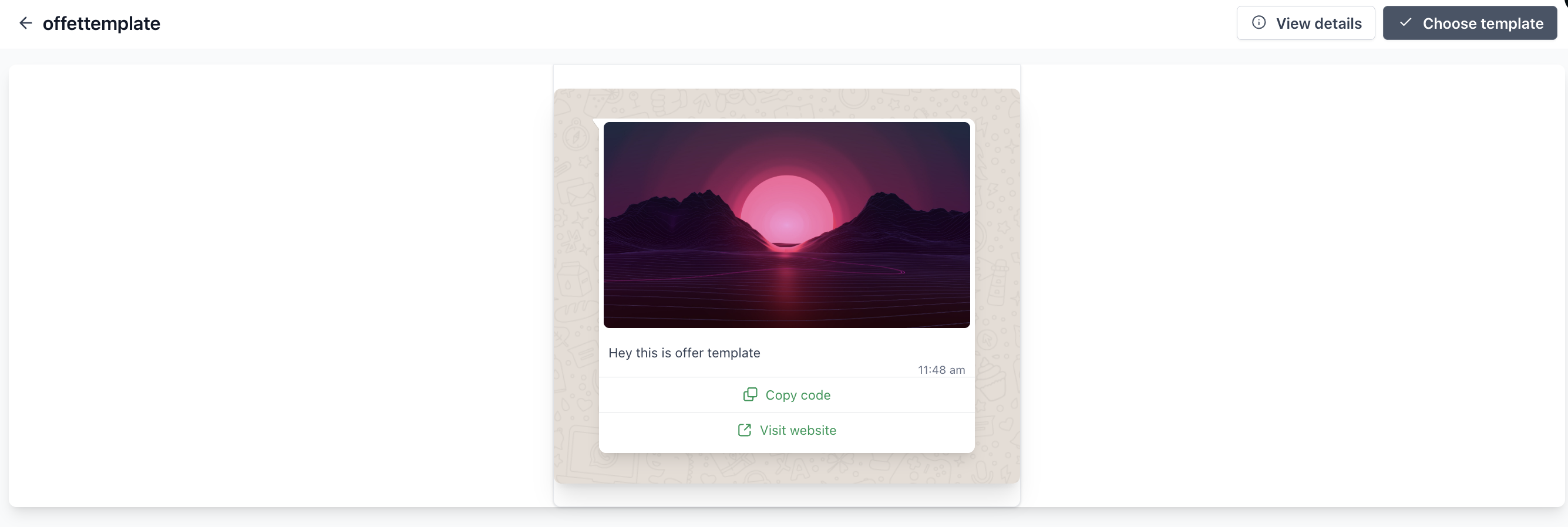
- Preview shows header, body, footer, and buttons where included.
05Before you start
- The subaccount must have an active WhatsApp subscription and must have completed the WhatsApp onboarding process.
- Business details, media assets, links and example values need to be prepared before editing a template.
- The user must have the Create/edit WhatsApp templates permission in Roles & Permissions.
06How to set up and use WhatsApp Template Library in HighLevel
Create a WhatsApp template from the library
- Open Settings > WhatsApp > Templates in the chosen subaccount.
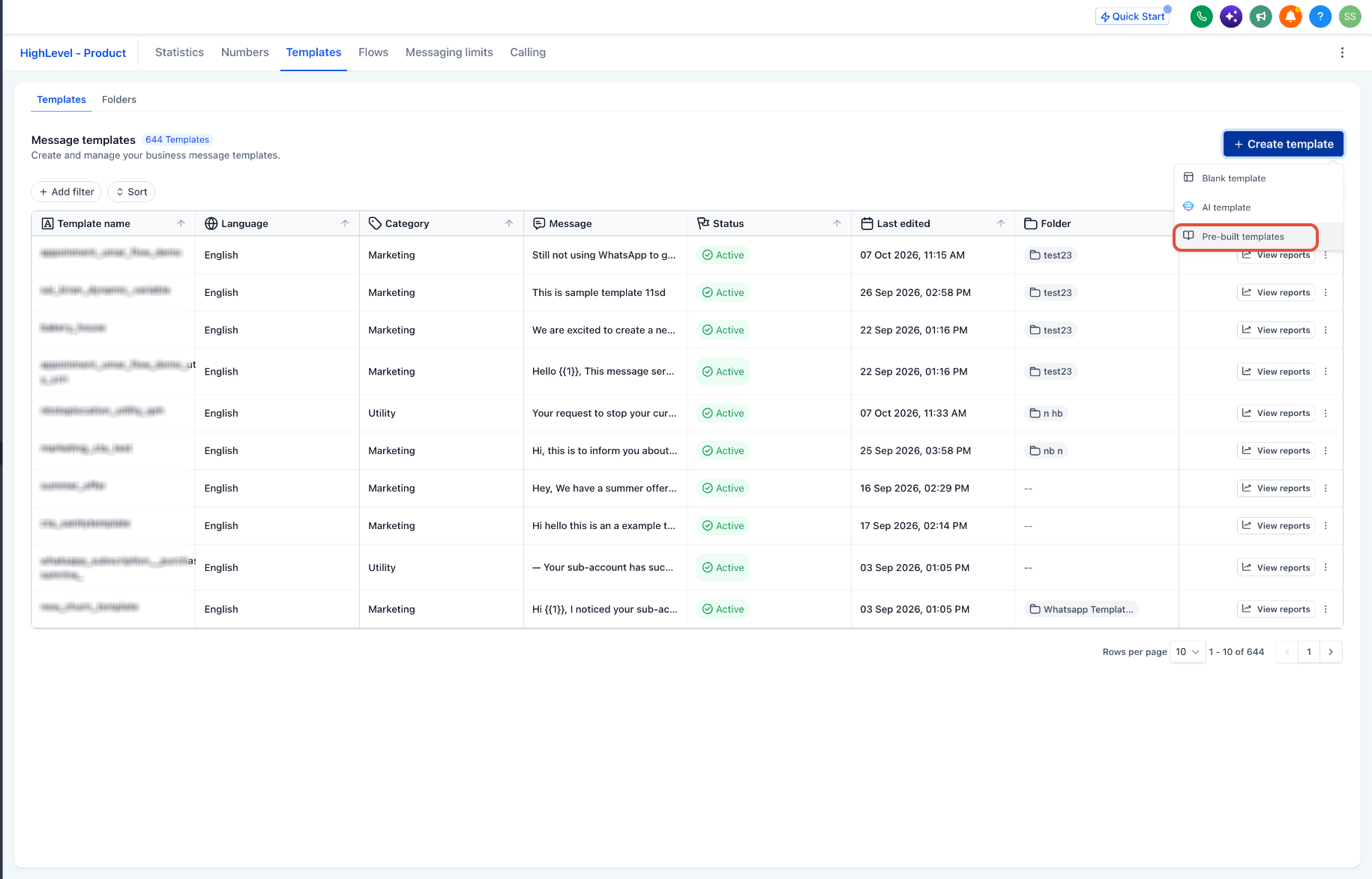
- Click the Create Template button and select Use Prebuilt Template to open the library modal.
- Browse and filter the list using search, sorting, and the left hand filters for purpose, category, industry and language.
- Select a template to view its preview, which shows header, body, footer and any buttons. The preview helps you evaluate the message but does not confirm approval for your subaccount.
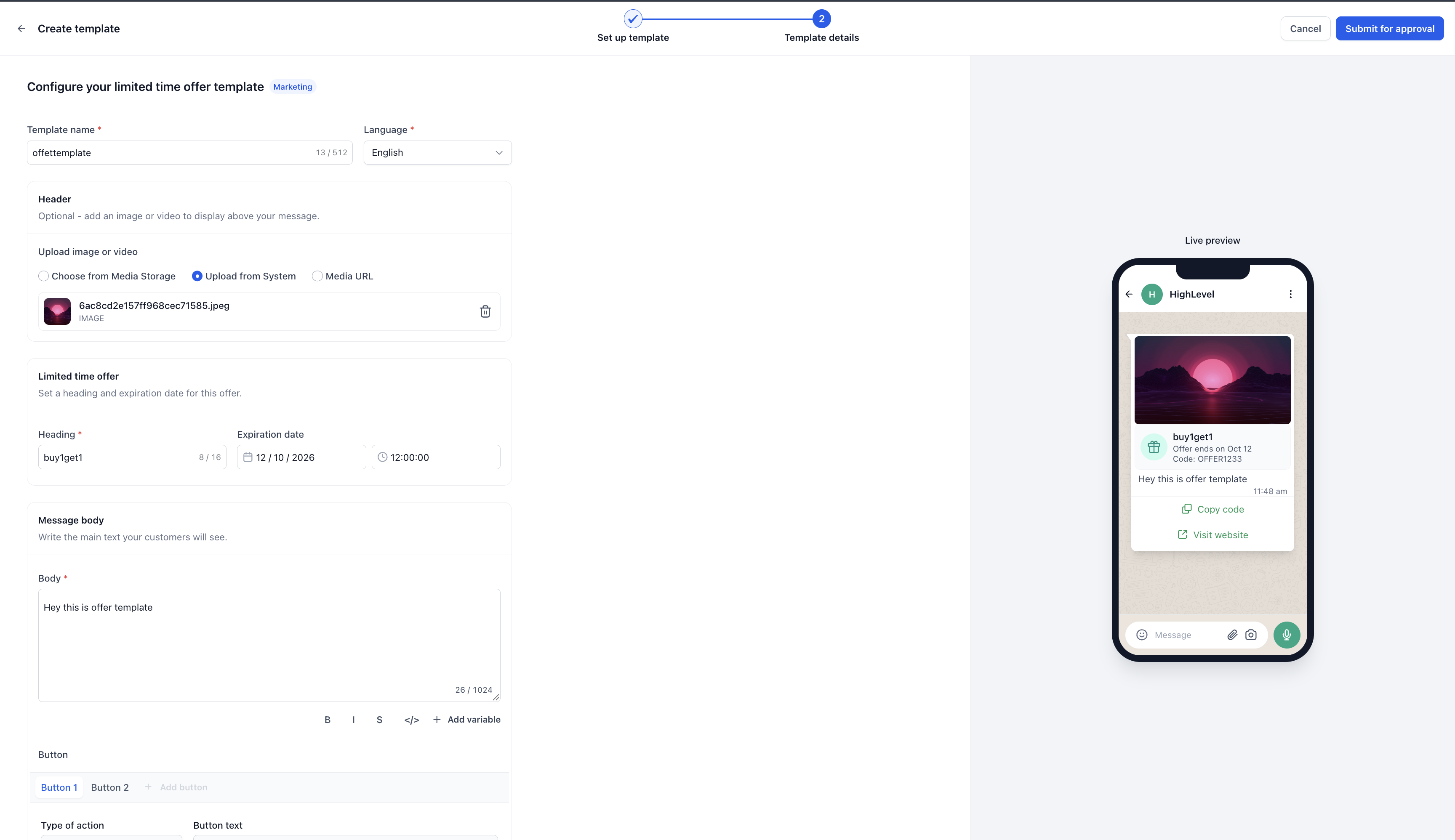
- Edit the prefilled creation form, adjust name, category, language, header type, body text, footer and button labels, and enter realistic sample values. Note: you are editing your own new template, not the original library entry.
- Submit the completed template for Meta review, then return to Settings > WhatsApp > Templates to monitor its status.
- When the template becomes approved, you can employ it in Workflows, Bulk Actions or one to one Conversations.
Save a WhatsApp template to the Template Library
- Navigate to Settings > WhatsApp > Templates.
- Locate the template you previously created.
- Open the three dot menu for that template and choose Save Template.
- Enter the required information in the save flow and confirm the action. Saving to the library does not transfer Meta approval; the template still needs its own approval when used.
07What it looks like in HighLevel
08Settings that matter
- Create/edit WhatsApp templates. Controls whether a user can open the WhatsApp template editor, which also enables the prebuilt template library flow.
09Things to know before you rely on it
- Templates taken from the library are not pre approved for your subaccount; each one must receive its own Meta approval.
- Using the library does not speed up Meta’s review timeline.
- The Use Prebuilt Template option appears only if the subaccount has WhatsApp enabled and the user has the appropriate permission.
- Saving a template to the library is limited to agency admin accounts; other users cannot see the Save Template action.
10If something goes wrong
- "Use Prebuilt Template" is missing. Verify that the subaccount has WhatsApp enabled and that your user role includes the Create/edit WhatsApp templates permission.
- No templates match the search. Remove some filter criteria or use a broader search term.
- Preferred language unavailable. Check the list of supported languages or switch to the blank or AI assisted creation path.
- Template cannot be saved or submitted. Fill in all required fields and correct any validation errors shown in the builder.
- Meta rejected a library based template. Review the rejection reason provided by Meta, adjust the content accordingly, and resubmit.
- Template unavailable for sending. Confirm the template’s status; templates that are In Review, rejected, paused or disabled cannot be sent.
- "Save Template" is missing. Ensure you are logged in as an agency admin with access to the Template Library and that the WhatsApp entry point is enabled.
11How it connects to the rest of HighLevel
- Set up a chat widget to receive WhatsApp messages on your website Chat widget guide
- Add a manual call action in a workflow that can trigger after a template is approved Manual call in workflow
- Explore all Conversations features available in HighLevel Conversations overview
Michael's take

Jumping straight into the library without confirming that your subaccount has an active WhatsApp subscription and the proper permissions can lead to missing buttons or being blocked from creating a template, which wastes time.
When the prerequisites are in place, the library is a handy shortcut. It lets you pull in vetted wording, tweak it to fit your brand, and get a template ready for Meta’s review with less drafting effort.