
01Who this is for
- Marketing managers: can monitor and answer social engagement without leaving the platform.
- Sales teams: receive new commenters as contacts, enabling immediate outreach.
- Agency owners: can enable or disable sync per subaccount to control data flow.
02Social comments in conversations, explained
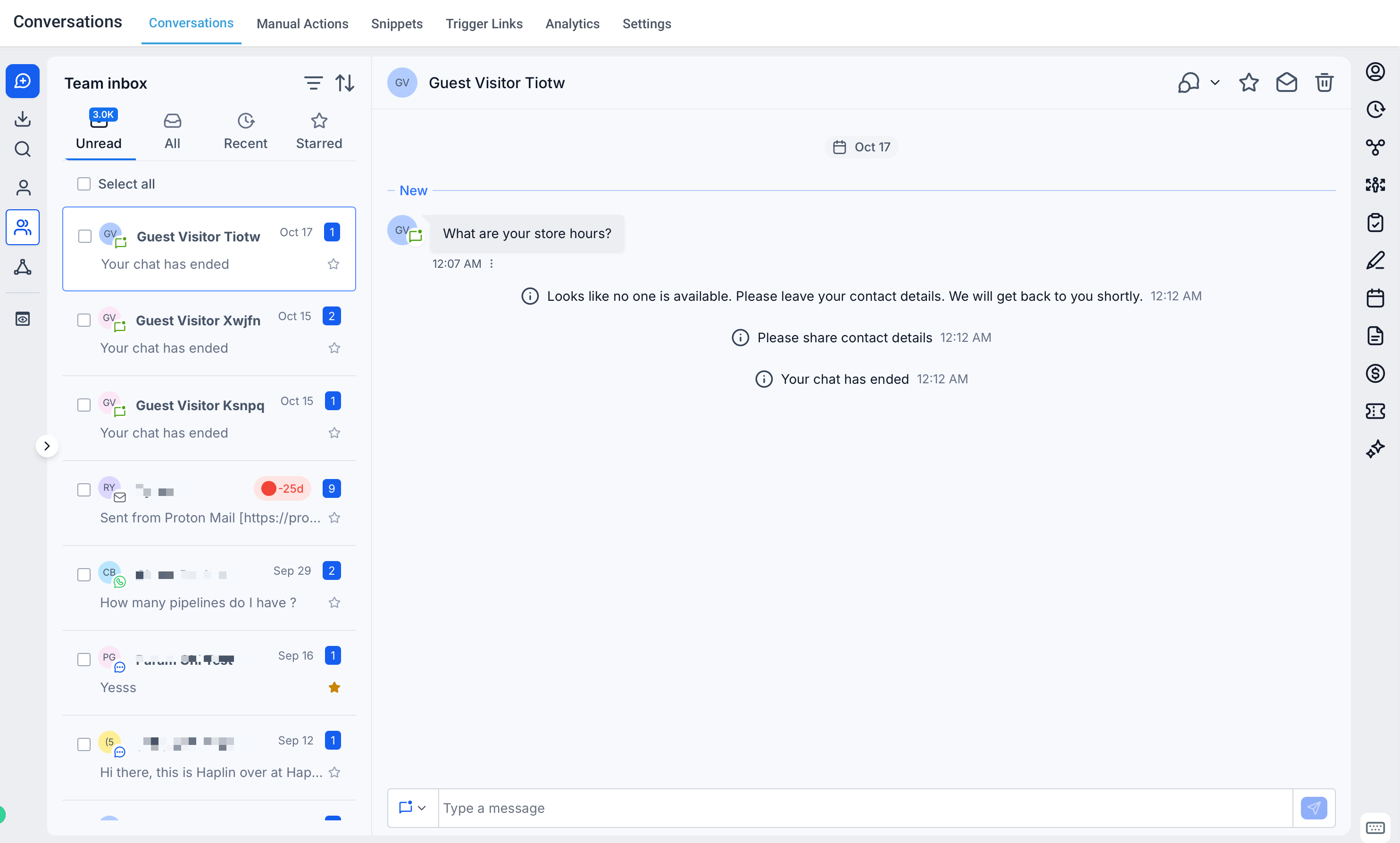
Social Comments in Conversations brings comments from supported social networks into the HighLevel Conversations inbox. Each comment appears as a thread that shows the commenter’s name, a preview, the platform, timestamp, and a thumbnail of the original post. Users can reply publicly beneath the comment or continue the discussion through a direct message when the platform permits it.
The feature lives under the Conversations module and can be filtered separately using the Social Comments filter. Comment sync is managed at the agency level for subaccounts and at the channel level for each connected platform. New commenters are added automatically as contacts, while returning commenters are matched to existing records.
03How businesses use social comments in conversations
- Dental practice. The practice enables comment sync, then watches for questions about appointment availability on Facebook or Instagram posts. Staff replies publicly with office hours or opens a private direct message to schedule the visit, and the commenter is saved as a contact for future reminders.
- Boutique clothing retailer. The retailer turns on sync for Instagram, then filters comments that contain keywords like "price" or "size." They answer publicly with pricing details and can send a private direct message to share a link to the product page, automatically adding the shopper to their contact list.
- Real estate agency. Agents activate sync for TikTok, monitor comments on property showcase videos, and use the buying intent filter to spot inquiries about availability. They respond publicly with basic info and follow up via direct message to arrange a viewing, with each interested person recorded as a contact.
04The numbers and rules that matter
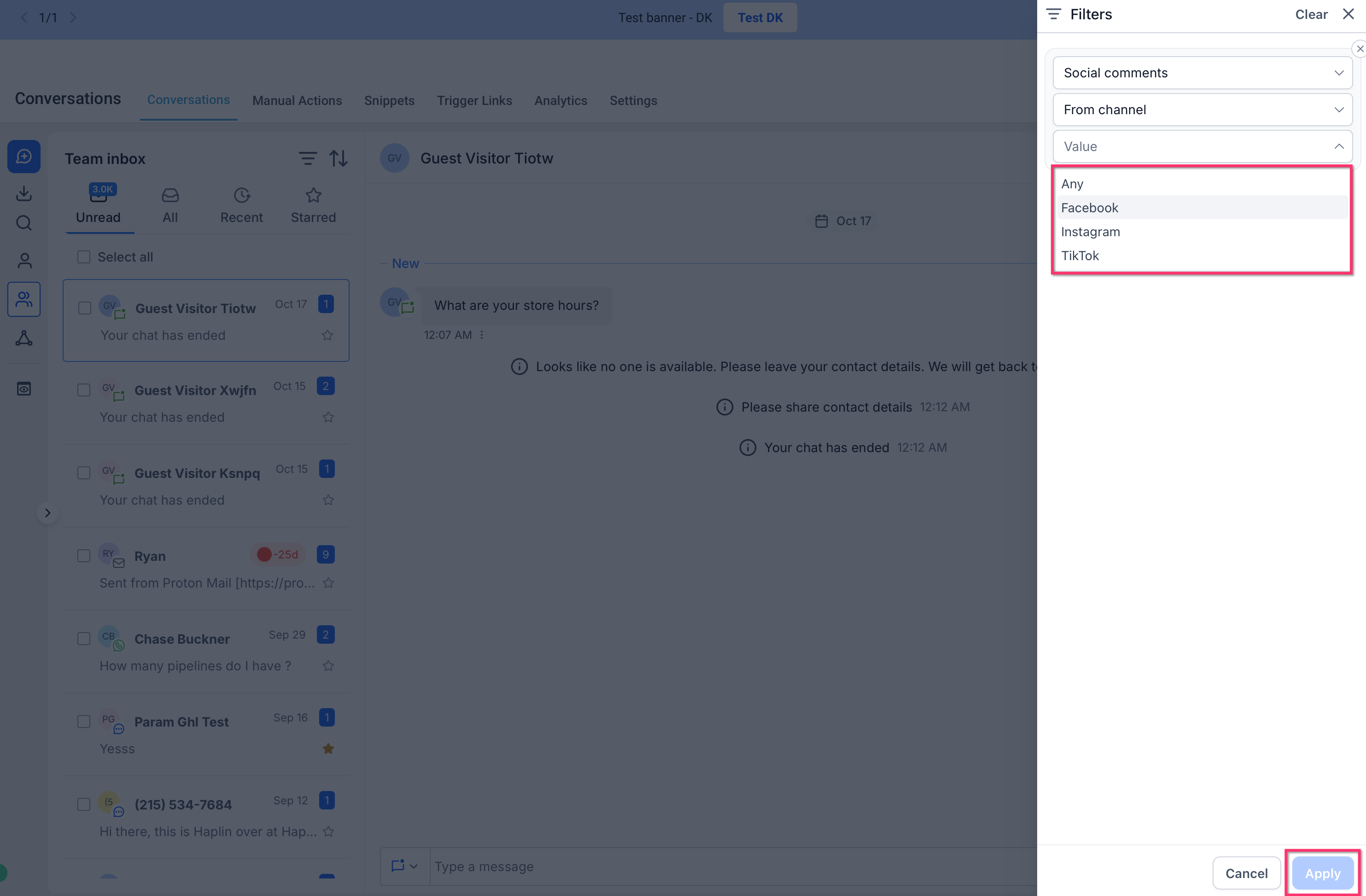
- Supported platforms: Facebook, Instagram, TikTok.
05Before you start
- Log in as an agency admin or have admin rights in the subaccount.
- Connect the desired Facebook, Instagram, or TikTok accounts in Social Planner.
- Publish the posts you want to track through the Social Planner tool.
06How to set up and use social comments in conversations in HighLevel
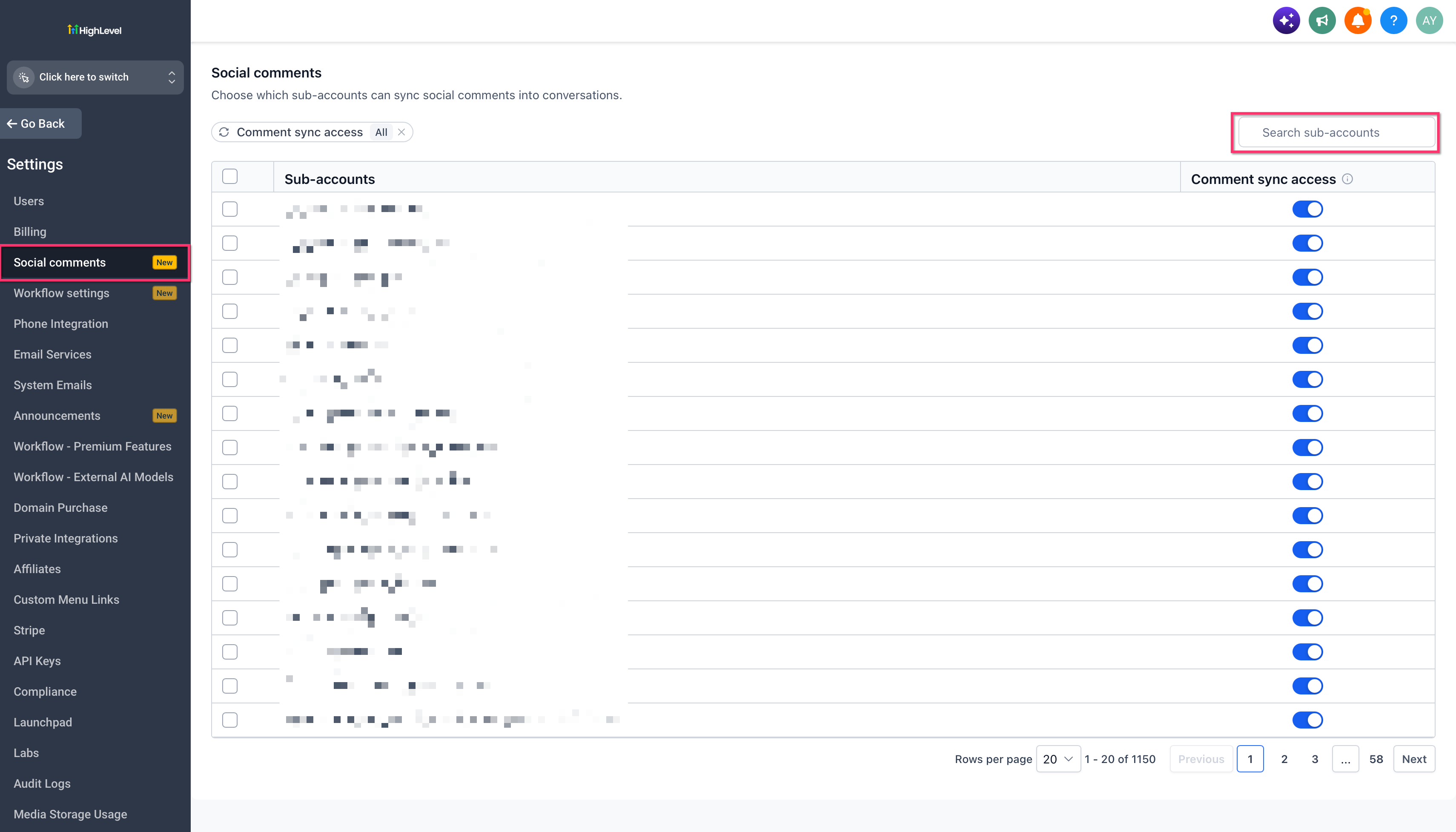
Enable comment sync at the agency level
- Sign in to your HighLevel Agency account.
- Navigate to Agency Settings > Social Comments.
- Select the subaccount or subaccounts you wish to configure.
- Toggle comment sync on for the chosen accounts.
- Save the changes.
Select social platforms to sync
- Open the relevant subaccount.
- Go to Marketing > Social Planner > Settings > Comments.
- Switch on comment sync for each connected platform you want to include.
- Save the configuration.
Find comments in Conversations
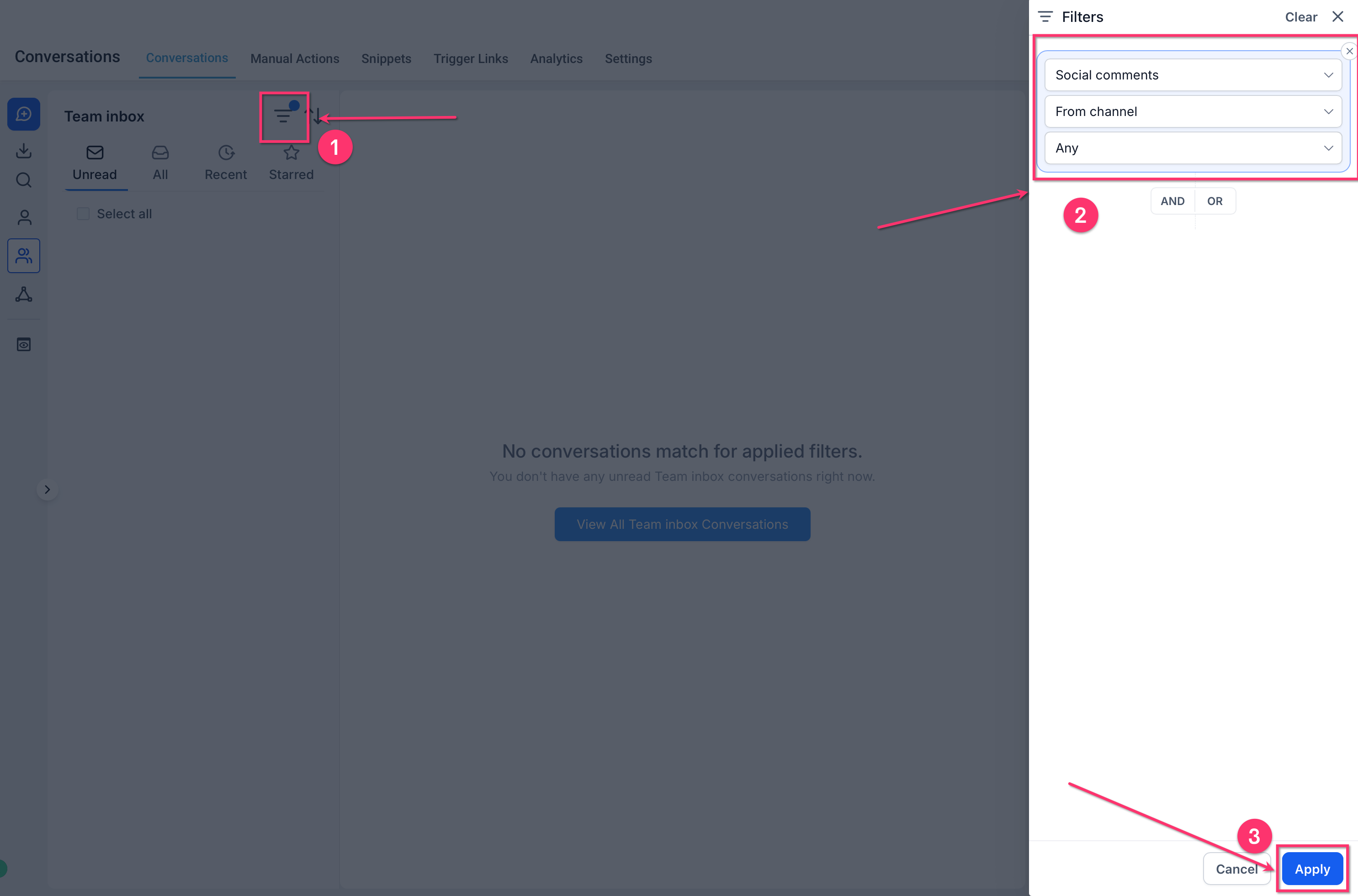
- Open Conversations > Team Inbox.
- Apply the Social Comments filter.
- Click a comment thread to open it.
- Examine the comment together with the original post details.
Reply to a comment
- Select the comment you want to address.
- Review the original post for context.
- Choose either Public Reply or an available direct message option.
- Type your response and send it.
Prioritize and follow up with leads
- Open the Social Comments filtering controls.
- Add keywords such as "price" or "book".
- Apply the filters or sorting to surface matching comments.
- Review each highlighted comment and respond as needed.
- Optionally attach a workflow to automate further follow up.
07What it looks like in HighLevel
08Settings that matter
- Agency level. Controls whether comment synchronization is active for selected subaccounts.
- Channel level. Determines which connected social platforms send their comments into the Conversations inbox.
09Things to know before you rely on it
- Supported platforms at launch are Facebook, Instagram, and TikTok.
- Only comments on posts created through Social Planner are synchronized.
- Posts published directly on a social network are not included.
- Disabling sync stops new comments from appearing but keeps existing contacts and conversations.
- Expired social account connections must be reconnected to resume synchronization.
- Direct message options depend on each platform’s messaging permissions.
10If something goes wrong
- Comments are not appearing in Conversations. Confirm the post was published via Social Planner, the platform is supported, comment sync is enabled, and the social account connection is active.
- Social account disconnects. Reconnect the account from Social Planner Settings to restore comment synchronization.
11How it connects to the rest of HighLevel
- Use conversation filters to sort and prioritize social comments. Conversation filters
- Set up a chat widget to capture leads from website visitors. Chat widget setup
- Review pricing and plan options for access to Social Comments. Pricing
Michael's take

Social comments in conversations can feel risky if you’re not sure that all your posts go through the Social Planner.
When it works, you get a view of questions, price requests, or booking interest from Facebook, Instagram or TikTok. Your team can answer publicly or continue in a private DM, and every new commenter becomes a contact automatically.