
01Who this is for
- Ecommerce retailers, they can show several products in one WhatsApp message, letting shoppers browse without leaving the chat.
- Service providers, they can highlight different service packages or promotions on separate cards and let clients tap a button to request more info.
- Event organizers, they can display multiple event dates or ticket tiers, enabling attendees to select the option that fits them.
02WhatsApp carousel templates, explained
WhatsApp carousel templates are a type of marketing template that appears in a WhatsApp conversation. Each carousel holds a main message plus a set of 2 to 10 cards that users can swipe through. Every card must contain an image or video, a description up to 160 characters, and the same button structure across all cards.
The carousel lives in the HighLevel Settings area under WhatsApp > Templates. After a creator finishes the cards, the template is submitted for Meta approval. Once approved, the template can be sent using the Conversations inbox, a workflow WhatsApp action, or a bulk send operation. The approval locks the number of cards, so any change requires a new template.
03How businesses use WhatsApp carousel templates
- Ecommerce retailer. The retailer creates a carousel with a card for each top selling product, adds a "Buy Now" button to each, and approves the template. In a sales workflow the retailer triggers the carousel to be sent to contacts who have opted in for product updates.
- Service provider. The provider builds a carousel that lists three service tiers, includes a short description per tier, and adds a "Learn More" button. After Meta approves, the provider uses the bulk actions feature to send the carousel to a list of potential clients.
- Event organizer. The organizer designs a carousel showing different event dates, uploads a promotional image for each, and adds a "Reserve Seat" button. The approved carousel is then sent from a contact’s conversation when a prospect asks about upcoming events.
04The numbers and rules that matter
- 2, 10 cards per carousel.
- Card description maximum 160 characters.
- Up to 2 buttons per card.
- Button label maximum 25 characters.
05How to set up and use WhatsApp carousel templates in HighLevel
Create a carousel template
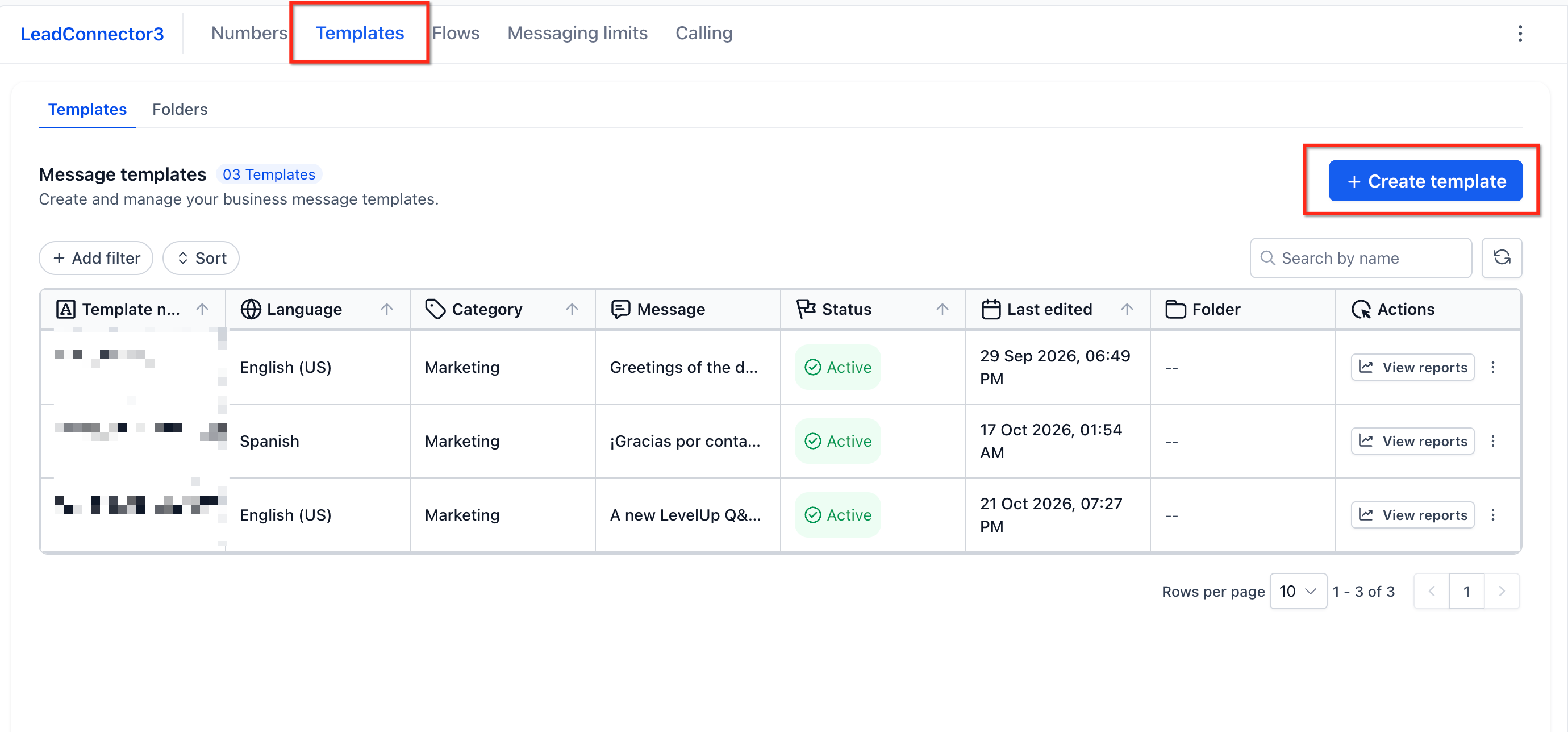
- Open Settings > WhatsApp > Templates.
- Click the Create Template button.
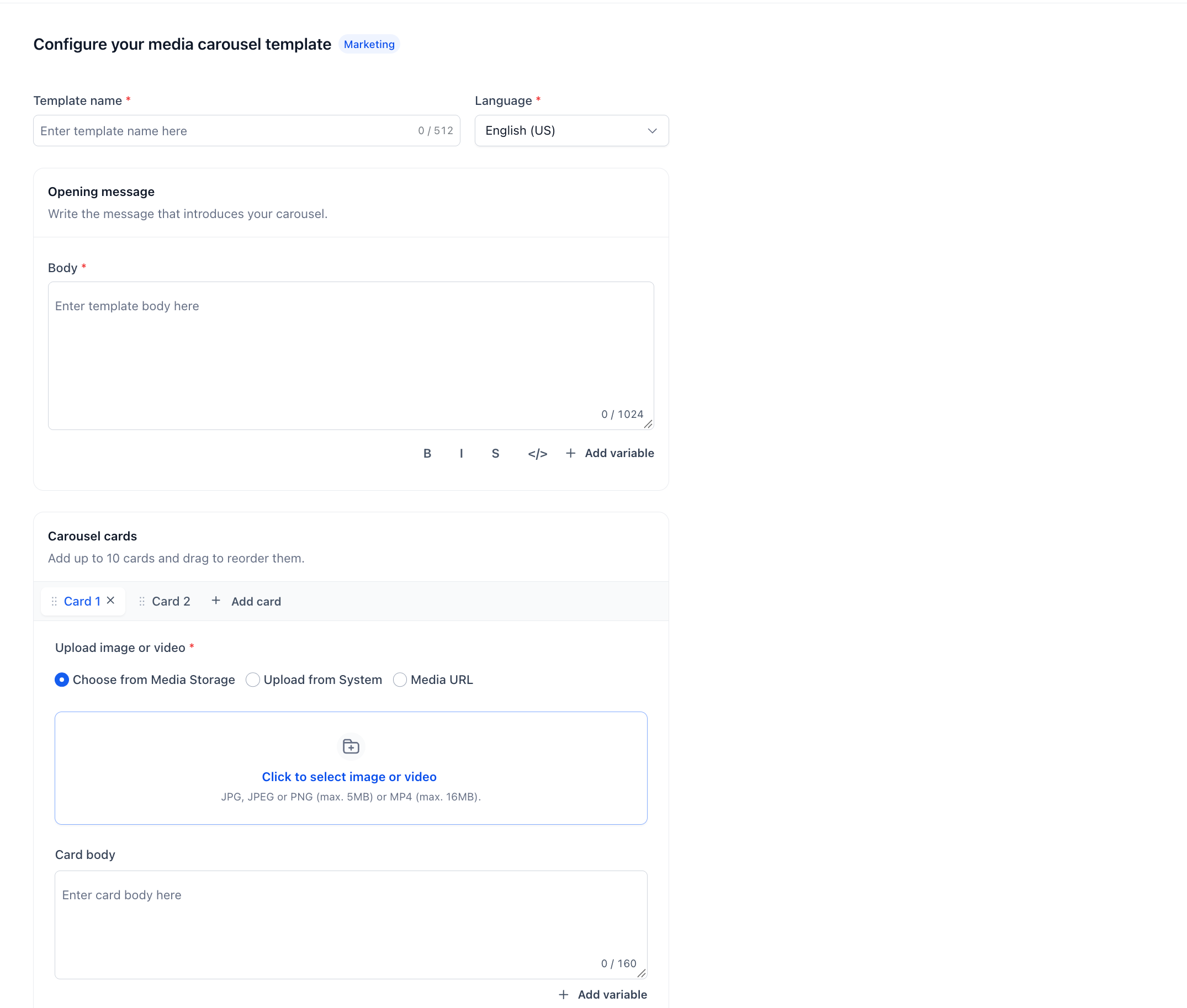
- Enter a name for the template.
- Select the language for the template.
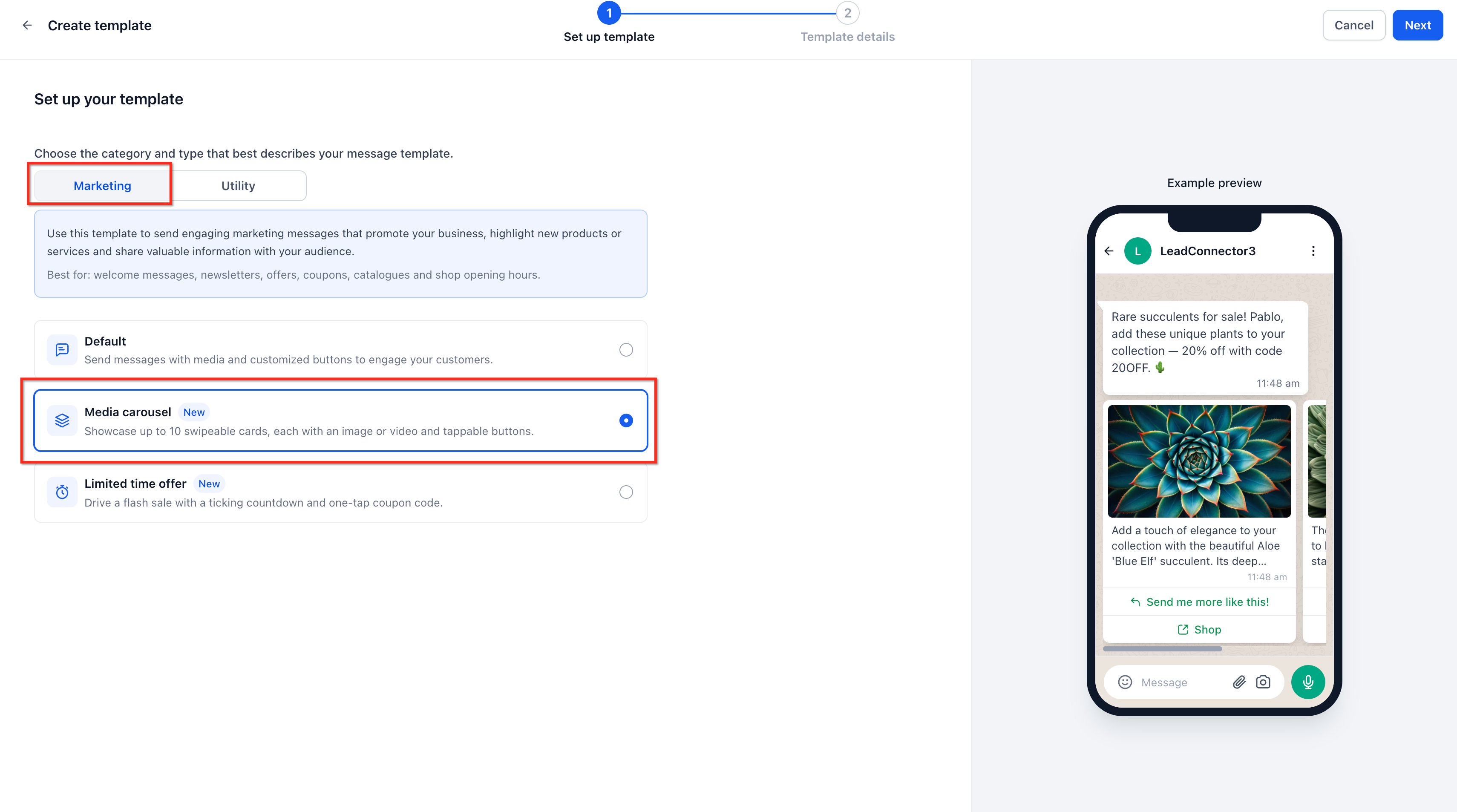
- Choose Marketing as the category.
- Pick Media Carousel as the template type.
- Type the main message body.
- Add a carousel card.
- Upload an image or video for the card.
- Write a description of up to 160 characters for the card.
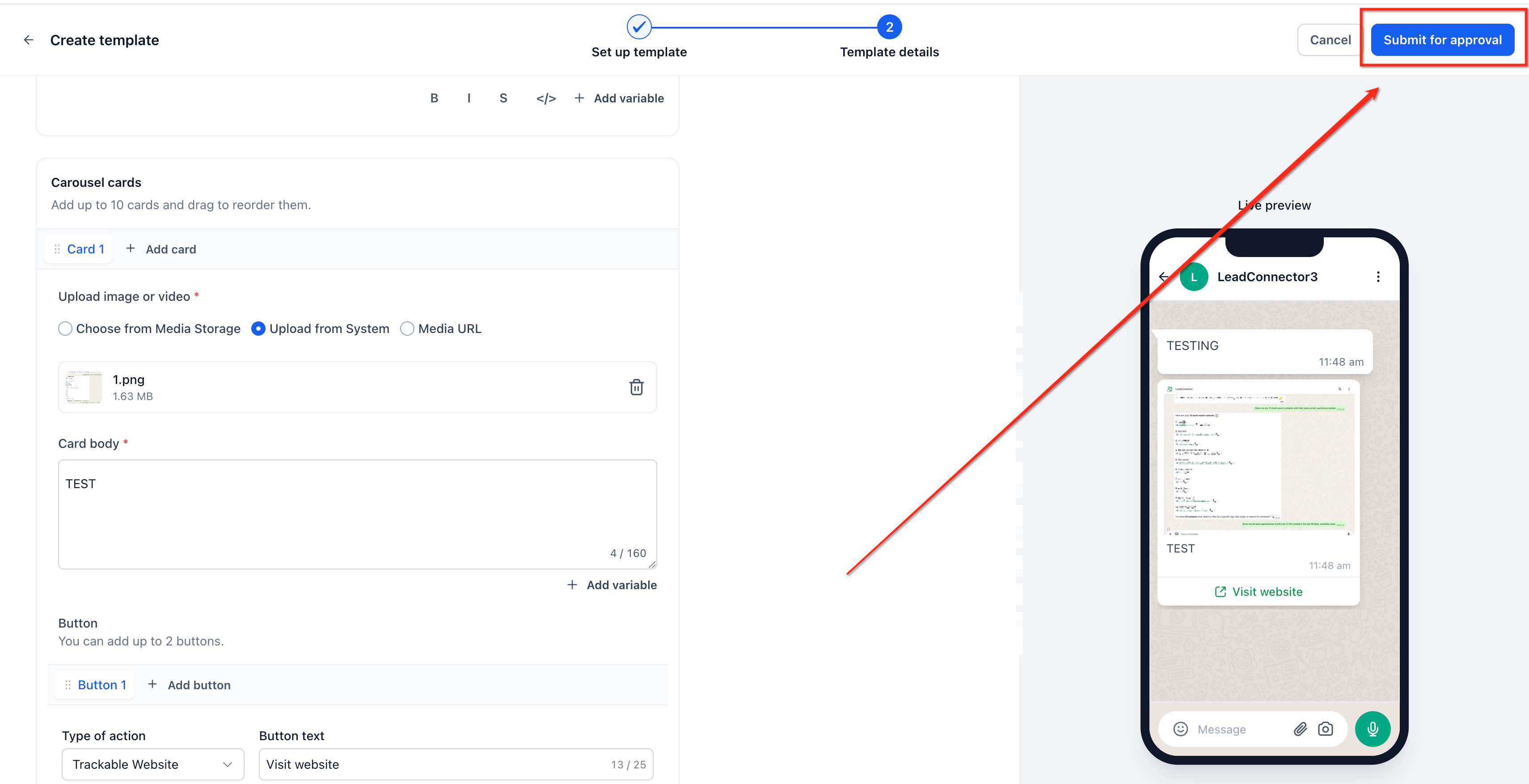
- Configure up to two buttons for the card.
- Add additional cards until you have between 2 and 10, keeping the same button layout on each.
- Drag cards to set their order, preview the carousel, and submit the template for Meta approval.
Send the approved carousel
- Open the contact’s conversation in HighLevel.
- Select the WhatsApp template option and choose the approved carousel template.
- Click Send to deliver the carousel.
06What it looks like in HighLevel
07Settings that matter
- Template name. Defines the identifier used to locate the carousel when sending it.
- Language. Sets the language version of the template for Meta approval.
- Category. Specifies the template purpose; for carousels it must be Marketing.
- Media Carousel. Selects the carousel format that allows multiple swipeable cards.
- Button Labels. The text shown on each button; each label may contain up to 25 characters.
08Things to know before you rely on it
- A carousel can contain only 2 to 10 cards.
- Each card description is limited to 160 characters.
- Each button label may be up to 25 characters long.
- All cards must use the same number and structure of buttons.
- Media on cards must be an image or a video; mixing formats should be confirmed in the editor.
- After Meta approves the template, the number of cards cannot be changed.
09How it connects to the rest of HighLevel
- Manage media files used in carousel cards. Media storage guide
- Explore all features available in the Conversations module. All Conversations features
- Review pricing and plan options for using WhatsApp templates. HighLevel pricing and plans
Michael's take

WhatsApp carousel templates are useful but not essential for every business.
If you only need to send a single offer at a time, skip this feature.