
01Who this is for
- Customer support teams can read a contact’s inquiry details before answering, reducing back and forth navigation.
- Sales agents can see lead information at the moment of contact, helping them personalize outreach.
- Marketing staff can verify funnel form data while responding to prospects in real time.
02Form submissions access in conversations, explained
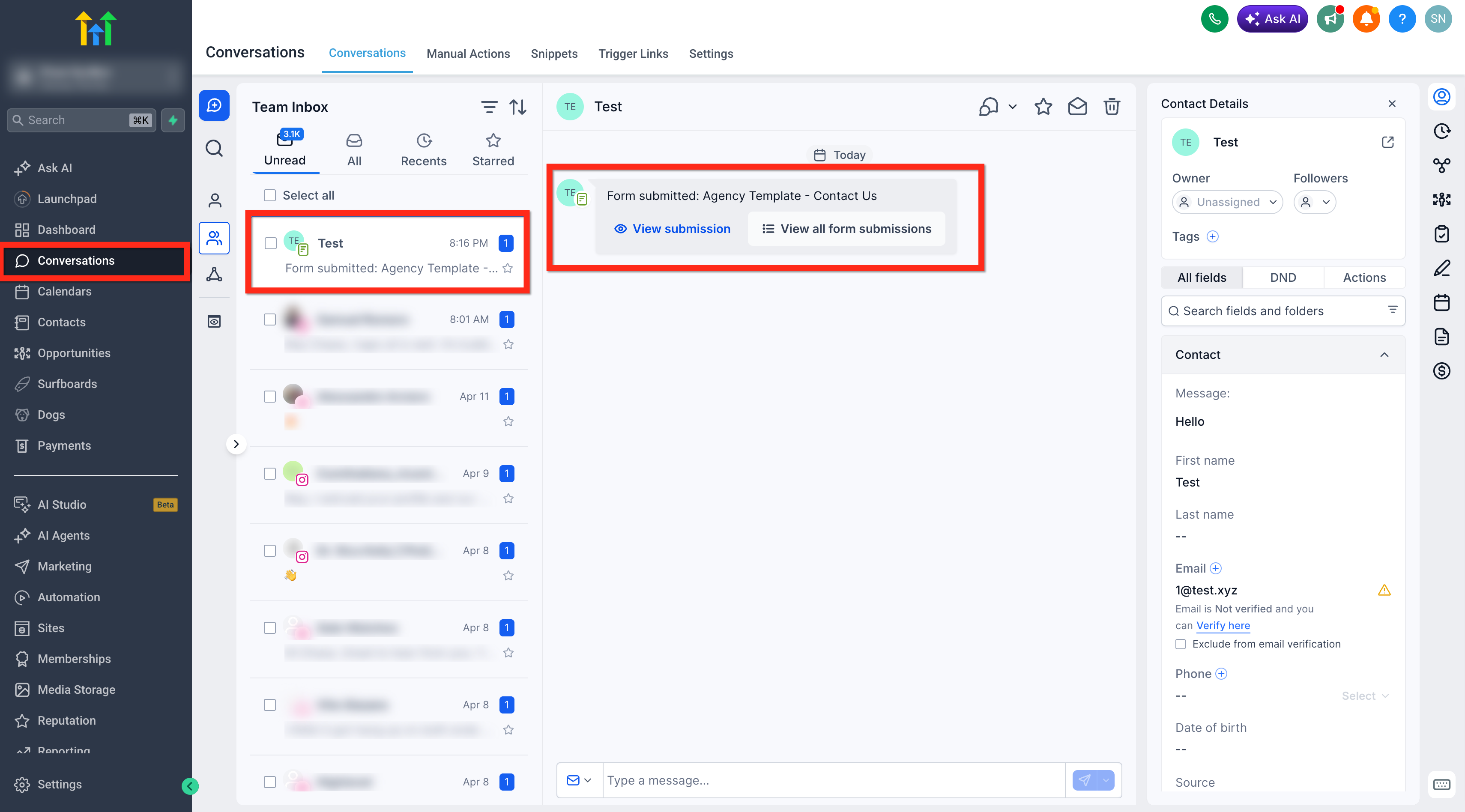
The feature adds a card to a conversation whenever a form submission occurs. The card contains a link to view that specific submission and another link to see all submissions linked to the same form. The setting lives in the form builder under Settings and is called Create Conversation on Submission.
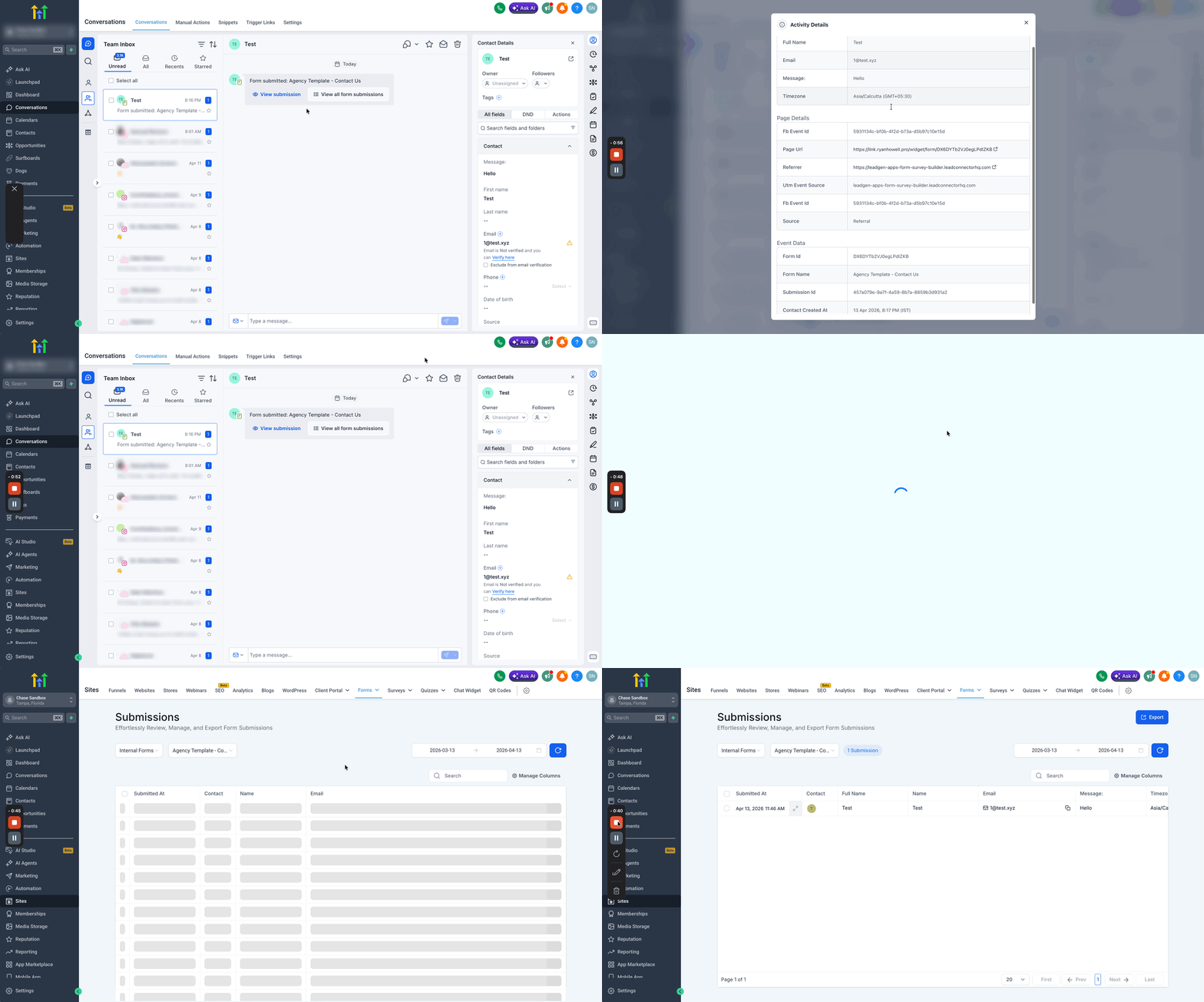
When enabled, each new submission creates a conversation entry. Users open the conversation, click View Submission to inspect the data, or click Check all Form Submissions to browse the entire list for that form. Replies can be sent via any channel supported by the form, such as email or SMS.
Conversations also offers a filter: Last Message Channel Is Forms Submission. Applying this filter narrows the inbox to only those threads that originated from form submissions, letting teams focus on relevant messages.
03How businesses use form submissions access in conversations
- Dental practice. The practice enables the setting on its new patient intake form. When a patient submits the form, the receptionist opens the conversation, views the submission card, and replies with appointment details directly from the same screen.
- Ecommerce store. The store turns on the feature for its contact us form. Customer service opens the conversation, checks the order question inside the submission card, and sends a resolution via email without leaving the inbox.
- SaaS startup. The startup activates the setting on its trial request form. Sales reps filter the inbox for Form Submission conversations, view each prospect’s requested features, and respond with a personalized onboarding email.
04How to set up and use form submissions access in conversations in HighLevel
Enable and view form submissions in Conversations
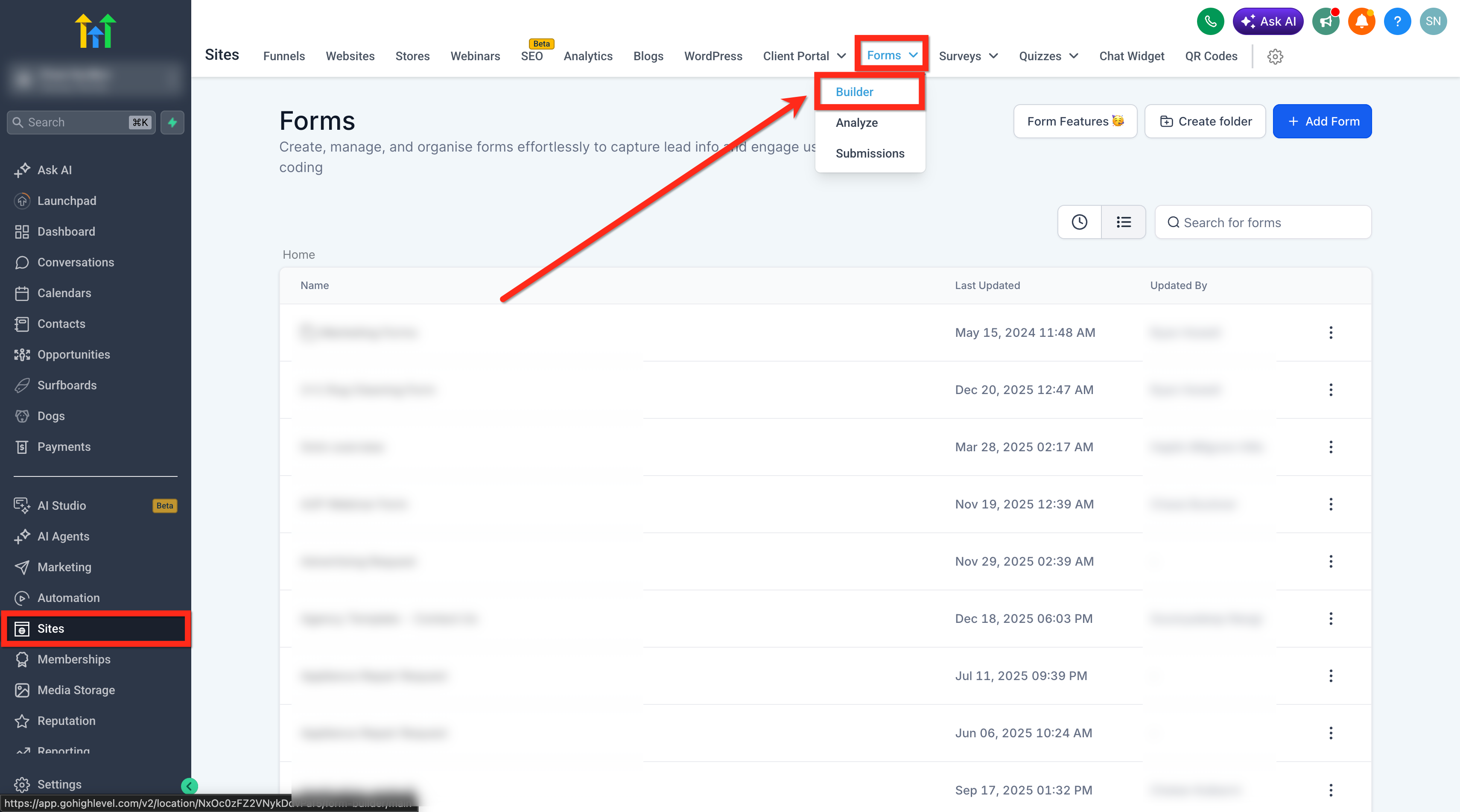
- Navigate to Sites > Forms > Builder.
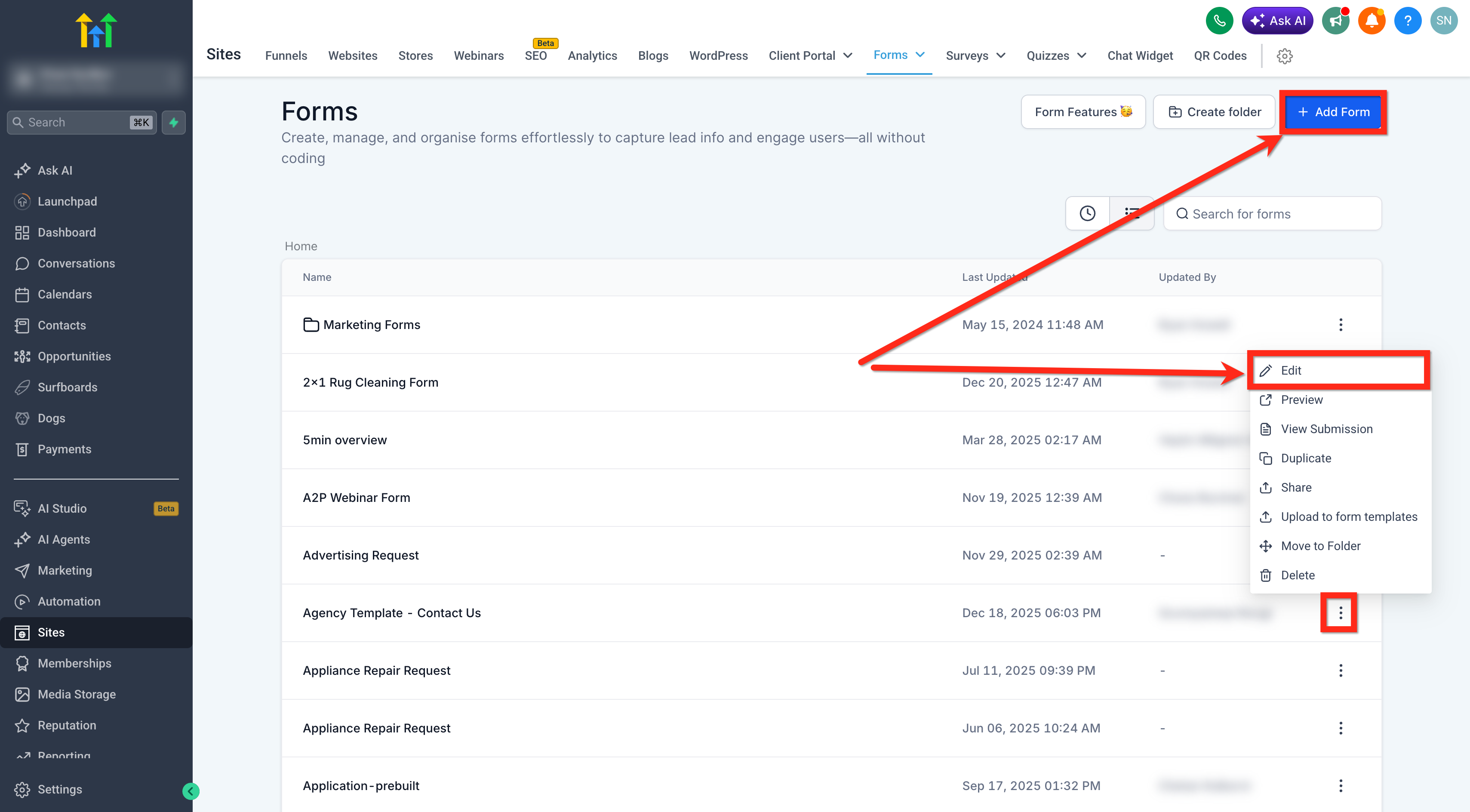
- Create a new form or edit an existing one.
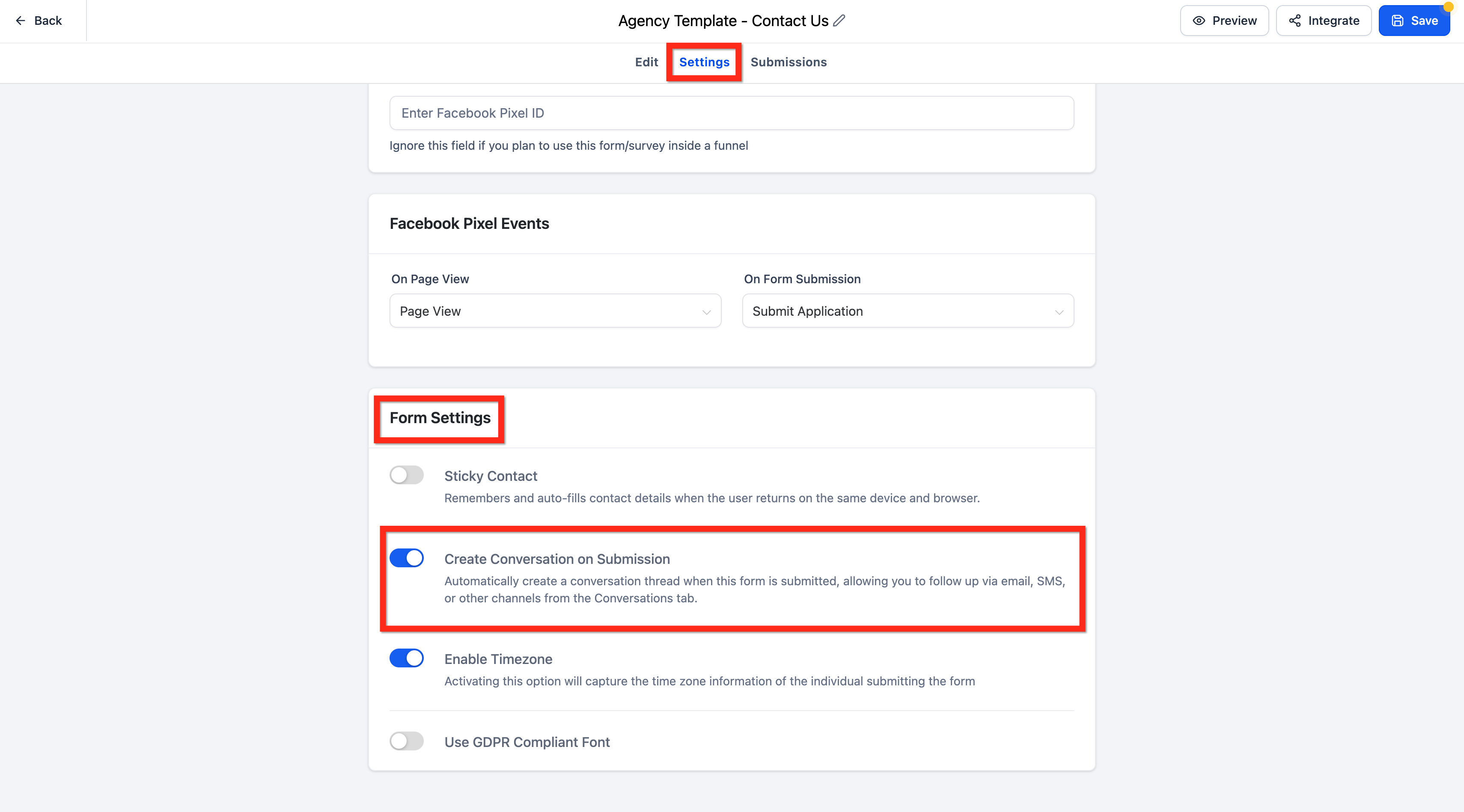
- Select the Settings tab for the chosen form.
- Turn on the Create Conversation on Submission option.
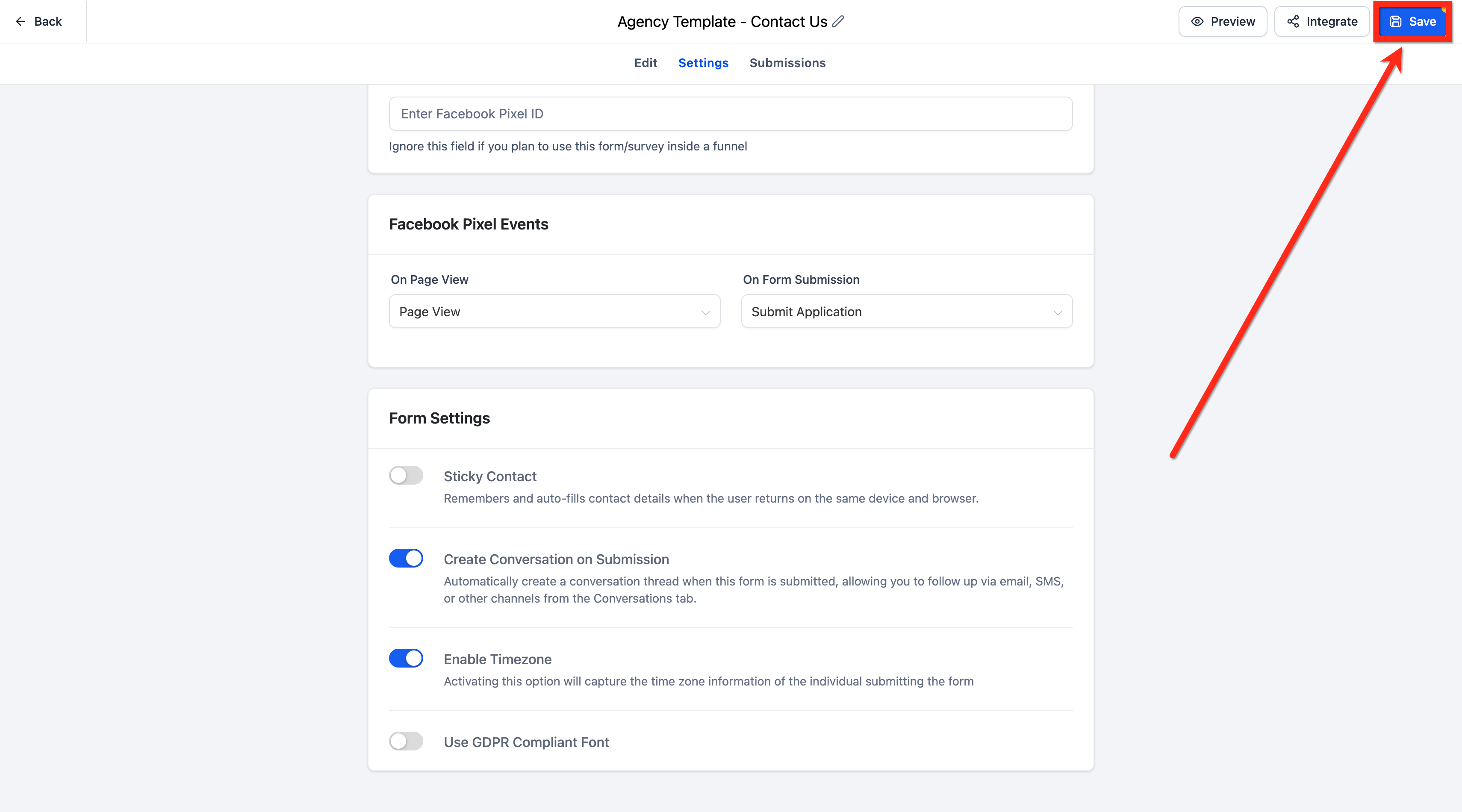
- Save the changes to the form.
- Open the Conversations tab.
- Find and open the conversation belonging to the contact who submitted the form.
- Locate the form submission card that appears inside the thread.
- Click the View Submission button to open the details of that specific entry.
- Select the Check all Form Submissions link to show every submission for the form.
- Open the filters menu within Conversations.
- Set the first filter field to Last Message Channel.
- Choose the condition Is.
- Enter the value Forms Submission.
- Press Apply to activate the filter.
05What it looks like in HighLevel
06Settings that matter
- Create Conversation on Submission. Controls whether a conversation thread is automatically created when the form receives a new submission.
07Things to know before you rely on it
- Only submissions that occur after the setting is turned on will appear in Conversations; earlier entries are not retroactively added.
- The feature supplements the standard Forms Submissions page but does not replace it.
- Enabling the setting does not automatically generate workflow automations; those must be built separately.
08How it connects to the rest of HighLevel
- Apply conversation filters to quickly locate form submission threads. Conversation filters
- Review all form responses in the dedicated Forms Submissions area if needed. Forms submissions page
Michael's take

Ever wonder why you keep switching between the Forms page and the inbox when a lead fills out a form? The form submissions view in Conversations puts that data right where you’re already typing a reply, so you can answer with the full context in hand.
If I were setting this up, I’d enable the setting on any capture form that fuels my sales or support pipeline. Then I’d check the filter so my inbox only shows those form related threads, keeping the day’s workload focused and tidy.