
01Who this is for
- Support teams benefit by quickly locating unread messages and moving old threads out of the active view.
- Marketing specialists gain precise filter control to segment conversations by tags and channel.
- Sales agents use the right hand context panel to edit contact information while reviewing call transcripts.
02Conversations tab, explained
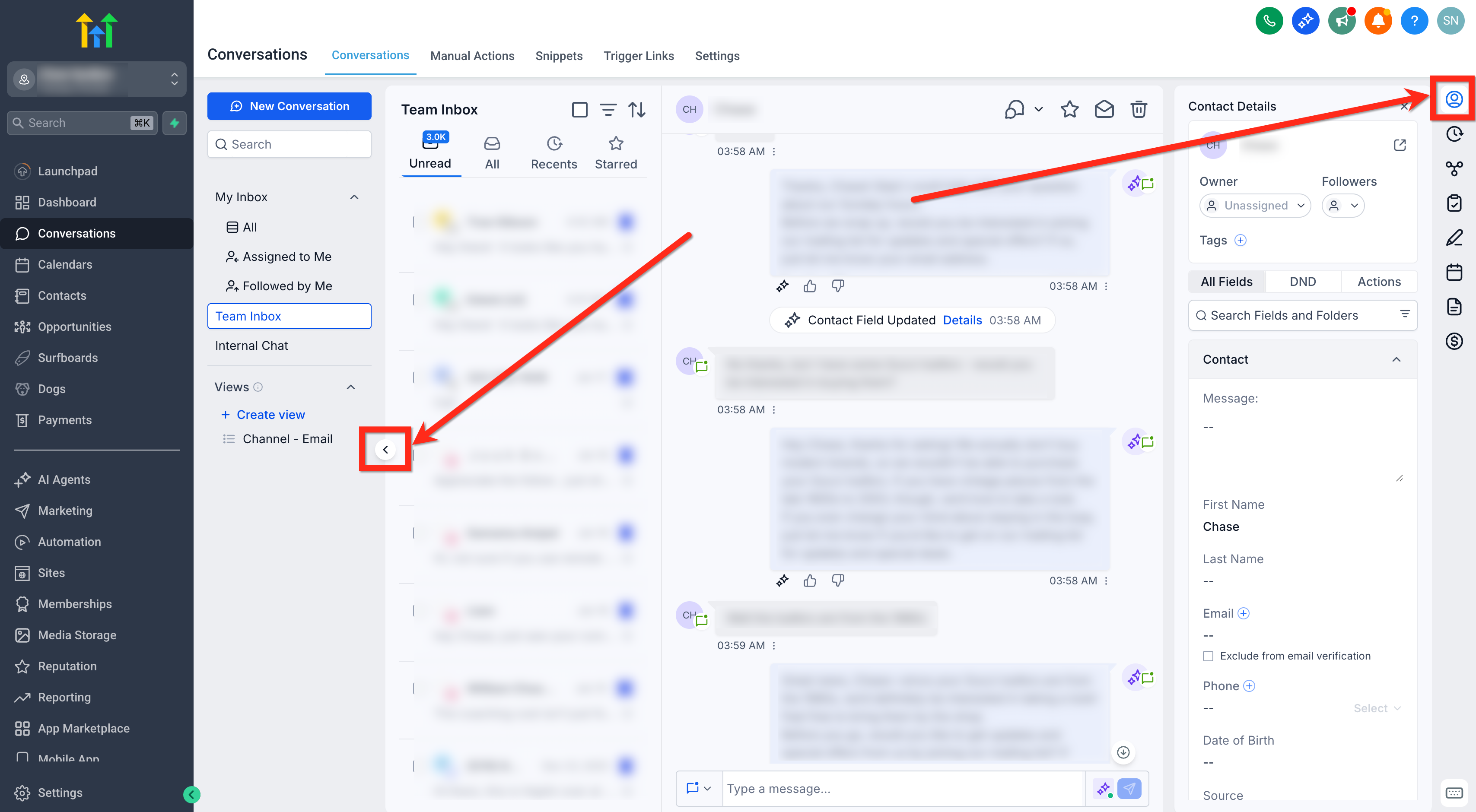
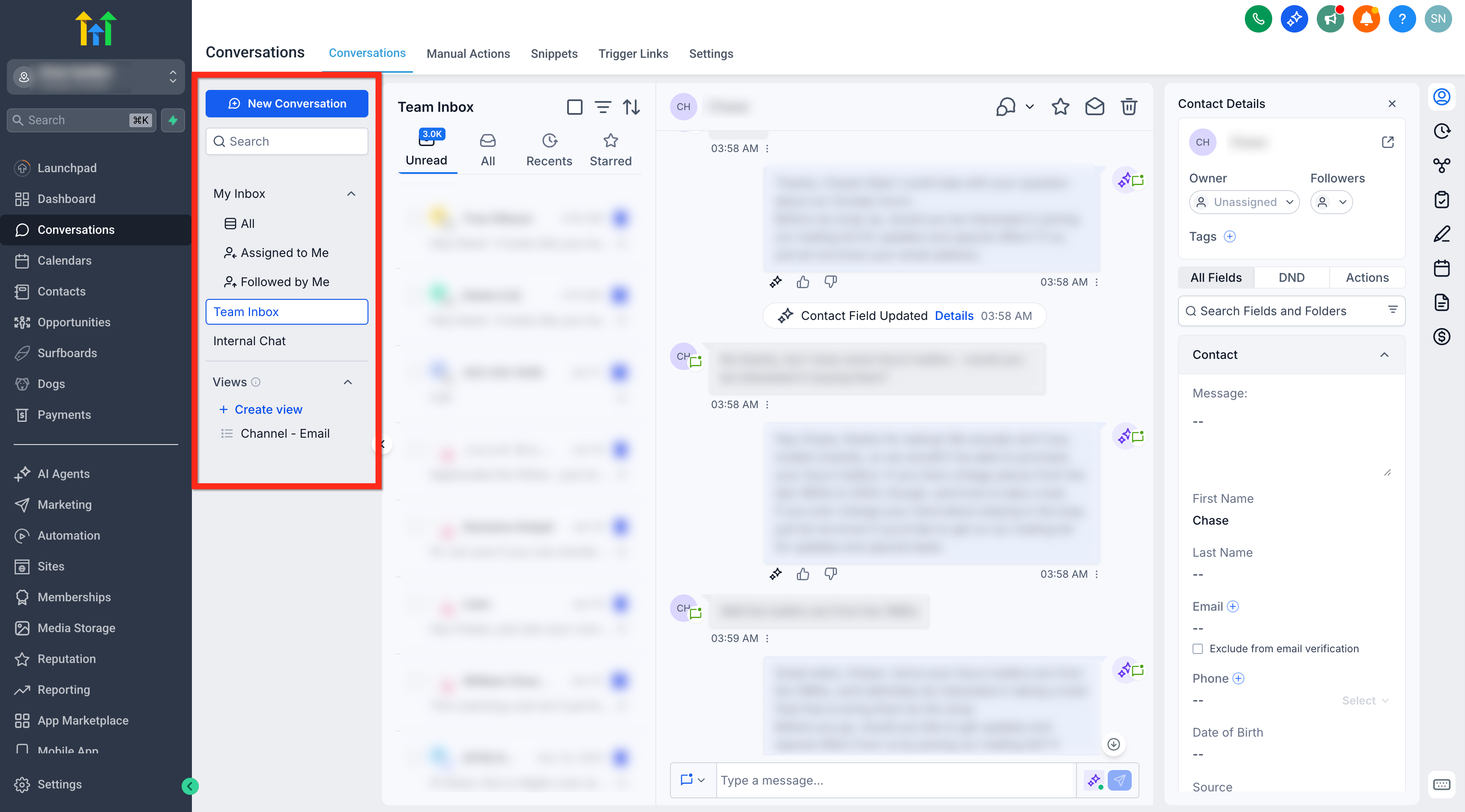
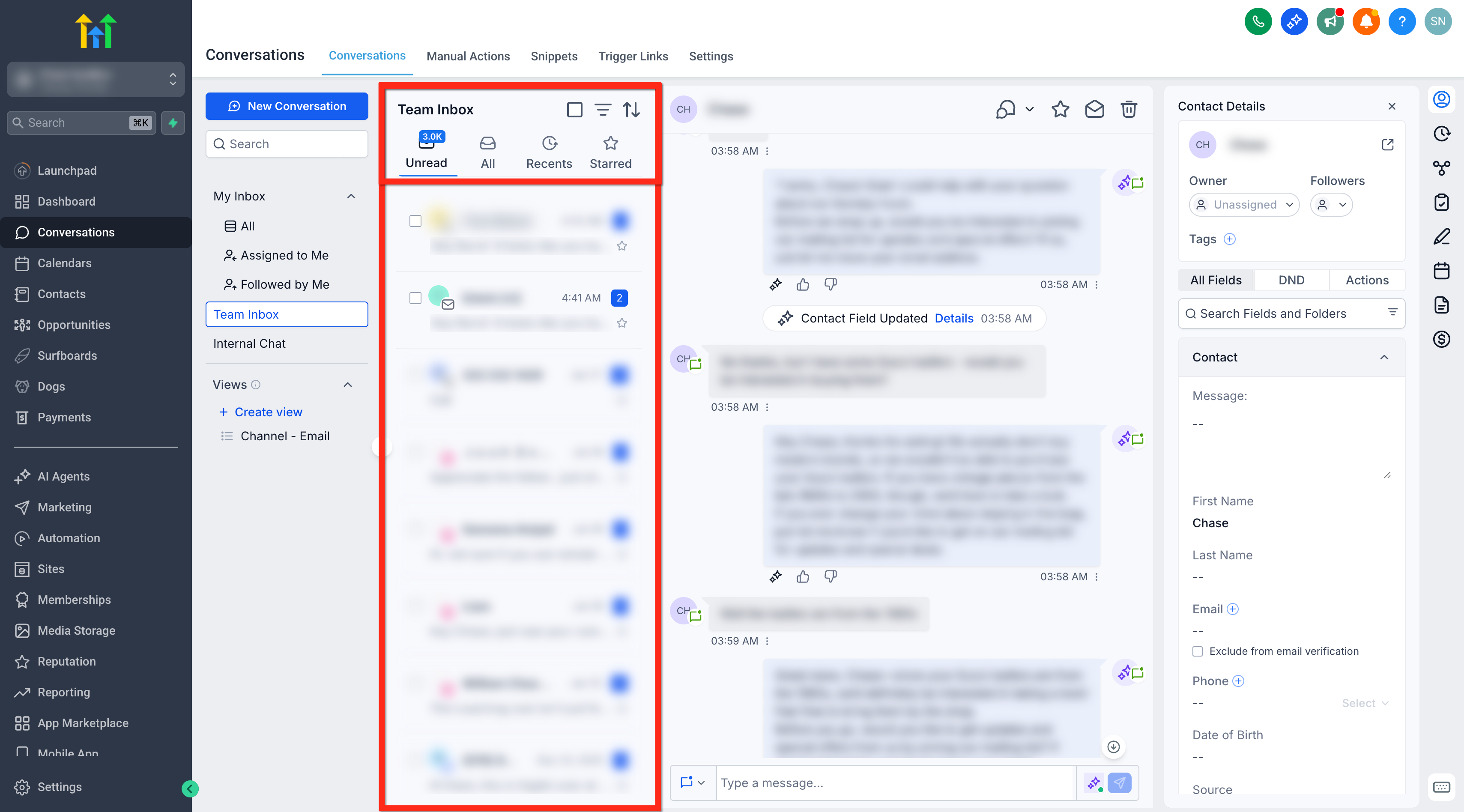
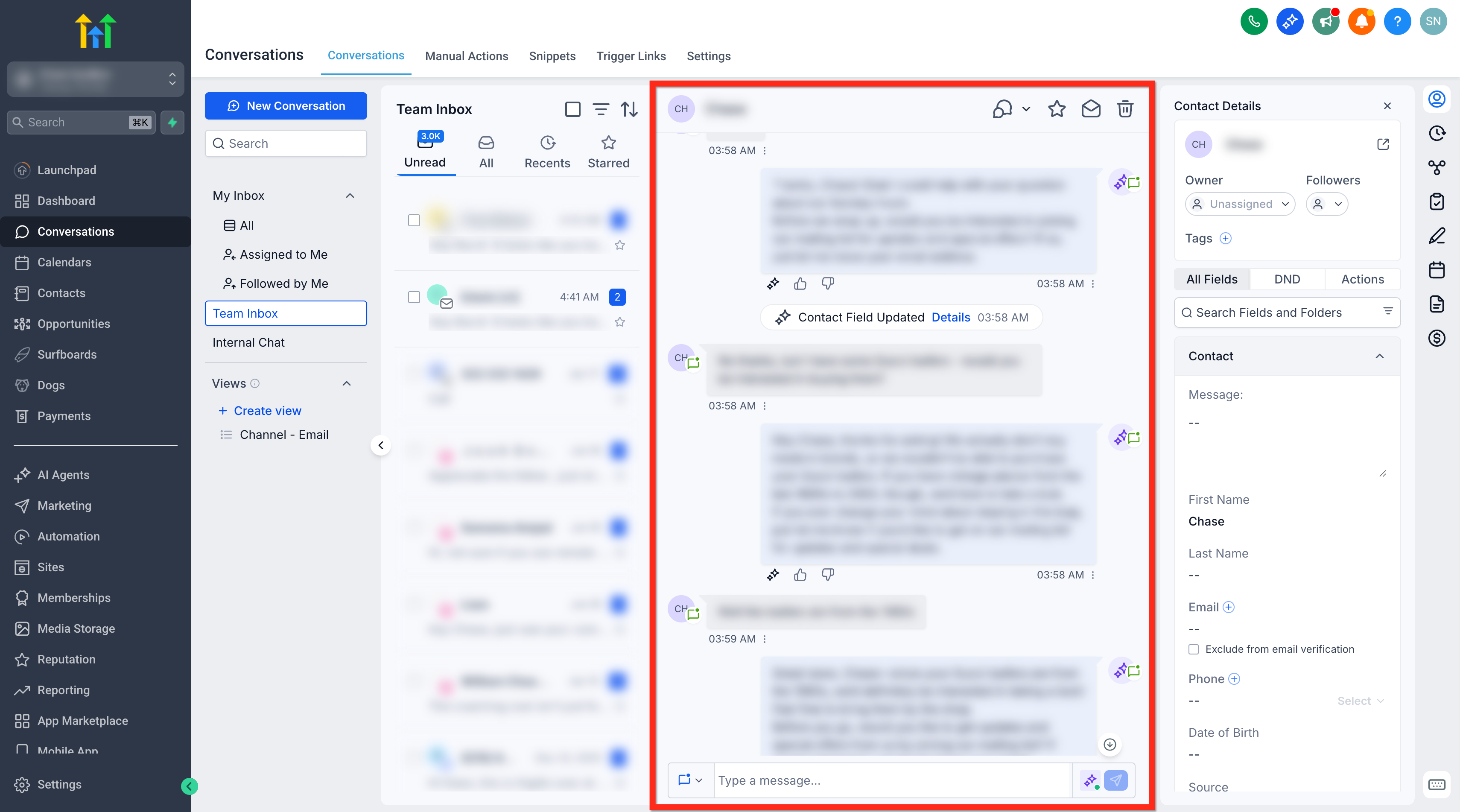
The Conversations module presents four panels, Inbox, Chat List, Message History, and a Right Panel, that can be collapsed or expanded. Each panel’s width can be changed by dragging the divider, and the layout is stored automatically for the next login.
When a message is selected, a details pane shows the originating integration, such as a Marketplace app, helping users understand how the message was sent. Archiving moves a thread out of the Recents view while keeping it fully accessible in the All view and continues to generate notifications for new replies.
All these actions live inside the Conversations section, reachable from any subaccount by choosing the Conversations menu item.
03How businesses use the conversations tab
- Customer support center. Agents resize the panels to give the Message History more space while they respond to tickets. They open a message’s details to see which integration sent an automated reply, then archive closed tickets to keep the inbox focused.
- Digital marketing agency. The team applies tag filters with AND/OR operators to create a view of high priority leads. They view source data on messages that came from a specific ad campaign app, and archive quiet conversations after the campaign ends.
- Real estate brokerage. Realtors adjust panel widths so the Right Panel shows property documents while they chat with prospects. They check the source of an incoming SMS that was triggered by a workflow, then archive completed deal threads.
04The numbers and rules that matter
- Performance improvements: Actions respond ~70% faster.
- Page navigation is ~35% faster.
- Memory usage reduced from ~1.7 GB to ~0.45 GB.
- Memory stays under ~450 MB after switching between ~50 contacts.
- Date format includes month name (e.g., Jan 5).
- New divider shows only for messages received after April 23, 2026.
05How to set up and use the conversations tab in HighLevel
Resize conversation panels
- Open the Subaccount view and select Conversations.
- Find the resize cursor on the line that separates the panels you want to change.
- Press the mouse button and move the cursor left or right to change the width; the panel will stop moving at its minimum or maximum limits.
- Release the mouse when the panels reach the desired size.
View message source in message details
- Open Conversations.
- Choose the conversation that contains the message you want to inspect.
- Open the message details for that specific message.
- Read the source information, such as the Marketplace app name, shown in the details panel.
Archive a conversation
- Open Conversations.
- Locate the conversation you wish to archive.
- Click the Archive button for that conversation.
- Confirm that the thread disappears from the Recents tab and remains visible under the All tab.
06What it looks like in HighLevel
07Settings that matter
- Tags Filter. Allows you to narrow the conversation list by one or more tags.
- AND / OR Operators. Enables combining multiple filter conditions so a conversation must meet all (AND) or any (OR) of them.
- Keyboard Shortcuts. Provides quick key combinations for actions such as sending a message or toggling full screen compose mode.
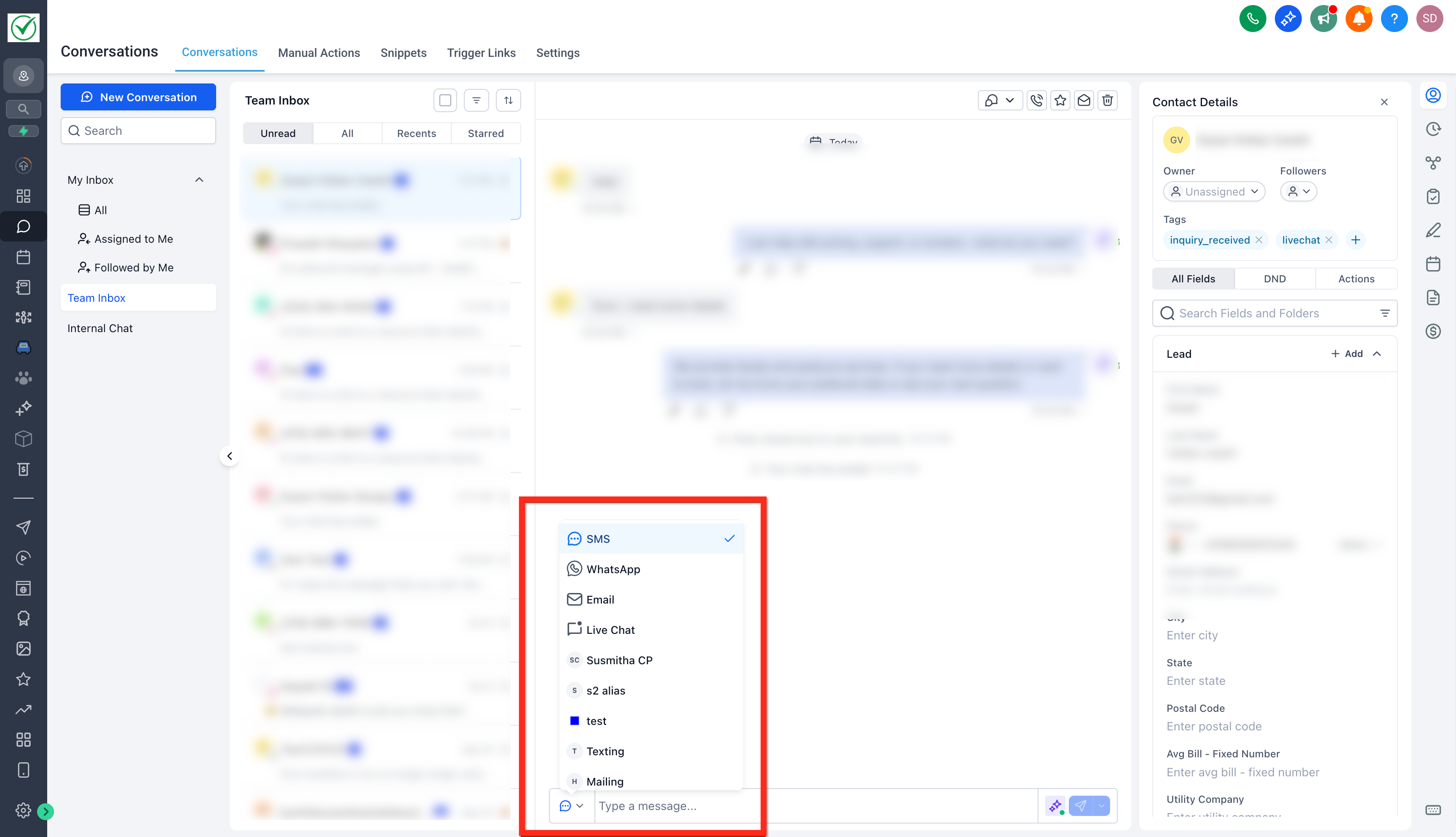
- Email Composer Enhancements. Adds a full screen drafting mode and inline reply layout for email messages.
08Things to know before you rely on it
- Each panel can only be dragged within predefined minimum and maximum widths to keep text readable.
- The New divider that marks unread messages only appears for messages received after April 23, 2026.
- Panel layout is saved per user; reopening Conversations restores the last size settings.
09How it connects to the rest of HighLevel
- Learn how to filter conversations by tags and operators Conversation filters
- Set up a chat widget to capture website leads Chat widget
- Understand contact engagement scoring for better prioritization Engagement scoring
Michael's take

When messages pile up, finding the next reply can feel like searching for a needle in a haystack. The Conversations tab solves that by showing the first unread message right away and marking it with a clear New divider.
The first setting I would get right is the tag filter with AND/OR logic. It lets you carve out exactly the conversations you need to see, whether you’re chasing high priority tickets or isolating a specific channel.