
01Who this is for
- Customer support agents can quickly retrieve past complaints or order details without scrolling through entire histories.
- Sales representatives can find quoted prices or promised dates to confirm information during a call.
- Agency managers overseeing multiple client subaccounts can locate relevant messages within the conversations they are permitted to see.
02Keyword search, explained
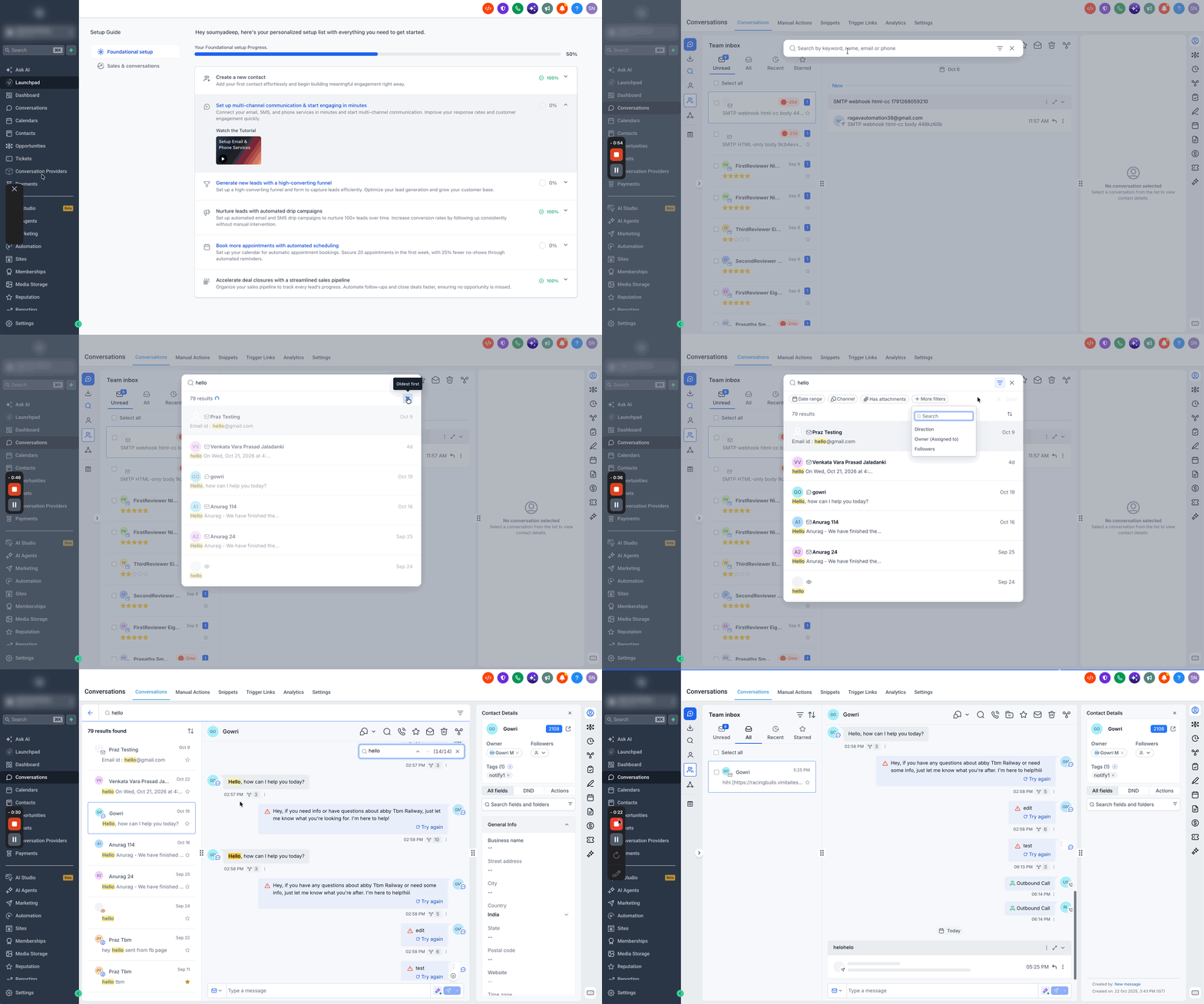
The feature adds a search box to the Conversations list and to the header of an open chat thread. When you type a term, HighLevel scans every message you have access to and shows previews where the term appears. Matching words are highlighted in yellow, and a counter shows how many matches exist.
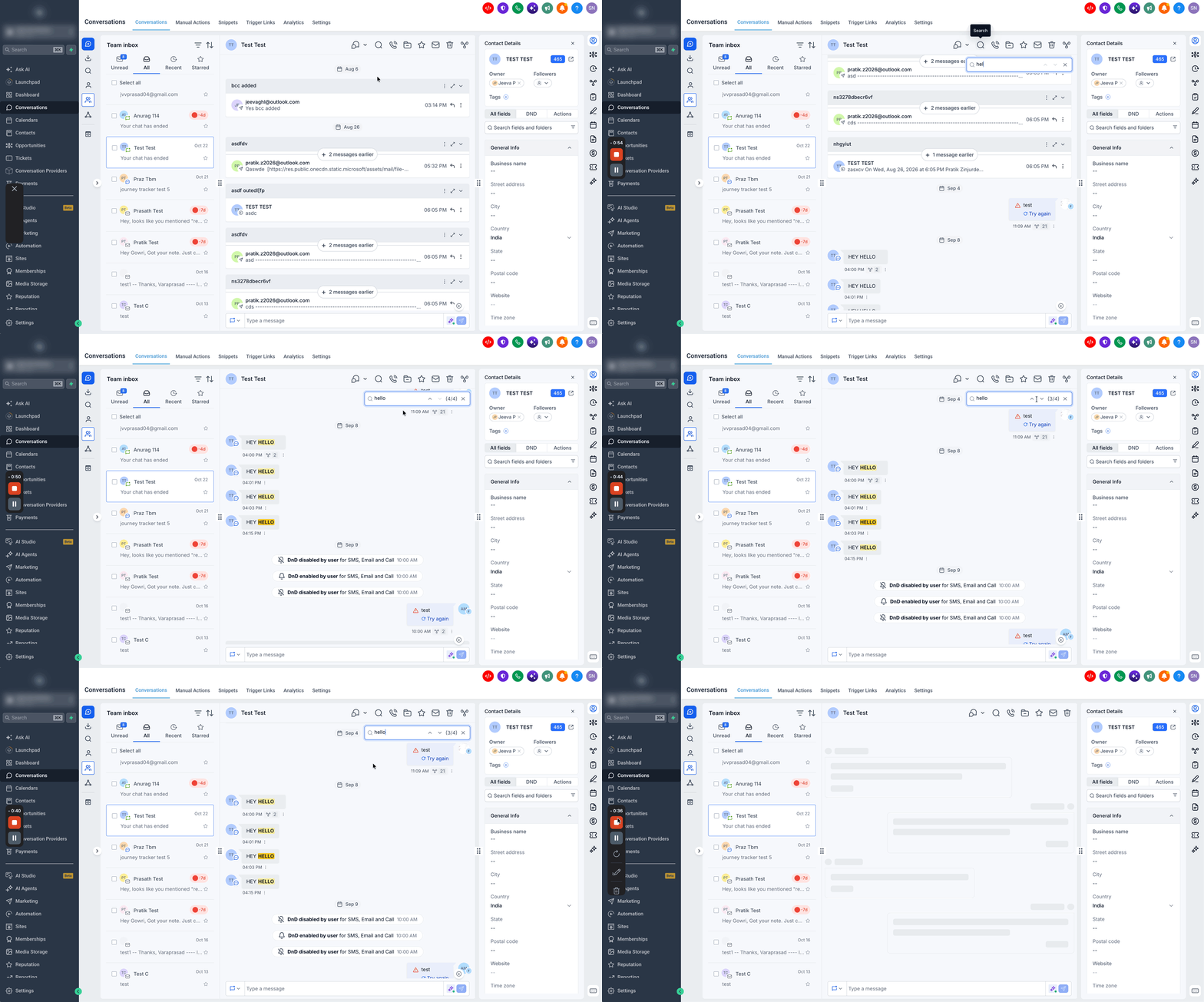
Results can be sorted by newest or oldest, and you can open a conversation directly from the preview. Inside a single thread, you can jump between matches using up and down arrows, and older messages load automatically as you navigate.
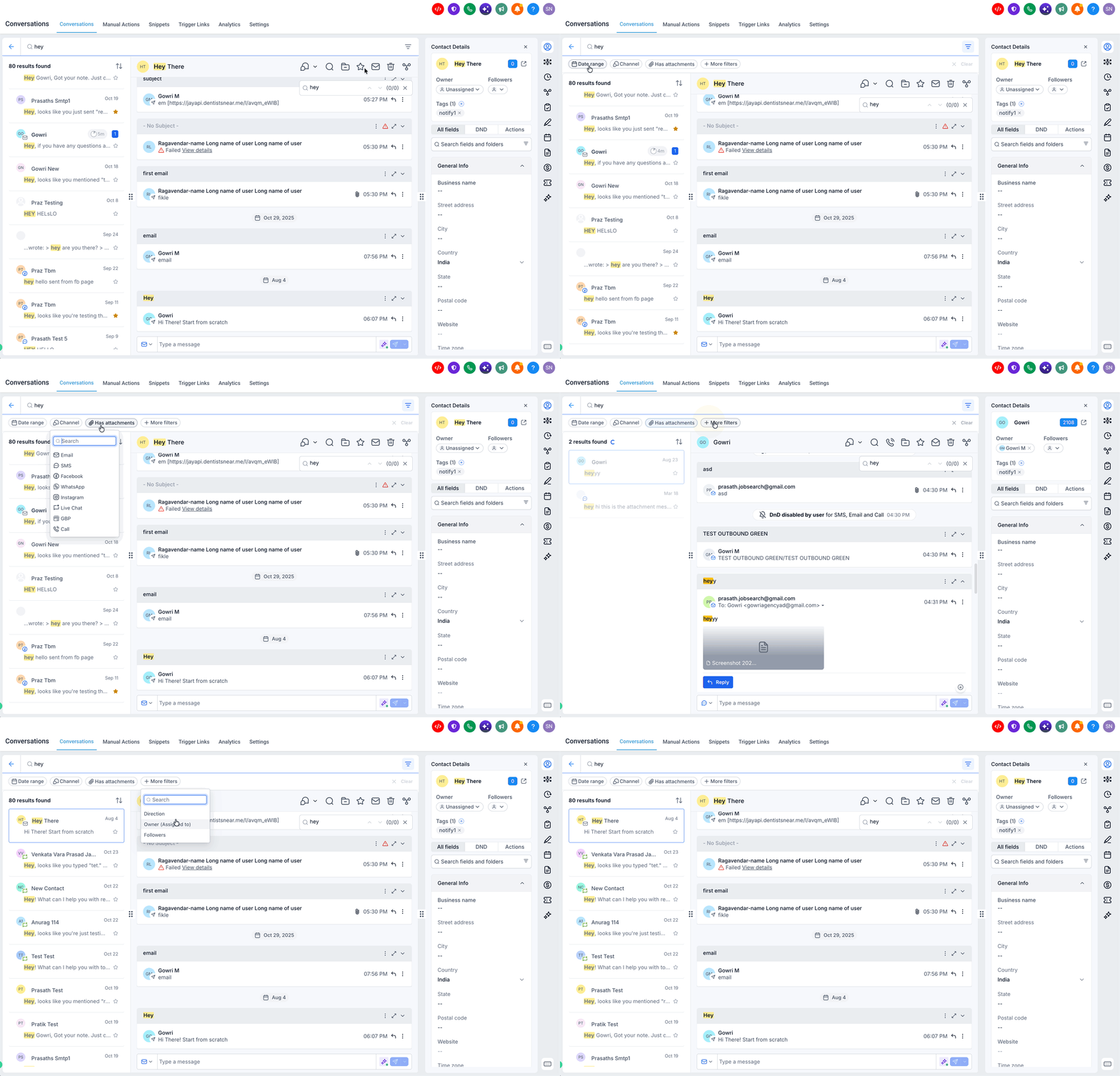
Filters appear after a search and let you restrict results by date range, channel, attachment presence, inbound outbound direction, conversation owner, or followers. All filters update the result count in real time.
03How businesses use keyword search
- Ecommerce store. A store manager types a product SKU into the global search to see every conversation where that SKU was mentioned. The manager opens each result to verify order status and uses the date filter to focus on the last 30 days.
- Real estate agency. An agent knows a client discussed a property address but not the exact conversation. By entering the address, the agent pulls all matching threads, then filters by the agent owner to see only their own client chats.
- Medical clinic. A clinic receptionist needs to find a previously sent appointment reminder. She searches the word "reminder" inside a patient’s conversation, jumps to the highlighted message, and copies the date for verification.
04The numbers and rules that matter
- Minimum characters: 3.
05Before you start
- User must be logged into a subaccount where Conversations are enabled.
- User must have permission to view the conversations they intend to search.
06How to set up and use keyword search in HighLevel
Search across all conversations
- Select Conversations from the left navigation menu.
- Click the Search icon positioned above the conversation list.
- Enter a keyword or phrase; results appear while you type.
- Review each preview, which shows the contact name, channel, date, and highlighted keyword.
- Click a result or press Enter to open the full list; the conversation opens with the keyword already in the in conversation search box.
- Adjust the order with the Sort icon if needed, then click the Back arrow to return to the inbox.
Search within a conversation
- Open the desired contact’s conversation from the Conversations view.
- Click the Search icon located in the conversation header.
- Type the word or phrase you are looking for; matches highlight in yellow and a counter shows your position.
- Use the Up and Down arrows beside the counter to navigate between each matching message.
- Click the X button to close the search box; the thread stays at the current location.
Narrow search results with filters
- After a keyword search, click the Filter icon at the top right of the results list.
- Select one or more filters; filter chips appear above the results and the total count updates.
- Examine the filtered conversations and choose the appropriate result.
- Click Clear at the end of the filter row to remove all applied filters.
07What it looks like in HighLevel
08Settings that matter
- Date Range. Limits results to messages sent or received within the chosen period, such as Today, Last 7 Days, Last 30 Days, or a custom range.
- Channel. Shows only conversations that contain messages from selected channels like Email, SMS, Facebook, WhatsApp, Instagram, Live Chat, GBP, or Call.
- Has Attachments. Filters to conversations where the matching message includes at least one attachment.
- Direction. Restricts results to inbound or outbound messages.
- Owner. Shows only conversations assigned to the selected owner.
- Followers. Filters conversations based on which users are following them.
09Things to know before you rely on it
- Search starts only after entering at least three characters.
- Search does not differentiate between uppercase and lowercase letters.
- Partial word matches are supported, so typing "invoic" finds "invoice" and "invoicing".
- Enclose a phrase in double quotes to require an exact match.
- Numbers are searchable like any other word.
- Archived conversations appear in results; deleted conversations do not.
- Search is confined to the current subaccount; other subaccounts are not included.
- Results respect the user's existing access permissions; restricted users see only allowed conversations.
10If something goes wrong
- Nothing appears after typing a search term. Make sure you have entered at least three characters; the interface will indicate how many more are needed.
- A conversation you expect is missing. Check for active filters, confirm the conversation has not been deleted, and verify you have permission to view it.
- In conversation search skips some messages. Remove any message type filter applied to the thread, such as limiting the view to only WhatsApp messages.
11How it connects to the rest of HighLevel
- Learn how to add the chat widget to your website for live conversations. Chat widget setup
- Explore additional ways to filter conversations beyond keyword search. Conversation filters overview
- Review HighLevel pricing and plan options if you need to upgrade for more users. Pricing
Michael's take

Keyword search is a must have for anyone who needs to dig into past chats quickly.
Teams that only use a single contact or never need to reference old messages can skip it.